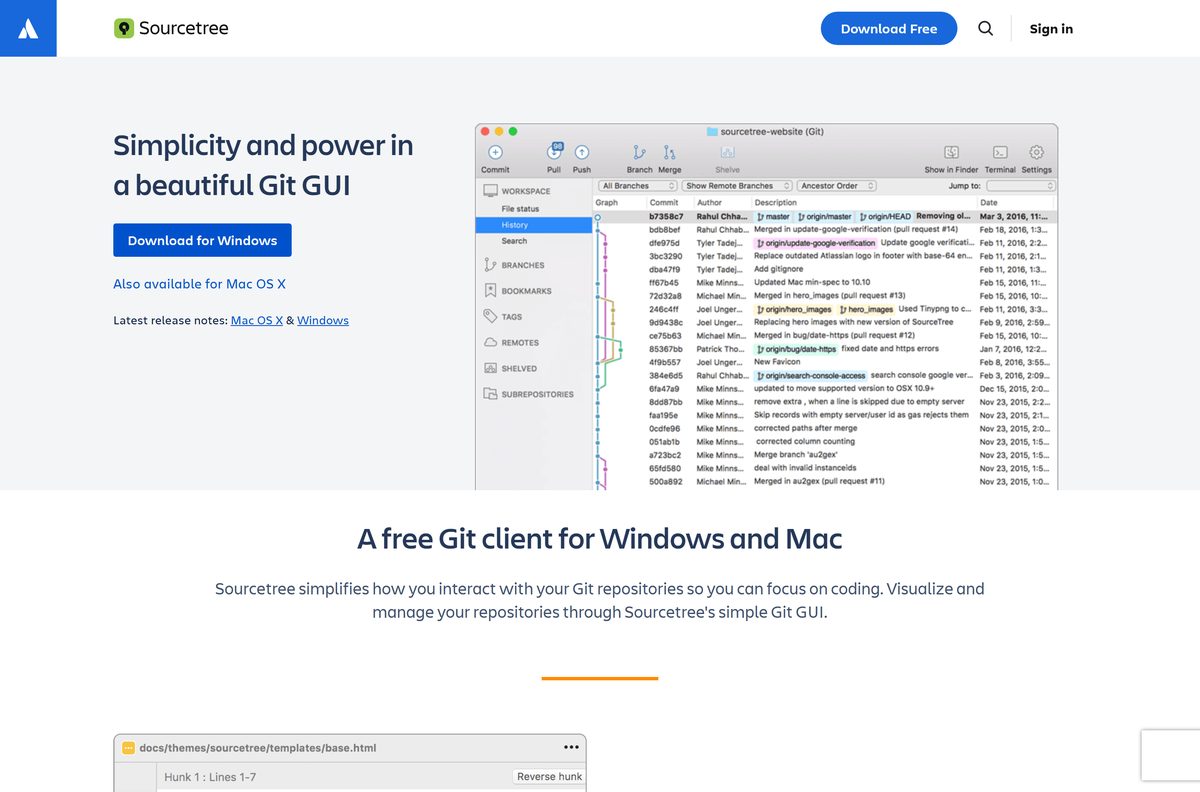
The Sourcetree download is free from atlassian.com, with a Windows installer for Windows 11 and 10 PCs and a separate build for Mac. Click Also available for Windows or Download for Mac OS X, run the file, and sign in with a free Atlassian account to start working with your Git repositories.
Sourcetree is Atlassian’s graphical Git client. It shows branches, commits and diffs visually, and connects to Bitbucket and GitHub.
This guide covers which file fits your computer, the official links, setup on Windows and Mac, winget and MSI deployment, updates, fixes for common errors and clean removal.
Which Sourcetree download do you need?
Atlassian publishes three files for the current release. Match your situation to a row and click the file name.
| Your situation | Download | Size |
|---|---|---|
| Windows 11 or 10 PC, your own account | SourceTreeSetup-3.4.31.exe | 24.2 MB |
| Windows PCs managed by IT (Intune, SCCM, Group Policy) | SourcetreeEnterpriseSetup_3.4.31.msi | 22.2 MB |
| Any Mac | Sourcetree_4.2.18_313.zip | 64.4 MB |
The Windows and Mac apps use different version numbers. Windows is on the 3.4 line and Mac is on the 4.2 line, and both are current.
Atlassian offers no Linux version of Sourcetree.
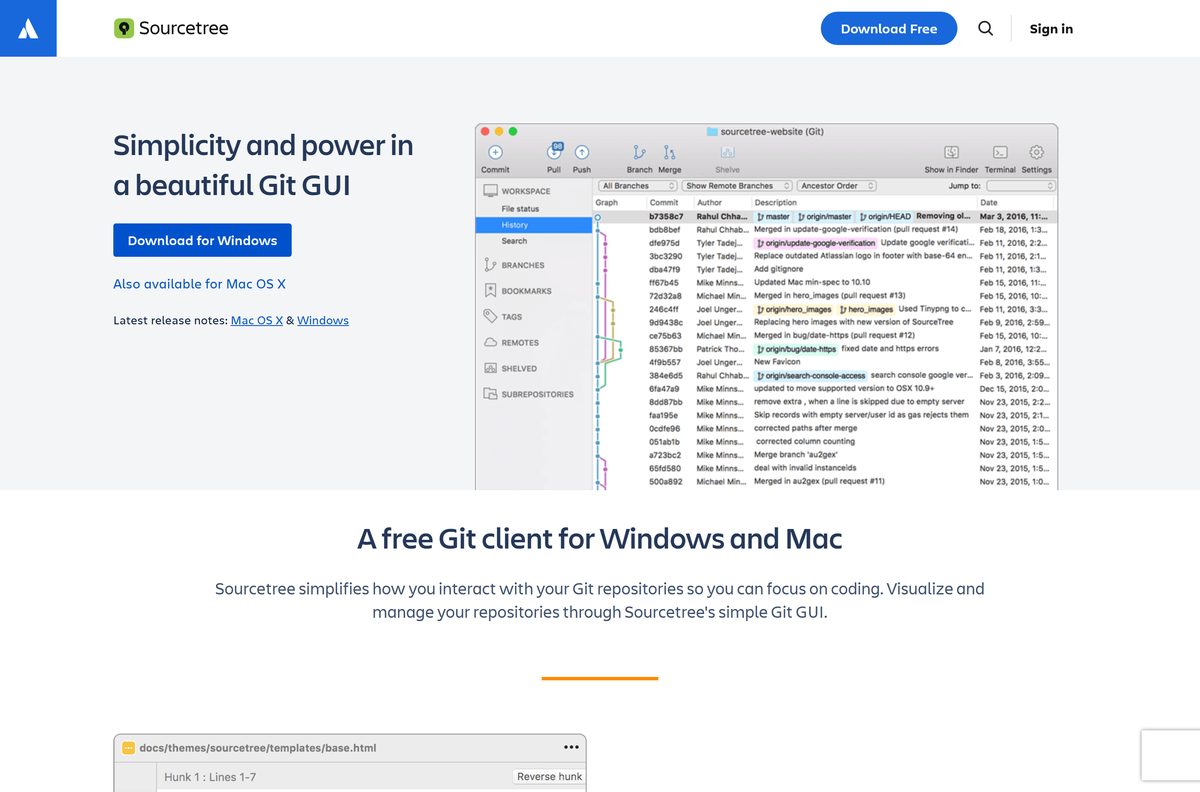
Download Sourcetree from the official Atlassian page
Atlassian hosts Sourcetree on its own product page. The files come from product-downloads.atlassian.com, with no sign-in needed before the download starts.
- Sourcetree product page on atlassian.com — Download for Mac OS X and Also available for Windows buttons
- Sourcetree for Windows installer — 24.2 MB · Standard per-user setup
- Sourcetree for Mac — 64.4 MB · Zip archive containing the app
- Windows release notes — Changes in the current Windows release
- Mac release notes — Changes in the current Mac release
- Get started with Sourcetree — Atlassian’s setup and first-repository guide
Skip download portals that repackage Sourcetree. Atlassian ships it only as its own exe, msi and zip files.
How to install Sourcetree on Windows 11 and 10
The standard installer puts Sourcetree in %localappdata%\SourceTree for your user account only. That is why it needs no administrator rights.
- Open the Sourcetree page and click Also available for Windows to download the installer.
- Double-click SourceTreeSetup-3.4.31.exe in your Downloads folder.
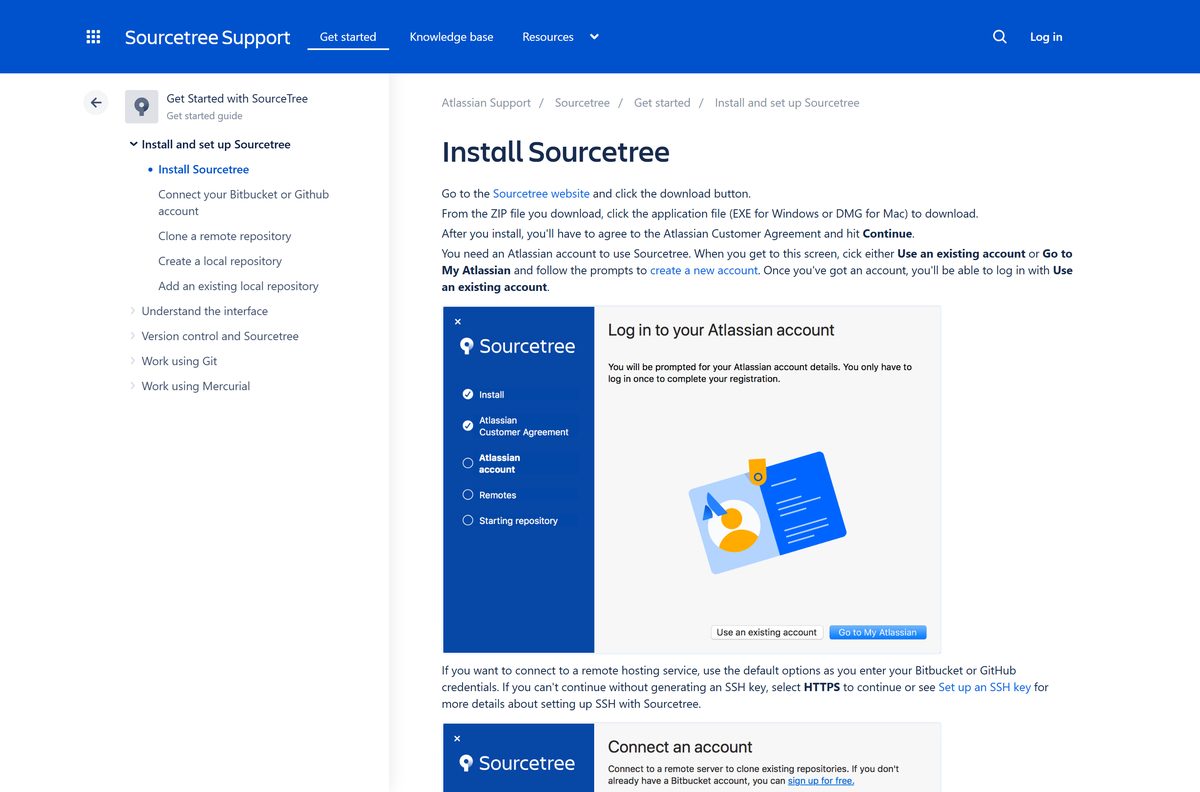
- Tick the box to agree to the Atlassian Customer Agreement, then click Continue.
- On the registration screen, choose Use an existing account, or click Go to My Atlassian to create a free account, and sign in.
- To connect Bitbucket or GitHub, keep the default options and enter your account details. If SSH is not set up yet, select HTTPS.
- When asked about Git, let Sourcetree use its embedded Git, or point it at a Git you already installed.
- Follow the remaining prompts. Click Skip Setup if you are not ready to clone a repository yet.
- Launch Sourcetree from the Start menu and clone or add your first repository.
An Atlassian account is required to use Sourcetree. The account itself costs nothing.
Install Sourcetree with winget
Sourcetree is in the Windows Package Manager repository as Atlassian.Sourcetree. The package uses the same per-user installer from atlassian.com.
- Right-click Start and open Terminal.
- Run winget search Atlassian.Sourcetree to confirm the package and its version.
- Run winget install –id Atlassian.Sourcetree -e to install it.
- Accept the source agreement if winget asks, and wait for the install to finish.
- Open Sourcetree from the Start menu and sign in with your Atlassian account.
- Later, run winget upgrade –id Atlassian.Sourcetree -e to update it.
How to deploy Sourcetree with the Enterprise MSI
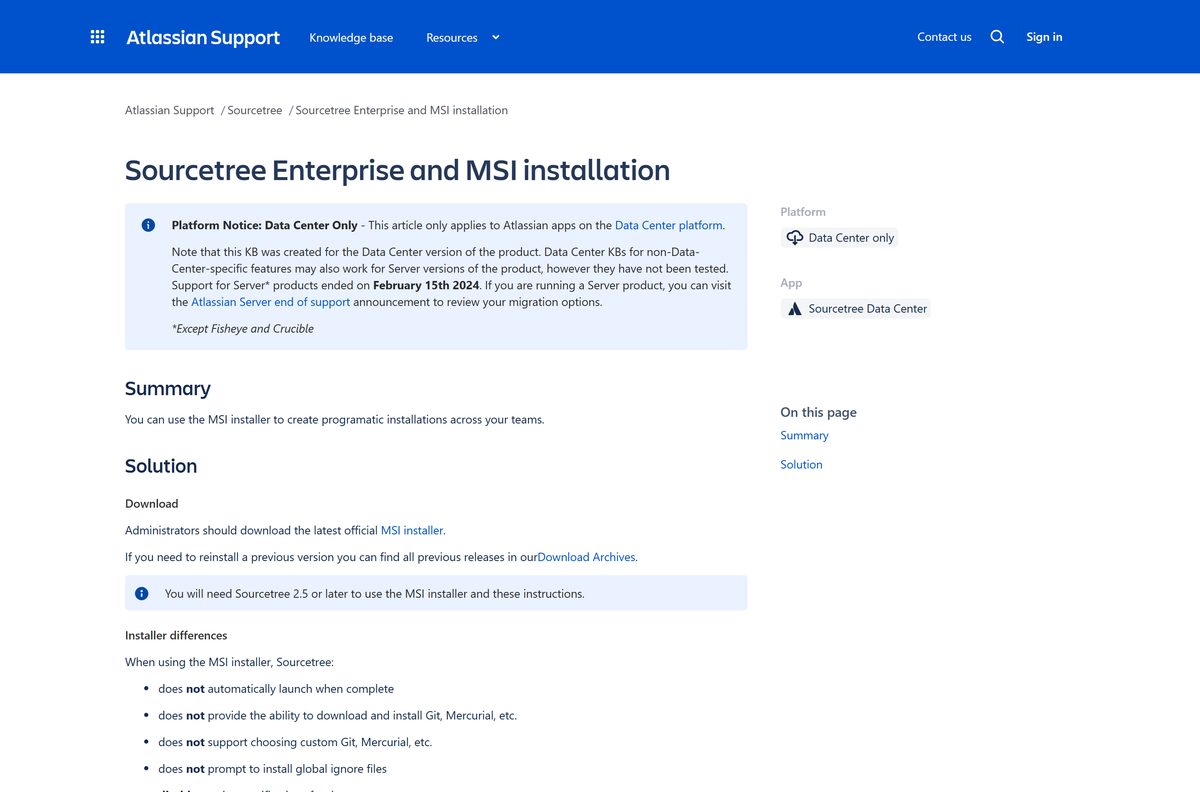
The Sourcetree Enterprise MSI is built for programmatic installs across a team. It installs per machine and does not launch when it finishes.
The MSI also skips Git and Mercurial downloads, skips global ignore prompts, and turns off update notifications. Install Git on the machines first, and push new MSI versions yourself. Test on one PC before a full rollout.
| Command or file | What it does |
|---|---|
| SourcetreeEnterpriseSetup_3.4.31.msi (22.2 MB) | The Enterprise MSI from atlassian.com |
| msiexec /i SourcetreeEnterpriseSetup_3.4.31.msi ACCEPTEULA=1 | Installs with the licence accepted, which the MSI requires |
| msiexec /i SourcetreeEnterpriseSetup_3.4.31.msi ACCEPTEULA=1 /qn | Silent install for deployment tools |
| msiexec /i SourcetreeEnterpriseSetup_3.4.31.msi ACCEPTEULA=1 INSTALLDIR=”D:\Apps\Sourcetree” /qn | Silent install to a custom folder |
Run these from an elevated Command Prompt. Each user still registers at first launch, with an Atlassian account or your company’s Bitbucket Data Center.
How to install Sourcetree on a Mac
Atlassian offers one Mac download, a zip archive that holds the app. There is no separate file for Apple silicon and Intel Macs.
| Your Mac | Download | Size |
|---|---|---|
| Any Mac on a current macOS release | Sourcetree_4.2.18_313.zip | 64.4 MB |
To install, double-click the zip in Downloads so macOS extracts Sourcetree.app. Drag the app into Applications, open it, and click Open if macOS asks to confirm an app downloaded from the internet.
Agree to the Atlassian Customer Agreement, click Continue, and sign in with your Atlassian account. Mac OS X 10.6 Snow Leopard and older cannot run Sourcetree at all.
Is Sourcetree free?
Atlassian describes Sourcetree as a free Git client for Windows and Mac, and the download page is headed Download Sourcetree for free. There is no paid edition, trial or licence key to buy.
The one requirement is a free Atlassian account, which you sign in with during setup.
Yes. Download Sourcetree free from atlassian.com and sign in with a free Atlassian account. Atlassian charges nothing for Sourcetree. A site that sells a Sourcetree licence, a serial or a ‘pro’ version is not selling Atlassian’s software.
How to check your Sourcetree version and update it
The standard Windows app and the Mac app update from inside Sourcetree. The Enterprise MSI has update notifications turned off.
- Open Sourcetree and click the Help menu.
- Choose the option to check for updates.
- Install the update when Sourcetree offers one, then restart the app.
- Compare your version with the release notes linked on the Sourcetree page.
- On Enterprise MSI machines, deploy the newer MSI from atlassian.com instead.
- On a winget install, run winget upgrade –id Atlassian.Sourcetree -e .
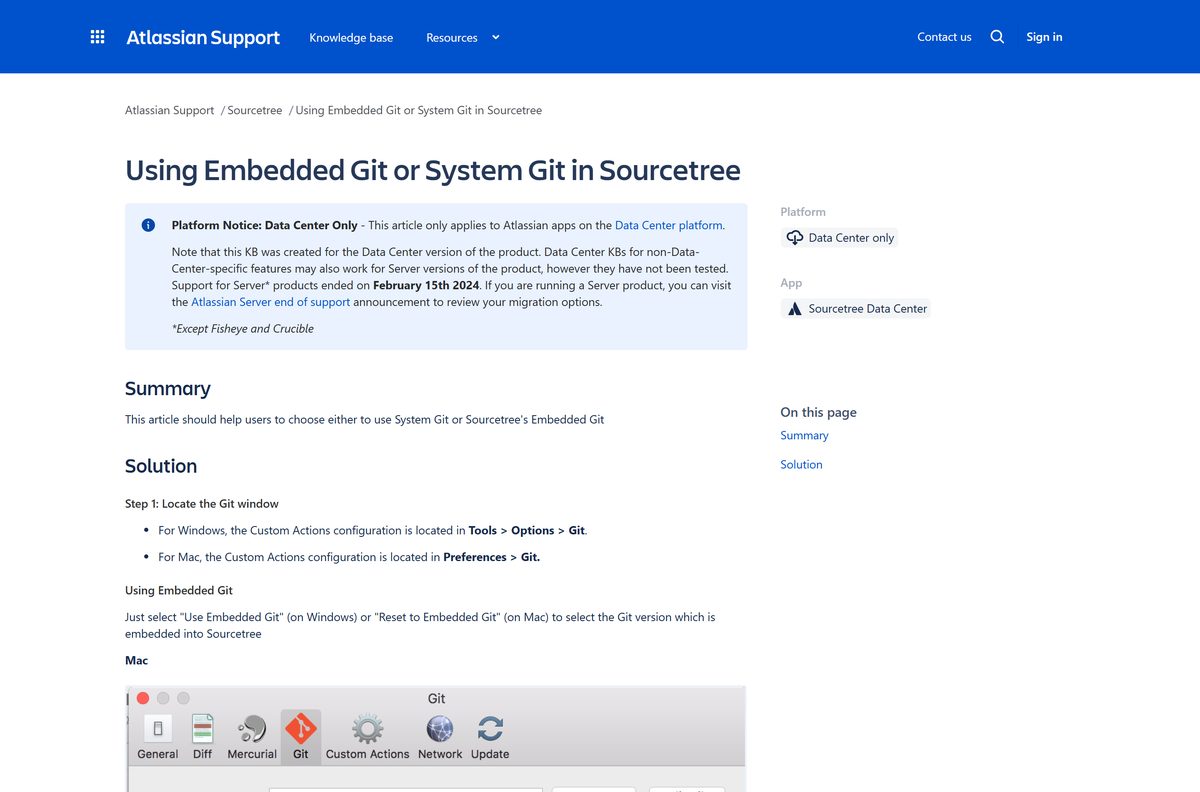
How to switch Sourcetree between embedded Git and system Git
Sourcetree bundles its own copy of Git, called embedded Git. You can switch to the Git installed on your system instead, which keeps Sourcetree and the command line on one version.
| Platform | Where to change it | Options |
|---|---|---|
| Windows | Tools > Options > Git | Use Embedded Git, Update Embedded Git, or choose system Git |
| Mac | Preferences > Git | Use System Git or Reset to Embedded Git |
On Windows, embedded Git lives in C:\Users\
Check the Sourcetree system requirements
Atlassian does not publish a detailed requirements list for Sourcetree. The table sums up what the official download page and support articles do state.
| Field | Value |
|---|---|
| Software | Sourcetree |
| Developer | Atlassian |
| Latest version | 3.4.31 (Windows); 4.2.18 (Mac) |
| Licence | Free, with a free Atlassian account |
| Windows | One installer for Windows 11 and Windows 10 |
| macOS | One zip for Mac; needs a release newer than Mac OS X 10.6 |
| Linux | Not available |
| Architecture | Windows exe listed for x86 and x64 in winget; Enterprise MSI x64 |
| Download size | 24.2 MB (Windows exe); 22.2 MB (MSI); 64.4 MB (Mac zip) |
| Admin rights | Not needed for the standard Windows installer |
| Official source | atlassian.com/software/sourcetree |
| Last verified | 2026-09-19 |
Fix Sourcetree not installing or not starting
Most Sourcetree failures trace back to a corrupted settings file or damaged Windows installer data. Find the symptom that matches yours.
“SourceTree has stopped working” when you open it on Windows
The user.config settings file is corrupted and full of NULL values.
- Close Sourcetree.
- Open File Explorer and go to C:\Users\
\AppData\Local\Atlassian\ . - Open the SourceTree.exe_
folder, then the folder named after your version number. - Delete user.config.
- Start Sourcetree again. It rebuilds the file on launch.
The installation, update or removal fails on Windows
Registry keys that control installs or update data are damaged.
- Run Microsoft’s program install and uninstall troubleshooting tool from microsoft.com to repair the damaged registry keys.
- Restart the PC.
- Run SourceTreeSetup-3.4.31.exe again from atlassian.com.
Sourcetree cannot find Git or shows old Git behaviour
Sourcetree is pointed at a Git version you did not expect.
- Open Tools > Options > Git on Windows or Preferences > Git on Mac.
- Choose Use Embedded Git, or select your system Git.
- On Windows, click Update Embedded Git to refresh the bundled copy.
“You cannot use this version of the application SourceTree with this version of Mac OS X”
The Mac runs Mac OS X 10.6 Snow Leopard or older.
- Update macOS to a newer release.
- Download the Mac zip again from atlassian.com and reinstall.
How to uninstall Sourcetree on Windows and Mac
Removing the app keeps your repositories. They stay in their own folders on disk.
- On Windows 11, open Settings > Apps > Installed apps.
- Find Sourcetree, click the three dots and choose Uninstall.
- For an Enterprise MSI install, remove Sourcetree Enterprise from the same list.
- To clear settings too, delete %localappdata%\Atlassian\SourceTree in File Explorer.
- On a Mac, quit Sourcetree and drag Sourcetree from Applications to the Trash.
- Empty the Trash to finish.
Which Sourcetree alternative should you use?
Sourcetree suits people who want a full visual Git client. Two other official routes cover different habits.
| Option | Best for | Price |
|---|---|---|
| Sourcetree | Visual history, branches and Bitbucket or GitHub accounts | Free |
| Visual Studio Code Source Control | Committing and branching inside your code editor | Free |
| Git on the command line | Scripts, servers and full control of every Git command | Free |
Stay with Sourcetree if you work with Bitbucket, or want to review changes visually before committing.
Frequently asked questions
Is Sourcetree free?
Yes. Atlassian offers Sourcetree free for Windows and Mac, with no trial and no paid edition. You need a free Atlassian account to sign in the first time you open the app.
Where is the official Sourcetree download page?
The official page is atlassian.com/software/sourcetree. It has the Download for Mac OS X button, the Also available for Windows link, the Enterprise MSI link and the latest release notes, with files served from product-downloads.atlassian.com.
Does Sourcetree work on Windows 11?
Yes. Atlassian ships one Windows installer that works on Windows 11 and Windows 10, with no separate builds per version. It installs per user into the local AppData folder, so it needs no administrator rights.
How big is the Sourcetree download?
The Windows installer is 24.2 MB and the Enterprise MSI is 22.2 MB. The Mac download is a 64.4 MB zip archive that contains the app.
Is there a Sourcetree offline installer?
Yes. The Sourcetree Enterprise MSI for Windows is a full installer designed for IT deployment, and the Mac zip already contains the complete app. Signing in with an Atlassian account at first launch still needs an internet connection.
Is there a Sourcetree download for Mac?
Yes. Atlassian offers Sourcetree for Mac as a zip archive on atlassian.com. Extract it, move Sourcetree to the Applications folder, and sign in. Mac OS X 10.6 Snow Leopard and older are not supported.
Is Sourcetree available for Linux?
No. Atlassian makes Sourcetree for Windows and Mac only. On Linux, use Git from the command line or the Source Control view in Visual Studio Code.
Is there a 64-bit version of Sourcetree?
Atlassian offers one standard Windows installer rather than separate 32-bit and 64-bit files. The winget package lists that installer for both x86 and x64, and the Enterprise MSI is listed as x64.
Is Sourcetree safe to download?
Yes, when it comes from atlassian.com or the Atlassian.Sourcetree winget package. Avoid download portals that repackage the installer, since Atlassian ships Sourcetree only as its own exe, msi and zip files.
What is the latest version of Sourcetree?
The current release on atlassian.com is Sourcetree 3.4.31 for Windows and Sourcetree 4.2.18 for Mac. The two platforms use separate version numbers, and each links its own release notes.
Why won’t Sourcetree install or open?
On Windows, a corrupted user.config file or damaged installer registry keys cause most failures. Delete user.config from the Atlassian folder in local AppData, or repair Windows installer data and run the setup again.