To make Windows Photo Viewer your default image app in Windows 11 or 10, right-click a photo, select Open with > Choose another app, pick Windows Photo Viewer, and choose Always.
That works only when Photo Viewer is still listed on your PC, so this guide also shows how to check, how to set it per file type, how to switch back, and how to use Photos when it is not there.
The fastest way to make Photo Viewer open your pictures
Start with a .jpg file, because JPEG is the most common photo type and the quickest test. The same dialog handles every other image type one extension at a time.
- Open File Explorer and find any .jpg photo.
- Right-click the photo and select Open with > Choose another app.
- Select Windows Photo Viewer in the list of apps.
- In Windows 11, select Always. In Windows 10, tick Always use this app to open .jpg files and select OK.
- Double-click another .jpg photo to confirm it opens in Windows Photo Viewer.
If Windows Photo Viewer is not in the list, your PC does not offer it for that file type. Skip to the check below before trying anything else.
What happened to Windows Photo Viewer?
Windows Photo Viewer was the built-in image viewer in Windows 7 and Windows Vista. Windows 10 and Windows 11 ship the Photos app for that job instead.
| Question | What Microsoft documents |
|---|---|
| Where Photo Viewer came from | Microsoft support articles describe Windows Photo Viewer as a component of Windows 7, Windows Vista and Windows Server 2008/2008 R2. |
| What replaced it | Windows 11 and Windows 10 include the Photos app for viewing, organising and editing pictures. |
| Is there an older Photos option | Yes. Photos Legacy keeps the older Photos experience with the video editor, slideshow creator and album maker. |
| Can you download Photo Viewer from Microsoft | No Microsoft support page for Windows 11 or 10 offers it as a download or Store app. The Microsoft route is Photos or Photos Legacy. |
| How you set any image viewer as default | Settings > Apps > Default apps, or Open with > Choose another app on the file itself. |
Microsoft does not publish a supported way to add Photo Viewer back to a PC that does not already list it. An older techdows post, Fix Windows Photo Viewer missing in Windows 10, covers the unofficial registry workaround from the Windows 10 launch era.
Before you start: what this method does
Every step here only changes which app Windows opens for an image type, so nothing is installed, downloaded or removed. Default apps and Open with only change file associations. The Photos app stays installed, and you can switch any file type back to it at any time from the same page.
You do not need a restore point for these steps. You do need Windows Photo Viewer to appear in the app list; the check below settles that in under a minute.
Restore Windows Photo Viewer with a registry file, or use Settings?
Many guides open with a registry file that re-registers Photo Viewer for image types. That file is not published or supported by Microsoft, so this guide does not give its contents. Match your situation to a supported route instead.
| Your situation | Use this | Why |
|---|---|---|
| Photo Viewer appears under Open with | Open with > Choose another app > Always | One dialog sets the default for that extension |
| You want to set .jpg, .png, .gif and more in one place (Windows 11) | Settings > Apps > Default apps | Search each extension and pick the app |
| You only want Photo Viewer for one photo | Open with > Just once | Your default app stays the same |
| Photo Viewer is not listed anywhere | Photos or Photos Legacy | Microsoft offers no supported way to add it back |
| You already merged a registry file and something broke | System Restore to a point before the change | Restore points revert registry settings without touching personal files |
Method 1: Check whether Windows Photo Viewer is already available
Check before changing anything. If Photo Viewer is registered for a file type, Windows lists it in two places.
- Right-click a .jpg photo in File Explorer and select Open with.
- Look for Windows Photo Viewer in the submenu.
- If it is missing, select Choose another app and scroll through the whole list of apps.
- In Windows 11, also open Settings > Apps > Default apps.
- Under Set defaults for applications, look for Windows Photo Viewer; if it is listed, select it to see every file type it can open.
- Close the dialog or Settings without selecting anything if you only wanted to check.
Listed in either place means you can set it as default. Listed in neither means Photo Viewer is not registered on this PC, and the Photos section below is your route.
Set Windows Photo Viewer as the default in Windows 11
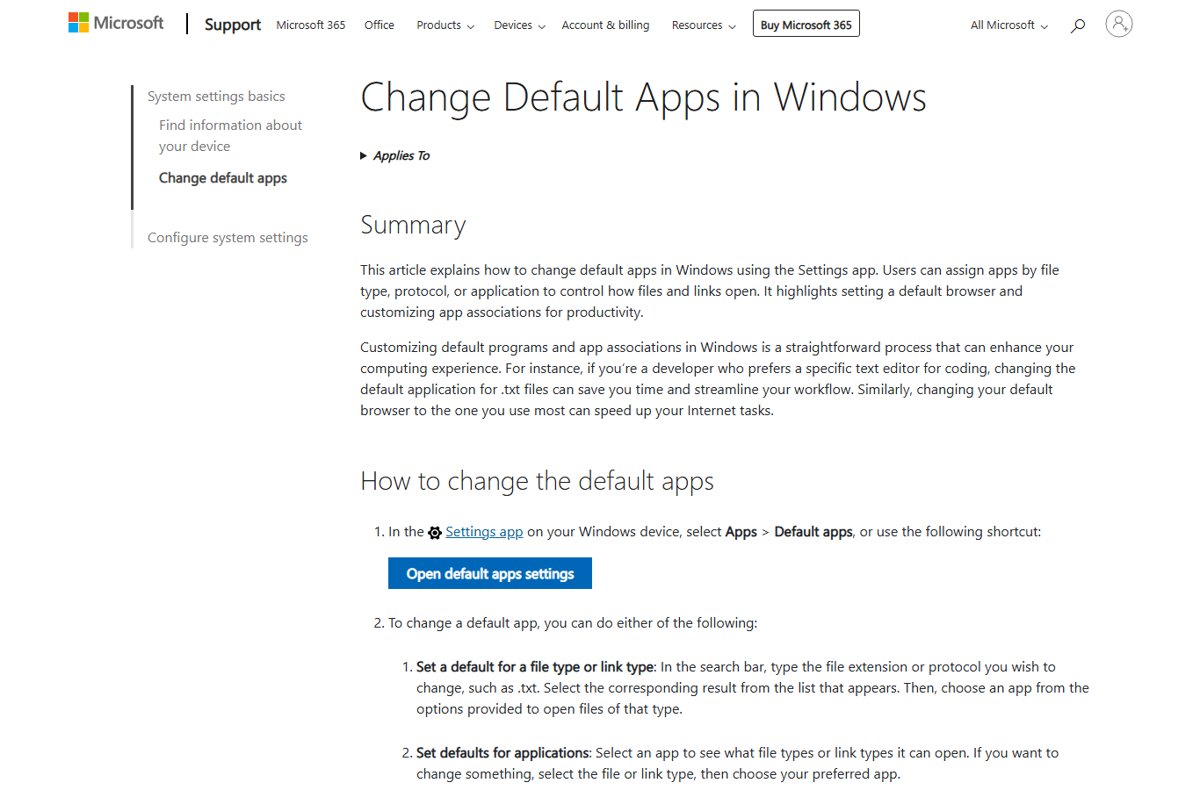
Windows 11 sets defaults per file extension, so repeat the search for each image type you use. Microsoft documents this search on the Default apps page.
- Select Start > Settings > Apps > Default apps.
- In the search box under Set a default for a file type or link type, type
.jpg. - Select the .jpg result, then select the app currently shown for it.
- Choose Windows Photo Viewer from the list and confirm.
- Repeat for
.jpeg,.png,.gif,.bmpand.tifas needed. - Or select Windows Photo Viewer under Set defaults for applications and change each listed file type there.
For a wider walkthrough of this page, see How to set or change Default Programs in Windows 11/10.
Set Windows Photo Viewer as the default in Windows 10
In Windows 10 the most direct route is the file itself. Microsoft documents this exact dialog flow for changing a file association in Windows 10.
- Right-click a .jpg photo in File Explorer.
- Point to Open with, then select Choose another app.
- In the How do you want to open this file? dialog, select Windows Photo Viewer.
- Tick Always use this app to open .jpg files.
- Select OK.
- Repeat with a .png, .gif, .bmp and .tif file for each type you want Photo Viewer to open.
Open a single image with Windows Photo Viewer without changing defaults
Use this when Photos should stay the default but one picture needs Photo Viewer.
- Right-click the image in File Explorer.
- Select Open with.
- Select Windows Photo Viewer if it appears directly in the submenu; the default does not change.
- Otherwise select Choose another app and select Windows Photo Viewer.
- In Windows 11, select Just once. In Windows 10, leave Always use this app unticked and select OK.
Use Photos or Photos Legacy when Photo Viewer is not available
If the check found no Photo Viewer, the built-in alternative is Photos. Photos Legacy is closer to the older experience and can run alongside the new Photos app.
- Type photos in the taskbar search box and select Photos.
- Select Settings in the Photos app.
- Under the Photos Legacy section, select Open Photos Legacy.
- Next time, type photos in the taskbar search box and select Photos Legacy directly.
- To make either app the default, set it for each image type under Settings > Apps > Default apps.
The new Photos app adds a filmstrip, multi-view comparison and folder navigation. Photos Legacy keeps albums, the video editor and people grouping, which the new app does not include.
Which image formats work with Windows Photo Viewer?
Microsoft does not publish a current format list for Photo Viewer on Windows 11 or 10. Your own PC shows the real answer, because Default apps lists every type the app can open.
| Format | How to check on your PC | If Photo Viewer is not offered |
|---|---|---|
| JPEG (.jpg, .jpeg) | Search .jpg in Default apps and see if Photo Viewer is offered |
Photos or Photos Legacy, which both open JPEG |
| PNG, GIF, BMP | Search each extension the same way | Photos Legacy lists PNG, GIF and BMP as supported |
| TIFF (.tif, .tiff) | Search .tif and .tiff separately |
Photos Legacy lists TIFF as supported |
| WebP, HEIC, AVIF | Search the extension; if Photo Viewer is not in the list, it cannot be set | Open these in Photos |
| Any type (Windows 11) | Select Windows Photo Viewer under Set defaults for applications | The page lists only the types it can open |
How to check it worked
- Double-click a .jpg photo; it opens in a Windows Photo Viewer window instead of Photos.
- Double-click a .png photo to confirm the second type you changed.
- In Windows 11, open Settings > Apps > Default apps, search
.jpg, and confirm Windows Photo Viewer is shown as the app. - Restart the PC and open a photo once more to confirm the setting held.
Fix: Windows Photo Viewer does not appear in “Open with”
Photo Viewer is missing from Open with and Choose another app
Photo Viewer is not registered for that file type on this PC, and Microsoft provides no supported way to add it.
- Test with a .jpg file first; a less common type is more likely to be missing.
- Select Choose another app and scroll the full list rather than only the suggested apps.
- In Windows 11, check Settings > Apps > Default apps under Set defaults for applications.
- If it is still absent, set Photos or Photos Legacy as the default instead.
Fix: Windows keeps switching back to Photos
Images open in Photos again after you set Photo Viewer
Only the extension you changed moved to Photo Viewer, or another app took over the file type.
- Check which extension the problem file uses, such as .jpeg rather than .jpg.
- Set Photo Viewer for that exact extension in Default apps or through Open with > Choose another app > Always.
- If another photo program was installed recently, open its own settings and turn off its file association option, as older tools such as Picasa did.
- Restart the PC and repeat the check in the verify section.
Fix: “This app can’t run on your PC” or image opens incorrectly
An error appears, or the photo opens blank or in the wrong app
The file type points at an app that cannot open it, often after an unofficial registry edit.
- Set the file type back to Photos in Settings > Apps > Default apps.
- Open the photo again to confirm Photos displays it.
- If you merged a registry file before the problem started, press Windows + R, type
rstrui.exeand press Enter. - Select Next, choose a restore point from before the change, then select Next and Finish.
- Let Windows restart; your personal files are not affected.
How to remove Windows Photo Viewer from default apps again
Switching back is the same job in reverse, one extension at a time.
- In Windows 11, open Settings > Apps > Default apps and search
.jpg. - Select the result, choose Photos, and repeat for each type you changed.
- In Windows 10, right-click a .jpg photo and select Open with > Choose another app.
- Select Photos, tick Always use this app to open .jpg files, and select OK.
- Double-click a photo to confirm it opens in Photos.
Should you use Windows Photo Viewer in 2026?
Use Photo Viewer if your PC already lists it and you want a fast, plain viewer; otherwise use Photos or Photos Legacy rather than an unsupported registry edit. Setting an existing Photo Viewer as default is a normal, reversible file association. Adding it back where Windows does not offer it has no Microsoft-supported route, while Photos and Photos Legacy are built in and maintained.
Frequently asked questions
Is Windows Photo Viewer still included in Windows 11?
Windows 11 ships Photos as its image app, and Microsoft offers no Photo Viewer download for it. Some PCs still list Windows Photo Viewer under Open with; if yours does, you can set it as default from that dialog or from Default apps.
Is Windows Photo Viewer the same as the Photos app?
No. Windows Photo Viewer is the older viewer from Windows 7 and Vista. Photos is the current Windows 11 and 10 app for viewing, organising and editing pictures, and Photos Legacy keeps the older Photos experience.
Can I install Windows Photo Viewer from the Microsoft Store?
No. Microsoft's support pages for Windows 11 and 10 do not offer Photo Viewer from the Store or as a download. The Microsoft apps for viewing pictures are Photos and Photos Legacy, which you open from the taskbar search box.
Does setting Windows Photo Viewer as default remove the Photos app?
No. Changing a default app only changes which app opens that file type. Photos stays installed, and you can set it back for any extension under Settings > Apps > Default apps.
Do I need a third-party tool to restore Windows Photo Viewer?
No. If Photo Viewer is on your PC, Open with and Default apps are enough to make it the default. Tools and downloaded registry files that add it back are not Microsoft methods.
Will Windows Photo Viewer work for WebP or AVIF files?
Only if Windows offers it for those extensions. Search .webp or .avif under Settings > Apps > Default apps; if Windows Photo Viewer is not in the list for that type, open those files in Photos instead.
Can a Windows update undo my Photo Viewer default?
If photos start opening in another app after an update, set the default again. Search the extension under Settings > Apps > Default apps, or use Open with > Choose another app and select Always.
Can I use Photos and Photos Legacy at the same time?
Yes. Microsoft states that the new Photos app and Photos Legacy can run on the same PC at the same time. Open Photos Legacy from the Photos app under Settings > Open Photos Legacy.
How do I open one picture in Photo Viewer without changing the default?
Right-click the picture, select Open with, and pick Windows Photo Viewer from the submenu. From Choose another app, select Just once in Windows 11, or leave Always use this app unticked in Windows 10.