Asphalt 9: Legends is no longer offered under that name on Windows: its Microsoft Store listing now installs Asphalt Legends, the free Gameloft racer that replaced it, and you get it from the Microsoft Store or the Xbox app.
This guide covers the official install routes on Windows 11 and Windows 10, the first launch, controls, updates, performance, removal and the fixes for downloads that stall or games that will not start.
The fastest way to get Asphalt on Windows today
Searching the Microsoft Store for "Asphalt 9" no longer returns a game with that name. The old Asphalt 9 product page (Store ID 9NZQPT0MWTD0, release date 7/18/2018) now redirects to the Asphalt Legends page.
- Press Windows key + R, paste
ms-windows-store://pdp/?ProductId=9NZQPT0MWTD0and press Enter. The Microsoft Store opens on the Asphalt Legends page. - Sign in to the Store with your Microsoft account if it asks.
- Select Get. The game is free, with optional in-app purchases.
- Wait for the progress bar on the product page to finish.
- Open Start, find Asphalt Legends in the app list and launch it.
The same page is on the web at xbox.com: Asphalt Legends, which is where apps.microsoft.com now sends the old Asphalt 9 link.
What You’re Installing: Asphalt 9 and Asphalt Legends Unite
Gameloft did not keep Asphalt 9 as a separate Windows game. The listing that used to sell Asphalt 9: Legends carries the same Store ID and 2018 release date, but its name, description and add-ons now belong to Asphalt Legends. Gameloft's own links in the description still use the ALU tag from the game's Asphalt Legends Unite period.
| Detail | What the official Store listing shows |
|---|---|
| Current name | Asphalt Legends, published and developed by Gameloft |
| Store ID | 9NZQPT0MWTD0, the same ID the Asphalt 9 page used |
| Price | Free, with in-app purchases, including paid random items |
| Platforms | PC, Xbox One, Xbox Series X|S, Xbox Cloud Gaming and handhelds |
| Multiplayer | Online races for 2-8 players, cross-platform play, and local split-screen for 2-4 players |
| Cars and modes | Over 250 hypercars, Career mode, Clubs, private lobbies and a cooperative chase mode |
| Account features | Xbox cloud saves, Xbox presence, Xbox clubs and Xbox Play Anywhere |
| Age rating | ESRB Everyone 10+ (Mild Violence) |
| Game Pass | Included in Game Pass Essential, Premium and Ultimate, but a subscription is not needed for the free game |
Before You Download: Check Your PC and Account
The Store listing does not publish minimum hardware numbers for Asphalt Legends. Use the checks below, and on older hardware try cloud play first to see whether the game suits you.
| Requirement | Why it matters | How to check |
|---|---|---|
| Windows 11, or Windows 10 version 22H2 | The Xbox app needs Windows 10/11 version 22H2 or higher, and some Xbox app and Game Bar features need 22H2. Windows 10 support ended on October 14, 2025. | Settings > System > About > Windows specifications > Version |
| A Microsoft account | The Store and the Xbox app sign you in with it, and your Xbox profile is shared with the game's publisher | Select your profile picture in the Microsoft Store |
| Free drive space | The game and its updates download to your default app drive | Settings > System > Storage |
| An internet connection | The download, online races, Clubs and cloud saves all need it | Open any web page before you start |
| Store access allowed | School and work PCs can block the Store by policy, and family settings can hide games | Ask the device's administrator |
Method 1: Download Asphalt Legends from the Microsoft Store
This is the route to use on any Windows 11 PC or Windows 10 PC that runs the Microsoft Store.
- Select Start, then open Microsoft Store.
- Type Asphalt Legends in the search box at the top and press Enter.
- Open the result published by Gameloft. Ignore look-alike racing games from other publishers.
- Select Get and sign in with your Microsoft account if prompted.
- Watch the progress bar on the product page until the install completes.
- Launch the game from the product page or from Start > All apps.
If the Store search returns nothing, use the ms-windows-store://pdp/?ProductId=9NZQPT0MWTD0 link from the first section. It opens the product page directly.
Method 2: Install Through the Xbox App on Windows
The Xbox app is the better route for Game Pass members and for anyone who already manages PC games there. It needs Windows 10 or 11, version 22H2 or later.
- Get the Xbox app from xbox.com/apps/xbox-app-on-pc or the Microsoft Store, then open it.
- Sign in with the same Microsoft account you use in the Microsoft Store.
- Search for Asphalt Legends and open the Gameloft game page.
- Select Get (or Install if it already sits in your library).
- When the download completes, launch the game from My Library in the Xbox app.
Method 3: Play without installing through Xbox Cloud Gaming
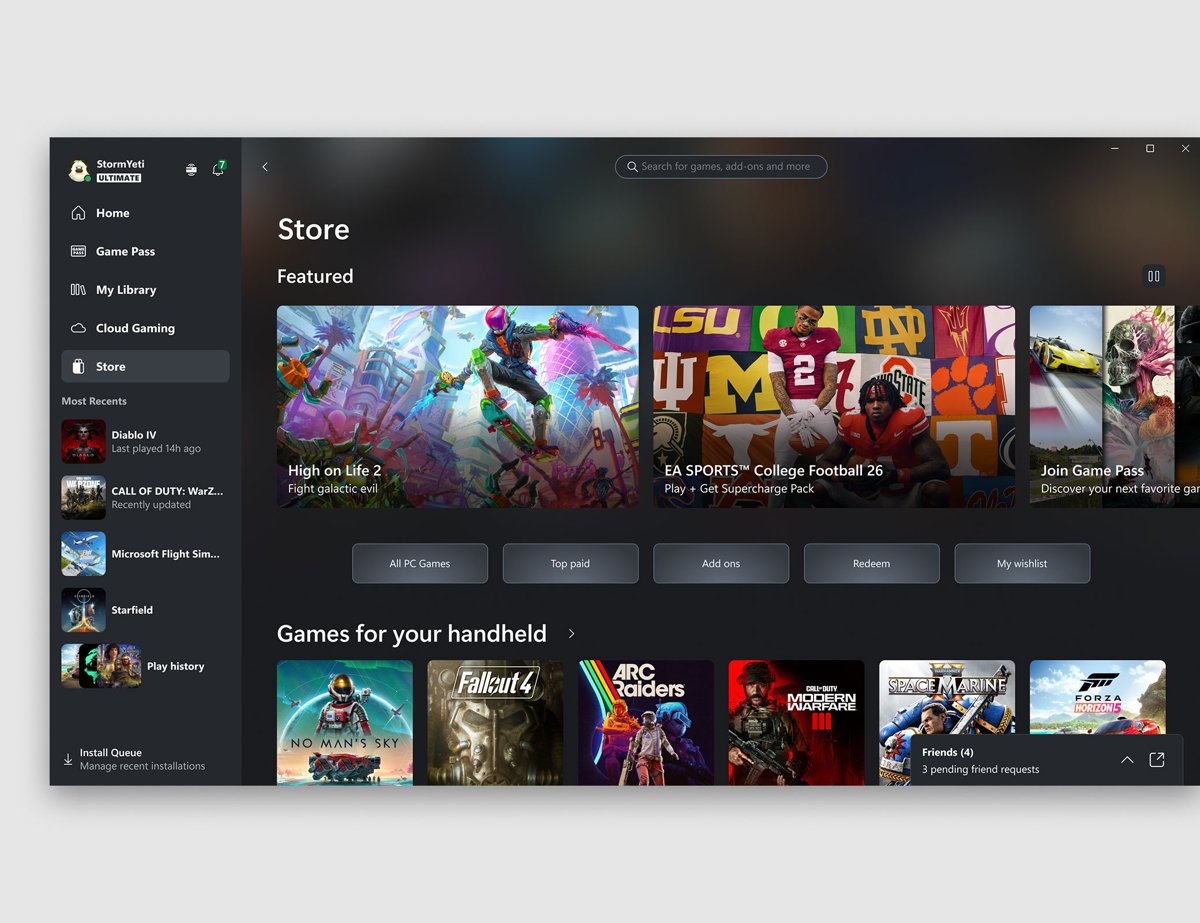
Asphalt Legends is also a cloud-playable game. This streams it in a browser instead of downloading it, which answers the "Asphalt 9 without download" search.
- Open xbox.com/play: Asphalt Legends in your browser.
- Select SIGN IN and use your Microsoft account.
- Confirm that the account has Xbox Game Pass Essential, Premium or Ultimate. Cloud gaming needs one of those paid tiers and is available in select countries only.
- Connect a controller, then start the game from the page.
Do Not Download Unofficial Asphalt 9 PC Installers
Gameloft ships the Windows version only through the Microsoft Store and the Xbox app. Any "Asphalt 9 for PC" setup file on a download site, a torrent or an APK mirror is repackaged by someone else, so nothing in it is checked by Microsoft or Gameloft.
Install Asphalt Legends only from the Microsoft Store or the Xbox app, and treat any standalone Asphalt 9 .exe as untrustworthy. The Microsoft Store verifies the apps it lists and keeps them updated. A third-party installer can carry malware, cannot sign in to the live game reliably, and never receives Gameloft's updates.
Searches such as "Asphalt 9 download for PC without Store" lead almost entirely to these unofficial files. The official alternative to the Store app is the Xbox app, or cloud play in a browser.
First Launch: Setup, Permissions, and Sign-In
A successful install is proven by the game reaching its menus while signed in. Leave the first launch online, because it downloads more content before you can race.
- Launch Asphalt Legends from Start and keep the PC connected to the internet.
- Let the game finish its first content download before you close it.
- Sign in with your Microsoft account when prompted. Games you launch pass your Xbox profile information to the publisher while you play.
- Review Gameloft's terms of use and privacy notice, which the Store listing links from its description.
- Confirm the game reaches its main menu without an error, which shows the install and sign-in both worked.
- Start one race to confirm the game runs and your controls respond.
Use the same Microsoft account on every device. The listing supports Xbox cloud saves, which is what carries progress between PC and console.
Keyboard, Controller, and Touch Controls
The Store listing names two steering schemes, precise manual control and the assisted TouchDrive mode, and lists PC Game Pad support. Gameloft does not publish a keyboard map on the listing, so read the key layout on the game's own controls screen.
| Your input | What to do | Why |
|---|---|---|
| Xbox Wireless Controller over USB | Plug the cable into the PC and the controller is detected | The simplest wired option |
| Xbox Wireless Controller without a cable | Pair it with the Xbox Wireless Adapter for Windows, or directly if the PC has Xbox Wireless built in | Lower setup effort than Bluetooth on supported PCs |
| Xbox or other controller over Bluetooth | Pair it from the Bluetooth settings in Windows | Works on PCs without the adapter |
| Keyboard | Check the key layout in the game's controls settings | The Store listing does not document the default keys |
| Touchscreen laptop or tablet | Pick TouchDrive if you want steering assistance | Manual control asks for more input on every corner |
Xbox Support's controller connection guide covers the USB, adapter and Bluetooth steps in detail.
How to Update Asphalt Legends (Formerly Asphalt 9) on Windows
Microsoft Store apps update automatically unless you have paused updates. Run a manual check when the game says an update is required.
- Open Microsoft Store.
- On Windows 11, select Library. On Windows 10, select See more > Downloads and updates.
- Select Get updates and let the Asphalt Legends update finish.
- Close the Store and relaunch the game.
- In the Xbox app, updates for installed games appear in the app's downloads queue as well.
Fix Microsoft Store Download Problems
Work through these in order. The same Store fixes apply to any Store app, as in the Snipping Tool download fix.
Asphalt 9 does not show up when you search the Store
The game is now listed as Asphalt Legends, and region or family settings can also hide a listing.
- Search for Asphalt Legends instead of Asphalt 9.
- Press Windows key + R, run
ms-windows-store://pdp/?ProductId=9NZQPT0MWTD0and press Enter. - If the page says the game is unavailable, check family settings or the region set on the PC.
The download stalls, fails or the Get button does nothing
A stale Store cache, a pending Windows update or a sign-in problem.
- Make sure you are signed in to the Store with your Microsoft account.
- Press Windows key + R, type
wsreset.exeand press Enter. A blank window closes after about ten seconds and the Store reopens. - Go to Settings > Windows Update > Check for updates, install what it finds and restart.
- On Windows 11, open Settings > System > Troubleshoot > Other troubleshooters and select Run next to Windows Store Apps. On Windows 10, use Settings > Update & Security > Troubleshoot.
- Free space in Settings > System > Storage > Cleanup recommendations, then retry the download.
The install keeps failing from both the Store and the Xbox app
The Gaming Services component that installs Xbox PC games is damaged.
- Run Microsoft's Gaming Services Repair Tool for PC.
- Restart the PC.
- Install the game again from Library in the Microsoft Store.
Fix Asphalt Legends Not Launching or Crashing
The game closes on launch or never passes the loading screen
Damaged app files, an outdated game build or a mismatched account.
- Restart the PC, then launch the game once with no other game launchers running.
- Update the game from Library > Get updates in the Microsoft Store.
- On Windows 11, go to Settings > Apps > Installed apps, select More next to Asphalt Legends, then Advanced options > Repair.
- If that fails, select Reset on the same page. Reset clears the app's local data.
- Uninstall the game, restart and install it again from the Store.
The game crashes mid-race or shows graphics glitches
Outdated graphics drivers, missing Windows updates or heat.
- Install pending updates in Settings > Windows Update.
- Download the latest graphics and audio drivers from your PC or graphics card maker's website.
- Unplug external devices the game does not need.
- Check that the PC's vents are clear and it is not overheating.
- Lower the graphics and sound settings inside the game.
Improve Performance on Windows 10 and Windows 11
On laptops with two graphics chips, Windows may run the game on the weaker one. Point it at the dedicated graphics first, then trim in-game settings.
- Open Settings > System > Display > Graphics.
- Under Custom options for apps, find Asphalt Legends, or add it from the list of installed Store apps.
- Select Options, choose High performance under Graphics preference, and save.
- Plug the laptop into power while you play.
- Close browsers and other launchers that run in the background.
- Lower the graphics quality in the game's settings until races run smoothly.
Manage Storage, Uninstall, or Move the Game
There is no verified in-place move option for this game, so the reliable way to put it on another drive is to change the default app drive and reinstall.
- To uninstall on Windows 11, open Settings > Apps > Installed apps, select More next to Asphalt Legends and choose Uninstall. On Windows 10, use Settings > Apps > Apps & features.
- Alternatively, right-click Asphalt Legends in Start > All apps and select Uninstall.
- To install on another drive, open Settings > System > Storage > Advanced storage settings > Where new content is saved.
- Change the setting for new apps to the drive you want.
- Reinstall the game from Library in the Microsoft Store. It now downloads to the new drive, and signing in restores your cloud-saved progress.
Frequently Asked Questions
Bing's autocomplete supplies only four distinct questions for this topic, so the remaining questions are the most repeated "Asphalt 9" download searches.
How do I download Asphalt 9?
You cannot download Asphalt 9: Legends under that name on Windows any more. Its Microsoft Store listing now installs Asphalt Legends from Gameloft. Open the Microsoft Store, search for Asphalt Legends, select Get and launch it from Start.
Where do I download Asphalt 9 on PC?
Download it from the Microsoft Store or the Xbox app, where the game is now called Asphalt Legends. The Store ID is 9NZQPT0MWTD0, and its web page is on xbox.com. No other download site is an official source for the Windows version.
How do I download Asphalt 9 on a laptop?
A laptop uses the same route as a desktop: open the Microsoft Store, search for Asphalt Legends and select Get. On a laptop with two graphics chips, set the game to High performance in Settings > System > Display > Graphics for smoother races.
How do I download Asphalt 9 in PC without the Microsoft Store?
Install Asphalt Legends through the Xbox app, or stream it at xbox.com/play with a Game Pass Essential, Premium or Ultimate subscription. Standalone Asphalt 9 PC installers on download sites are unofficial and can carry malware.
Is Asphalt 9 free on PC?
Yes. Asphalt Legends, the game that replaced Asphalt 9 on Windows, is free to download from the Microsoft Store. It sells optional in-app purchases, including paid random items, and add-on packs listed on its Store page.
Can I play Asphalt 9 without downloading it?
Yes, through Xbox Cloud Gaming. Open the Asphalt Legends page on xbox.com/play, sign in and stream the game in a browser. Cloud play needs a Game Pass Essential, Premium or Ultimate subscription and is available in select countries.
Does Asphalt 9 work on Windows 10?
Asphalt Legends installs from the Store on Windows 10 as well as Windows 11. The Xbox app needs Windows 10 version 22H2 or later. Windows 10 stopped getting security updates on October 14, 2025, so moving to Windows 11 is the safer long-term setup.
Can I play Asphalt Legends with friends on Xbox?
Yes. The Store listing supports online races for up to eight players with cross-platform multiplayer, so PC players race against Xbox players. Local split-screen for two to four players is also listed.
Quick Installation Checklist
| Step | Done when |
|---|---|
| Windows 11, or Windows 10 22H2, fully updated | Settings > Windows Update shows no pending updates |
| Signed in to the Microsoft Store | Your profile picture shows in the Store |
| Asphalt Legends (Store ID 9NZQPT0MWTD0) installed | It appears in Start > All apps |
| First launch completed online | The game reaches its main menu |
| Controller connected, if you use one | The game responds to the controller in a race |
| No unofficial Asphalt 9 installers kept on the PC | Any downloaded setup file from another site is deleted |
Other free games follow the same official-source rule, such as League of Legends for Windows.

![How to Keep Your Dell Drivers Updated on Windows 11/10 [2026]](https://techdows.com/wp-content/uploads/2026/09/Driver-details-panel-showing-an-NVIDIA-GeForce-920Ms-provider-and-version-519x338.jpg)