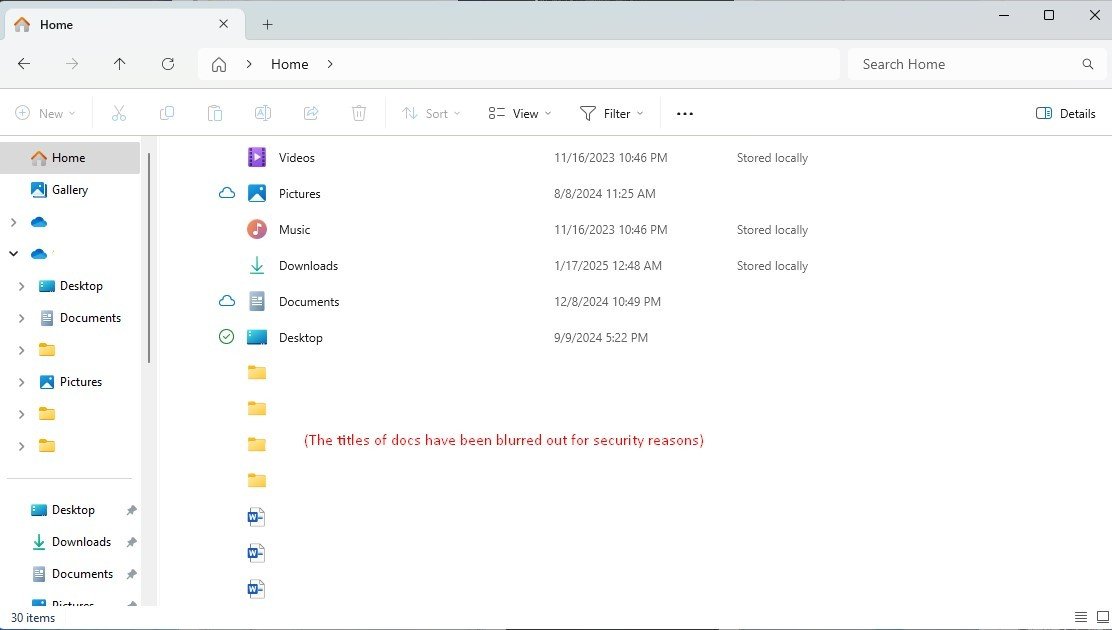
Press Windows logo key + E to open File Explorer, and your recent files are listed on the Home page that opens by default.
This guide covers every other place Windows 11 keeps recent files, including Start, jump lists, search, the Recent Items folder and Office apps, plus how to clear the list or turn it off.
Method 1: See Recent Files in File Explorer Home
File Explorer opens to Home in Windows 11. Microsoft describes Home as the page that shows your most recent and favorited files, including Office.com files from the cloud.
- Press Windows logo key + E, or select the folder icon on the taskbar.
- Select Home at the top of the left navigation pane if File Explorer opened somewhere else.
- Scroll past the pinned folders in Quick access to the Recent list.
- Double-click a file to open it, or right-click it and choose Open file location to see the folder it lives in.
If Home shows pinned folders but no recent files, the history is switched off. The fix is in the troubleshooting section below.
What “Recent Files” Means in Windows 11
Windows does not keep one master list. It records a shortcut each time you open a file, and several places read from those shortcuts or from the file's own date.
| Place | What it shows | Where the data comes from |
|---|---|---|
| File Explorer Home | Files you opened recently, plus recent Office.com files | Windows recent-item shortcuts and your Microsoft account |
| Start menu Recommended | Recently opened files and recently added apps | The same recent-item history |
| Taskbar and Start jump lists | Recent files for one app, such as Word or Notepad | Per-app recent lists |
| Recent Items folder | A shortcut for every recently opened file and folder | %APPDATA%\Microsoft\Windows\Recent |
| Windows Search | Any file changed on a date you choose | The file's Date modified property, not your history |
| Word, Excel, PowerPoint | Files opened in that app on any of your devices | Your Microsoft 365 account |
Every entry in these lists is a shortcut. Removing an entry never deletes the real file.
Best Places to Look Based on What You Remember
| What you remember | Look here first | Why |
|---|---|---|
| You opened it in the last few days | File Explorer Home | Newest files sit at the top of the Recent list |
| Which app you used, not the file name | That app's jump list | Right-click the app on the taskbar for its own recent files |
| Roughly when you changed it | Windows Search with datemodified: |
Finds files by date even if you never opened them from Explorer |
| It was a Word, Excel or PowerPoint file | File > Open in that app | Lists files opened on any of your devices |
| You downloaded it | The Downloads folder | Browsers save there by default |
| It was a screenshot | Pictures > Screenshots | Windows logo key + PrtScn saves captures there |
| You need more than the Home list shows | The Recent Items folder | Holds a shortcut for every recent file and folder |
Method 2: Use the Start Menu Recommended Section
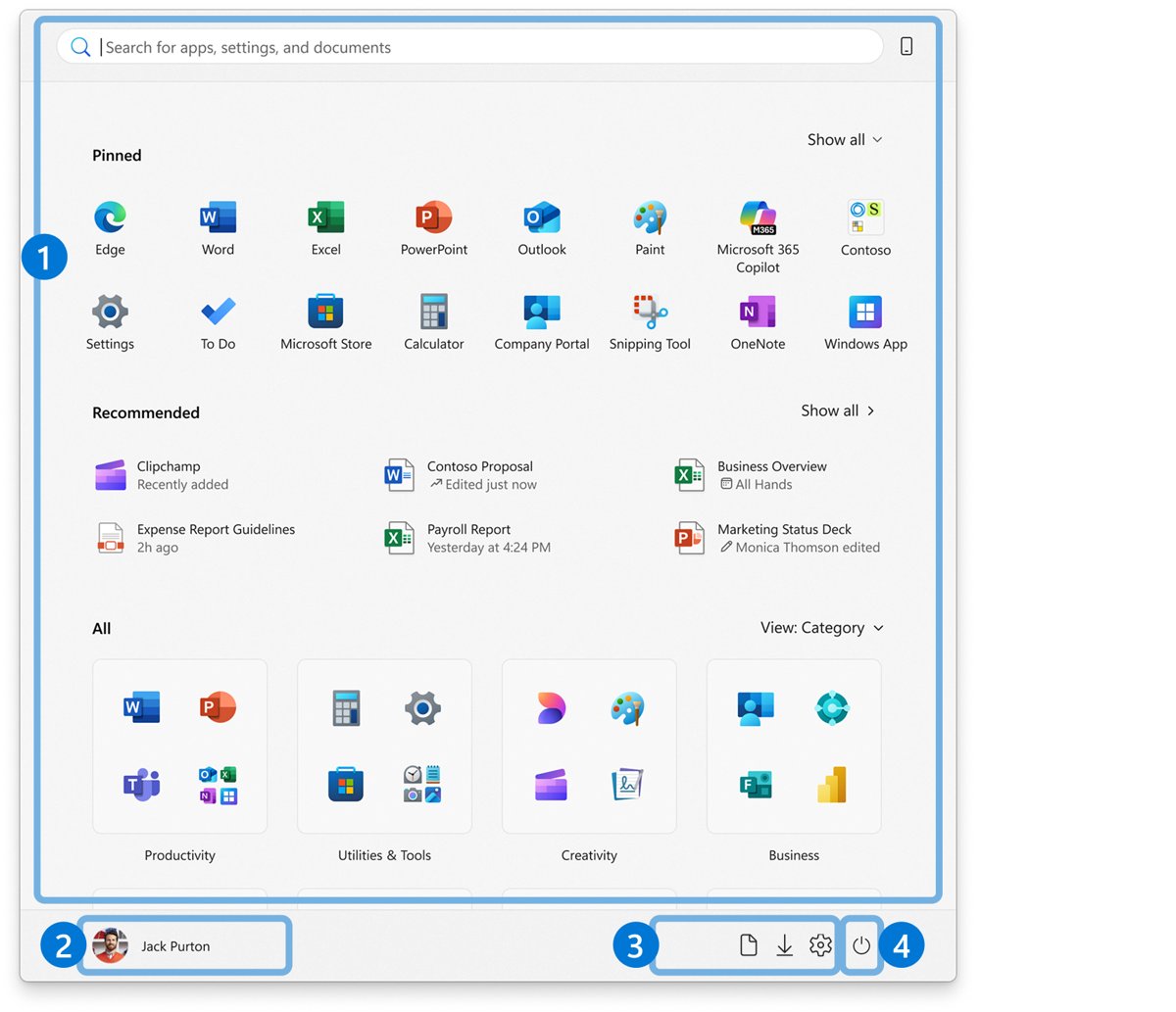
Microsoft describes the Start menu's Recommended section as recently added and frequently used apps, plus recently opened files. It is the quickest check when File Explorer is closed.
- Select Start on the taskbar or press the Windows logo key.
- Look at the Recommended section below your pinned apps.
- Select a file to open it in its default app.
- Right-click a file to see options such as opening its location, if your build offers them.
If the section is empty or collapsed, the recent-items toggle is off or an organization policy hides it.
Method 3: Check Recent Files for a Specific App Using Jump Lists
Each app on the taskbar has a jump list, which Microsoft describes as a quick way to open a recent file. It shows only files that app opened, which narrows the search fast.
- Right-click the app's icon on the taskbar, for example Word, Notepad or File Explorer.
- Read the recent files listed at the top of the menu.
- Select a file to open it in that app.
- Press Windows logo key + Alt + a number to open the jump list of the app in that taskbar position without the mouse.
Jump lists follow the same recent-items setting as Start, so an empty jump list usually means that setting is off.
Method 4: Use Windows Search to Find Recently Modified Files
Search finds files by date even when they never appeared in a recent list. File Explorer's search box accepts Advanced Query Syntax, which Microsoft documents as the query language of Windows Search.
- Press Windows logo key + E and open the folder to search, such as Documents or This PC.
- Press Ctrl + E to jump to the search box.
- Type
datemodified:today,datemodified:yesterdayordatemodified:this weekand press Enter. - Add a word from the file name to narrow it, for example
resume datemodified:last week. - Add
kind:docsorkind:picsto keep only documents or pictures. - Switch to Details view and select the Date modified column header to put the newest file on top.
Microsoft notes these keywords work in the current display language only. On a non-English Windows, use the translated keyword.
For a quick name search instead, press Windows logo key + S, type the file name and select the Documents tab.
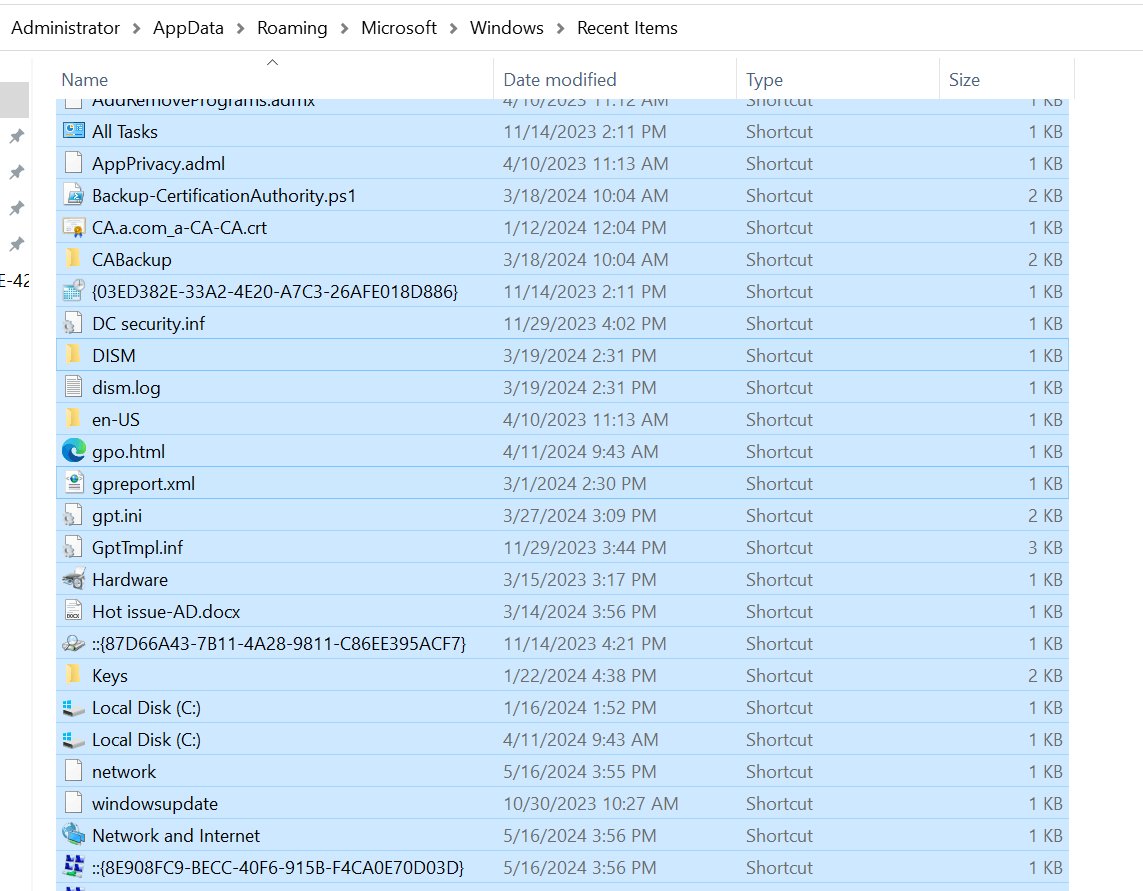
Method 5: Open the Hidden Recent Items Folder
Windows stores a shortcut to each recently opened file and folder in the Recent Items known folder. Microsoft lists its default path as %APPDATA%\Microsoft\Windows\Recent.
- Press Windows logo key + R to open the Run box.
- Type
%APPDATA%\Microsoft\Windows\Recentand select OK. - Switch the view to Details so you can see each shortcut's date.
- Select the Date modified column header to sort newest first.
- Double-click a shortcut to open the file, or right-click it and choose Open file location.
This folder usually shows more entries than File Explorer Home, which makes it the answer when you need to see more recent files.
Method 6: See Recent Files in Microsoft Word, Excel, and PowerPoint
Office keeps its own Recent list, and Microsoft says it shows files you opened recently from any of your devices. It works even when Windows history is off.
- Open Word, Excel or PowerPoint.
- Select File > Open, or press Ctrl + O.
- Browse the Recent list and select a file to open it.
- Right-click a file and choose Add to Favorites to keep it at hand in current Microsoft 365 versions.
- Change how many files appear under File > Options > Advanced > Display > Show this number of Recent Documents.
If you move a file in File Explorer after closing it, its entry in the Office Recent list stops working. Open it from its new folder once to refresh the link.
Check OneDrive, Teams, and cloud file history
Files stored in the cloud show up in more places than local ones. File Explorer Home already lists recent Office.com files, so check there first.
- In Word, Excel or PowerPoint, select File > Open > Shared with Me for files others shared with you, including from Teams chats and email.
- Open the OneDrive website and use Search everything at the top of the page, with a name, date or month such as "April".
- Select Recycle bin on the left of the OneDrive website if the file was deleted, then select it and choose Restore.
- Check Recycle bin for Personal Vault items too, since Microsoft notes Personal Vault files do not appear in search.
Method 7: Find Recent Photos, Screenshots, and Downloads
Downloads, screenshots and imported photos land in known folders, so the folder itself is your recent list once sorted by date.
| File type | Default location | How to see the newest |
|---|---|---|
| Browser downloads | %USERPROFILE%\Downloads |
Open Downloads in File Explorer and sort by Date modified |
| Chrome downloads | \Users\<username>\Downloads |
In Chrome, select More > Downloads, then Show in folder |
| Screenshots from Windows logo key + PrtScn | %USERPROFILE%\Pictures\Screenshots |
Open Pictures > Screenshots and sort by date |
| Screenshots from Windows logo key + Shift + S | Clipboard only | Paste or save from Snipping Tool; nothing is saved to a folder automatically |
| Photos imported from a phone or camera | Your Pictures folder or the folder you chose | Search kind:pics datemodified:today in Pictures |
View recently downloaded files
The Downloads folder is pinned to Quick access by default in Windows 11 version 22H2 and later, so it is one click away.
- Press Windows logo key + E.
- Select Downloads in the left pane.
- Select Sort on the command bar and choose Date modified.
- Set the order to newest first so today's downloads sit at the top.
If Downloads is missing from Quick access, open Home, select the Up arrow next to the navigation buttons and pin it again.
Beginner Example: Finding a Resume You Edited Yesterday
- Open Word and select File > Open; a resume edited yesterday is usually near the top of Recent.
- If it is not there, press Windows logo key + E and select Documents.
- Press Ctrl + E, type
resume datemodified:yesterdayand press Enter. - If the file name did not include "resume", search
kind:docs datemodified:yesterdayinstead. - Right-click the result and choose Open file location to see where it was saved.
Beginner Example: Finding a PDF You Downloaded
- Press Windows logo key + E and select Downloads.
- Press Ctrl + E, type
ext:.pdfand press Enter. - Sort the results by Date modified so the newest PDF is first.
- If it is not in Downloads, open the browser's download list, such as More > Downloads in Chrome, and choose Show in folder.
Quick Keyboard Shortcuts That Help
| Shortcut | What it does |
|---|---|
| Windows logo key + E | Opens File Explorer, which lands on Home and its recent files |
| Windows logo key + S | Opens search |
| Windows logo key + R | Opens the Run box for the Recent Items folder path |
| Windows logo key + Alt + number | Opens the jump list of the taskbar app in that position |
| Ctrl + E or Ctrl + F in File Explorer | Selects the search box |
| Alt + Up arrow in File Explorer | Moves up one folder level |
| Ctrl + O in Office apps | Opens the Open page with the Recent list |
| Windows logo key + PrtScn | Saves a full-screen screenshot to Pictures > Screenshots |
How to Turn Recent Files On or Off in Windows 11
One Settings toggle controls recent files in Start, jump lists and File Explorer together. Its wording varies slightly between Windows 11 builds.
- Press Windows logo key + I to open Settings.
- Select Personalization > Start.
- Turn on Show recently opened items in Start, Jump Lists, and File Explorer to show recent files, or turn it off to hide them.
- To hide recent files in File Explorer only, open File Explorer and select See more (the three dots) > Options.
- On the General tab, clear the recent-files check box in the Privacy section and select Apply.
Turning the Settings toggle off also stops File Explorer from showing recent files, even if the Folder Options box is checked.
How to Remove One File from Recent Without Deleting It
Every recent entry is a shortcut, so removing it leaves the real file untouched.
- Press Windows logo key + R, type
%APPDATA%\Microsoft\Windows\Recentand select OK. - Find the shortcut with the file's name; its icon has a shortcut arrow.
- Right-click the shortcut and select Delete. The original file stays where it was.
- In Word, Excel or PowerPoint, right-click the file under File > Open > Recent and select Remove from list.
- Reopen File Explorer Home to confirm the entry is gone.
In Office, Remove from list also removes the file from Favorites if you added it there.
Clear recent files from File Explorer and Windows
Clearing wipes the history now but keeps recording new files. Turning the toggle off stops recording altogether.
- Open the Recent Items folder with Windows logo key + R and
%APPDATA%\Microsoft\Windows\Recent. - Press Ctrl + A to select every shortcut in the folder.
- Press Delete. Only shortcuts are removed, not your files.
- In each Office app, go to File > Open, right-click a file and select Clear non-favorite items (older versions say Clear unpinned Documents), then confirm.
- Reopen File Explorer and Start to confirm the lists are empty.
On Pro, Enterprise and Education editions, the Group Policy Clear history of recently opened documents on exit under User Configuration > Administrative Templates > Start Menu and Taskbar empties Recent Items and jump lists at every sign-out.
Change what File Explorer opens to
If you share a screen or a PC, open File Explorer to This PC so recent files are not the first thing on display.
- Open File Explorer.
- Select See more (the three dots) on the command bar, then Options.
- Open the Open File Explorer to list.
- Choose This PC, or Home to go back to the recent-files view.
- Select Apply and OK.
Privacy Tips for Recent Files
| Situation | What to do | Effect |
|---|---|---|
| Presenting or sharing your screen | Set File Explorer to open to This PC | Recent files stay off screen until you select Home |
| One sensitive file showed up | Delete its shortcut from Recent Items | That entry disappears; the file remains |
| You share the PC with someone | Give each person a separate Windows account | Each account has its own recent history |
| You never want a history | Turn off the Start setting for recently opened items | Start, jump lists and File Explorer stop listing files |
| A managed work PC | Ask IT; policies such as Do not keep history of recently opened documents may already apply | The history is controlled centrally |
Hiding recent files does not hide the files themselves. Anyone with access to your account can still open the folders.
How to Make Recent Files Easier to Find in the Future
Recent lists roll over as you open new files. Pin the files and folders you return to so they never drop off.
- Right-click a folder you use often and select Pin to Quick access; it then appears on File Explorer Home.
- In Word, Excel or PowerPoint, right-click a file under Recent and select Add to Favorites.
- Save work into Documents, Desktop or Downloads rather than scattered folders, so a date search covers fewer places.
- Give files names with a keyword you will remember, such as a client or project name.
- Keep the Start setting for recently opened items turned on so Home, Start and jump lists stay populated.
To remove a folder later, right-click it and select Unpin from Quick access. For the Windows 10 version of these options, see how to hide favorites, frequent folders and recent files in File Explorer.
How to check recent files are being recorded
- Open any document, such as a text file in Notepad, then close it.
- Press Windows logo key + E and check that the file is at the top of the Recent list on Home.
- Right-click the app's taskbar icon and check that the file appears in its jump list.
- Open the Recent Items folder and check for a new shortcut with today's date.
- If none of these show the file, work through the fixes below.
Why Recent Files May Not Show Up
Home shows pinned folders but no recent files
The Start setting for recently opened items is off, which also hides recent files in File Explorer.
- Open Settings > Personalization > Start.
- Turn on Show recently opened items in Start, Jump Lists, and File Explorer.
- In File Explorer, select See more > Options and check the recent-files box under Privacy.
- Close and reopen File Explorer.
The recent files toggle is greyed out
An organization policy such as Do not keep history of recently opened documents or Remove Recommended section from Start Menu is set.
- On a work or school PC, ask your IT department; the policy is set centrally.
- On your own Pro PC, press Windows logo key + R, type
gpedit.mscand check User Configuration > Administrative Templates > Start Menu and Taskbar. - Set Do not keep history of recently opened documents to Not Configured and sign out and back in.
The recent list is empty after every sign-in
The policy Clear history of recently opened documents on exit deletes the shortcuts when you sign out.
- Check the same Start Menu and Taskbar policy folder in
gpedit.msc. - Set Clear history of recently opened documents on exit to Not Configured.
- Use Windows Search with
datemodified:yesterdayto find files from the last session in the meantime.
Need to see more recent files than Home shows
Home shows a limited list; the full history is in the Recent Items folder.
- Press Windows logo key + R, type
%APPDATA%\Microsoft\Windows\Recentand select OK. - Sort by Date modified to see the full history in order.
- For older files, search by date with
datemodified:last weekordatemodified:past month.
A recent file will not open
The file was moved, renamed or deleted after you last opened it, so the shortcut points nowhere.
- Search for the file name from This PC in File Explorer.
- Check the Recycle Bin on the desktop and restore the file if it is there.
- For OneDrive files, check Recycle bin on the OneDrive website.
Frequently Asked Questions
How do I see recent files in Windows 11?
Press Windows logo key + E to open File Explorer on the Home page, then scroll to the Recent list. You can also check the Recommended section of the Start menu or right-click an app on the taskbar to see its own recent files.
How do I see recent files in Windows 10?
Open File Explorer with Windows logo key + E; it opens to Quick access, which lists recently used files. The Recent Items folder at %APPDATA%\Microsoft\Windows\Recent and taskbar jump lists also work the same way in Windows 10 Pro and Home.
How do I see all recent files on Windows?
Open the Recent Items folder by pressing Windows logo key + R, typing %APPDATA%\Microsoft\Windows\Recent and selecting OK. It holds a shortcut for every recently opened file and folder, so it shows more than File Explorer Home. Sort by Date modified to put the newest first.
How do I view more recent files in Windows?
File Explorer Home shows a limited list, so open the Recent Items folder for the full history. For files you changed but did not open from Explorer, search File Explorer with datemodified:this week or datemodified:past month.
How do I see recent files in File Explorer?
Select Home in the left pane of File Explorer and scroll below Quick access to the Recent list. If Home shows no recent files, turn on Show recently opened items in Start, Jump Lists, and File Explorer under Settings > Personalization > Start.
How do I find recent files on my PC if I forgot the name?
Use a date search in File Explorer. Press Ctrl + E in the search box and type datemodified:today or datemodified:yesterday, adding kind:docs or kind:pics to narrow the type. Sort by Date modified to see the newest file first.
How do I see recently used files for one app?
Right-click the app's icon on the taskbar to open its jump list, which shows the files that app opened recently. Press Windows logo key + Alt + a number to open the jump list for the app in that taskbar position.
How do I see the most recent files first?
Switch any File Explorer folder to Details view and select the Date modified column header until the newest file is at the top. This works in Downloads, Documents, search results and the Recent Items folder.
Does deleting a recent file entry delete the file?
No. Recent lists hold shortcuts, so deleting an entry from the Recent Items folder or selecting Remove from list in Office removes only the shortcut. The original file stays in its folder.
How do I check recent files in Word or Excel?
Open the app and select File > Open, or press Ctrl + O. The Recent list shows files opened from any of your devices. Change how many appear under File > Options > Advanced > Display.
Best ways to keep recent files easy to find
Start with File Explorer Home, fall back to the Recent Items folder when the list is too short, and use a datemodified: search when the file never showed up in any list. Home and Start only show what the recent-items history recorded, while a date search reads the file itself, so the two together find almost any file you touched this week.