To update Roblox on Windows or Mac, sign in at roblox.com and click Play on any experience, or update the Roblox – Windows app from Microsoft Store if you installed it there.
This guide covers the website player, the Microsoft Store app, the Mac app and Roblox Studio, how to force the latest version with a reinstall, and fixes when Roblox will not update.
The fastest way to update Roblox on a PC or Mac
Roblox Player has no update button of its own. Launching an experience from the Roblox website installs Roblox Player, and on a Mac, Roblox says this route installs the most recent version.
- Close Roblox and any other open programs.
- Open roblox.com in Chrome, Firefox, Microsoft Edge or Safari.
- Sign in to your Roblox account.
- Open any experience and click the green Play button.
- Wait while the pop-up shows that Roblox Player is installing.
- If your browser asks which program to use, select Roblox, tick the option to remember the choice, and confirm.
Using the Microsoft Store app instead? Skip to the Store section below, because Microsoft Store delivers its updates.
Which update route matches your Roblox app
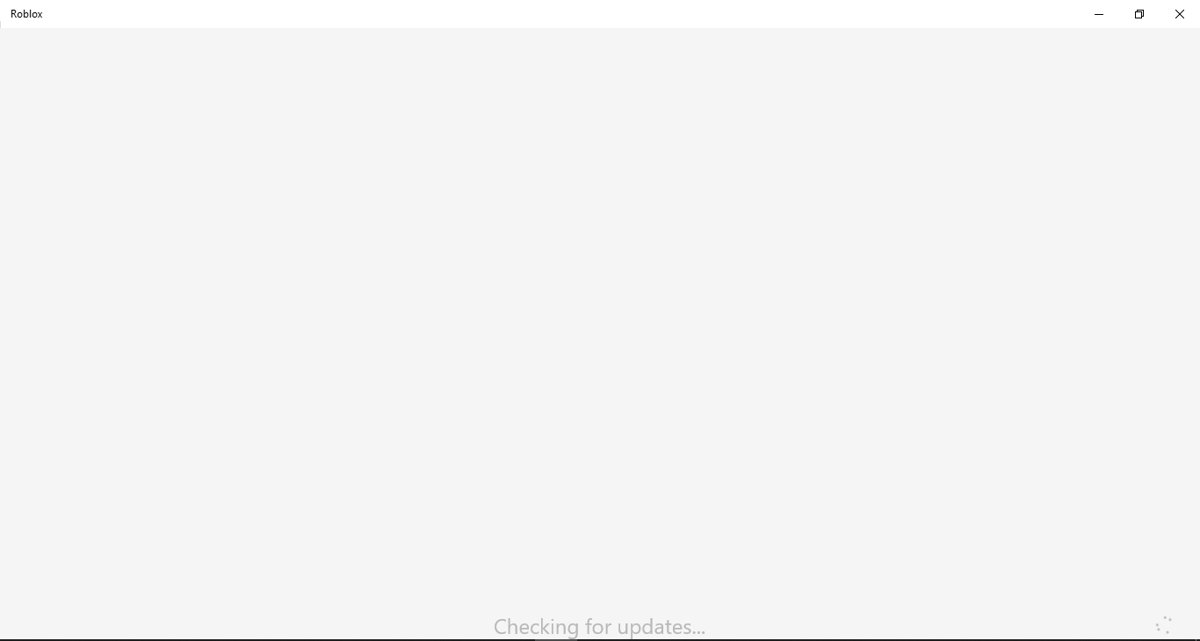
Roblox Player from the website, the Microsoft Store app and Roblox Studio each update differently. Match your setup to a row, then use that section.
| Your situation | How to update | Why |
|---|---|---|
| Windows PC, Roblox installed from roblox.com | Click Play on an experience at roblox.com | The website launch installs Roblox Player |
| Windows PC, Roblox – Windows from Microsoft Store (blue icon) | Microsoft Store: Library > Get updates, or leave App updates on | Store apps receive their updates through Microsoft Store |
| Windows PC, old Store app named just Roblox (light gray icon) | Install Roblox – Windows, then uninstall the old app | Roblox says the old Store app will eventually stop working |
| Mac | Click Play on an experience in your browser | Roblox says this installs the most recent Roblox Player |
| Roblox Studio on Windows or Mac | Click the Update button in Studio's upper-right corner | Studio then updates and restarts itself |
| Roblox still opens an old or broken version | Uninstall, delete the leftover Roblox folder, restart, reinstall | A new copy installs the latest version |
Bottom line: for most PCs and Macs, a website launch is enough. Reinstall only when Roblox keeps failing to update.
Check your computer can run the current Roblox
An update cannot install on a system Roblox does not support. Compare your Windows or macOS version with this table before troubleshooting further.
| Requirement | Roblox Player | Roblox Studio (minimum) |
|---|---|---|
| Windows | 64-bit Windows 10 or Windows 11 | Windows 10 (Windows 11 recommended) |
| Microsoft Store app | Windows 10 version 18362.0 or later, x64 PC | Not applicable |
| Mac | macOS 10.13 High Sierra or later, Apple silicon supported | macOS 10.14 (macOS 14 or later recommended) |
| Memory | At least 1 GB | 3 GB (8 GB recommended) |
| Storage | At least 300 MB; the Store app is about 355 MB | Not listed by Roblox |
| Graphics | DirectX 10 feature level support on Windows | 1600 x 900 screen resolution or higher |
| Internet | 4-8 Mb/s for a single-user household | An internet connection to sign in |
Linux is not supported, so no update route exists there.
Update Roblox on Windows 11 or 10 by launching a game
This is the manual way to update the website version of Roblox on any Windows laptop or desktop. Roblox recommends closing every other program before installing or updating.
- Close Roblox, then save your work and close other open programs.
- Open Chrome, Firefox or Microsoft Edge and go to roblox.com.
- Sign in, then open any experience page.
- Click the green Play button.
- Let the Roblox Player install pop-up finish.
- If a window asks you to select a program, choose Roblox and confirm.
- Wait for the experience to load, which confirms the player works.
Update Roblox from the Microsoft Store
Roblox now publishes a new app in Microsoft Store called Roblox – Windows, published by Roblox Corporation. The Store needs a linked Xbox account for this app, and your Robux, friends and inventory stay with your Roblox account.
- Select Start, search for Microsoft Store, and open it.
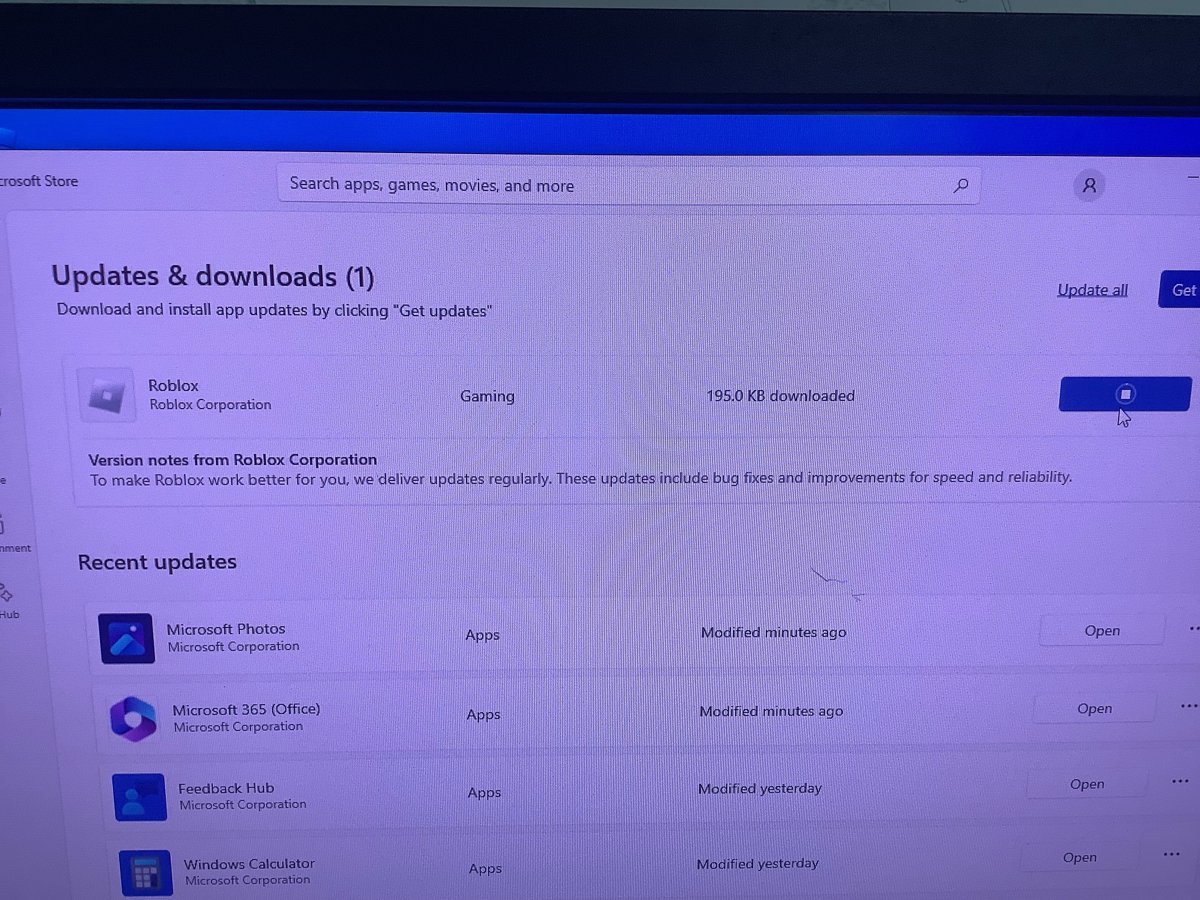
- On Windows 11, select Library, then Get updates.
- On Windows 10, select See more > Downloads and updates > Get updates.
- Let any Roblox update in the list finish downloading.
- If you only have the gray-icon app named Roblox, open the Roblox – Windows listing and install it.
- Open the new app, sign in with your usual Roblox username and password, and link your Xbox account when asked.
- Once the new app works, uninstall the old Roblox app from Start > All apps by right-clicking it and selecting Uninstall.
Update Roblox on a Mac
On macOS, Roblox's own fix for an outdated app is to launch from the browser rather than the app icon. That route installs the most recent Roblox Player.
- Quit Roblox. Press Command + Option + Esc, select Roblox if it is listed, and click Force Quit.
- Open Safari, Chrome or Firefox and go to roblox.com.
- Sign in and open any experience's details page.
- Click Play and follow any on-screen prompts to install Roblox.
- In Firefox, tick Always use this application to open roblox-player links if asked, then choose Roblox.app from /Applications.
- Check that the Roblox icon now appears in your Dock and in the Applications folder.
Reinstall Roblox on Windows to force the latest version
Roblox states that installing a new copy updates it to the latest version. Restart your PC first, because a restart alone fixes many launch problems.
- On Windows 11, select Start > Settings > Apps > Installed apps, find Roblox, and select More > Uninstall.
- On Windows 10, select Start > Settings > Apps > Apps & features, select Roblox, then Uninstall.
- Press Windows + R, type
%localappdata%, and press Enter. - Delete the Roblox folder. Studio places are not removed unless you saved them in that folder.
- Restart your PC.
- Reinstall by clicking Play on an experience at roblox.com, or reinstall Roblox – Windows from Microsoft Store Library.
Roblox's Error Code 280 article gives a Command Prompt alternative for the folder step: open cmd, run cd AppData\Local, then rmdir /s Roblox, and enter y to confirm.
Reinstall Roblox on macOS
- Press Command + Option + Esc and force quit Roblox and Roblox Studio if either is listed.
- Open Finder > Applications and drag the Roblox icon to the Trash.
- Click the Trash in the Dock and choose Empty Trash, or press Command + Shift + Delete.
- Go to roblox.com/download and select Download Mac App, or sign in and click Play on an experience.
- If the install does not start by itself, go to Finder > Today and open Roblox.dmg.
- Launch Roblox from Applications or the Dock and sign in.
Update Roblox Studio on Windows and Mac
Every experience runs on the latest version of the Roblox engine, so an outdated Studio can miss current features. The update steps are the same on Windows and Mac.
- Open Roblox Studio and sign in.
- Look for an Update button in the upper-right corner.
- Click Update.
- Save or close the open place when Studio prompts you.
- Wait while Studio updates and restarts.
- If Studio will not open at all, reinstall it: open one of your experiences at roblox.com, select Edit from the upper-right menu, and let Studio install.
For the standalone installer and requirements, see the techdows guide to download Roblox Studio for PC and Mac.
How to check Roblox is fully updated
- Join an experience from roblox.com. It should load without Error Code 280, the message Roblox shows when your version may be out of date.
- For the Store app, open Microsoft Store > Library and confirm no Roblox update is waiting under Get updates.
- On a PC, confirm your Store app is named Roblox – Windows and has the blue icon, not the light gray one.
- On a Mac, launch Roblox from the Dock. No Upgrade Failed message should appear.
- In Roblox Studio, confirm the Update button no longer shows in the upper-right corner.
Keep Roblox updated automatically on Windows
Automatic updates apply to the Microsoft Store app. Microsoft notes that some publishers manage updates inside their own apps instead.
- Select Start, then search for and select Microsoft Store.
- Select your Profile picture.
- Select Store Settings.
- Make sure App updates is turned On.
- Keep Windows current too: select Start > Settings > Windows Update > Check for updates.
Fix Roblox update problems on Windows and Mac
Why can't I update Roblox on Windows?
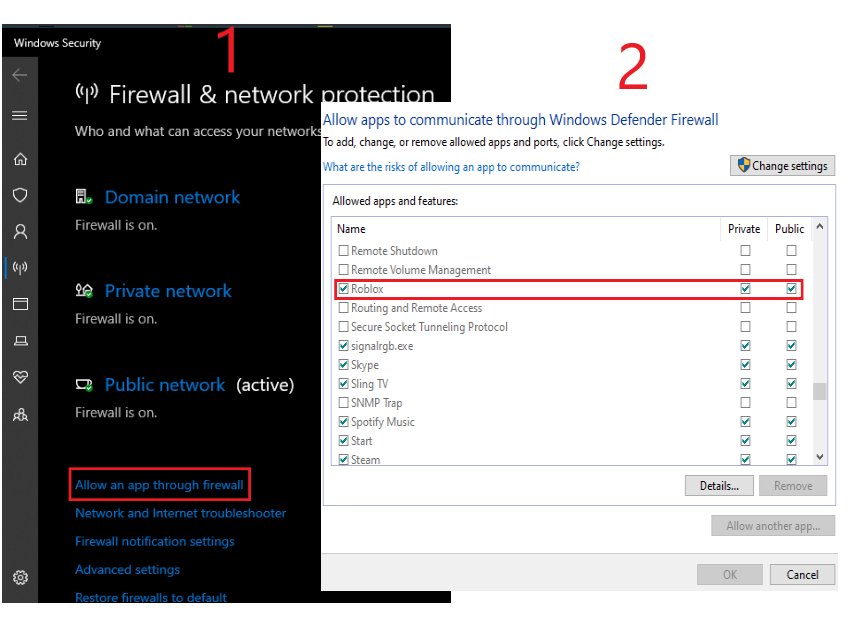
Roblox or another program was running during the update, temporary files are corrupted, a firewall is blocking Roblox, or Roblox files are damaged.
- Restart your PC and try launching an experience again.
- Close every other program before you click Play.
- Clear the temporary internet files and cookies in each browser you launch Roblox from, then restart.
- Open your firewall program's permissions section, find Roblox, and allow it internet access.
- Try a different internet connection to rule out a network block.
- Reinstall Roblox with the Windows steps above.
Roblox is not updating in the Microsoft Store
Windows or the Store is out of date, the app files are damaged, or you still have the old Store app.
- On Windows 11, select Start > Settings > Windows Update > Check for updates. On Windows 10, use Settings > Update & Security > Windows Update > Check for Updates.
- In Microsoft Store, select Library > Get updates (See more > Downloads and updates > Get updates on Windows 10).
- Go to Settings > Apps > Installed apps, select More next to Roblox, then Advanced options > Repair.
- If Repair does not help, select Reset on the same page.
- Uninstall Roblox, then reinstall it from Library in Microsoft Store.
- On Windows 10, run Settings > Update & Security > Troubleshoot > Windows Store apps > Run the troubleshooter.
- If the Store app still fails, uninstall it and install the desktop version by clicking Play at roblox.com instead.
Roblox is stuck in a "Getting Latest Roblox" or install loop
Roblox did not install properly, so the launcher keeps asking to install again.
- Close Roblox and all other programs.
- Uninstall Roblox from Settings > Apps.
- Press Windows + R, type
%localappdata%, and delete the Roblox folder. - Restart your PC.
- Reinstall by clicking Play on an experience at roblox.com.
"Error Code 280: Your version of Roblox may be out of date"
The Roblox version on your PC or Mac has a problem and needs a fresh copy.
- Uninstall Roblox. On a Mac, drag the app to the Trash.
- On Windows, open
cmdfrom Windows + R, runcd AppData\Local, thenrmdir /s Roblox, and entery. - Restart your computer.
- Reinstall Roblox from roblox.com or Microsoft Store.
- If the error returns, connect to a different network, then contact your internet provider if it persists.
"Upgrade Failed" when opening Roblox on a Mac
The Roblox app on your Mac could not upgrade itself when launched from its icon.
- Open your browser and click Play from an experience's details page.
- If that fails, restart your Mac.
- Press Command + Space, paste
~/Library/Logs/Roblox/, open the folder, and delete everything in it. - Reset Roblox settings by deleting the Roblox com files in Library > Preferences.
- If Safari keeps failing, try Firefox or Chrome.
- Reinstall Roblox with the macOS steps above.
Roblox Studio will not update or sign in after updating
A proxy setting, a wrong system clock, or a damaged install is blocking Studio.
- Restart your computer and open Studio again.
- On Windows 10, press Windows + S, type
proxy, open Change Proxy Settings, turn off Use Setup Script and Use a Proxy Server, and select Save. - Right-click the clock on the taskbar and make sure Set Time Automatically is on with the correct time zone.
- On a Mac, reinstall Studio.
- Close all other programs before running the Studio update again.
Frequently asked questions
How do I update Roblox on PC?
Sign in at roblox.com and click Play on any experience, which installs Roblox Player. If you use the Roblox – Windows app, open Microsoft Store and select Library, then Get updates. A reinstall always gets the latest version.
How do you update Roblox on Windows 11?
Open Microsoft Store, select Library, then Get updates for the Roblox – Windows app. For the website version, click Play on an experience at roblox.com. To force the newest copy, uninstall Roblox from Settings > Apps > Installed apps and reinstall.
How do you update Roblox on Windows 10 manually?
Close Roblox, sign in at roblox.com, and click Play on an experience. For the Store app, open Microsoft Store and select See more > Downloads and updates > Get updates. If it stays outdated, uninstall from Apps & features and reinstall.
How do I update Roblox on Microsoft Store?
Open Microsoft Store, select Library, and select Get updates. Turn on App updates under Profile > Store Settings to update automatically. Make sure you have the new Roblox – Windows app with the blue icon, because the old gray app will stop working.
Why can't I update Roblox on Windows?
Another program running during the update, corrupted temporary files, a firewall blocking Roblox, or damaged Roblox files usually stop the update. Restart, close other programs, clear browser temporary files, allow Roblox in your firewall, then reinstall Roblox.
Does Roblox update automatically on Windows and Mac?
The Microsoft Store app updates automatically when App updates is on in Store Settings. Roblox Studio shows an Update button and then updates itself. For the website player on Windows and Mac, Roblox's documented route is clicking Play on an experience.
How do I force Roblox to update if it keeps opening an old version?
Uninstall Roblox, delete the Roblox folder in %localappdata% on Windows, restart, and reinstall. Roblox states that installing a new copy updates it to the latest version. On a Mac, drag Roblox to the Trash and reinstall from roblox.com.
Is updating Roblox from the Microsoft Store different from the website version?
Yes. The Roblox – Windows Store app gets updates through Microsoft Store and needs a linked Xbox account. The website version installs through the Play button at roblox.com. Your account, Robux and inventory are the same in both.
How do you update Roblox on a Windows laptop?
The steps match a desktop PC. Click Play on an experience at roblox.com, or select Library > Get updates in Microsoft Store for the Store app. The laptop needs 64-bit Windows 10 or Windows 11.