To force a website to load a non-cached version, use a hard refresh. Press Ctrl + Shift + R or Ctrl + F5 in Chrome, Edge, Firefox, Brave, Opera, or Vivaldi on Windows and Linux. On macOS, use Command + Shift + R in Chromium browsers and Firefox. In Safari, use Option + Command + R to reload the page from its origin.
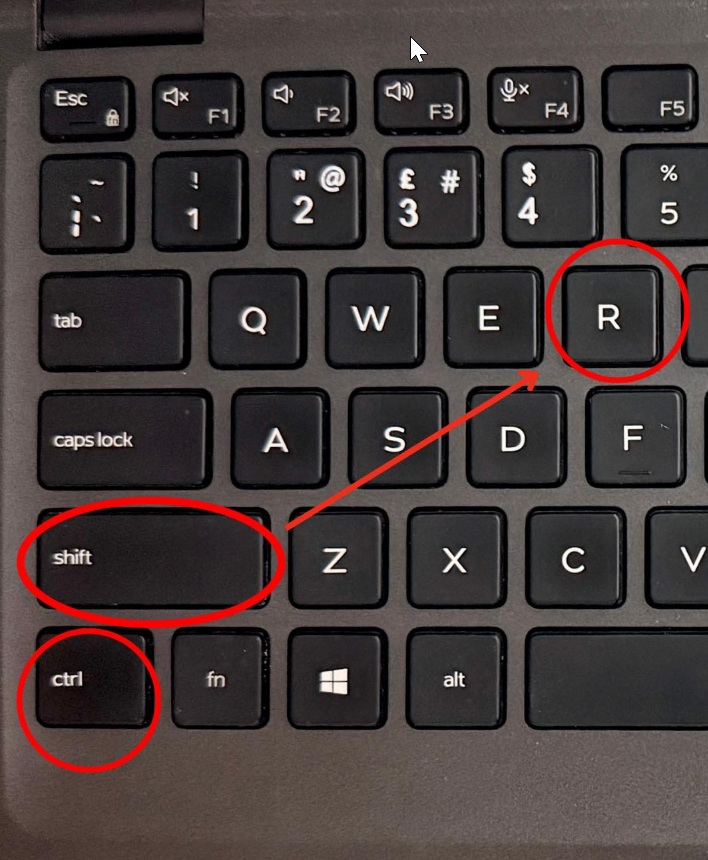
A hard refresh bypasses the browser’s normal HTTP cache for the current page. It does not necessarily bypass a content delivery network, reverse proxy, server-side page cache, service worker, or application cache. If the page remains old, use the stronger methods below to identify which cache is serving it.
| Situation | Best first step | What it affects |
|---|---|---|
| One page looks outdated | Hard refresh | The browser cache for the current reload |
| One site remains broken | Clear that site’s stored data | Cookies, local storage, and site caches for that domain |
| You are testing repeated changes | Open DevTools and enable Disable cache | Browser HTTP cache while DevTools remains open |
| A PWA still shows old files | Clear site data and unregister its service worker | Cache Storage, service workers, and other site storage |
| Everyone sees the old version | Purge the CDN or server cache | Shared caches outside the visitor’s browser |
| Updated JavaScript or CSS stays old | Deploy content-hashed filenames | Creates a new asset URL that caches treat separately |
How to Force a Website to Load Non-Cached Version of a Website
Use the shortcut for your browser and operating system. A normal reload may reuse fresh cached files, while a hard reload asks the browser to retrieve the page’s resources again.
| Browser | Windows or Linux | macOS |
|---|---|---|
| Google Chrome | Ctrl + Shift + R or Ctrl + F5 | Command + Shift + R |
| Microsoft Edge | Ctrl + Shift + R or Ctrl + F5 | Command + Shift + R |
| Mozilla Firefox | Ctrl + Shift + R or Ctrl + F5 | Command + Shift + R |
| Brave | Ctrl + Shift + R or Ctrl + F5 | Command + Shift + R |
| Opera | Ctrl + Shift + R or Ctrl + F5 | Command + Shift + R |
| Vivaldi | Ctrl + Shift + R or Ctrl + F5 | Command + Shift + R |
| Safari | Not available on Windows | Option + Command + R for Reload Page from Origin |
On laptops, Ctrl + F5 may require the Fn key because the function row can control volume or brightness. Ctrl + Shift + R avoids that problem.
Force refresh Chrome, Edge, Brave, Opera, or Vivaldi with the reload menu
- Open the website.
- Press F12, or press Ctrl + Shift + I on Windows and Linux. On a Mac, press Command + Option + I.
- Keep Developer Tools open.
- Right-click or press and hold the browser’s Reload button.
- Select Hard Reload or Empty Cache and Hard Reload.
Hard Reload bypasses the cache for that load but does not empty it. Empty Cache and Hard Reload clears the browser cache before retrieving the page again. Chrome and Edge expose these reload options only while Developer Tools is open.
Force refresh Firefox with the mouse
Hold Shift while selecting Firefox’s Reload button. This reloads the page while bypassing possibly outdated cached files. It is more targeted than clearing Firefox’s entire cache.
Force refresh Safari on a Mac
Use Option + Command + R or choose View > Reload Page From Origin. When deeper testing is required, open Safari > Settings > Advanced and enable Show features for web developers. You can then use Safari’s developer tools to inspect requests and caching behaviour.
Force refresh on Android, iPhone, or iPad
Mobile browsers do not provide one universal hard-refresh shortcut. Tapping Reload or pulling down on the page performs a normal reload and may still use cached resources. Try a private tab first. If the old version remains, clear the browser cache or remove the affected site’s data, then reopen the page.
On iPhone or iPad with Safari, open Settings > Apps > Safari > Advanced > Website Data to remove stored website data. Removing site data can sign you out and reset site preferences.
What Is a Hard Refresh?
A hard refresh, force refresh, or hard reload tells the browser not to rely on its normal cached copy of the current page’s resources. The browser requests the HTML, CSS, JavaScript, images, fonts, and other files again or revalidates them with the server.
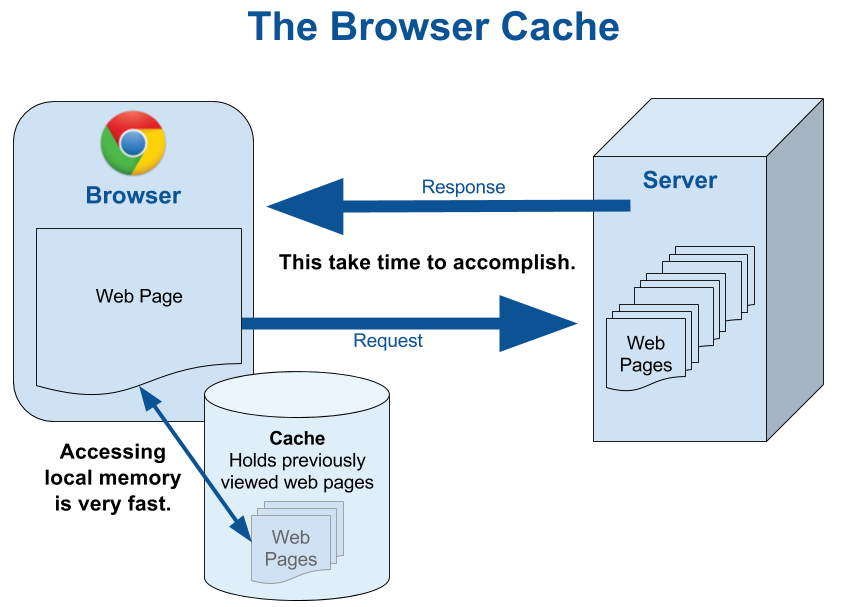
This is different from a normal refresh. A normal reload may reuse files that the browser still considers fresh. That behaviour makes websites faster and reduces bandwidth, but it can leave an old stylesheet or script on screen immediately after a deployment.
A hard refresh is also different from clearing all browsing data. It normally targets the active page load and leaves passwords, browsing history, cookies, and unrelated sites alone.
Limits of a hard refresh
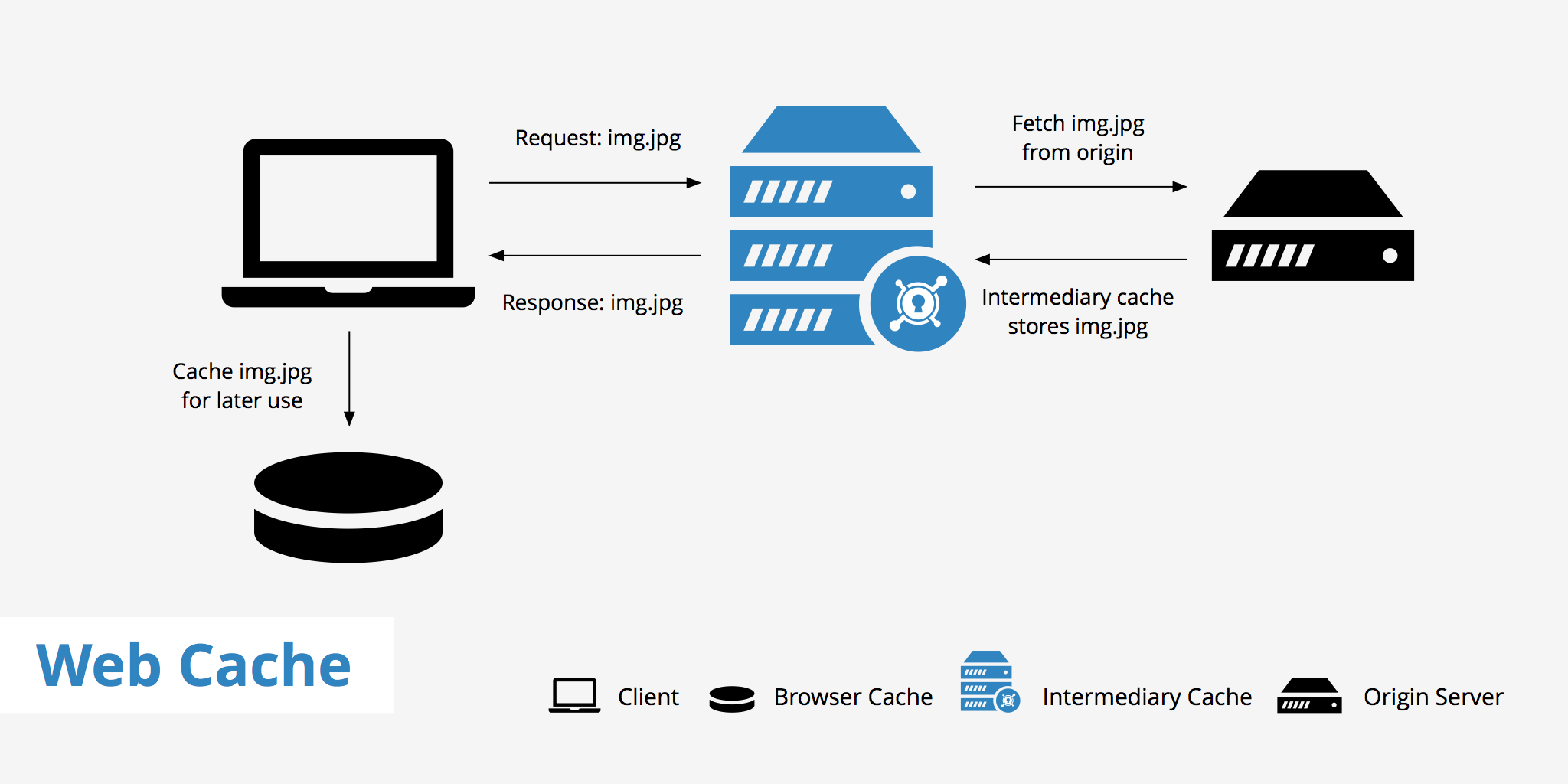
The browser is only one layer in a website’s delivery path. A forced reload can still receive old content from:
- A CDN edge server
- A reverse proxy such as Varnish or Nginx
- A managed host or WordPress page cache
- A server-side application cache
- A service worker controlling the page
- Cache Storage used by a progressive web app
- A corporate proxy or security gateway
- The browser’s back-forward cache when you navigate with Back or Forward
If another device also sees the outdated version, the problem is less likely to be your browser cache. Check the CDN, hosting cache, deployment, DNS destination, and origin server.
When Should You Force Refresh?
A hard refresh is appropriate when a website loads but appears to be using old or mismatched files. Common signs include:
- Updated text, images, CSS, or JavaScript does not appear
- A page has broken styling after a deployment
- Buttons or menus behave like the previous release
- A fixed bug remains on one computer but not another
- The browser mixes a new HTML document with old assets
- A staging website shows yesterday’s build
- A developer asks you to reload without cache
Do not immediately clear every cookie and saved login. Start with a hard refresh because it is faster and less disruptive. Escalate to per-site data removal only when the page is still stale or the problem involves a service worker, local storage, or a damaged site session.
Understanding Web Caching
Web caching stores reusable responses closer to the visitor so that they do not need to be downloaded or generated for every request. A browser cache is private to one device or browser profile. Shared caches, including CDNs and proxies, can serve the same stored response to many visitors.
The server controls normal HTTP caching with response headers:
| Header or directive | Meaning |
|---|---|
Cache-Control: no-cache |
The response may be stored, but it must be revalidated before reuse |
Cache-Control: no-store |
Caches should not store the response |
Cache-Control: private |
The response may be stored by a private browser cache, not a shared cache |
Cache-Control: max-age=3600 |
The response remains fresh for 3,600 seconds |
ETag |
An identifier used to check whether the stored response still matches the server’s version |
Last-Modified |
A timestamp that supports conditional revalidation |
Age |
How long a response has spent in a shared cache |
no-cache does not mean “never store this.” It means the cache must check with the server before reusing it. Use no-store when a response should not be stored, particularly for highly sensitive information.
Methods for Forcing a Non-Cached Load
1. Hard Refresh
Use the keyboard shortcut or browser reload menu described above. This is the best first step for one stale page because it is quick and does not delete cookies or saved sessions.
2. Clear Browser Cache
Clear only cached images and files when several pages are affected. Clearing cookies is usually unnecessary for a basic cache problem and can sign you out.
In Chrome, open the three-dot menu, select Delete browsing data, choose a time range, select Cached images and files, and delete the data. In Edge, open Settings > Privacy, search, and services > Clear browsing data. In Firefox, open Settings > Privacy & Security and use Clear Data under Cookies and Site Data.
Remove data for only one website
Per-site removal avoids clearing unrelated browser data:
- Chrome: Settings > Privacy and security > Third-party cookies > See all site data and permissions. Search for the domain and remove it.
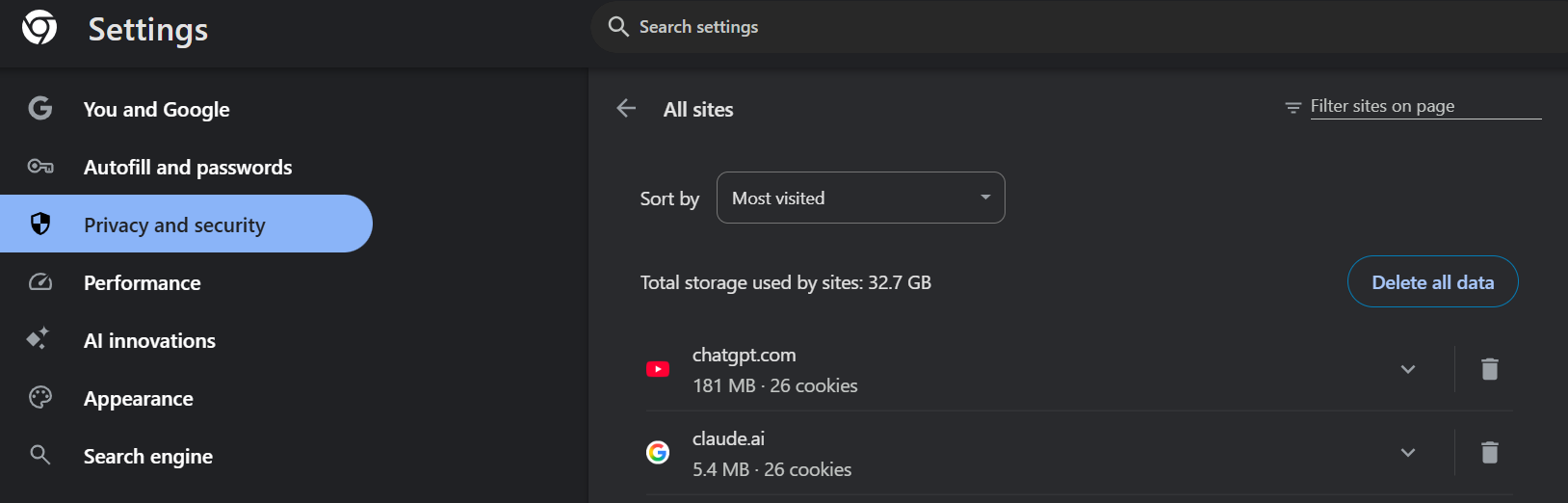
- Edge: Settings > Privacy, search, and services > Cookies > See all cookies and site data. Search for the domain and delete it.
- Firefox: Open the site, select the icon to the left of the address bar, and choose the option to clear cookies and site data.
- Safari on Mac: Safari > Settings > Privacy > Manage Website Data. Select the site and choose Remove.
Removing site data may delete cookies, local storage, IndexedDB, permissions, and other stored information in addition to cache files.
3. Bypass Cache Using Developer Tools
For repeated testing in Chrome or Edge:
- Open Developer Tools.
- Select the Network panel.
- Enable Disable cache.
- Keep Developer Tools open and reload the page.
The setting applies while Developer Tools remains open. Use the Network request table to see whether a resource came from memory cache, disk cache, a service worker, a 304 revalidation, a CDN, or the network.
For a PWA or service-worker problem, open Application > Storage. Clear site data and, when necessary, unregister the service worker. This is stronger than a normal hard refresh because service workers can intercept requests independently of the browser’s HTTP cache.
4. Add Query Parameters
Append a unique query string to the URL:
https://example.com/page?nocache=1735689600The new URL can create a separate cache key, which is useful for quick testing. It is not a guaranteed fix: a server or CDN may ignore query strings, normalise them, or apply a caching rule that still serves an old response.
Do not publish endless timestamped page URLs as a permanent strategy. Site owners should use versioned asset filenames and correct cache headers instead.
5. Browser Extensions
A cache-clearing extension is rarely necessary because modern browsers already provide hard reload, per-site data controls, and Developer Tools. Extensions receive browser permissions and may create privacy or security risk. Install one only from the browser’s official store, review its permissions, and prefer a well-maintained open-source tool when repeated one-click cache clearing is essential.
6. Change DNS Settings
Changing DNS normally does not fix an old CSS file, image, page, or JavaScript bundle. DNS maps a hostname to an IP address; it does not control the browser’s HTTP cache.
DNS becomes relevant when a domain was recently moved to a different server and your resolver still returns the old address. Compare the resolved IP address, flush the operating system’s DNS cache, or test another resolver. Do not change DNS merely because one webpage looks stale.
7. Use Incognito or Private Browsing Mode
A private window uses a separate temporary browsing context, which makes it useful for comparing the page without the normal profile’s cookies and existing site storage. However, private mode can still cache resources during that private session, and it cannot bypass a stale CDN or origin cache.
Use private browsing as a diagnostic comparison rather than proof that the response came directly from the origin.
8. Use CURL Command
Developers can request revalidation from a terminal:
curl -L -H "Cache-Control: no-cache" -H "Pragma: no-cache" https://example.com/Use -I to inspect response headers without downloading the body:
curl -I -L -H "Cache-Control: no-cache" https://example.com/Review Cache-Control, Age, ETag, Last-Modified, Via, and vendor-specific cache headers. The request asks caches to revalidate, but a managed CDN can still follow its configured caching rules. Curl also does not execute client-side JavaScript, so its output may differ from the fully rendered browser page.
Other Ways to Force Refresh
Clear a service worker and Cache Storage
- Open Chrome or Edge Developer Tools.
- Open Application > Storage.
- Select the storage types you need to remove.
- Select Clear site data.
- Open Service Workers and unregister the worker when it continues controlling an obsolete build.
- Reload the page.
This can remove offline files and app data. Do not use it casually on a production account without understanding what the site stores locally.
Open the exact URL instead of using Back
The Back and Forward buttons may restore a saved page snapshot through the back-forward cache. Type the address again, use a bookmark, or open the link in a new tab before performing a hard refresh.
Compare another device or network
Open the website on another browser, device, or mobile network. If every device receives the old page, clearing one browser will not solve the problem. The old response is probably coming from the CDN, host, server cache, deployment, or origin application.
Purge the CDN or hosting cache
Website owners should purge the affected URL or cache tag in Cloudflare, CloudFront, Fastly, a managed WordPress host, or another caching layer. Purge only the changed resources when possible instead of clearing the entire CDN, which can temporarily reduce performance and increase origin traffic.
Understanding Browser Caching and Why It Causes Issues
Browsers cache resources by URL. When /app.js is marked fresh for one year, deploying new content at the same URL can leave visitors using the old script until its freshness period ends.
A more difficult failure occurs when HTML and assets use different versions. New HTML might call a function that exists only in the new JavaScript bundle, while a visitor still has the old bundle. The result can be a blank page, broken navigation, or errors that developers cannot reproduce in a fresh profile.
Service workers add another caching layer. A worker can choose cache-first, network-first, stale-while-revalidate, or custom logic regardless of the browser’s normal HTTP-cache decisions. This is why “Disable cache” in the Network panel may not solve every PWA problem.
Common Scenarios Where Cached JS Files Break Updates
- Critical fixes: Visitors continue running code that contains a bug or vulnerability.
- API changes: An old frontend expects a response format the updated backend no longer returns.
- Split deployments: HTML references an asset that has already been removed from the server.
- Chunk loading failures: A single-page app requests an obsolete hashed chunk after a new release.
- Feature rollouts: Some visitors see the old interface while others receive the new bundle.
- Service-worker updates: An installed worker keeps serving an earlier precache.
- CDN inconsistency: Different edge locations hold different asset versions.
These problems should be fixed in the deployment and caching design. Asking every visitor to clear the cache is a temporary workaround, not a scalable release process.
Troubleshooting: When Cache-Busting Isn’t Working
The HTML document is still cached
A new hashed JavaScript file is useless when old HTML continues referencing the previous hash. Inspect the document request and give HTML a short lifetime or require revalidation.
The CDN is serving an older response
Inspect Age and CDN-specific headers, compare edge locations, and purge the affected URL. Confirm that the origin actually contains the new build before blaming the CDN.
A service worker controls the request
In DevTools, check whether the Network panel says that the response came from a service worker. Inspect its Cache Storage, update flow, scope, and activation state.
The deployment deleted old chunks too soon
An open tab may request a chunk from the previous release after the new deployment. Keep old content-hashed files available for a safe overlap period or implement recovery for chunk-load errors.
A proxy or corporate gateway caches the asset
Content-hashed filenames are the most reliable defence because they create genuinely new URLs. Request headers alone may not override every managed intermediary.
The page is restored from back-forward cache
Navigate directly to the URL instead of using Back, then reload. The back-forward cache can restore an in-memory snapshot without performing a normal page request.
The wrong server received the deployment
Compare DNS results, load balancer targets, deployment regions, and origin hostnames. A browser refresh cannot retrieve code that was never deployed to the server answering the request.
Use Clear-Site-Data only when justified
A server can send Clear-Site-Data: "cache" to clear the browser cache for its origin. This does not clear intermediate CDN or proxy caches, and broader values can remove cookies or storage. Treat it as a recovery tool rather than a normal deployment strategy.
FAQ
Does Ctrl + F5 clear the entire browser cache?
No. It forces the current page to reload without relying on the normal cached copy. It does not clear passwords, history, cookies, or every cached website.
Why does a hard refresh still show the old website?
The stale version may be coming from a CDN, server cache, service worker, reverse proxy, or failed deployment rather than the local browser cache.
Does Incognito mode disable cache?
No. It uses separate temporary storage and can cache files during the private session. It is useful for comparison, but it does not guarantee a request to the origin server.
Does adding ?nocache to a URL always work?
No. It often creates a new cache key, but servers and CDNs can ignore or normalise query parameters. It is useful for testing, not as the best permanent solution.
Will changing DNS load the newest page?
Only when stale DNS points your device to an old server. DNS changes do not normally affect cached HTML, CSS, JavaScript, or images.
Should a website tell every visitor to clear the cache after an update?
No. Use versioned assets, correct cache headers, safe service-worker upgrades, and CDN invalidation. Manual cache clearing should be a temporary diagnostic step.
What is the best cache-busting method for JavaScript and CSS?
Use content-hashed filenames with long-lived immutable caching, while keeping HTML short-lived or revalidated. This preserves performance and reliably changes the asset URL when its content changes.
Can a 304 response contain an old version?
A 304 tells the browser to reuse its stored response because the validator says it is current. If that stored response is wrong, inspect the ETag, Last-Modified value, origin deployment, and CDN configuration.