Chrome 79 arrived on December 10, 2019, and with it came a wave of “Aw, Snap! Something went wrong while displaying this webpage” errors. Every tab failed to load on some PCs. The cause was a security feature called Renderer Code Integrity. Google had switched it off in Chrome 78 after the same crashes, and Chrome 79 switched it back on.
Why Chrome 79 shows Aw, Snap
Renderer Code Integrity stops Chrome’s renderer processes from loading code that is not signed by Microsoft. Some security and monitoring software injects its own unsigned code into Chrome. When the feature blocks that code, the tab crashes. Software reported to trigger it included:
- older versions of Symantec Endpoint Protection (SEP) with Application Control
- PC Matic
- Palo Alto Networks Traps
- Print Audit Infinite
- CylancePROTECT, according to some users
The new Microsoft Edge, which is also built on Chromium, could show “Page cannot be displayed” or STATUS_INVALID_IMAGE_HASH for the same reason.
Fix 1: update the conflicting software
This is the proper fix. Broadcom says the problem is resolved in Symantec Endpoint Protection 14.2 RU2 MP1 (build 14.2.5569.2100) and later. If you use another product from the list, check with the vendor for a compatible version. If SEP cannot be upgraded right away, an administrator can add an Application Control exception for chrome.exe (and msedge.exe for Edge).
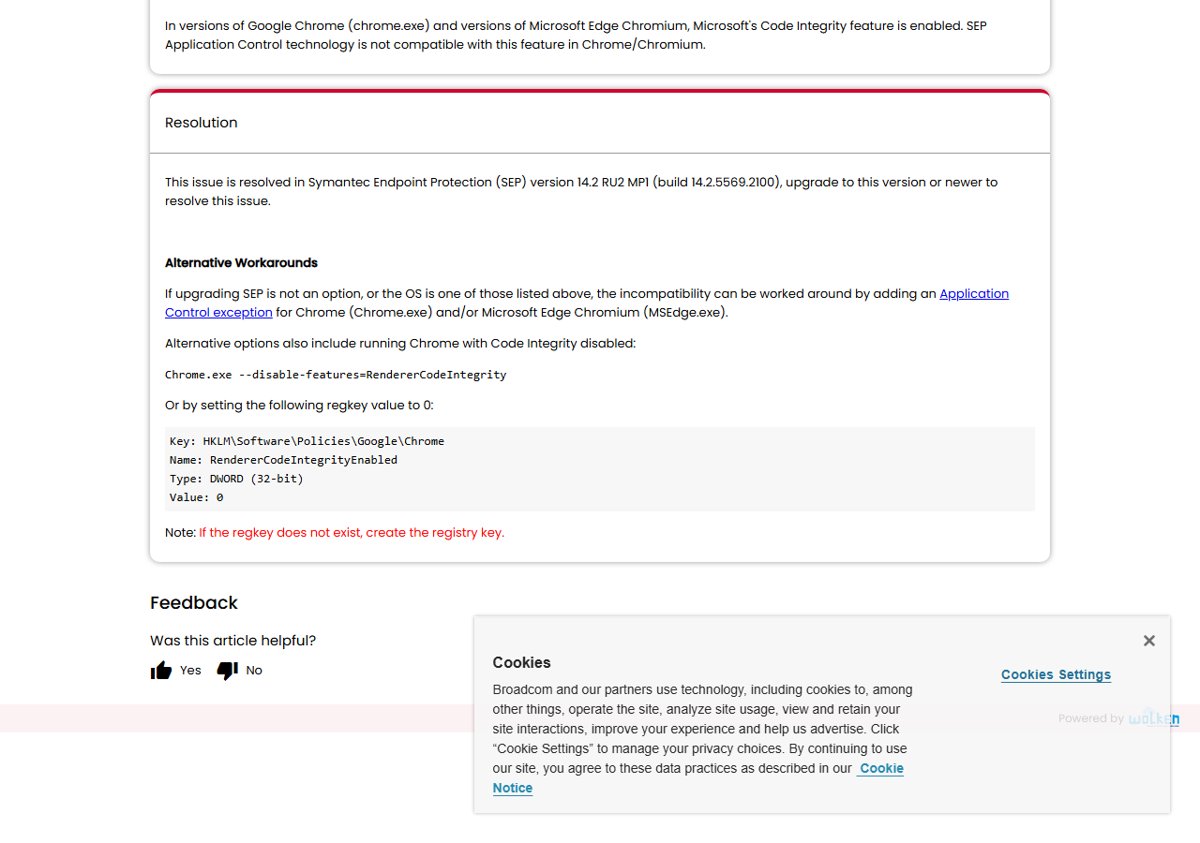
Fix 2: launch Chrome with Code Integrity off
- Right-click your Chrome shortcut and select Properties.
- In the Target box, after the closing quote, add a space and then –disable-features=RendererCodeIntegrity.
- Select OK, close all Chrome windows and open Chrome from that shortcut.
Fix 3: turn it off with a registry policy
- Open Registry Editor and go to HKEY_LOCAL_MACHINE\Software\Policies\Google\Chrome. Create the key if it does not exist.
- Create a DWORD (32-bit) value named RendererCodeIntegrityEnabled.
- Set its value to 0 and restart Chrome.
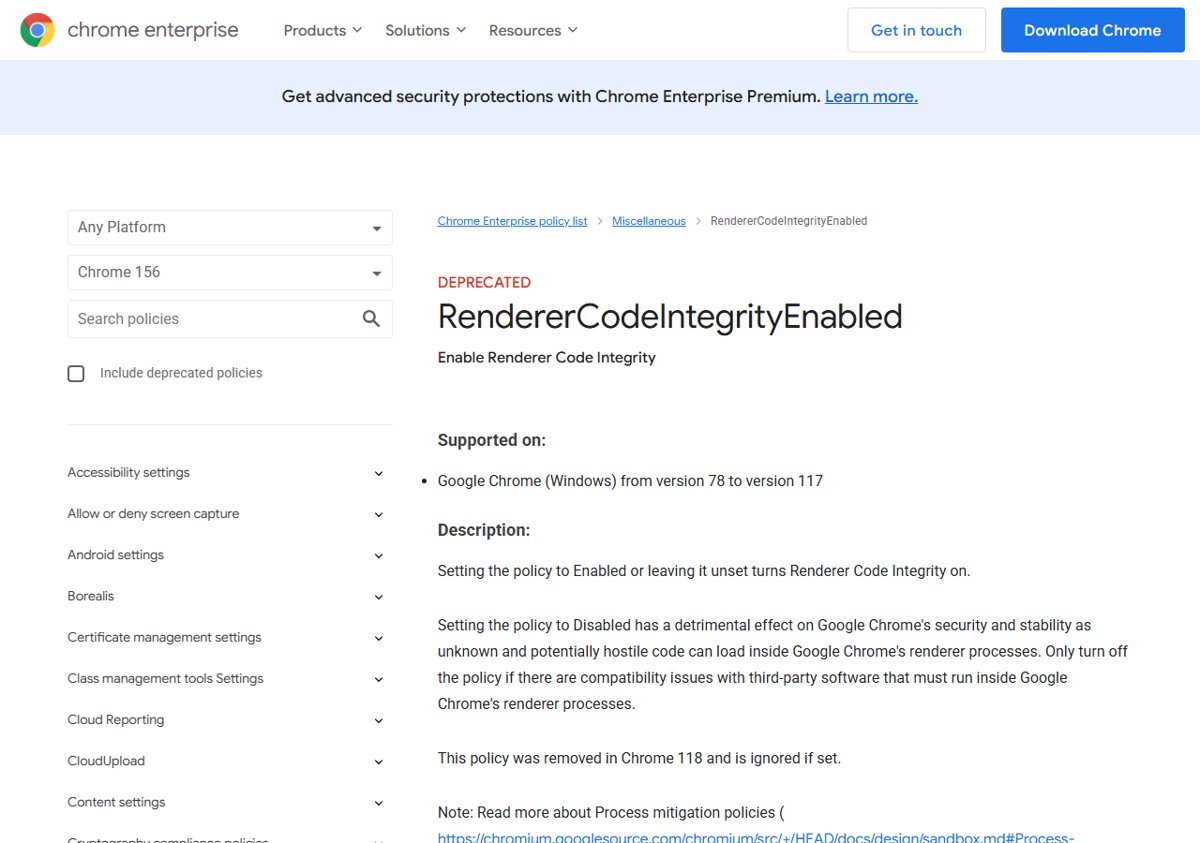
Google warns that disabling this policy “has a detrimental effect on Google Chrome’s security and stability”. Use it only for compatibility with third-party software that must run inside Chrome’s renderer, and remove it once that software is updated.
Which fix to choose
Home users should update or replace the conflicting program first. A shortcut flag is the quickest test: if Chrome works when launched with it, you have found the cause. On company PCs, leave SEP and policy changes to the IT team, since the Application Control exception and registry policy are both managed settings. One user with SEP also reported getting Chrome working by running it in Windows 8 compatibility mode.
Today
Google’s policy page shows that RendererCodeIntegrityEnabled was supported on Chrome for Windows from version 78 to 117. It was removed in Chrome 118 and is ignored if set. On a current Chrome, the only fix for this kind of crash is to update or remove the software that injects code. Background on the earlier round of crashes is in our posts on the Chrome 78 Aw, Snap crashes and on Google switching Renderer Code Integrity off. If crashes continue for other reasons, try a Chrome settings reset.