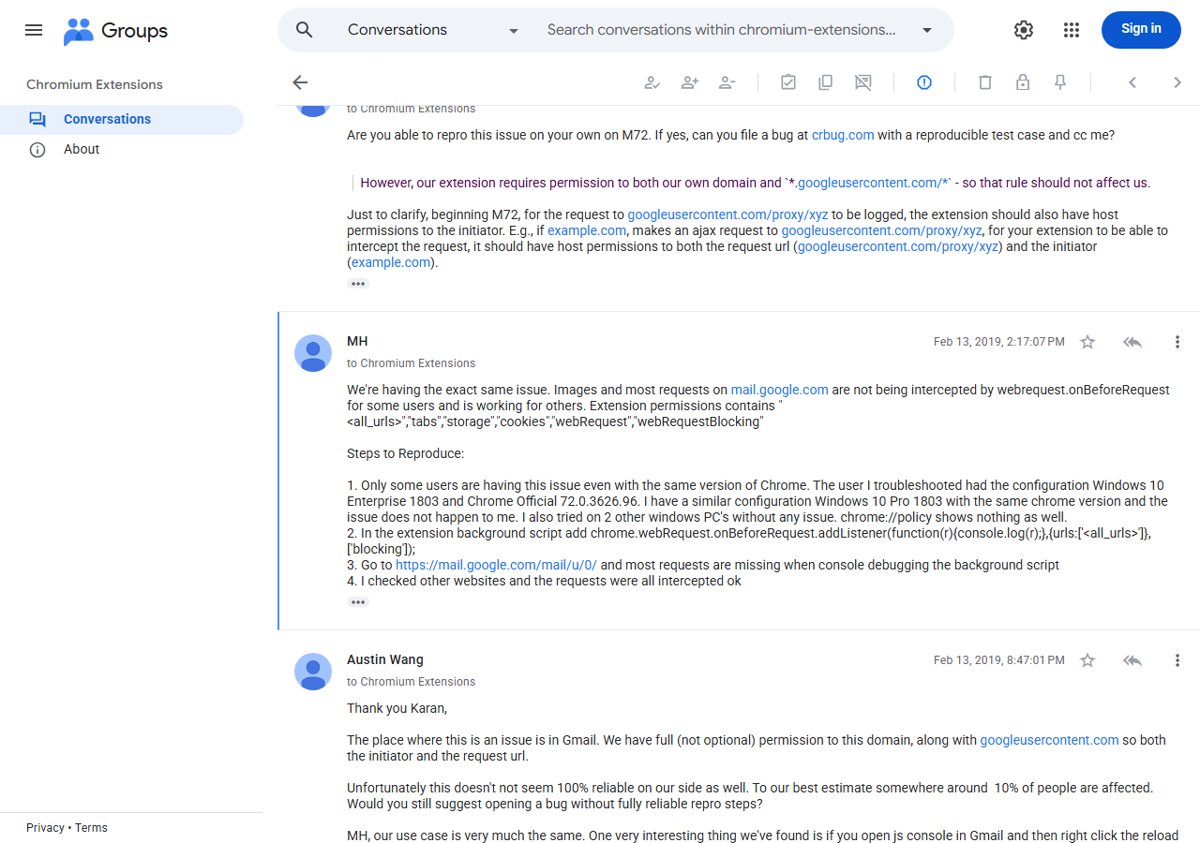
In February 2019, after Chrome 72 reached the stable channel, some users found that ad blockers and other extensions stopped working on certain websites. Pages that should have been filtered loaded with ads, and extensions that watch network requests missed some of them. Developers reported the same thing: on the official Chromium Extensions group, one wrote on February 13, 2019 that requests on mail.google.com were not being caught by their extension’s webRequest listener, but only for some users on the same Chrome version.
Why extensions missed requests
Ad blockers work through Chrome’s webRequest API, which lets an extension see and block a page’s network requests. Two changes around Chrome 72 affected that.
- Network Service and service workers. Chrome was moving networking into a separate Network Service, and service workers onto a new code path. A Chromium bug report from late 2018 describes extensions no longer seeing some requests when the #network-service and #enable-service-worker-servicification flags were on. One commit noted that “fetches from service worker didn’t go through webRequest extension API when NetworkService is enabled”. Many sites, including Gmail, use service workers, so the effect depended on the site.
- Host permissions. A Chromium engineer explained in the same extensions thread that “beginning M72”, an extension needs host permission for both the request URL and the page that started the request (the initiator) to intercept it.
Google was rolling Network Service out as an experiment, so only some Chrome 72 users were affected. That is why the same version worked for one person and not another.
Workaround: switch off the Network Service experiment
- Type chrome://flags in the address bar and press Enter.
- Search for network service.
- Set Enable network service to Disabled.
- Select Relaunch to restart Chrome.
- Reload the page and check whether your ad blocker is filtering it again.
Treat this as temporary. When a later Chrome version fixes the problem, go back to chrome://flags and set the flag to Default, or select Reset all. Flags that you change and forget can cause odd problems later. A full Chrome settings reset is another way to clear them.
Other things to try
- Update the extension. Developers adjusted their manifests after the M72 host permission change.
- Check the extension’s site access on the chrome://extensions page and allow it on all sites.
- Update Chrome. Experiments are switched on and off between versions, and fixes reach stable with each update.
How to tell if you are affected
Open a site where ads used to be blocked and click your ad blocker’s icon. If its counter shows few or no blocked requests on a page full of ads, the extension is not seeing those requests. Try the same page in a new profile with only the ad blocker installed to rule out a conflict with another extension.
Today
Chrome 72 is long out of date, and experiments from that time no longer apply to a current browser. If an extension misbehaves now, Chrome’s Task Manager shows whether it is using unusual CPU or memory.