By using the New Tab controls offered in in Firefox, you can able to show new tab page as a blank page, you should know, this can still be achieved in Firefox 61 and later versions after the new tab settings migrated to Home preferences page, plus, you can now set Firefox new tab to open the blank page by using the about:config preference available in the Mozilla browser, we’ve laid down the steps below for that.
Set Firefox new tab and homepage to open as blank page
1. Launch Firefox
2. Open menu > Options > Home
3. Choose Blank Page option for New tabs under New Windows and Tabs

4. Done
Now if you open New Tab Page in Firefox browser, a blank page will open.
Note: The same can be achieved by changing about:config preference, find out that below.
Similarly, you can able to make Firefox Home page to blank, by selecting ‘Blank Page’ for Homepage and New Windows under Home Preferences.

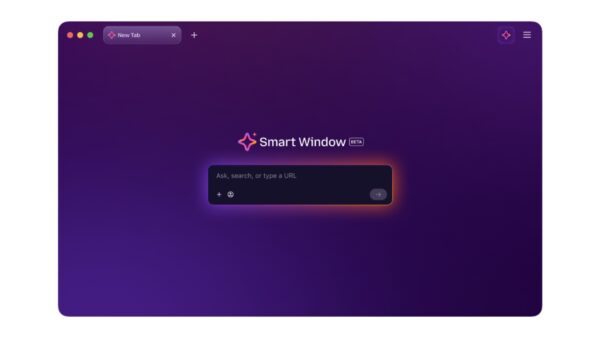
Representation Picture
About:config method to change the New Tab Page in Firefox to Blank/empty
- Visit about:config
- Search for newtab, find browser.newtabpage.enabled preference and change its value to false.

Related articles
Firefox New Tab Page to Show Sponsored Stories in Pocket Recommendations
Firefox 61: New Tab Page Settings moved to Home Section in Options
Firefox 57 : Get the old New Tab Page back
Firefox 57 : Mozilla replaces New Tab Page with Activity Stream
Firefox 56 gets Compact New Tab Page