Google search keeps requiring robot verification when it sees automated-looking traffic from your IP address, and on an iPhone or Mac the usual cause is iCloud Private Relay or a VPN that shares that address with many other people.
This guide shows how to let Google see your real IP address in Safari, how to pause Private Relay, what to do on VPNs and shared networks, and how to fix a reCAPTCHA that will not load.
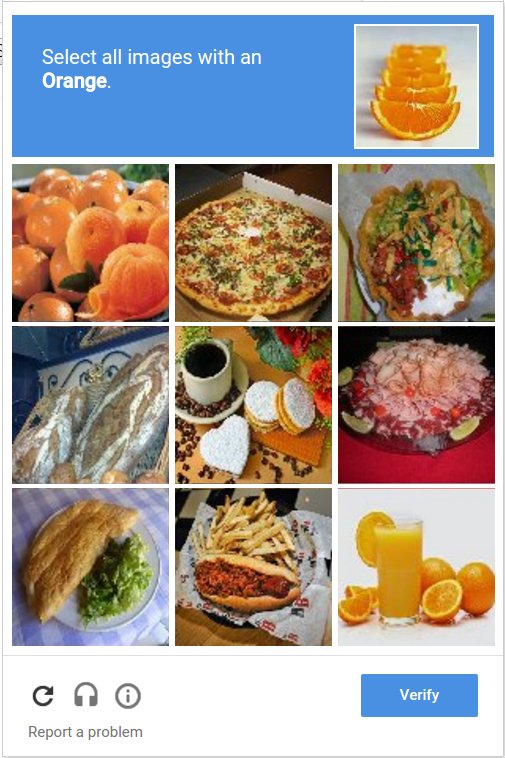
How to stop Google asking "I'm not a robot" in Safari
Solve the reCAPTCHA once first. If Google asks again after a few searches, let Google see your IP address for that site only.
- Open the Google search page that shows the reCAPTCHA in Safari.
- On a Mac, open the View menu and choose Reload and Show IP Address.
- On an iPhone or iPad, tap the Page Menu button in the address bar, then tap Show IP Address.
- Run your search again and check that it goes through without a picture challenge.
- If the option is missing, update the device to the latest version of iOS, iPadOS or macOS and try again.
This only changes Google. Private Relay keeps protecting every other website. While the IP address is shown, your network provider can also see that you are on Google.
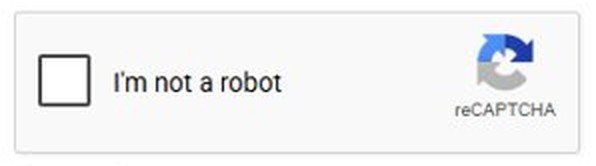
Why does Google keep asking me to verify I'm not a robot?
Google shows Our systems have detected unusual traffic from your computer network when a network you use seems to be sending automated searches. It judges the IP address, so other people on the same address can trigger it for you.
| Cause | Why it triggers the check | Typical sign |
|---|---|---|
| iCloud Private Relay | One relay IP address can be shared by many Private Relay users in the same area | Captchas every few searches on iPhone and Mac Safari |
| VPN or IPv6 tunnel service | Others on the same VPN send automated searches, and some VPNs make good and bad traffic impossible to tell apart | Captchas stop when the VPN is off |
| School, office or public network | Other users on the network send automated searches | Happens on one Wi-Fi network only |
| Internet provider | Other customers of the same provider send automated searches | Happens at home on every device |
| Malware | Malicious software on a device sends searches without your knowledge | Happens on one device on every network |
| Rank-checking or scraping software | Google counts robots, programs, automated services and search scrapers as automated traffic | Starts after installing an SEO or automation tool |

Google unusual traffic from your computer network fix
Match where the captchas appear to the fix. The test is simple: change one thing, then search five or six times in a row.
| Where you see it | Fix | Why |
|---|---|---|
| Safari on iPhone or Mac with iCloud+ | Show your IP address to Google, or pause Private Relay | Private Relay hides your IP behind a shared relay address |
| Any browser while a VPN is connected | Disconnect the VPN or ask the VPN provider | The VPN address is shared with other people |
| Only on a school or work network | Contact the network administrator | Someone on that network is sending automated searches |
| Every device on your home internet | Contact your internet provider | The automated traffic comes from the provider's address range |
| One device on every network | Scan for and remove malware | Software on that device is sending searches |
| No reCAPTCHA appears at all | Update the browser and turn on JavaScript | The challenge needs a supported browser |
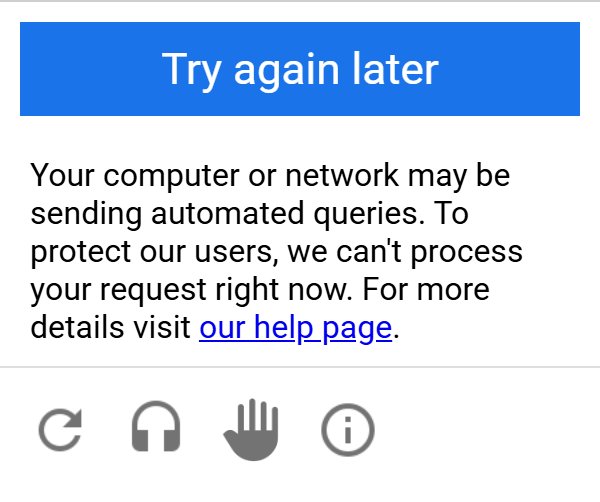
How to turn off iCloud Private Relay on iPhone
Turning Private Relay off fixes Google for every app, not just Safari. The temporary option is the safer choice because it switches itself back on.
- Open Settings and tap your name at the top.
- Tap iCloud, then tap Private Relay.
- Tap Private Relay.
- Tap Turn Off Until Tomorrow to pause it for up to 24 hours, or Turn Off Private Relay to switch it off completely.
- Open Safari and search Google again.
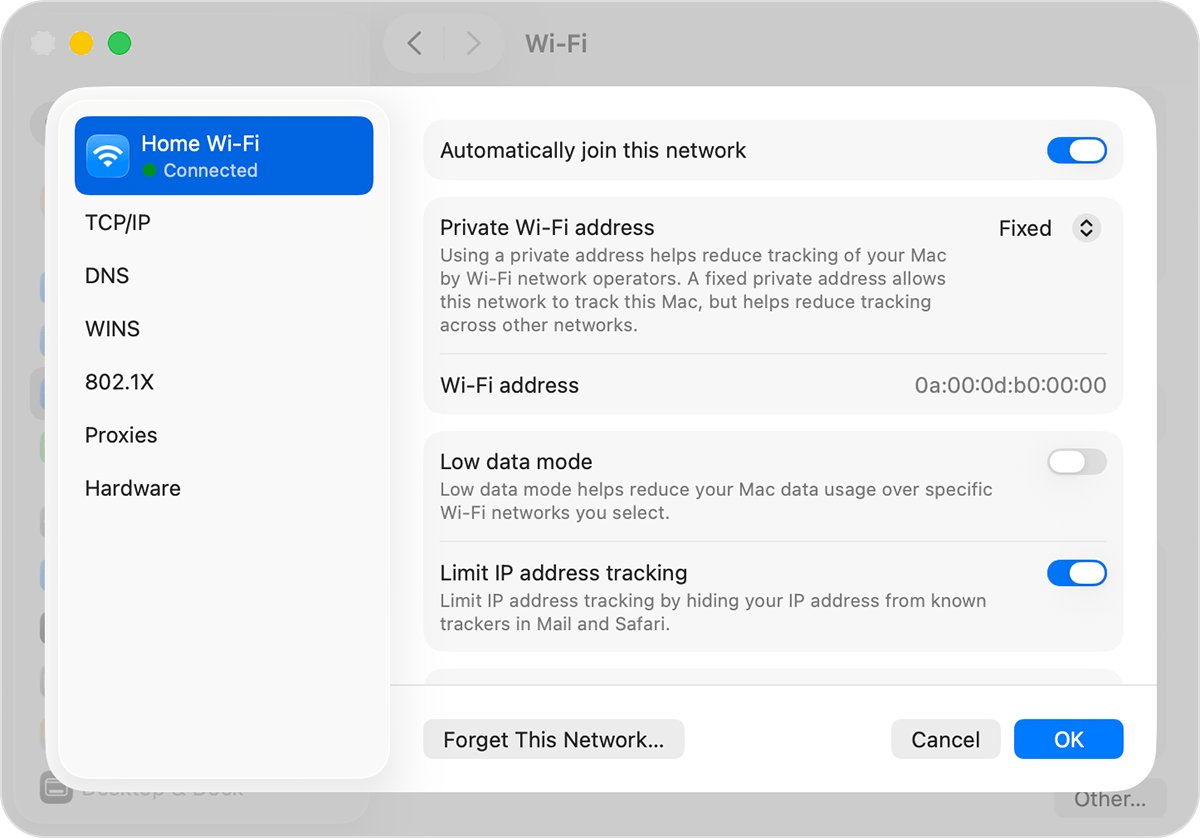
To turn it off only for your home Wi-Fi, go to Settings > Wi-Fi, tap the More Info button next to the network and turn off Limit IP Address Tracking. For mobile data, go to Settings > Cellular, tap Cellular Data Options or select your line under SIMs, and turn off Limit IP Address Tracking.
A network setting applies to all your devices signed in to the same Apple Account.
How to turn off iCloud Private Relay on Mac
The Mac has the same two choices: switch Private Relay off for the whole Mac, or only for the network that triggers the captchas.
- Choose Apple menu > System Settings.
- Click your name at the top of the sidebar.
- Click iCloud, then click Private Relay and turn it off.
- To change only one network instead, click Network in the sidebar and select the service you use, such as Wi-Fi.
- Click Details next to the network you are connected to.
- Turn off Limit IP address tracking.
- Reload Google in Safari and search again.
In macOS Monterey the path is System Preferences > Network, then clear the checkmark next to Limit IP Address Tracking.
Safari Hide IP address from trackers and websites setting
On a Mac, the Safari privacy setting decides whether websites see your IP address at all. from Trackers and Websites routes Safari through Private Relay, which is the setting that leads to shared addresses.
- Open Safari on your Mac.
- Choose Safari > Settings, then click Privacy.
- Find Hide IP address from trackers.
- Choose from Trackers only to keep hiding your IP from known trackers while Google sees your real address.
- Choose from Trackers and Websites later if you want full IP hiding back.
On an iPhone, Settings > your name > iCloud > Private Relay > IP Address Location offers Maintain General Location and Use Country and Time Zone. Neither option shows your real IP address, so use Show IP Address or the network switch above for Google.
How to stop Google robot verification on a VPN
Google says some VPNs and tunnel services cause all traffic to be blocked, because it cannot separate abusive searches from normal ones on those addresses.
- Disconnect the VPN from its app or from your device's VPN settings.
- Search Google five or six times and see whether the captchas stop.
- If they stop, ask the VPN provider for a different server or report the block to them.
- If you no longer need the VPN, uninstall it from the computer or network.
- Also turn off any IPv6 tunnel service you use, since it can cause the same message.
On a Mac, a VPN or internet filtering app can also stop Private Relay working and show Some of your system settings prevent Private Relay from working. Turn off or remove that app if you want to keep using Private Relay, or stop the Private Relay notifications if you keep the app.
How to tell if iCloud Private Relay is causing Google captchas
One controlled test tells you whether Private Relay is the cause or whether the problem is the network or the device.
- In Safari, reload Google with Reload and Show IP Address on a Mac, or Show IP Address from the Page Menu on an iPhone.
- Search five or six times. If the captchas stop, Private Relay is the cause.
- If they continue, open the same searches in a browser that does not use Private Relay, such as Chrome.
- If Chrome also gets captchas, switch from Wi-Fi to mobile data, or the other way round, and test again.
- If the captchas follow the device to every network, scan it for malware.
- If they appear only on one network, the source is on that network or with its internet provider.
Google reCAPTCHA not working in Safari
Google shows the unusual traffic message but no reCAPTCHA
The browser is not supported by reCAPTCHA, or JavaScript is turned off.
- Update Safari by updating iOS, iPadOS or macOS. reCAPTCHA supports the two most recent major versions of Safari, Chrome, Firefox and Edge.
- Check that JavaScript is turned on in the browser.
- Turn off browser extensions that might conflict with reCAPTCHA, then reload Google.
The picture challenge is too hard or keeps coming back
Google needs more proof and serves a new challenge each time an answer is wrong or expires.
- Click the reload button next to the image to get a different challenge.
- Use the audio challenge instead, press PLAY and type the numbers you hear.
- Complete the challenge without waiting, because the verification expires after some time.
Google refuses the search completely
Google sees so much automated traffic from your address that it stops serving it.
- Show your IP address to Google in Safari, or pause Private Relay.
- Disconnect any VPN or IPv6 tunnel service.
- Contact your network administrator or internet provider if the block stays on one network.
Captchas appear on every network on one computer
Malware or unwanted software on that computer sends searches in the background.
- Remove programs you do not recognise from the computer.
- In Chrome, open Settings > Reset settings > Restore settings to their original defaults > Reset settings.
- Turn extensions back on one by one, only the ones you trust.
- If your search engine changed by itself, make Google the default search engine again after the reset.
A homepage or search engine that keeps changing is a common sign of unwanted software. If Chrome keeps landing on Yahoo, remove Yahoo search from Chrome before you test Google again.
Google robot verification FAQ
Why does Google think I'm a robot?
Google thinks you are a robot when your network seems to send automated searches. The check is tied to your IP address, so a VPN, iCloud Private Relay, a shared school or office network, or malware on a device can all trigger it, even if you search normally.
Does iCloud Private Relay cause Google captchas?
iCloud Private Relay can cause Google captchas because one relay IP address may be shared by many Private Relay users in the same area. Apple notes that some websites may need extra steps without your IP address. Showing your IP address to Google in Safari usually stops the prompts.
Is it safe to turn off iCloud Private Relay?
Turning off iCloud Private Relay is safe, but network providers and websites can then monitor your Safari activity again. Turn Off Until Tomorrow on iPhone limits that to about 24 hours, and Show IP Address limits it to one website.
Can a VPN cause the Google unusual traffic message?
Yes. If other people on the same VPN send automated searches, Google flags the shared address. Some VPNs and IPv6 tunnel services make it impossible for Google to separate normal and abusive traffic, so all searches from them get blocked.
Can malware make Google ask me to verify I'm not a robot?
Yes. Malware can be installed on a computer without your knowledge and send searches in the background, and Google lists it as a cause of the unusual traffic message. Captchas that follow one device to every network point to this cause.
Why does Google ask for robot verification on my work or school Wi-Fi?
Google asks for verification on work or school Wi-Fi when other users on that network send automated searches. Everyone shares one public address, so the block affects all of them. Only the network administrator can find and stop the source.
How long does the Google unusual traffic block last?
The Google unusual traffic message goes away as soon as you solve the reCAPTCHA. Google does not publish a time limit for repeat prompts. They stop once the automated searches from your network stop, or once you search from an address that is not shared.
Does reCAPTCHA work in Safari?
Yes. reCAPTCHA supports the two most recent major versions of Safari on Mac and iPhone. If no checkbox or challenge appears, update the device, check that JavaScript is turned on and turn off extensions that might conflict with it.