The ASUS Router download is free for iPhone, iPad and Android, and it sets up and manages ASUS Wi-Fi routers and ZenWiFi systems from your phone. On a Windows 11, Windows 10 or Mac computer, you reach the same router settings in any web browser.
This guide covers which download fits your device, setup steps for iPhone and Android, the browser route for PC and Mac, supported models, and fixes for login problems.
Which ASUS Router download do you need?
Match your device to a row, then use the link in that row. The phone app and the browser settings page control the same router.
| Your device | What to use | Size |
|---|---|---|
| iPhone or iPad on iOS 15 or later | ASUS Router on the App Store | 273.2 MB |
| Android phone or tablet | ASUS Router on Google Play | Play states no size |
| Windows 11 or Windows 10 PC | Web GUI at http://www.asusrouter.com in any browser | Nothing to install |
| Mac | Web GUI in Safari, plus ASUS Device Discovery to find the router | Nothing required; Device Discovery is optional |
Download ASUS Router from the official page and stores
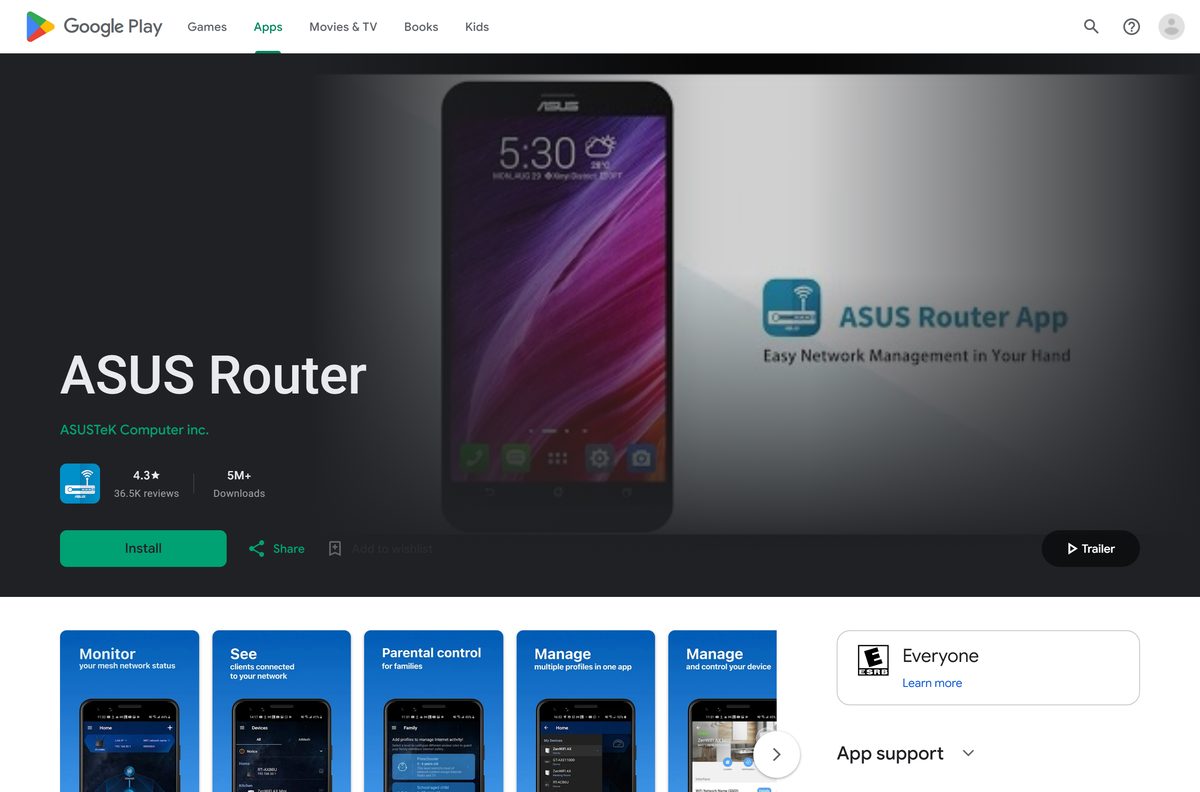
The ASUS app page points to the two store listings. Both come from ASUSTeK Computer Inc., the company behind ASUS.
- ASUS Router app page — Features, setup guides and firmware notes from ASUS
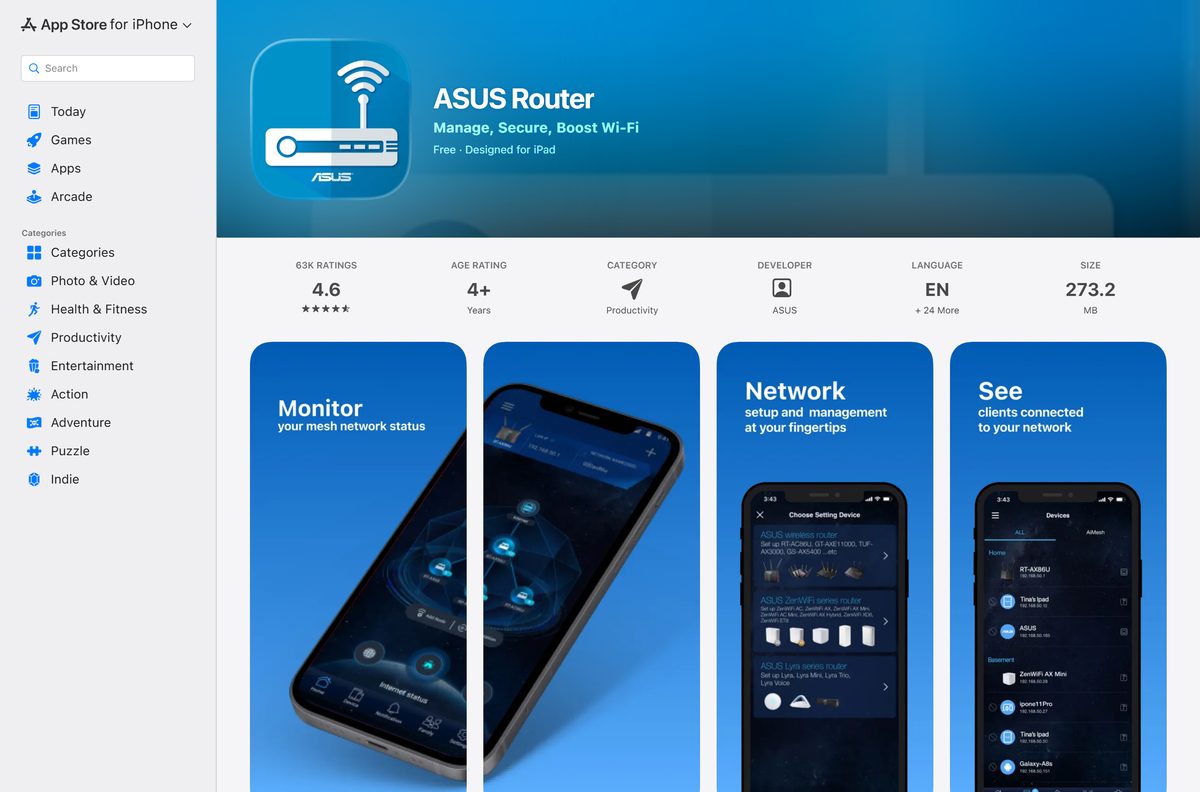
- ASUS Router on the App Store — 273.2 MB · iPhone and iPad, iOS 15 or later, free
- ASUS Router on Google Play — ASUSTeK Computer inc., free, 5M+ downloads
On the phone itself, search the store for ASUS Router and open the listing from ASUSTeK.
Check the ASUS Router requirements and supported models
The app needs a supported phone and a supported router. The router side matters more, because cable modem models do not work at all.
| Field | Value |
|---|---|
| Software | ASUS Router |
| Developer | ASUSTeK Computer Inc. |
| Latest version | 1.0.0.9.85 on iPhone and iPad (14 September 2026); Android updated 23 September 2026 |
| Price | Free |
| iPhone and iPad | iOS 15 or later |
| Android | Phones and tablets through Google Play |
| Windows and Mac | No desktop app; use the web GUI in a browser |
| Download size | 273.2 MB on the App Store; Google Play states no size |
| Supported routers | ZenWiFi, all 802.11ax and 802.11be models, ROG Rapture, ROG Strix, TUF Gaming, Lyra and many RT-AC and RT-N models |
| Not supported | All cable modem models and several older DSL models |
| Full app features | Router firmware newer than 3.0.0.4.388 |
| Offline installer | None |
| Official source | asus.com, the App Store and Google Play |
| Last verified | 2026-09-25 |
Selected DSL models support login and partial management only, without Quick Internet Setup. The complete list sits in the ASUS Router app setup FAQ.
How to install ASUS Router on an iPhone and set up the router
Plug the router in and connect its WAN port to your modem first. Then join the router’s default Wi-Fi network, which is named ASUS_ followed by characters.
- Open the ASUS Router listing on your iPhone and tap Get.
- Join the router’s default Wi-Fi network in Settings, then Wi-Fi.
- Open the ASUS Router app and choose Allow while using app or Allow once.
- Tap OK to allow Bluetooth access.
- Tap Setup, then ASUS Router, then Start.
- Pick your Internet type, such as Automatic IP or PPPoE.
- Enter a new Wi-Fi network name and password.
- Create the router login name and password.
- Tap Accept or Decline for remote connection, then wait for the home screen.
The router login name and password are separate from your Wi-Fi password. Keep both, because the web GUI asks for the login pair.
How to install ASUS Router on an Android phone and set up the router
The Android flow matches the iPhone flow, with one permission prompt instead of two.
- Open the ASUS Router listing on Google Play and tap Install.
- Connect the phone to the router’s default ASUS_ Wi-Fi network.
- Open the ASUS Router app and tap Setup.
- Tap ASUS Router, then choose Allow.
- Tap Start and pick Automatic IP or PPPoE as the Internet type.
- Enter the new Wi-Fi network name and password.
- Create the router login name and password.
- Accept or decline remote connection, then confirm the home screen shows your router.
How to manage your ASUS router from a Windows PC without installing anything
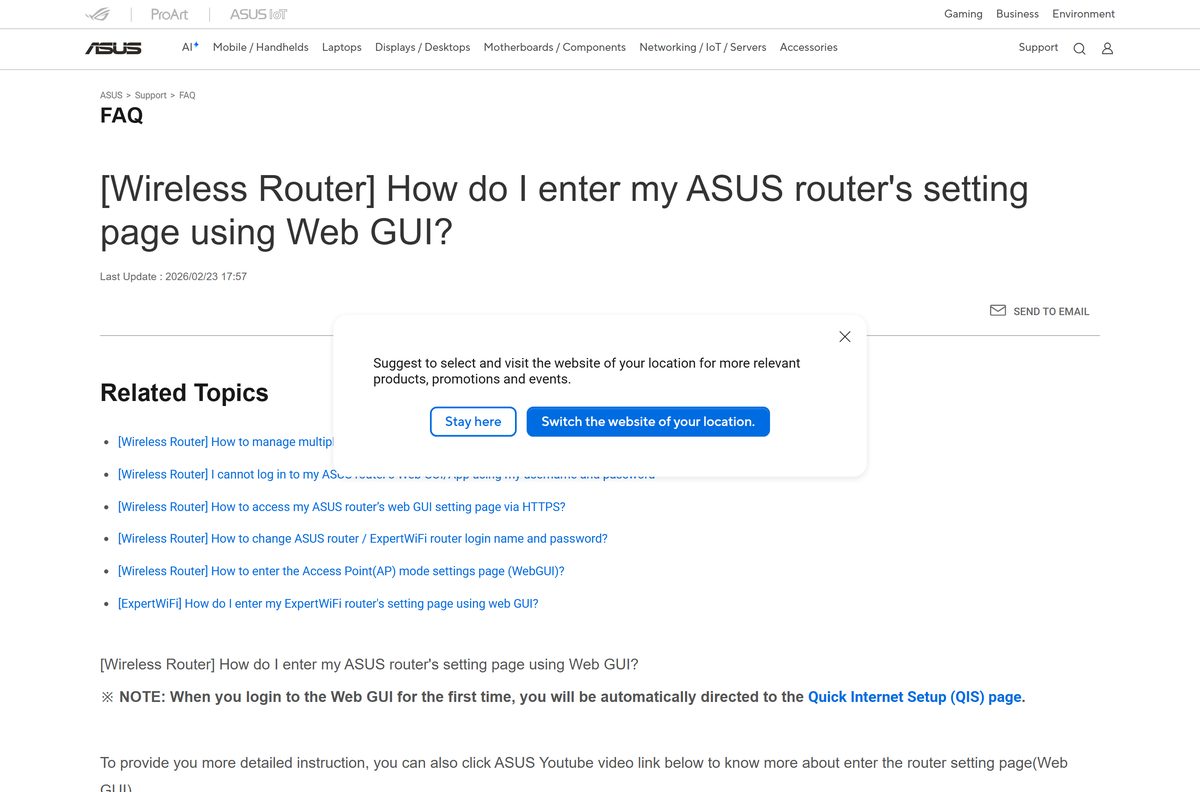
ASUS routers carry a web-based settings page, the web GUI. It works in Microsoft Edge, Chrome, Firefox or Safari, so a Windows 11 or Windows 10 PC needs no app.
- Check that the router is on and its power LED is lit and steady.
- Connect the PC to the router by Ethernet cable or Wi-Fi.
- Open a browser and go to http://www.asusrouter.com, or type the router’s LAN IP, such as http://192.168.50.1.
- Enter the router login name and password.
- Complete Quick Internet Setup if this is the first login or the router was reset.
- Change settings from the menus, then log out before you close the browser.
Log out every time. If you close the browser without logging out, the router blocks another computer from logging in for three minutes. The ASUS web GUI guide covers wired and wireless connections.
What to use on a Mac or when you cannot find the router
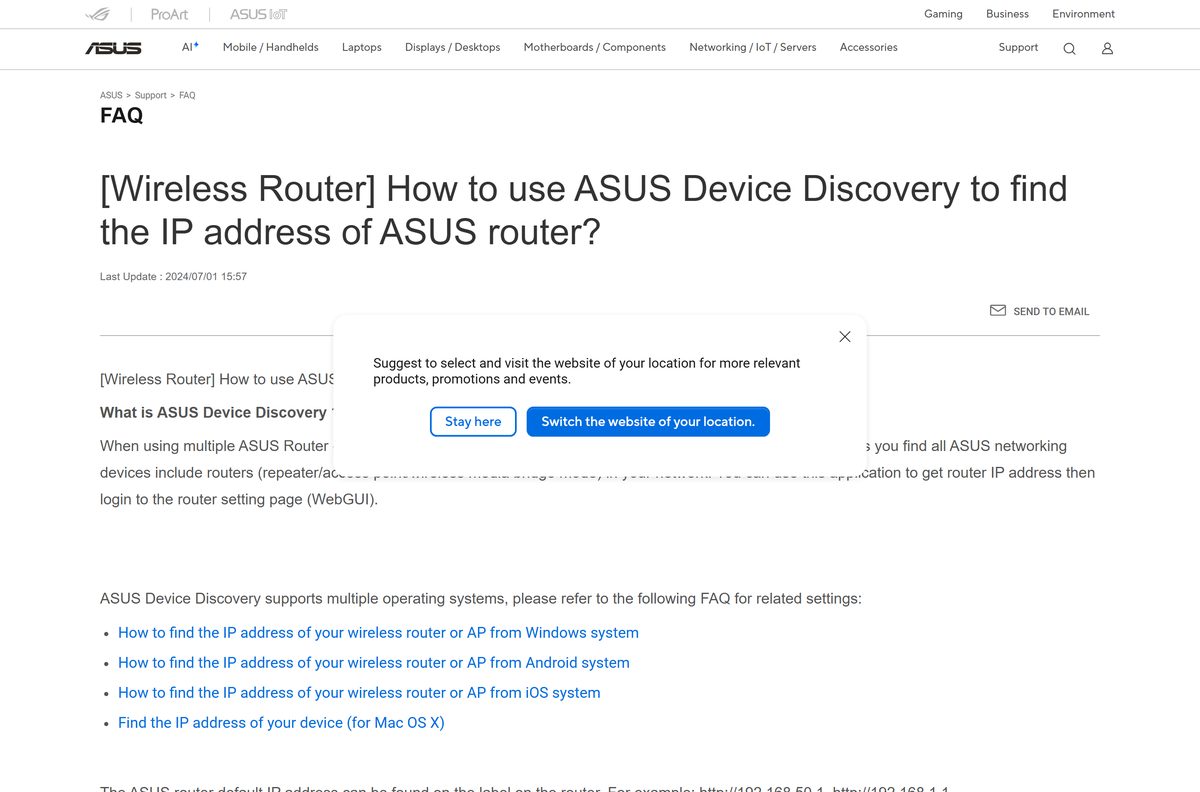
The Mac App Store carries no ASUS Router app. It does carry ASUS Device Discovery, a free ASUS tool that finds routers on your network and shows their IP address.
| What you want | What to do |
|---|---|
| Change router settings on a Mac | Open http://www.asusrouter.com in Safari |
| Find the router IP address on a Mac | ASUS Device Discovery on the Mac App Store (macOS 12 or later) |
| Find the router IP address on Windows, Android or iPhone | ASUS Device Discovery guide |
| Run first-time setup from a phone | ASUS Router app setup guide |
The default IP address is also printed on the router label, usually http://192.168.50.1 or http://192.168.1.1.
Is ASUS Router free?
Yes. The app and the web GUI are both free. ASUS lists the app as free on the App Store and Google Play. The web GUI is part of the router firmware, so any browser reaches it at no cost. Parental controls, Safe Browsing and the AiProtection scan are included in the app.
Ignore any site that charges for an ASUS Router download or a desktop version. ASUS sells neither.
How to check that your ASUS Router app is genuine
The app has no installer file to checksum. The store listing and its publisher are the proof.
- Open the listing from the ASUS app page or the links above, not from a search ad.
- On the App Store, check that the seller reads ASUSTek COMPUTER INC.
- On Google Play, check that the developer reads ASUSTeK Computer inc. and the listing shows 5M+ downloads.
- Confirm the app name is ASUS Router, not ASUS ExpertWiFi or ASUS Extender.
- Delete any ASUS Router file you got from a third-party site.
How to check your ASUS Router app version and update it
Version 1.0.0.9.85 is the current iPhone and iPad build. It added ASUS Go series setup and a theme that follows your system setting.
- Open the App Store or Google Play on your phone.
- Search for ASUS Router and open the listing.
- Tap Update if it shows. Open means you already have the newest build.
- Update the iPhone to iOS 15 or later if the store refuses the update.
- Keep the router firmware current too, because newer app features need firmware newer than 3.0.0.4.388.
Choose between the ASUS Router app and the web GUI
Both reach the same router. Pick by device and by task.
| Option | Runs on | Best for |
|---|---|---|
| ASUS Router app | iPhone, iPad, Android | First-time setup, AiMesh nodes, remote checks, parental controls |
| Web GUI | Any browser on Windows, Mac or a phone | Detailed settings from a computer, no install |
| ASUS Device Discovery | Windows, Mac, Android, iOS | Finding the router IP address |
| ASUS ExpertWiFi app | iPhone, Android | ASUS ExpertWiFi business routers, which have their own app |
Install the ASUS Router app on your phone for setup, and bookmark the web GUI on your computer for everything else.
Fix ASUS Router app and web GUI login problems
The web GUI page does not open
The computer is not on the router’s network, or the address is wrong.
- Connect the computer to the router by cable or Wi-Fi.
- Type http://www.asusrouter.com into the address bar.
- Try the IP address from the router label, such as http://192.168.50.1.
- Run ASUS Device Discovery to find the current IP address.
The login page rejects your username and password
You are entering the Wi-Fi password or ISP account instead of the router login.
- Enter the router login name and password you set during setup.
- Try admin for both on models that use that default.
- Check the router label for model-specific defaults.
- Hold the reset button for at least 5 seconds until the power LED flashes, then set the router up again.
Another computer cannot log in
A previous session was closed without logging out.
- Wait three minutes.
- Log in again.
- Log out from the web GUI before closing the browser next time.
The app cannot find or set up the router
The model is unsupported, or the phone is not on the router’s Wi-Fi.
- Check that the router is not a cable modem model, which the app does not support.
- Join the router’s Wi-Fi network on the phone.
- Accept the permission and Bluetooth prompts on iPhone.
- Update the router firmware if advanced features are missing.
The ASUS web GUI guide lists the reset steps and default login locations.
How to uninstall and reinstall ASUS Router
Router settings live on the router, not on the phone. Removing the app changes nothing on your network.
- On Android, open the Play Store, tap your Profile icon, then Manage apps & devices and Manage.
- Select ASUS Router and tap Uninstall.
- On iPhone, touch and hold the ASUS Router icon, tap Remove App, then Delete App, and confirm.
- Reinstall from the store listing.
- Join the router’s Wi-Fi, open the app and sign in with the router login name and password.
Apple’s remove apps guide and Google’s delete apps guide cover the same steps. To add a second router, follow the multiple routers guide.
Frequently asked questions
Is the ASUS Router app free?
Yes. ASUS Router is free on both the App Store and Google Play. The router’s web GUI, which you open in a browser on a PC or Mac, is part of the router firmware and costs nothing either.
What is the official ASUS Router download page?
The official page is asus.com/content/asus-router-app. From there, get the app on the App Store for iPhone and iPad or on Google Play for Android, both published by ASUSTeK Computer Inc.
Can I download ASUS Router on a Windows 11 PC?
ASUS publishes no Windows version of the app. On a Windows 11 or Windows 10 PC, open a browser and go to http://www.asusrouter.com or your router’s IP address, such as http://192.168.50.1, to reach the same settings.
How big is the ASUS Router download?
The iPhone and iPad app is 273.2 MB on the App Store. Google Play does not state a size for the Android app, because it varies by device. The web GUI on a PC needs no download at all.
Is there an ASUS Router offline installer or APK?
No. ASUS links the app only to the App Store and Google Play, and it publishes no EXE, DMG or standalone APK for it. A site offering an ASUS Router installer file is not an official source.
Is there an ASUS Router app for Mac?
No. The Mac App Store has ASUS Device Discovery and ASUS Firmware Restoration, but no ASUS Router app. On a Mac, open Safari and go to http://www.asusrouter.com to manage the router.
Does ASUS Router have a 64-bit or ARM64 build for PC?
The question does not apply, because there is no desktop build. The app runs on iPhone, iPad and Android, and on a PC the web GUI runs in any browser on any processor.
Is the ASUS Router app safe to install?
Yes, from the official stores. The App Store seller is ASUSTek COMPUTER INC., and the Google Play developer is ASUSTeK Computer inc. Install from those listings and skip third-party download sites.
What is the latest ASUS Router app version?
Version 1.0.0.9.85 on iPhone and iPad, released on 14 September 2026. Google Play shows the Android app updated on 23 September 2026. Open the store listing and tap Update to get it.
Why won’t the ASUS Router app install or connect?
The iPhone or iPad is usually below iOS 15, or the router model is not supported. ASUS excludes all cable modem models and several older DSL models. Update the phone, then check the supported model list.
What is the default ASUS router login?
On some models the default username and password are both admin. Other models print unique defaults on the label under or behind the router. First-time logins open Quick Internet Setup, where you set a new password.
Can the ASUS Router app manage more than one router?
Yes. Connect the phone to the second router’s Wi-Fi, open the app, tap the plus button at the top right, select Manage a connected router, and sign in with that router’s login name and password.