Chrome 69 automatically signs you into the browser when you sign into Google service such as Gmail, users who don’t log into Chrome to sync stuff to their devices may find this unnecessary and annoying. We’ve said the flag ‘Identity consistency between browser and Cookie jar’, which you can use to disable this thing, is no longer working in Chrome 71 and its true. Are you searching for any other ways? We’ve luckily one method working for Windows and Mac versions of Chrome.
Disable Signing into Chrome and Sync when you sign into Google service
If you are unsure Chrome is syncing your data when you log into Gmail (deactivate that) and don’t want to be logged into the browser when you log into a Google property or website
On Windows
1. Open registry editor
2. Navigate to HKEY_CURRENT_USERSoftwarePoliciesGoogleChrome
3. Create a new DWORD (32-bit) value, assign name as SyncDisabled and give value data as 1.
4. Create a new String Value, assign name as RestrictSigninToPattern and give value data as .*@example.com
5. Restart Chrome browser

Or
- Open Notepad and add the following text, save it as disablechromesigning .reg file
- Double-click on it and click Yes to add below changes to Windows registry.
Windows Registry Editor version 5.0
 [HKEY_CURRENT_USERSOFTWAREPoliciesGoogleChrome]
 "SyncDisabled"=dword:00000001
 "RestrictSigninToPattern"=".*@example.com"
Here, the first line in the registry file, disables Chrome sync thus nothing will be uploaded to Chrome Sync.
The second line permits only users with exmaple.com addresses to sign into the Chrome since we don’t’ have example.com addresses, we won’t be logged into the browser when we log into Google email service.
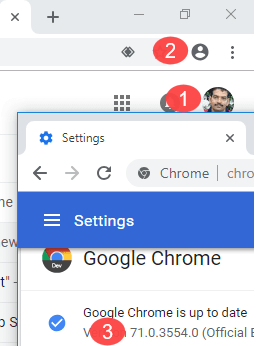
Now if you sign into Gmail, after importing the above information to Windows Registry, Chrome will no longer show your Gmail account picture in the user menu on the toolbar (check the below picture for proof). The registry trick has worked for us in Chrome 71 where the flag was failed.
To undo the change,
1. Navigate to HKEY_CURRENT_USERSOFTWAREPoliciesGoogleChrome
2. Delete the two entries on the right pane one by one.
3. Restart Chrome browser.
If you’re using Mac
Open the terminal and run the following commands
defaults write com.google.Chrome SyncDisabled -bool true
 defaults write com.google.Chrome RestrictSigninToPattern -string ".*@example.com"
Key takeaways
When signed into Gmail or Google service, we’ve disabled
- Signing into Chrome
- Synchronization
UPDATE September 26, 2018: Upcoming Chrome 70 to offer an option in Settings to turn off linking between web and browser sign-in, read more about it here.
UPDATE October 18, 2018: As we said above Chrome will offer an option in version 70 settings to unlink Chrome and Google Account sign-ins, as Chrome 70 has been released, read how to do it here.