When Microsoft Store sits on Updating Microsoft Store or Working for more than a few minutes, restart the PC, run wsreset.exe to clear the Store cache, and then open Library > Get updates to restart the stalled update.
If that does not move it, this guide walks through Windows Update, the clock and region settings, Repair and Reset, re-registering the Store with PowerShell, and the 0xC002001B and 0x80073CF6 errors that often appear alongside the stuck screen.
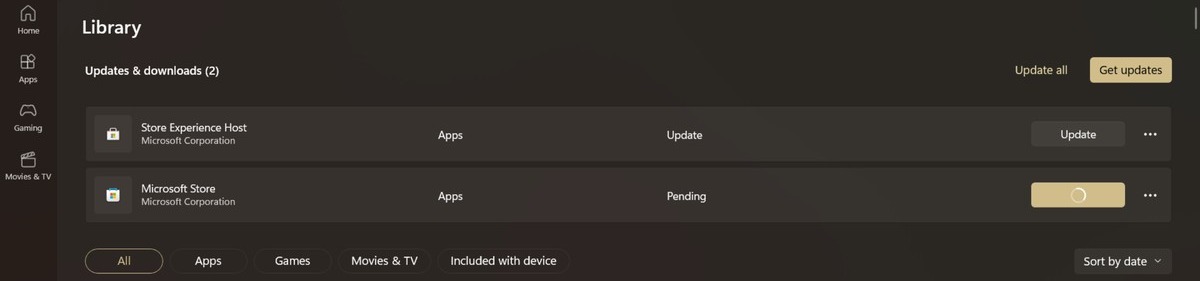
Microsoft Store stuck on Updating Microsoft Store
The Store updates itself before it lets you browse. When that self-update stalls, the window shows Updating Microsoft Store or a spinning Working message and never reaches the home page.
These steps clear the two most common blockers: a pending restart after a Windows update and a damaged Store cache.
- Close Microsoft Store with the X in the upper-right corner.
- Save your work and restart the PC. Microsoft notes that Store installs can fail when the PC was recently updated but not restarted.
- Press Windows logo key + R to open Run.
- Type
wsreset.exeand select OK. - Wait while a blank Command Prompt window stays open for about ten seconds. It closes on its own and Microsoft Store opens automatically.
- In Windows 11, select Library in the Store, then select Get updates. In Windows 10, select See more > Downloads and updates > Get updates.
If the Store now reaches its home page and starts downloading, leave it open until the update queue empties. If the same screen returns, work through the fixes below in order.
Why isn't my Microsoft Store updating?
A Store update that never finishes almost always traces back to one of a handful of causes. Match what you see to a row and jump to that fix.
| What you see | Likely cause | Fix to try |
|---|---|---|
| Stuck on Updating Microsoft Store after a Windows update | Windows is waiting for a restart | Restart, then run wsreset.exe |
| Store opens but app updates never start | App updates are paused in Store settings | Check the App updates setting in Store settings |
| Downloads stall or show sign-in or licence errors | Wrong date, time, time zone or region | Turn on Set time automatically and Set time zone automatically |
| Store stays blank or closes after a cache reset | Damaged Store app data | Use Repair, then Reset, in Advanced options |
| Store still will not open, or 0x80073CF6 appears | The Store package is not registered correctly | Re-register Microsoft Store with PowerShell |
| Updates fail with 0x80073CF4 | Not enough free disk space | Free space on the drive that holds your apps |
| Updates fail with 0x80073D3F | Apps were set to install on a drive that is no longer connected | Reconnect that drive or change where new content is saved |
How to fix Microsoft Store not updating
Microsoft Store depends on current Windows components and a correct clock. Fix both before you touch the Store app itself.
- Open Settings > Windows Update in Windows 11, or Settings > Update & Security > Windows Update in Windows 10.
- Select Check for updates, install everything offered, and restart when asked.
- Open Start > Settings > Time & language > Date & time.
- Turn on Set time automatically and Set time zone automatically.
- Check that the language and region on the same Time & language page match where you are.
- Open Microsoft Store, select your profile picture, open the Store settings, and look at App updates. If updates are paused, the setting shows the date they resume.
- Return to Library (Windows 11) or Downloads and updates (Windows 10) and select Get updates.
Paused updates resume on their own when the pause ends, and you can still update apps by hand from the library while the pause is active. If you cannot see the pause option, your organisation manages Store updates on that PC. The steps to update Microsoft Store apps manually also cover single apps that refuse to update.
Repair or reset Microsoft Store in Windows 11 and Windows 10
Microsoft's order is Repair first, then Reset only if Repair is unavailable or does not fix the problem. Both sit on the same Advanced options page for the Store app.
- In Windows 11, select Start > Settings > Apps > Installed apps. In Windows 10, select Start > Settings > Apps > Apps & features.
- Find Microsoft Store in the list.
- In Windows 11, select the More (three dots) icon next to it and choose Advanced options. In Windows 10, select the app and then Advanced options.
- Select Repair and wait for the check mark to appear.
- Open Microsoft Store and try Get updates again.
- If the Store is still stuck, return to Advanced options and select Reset, then confirm.
You can also clear the Microsoft Store cache with wsreset before you move on to a full reset.
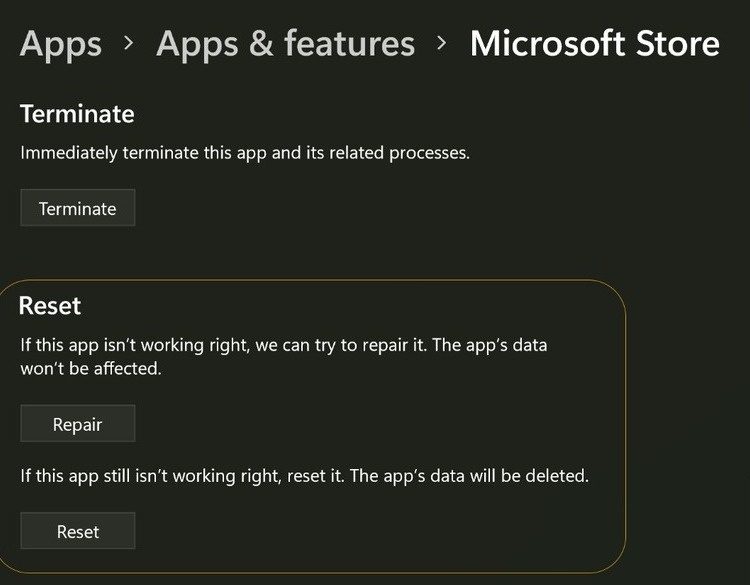
Re-register Microsoft Store with PowerShell
Re-registering tells Windows to rebuild the Store's app registration from its existing install folder, so nothing new is downloaded.
Microsoft documents this pattern for any installed Store app that has been disabled, failed to register or become corrupted. The commands below apply it to the Store package, Microsoft.WindowsStore.
$InstallLocation = Get-AppxPackage -Name '*WindowsStore*' | Select-Object -ExpandProperty InstallLocation
$ManifestPath = $InstallLocation + '\AppxManifest.xml'
Add-AppxPackage -Path $ManifestPath -Register -DisableDevelopmentMode
Close Microsoft Store first. Right-click Start, select Terminal (Windows 11) or Windows PowerShell (Windows 10), and paste the three lines. The first line finds the folder where the Store is installed, the second builds the path to its manifest, and the third registers that existing installation again. -DisableDevelopmentMode marks the manifest as an existing install rather than developer files.
You should see: PowerShell returns to the prompt with no red error text. Open Microsoft Store from Start; it should load the home page and resume its update.
If the first line returns nothing, the Store package is missing for your account. Repair it from Installed apps as above, or get it again from the Microsoft Store download page.
Fix 0xC002001B Microsoft Store error on Windows 11
0xC002001B shows up when the Store fails to download or update an app. Microsoft's reference table of app package deployment errors does not list this code, so treat it as a general Store download failure and work from the lightest fix to the heaviest.
- Restart the PC so any finished Windows update can complete.
- Run
wsreset.exefrom Run (Windows logo key + R) and wait for the Store to reopen. - Install pending updates from Settings > Windows Update, then restart again.
- Turn on Set time automatically and Set time zone automatically under Settings > Time & language > Date & time.
- Repair Microsoft Store, then reset it if Repair does not help, from Settings > Apps > Installed apps > Microsoft Store > Advanced options.
- Re-register Microsoft Store with the PowerShell commands above.
- Open Library and select Get updates to retry the failed download.
Microsoft Store is not opening after reset [fix]
A reset clears the Store's local data, so the first launch afterwards takes longer than usual. If it still will not open after a minute or two, use these steps.
- Restart the PC. A reset can leave the old Store process running until the next sign-in.
- Select Start, type Microsoft Store, and open it from the search results rather than from an old taskbar pin.
- Press Windows logo key + R, run
wsreset.exe, and wait for the Store to open on its own. - Check that you are signed in to Windows with a Microsoft account. Microsoft notes that the Store may not be available on a local account, and work PCs can have the Store turned off by an administrator.
- Re-register Microsoft Store with the PowerShell commands above.
- If the Store still does not appear in Start, select Repair under Settings > Apps > Installed apps > Microsoft Store > Advanced options, which Microsoft lists as the way to reinstall it.
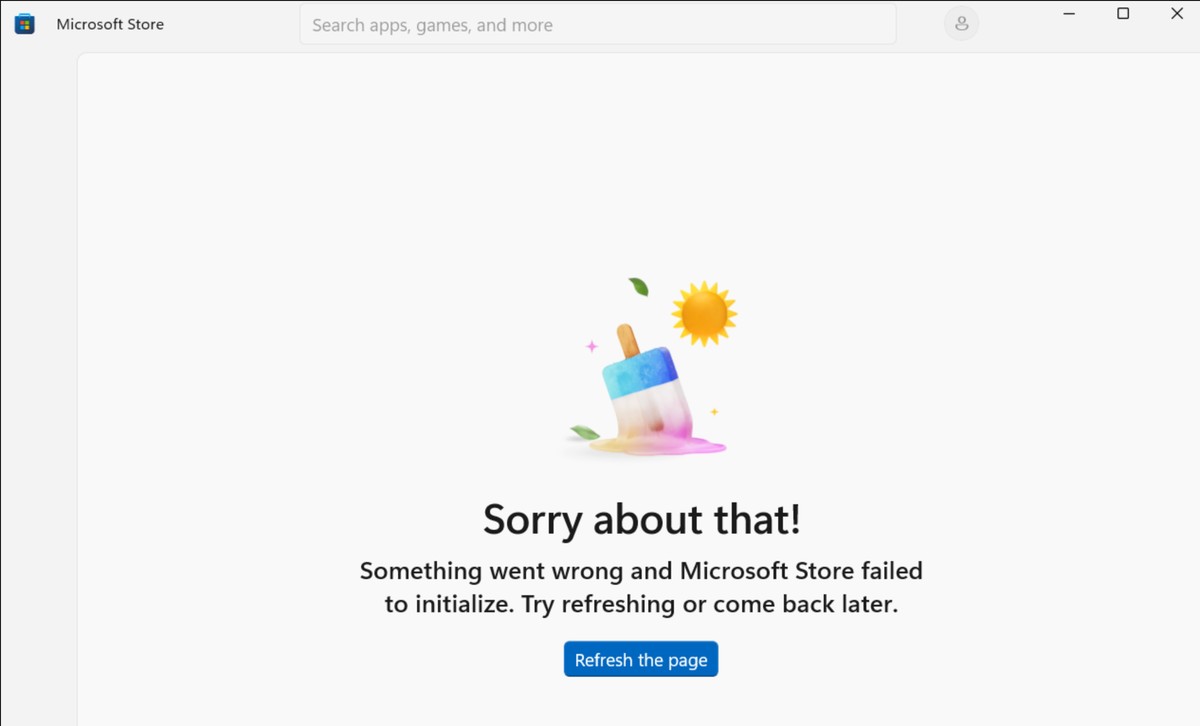
Deployment failed HRESULT 0x80073CF6, package could not be registered
0x80073CF6 is ERROR_INSTALL_REGISTRATION_FAILURE: Windows installed the package files but could not register the package for your account. It appears when you re-register the Store or when an update fails halfway.
Microsoft points to the AppXDeployment-Server event log for the reason behind it.
- Select Start, type Event Viewer, and press Enter.
- Expand Event Viewer (Local) > Applications and Services Logs > Microsoft > Windows.
- Open AppXDeployment-Server > Microsoft-Windows-AppXDeploymentServer/Operational and read the newest error entries near the time of the failure.
- For a quicker view, run
Get-AppxLogin PowerShell to list the events from the most recent deployment operation. - If the log mentions files or resources in use, close Microsoft Store and any open Store apps, restart the PC, and run the re-register commands again.
- If the log mentions disk space or a missing drive, fix that first using the error code table below, then retry.
Run Get-AppxLog | Out-GridView instead to open the same events in a sortable window.
Microsoft Store update error codes and what they mean
These codes come from Microsoft's app package deployment reference. They show up in Store download errors, PowerShell output and the AppXDeployment-Server log.
| Code | Name | What it means | What to do |
|---|---|---|---|
| 0x80073CF4 | ERROR_INSTALL_OUT_OF_DISK_SPACE | Not enough free disk space | Free space on the app drive and retry |
| 0x80073CF5 | ERROR_INSTALL_NETWORK_FAILURE | The package could not be downloaded | Check the connection, then select Get updates again |
| 0x80073CF6 | ERROR_INSTALL_REGISTRATION_FAILURE | The package could not be registered | Read the AppXDeployment-Server log, restart, re-register |
| 0x80073CF9 | ERROR_INSTALL_FAILED | Package install failed | Check the AppXDeployment-Server log for the cause |
| 0x80073D00 | ERROR_PACKAGE_UPDATING | The app cannot start because it is updating | Let the update finish, or restart and retry |
| 0x80073D02 | ERROR_PACKAGES_IN_USE | Resources the package changes are in use | Close the app and Store, restart, retry |
| 0x80073D0A | ERROR_INSTALL_FIREWALL_SERVICE_NOT_RUNNING | The Windows Firewall service is not running | Start the Windows Firewall service and retry |
| 0x80073D3F | ERROR_INSTALL_DRIVE_NOT_FOUND | The install drive cannot be found | Reconnect it or change Settings > System > Storage > Change where new content is saved |

Microsoft Store updates stuck on pending or downloading
These are the stuck states people search for most. Each one has a different usual cause.
Microsoft Store updates stuck on Pending
The Store is waiting on its own update, a restart or another download in the queue.
- Open Library (Windows 11) or Downloads and updates (Windows 10) and check whether an item at the top of the queue is still downloading.
- Restart the PC so a pending Windows update can finish.
- Run
wsreset.exeand select Get updates again once the Store reopens.
Microsoft Store stuck at Starting download
The Store cannot reach its download service or cannot confirm your licence.
- Turn on Set time automatically and Set time zone automatically under Settings > Time & language > Date & time.
- Install pending updates from Settings > Windows Update and restart.
- Sign in to Windows with your Microsoft account if you use a local account, then retry.
Microsoft Store update stuck on Downloading
Low disk space, a disconnected install drive or a damaged Store cache.
- Check free space under Settings > System > Storage and clear space if the drive is nearly full.
- If apps install to an external drive, reconnect it or change Change where new content is saved back to the system drive.
- Run
wsreset.exe, then repair Microsoft Store from Advanced options.
Microsoft Store downloads and updates stuck for games only
Game installs use extra Xbox components on top of the Store.
- Run the general fixes above first, then restart.
- If only games stall, fix Microsoft Store game downloads through the Xbox app and Gaming Services.
Windows Store updates stuck on Windows 10
Windows 10 still includes the older Windows Store Apps troubleshooter on many builds.
- Open Settings > Update & Security > Troubleshoot.
- Select Windows Store Apps and then Run the troubleshooter, and apply any fix it offers.
- If the troubleshooter is not listed, use wsreset, Repair and the PowerShell re-register steps instead. Microsoft is removing this troubleshooter, and Windows 11 does not offer a Store troubleshooter in Get Help.
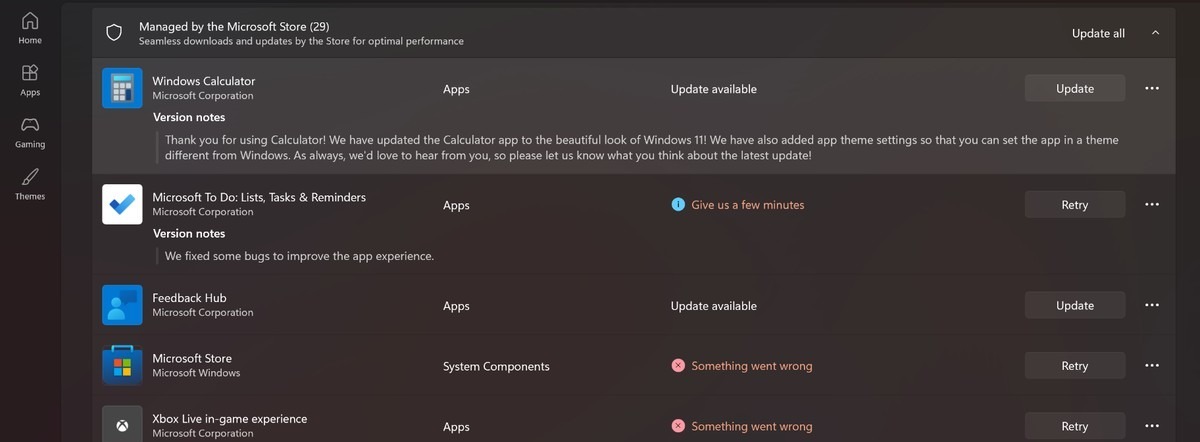
How to check Microsoft Store is updated and working
- Open Microsoft Store from Start. The home page should load instead of the Updating Microsoft Store or Working screen.
- Select Library (Windows 11) or See more > Downloads and updates (Windows 10).
- Select Get updates. The list should either start downloading or show that your apps are up to date.
- Install or update one small app to confirm downloads complete.
- Close and reopen the Store once more; it should open straight to the home page.
Microsoft Store stuck updating FAQ
How do I fix Microsoft Store not updating?
Restart the PC, run wsreset.exe from the Run box, and then select Get updates in the Store library. If that fails, install Windows updates, set the clock to update automatically, and repair or reset Microsoft Store from Installed apps > Advanced options.
Why isn't my Microsoft Store updating?
The most common reasons are a Windows update waiting for a restart, paused app updates in Store settings, a wrong date or time zone, a damaged Store cache, or a full drive. Each has its own fix, and wsreset.exe plus a restart clears most cases.
Why are my Microsoft Store updates stuck on pending?
Pending usually means the Store is waiting for another item in the queue, its own update or a restart. Check the top of the Library queue, restart the PC, then run wsreset.exe and select Get updates again.
Why is my Microsoft Store update stuck on downloading?
A download that never progresses is often caused by low disk space, an install drive that is no longer connected, or a damaged Store cache. Free space, reconnect the drive or change where new content is saved, then run wsreset.exe and retry.
What does wsreset.exe do?
wsreset.exe resets the Microsoft Store cache. A blank Command Prompt window opens, closes on its own after about ten seconds, and Microsoft Store then opens automatically. It is the first fix Microsoft lists when the Store will not open or install apps.
How do I reinstall Microsoft Store in Windows 11?
Microsoft's route is Settings > Apps > Installed apps > Microsoft Store > Advanced options > Repair. If the Store package is damaged rather than missing, re-register it in PowerShell with Add-AppxPackage -Register -DisableDevelopmentMode pointed at its AppxManifest.xml.
How do I stop Microsoft Store updates from being paused?
Open Microsoft Store, select your profile picture, open the Store settings and check App updates. Paused updates resume on their own on the date shown, and you can still update apps manually from the library while the pause lasts.