If your iPad screen went black after a drop, force restart it first, then charge it for up to an hour, because a frozen or drained iPad looks exactly like a broken display.
This guide covers both iPad button layouts, how to tell a dead screen from an iPad that is off, how to back up your data, and what an Apple repair costs.
How to fix a black screen on a dropped iPad
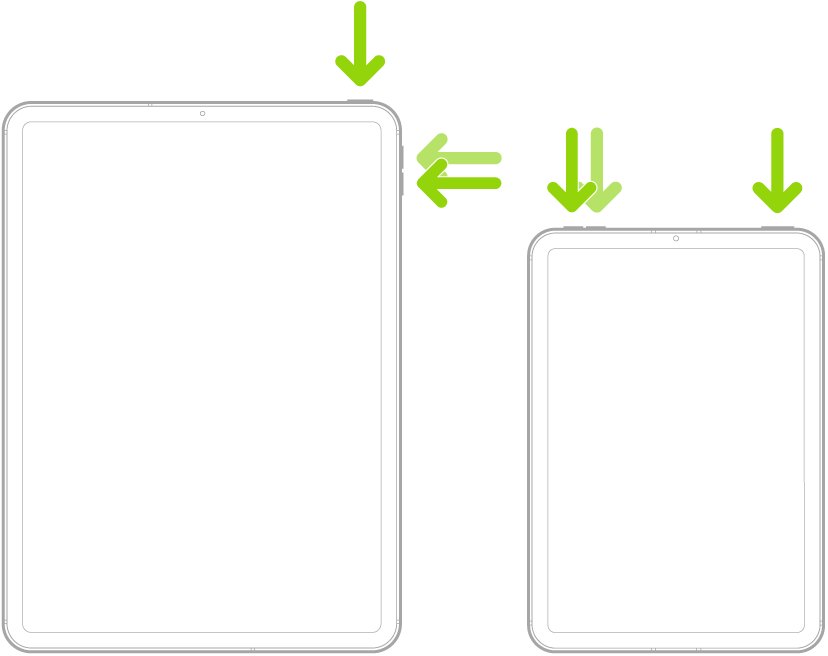
A force restart clears a frozen screen without erasing anything. Use the steps for your model: iPads with Face ID or a top Touch ID button have no Home button.
- On an iPad without a Home button, press and quickly release the volume button closest to the top button.
- Press and quickly release the volume button farthest from the top button.
- Press and hold the top button until you see the Apple logo, then let go.
- On an iPad with a Home button, press and hold the Home button and the top button together until the Apple logo appears.
- If nothing appears, connect the iPad to its charger and leave it for up to an hour.
- Try the force restart again while the iPad is still on the charger.
If the Apple logo appears but the screen stays black or cracked afterwards, the display was likely damaged in the fall and needs service.

iPad on but black screen: is the display broken?
An iPad can keep running behind a dead display. Use these signs to work out which part failed before you book a repair.
| What you notice | What it points to | What to do |
|---|---|---|
| Sounds, alerts or music still play; the screen stays black | The iPad is on and the display or its connection is damaged | Back it up through iCloud, then arrange display service |
| Apple logo shows after a force restart, then normal use | The iPad froze from the impact; the hardware survived | Keep using it and watch for flicker or dead touch areas |
| Apple logo appears, then it sticks or loops | Startup cannot finish, often a software problem | Update iPadOS through recovery mode from a computer |
| Find Devices on iCloud.com can play a sound on it | The iPad is on and online | Treat it as a display fault |
| No logo, no sound, no charging icon after an hour on power | The battery, charging port or logic board may be damaged | Try another cable and adapter, then contact Apple |
Dropped iPad won't turn on: charge it first
A drop can leave an iPad drained or shut down. Apple says a dead iPad may need to charge for up to an hour before it starts.
- Connect the iPad to a USB charging cable, preferably the one that came with it.
- Plug the cable into a USB power adapter in a working outlet, a computer USB port that is on and awake, or a powered USB hub.
- Wait up to an hour and look for the lightning bolt on the battery icon or a large battery icon on the Lock Screen.
- If no charging icon appears, swap in a different power adapter and a different cable.
- Make sure the iPad is not too hot or too cold.
- Force restart the iPad while it stays connected to power.
iPad stuck on Apple logo after being dropped
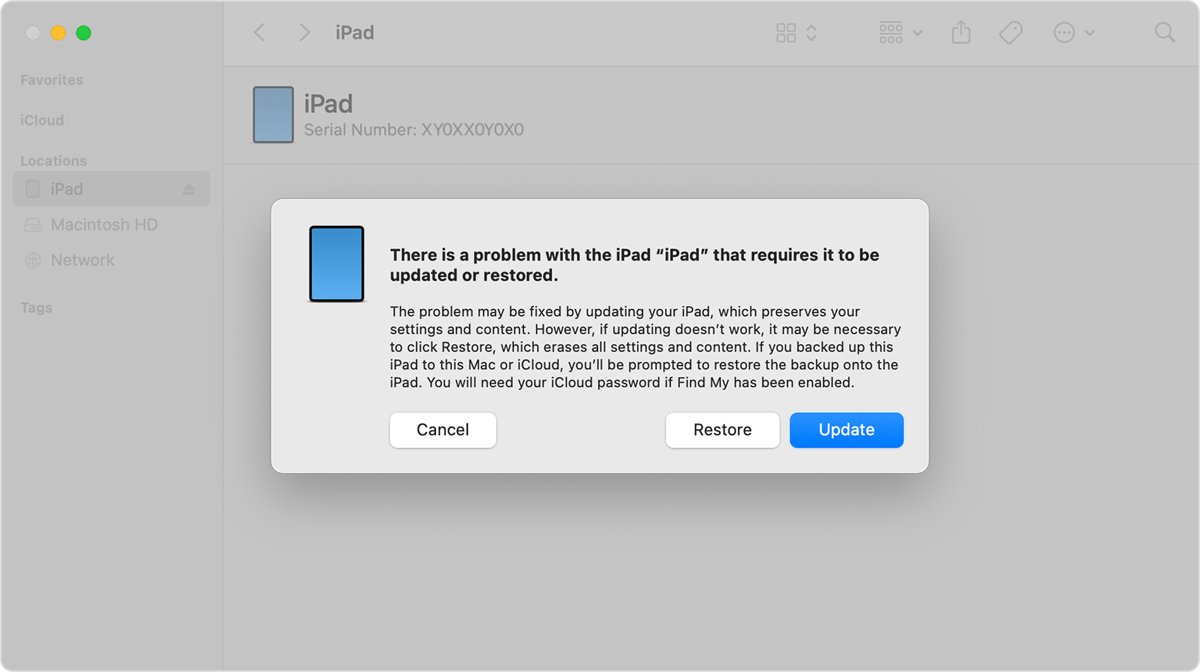
If the Apple logo, or a red or blue screen, shows but the iPad never reaches the Lock Screen, update iPadOS in recovery mode. Choose Update first; Restore reinstalls the software and erases your data.
- Connect the iPad to a computer. On a Mac with macOS Catalina 10.15 or later, open Finder; on a PC, open the Apple Devices app or iTunes.
- On an iPad without a Home button, press and release the volume button closest to the top button, then the one farthest from it.
- Press and hold the top button and keep holding it past the Apple logo until the recovery-mode screen appears.
- On an iPad with a Home button, hold the Home button and the top button together until the recovery-mode screen appears.
- When the computer offers to restore or update, choose Update.
- If the download takes longer than 15 minutes and the iPad leaves recovery mode, repeat the button steps.
Back up an iPad with a black screen before repair
If the iPad still runs behind a dead display, get a fresh backup before service. iCloud backs up automatically when the iPad is on power, locked and on Wi-Fi, so no tapping is needed if it was turned on before the drop.
- Plug the iPad into power and keep it near a Wi-Fi network it already knows.
- Leave it locked overnight so the daily iCloud Backup can run.
- To back up to a Mac instead, connect the iPad, select it in the Finder sidebar and click General.
- Select Back up all of the data on your iPad to this Mac, then click Back Up Now.
- On a Windows PC, open iTunes, click the iPad button, click Summary, then Back Up Now.
A computer backup can ask you to unlock the iPad or confirm Trust, which a black screen cannot show. iCloud Backup is the safer route when the display is dead.
Dropped iPad screen repair cost
The Apple Limited Warranty covers manufacturing defects for one year but not accidental damage such as a drop. AppleCare+ and AppleCare One cover accidents for a service fee.
| Your coverage | What a drop repair costs | Where to get it |
|---|---|---|
| AppleCare+ or AppleCare One | A screen or back glass service fee in the $29 to $99 range, or $99 for other accidental damage | Apple Store, Apple Authorized Service Provider or mail-in |
| Apple Limited Warranty only | Out-of-warranty price; Apple lists Other damage for iPad mini (A17 Pro) at $529 | Use the estimate tool on Apple's iPad repair page for your model |
| No coverage, bought within the last 60 days | You can add an AppleCare plan in Settings within 60 days of buying a new iPad | Settings on the iPad, or an Apple Store |
Apple inspects the iPad to set the final fee, and Authorized Service Providers set their own prices. Repair status shows in the Apple Support app or My Support once you sign in.
Why does my iPad keep going black?
If the iPad works but the screen keeps going dark on its own, Auto-Lock or Auto-Brightness is the usual cause rather than drop damage.
- Open Settings, tap Display & Brightness, then tap Auto-Lock.
- Choose a longer time interval.
- Go back to Display & Brightness and drag the brightness slider to the right.
- Open Settings > Accessibility > Display & Text Size.
- Turn Auto-Brightness off, then on again if the screen dims in the wrong light.
If you cannot change Auto-Lock, Guided Access may be on. Guided Access, the feature used to lock the iPad screen from touch, turns Auto-Lock off while it runs.
How to tell if a dropped iPad is working again
- Unlock the iPad and swipe across every edge of the screen to check that touch responds everywhere.
- Drag the brightness bar in Control Center from low to high and watch for flicker or dark patches.
- Connect the charger and look for the lightning bolt on the battery icon.
- Play a video with sound to check the speakers and display together.
- Leave the iPad on for an hour and check that it does not go black again outside your Auto-Lock time.

Black screen on iPad still not fixed
iPad screen went completely black after dropping it
The iPad froze, shut down on impact, or the display was damaged.
- Force restart it with the steps for your model.
- Charge it for up to an hour and force restart again.
- If sounds play but the screen stays black, arrange display service.
iPad black screen but still on
The display or its cable is damaged while the iPad keeps running.
- Leave it on power and Wi-Fi so iCloud Backup can run.
- Sign in at iCloud.com, open Find Devices and play a sound to confirm it is on.
- Book service with Apple or an Authorized Service Provider.
iPad screen goes black randomly
A short Auto-Lock interval or low brightness, or a loose display connection after the drop.
- Set a longer interval in Settings > Display & Brightness > Auto-Lock.
- Raise the brightness slider and turn Auto-Brightness off and on.
- If it still blacks out while you use it, the display needs inspection.
Black screen on iPad Pro after a drop
iPad Pro models have no Home button, so the Home button restart does nothing; hard reset the iPad Pro with the volume and top buttons instead.
- Press and release the volume button closest to the top button, then the one farthest from it, then hold the top button until the Apple logo shows.
- Charge for up to an hour if nothing appears.
- Use recovery mode from a computer if it stops on the Apple logo.
Dropped iPad won't charge
The cable, adapter or charging port may be damaged.
- Try a different power adapter and a different cable.
- Connect to a computer USB port that is on and not asleep.
- If there is still no charging icon, the iPad needs service.
Dropped iPad black screen FAQ
I dropped my iPad and now the screen is black. What should I do?
Force restart it: on iPads without a Home button press the volume button nearest the top button, then the farthest one, then hold the top button; on Home button models hold Home and top together. If nothing shows, charge it for up to an hour and try again.
Why does my iPad keep going black?
The most common reason is Auto-Lock, which turns the screen off after a set time. Change it in Settings > Display & Brightness > Auto-Lock. If it goes black while you are using it after a drop, the display may be damaged.
Why does my iPad keep blacking out?
Low brightness, Auto-Brightness in a dark room or a short Auto-Lock time can make the screen look like it blacks out. If the screen cuts out mid-use with brightness turned up, have the display checked by Apple.
How do I fix a black screen on my iPad?
Force restart the iPad, charge it for up to an hour, then force restart again on power. If it sticks on the Apple logo, connect it to a computer, enter recovery mode and choose Update, which keeps your data.
Is a dropped iPad covered by Apple warranty?
No. The one-year Apple Limited Warranty covers manufacturing defects, not accidental damage. AppleCare+ and AppleCare One cover drops and spills for a service fee, with screen repairs in the $29 to $99 range.
How much does Apple charge to fix a dropped iPad screen?
Without AppleCare, Apple charges an out-of-warranty fee for your model; it lists $529 for Other damage on iPad mini (A17 Pro). Use the estimate tool on Apple's iPad repair page, since Apple sets the final fee after inspection.
Can I back up an iPad with a black screen?
Yes, if it still runs. iCloud Backup runs daily when the iPad is on power, locked and on Wi-Fi, without touching the screen. A computer backup may need you to unlock or trust the iPad first.
Will a force restart erase my iPad?
No. A force restart only restarts the iPad and keeps your apps and data. Choosing Restore in recovery mode erases the iPad, so pick Update unless you have a backup.