To change the default sign-in option in Windows 11, select Sign-in options on the sign-in screen and pick the method you want, then remove the methods you never use from Settings > Accounts > Sign-in options.
This guide covers the sign-in screen switch, bringing back the password, making face or fingerprint the main method, sleep and lock timers, automatic sign-in, and the Group Policy and registry settings that control the default on Pro, Enterprise and Education.
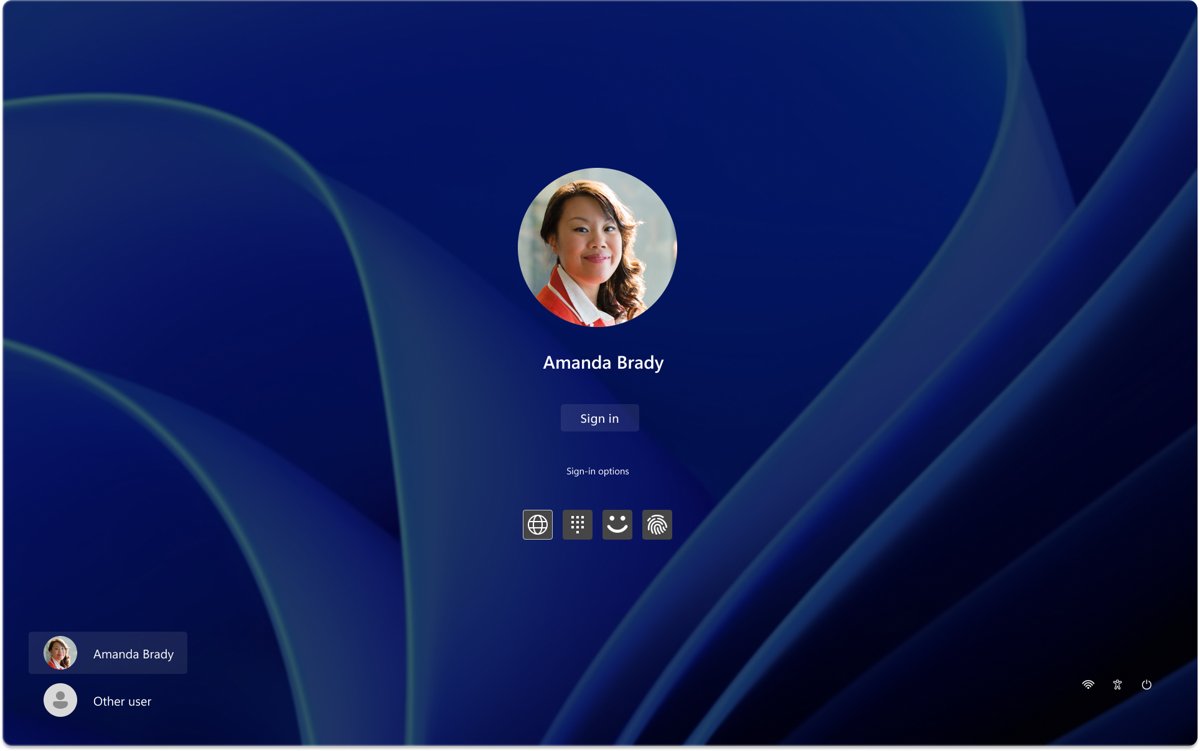
Change the sign-in option from the Windows 11 lock screen
The sign-in screen lets you pick any method that is already set up on the account. This is the quickest way to stop typing a PIN when you would rather use the password, or the other way round.
- Press Windows key + L to lock the PC, or restart it.
- Press any key or click to dismiss the lock screen and reach the sign-in box.
- Select your account if more than one is listed.
- Select Sign-in options under the PIN or password box.
- Select the icon for the method you want, such as the password or the PIN.
- Sign in with that method.
Only methods that are set up appear under Sign-in options. If the password icon is missing, the Windows Hello-only switch is on; the password section below turns it off.
How Windows 11 chooses the default sign-in option
Windows 11 has no setting called default sign-in option. Microsoft's policy documentation says that unless an administrator assigns one, the system picks the default credential provider itself. What you can control is which methods exist and which ones are allowed.
| What decides the method shown | Where it is set | Effect on the sign-in screen |
|---|---|---|
| Methods set up on the account | Settings > Accounts > Sign-in options > Ways to sign in | Only these appear under Sign-in options |
| Windows Hello-only switch | Additional settings on the same page | Hides the password for a Microsoft account; only face, fingerprint or PIN remain |
| Assign a default credential provider policy | Group Policy: Computer Configuration > Administrative Templates > System > Logon | Selects the chosen provider on the Other user tile |
| Exclude credential providers policy | Same Logon folder in Group Policy | Removes the listed providers from sign-in completely |
| Windows passwordless experience | Intune or another MDM on Microsoft Entra joined PCs | Hides the password for the last user who signed in with Windows Hello or a FIDO2 key |
| Hardware | Infrared camera, fingerprint reader or security key | Face and fingerprint appear only on supported hardware |
Credential providers are the components Windows uses to process sign-in, such as the password, PIN, face, fingerprint, smart card and Web sign-in.
Set up or change your Windows Hello PIN
A Windows Hello PIN is tied to one device and is backed up for recovery with your Microsoft account. It is numeric by default, but you can allow letters and symbols.
- Press Windows key + I to open Settings.
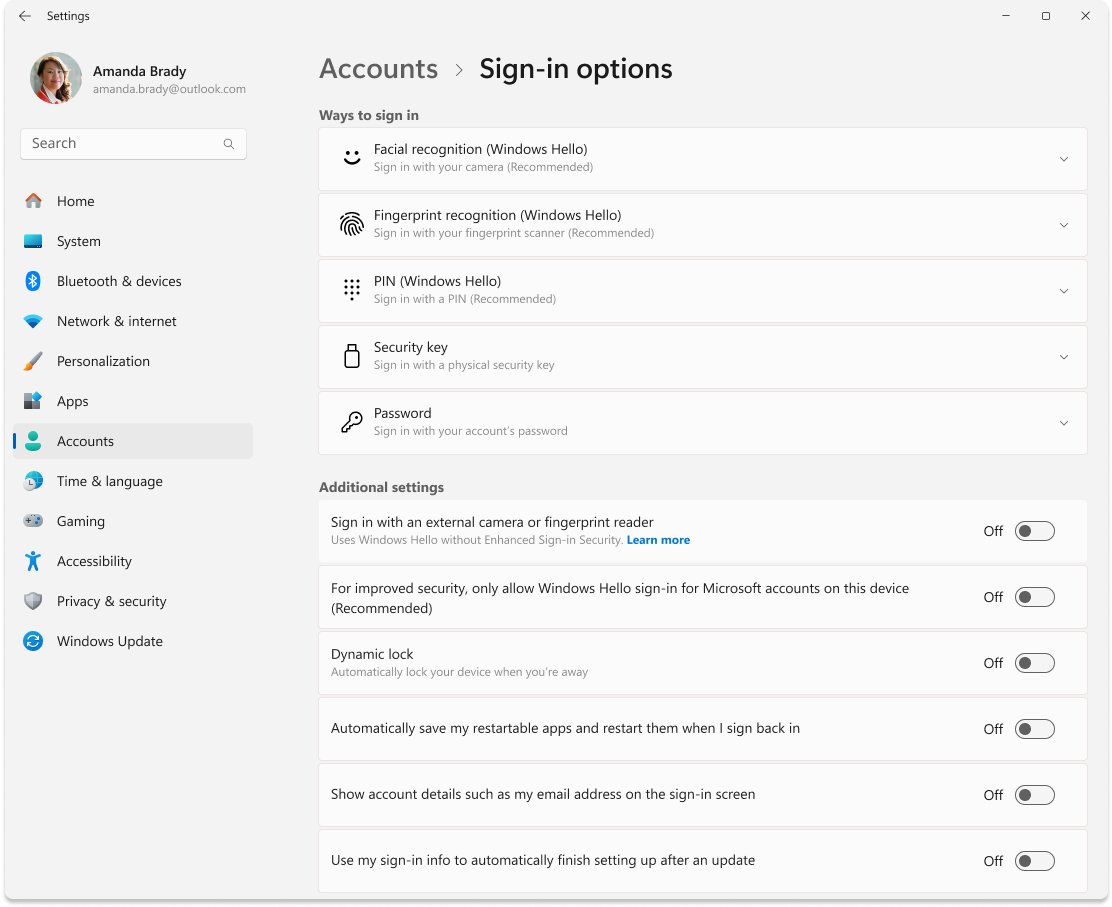
- Select Accounts, then Sign-in options.
- Under Ways to sign in, select PIN (Windows Hello).
- Select Set up to create a PIN, or Change PIN to replace the current one.
- Enter the old PIN when asked, then type and confirm the new PIN.
- If you forgot the PIN, select I forgot my PIN and verify your Microsoft account instead.
You must enter the old PIN to change your Windows 11 PIN from Settings. On a local account, I forgot my PIN is not offered; sign in with the password and reset the PIN from the same page.
Make password sign-in available again
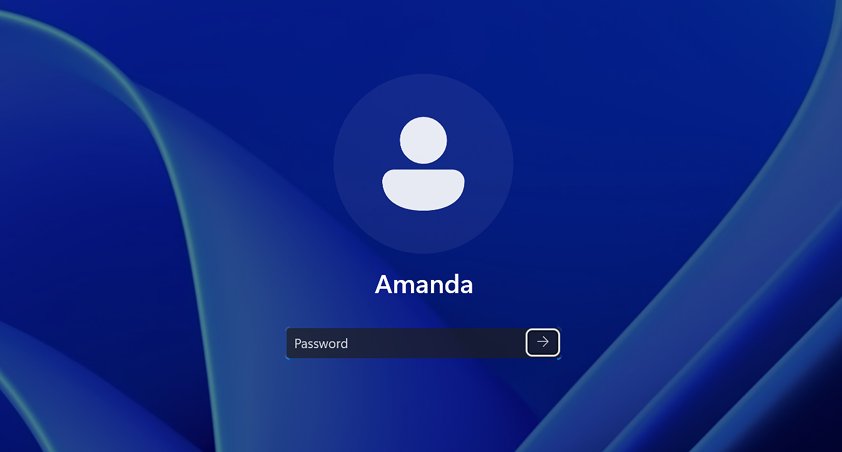
When the password icon has vanished from Sign-in options, Windows Hello-only sign-in is turned on. The switch exists only for Microsoft accounts.
- Open Settings > Accounts > Sign-in options.
- Scroll to Additional settings.
- Turn off For improved security, only allow Windows Hello sign-in for Microsoft accounts on this device.
- Press Windows key + L to lock the PC.
- Select Sign-in options and choose the password icon.
On Windows 10 the same switch is named Require Windows Hello sign-in for Microsoft accounts. On a work PC joined to Microsoft Entra ID, the passwordless experience policy can also hide the password; the Other user tile still accepts one, and Ctrl + Alt + Delete > Manage your account resets it.
Make fingerprint or face recognition the default
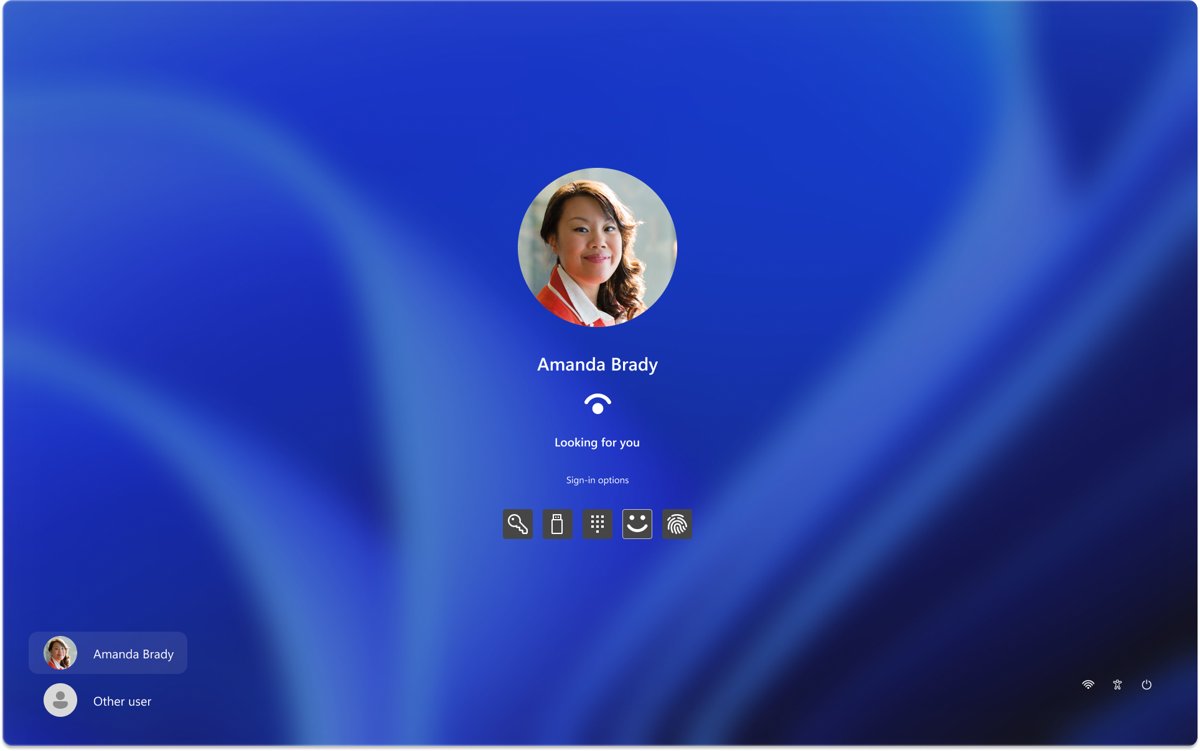
Facial recognition needs a Windows Hello compatible infrared camera, and fingerprint sign-in needs a fingerprint reader. Once either is set up, Windows offers it at the sign-in screen ahead of typing.
- Open Settings > Accounts > Sign-in options.
- Select Facial recognition (Windows Hello) or Fingerprint recognition (Windows Hello).
- Select Set up and follow the prompts to scan your face or finger.
- For face sign-in, select Improve recognition later to add another scan, for example with and without glasses.
- Lock the PC with Windows key + L and look at the camera or touch the reader.
Keep a PIN as the fallback. Starting November 2026, and rolling out by January 2027, the PIN box appears next to face or fingerprint when Windows does not recognize you straight away.
Turning on Sign in with an external camera or fingerprint reader under Additional settings disables Enhanced Sign-in Security on supported hardware, so leave it off unless you use an external device.
Remove sign-in methods you do not want Windows to use
Removing a method is the most reliable way to stop Windows offering it first. Keep at least one method you can still use before you remove another.
- Open Settings > Accounts > Sign-in options.
- Under Ways to sign in, select the method you want gone.
- Select Remove under Facial recognition (Windows Hello) or Fingerprint recognition (Windows Hello) to delete that scan.
- To remove the PIN, select PIN (Windows Hello), select Remove and follow the confirmation prompts.
- If Remove is unavailable for the PIN, turn off the Windows Hello-only switch under Additional settings first.
- Lock the PC and check that the removed method no longer appears under Sign-in options.
The same page is where you set up the other sign-in methods, such as a security key or picture password, if you later want them back.
Change when Windows requires sign-in after sleep or inactivity
Windows asks you to sign in again when the PC wakes from sleep, and the sleep timer decides how soon that happens.
- Open Settings > Accounts > Sign-in options.
- Under Additional settings, find the Require sign-in setting that controls when Windows asks you to sign in again after you have been away.
- Choose the option that requires sign-in when the PC wakes from sleep, or a longer interval if you prefer.
- Press the Windows key, type Sleep and open the power and sleep settings.
- Set the screen and sleep timers; Microsoft suggests 10 or 15 minutes of idle time as a sensible interval.
Only the screen needs to turn off for the lock to apply, so you can set short screen sleep and wake timers and leave the PC itself awake longer.
Use Dynamic Lock, presence sensing, and wake settings carefully
These features lock or wake the PC on their own, which changes when the sign-in screen appears and which method greets you.
| Feature | Where to turn it on | What it does | Watch out for |
|---|---|---|---|
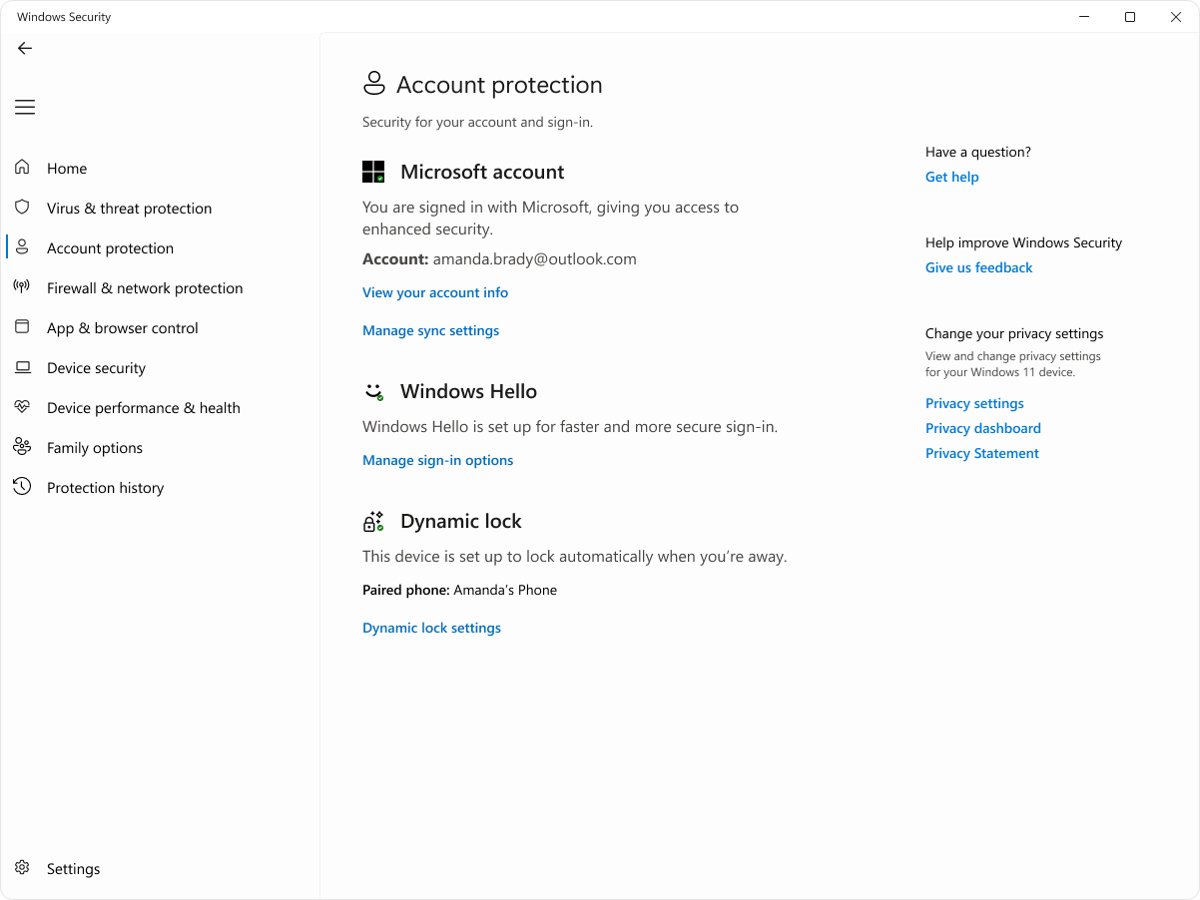
| Dynamic lock | Settings > Accounts > Sign-in options > Additional settings | Locks the PC within about a minute after your paired Bluetooth phone goes out of range | The phone must be paired with the PC first; leaving the phone on the desk keeps the PC unlocked |
| Automatically turn off my screen when I leave | Settings > System > Power & battery > Screen and sleep | Turns the screen off when the presence sensor sees you leave | Only on PCs with a presence sensor |
| Automatically wake up my device when I approach | Same Screen and sleep page | Wakes the PC when you come back, ready for face sign-in | Choose the distance under Wake my device when I'm this close |
| Lock my device when I leave while an external display is connected | Presence sensing options under More options | Decides whether the lock applies with a second monitor attached | Off means a docked laptop may stay unlocked |
| Show account details on the sign-in screen | Sign-in options > Additional settings | Shows your account email address on the sign-in screen | Turn it off if others can see your screen |
Presence sensing settings appear only on hardware that has the sensor, and a work PC may hide some of them.
Enable automatic sign-in without typing a password
Automatic sign-in skips the sign-in screen at startup. Microsoft warns that anyone with physical access to the PC then gets into everything on it, including connected networks, so use it only on a physically secured machine.
- Open the Autologon page on Microsoft's Sysinternals site at learn.microsoft.com and get the tool from there.
- Run autologon.exe.
- Enter the Username, Domain and Password for the account.
- Select Enable.
- Restart the PC; Windows signs in to that account without asking.
- To skip it once, hold Shift before Windows signs in; to turn it off, run the tool again and select Disable.
Autologon stores the password as an encrypted LSA secret rather than plain text, but a user with administrator rights can still retrieve it. Autologon does not run when Exchange ActiveSync password restrictions apply to the PC.
Change default sign-in behavior with Group Policy
The Assign a default credential provider policy picks which sign-in method is selected. It works on Windows 11 Pro, Enterprise and Education, not Home, and Microsoft documents it as applying to the Other user tile.
- Press Windows key + R, type
gpedit.mscand press Enter. - Go to Computer Configuration > Administrative Templates > System > Logon.
- Double-click Assign a default credential provider.
- Select Enabled and enter the CLSID of the credential provider you want selected.
- Select OK, then restart the PC.
- To block a method entirely, open Exclude credential providers in the same folder and list its CLSID instead.
The same Logon folder holds Turn on convenience PIN sign-in and Turn off picture password sign-in for domain users. Windows Hello for Business policies, including Use Windows Hello for Business, sit under Computer Configuration > Administrative Templates > Windows Components > Windows Hello for Business.
Change sign-in options using Registry Editor
Two registry locations matter here: the list of credential providers, which gives you the CLSIDs the Group Policy settings need, and the Winlogon key that holds automatic sign-in. Back up the registry before you edit it.
- Press Windows key + R, type
regeditand press Enter. - To find credential provider CLSIDs, open
HKEY_LOCAL_MACHINE\SOFTWARE\Microsoft\Windows\CurrentVersion\Authentication\Credential Providers; each subkey is one registered provider. - For automatic sign-in, open
HKEY_LOCAL_MACHINE\SOFTWARE\Microsoft\Windows NT\CurrentVersion\Winlogon. - Create or edit the string value AutoAdminLogon and set it to
1. - Set DefaultUserName to the account name, and create DefaultPassword with the account password.
- On a domain PC, add DefaultDomainName with the fully qualified domain name, such as contoso.com.
- Close Registry Editor and restart the PC.
This route stores the password in plain text, and the Authenticated Users group can read that key remotely, so the Sysinternals Autologon tool is the safer choice. If DefaultPassword is missing, Windows resets AutoAdminLogon to 0, which turns automatic sign-in off.
How to see which sign-in options are set up in Windows 11
- Open Settings > Accounts > Sign-in options and read the Ways to sign in list; set-up methods offer Change or Remove instead of Set up.
- Check Additional settings to see whether the Windows Hello-only switch is on.
- Press Windows key + L, then select Sign-in options on the sign-in screen.
- Count the icons: each one is a method Windows can use for that account.
- Sign in with the method you chose to confirm it is accepted.
Local account vs Microsoft account: what changes?
| Sign-in feature | Microsoft account | Local account |
|---|---|---|
| Windows Hello-only switch | Available under Additional settings | Not offered |
| I forgot my PIN on the sign-in screen | Available; verify the account and create a new PIN | Not available; sign in with the password, then reset the PIN in Settings |
| PIN recovery | Backed up for recovery with the Microsoft account | Tied to the device only |
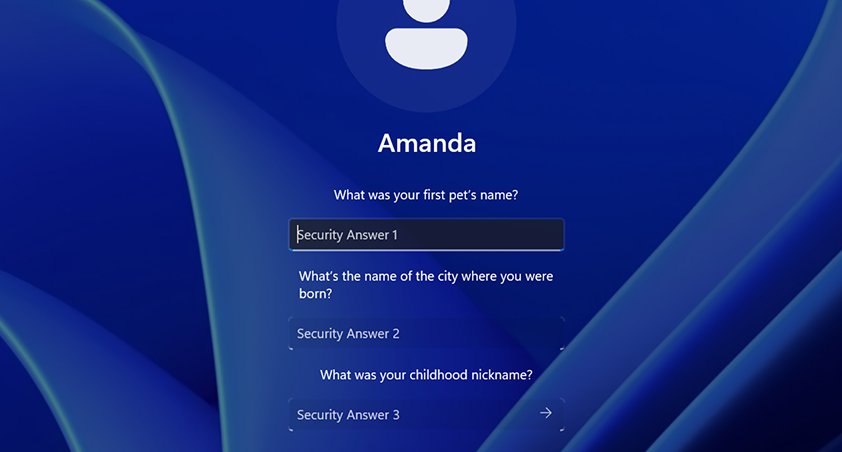
| Forgotten password | I forgot my password, Web sign-in, or a reset from any browser | Security questions or a password reset disk |
| Windows passwordless experience policy | Applies to Microsoft Entra work accounts | Does not apply |
| Password change | Also changes Outlook.com, OneDrive and other Microsoft services | Changes this PC only |
You can switch between a local and Microsoft account from Settings if the features in one column matter more to you.
Which sign-in option should you use by default?
| Your situation | Use this by default | Why |
|---|---|---|
| Laptop with an infrared camera | Facial recognition (Windows Hello) | Signs you in when you look at the screen, with the PIN as fallback |
| PC with a fingerprint reader | Fingerprint recognition (Windows Hello) | One touch, and the PIN box appears if the scan fails |
| Any PC without biometric hardware | PIN (Windows Hello) | Works only on that device, so a leaked PIN is useless elsewhere |
| No Windows Hello set up yet, or a shared family PC | Password | Works everywhere the account works, but anyone who learns it can sign in from any device |
| Work PC with high security needs | Security key or Windows Hello for Business | Phishing-resistant and set by your organization's policy |
| Kiosk or locked-room PC | Automatic sign-in | Skips the sign-in screen, but only where nobody else can touch the PC |
Fix Windows 11 when it keeps reverting to the wrong sign-in option
Windows keeps asking for the PIN instead of the password
Windows picks the provider itself, and the PIN stays offered while it is set up.
- On the sign-in screen, select Sign-in options and choose the password icon.
- If you never want the PIN, remove it under Settings > Accounts > Sign-in options > PIN (Windows Hello).
- On Pro, Enterprise or Education, set Assign a default credential provider in Group Policy.
The password option is missing from Sign-in options
Windows Hello-only sign-in is on, or a work passwordless policy hides it.
- Sign in with your PIN, face or fingerprint.
- Turn off For improved security, only allow Windows Hello sign-in for Microsoft accounts on this device.
- On a work PC, select Other user on the sign-in screen to type the password, and ask IT about the passwordless policy.
Sign-in options are greyed out or Remove is dimmed
The setting is locked by device configuration or your organization's policy.
- Turn off the Windows Hello-only switch and check whether Remove becomes available.
- On a work or school PC, ask IT; Windows Hello for Business and Logon policies override local choices.
- On a personal Pro PC, check Computer Configuration > Administrative Templates > System > Logon in
gpedit.mscfor enabled policies.
Windows asks for a password the moment the screen turns off
A domain policy blocks changing the delay before a password is required on wake.
- Ask IT whether Allow users to select when a password is required when resuming from connected standby is disabled.
- While it is disabled, Windows requires sign-in immediately after the screen turns off.
- On a personal PC, check the Require sign-in setting under Additional settings instead.
Face sign-in says "Couldn't recognize you"
The camera has no clear view, the light is harsh, or your appearance has changed.
- Sign in with the PIN or password from Sign-in options.
- Clean the camera and move away from bright side light.
- Select Improve recognition under Facial recognition (Windows Hello), or Remove and then Set up to scan again.
Forgot the PIN after removing the password option
The PIN is the only method left on the account.
- Select I forgot my PIN below the PIN box on a Microsoft account.
- Or select Sign-in options > Web sign-in and choose Forgot my password.
- Once in, repair Windows Hello sign-in and add a second method.
How to turn off automatic sign-in in Windows 11
- If you used Sysinternals Autologon, run autologon.exe again and select Disable.
- If you used the registry, open
HKEY_LOCAL_MACHINE\SOFTWARE\Microsoft\Windows NT\CurrentVersion\Winlogonin Registry Editor. - Set AutoAdminLogon to
0. - Delete the DefaultPassword value so the password no longer sits in the registry.
- Restart the PC and check that the sign-in screen appears.
Default sign-in option Windows 11 FAQ
How do I change the default sign-in option in Windows 11?
Select Sign-in options on the sign-in screen and choose the method you want, then remove the methods you do not use in Settings > Accounts > Sign-in options. On Pro, Enterprise and Education, the Assign a default credential provider policy can also set it.
How do I switch from PIN to password on Windows 11?
On the sign-in screen, select Sign-in options and choose the key icon for the password. If no password icon appears, turn off the Windows Hello-only switch under Additional settings in Settings > Accounts > Sign-in options.
Why does Windows 11 always ask for my PIN?
Windows offers the PIN because it is set up on the account, and the Windows Hello-only switch may be hiding the password. Remove the PIN in Settings, or turn that switch off, to sign in with the password instead.
Can I make the password the default instead of the PIN?
Yes, by removing the PIN from Settings > Accounts > Sign-in options so the password is the only method. Keeping both means choosing the password under Sign-in options whenever Windows offers the PIN.
How do I stop Windows 11 asking for a PIN after sleep?
Change the Require sign-in setting under Additional settings in Settings > Accounts > Sign-in options. A work PC may lock this through the Allow users to select when a password is required when resuming from connected standby policy.
How do I sign in to Windows 11 without typing a password?
Set up Windows Hello face, fingerprint or PIN so you never type the password. To skip the sign-in screen entirely, Microsoft's Sysinternals Autologon tool signs in automatically, which suits only a physically secured PC.
Does the default credential provider policy work on Windows 11 Home?
No. Microsoft lists Assign a default credential provider for Windows 11 Pro, Enterprise, Education and IoT Enterprise only. On Home, change the default by removing the methods you do not want from Settings.
What happens if Windows Hello does not recognize my face or finger?
Select Sign-in options and use the PIN or password instead. From November 2026, rolling out by January 2027, Windows shows the PIN box next to face or fingerprint when it does not recognize you straight away.