Client Server Runtime (csrss.exe) shows high GPU usage when a display driver misbehaves or when busy apps make it create window surfaces, so update or roll back the graphics driver first.
This guide explains what the process does, why Task Manager can overstate its GPU load, and every fix from driver repair to a clean boot and a malware scan.
Fix Client Server Runtime high GPU usage
A graphics driver problem is the most common cause, because csrss.exe works directly with the Windows graphics stack. Windows Update delivers most video card drivers, so start there.
- Save your work and select Start > Power > Restart to clear a temporary spike.
- After the restart, select Start > Settings > Windows Update > Check for updates.
- Select Download & install if any updates are listed.
- Go to Windows Update > Advanced options > Optional updates and install any display driver offered there.
- Restart the PC if Windows asks you to.
- Press Ctrl + Shift + Esc and watch the GPU column for Client Server Runtime Process on the Processes tab.
If the usage is still high at an idle desktop, work through the driver, repair and clean boot fixes below in order.
What is Client Server Runtime process in Windows?
Microsoft describes the Client Server Run-Time Subsystem as the user-mode process that controls the underlying layer for the Windows environment. Every Windows PC runs this csrss.exe system process in the background.
| Fact | Detail |
|---|---|
| Executable name | csrss.exe, shown in Task Manager as Client Server Runtime Process |
| Role | User-mode process that controls the underlying layer of the Windows environment |
| Protection | A protected process since Windows 10, debuggable only in kernel mode |
| Critical status | Listed by Microsoft as a critical system service alongside smss.exe, wininit.exe and winlogon.exe |
| Number of copies | One per session, so seeing two instances (session 0 and your sign-in session) is normal |
| GPU link | Creates the video memory surface for each new top-level window on behalf of the app that opens it |
Why does csrss.exe show high GPU usage in Task Manager?
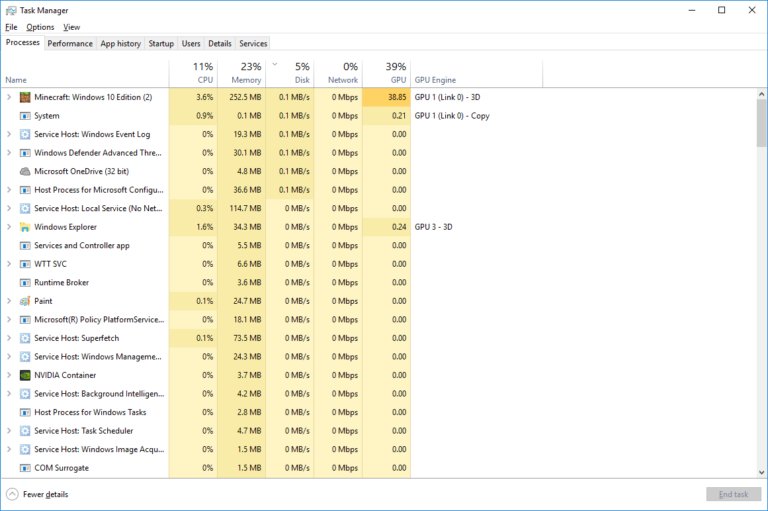
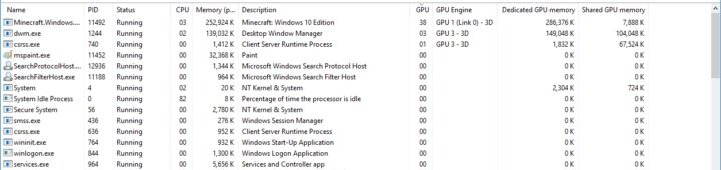
Task Manager charges shared video memory to every process that can reach it. A window surface that csrss.exe creates for an app is also mapped into that app and into Desktop Window Manager (dwm.exe).
Microsoft's DirectX team notes that this makes csrss.exe and dwm.exe look much larger than they are, and that both grow as the desktop gets busy.
| What you see | What it means | What to do |
|---|---|---|
| High dedicated GPU memory for csrss.exe on the Details tab | Shared window surfaces counted against csrss.exe as well as the app | Check the Performance tab total instead, which counts shared memory once |
| GPU % rises when many windows or apps are open | csrss.exe creates surfaces for each new window | Close apps you are not using and see if the figure drops |
| High GPU % at an idle desktop with nothing open | A driver fault or a background app keeps drawing | Update, roll back or reinstall the display driver |
| GPU % near 100 while a game runs | Task Manager shows the busiest GPU engine, which a game fills | Normal behaviour; no fix needed |
| No GPU column at all | The display driver is older than WDDM 2.0 | Update the graphics driver |
How to check Client Server Runtime process GPU usage in Task Manager
Task Manager needs a WDDM 2.0 or later display driver to show GPU data. Task Manager is also the quickest way to check GPU usage in Windows for any other process.
- Press Ctrl + Shift + Esc to open Task Manager.
- On the Processes tab, find Client Server Runtime Process and read the GPU and GPU engine columns.
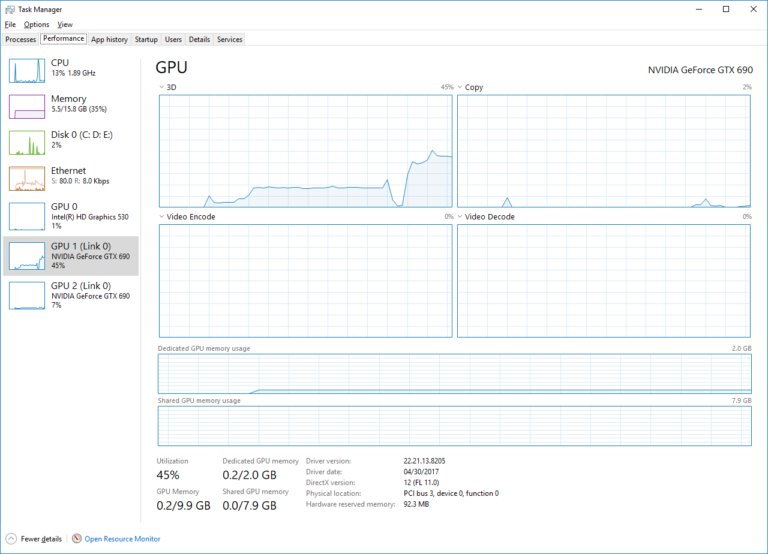
- Open the Performance tab and select your GPU to see total use and video memory without double counting.
- For per-process memory, open the Details tab, right-click a column header and choose Select columns.
- Add the GPU utilization or video memory counters you want and select OK.
- If no GPU data appears, select Start, type
dxdiag.exe, open it and check Driver Model under Drivers on the Display tab.
The GPU percentage is the use of the busiest engine, such as 3D, Copy or Video Decode, not an average across the whole card.
Update graphics driver to fix csrss.exe high GPU usage
Device Manager can search for a newer graphics driver when Windows Update offers nothing. Microsoft advises getting drivers only from Windows Update or the device maker's official site.
- Right-click Start and select Device Manager.
- Expand Display adapters.
- Right-click your graphics card and select Update driver.
- Select Search automatically for updated driver software.
- If nothing is found, select Search for updated drivers on Windows update.
- Select Close and restart the PC after any install.
If Windows finds nothing newer, get the current driver from the graphics card maker's own website, such as NVIDIA, AMD or Intel.
Roll back the display driver after a GPU usage spike
Roll back when the high usage started right after a driver update. You need to be signed in with administrator permissions.
- Right-click Start and select Device Manager.
- Expand Display adapters, right-click your graphics card and select Properties.
- Open the Driver tab and select Roll Back Driver.
- Choose a reason when asked, then select Yes.
- Restart the PC if prompted and check Task Manager again.
A greyed-out Roll Back Driver button means no earlier driver is stored, so reinstall instead.
Reinstall the graphics driver in Device Manager
- Save your work and close all apps.
- Right-click Start and select Device Manager.
- Expand Display adapters and right-click your graphics card.
- Select Uninstall device and confirm.
- Restart the PC from the Start menu.
- Let Windows reinstall the driver, or install the maker's driver if the screen stays at a low resolution.
The screen may flicker or switch to a basic resolution until the driver comes back. That is expected.
Run SFC to repair csrss.exe and other system files
A damaged system file can make a core process misbehave. System File Checker scans every protected system file and replaces incorrect versions. Run it from an elevated Command Prompt or Terminal.
sfc /scannowScans the integrity of all protected system files and repairs files with problems when possible. You must be a member of the Administrators group.
You should see: The scan ends with a report saying no integrity violations were found or that corrupt files were repaired; restart the PC afterwards.
Run DISM RestoreHealth when SFC cannot fix files
DISM repairs the Windows component store that SFC copies good files from. Run the check first, then the repair, then SFC again.
DISM /Online /Cleanup-Image /RestoreHealthRepairs the running Windows image. Run DISM /Online /Cleanup-Image /CheckHealth first to see whether the image is healthy, repairable or non-repairable.
You should see: DISM reports that the restore operation completed successfully; then run sfc /scannow once more.
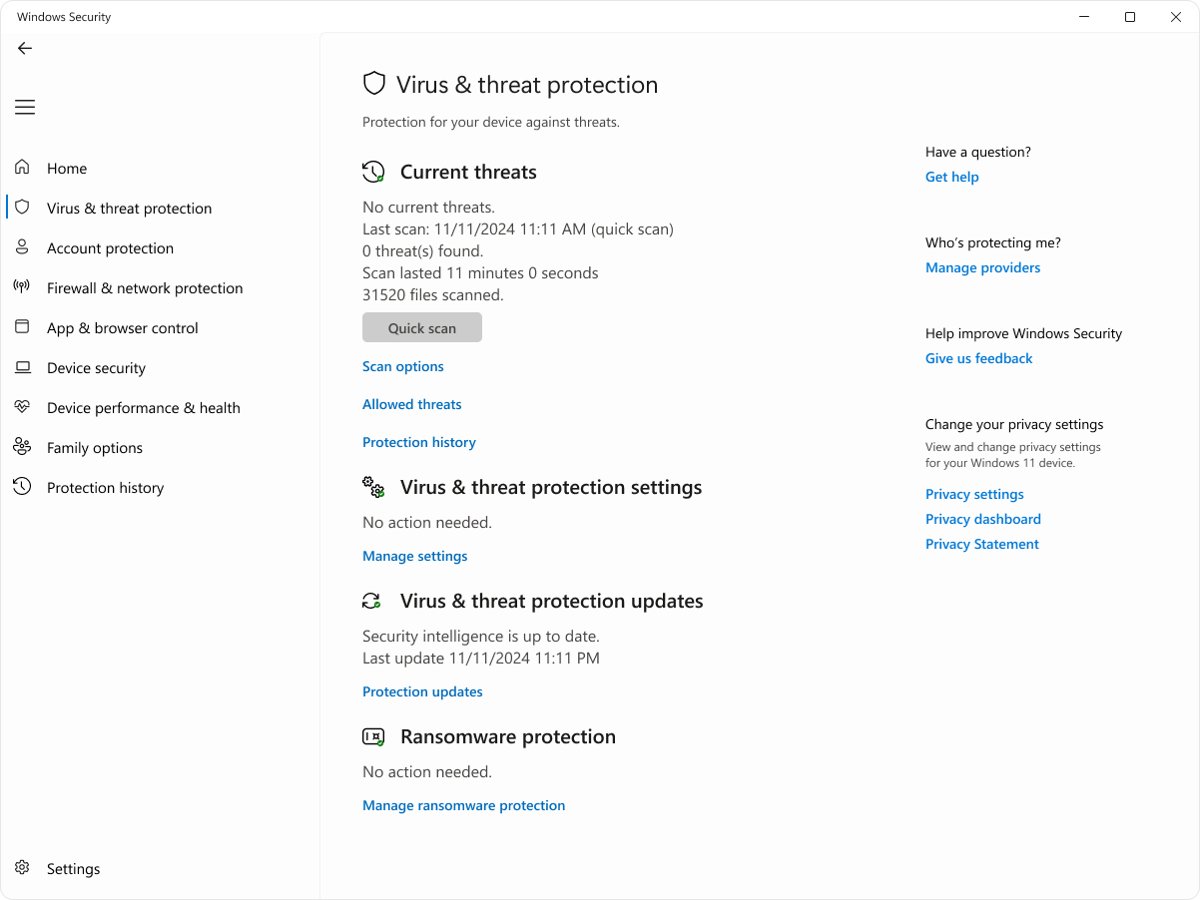
Scan csrss.exe for malware with Microsoft Defender
Malware sometimes hides behind system process names, and Microsoft lists a sudden slowdown as a sign of infection. A full or Microsoft Defender offline scan checks more than a quick scan.
- Select Start > Settings > Privacy & security > Windows Security.
- Select Virus & threat protection.
- Select Scan options instead of Quick scan.
- Choose a full scan, or Microsoft Defender Offline scan for the most complete check.
- Start the scan and let the PC restart if the offline scan needs it.
- Remove anything Defender finds, then check csrss.exe GPU usage again.
Clean boot to find what makes csrss.exe use the GPU
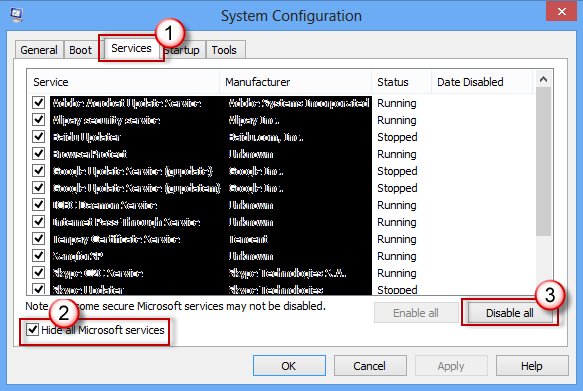
A clean boot starts Windows with only essential drivers and startup programs. If the GPU usage drops, a third-party service or startup app is the trigger.
- Sign in as an administrator, select Search, type
msconfigand open System Configuration. - On the Services tab, select Hide all Microsoft services, then Disable all, then Apply.
- On the Startup tab, select Open Task Manager.
- On Startup apps, select each Enabled item and select Disable, noting what you change.
- Close Task Manager, select OK in System Configuration and restart.
- Check csrss.exe in Task Manager, then re-enable half the items at a time to isolate the cause.
To return to normal, open System Configuration, choose Normal Startup on the General tab, select Enable all on Services, and re-enable your startup apps.
Reduce GPU usage in Windows 11 graphics and visual effects settings
Lowering visual effects and moving heavy apps to the right GPU cuts the drawing work csrss.exe and dwm.exe handle for other apps.
- Select Start, type Adjust the appearance and performance of Windows and open it.
- On the Visual Effects tab, select Adjust for best performance, then OK.
- Select Start > Settings > System > Display > Graphics.
- Under Custom options for apps, select an app and choose Options.
- Set Graphics preference to Power saving for light apps or High performance for games, then save.
- Close apps and browser tabs you are not using, and turn off background permission for apps that do not need it.
The Hardware-accelerated GPU scheduling switch appears on the graphics settings page only when both the GPU and its driver support it. It is a user opt-in, so turn it back off if GPU trouble started after you turned it on.
Client Server Runtime process high GPU usage problems
Client Server Runtime process high GPU at the desktop
A faulty or outdated display driver keeps the 3D engine busy with nothing open.
- Install optional driver updates from Windows Update > Advanced options > Optional updates.
- If the spike began after an update, roll back the driver from the Driver tab in Device Manager.
- If neither helps, uninstall the display adapter and restart so Windows reinstalls it.
High GPU usage for no reason
A background app or startup service is drawing windows or animations you cannot see.
- Open Task Manager and sort the Processes tab by GPU.
- End or uninstall the app at the top if it is not one you need.
- Run a clean boot if no single app stands out.
Desktop Window Manager high GPU usage alongside csrss.exe
The two processes share window surfaces, so they rise together when apps draw heavily.
- Close apps with many windows, then check whether both figures fall.
- Turn on Adjust for best performance in the Visual Effects settings.
- If Desktop Window Manager stays high, apply the dwm.exe high GPU usage fixes next.
High CPU and GPU usage together
Malware, a stuck app or damaged system files can load both the processor and graphics card.
- Run a full or offline scan in Virus & threat protection.
- Run
sfc /scannow, thenDISM /Online /Cleanup-Image /RestoreHealthfrom an elevated Terminal. - Restart and check the Performance tab in Task Manager.
Can I end Client Server Runtime process?
No. Do not end Client Server Runtime Process or set it to stop; fix the driver or app that loads it instead. Microsoft lists csrss.exe as a critical system process. If it terminates, Windows stops with bug check 0xEF CRITICAL_PROCESS_DIED, a blue screen and restart, and any unsaved work is lost.
Client Server Runtime GPU usage FAQ
How do I stop client server runtime process from using GPU?
You cannot stop it, but you can cut its load. Update or roll back the display driver, close apps with many windows, set Visual Effects to best performance, and run a clean boot to find a background app that keeps drawing.
Why is GPU usage so high?
Task Manager shows the busiest GPU engine, so one demanding app such as a game or video can push the figure near 100%. High usage at an idle desktop usually points to a driver problem, a background app or malware instead.
What is considered high GPU usage?
High usage during a game, video edit or 3D app is expected, because those tasks fill an engine. It counts as a problem when GPU use stays high at an idle desktop, the fans run constantly, or the PC feels slow with nothing open.
Is high GPU utilization bad?
No, not while a demanding app is running, because the graphics card is built to work at full load. It is a concern only when a system process such as csrss.exe holds high usage with nothing open, which signals a driver or software fault.
How to fix high GPU utilization?
Find the process in Task Manager first. For csrss.exe or dwm.exe, update or reinstall the graphics driver, run SFC and DISM, and scan with Microsoft Defender. For an app, close it, update it, or set it to Power saving in Graphics settings.
How to manage GPU usage in Windows 11?
Open Settings > System > Display > Graphics, select an app under Custom options for apps, choose Options and pick Power saving or High performance. That decides which GPU each app uses on a PC with two graphics processors.
How to increase GPU usage for games?
Set the game to High performance under Graphics preference in Settings > System > Display > Graphics, keep the graphics driver current, and set Power mode to Best performance in Settings > System > Power & battery when battery life is not a concern.
Is csrss.exe a virus?
The genuine csrss.exe is a protected, critical Windows process, so it is not a virus. Malware can borrow the name, though, so run a full or Microsoft Defender Offline scan if usage stays high after driver fixes.