To strikethrough text in Microsoft Outlook, select the text in your message, open the Format Text tab and select Strikethrough in the Font group.
This guide covers new and classic Outlook for Windows, double strikethrough, keyboard routes, Outlook.com, Outlook for Mac, how to remove the line and what to do when the button is missing.
How to strikethrough Outlook text
These steps work in new Outlook for Windows and in classic Outlook for Microsoft 365, Outlook 2024, 2021, 2019 and 2016. The button sits on the Format Text tab, not the Message tab.
- Create a new message, or open a reply or forward.
- Type your text, then select the words you want to cross out.
- Select the Format Text tab at the top of the message window.
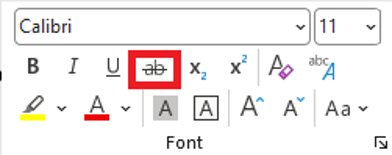
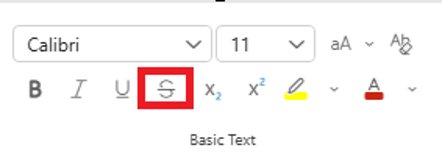
- In the Font group, select Strikethrough. In new Outlook the icon is an S with a line through it; in classic Outlook it is ab with a line through it.
- Click anywhere outside the selection to see the line through your text, then send the message as usual.
The Basic Text group on the Message tab only holds bold, italic and underline, which is why many people cannot find strikethrough there.
Where is strikethrough in Outlook
Each Outlook app puts the command in a slightly different place, and only classic Outlook offers a double line. Strikethrough is applied per selection; to set the font every new message starts with, change the default font in Outlook instead.
| Outlook app | Where strikethrough is | Double strikethrough | Keyboard route |
|---|---|---|---|
| New Outlook for Windows | Format Text > Font group > Strikethrough | Not supported | Alt shows KeyTips for the ribbon |
| Classic Outlook for Windows | Format Text > Font group > Strikethrough | Font dialog > Font tab | Ctrl + Shift + P opens the Font dialog; a Quick Access Toolbar button gets Alt + number |
| Outlook on the web and Outlook.com | Show formatting options next to Send, then the formatting ribbon | Not supported | No shortcut listed by Microsoft |
| Outlook for Mac | Shift + Command + X while composing | Not documented | Shift + Command + X |
How to use the Microsoft Outlook strikethrough shortcut
Outlook for Windows has no built-in strikethrough shortcut: Microsoft's Outlook shortcut list covers bold (Ctrl + B), italic (Ctrl + I) and underline (Ctrl + U), but not strikethrough. Outlook for Mac does have one, Shift + Command + X.
On Windows, use the ribbon KeyTips instead, which let you reach the button without the mouse.
- Select the text you want to cross out in your message.
- Press Alt to show the KeyTip letters on the ribbon (in classic Outlook, F6 also works).
- Press the letter shown on the Format Text tab.
- Press the letter shown on the Strikethrough button.
- In classic Outlook, Ctrl + Shift + P opens the Font dialog, which holds the Double strikethrough option.
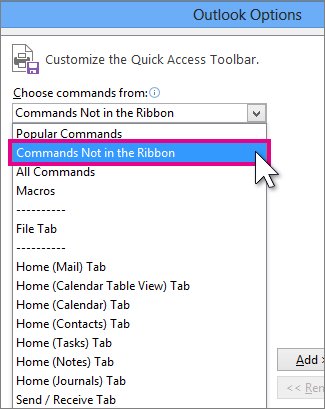
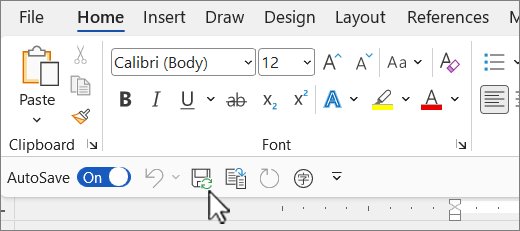
For a true one-step shortcut in classic Outlook, put Strikethrough on the Quick Access Toolbar as shown below; it then gets its own Alt + number combination.
How to add strikethrough to the Outlook toolbar
The Quick Access Toolbar applies to classic Outlook for Microsoft 365 and Outlook 2016 to 2024. It stays visible on every tab, so strikethrough is always one click away.
- Open a new message in classic Outlook and select the Format Text tab.
- Right-click Strikethrough in the Font group.
- Select Add to Quick Access Toolbar.
- If the toolbar is hidden, right-click the area above the ribbon at the upper right of the window and select Show Quick Access Toolbar.
- To use it from the keyboard, press Alt, then press the number shown on the new Strikethrough button.
- To take it off again, right-click the button on the toolbar and select Remove from Quick Access Toolbar.
How to use double strikethrough in the Microsoft Outlook desktop app
Double strikethrough draws two lines through the text. It exists only in classic Outlook; Microsoft states that new Outlook currently supports single-line strikethrough only, so switch back to classic Outlook if you need it.
- In a new message, reply or forward, select the text you want to format.
- Select the Format Text tab.
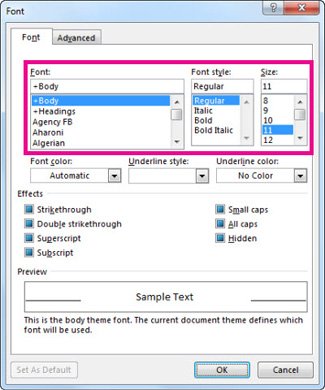
- Select the Font Dialog Box Launcher, the small arrow at the lower right of the Font group (or press Ctrl + Shift + P).
- On the Font tab, select Double strikethrough.
- Select OK.
How to strikethrough in Outlook web app on Outlook.com
The formatting tools in Outlook on the web and Outlook.com are hidden until you open them. Microsoft builds new Outlook for Windows on the Outlook web experience, so the web version also offers single-line strikethrough only.
- Sign in to Outlook.com or Outlook on the web and select New mail, or open a reply.
- Type your text and select the words you want to cross out.
- Select Show formatting options next to Send at the bottom of the message box. The formatting ribbon appears.
- Select Strikethrough on the formatting ribbon.
- In the classic web layout, choose More at the end of the formatting choices if strikethrough is not visible, then select it.
How to strikethrough text in Outlook for Mac
- Open a new message, reply or forward in Outlook for Mac.
- Select the text you want to cross out.
- Press Shift + Command + X.
- Press Shift + Command + X again on the same selection to remove the line.
How to remove strikethrough in Outlook
- Select the crossed-out text in the message.
- For a single line, select Format Text > Strikethrough again to turn it off.
- For a double line in classic Outlook, select Strikethrough twice in the Font group, or open the Font dialog and clear the Double strikethrough check box.
- To strip every format from the selection at once in classic Outlook, press Ctrl + Spacebar or Ctrl + Shift + Z.
- On a Mac, press Shift + Command + X with the text selected.
Strikethrough not working in Outlook
Strikethrough is grayed out or has no effect
The message is in plain text, which does not support bold, italic, colored fonts or any other text formatting.
- In classic Outlook, open the message, select Format Text and choose HTML.
- In new Outlook, select Options in the message and switch the message back from plain text to HTML.
- To make HTML the default in classic Outlook, go to File > Options > Mail and choose HTML under Compose messages.
- In new Outlook, go to Settings > Mail > Compose and reply and set Message format to HTML, then select Save.
No strikethrough button on the Message tab
The Message tab's Basic Text group only carries bold, italic and underline.
- Select the Format Text tab instead.
- Use Strikethrough in the Font group, or add it to the Quick Access Toolbar in classic Outlook.
Double strikethrough is missing
New Outlook and Outlook on the web currently support single-line strikethrough only.
- Open the message in classic Outlook for Windows.
- Select the text, then use Format Text > Font Dialog Box Launcher > Double strikethrough.
No formatting buttons in Outlook.com
The formatting ribbon is collapsed while you write.
- Select Show formatting options next to Send at the bottom of the message box.
- Select the text again and choose Strikethrough.
Strikethrough text shortcut in Microsoft Office apps
The strikethrough shortcut changes from app to app, so a key that works in Excel does nothing in Outlook for Windows.
| App | Windows | Mac |
|---|---|---|
| Outlook | No shortcut; Format Text > Strikethrough or a Quick Access Toolbar button | Shift + Command + X |
| Word | Home > Strikethrough in the Font group | Not covered here |
| Excel | Ctrl + 5 | Shift + Cmd + X |
| Excel for the web | Home > Font Settings > Strikethrough | Same as Windows |
Frequently asked questions about how to strikethrough in Outlook
What is the shortcut for strikethrough in Outlook?
Outlook for Windows has no dedicated strikethrough shortcut. Press Alt and follow the KeyTips to Format Text > Strikethrough, or add Strikethrough to the Quick Access Toolbar in classic Outlook to get an Alt + number shortcut. In Outlook for Mac, press Shift + Command + X.
How do I add strikethrough to my Outlook toolbar?
In classic Outlook, open a message, select the Format Text tab, right-click Strikethrough and choose Add to Quick Access Toolbar. The button then appears above the ribbon on every tab. Right-click it and choose Remove from Quick Access Toolbar to take it off.
How do you strikethrough text in an email?
Select the text in the message, then apply the strikethrough command of your mail app. In Outlook for Windows that is Format Text > Strikethrough, and in Outlook.com it is on the formatting ribbon under Show formatting options. The message must be HTML, because plain text drops all formatting.
Does new Outlook support double strikethrough?
No. Microsoft states that new Outlook currently supports single-line strikethrough only. Double strikethrough is available in classic Outlook through the Font dialog: select Format Text, open the Font Dialog Box Launcher and tick Double strikethrough on the Font tab.
How to strikethrough text in Microsoft Word?
Select the text and go to Home > Strikethrough. For a double line, open the Font dialog box launcher on the Home tab, select the Font tab and choose Double strikethrough. The same Word-based editor is what Outlook uses for writing email.
Where is strikethrough in Microsoft Word?
Strikethrough is on the Home tab in the Font group, next to the other text effects. Double strikethrough is not a ribbon button; it is a check box on the Font tab of the Font dialog, which you open with the small launcher at the corner of the Font group.
How to strikethrough text in Microsoft Excel?
Select the cells and press Ctrl + 5 in Excel for Windows, or Shift + Cmd + X on a Mac. In Excel for the web, go to Home, select Font Settings in the Font group, tick Strikethrough in the Format Cells dialog and select OK.
Why is my text strikethrough in Excel?
The cell has strikethrough formatting applied, often by pressing Ctrl + 5 by accident. Select the cell and press Ctrl + 5 again to remove it, or open Format Cells and clear the Strikethrough check box. In Excel for the web, unselect Strikethrough in Font Settings.
How to strikethrough text on Windows?
Windows has no system-wide strikethrough command; each app provides its own. In Outlook use Format Text > Strikethrough, in Word use Home > Strikethrough, and in Excel press Ctrl + 5.
Will the recipient see my strikethrough text?
Yes, when the email is sent in HTML, which is the default message format in both new and classic Outlook. If you switch a message to plain text, Outlook removes all formatting, including strikethrough, before it is sent.