To name a group text in iOS 17, open the group iMessage, tap the group icons at the top of the thread, tap Change Name and Photo, type the name and tap Done.
This guide covers the steps for iOS 17, iOS 18 and iOS 26, adding a group photo, why some groups cannot be named, and what to do when the option is missing.
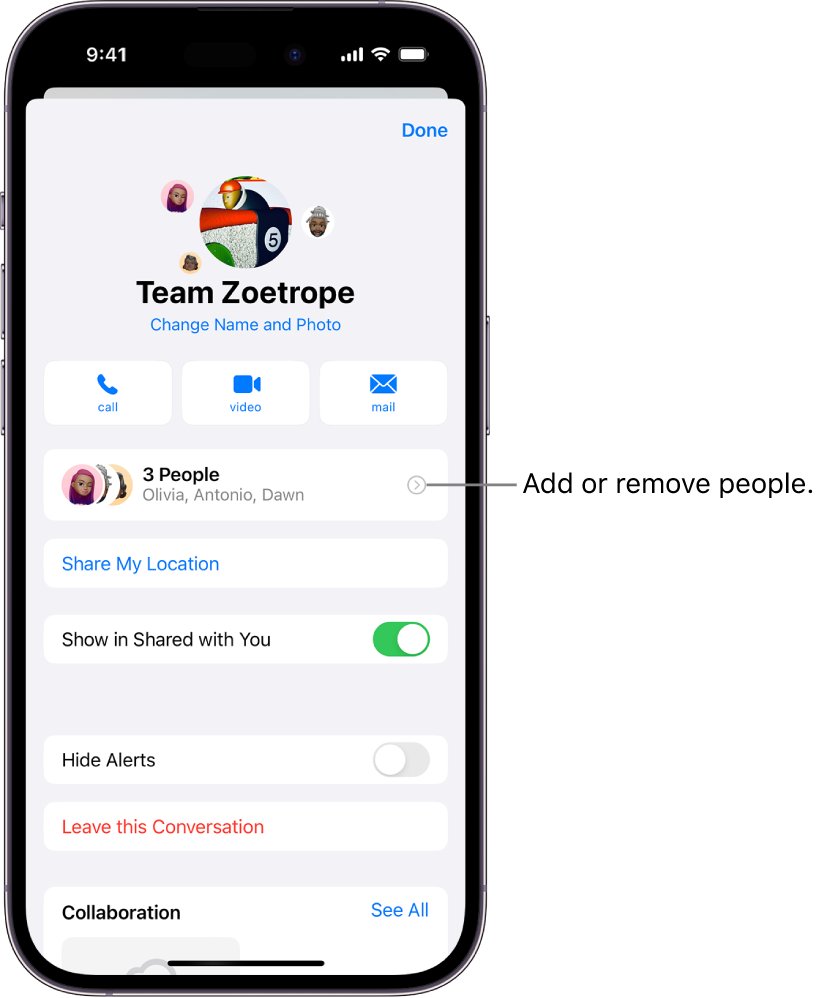
Step by step tutorial: How to name a group text on iPhone
These steps are for iOS 17 and iOS 18. The group must be a group iMessage, which means everyone in it uses an Apple device and their messages show in blue bubbles.
- Open the Messages app on your iPhone.
- Tap the group conversation you want to name.
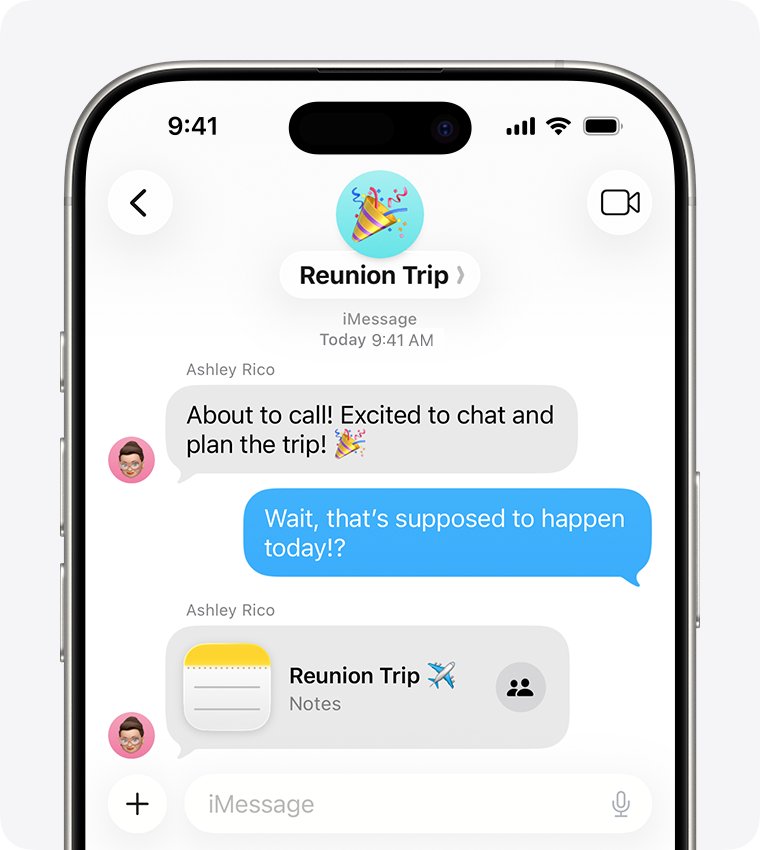
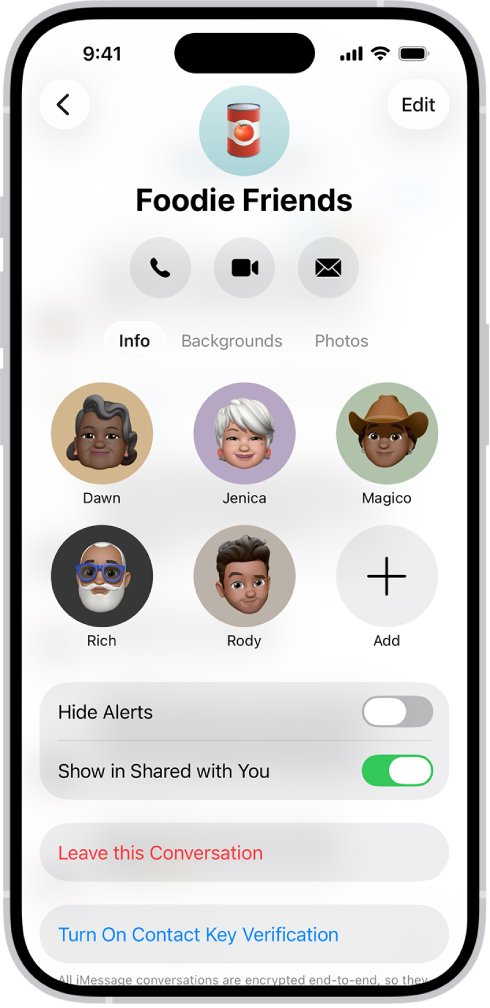
- Tap the group icons and names at the top of the thread.
- Tap Change Name and Photo, shown in blue text under the group icons.
- Type the name you want for the group.
- Tap Done to save it.
The name makes the group easier to find in your conversation list. Everyone in the group who has iMessage turned on sees the same name and photo.
Where is Change Name and Photo on iPhone in iOS 17, iOS 18 and iOS 26
Apple renamed and moved the option in iOS 26. Check Settings > General > About to see which iOS version your iPhone runs.
| iOS version | What to tap at the top of the group | Option name |
|---|---|---|
| iOS 17 | The group name or number at the top of the conversation | Change Name and Photo |
| iOS 18 | The group name or number at the top of the conversation | Change Name and Photo |
| iOS 26 and later | The group icon, then Edit | Edit Name & Photo |
| iOS 14 or earlier | The icons at the top of the thread, then the info button | Change Name and Photo |
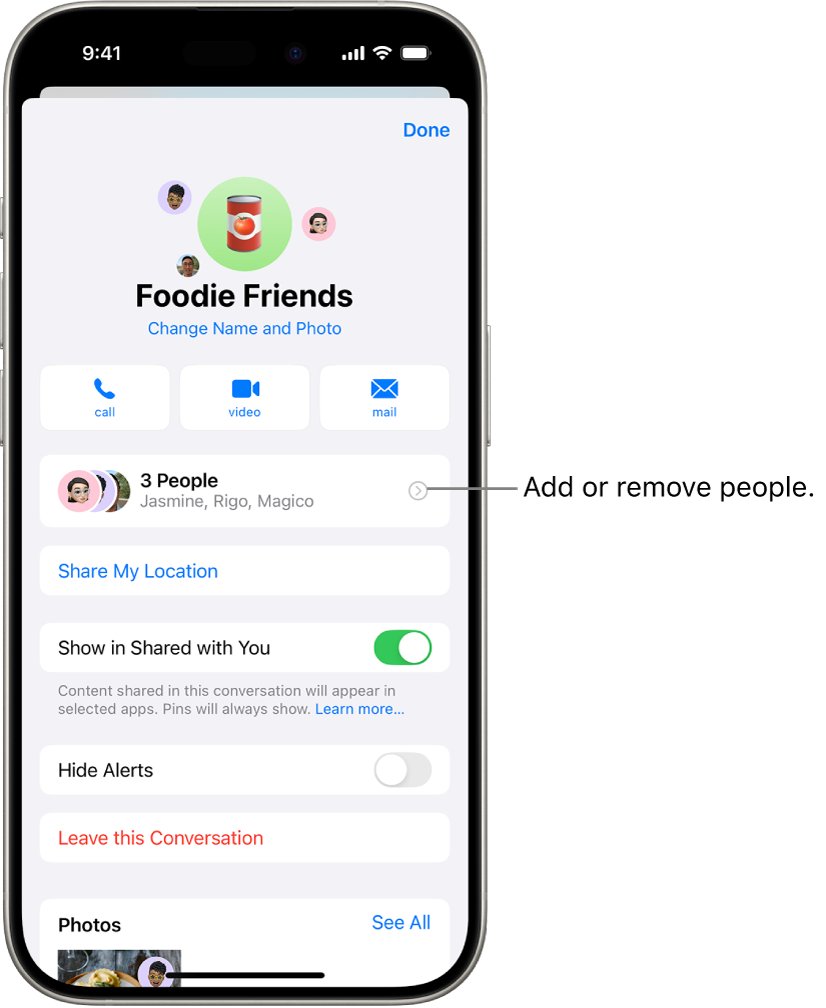
How to name a group chat on iPhone in iOS 26
If you have since moved past iOS 17, the option sits behind an Edit button. To get the newer layout, update your iPhone's iOS from Settings first.
- Open Messages and tap the group conversation.
- Tap the group icon at the top of the conversation.
- Tap Edit.
- Tap Edit Name & Photo.
- Enter the group name.
- Tap Done.
Apple notes that the group icon feature varies by region, but the name works wherever group iMessage does.
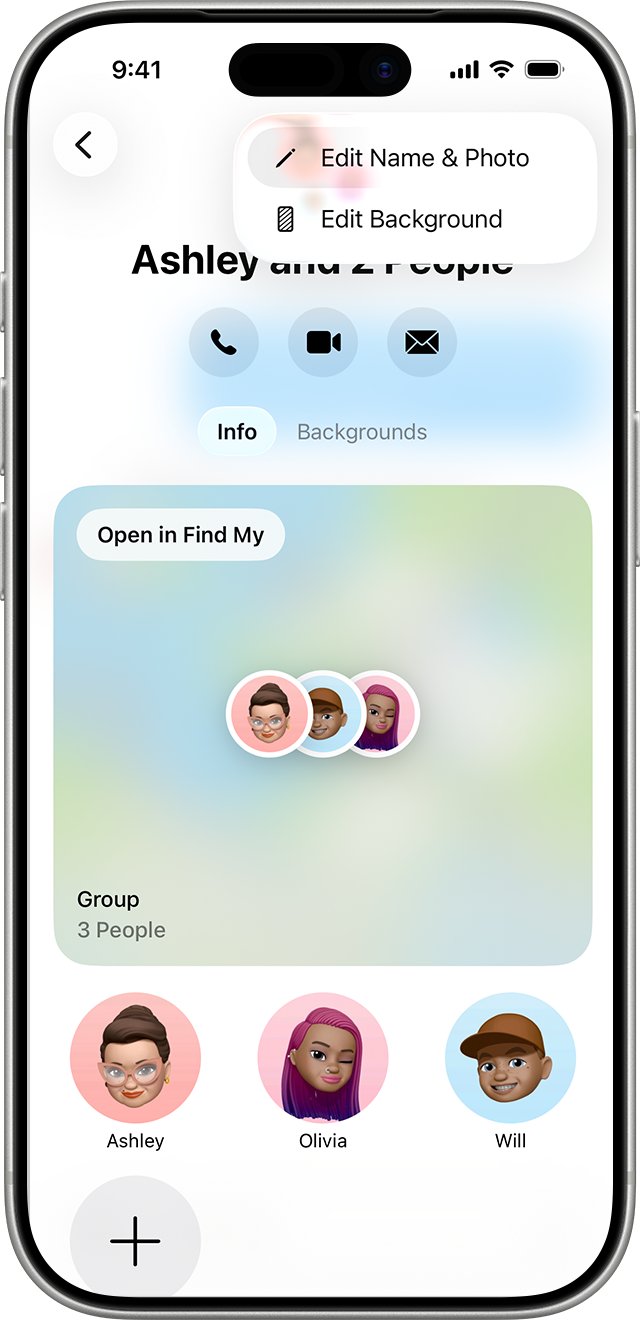
How to change a group text name and photo on iPhone
You can rename a group as often as you like, and the same screen sets the group photo. The photo shows next to the name so the group is easier to spot in your list.
- Open the group and tap the group icons at the top of the thread.
- Tap Change Name and Photo (in iOS 26, tap Edit > Edit Name & Photo).
- Replace the old name with the new one.
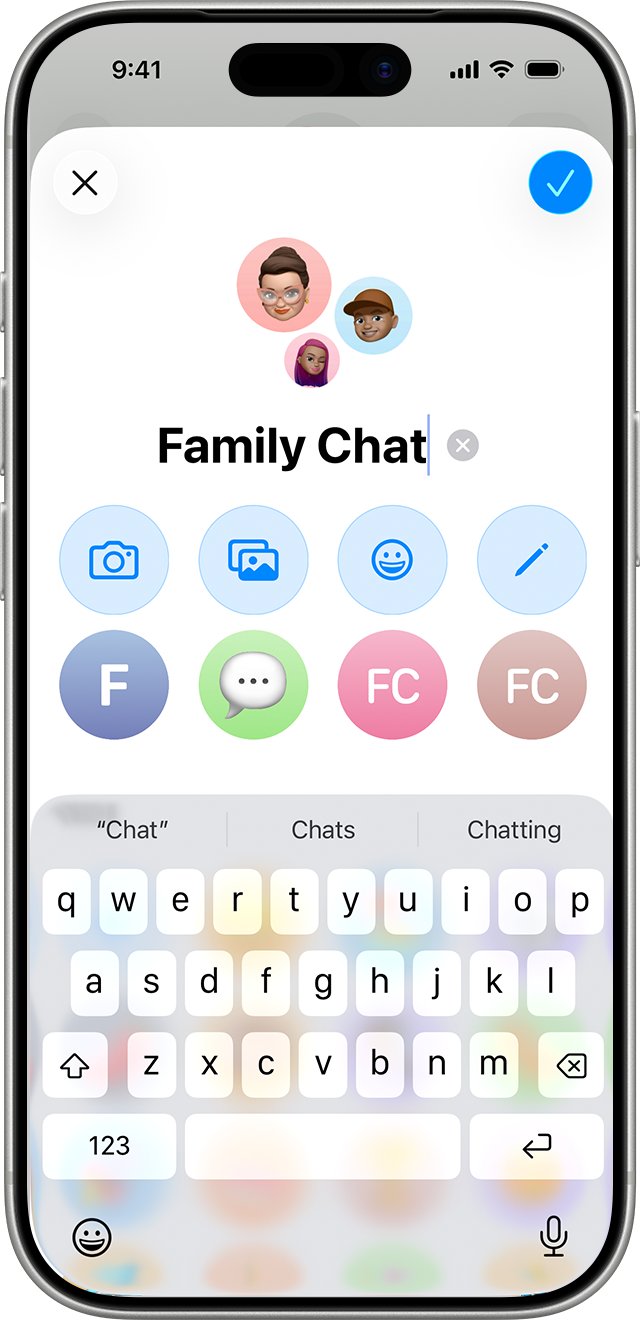
- Tap the Camera button to take a photo, or pick a photo you already have.
- Choose an emoji or Memoji instead if you prefer an icon to a photo.
- Tap Done to save the new name and photo.
Can you name a group text with Android users on iPhone?
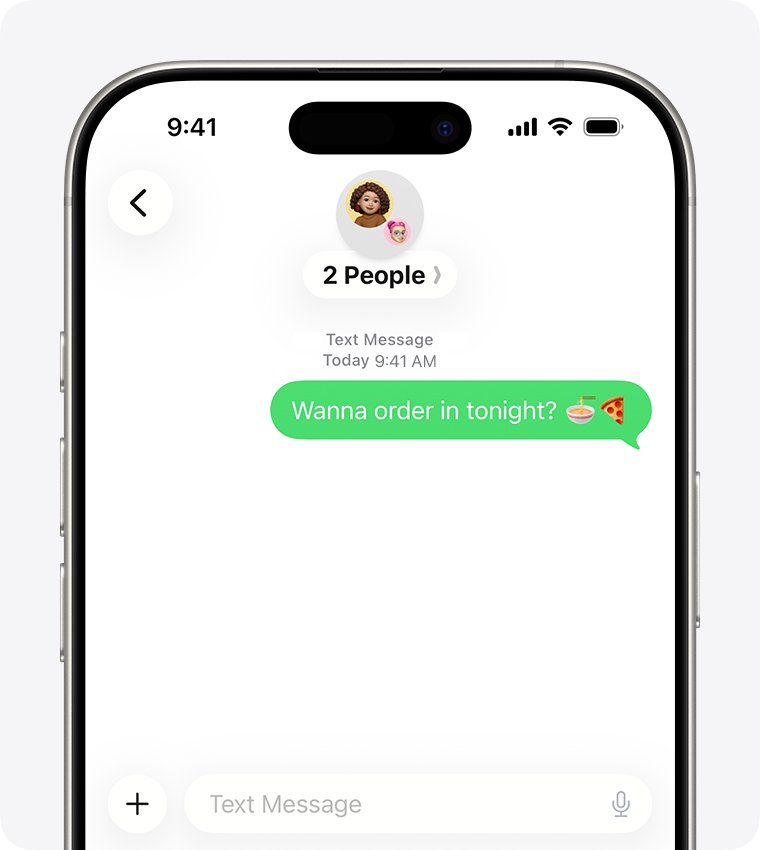
No. Apple only lets you name group iMessages, where everyone uses an iPhone, iPad, iPod touch or another Apple device. Messages picks the message type for you based on who is in the group.
| Group type | Bubble color | Goes through | Can you name it? |
|---|---|---|---|
| Group iMessage | Blue | Apple, end-to-end encrypted | Yes, and add a photo |
| Group MMS | Green | Your carrier | No; you can still mute it |
| Group SMS | Green | Your carrier | No; replies arrive as separate texts |
| One-to-one iMessage | Blue | Apple | No; names are for groups only |
How to make a group iMessage on iPhone so you can name it
If your group shows green bubbles because one person had not turned on iMessage, start a new group with Apple device users only. You can forward a text from the old thread into the new one if you need it.
- Open Settings > Messages (on iOS 18 and later, Settings > Apps > Messages) and turn on iMessage.
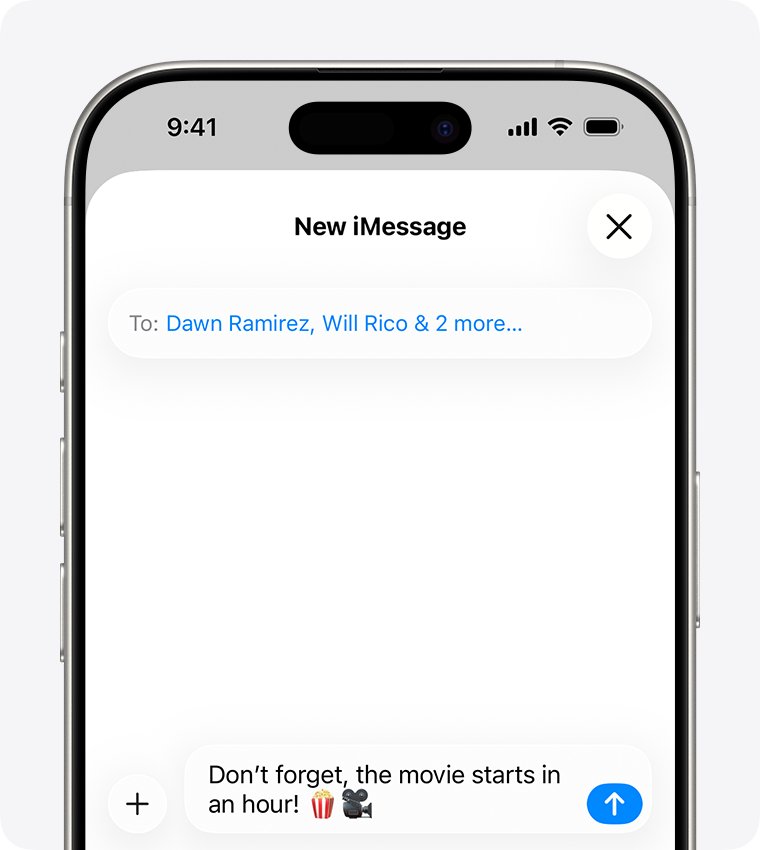
- Open Messages and tap the Compose button.
- Enter the phone number, contact name or Apple ID of each person.
- Type a message and tap the Send button.
- Check that the bubbles are blue, then name the group with Change Name and Photo.
How to tell if a group text name changed for everyone
- Go back to the conversation list in Messages and find the group under its new name.
- Open the thread and check that the new name shows at the top of the conversation.
- Look at the message bubbles: blue means everyone is on iMessage and sees the same name and photo.
- Ask a group member whether the name changed on their side if you are unsure.
Pros of naming a group text on iPhone
| Advantage | What it means for you |
|---|---|
| Easier to find | A name and photo stand out in a long conversation list |
| Same for everyone | Every member with iMessage turned on sees the new name and photo |
| Clear purpose | A name such as Family or Book club tells members what the thread is for |
| Change it any time | The name and photo can be edited again from the same screen |
| Photo, emoji or Memoji | You choose how the group looks next to its name |
Cons of naming a group text on iPhone
| Drawback | What to do about it |
|---|---|
| Only works in group iMessage | Start a new group with Apple device users only |
| Not available with Android users | SMS and MMS groups show participant names instead |
| Not available for one-person chats | Save the contact with the name you want instead |
| Anyone in the group can see the change | Pick a name you are happy for every member to see |
| Option moved in iOS 26 | Tap Edit first, then Edit Name & Photo |
Change Name and Photo not showing on iPhone group text
There is no option to enter a group name
The conversation is a group SMS or MMS, because at least one member is not using iMessage.
- Look for green bubbles in the thread.
- Ask the member with green bubbles whether they use an Apple device with iMessage turned on.
- Start a new group with Apple device users only, then name it.
The option is missing in a chat with one person
Apple does not allow names on iMessage conversations with just one other person.
- Add at least one more person by starting a new group conversation.
- Name the new group with Change Name and Photo.
You cannot find Change Name and Photo after an update
In iOS 26 the option is called Edit Name & Photo and sits behind Edit.
- Tap the group icon at the top of the conversation.
- Tap Edit.
- Tap Edit Name & Photo and enter the name.
A member does not see the new group name
Only members who have turned on iMessage see the name and photo.
- Ask the member to turn on iMessage in Settings > Messages (Settings > Apps > Messages on iOS 18 and later).
- Rename the group again once their messages show in blue.
iPhone group text name FAQ
Can I add emojis to the group name?
You can choose an emoji or Memoji as the group photo on the Change Name and Photo screen. It shows next to the group name in Messages, which makes the group easy to spot in your conversation list.
Will everyone in the group see the name change?
Yes, if they use iMessage. Apple says everyone in the group who has turned on iMessage sees the new name and photo. Members who are not on iMessage are in an SMS or MMS group, which cannot be named.
What if I want to change the name again?
Open the group, tap the group icons at the top, tap Change Name and Photo (or Edit > Edit Name & Photo in iOS 26), type the new name and tap Done. There is no limit on renaming.
Can I name a group text with non-iPhone users?
No. Apple only allows names on group iMessages, where everyone uses an Apple device such as an iPhone, iPad or iPod touch. A group with an Android phone is sent as SMS or MMS and cannot be named.
What if the Enter a Group Name option does not appear?
The group is probably SMS or MMS, shown by green bubbles, or it is a chat with only one other person. Start a group iMessage with at least two other Apple device users, then use Change Name and Photo.
Can you name a group text on iPhone with only one other person?
No. Apple does not let you name iMessage conversations with just one person. Names and group photos are for group iMessages with at least two other people.
How do I add a photo to a group text on iPhone?
Tap the group icons at the top of the thread, tap Change Name and Photo, then tap the Camera button to take a photo or pick an existing one. You can also choose an emoji or Memoji, then tap Done.
How to name a group text in iOS 26?
Open the group in Messages, tap the group icon at the top, tap Edit, then tap Edit Name & Photo. Type the name and tap Done. The group must still be a group iMessage.