To add Netflix to your Windows 11 desktop, install the free Netflix app from Microsoft Store, open Start > All, and drag Netflix onto the desktop.
This guide also covers a netflix.com shortcut from Microsoft Edge or Google Chrome, pinning Netflix to the taskbar and Start, updating or removing it, and fixes when the app misbehaves.
Adding Netflix to desktop Windows 11
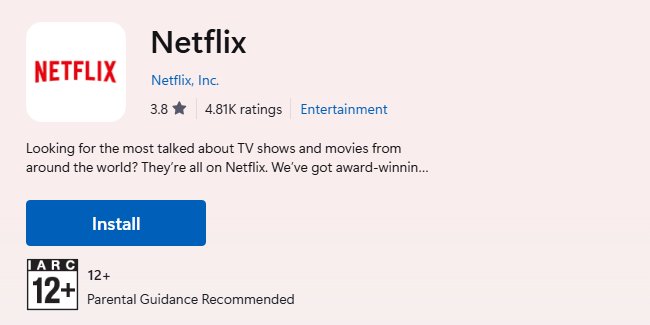
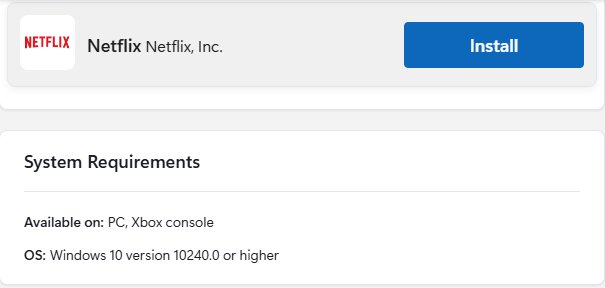
Netflix publishes its Windows app only through Microsoft Store. The app itself costs nothing; watching needs a Netflix membership.
- Select Start and open Microsoft Store.
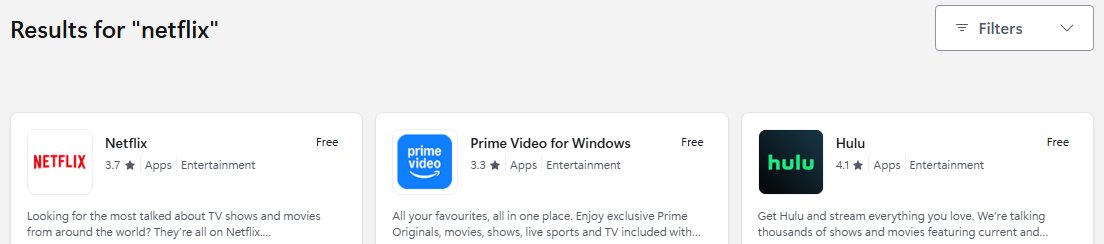
- Type Netflix in the search box at the top of the Store and press Enter.
- Select Netflix (published by Netflix, Inc.) in the results.
- Select Install and wait for the button to change to Open.
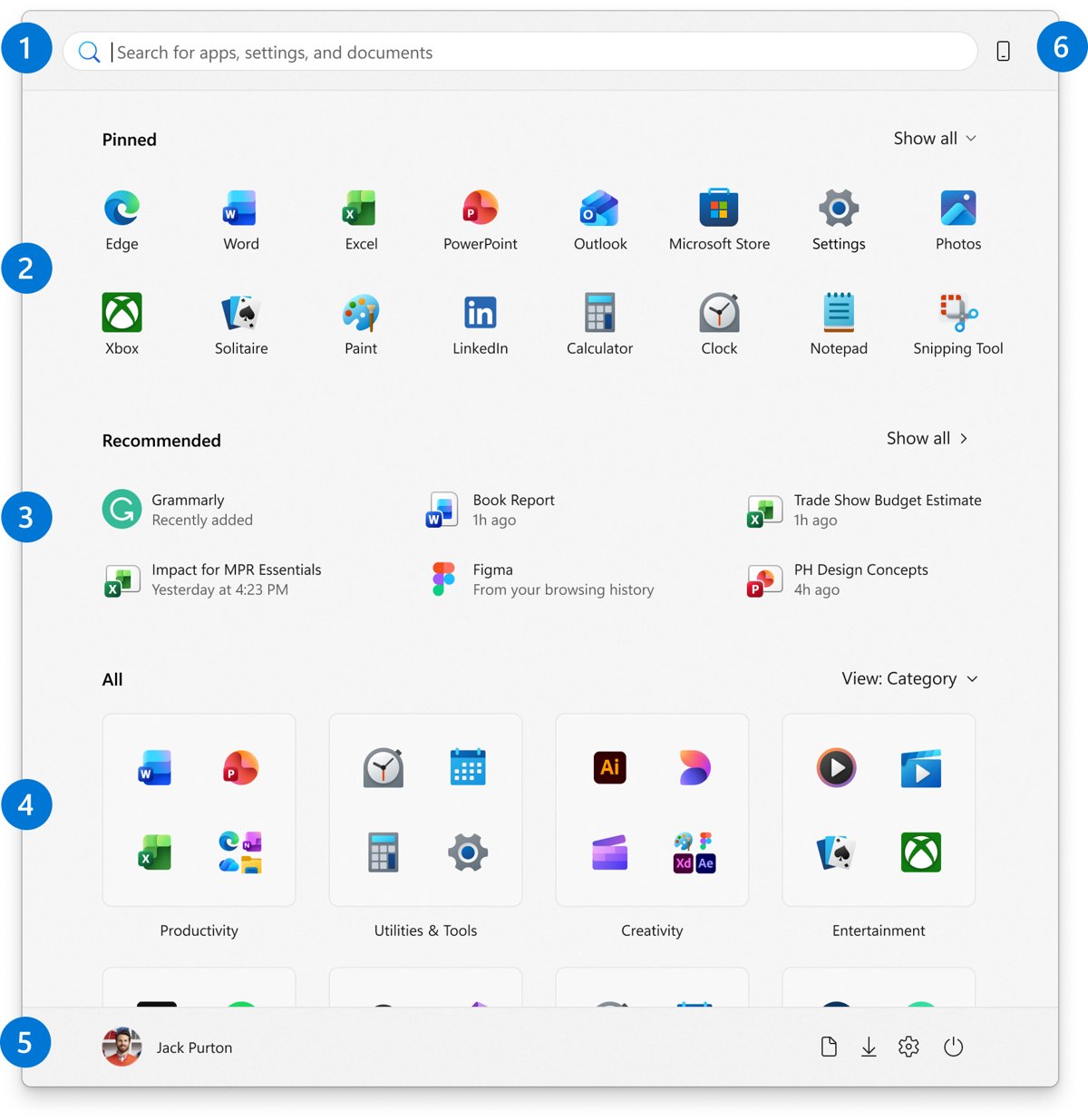
- Press the Windows key and select All to see the full app list.
- Left-click Netflix and drag it onto your desktop. A Netflix shortcut appears there.
- Double-click the new icon, select Sign In, and enter your Netflix email and password.
The drag method comes from Microsoft's own instructions for putting a program shortcut on the Windows 11 desktop. It works for any app in the All list, so the same move puts other Store apps on the desktop too. Other ways to put shortcuts on the Windows desktop work for Netflix as well.
Netflix app vs netflix.com on Windows 11 desktop
Each route gives you a desktop icon, but they open different things. Pick the row that matches how you watch.
| Your situation | Use this | Why |
|---|---|---|
| You want the official Netflix app with its own window | Microsoft Store app, then drag it from Start | Netflix supports the Windows app on Windows 10 and later, and it reaches 4K |
| You want HDR on a supported screen | netflix.com installed as an app in Microsoft Edge | Netflix lists Edge as the browser that reaches 4K with HDR |
| Microsoft Store is blocked on a work or school PC | Edge app install or a Chrome shortcut | Both use netflix.com, so nothing comes from the Store |
| You live in Google Chrome | Chrome's Create shortcut | Adds a named netflix.com shortcut straight from the Chrome menu |
| You want to download shows for offline viewing | Not possible on Windows | Netflix lists downloads only for Android, iPhone, iPad, Amazon Fire tablets and Chromebooks with Google Play |
Netflix app for Windows 11 requirements
| Requirement | Details |
|---|---|
| Windows version | Netflix is available on computers and tablets with Windows 10 or later. Windows 7, 8 and 8.1 play only in Standard Definition. |
| Microsoft Edge | The Netflix app for Windows requires Microsoft Edge to be installed, even if you use another browser. |
| A Netflix membership | The app is free from Microsoft Store; sign in with an active Netflix account to watch. |
| 4K or HDR (optional) | A plan that includes 4K, at least 15 Mbps, Windows 11 with the latest updates, a compatible graphics card and a 4K display. Some Windows 11 PCs also need the HEVC video extension from Microsoft Store. |
| Supported browsers for netflix.com | Chrome, Edge, Firefox and Opera on Windows. Chrome reaches 4K, Edge 4K with HDR, Firefox and Opera 1080p. |
How to add Netflix shortcut to desktop with Microsoft Edge
Microsoft Edge ships with Windows 11 and can install netflix.com as an app with its own window. Use this when the Store is unavailable or you want HDR in Edge.
- Open Microsoft Edge and go to
netflix.com, then sign in. - Select Settings and more (the … button at the top right).
- Select More tools > Apps > Install this site as an app.
- Confirm the install. Netflix opens in its own app window.
- Type
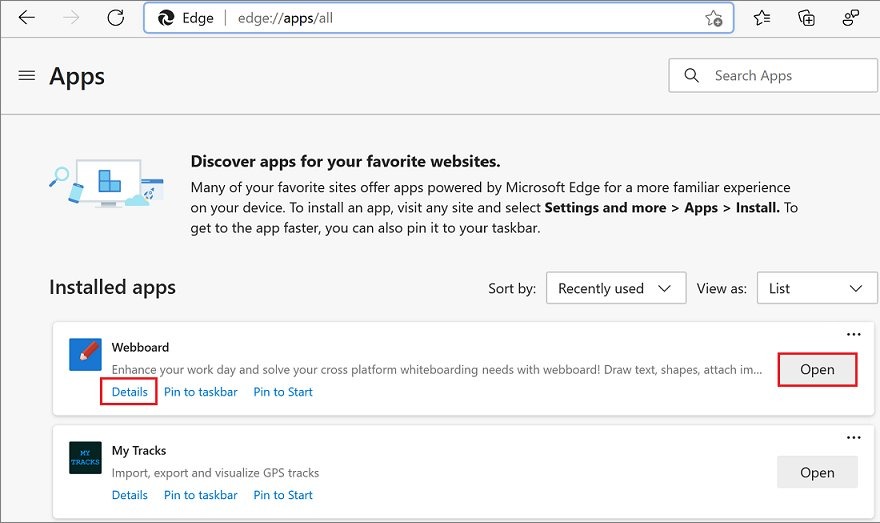
edge://appsin the Edge address bar and press Enter. - Select Details on the Netflix card.
- Select Create Desktop shortcut. You can also select Pin to taskbar or Pin to Start on the same page.
The same Edge app install works for other streaming sites, such as Twitch on the desktop.
How to add Netflix icon to desktop from Google Chrome
Chrome has two options: a plain website shortcut, or an installed web app that opens in its own window.
- Open Google Chrome and go to
netflix.com. - At the top right, select More (three dots) > Cast, save, and share > Create shortcut….
- Keep the name Netflix in the Name field, or type a new one.
- Select Create. The shortcut is added for netflix.com.
- For an app window instead, select More > Cast, save, and share > Install page as app… and follow the on-screen instructions.
- Right-click the installed Netflix window on the taskbar to see its shortcuts and pin it.
How to pin Netflix to taskbar in Windows 11
A taskbar or Start pin is often handier than a desktop icon, because windows never cover it, and you can pin any app to the taskbar the same way.
- Type Netflix in the search box on the taskbar.
- Right-click Netflix in the results.
- Select Pin to taskbar.
- To pin it to the Start menu as well, right-click it again and select Pin to Start.
- If Netflix is already open, right-click its taskbar icon and select Pin to taskbar.
Where is the Netflix app on Windows 11?
- Press the Windows key and select All. Netflix is listed under N once it is installed.
- Open Start > Settings > Apps > Installed apps and search for Netflix to see it in the installed list.
- For the Edge version, go to
edge://apps. A Netflix card there means the site is installed as an app. - Double-click the desktop icon. The Store app opens to the Netflix sign-in or profile screen; a Chrome shortcut opens netflix.com.
Tips for adding Netflix to desktop Windows 11
| Tip | What to do |
|---|---|
| Use the official listing | Install the Netflix app published by Netflix, Inc. in Microsoft Store. Netflix does not offer a separate .exe installer for Windows. |
| Keep Edge installed | The Windows app needs Microsoft Edge on the PC, so do not remove Edge if you use the app. |
| Start Netflix when you sign in | For the Edge app, turn on Auto-start on device login under Details on edge://apps. Chrome offers Start apps when you sign in for its web apps. |
| Sign out on shared PCs | In the app, hover over your profile icon at the upper right and select Sign out of Netflix. On netflix.com, signing out affects only that browser. |
| Get 4K or HDR | Use the Store app or Chrome for 4K, Edge for 4K with HDR, and install the latest graphics drivers if the picture stays lower. |
| Do not expect downloads | Offline downloads are not available in the Windows app; use a phone or tablet for that. |
How to update the Netflix app on Windows 11
Microsoft Store updates apps automatically by default, so most people never need to update Store apps manually.
- Open Microsoft Store.
- Select Library.
- Select Get updates.
- Wait for Netflix to finish updating, then reopen it from the desktop icon.
Updates work even while automatic app updates are paused in Store settings.
How to remove Netflix from desktop Windows 11
- To remove only the icon, right-click the Netflix shortcut on the desktop and select Delete. The app stays installed.
- To uninstall the Store app, select Start > All, right-click Netflix, and select Uninstall.
- Or go to Start > Settings > Apps > Installed apps, find Netflix, and select More > Uninstall.
- To remove the Edge version, open
edge://apps, select Details on the Netflix card, select Uninstall, and confirm.
Netflix app not working on Windows 11
Can't find Netflix in the Microsoft Store
Windows or the Store app is out of date, or the Store is blocked on a managed PC.
- Select Start > Settings > Windows Update > Check for updates and install what is offered.
- In Microsoft Store, select Library > Get updates to update the Store itself.
- Sign in to Microsoft Store with your Microsoft account and search for Netflix again.
- If the Store is blocked by your organisation, use the Edge app install or Chrome shortcut instead.
Netflix app won't open on Windows 11
The app's files or settings are damaged.
- Select Start > Settings > Apps > Installed apps.
- Select More next to Netflix, then Advanced options.
- Select Repair.
- If that does not help, select Reset, then sign in to Netflix again.
- If it still fails, uninstall Netflix and reinstall it from Library in Microsoft Store.
Netflix app needs Microsoft Edge
Edge was removed or is outdated; the Windows app depends on it.
- Open Microsoft Edge and confirm it starts.
- If Edge is missing, install it again from Microsoft's Edge download page.
- Restart the PC and open Netflix from the desktop icon.
Netflix won't play in 4K on Windows 11
The plan, connection, graphics driver or video codec does not meet Netflix's 4K requirements.
- Confirm your Netflix plan includes 4K and your connection reaches 15 Mbps or more.
- Install the latest Windows updates and graphics drivers.
- Install the HEVC video extension from Microsoft Store if your PC needs it.
- Use the Netflix app, Chrome or Edge, since Firefox and Opera stop at 1080p.
Netflix desktop shortcut opens the browser instead of the app
The icon was created from Chrome's Create shortcut, which points at netflix.com.
- Delete that shortcut from the desktop.
- Select Start > All and drag the Netflix app onto the desktop instead.
- Or install netflix.com as an app in Edge and use Create Desktop shortcut from
edge://apps.
Netflix on desktop FAQ
How do you put Netflix on desktop?
Install the free Netflix app from Microsoft Store, press the Windows key, select All, and drag Netflix onto the desktop. Without the Store, open netflix.com in Edge and select Settings and more > More tools > Apps > Install this site as an app, then Create Desktop shortcut.
How do I add a Netflix icon to my desktop home screen?
On Windows 11 the desktop is the home screen. Drag Netflix from Start > All onto it, or install netflix.com as an app in Microsoft Edge and select Create Desktop shortcut on edge://apps. Either way a Netflix icon appears that opens with a double-click.
How do I pin Netflix to my taskbar?
Type Netflix in the taskbar search box, right-click it in the results, and select Pin to taskbar. If Netflix is already running, right-click its taskbar icon and choose Pin to taskbar. Unpin it later with Unpin from taskbar.
Can I download Netflix shows to watch offline on Windows 11?
No. Netflix lists offline downloads only for the Netflix app on Android phones and tablets, iPhone and iPad, Amazon Fire tablets and Chromebooks with Google Play. The Windows app and netflix.com stream only, so a laptop needs an internet connection to play.
What if I can't find Netflix in the Microsoft Store?
Update Windows and Microsoft Store, sign in with your Microsoft account, and search again. On a work or school PC the Store may be blocked; install netflix.com as an app in Microsoft Edge instead, which gives the same desktop, taskbar and Start shortcuts.
Is there a cost to download Netflix on Windows 11?
No. The Netflix app is free to install from Microsoft Store. You need a paid Netflix membership to watch, and plans and prices vary by country. Creating a desktop shortcut costs nothing either.
How do I update the Netflix app?
Microsoft Store updates Netflix automatically by default. To check by hand, open Microsoft Store, select Library, and select Get updates. The Edge and Chrome versions are netflix.com itself, so they are always current.
Can I add Netflix to desktop on Windows 10?
Yes. Netflix supports Windows 10 and later, and Microsoft Store installs the same app. The Edge app install and Chrome's Create shortcut work the same way on Windows 10 as on Windows 11.
Does deleting the Netflix desktop icon uninstall Netflix?
No. Deleting a desktop shortcut removes only the icon. To remove the app, right-click Netflix in Start > All and select Uninstall, or use Settings > Apps > Installed apps > More > Uninstall.