To connect Alexa to a Bluetooth speaker, put the speaker in pairing mode, then open the Alexa app and select Devices, your Echo, Device Settings, Bluetooth Devices and Pair A New Device.
This guide covers Echo speakers, Echo Show and Echo Spot screens, the Echo Input, reconnecting by voice, removing a paired speaker, and fixes for pairing that fails or keeps dropping.
Step by step tutorial on how to connect Alexa to Bluetooth speakers
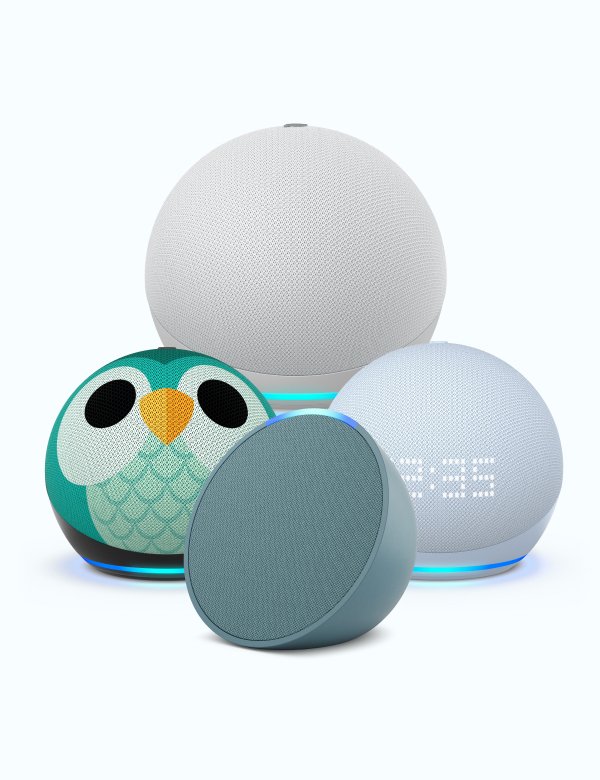
These steps work for Echo speakers without a screen, such as the Echo, Echo Dot and Echo Pop, once you have set up Alexa on the Echo. Keep the speaker charged and close to the Echo while you pair it.
- Turn on the Bluetooth speaker and put it in pairing mode. The button for this differs by brand, so check the speaker's manual if you are unsure.
- Open the Alexa app on your phone.
- Select Devices.
- Select the Echo device you want to pair with the speaker.
- Select Device Settings.
- Select Bluetooth Devices, then select Pair A New Device.
- Select your speaker's name when it appears in the list and wait for the pairing to finish.
After the first pairing, some Bluetooth speakers reconnect to the Echo on their own whenever they come back into range.
How to connect a Bluetooth speaker to Echo Show
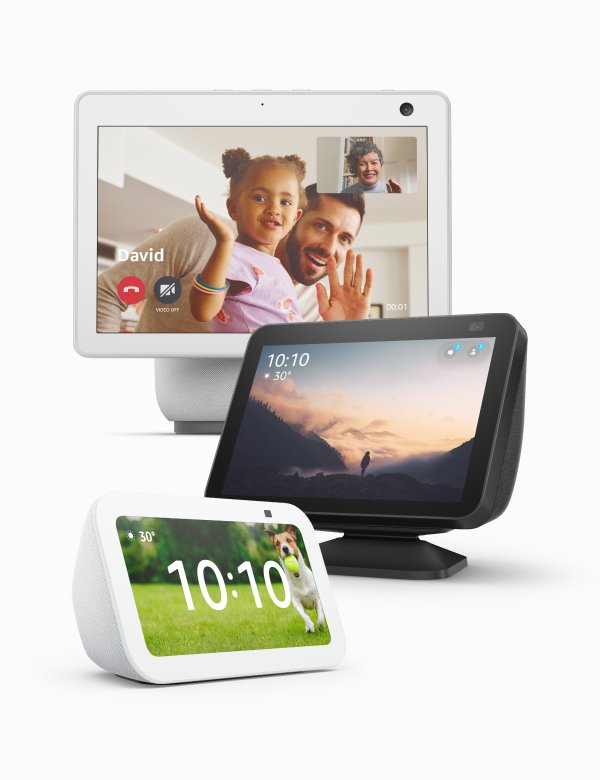
Echo devices with a screen pair from their own settings, so you don't need the phone app. The same steps work on the Echo Spot. Menu items on the Echo Hub and every Echo Show 5 generation can differ slightly.
- Put the Bluetooth speaker in pairing mode.
- Say "Go to Settings," or swipe down from the top of the Echo Show screen and select Settings.
- Select Device Options, then select Bluetooth.
- Select Scan if your speaker isn't listed yet.
- Find the speaker in the list and select Connect.
How to reconnect a Bluetooth speaker to Alexa by voice
Once a speaker has been paired through the app or the Echo Show screen, you can bring it back without opening any menus.
- Turn on the Bluetooth speaker that you paired earlier.
- Make sure Bluetooth is on for the speaker and that it is near the Echo.
- Say "Alexa, pair Bluetooth."
- Wait for the Echo to finish connecting, then ask Alexa to play something to test the speaker.
If the voice request doesn't find the speaker, pair it again from the Alexa app with Pair A New Device.
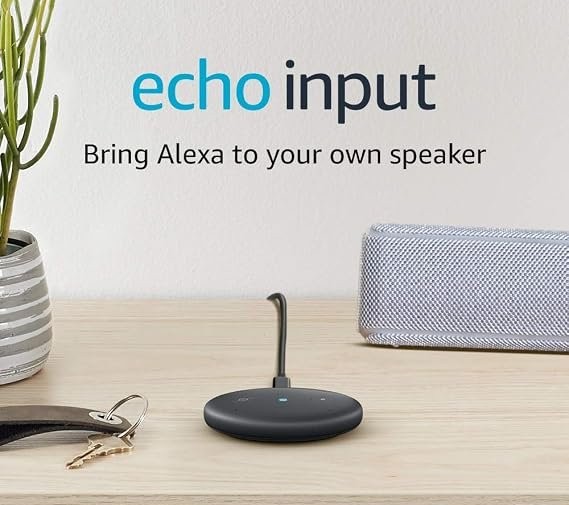
How to connect Echo Input to a Bluetooth speaker
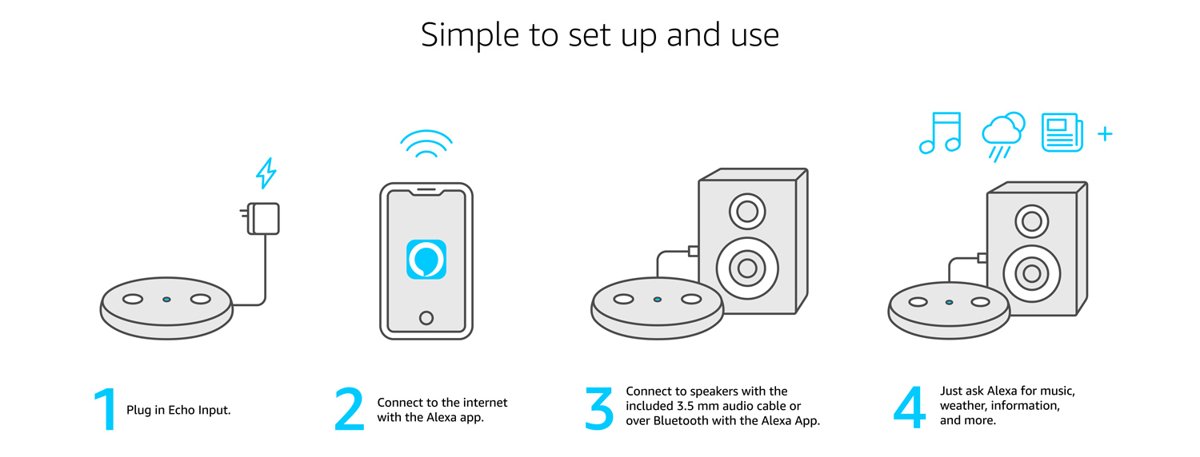
Echo Input has no speaker of its own, so Alexa can't answer until it has one. A speaker with an AUX input connects by cable before setup; a Bluetooth speaker pairs after setup.
- Download or update the Alexa app on your phone.
- In the Alexa app, select Devices, select the plus icon, then select Add Device.
- Select Amazon Echo, then Echo Input.
- Plug in the Echo Input and follow the on-screen instructions to finish setup.
- Put the Bluetooth speaker in pairing mode.
- Select Devices, your Echo Input, Device Settings, Bluetooth Devices and Pair A New Device, then pick the speaker.
Where to find Bluetooth settings for Alexa devices
| Your device | Pair a speaker | Remove a speaker |
|---|---|---|
| Echo, Echo Dot, Echo Pop and other Echo speakers | Alexa app: Devices > your device > Device Settings > Bluetooth Devices > Pair A New Device | Alexa app: Devices > your device > Settings > Bluetooth Devices > the speaker > Forget Device |
| Echo Show and Echo Spot | On the device: Settings > Device Options > Bluetooth > the speaker > Connect | On the device: Settings > Device Options > Bluetooth > Info next to the speaker > Forget Device |
| Echo Input | Alexa app, after setup, the same path as Echo speakers | Alexa app, the same path as Echo speakers |
| Any Echo with a speaker paired before | Say "Alexa, pair Bluetooth" with the speaker turned on | Not available by voice; use the app or the screen |
What Bluetooth profiles does Alexa support?
A speaker has to use a Bluetooth profile that Alexa supports. Most Bluetooth music speakers list these profiles on the box or in the specifications.
| Profile | Short name | What it handles |
|---|---|---|
| Advanced Audio Distribution Profile | A2DP SNK | Streaming stereo audio to a Bluetooth audio device |
| Audio/Video Remote Control Profile | AVRCP | Playback controls such as play, pause and skip |
A speaker that lists A2DP in its specifications is a music speaker in the sense Alexa needs. A device that only offers a hands-free calling profile is not on Amazon's supported list.
How to see which Bluetooth speakers are paired with Alexa
- Open the Alexa app and select Devices.
- Select your Echo device, then select Settings.
- Select Bluetooth Devices to see every phone and speaker that has paired with this Echo.
- On an Echo Show or Echo Spot, open Settings > Device Options > Bluetooth for the same list.
- Ask Alexa to play music; the sound should now come from the Bluetooth speaker rather than the Echo.
How to disconnect a Bluetooth speaker from Alexa
Forgetting a speaker removes the pairing, so the Echo stops trying to reconnect to it. Removing an old pairing is also the first fix when a speaker refuses to pair again.
- Open the Alexa app and select Devices.
- Select your Echo device.
- Select Settings, then Bluetooth Devices.
- Select the speaker you want to remove, then select Forget Device.
- Repeat for any other speaker or phone you want to remove.
- On an Echo Show or Echo Spot, open Settings > Device Options > Bluetooth, select Info next to the speaker, then Forget Device.
How to connect Alexa to other Alexa speakers
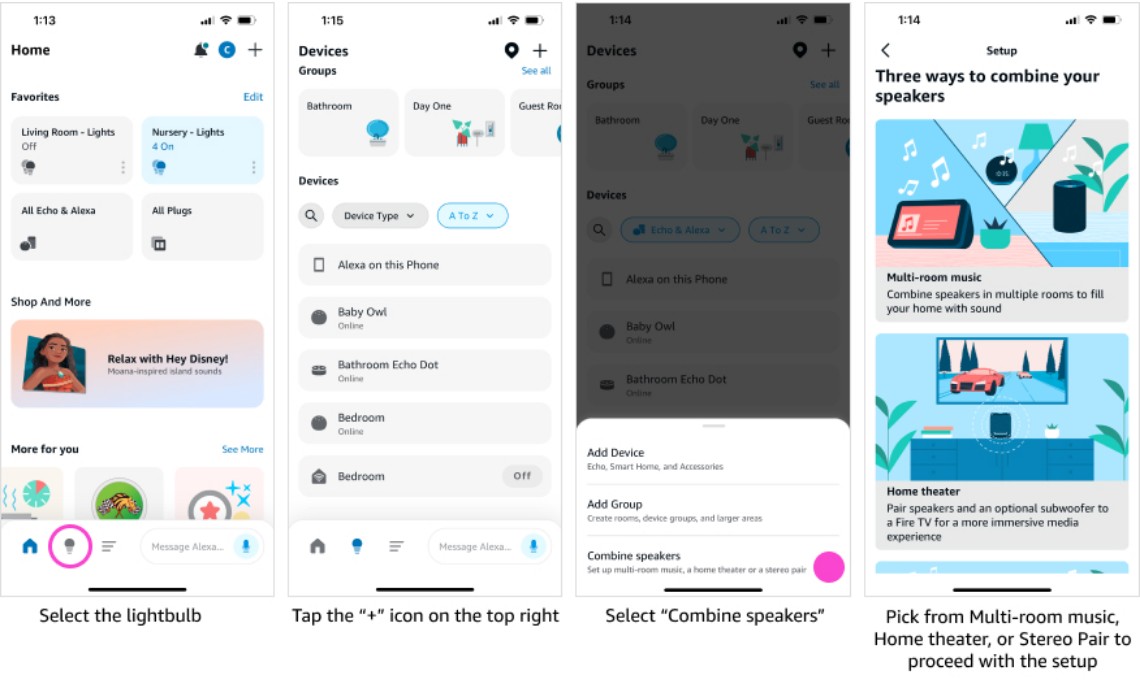
Two Echo devices don't pair over Bluetooth to share music. The Alexa app links them over Wi-Fi instead, either as a stereo pair or as a Multi-Room Music group.
| What you want | Alexa app path | Notes |
|---|---|---|
| Left and right stereo from two matching Echo speakers | Devices > plus icon > Combine Speakers > Stereo Pair / subwoofer | Only supported Echo models can form a stereo pair |
| The same music in several rooms | Devices > plus icon > Combine Speakers > Multi-Room Music | Audio from video content doesn't play on Multi-Room Music groups |
| Music on every Echo at once | Use the Everywhere group under Speaker Groups | Alexa creates it automatically when you have more than one device |
Keep every Echo in the group on the same Wi-Fi network, and give the group a name with at least two syllables, such as "Living Room", so Alexa can understand it.
Tips for connecting Alexa to Bluetooth speakers
| Tip | Why it helps |
|---|---|
| Charge the speaker fully before pairing | A low battery is one of the reasons Amazon gives for failed pairing |
| Keep the speaker close to the Echo while pairing | Pairing needs a strong signal; move it farther away only after it connects |
| Move both devices away from microwaves and baby monitors | Other wireless devices interfere with Bluetooth |
| Update the Echo first | Say "Alexa, check for software updates" before you pair |
| Turn the speaker on before saying "Pair Bluetooth" | Alexa can only reconnect to a speaker that is on and in range |
| Forget the old pairing before pairing again | A stale pairing can block a fresh one |
| Pair Echo Input after setup | Echo Input can't respond until it has a speaker |
Alexa won't connect to Bluetooth speaker
The speaker doesn't appear in the Alexa app list
The speaker isn't in pairing mode, or it is too far from the Echo.
- Put the speaker back into pairing mode.
- Move the speaker next to the Echo.
- In the Alexa app, select Pair A New Device again.
- On an Echo Show, select Scan in Settings > Device Options > Bluetooth.
A speaker that paired before won't pair again
The old pairing record on the Echo conflicts with the new attempt.
- In the Alexa app, open Devices > your Echo > Settings > Bluetooth Devices.
- Select the speaker and select Forget Device.
- Put the speaker in pairing mode.
- Pair it again with Device Settings > Bluetooth Devices > Pair A New Device.
The Bluetooth connection keeps dropping
Interference from other wireless devices, a low speaker battery, or old Echo software.
- Say "Alexa, check for software updates."
- Charge the speaker fully.
- Move the Echo and the speaker away from microwaves, baby monitors and other wireless devices.
- Keep the speaker closer to the Echo.
Alexa pairs with phones but not with this speaker
The speaker doesn't support a Bluetooth profile that Alexa uses.
- Check the speaker's specifications for A2DP and AVRCP.
- If A2DP isn't listed, use a different speaker that lists it.
Alexa Bluetooth speaker FAQ
How do I know if my Bluetooth speaker is compatible with Alexa?
Check the speaker's specifications for the Advanced Audio Distribution Profile (A2DP) and the Audio/Video Remote Control Profile (AVRCP). Those are the two Bluetooth profiles Amazon lists as supported by Alexa.
Can I use Alexa commands to control the Bluetooth speaker?
Yes. You still speak to the Echo, and the Echo sends the audio to the paired speaker. Alexa supports the Audio/Video Remote Control Profile, which is the Bluetooth profile that carries playback controls such as play and pause.
Can I connect multiple speakers to a single Alexa device?
An Echo can keep several phones and speakers in its Bluetooth Devices list, and you remove each one separately. To play music through several Echo devices at once, create a Multi-Room Music group in the Alexa app under Devices > plus icon > Combine Speakers.
What should I do if Alexa won't connect to my Bluetooth speaker?
Update the Echo by saying "Alexa, check for software updates," charge the speaker, and keep it close to the Echo. Move both away from microwaves and baby monitors. If the speaker paired before, select Forget Device in the Alexa app and pair it again.
How do I connect Alexa to my phone?
Turn on Bluetooth on the phone, then in the Alexa app select Devices, your Echo, Device Settings, Bluetooth Devices and Pair A New Device. Amazon uses the same steps for phones and Bluetooth speakers. Next time, turn on the phone's Bluetooth and say "Alexa, pair Bluetooth."
Can I connect Alexa to my laptop or PC?
Yes, a Windows laptop or PC can pair with an Echo over Bluetooth like a phone. Start pairing from the Alexa app, then on Windows 11 select the Network, Sound or Battery icon on the taskbar, open Manage Bluetooth devices and pick the Echo under New devices, the same way you pair Bluetooth headphones on Windows 11.
How do I connect Alexa to another Alexa device?
Use the Alexa app rather than Bluetooth. Select Devices, the plus icon and Combine Speakers, then choose Stereo Pair / subwoofer for two supported Echo speakers or Multi-Room Music for a group. All devices must be on the same Wi-Fi network.
Can I connect Alexa to my TV?
Amazon supports speaker systems that pair compatible Echo devices with a Fire TV device, and it lists the supported models on its help pages.
Does Alexa need Wi-Fi to play through a Bluetooth speaker?
Alexa needs Wi-Fi to hear and answer requests and to stream music services, so the Echo must stay online. Bluetooth only carries the sound from the Echo to the speaker. If the Echo drops off the network, connect Alexa to Wi-Fi again first.