When an app's sign-in panel keeps saying there is a problem, open Settings > Safari (or Settings > Apps > Safari on recent iOS versions), turn off Block All Cookies, and try the login again.
This guide covers why apps open a browser to log in, every Safari setting that can break it on iPhone, iPad and Mac, and what to do on an older iPhone stuck on iOS 15.
How to fix app login failing due to cookie settings on iPhone
Apple warns that with all cookies blocked, you will likely not be able to sign in to a site, even with the correct username and password. App sign-in panels are web pages, so the same rule applies to them.
- Open the Settings app.
- Tap Safari. On recent iOS versions, tap Apps, then Safari.
- Turn off Block All Cookies (under Privacy & Security on iOS 15, under Advanced on recent versions).
- Close the app you were signing in to, then open it again.
- Start the sign-in again and enter your details in the browser panel.
If the panel still fails, work through the cross-site tracking, website data and date settings below in that order.
Why apps open a browser panel to log in
Many apps hand sign-in to a web page run by the system, so you type your password into the service's own page instead of the app. On iPhone and iPad that page is a secure embedded web view; on a Mac it opens in your default browser, or Safari.
| What you see | What is happening | Settings that affect it |
|---|---|---|
| A prompt saying the app wants to use a website to sign in | The system asks you to confirm which domain the app is authenticating with | None; confirm the prompt to proceed |
| A browser panel with the service's login page | The service's web page loads in a system web view | Safari cookie blocking, cross-site tracking prevention, website data, content blockers |
| "Cookies are required" or "cookies are off" | The page cannot store the cookie it needs to keep you signed in | Block All Cookies |
| The panel closes but the app still says you are signed out | The sign-in result did not reach the app | Date and time, iOS version, the app's own sign-in service |
How to turn off block all cookies on iPhone
Block All Cookies stops every website from storing cookies, and turning it on also removes all existing cookies and website data. The setting sits in a different place depending on your iOS version.
| Your iPhone runs | Path | Set it to |
|---|---|---|
| iOS 15 | Settings > Safari, below Privacy & Security | Block All Cookies off |
| A recent iOS version | Settings > Apps > Safari > Advanced | Block All Cookies off |
With the setting on, Apple lists three effects: sign-in fails even with the right password, sites say cookies are required, and some site features stop working.
How to turn off prevent cross-site tracking on iPhone
Prevent Cross-Site Tracking is on by default and limits third-party cookies and data. Some sign-in flows pass you between two domains, so turn it off only as a test and turn it back on afterwards.
- Open Settings, then tap Safari (or Apps > Safari).
- Turn off Prevent Cross-Site Tracking.
- Open the app and try the login again.
- Whether or not it works, return to the same screen and turn Prevent Cross-Site Tracking back on.
If login only works with tracking prevention off, report it to the app's developer. Their sign-in page relies on third-party cookies that Safari limits by default.
How to clear Safari cookies on iPhone
Old or damaged cookies from earlier sign-in attempts can keep a login page in a broken state. Clearing them gives the page a clean start, but it also signs you out of websites in Safari.
- Open Settings, then tap Safari (or Apps > Safari).
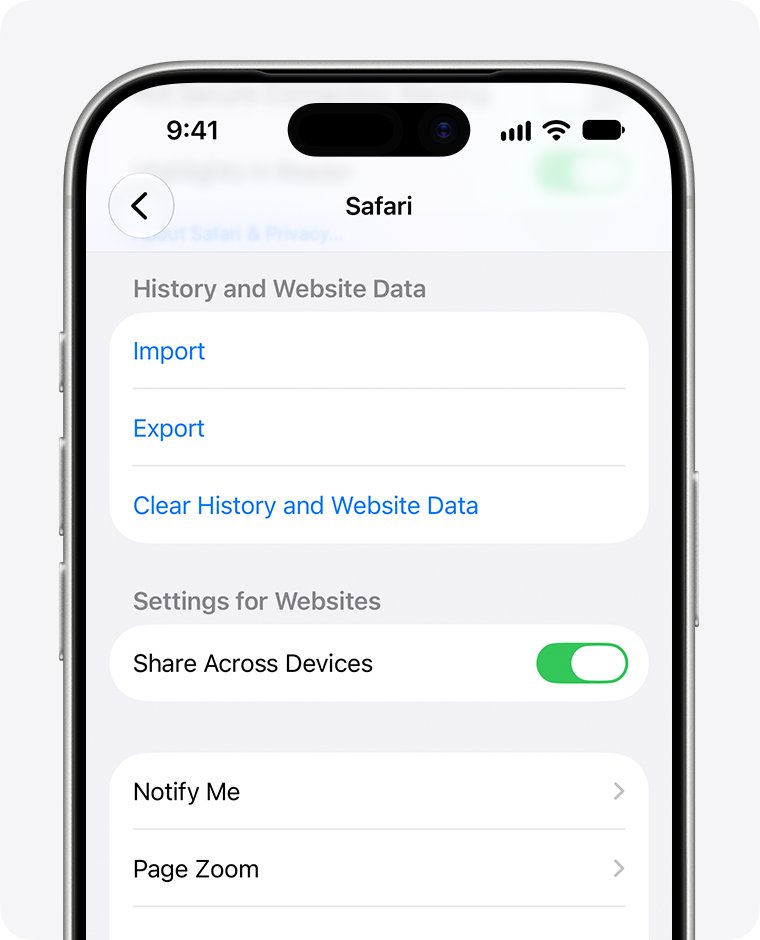
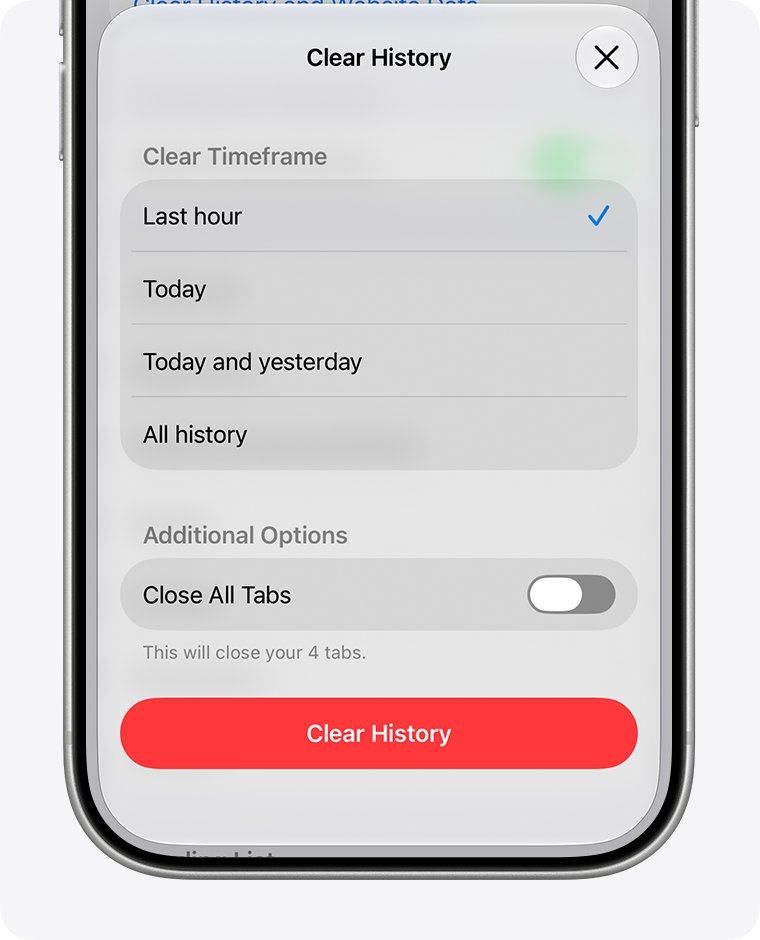
- Tap Clear History and Website Data.
- Confirm the timeframe, then tap Clear History.
- To keep your browsing history, go to Advanced > Website Data instead and tap Remove All Website Data, then Remove Now.
- Open the app and sign in again.
Clearing history doesn't change your AutoFill information. If either button is gray, there is no data to clear or a Screen Time web content restriction is on.
How to turn off Safari content blockers on iPhone
Content blocking apps can block cookies, scripts and pop-ups, which a sign-in page may need. Turn them off one at a time to find the one that breaks the login.
- Open Settings, tap Apps, then tap Safari.
- Tap Extensions, then tap a content blocker or extension.
- Turn off Allow Extension.
- Try the app's login again.
- Turn the extension back on once you find which one causes the problem, and leave that one off for sign-in.
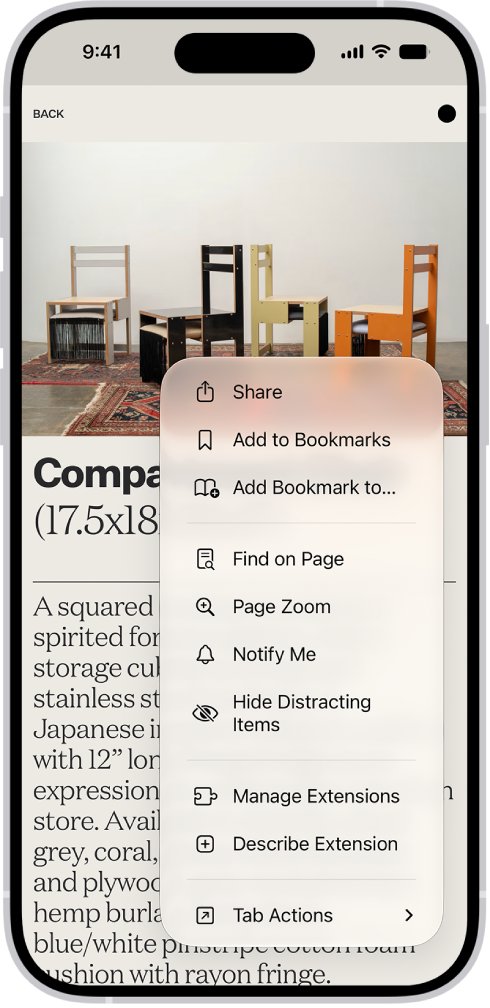
For a single website in Safari, tap the button on the left side of the search field, tap Manage Extensions, and turn extensions off for that site only.
How to set date and time automatically on iPhone
Sign-in pages and secure connections rely on the correct date and time. A clock that was set by hand after a reset can make a login page report a problem.
- Connect your iPhone to the internet.
- Open Settings, tap General, then tap Date & Time.
- Turn on Set Automatically.
- If a message says updated time zone information is available, restart the iPhone.
- Open the app and try to log in again.
How to update an iPhone stuck on iOS 15
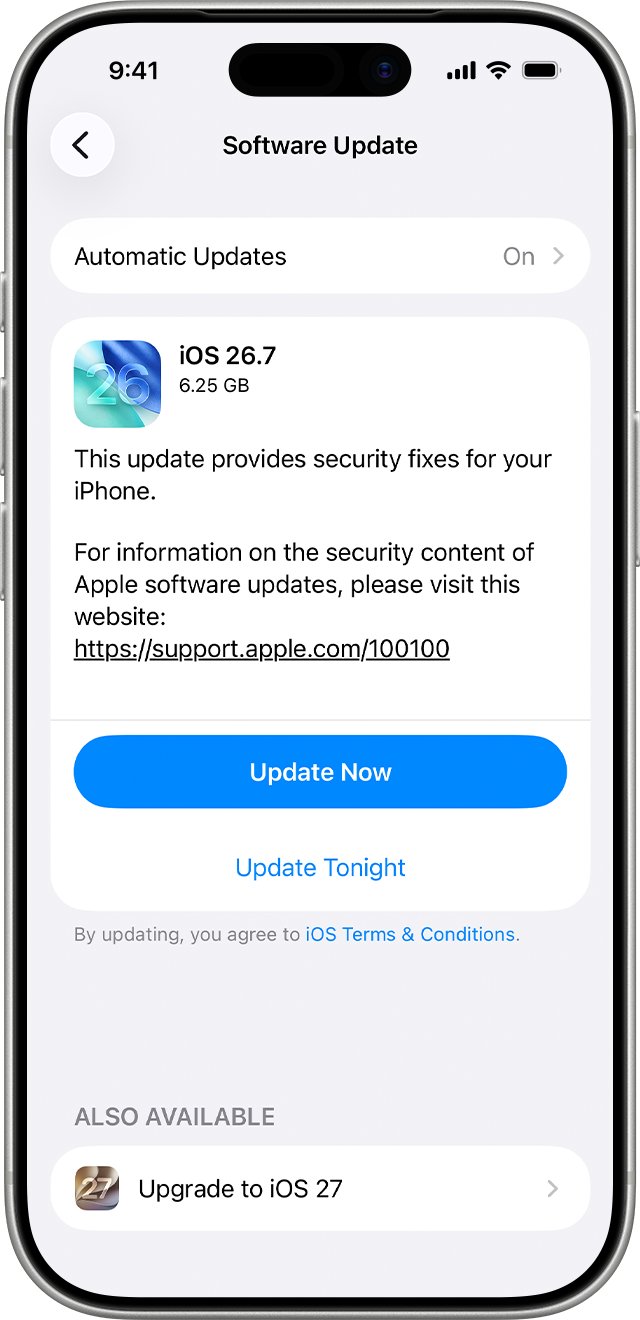
iPhone 6s, iPhone 7 and iPhone SE (1st generation) can't move past iOS 15, but Apple still ships security updates for them. iOS 15.8.8, released on 11 May 2026, is the latest version for those models.
- Back up the iPhone to iCloud or a computer.
- Open Settings, tap General, then tap Software Update.
- Check the installed version shown on the screen.
- If an update is offered, tap Download and Install and follow the onscreen instructions.
- After the restart, try the app's login again.
If the login still fails on the newest iOS 15 build, ask the app's developer whether their sign-in page still supports iOS 15. A factory reset won't change that, because the reset reinstalls the same iOS version.
How to fix app login cookie errors on Mac
On a Mac, an app's sign-in opens in your default browser, or Safari if that browser doesn't support it. Apple notes that removing Safari cookies may change or remove them in other apps too.
- Open Safari, then choose Safari > Settings.
- Click Privacy.
- Click Manage Website Data.
- Select the website of the service you are signing in to, then click Remove.
- Close the settings window and start the app's sign-in again.
If your default browser is not Safari, clear that browser's cookies for the sign-in site instead, because the login runs there.
Why can't I sign into my apps
"Cookies are required" or "your browser's cookies are off"
Block All Cookies is on in Safari settings.
- Open Settings > Safari (or Settings > Apps > Safari > Advanced).
- Turn off Block All Cookies.
- Sign in again from the app.
Clear History and Website Data is gray
There is no data to clear, or a Screen Time web content restriction blocks the change.
- Open Settings > Screen Time and check Content & Privacy Restrictions for a web content restriction.
- If the iPhone is managed by a parent or organizer, ask them to allow website data changes.
- Return to Settings > Safari and clear the data.
iPhone keeps logging me out of apps
Website data is being removed, which deletes the data sites use to save login information.
- Stop using Remove All Website Data or Clear History and Website Data as a routine step.
- Turn off Block All Cookies so sign-in cookies can be kept.
- Remove data for a single site instead when one login misbehaves.
Login fails only when iCloud Private Relay is on
The service relies on IP filtering or rate-limiting and needs to see your IP address.
- Open the service's website in Safari.
- Tap the button on the left side of the search field, then tap Privacy & Security.
- Tap Show IP Address, sign in on the site, then try the app again.
Login still fails after a factory reset
The reset restores the same Safari defaults and iOS version, so it can't fix a sign-in page that no longer supports your iOS.
- Install the latest iOS update offered in Settings > General > Software Update.
- Check Date & Time is set automatically.
- Contact the app's developer and give them your iPhone model and iOS version.
App login and cookie settings FAQ
Why can't I sign into my apps?
On iPhone, the most common cause is Block All Cookies being on in Safari settings, because app sign-in panels are web pages. Turn it off, check the date and time are set automatically, and install the latest iOS update before contacting the app's developer.
How do I stay logged in to apps?
Leave Block All Cookies off and avoid clearing all website data, because that removes the data sites use to save your login. If one service misbehaves, remove website data for that single site rather than for every site.
Why does my iPhone keep logging me out of apps?
Clearing Safari history and website data, or blocking all cookies, deletes stored sign-in data, so apps that log in through a web page ask you again. Stop the routine clearing and keep cookies allowed to stay signed in.
Does blocking cookies in Safari affect apps?
Yes, for apps that sign you in through a browser panel. Apple states that with all cookies blocked you will likely not be able to sign in to a site, even with the correct username and password, and the panel loads the service's website.
Is it safe to turn off Prevent Cross-Site Tracking?
Turning it off briefly to test a login is low risk, but leave it on for normal browsing. It limits third-party cookies and data by default, which reduces how much trackers can follow you between websites.
Why does my app require login again?
The app's saved sign-in depends on data the service stored, and that data is removed when you clear website data, block cookies, reset the iPhone or change your password. Sign in once with cookies allowed and the app should stay signed in.
How do I troubleshoot apps that won't log in?
Close and reopen the app, turn off Block All Cookies, clear website data for the service, set the date and time automatically, and update iOS. If it still fails, test on Wi-Fi and cellular and send the developer your iPhone model and iOS version.