Google Drive is the free file-sharing website with the most room to send large files: every Google Account gets 15 GB of free storage, and anyone with the link can download without signing in.
This guide compares the free limits of Google Drive, OneDrive, Dropbox Transfer, iCloud Mail Drop, Proton Drive and Box, then walks through sending a large file with each one.
How to send large files online for free with a link
A Google Drive link is the fastest free route for a file up to your free storage. The recipient only needs a web browser.
- On your computer, go to drive.google.com and sign in with your Google Account.
- At the top left, click New, then File Upload or Folder Upload, and choose the large file.
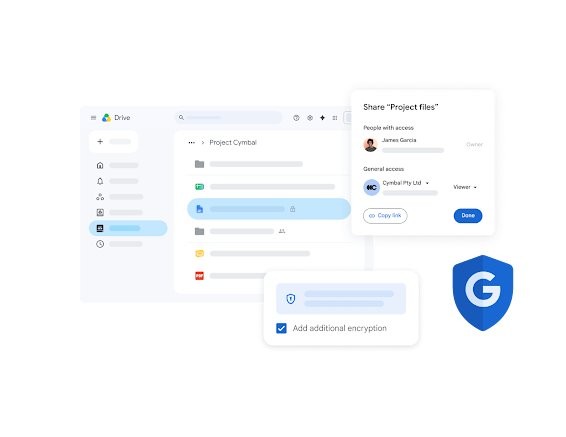
- When the upload finishes, select the file and click Share.
- Under General access, click the down arrow and choose Anyone with the link.
- Click Copy link, then click Done.
- Paste the link into an email, chat or text message and send it.
Anyone with the link can open the file without signing in to a Google Account. Work or school accounts may block this option if the administrator restricts external sharing.
Free file-sharing websites to send large files
Each service below has a free tier. The limits come from each vendor's own help pages, and the smallest number in a row is the one that stops you.
| Service | Free storage or allowance | Largest file or send | Recipient needs an account? | How long the link lasts |
|---|---|---|---|---|
| Google Drive | 15 GB, shared with Gmail and Google Photos | Up to 5 TB per file, capped by your free 15 GB | No, with Anyone with the link | Until you stop sharing or delete the file |
| Microsoft OneDrive | 5 GB with a free Microsoft account | 250 GB per file, capped by your free 5 GB | No, with an Anyone link | Until you stop sharing; expiry dates need Microsoft 365 |
| Dropbox Transfer | Dropbox Basic (free) | 2 GB per transfer | No | 7 days on Dropbox Basic |
| iCloud Mail Drop | Up to 1 TB of Mail Drop storage; does not count against iCloud storage | 5 GB per email, attachments included | No, the email holds a download link | 30 days |
| Proton Drive | 5 GB on Proton Free | Limited by your 5 GB of storage | No, for a public link | Until you stop sharing, or the expiry date you set |
| Box | Free personal account | 250 MB per file | No, with a People with the link shared link | Until you stop sharing |
For a single file over 5 GB on a free account, Google Drive is the only option in this list with enough free space. Paid plans raise every one of these limits.
Best free file sharing sites for large files by file size
| What you are sending | Use this free site | Why |
|---|---|---|
| Under 250 MB, already stored in Box | Box | The free personal upload limit is 250 MB per file |
| Up to 2 GB, one-off delivery | Dropbox Transfer | Recipients download from a link without a Dropbox account, and it expires after 7 days |
| Up to 5 GB from an iPhone, iPad or Mac | iCloud Mail Drop | It works inside the Mail app and does not use your iCloud storage |
| Up to 5 GB that must stay private | Proton Drive | Files are end-to-end encrypted, and the link can carry a password and expiry date |
| Up to 5 GB from a Windows PC | OneDrive | It is built into Windows, and File Explorer can copy a share link |
| 5 GB to 15 GB | Google Drive | The largest free allowance in this list |
How to share large files with Google Drive for free
Google Drive stores any file type up to 5 TB, but everything you upload counts against the 15 GB your account shares with Gmail and Google Photos. Each file can be shared with up to 600 individual email addresses.
- Go to drive.google.com, open or create a folder, and drag the file into it. New > File Upload works too.
- Select the uploaded file and click Share.
- To send it to specific people, enter their email addresses and choose Viewer, Commenter or Editor.
- Check Notify people to send an email alert, then click Send.
- To share with anyone instead, change General access to Anyone with the link, click Copy link and click Done.
- To stop sharing later, open the Share menu, click the down arrow next to a person and select Remove access, then click Save.
For very large folders, Google Drive for desktop adds a Google Drive folder to your computer. Drag files into it and they upload to Drive in the background.
How to send large files with OneDrive for free
A free Microsoft account includes 5 GB of OneDrive storage. OneDrive accepts single files up to 250 GB, and Microsoft recommends the OneDrive sync app instead of the website for any file larger than a few GB.
- Copy the large file into your OneDrive folder in File Explorer on Windows 11 or Windows 10, and wait for it to finish syncing.
- Right-click the file and select Share a OneDrive link. The link is copied to your clipboard.
- To change what the link allows, sign in at onedrive.com, select the file's circle icon and select Share.
- Select the settings gear, choose Anyone, and clear Allow editing so recipients can only view and download.
- Select Apply, select Copy, then paste the link into your email or message.
Links made from the desktop app default to Edit permission, so change the setting before you send a link to people you do not know. Set expiration date and Set password are only available to Microsoft 365 subscribers.
Dropbox Transfer: send large files free without a Dropbox account
Dropbox Transfer sends a copy of your files as a download link, and the recipient does not need a Dropbox account. On the free Dropbox Basic plan, each transfer can be up to 2 GB and expires after 7 days.
- Log in to dropbox.com.
- Click the dense grid icon in the left sidebar, then click Transfer.
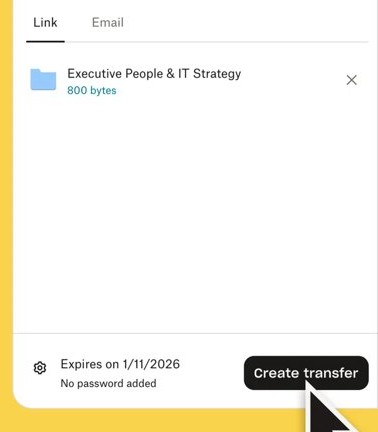
- Click Create transfer.
- Drag files in, or click Upload files. Use the dropdown next to it for Upload folders or Add from Dropbox.
- Click the settings icon to turn on download notifications if you want them.
- Click Create transfer, then click Send email or Copy link.
Passwords and custom expiry dates need a paid plan. You can also use Dropbox Transfer from the desktop and mobile apps with Transfer a copy.
How to send large files with iCloud Mail Drop
Mail Drop uploads attachments up to 5 GB to iCloud and puts a download link in the email. It works from Mail on Mac, iPhone and iPad, and from iCloud.com/mail on a Mac or PC, and the files do not count against your iCloud storage.
- On a Mac or PC, go to icloud.com/mail and sign in to your Apple Account.
- Select the settings button at the top of the Mailboxes list and choose Settings.
- Select Composing, then select Use Mail Drop when sending large attachments.
- Write a new email, select the attachment button in the top-right corner, and choose the file from iCloud Drive, iCloud Photos or your device.
- When Mail says the attachment is too large, choose to deliver it with Mail Drop, then send the email.
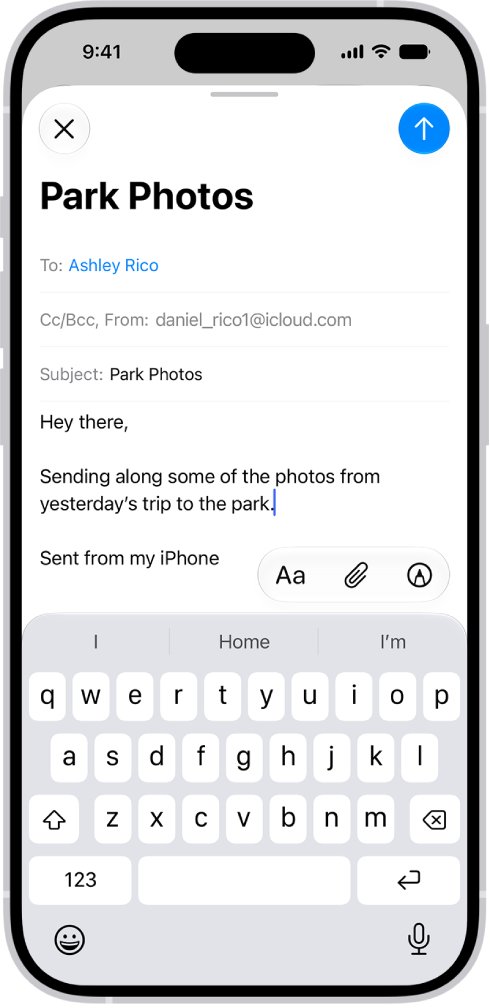
On iPhone, open Mail, tap in the message, tap the attachment button above the keyboard and choose Attach File or Photo Library. If the file is over your email account's limit, follow the onscreen prompt to send it with Mail Drop. Recipients have 30 days to download it.
Proton Drive: share large files with a password and expiry date
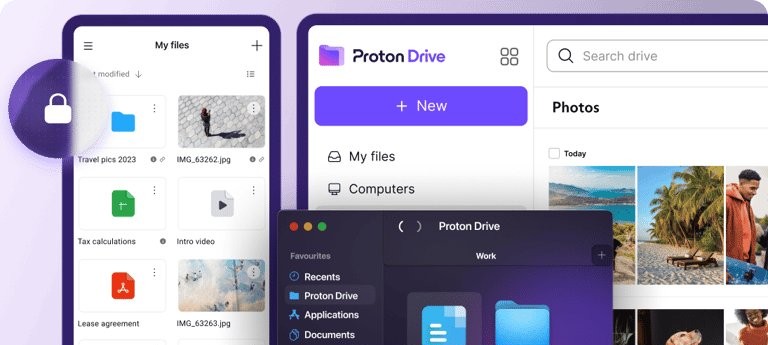
Proton Free includes 5 GB of end-to-end encrypted storage. Recipients do not need a Proton Account to open or download a public link.
- Log in to Proton Drive and upload the file to My files.
- Select the file and click the Share icon.
- Turn on Create public link and choose Viewer access.
- Select the gear icon in the top-right corner to open Set password or expiration date.
- Turn on Expiry and pick a date, turn on Require password and enter a strong password, then click Save changes.
- Click Copy link, paste it into your email or chat, and send the password separately.
The Shared tab lists every item you are sharing. Stopping a share there cuts off everyone using that link immediately.
Box free account file size limit
Box suits small deliveries on its free personal plan. Its upload limit depends on the account type, and some Box apps have their own lower ceiling.
| Box account or app | Largest file you can upload |
|---|---|
| Free personal | 250 MB |
| Personal Pro | 5 GB |
| Business | 5 GB |
| Box Mobile app | 15 GB app limit |
| Email uploads | 50 MB |
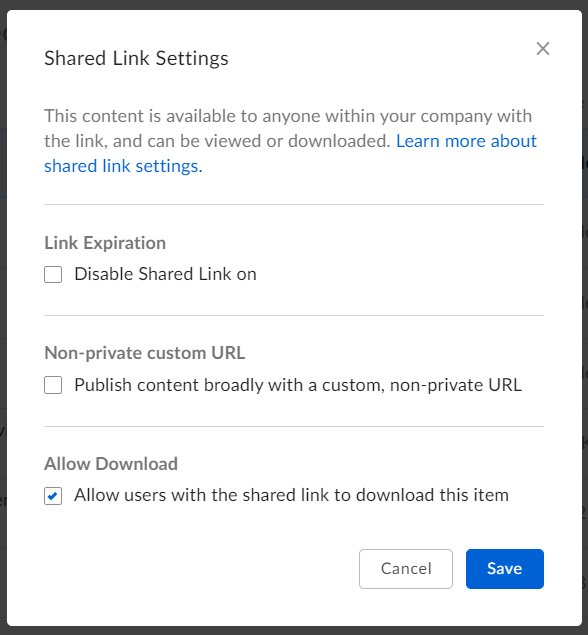
A shared folder uses the folder owner's limit. If a free user owns the folder, everyone uploading into it is held to 250 MB per file. To send a file, hover over it, click Share and keep the link scope at People with the link, which makes it publicly accessible. To see your own limit, click your account icon, select Account Settings and look for Max file size under Account details.
Large file sharing link not working
The shared link no longer works
The file was moved, the share was stopped, or the link expired.
- In OneDrive, create a new link: moving a file or folder breaks the old one.
- In Dropbox, open Transfer and check the Expired tab; free transfers expire after 7 days.
- For Mail Drop, send the file again if more than 30 days have passed.
- In Google Drive or Proton Drive, open the Share settings and make sure the link is still on.
The recipient is asked to sign in or request access
The file is shared only with specific people.
- In Google Drive, open Share and change General access from Restricted to Anyone with the link.
- In OneDrive, open the link settings and choose Anyone instead of Specific people.
- If the option is greyed out on a work or school account, ask the administrator, because external link sharing is blocked by policy.
The upload fails or the file is too large
The file is over the free limit for that service.
- Compare the file size with the table above: 250 MB for Box, 2 GB for Dropbox Basic and 5 GB for Mail Drop.
- For Mail Drop, compress folders first, because an uncompressed folder is not sent. In Windows 11, right-click the folder, select Show more options > Send to > Compressed (zipped) folder.
- Split the files across several messages or transfers, or switch to Google Drive for files over 5 GB.
Not enough storage to upload the file
Free storage is full, and on Google it is shared with Gmail and Photos.
- Delete files you no longer need from Drive, OneDrive or Proton Drive, and empty the trash.
- In Google, check what fills the 15 GB across Gmail, Drive and Photos before uploading again.
- For Mail Drop, wait for older attachments to expire after 30 days if you have reached the 1 TB Mail Drop limit.
Free large file sharing sites FAQ
How can I send 20 GB for free?
None of the free tiers in this list hold 20 GB in one go. Split the files into batches of 5 GB or less and send them with Mail Drop or Proton Drive, or send up to 15 GB at a time through Google Drive and free space between batches.
What is the best file sharing online?
It depends on the file size. Google Drive has the most free space at 15 GB, Dropbox Transfer suits one-off deliveries up to 2 GB, and Proton Drive suits private files because its storage is end-to-end encrypted and links can carry a password.
What is the fastest way to transfer large files online?
Upload once to a cloud drive and send the link, because the recipient downloads from the cloud instead of waiting for an email. Upload and download times still depend on your internet connection speed and the size of the file.
What is the best app to send large files?
On an iPhone or Mac, Mail with Mail Drop sends up to 5 GB without using iCloud storage. On Windows, OneDrive is built in and copies a share link from File Explorer. The Dropbox app sends transfers up to 2 GB on the free plan.
Which free large file sharing site has the biggest limit?
Google Drive. A free Google Account includes 15 GB of storage, and Drive accepts single files up to 5 TB. OneDrive allows 250 GB per file but its free plan has only 5 GB of storage, which is the real ceiling.
Can I send large files online for free without the recipient making an account?
Yes. Google Drive links set to Anyone with the link, OneDrive Anyone links, Dropbox Transfer links, Mail Drop links and Proton Drive public links can all be opened and downloaded without the recipient signing up.
How long do free large file sharing links last?
Dropbox Transfer links on the free Basic plan expire after 7 days, and Mail Drop links last 30 days. Google Drive, OneDrive and Proton Drive links keep working until you stop sharing or delete the file, unless you set an expiry date.
If the file is going out by email anyway, you can also send a large file through Gmail or Outlook, which turn oversized attachments into cloud links. For a nearby PC without internet, Bluetooth file transfer in Windows 11 needs no account at all.