When the computer turns on but the monitor says no signal, the video cable, the selected input source or the port you plugged into is the usual cause, so check those first.
The nine fixes below run from a 30-second cable check to resetting the graphics driver and clearing the CMOS, followed by fixes for second monitors, HDMI and games.

Method 1: Check your monitor cables
A loose or faulty HDMI, DisplayPort or USB-C cable causes most no signal messages.
- Turn off the monitor and the computer.
- Confirm the monitor power cable is plugged into a working outlet.
- Unplug the video cable at both ends and push it back in firmly.
- Swap in a different video cable if you have one.
- Turn the monitor on first, then the computer, and wait for the picture.
If a new cable brings the picture back, the old one was faulty and can be thrown away.
Why is my monitor saying no signal?
The monitor shows no signal when it is powered but receives no video on the input it is watching. Match what you see to the likely cause.
| What you notice | Likely cause | Start with |
|---|---|---|
| Cable recently moved or bumped | Loose or damaged video cable | Method 1 |
| Several inputs on the monitor | Wrong input source selected | Method 2 |
| Using an adapter, dock or dongle | Adapter or dock not passing video | Method 3 |
| Monitor settings were changed | Monitor configuration problem | Method 4 |
| Not sure if PC or monitor is at fault | Either device could be faulty | Method 5 |
| Picture lost after changing display settings | Resolution or refresh rate the monitor cannot show | Method 6 |
| Picture lost after a driver update | Graphics driver problem | Method 7 |
| Beeps or blinking lights at power on | PC fails POST, often memory or hardware | Method 8 |
| Picture lost after BIOS or overclock changes | Firmware settings the PC cannot run | Method 9 |
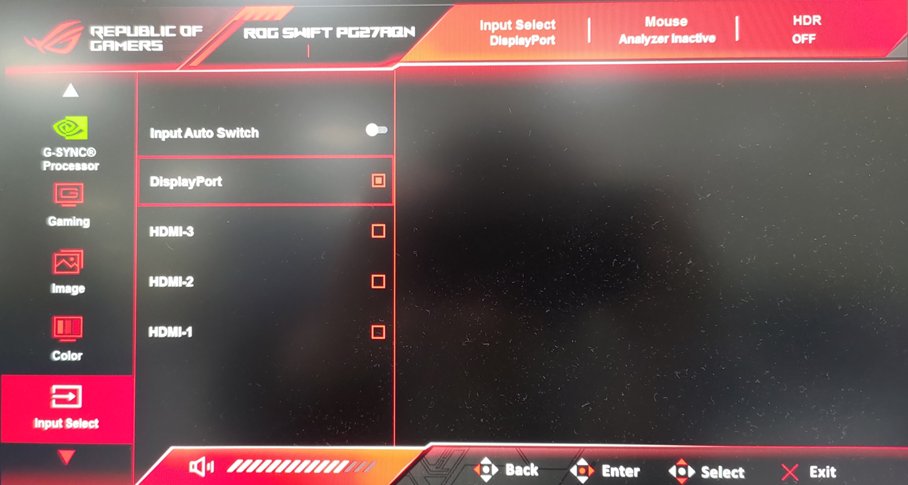
Method 2: Check monitor input source
Monitors with several ports only show the input you select, so a PC on HDMI 2 shows nothing while the monitor watches HDMI 1.
- Press the menu or input button on the monitor, or push its joystick.
- Open the input or source list.
- Select the port the cable is plugged into, such as HDMI or DisplayPort.
- Wait a few seconds for the monitor to lock on to the signal.
- If the PC was asleep, move the mouse, press a key or tap the power button to wake it.
Method 3: Examine adapters, docks and video ports
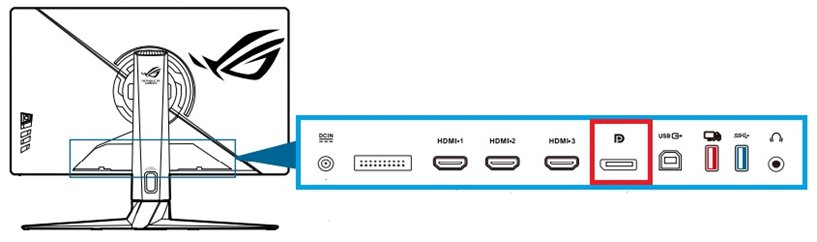
Adapters, docks and the wrong port on the back of a desktop break the signal path without any warning.
- Unplug any dock, dongle or adapter and connect the monitor straight to the PC if the ports allow it.
- On a desktop with a graphics card, plug the cable into the card's ports, usually lower on the back panel.
- Use the motherboard's video ports, usually higher on the back panel, only when the PC has no graphics card.
- Move the cable to another video port, such as DisplayPort instead of HDMI.
- Reconnect the adapter or dock only after the direct connection works.
A display splitter duplicates one signal, so it cannot extend the desktop to a second screen.
Method 4: Reset the monitor to factory settings
A factory reset clears a wrong input lock, picture mode or other on-screen display setting that hides the signal.
- Press the monitor's menu button or joystick to open the on-screen display.
- Find the reset option; the exact name and location are in the monitor's manual.
- Confirm the reset and let the monitor restart.
- Select the correct input source again, because the reset can change it.
- To run a built-in self-test, turn the monitor off, unplug the video cable and turn it back on.
A self-test screen means the monitor itself works and the fault lies with the cable or the PC. No self-test screen on a model that supports it points to a faulty monitor.
Method 5: Test with a different device or monitor
Swapping one device at a time shows whether the computer or the monitor is at fault.
- Connect the monitor to another computer, laptop or console with a compatible cable.
- Turn both on and check for a picture.
- If the monitor works there, connect a different monitor or a TV to your computer.
- If the second screen also shows no signal, focus on the computer's graphics card, driver and hardware.
- If the second screen works, the original monitor or its cable is the problem.
Method 6: Check resolution and refresh rate configuration
A resolution or refresh rate the monitor cannot accept leaves it with no usable signal. Safe Mode loads basic display settings so you can set a supported mode.
- Hold the power button for 10 seconds to force a shutdown, and repeat two or three times until Recovery Mode appears.
- Select Troubleshoot > Advanced Options > Startup Settings > Restart.
- Press F5 to start Safe Mode with Networking.
- Open Start > Settings > System > Display and choose the Display resolution marked (Recommended).
- On Windows 11, open Advanced display and pick a rate next to Choose a refresh rate; on Windows 10, open Advanced display settings and use Refresh rate.
- Avoid rates marked with an asterisk, which do not support the current resolution, then restart normally.
Method 7: Reset, roll back or reinstall the graphics driver
A crashed or broken graphics driver stops sending video even though Windows keeps running.
- Press Windows + Ctrl + Shift + B to reset the graphics driver; a beep or flicker means it ran.
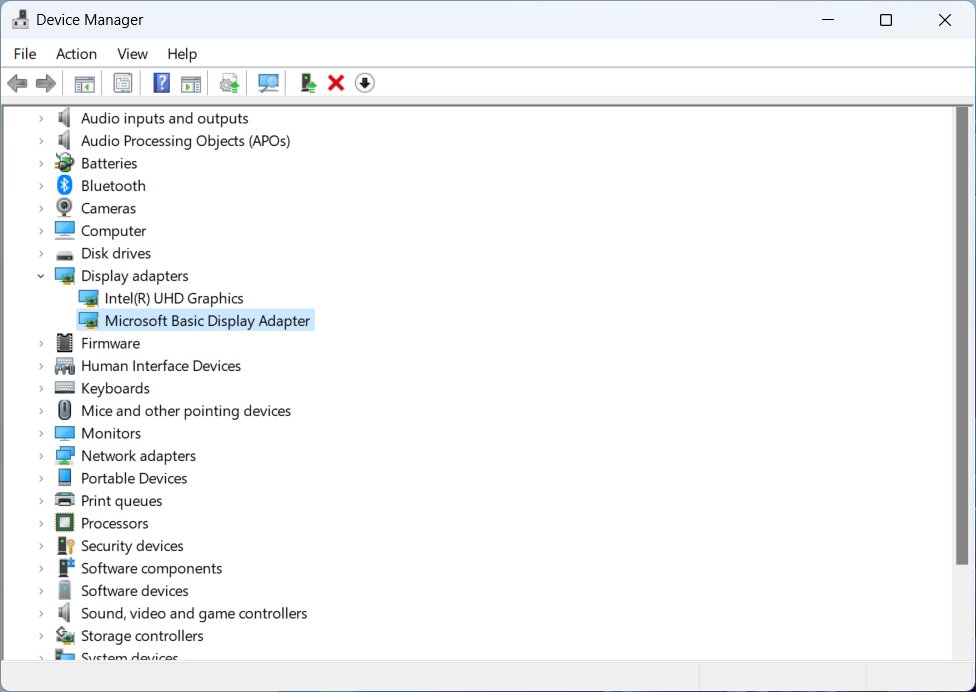
- If that fails, start Safe Mode as in Method 6 and open Device Manager.
- Expand Display adapters, right-click the graphics card and select Properties.
- On the Driver tab, select Roll Back Driver if the problem began after an update.
- With no rollback option, right-click the adapter, select Uninstall device, tick Attempt to remove the driver for this device and select Uninstall.
- Restart, reopen Device Manager, right-click the adapter, select Update driver and then Search automatically for drivers.
Method 8: Check PC hardware: RAM, power and beep codes
A computer that powers on but fails its power-on self-test (POST) never sends video, so the monitor reports no signal.
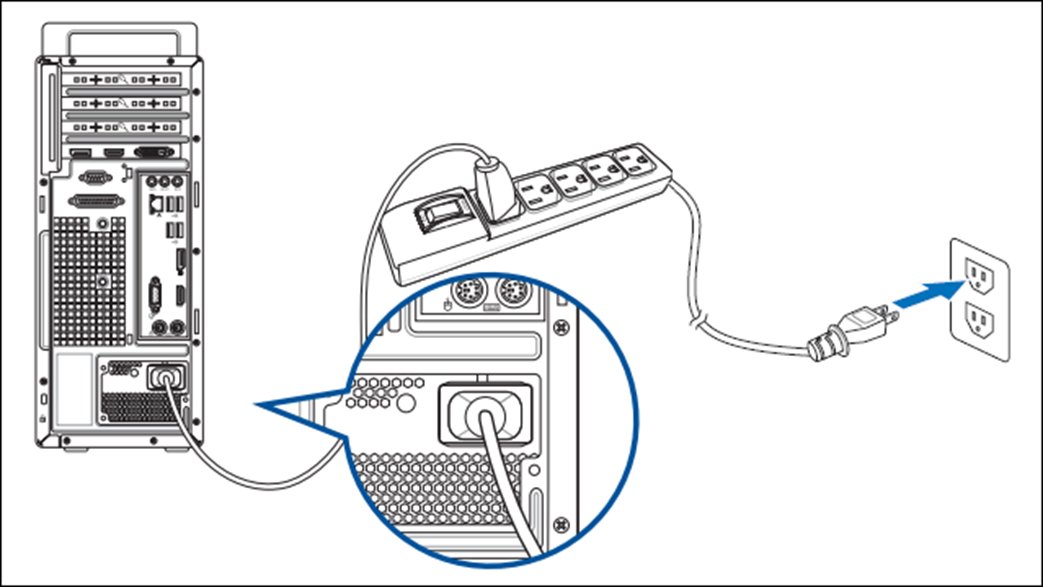
- Hold the power button until the PC shuts down, then unplug the power cable.
- Hold the power button for 15 to 20 seconds to drain residual power, then reconnect and power on.
- Disconnect everything except the keyboard, mouse and monitor, then restart.
- Listen for beeps or watch the power and drive lights, and count the pattern.
- Look up the pattern in the PC or motherboard manual.
- Power off, unplug the PC, open the case and carefully remove and reinsert the RAM modules.
- Close the case, reconnect power and turn the PC on.
Follow the PC maker's safety guidelines before you open the case; on a laptop, the memory sits under the bottom cover.
Method 9: Reset the CMOS
Clearing the CMOS returns BIOS settings to defaults, which helps when overclock, memory or display settings stop the PC from starting.
- Turn off the PC and unplug the power cord.
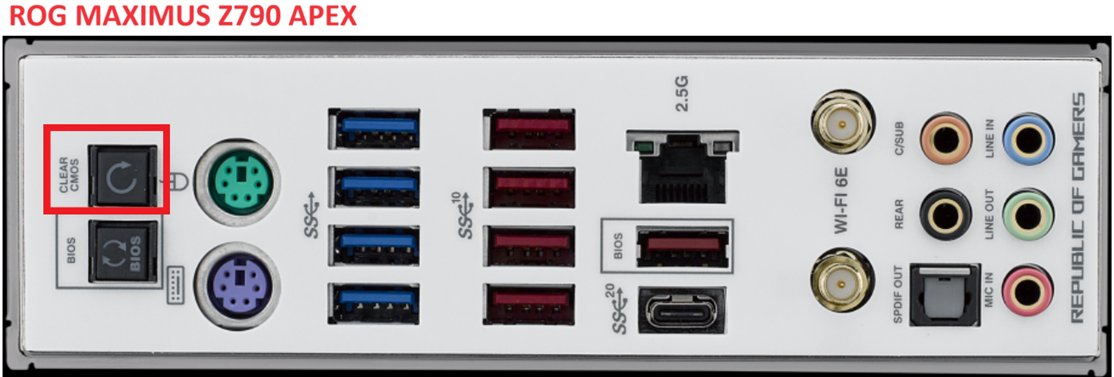
- Check the motherboard manual for a Clear CMOS button or a 2-pin CLRTC header.
- Hold the Clear CMOS button for 5 to 10 seconds, or short the CLRTC pins with a jumper cap for 5 to 10 seconds.
- If the board has neither, remove the coin-cell CMOS battery, clear CMOS, then put the battery back.
- Plug the PC in and power on; when the BIOS reset prompt appears, press F1 to enter setup.
- Set the time and date if you removed the battery, press F5 to load optimized defaults, and press F10 to save and exit.
These key prompts are from ASUS boards; other makers use similar steps, which the motherboard manual lists.
Troubleshooting why is your monitor saying no signal
These problems show no signal on one screen or at one moment rather than all the time.
Why is my second monitor getting no signal?
Windows is set to show only one screen, or the graphics card cannot drive another display.
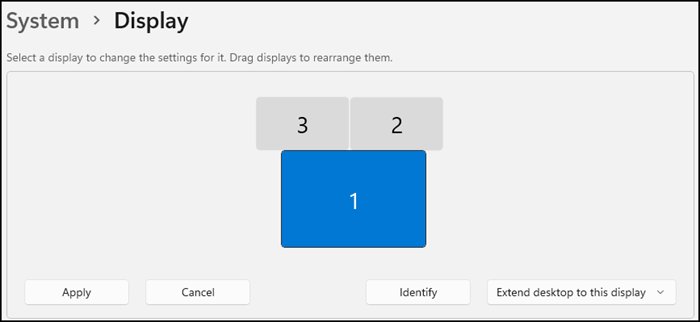
- Press Windows + P and select Extend or Duplicate.
- Make sure the first external monitor works before adding another.
- Check the graphics card specifications for how many displays it supports.
- Use a docking station or a USB-C to video adapter if the PC has only one video port.
- Work through the full second monitor not detected fixes if Windows still lists one screen.
Why won't my monitor recognize HDMI?
The monitor is on another input, or the HDMI cable or port is faulty.
- Select HDMI in the monitor's input menu, matching the numbered port in use.
- Swap the HDMI cable for a known good one.
- Try another HDMI port on the monitor and the PC.
- Press Windows + Ctrl + Shift + B to reset the graphics driver.
Why does my monitor say no signal when I play a game?
The graphics driver resets under load, or the game switches to a mode the monitor rejects.
- Press Windows + Ctrl + Shift + B to recover the picture.
- Set the game's resolution and refresh rate to values listed in Settings > System > Display.
- On Windows 11, turn off Dynamic refresh rate under Advanced display if it is on.
- Update the graphics driver from Device Manager or Windows Update.
Monitor says no signal after the PC wakes from sleep
The PC is still asleep or the driver did not restore the display.
- Move the mouse, press a key or tap the power button.
- Press Windows + Ctrl + Shift + B.
- Restart from Start > Power > Restart if the picture stays off.
Monitor no signal FAQ
Can outdated drivers be why my monitor is saying no signal?
Yes, a broken or mismatched graphics driver can stop video output, especially after an update. Press Windows + Ctrl + Shift + B first, then roll back or reinstall the driver from Device Manager in Safe Mode.
Can a power supply cause no signal to the monitor?
Yes, indirectly. A PC that does not get stable power can fail its power-on self-test, and a PC that fails POST sends no video. Do a hard reset and check beep or LED codes in the manual.
How do I know if the monitor or the computer is the problem?
Connect the monitor to another device and connect another screen to your computer. Whichever device fails in both tests is the faulty one. A monitor self-test screen also proves the monitor works.
Does clearing CMOS delete my files?
No. Clearing CMOS resets BIOS settings such as boot order, time and overclock values to defaults. Files on the drive are untouched, but you may need to set the date and time again.
Why does my monitor say no signal but the PC is running?
The PC is sending video to a different port, input or display mode than the monitor expects. Check the input source, the port on the graphics card and Windows + P display mode.
What should I do if my laptop shows no signal on an external monitor?
Press Windows + P and select Duplicate or Extend, then confirm the monitor is on the right input. Disconnect docks and adapters and connect the cable directly to test the port.