When Google Chrome won't open, the usual cause is a Chrome process that is already running in the background, so force close it in Task Manager on Windows or with Force Quit on Mac, then open Chrome again.
If that fails, restart the computer, check whether your antivirus blocked Chrome, remove unwanted apps, and reinstall Chrome as the last step.
1. Force close and reopen Chrome
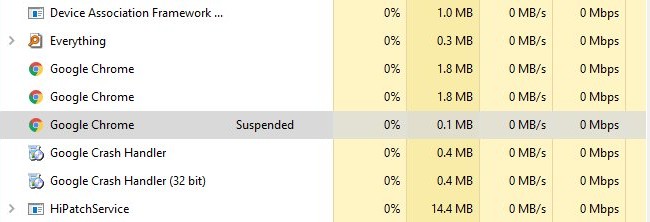
Chrome often refuses to show a window because an earlier copy of the browser is still running and has stopped responding. Ending that process clears it, and the next launch starts fresh.
Google lists this as the first check when Chrome won't open at all.
- On Windows, press Ctrl + Alt + Delete and select Task Manager.
- On the Processes tab, select Google Chrome (or chrome.exe), then select End task. Repeat until no Chrome entry is left.
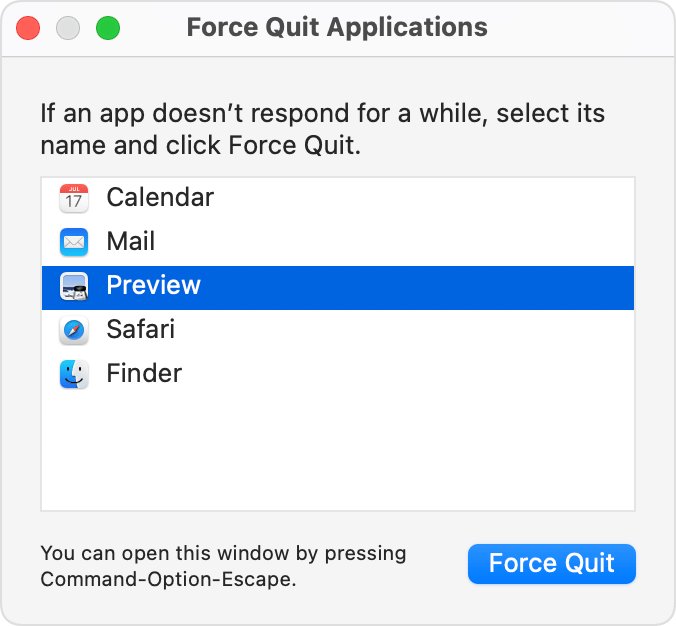
- On a Mac, press Option + Command + Esc together to open the Force Quit window. You can also choose Force Quit from the Apple menu.
- Select Google Chrome in the list, then click Force Quit.
- Open Chrome again from the Start menu, the taskbar, the Dock or the Applications folder.
- If your tabs are missing, press Ctrl + Shift + T on Windows or Command + Shift + T on Mac to bring back the last session.
When Chrome is open but frozen rather than missing, quit it normally first with Ctrl + Q on Windows or Command + Q on Mac. A normal quit lets Chrome save its session; force close only when it does not respond. The same keys help when you just want to restart Google Chrome after an update.
2. Reboot the computer
A restart clears every process that might be holding Chrome's files open, including a stuck updater or another program that interferes with the browser. Google recommends it both for crashes and for a browser that will not start.
- Save your work in any open apps.
- On Windows 11 or Windows 10, select Start > Power > Restart.
- On a Mac, choose Restart from the Apple menu in the corner of the screen.
- If the Mac will not restart, press and hold the power button (or the Touch ID button on laptops) for up to 10 seconds until it turns off, then press it again to turn the Mac back on.
- After you sign in, open Chrome before you start any other apps.
If Chrome still won't open after the restart, sign in and launch it before any other app, so a startup program cannot get in the way first.
3. Check your computer's antivirus/malware scanner
Antivirus and other security software can block Chrome or quarantine one of its files, and the browser then fails to launch. Do not turn your antivirus off to test this. Look at what the scanner did instead, and only allow Chrome if you installed it yourself from google.com/chrome.
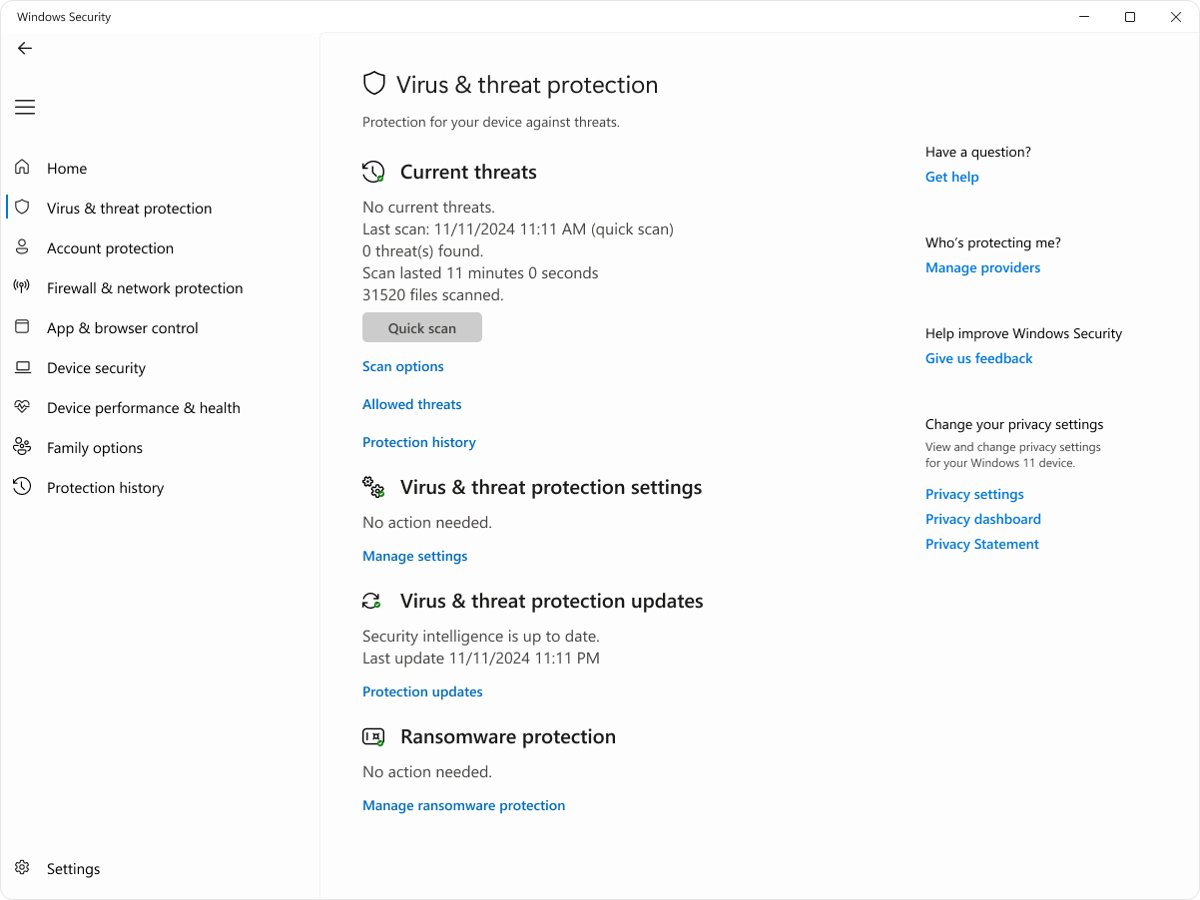
On Windows, the built-in scanner is Microsoft Defender Antivirus in the Windows Security app. Its Protection history keeps events for two weeks.
- Search for Windows Security in the Start menu and open it.
- Select Protection history and look for a card that names Chrome or a file in its folder. You need an administrator account to see the details.
- If a card says Threat quarantined for a Chrome file you trust, reinstall Chrome from google.com/chrome rather than restoring the quarantined file (see fix 5).
- If a card says Threat found – action needed and you are not sure the file is safe, choose Quarantine. Choose Allow on device only for a Chrome copy you downloaded from Google.
- If you use another antivirus program, open its quarantine or blocked-items list and check the same thing.
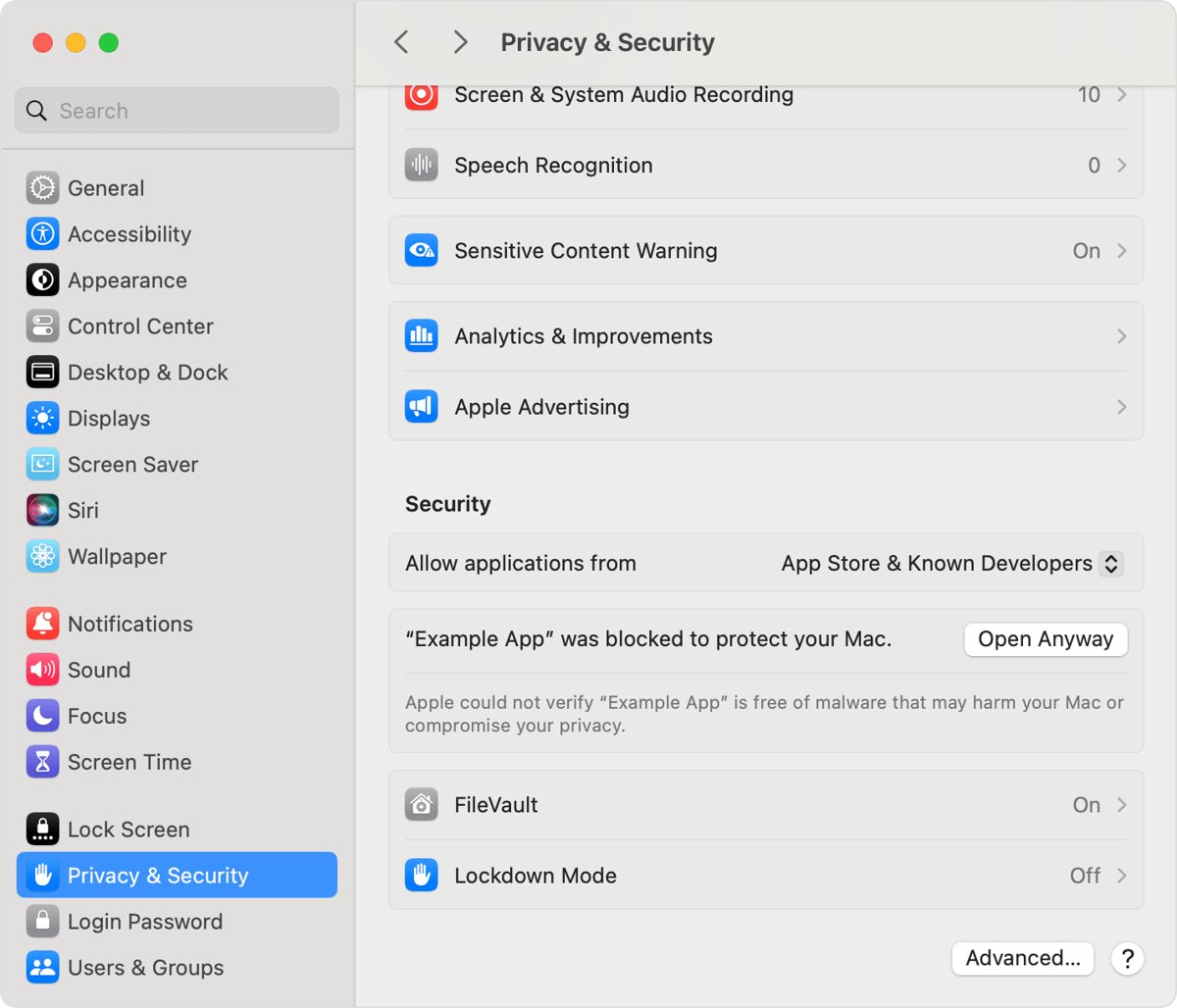
- On a Mac, open System Settings > Privacy & Security and check the Allow applications from setting under Security. Chrome from Google is an app from a known developer.
If the scanner blocked a copy of Chrome you got from a download portal or an email link, delete it. Install a clean copy from Google's own site.
4. Remove potentially malicious apps
Unwanted software can stop Chrome from starting, change its homepage or search engine, or keep adding extensions and toolbars. Google's signs of it include pop-up ads that won't go away, browsing that redirects to unfamiliar pages, and virus alerts.
Remove the program first, then scan the computer so nothing is left behind.
- On Windows 11, select Start > Settings > Apps > Installed apps. On Windows 10, or for programs that are not listed there, open Control Panel > Programs > Programs and Features.
- Look for programs you do not recognise, especially ones installed around the time Chrome stopped opening.
- Select More (the three dots) > Uninstall next to each one, or right-click it in Control Panel and choose Uninstall or Uninstall/Change.
- Open Windows Security and select Virus & threat protection > Quick scan.
- On a Mac, open Finder and click Applications in the sidebar. Drag any app you do not recognise to the Trash, or use its own Uninstall app if it has one, then choose Finder > Empty Trash.
- Restart the computer and open Chrome.
Leave apps alone when you cannot tell what they do. Some programs are built into Windows or macOS and cannot be removed, and deleting a driver utility by mistake causes new problems.
5. Uninstall and reinstall Chrome
Reinstalling replaces damaged program files and fixes most problems with Chrome updates, default search engines and pop-ups. Google lists it as the final step when Chrome still won't open.
If you sync Chrome to your Google Account, your bookmarks and passwords come back after you sign in again. If you delete profile information during the uninstall, the local copy of that data is gone from the computer.
- Close Chrome and end any Chrome process left in Task Manager or Force Quit (fix 1).
- On Windows, select Start > Settings > Apps > Installed apps, find Google Chrome, then select More > Uninstall. In Windows 10, you can also use Control Panel > Programs > Programs and Features.
- On a Mac, open the Applications folder in Finder, drag Google Chrome to the Trash, then choose Finder > Empty Trash.
- Restart the computer.
- Download a fresh copy of Chrome from google.com/chrome in another browser, such as Microsoft Edge on Windows or Safari on Mac.
- Run the installer, open Chrome and sign in to get your synced data back.
On a Mac, a plain drag to the Trash leaves Chrome's profile and support files behind. To start completely clean, remove Chrome from a Mac completely before you reinstall. On a PC, you can download Chrome for Windows 11 and 10 once the old copy is gone.
Why won't Google Chrome open?
Match what you see to a row, then start with the fix it names.
| What happens | Likely cause | Start with |
|---|---|---|
| Nothing happens when you click the Chrome icon | Chrome is already running in the background and stuck | Fix 1: force close and reopen Chrome |
| Chrome opens and closes straight away | A stuck process, a pending update or another program interfering | Fix 2: reboot the computer |
| Chrome stopped opening after a security scan or alert | Antivirus blocked or quarantined a Chrome file | Fix 3: check the antivirus/malware scanner |
| Pop-ups, a changed homepage, or extensions that keep coming back | Unwanted software or malware | Fix 4: remove potentially malicious apps |
| Chrome still won't start after fixes 1 to 4 | Damaged program files or a failed update | Fix 5: uninstall and reinstall Chrome |
| Chrome opens, but pages show err_connection_reset or 'This webpage is not available' | A network, proxy or website problem, not Chrome itself | The troubleshooting steps below |
Chrome not opening or crashing on Windows and Mac
Chrome is listed in Task Manager but no window opens
One or more chrome.exe processes are still running from an earlier session.
- Press Ctrl + Alt + Delete and select Task Manager.
- End every Google Chrome or chrome.exe entry with End task.
- Open Chrome again. If the entries come back without a window, restart the PC (fix 2).
Chrome opens, then crashes or freezes
Too many tabs, extensions or other apps compete for memory, or an update is waiting to install.
- Close every tab except the one you need, and quit other apps you are not using.
- Pause any downloads, then reload the tab.
- Select More > Extensions > Manage extensions and remove extensions you do not need.
- Select More > Help > About Google Chrome. If Relaunch appears, select it to finish the update.
Chrome opens with a changed homepage, search engine or constant pop-ups
Unwanted software changed Chrome's settings.
- Remove the unwanted programs first (fix 4).
- In Chrome, select More > Settings.
- Select Reset settings > Restore settings to their original defaults > Reset settings.
- Go to More > Extensions > Manage extensions and turn back on only the extensions you trust.
Chrome opens but shows err_connection_reset, a proxy error or 'This webpage is not available'
Chrome is working; the network connection or the website is failing.
- Open the same page in another browser to see whether the problem is the site.
- If every browser fails on every site, the problem is your connection rather than Chrome.
- Work through the err_connection_reset fixes for Chrome if the error persists.
Chrome will not uninstall from Windows Settings
Some apps cannot be removed from the Settings app, or Chrome is still running.
- End all Chrome processes in Task Manager.
- In the taskbar search, enter Control Panel and open it.
- Select Programs > Programs and Features, right-click Google Chrome and choose Uninstall.
- If Windows shows an error, run Microsoft's Program Install and Uninstall troubleshooter, then try again.
Chrome will not move to the Trash on Mac because it is in use
A Chrome process is still open.
- Press Option + Command + Esc, select Google Chrome and click Force Quit.
- Drag Chrome to the Trash again.
- If macOS still says the app is in use, restart the Mac or start up in Safe Mode, then try again.
Google Chrome won't open FAQ
Why won't Google Chrome open on my computer?
The most common reason is a Chrome process that is already running and stuck in the background. Antivirus software that blocked Chrome, unwanted software, a pending update or damaged program files can also stop it. Force close Chrome first, then restart the computer.
How do I force Chrome to open?
End every Chrome process, then launch it again. On Windows, open Task Manager with Ctrl + Alt + Delete and end Google Chrome. On Mac, press Option + Command + Esc, select Google Chrome and click Force Quit, then reopen Chrome.
Why does Chrome show in Task Manager but not open?
A Chrome process from an earlier session is still running without a window, so a new launch hands off to it and nothing appears. End every Google Chrome or chrome.exe entry in Task Manager, then open Chrome again. Restart the PC if the entries return.
Can antivirus stop Chrome from opening?
Yes. Antivirus and other security software can block Chrome or quarantine one of its files. Check the scanner's history, such as Protection history in Windows Security, instead of turning protection off. Reinstall Chrome from google.com/chrome if a file was removed.
Will reinstalling Chrome delete my bookmarks?
Not if you sync to your Google Account: sign in again after the reinstall and your bookmarks and passwords return. If you delete profile information during the uninstall and do not sync, the bookmarks stored on that computer are removed.
How do I get my tabs back after Chrome closes?
Press Ctrl + Shift + T on Windows or Command + Shift + T on Mac after Chrome opens. Chrome reopens the tabs and windows from the last session. Incognito windows are not restored.
Why does Chrome open and then close immediately?
A stuck background process, an interrupted update or another program interfering with Chrome usually causes this. Restart the computer, then open Chrome before other apps. If it still closes, remove unwanted programs and reinstall Chrome from google.com/chrome.
Resolve Chrome's launch issues using various ways on Windows and Mac
Work through the fixes in order: force close, restart, check the antivirus, remove unwanted apps, then reinstall. The first two fixes take a minute and solve most launch failures, while reinstalling takes longest and is only needed when Chrome's own files are damaged. Keep your antivirus on throughout, and install Chrome only from Google's site.
Once Chrome opens again, the Google Chrome settings and fixes hub covers updates, extensions and cache problems.