To use Mail on iPhone, add your email account in Settings > Apps > Mail > Mail Accounts, then open the Mail app to read, write and organize your messages.
This guide covers account setup, writing and scheduling email, sorting the inbox, dealing with junk, notifications, attachments and the fixes for mail that will not send. The steps match the current iPhone User Guide for iOS 27, and most of them also apply to iOS 26 and iOS 18.
How to use the Mail app on iPhone
Mail is built into every iPhone, and it works with iCloud, Gmail, Outlook, Yahoo and most other providers. These five steps take you from a blank Mail app to a sent message.
- Open the Settings app, tap Apps, then tap Mail.
- Tap Mail Accounts, tap Add Account, then enter your email address and password.
- Open the Mail app and tap a message in the inbox to read it.
- Tap the Compose button, enter a recipient in the To field, add a subject and type your message.
- Tap the Send button to send it. You have 10 seconds to tap Undo Send if you change your mind.
If the Mail app is missing from your Home Screen, swipe left to the App Library, search for "Mail", touch and hold the icon and tap Add to Home Screen.
Setting up and managing email accounts on iPhone
Mail sets up iCloud, Google, Microsoft Exchange and Yahoo accounts automatically from your address and password. You can add as many accounts as you need, and every one of them shows up in the same inbox.
- Go to Settings > Apps > Mail.
- Tap Mail Accounts, then tap Add Account.
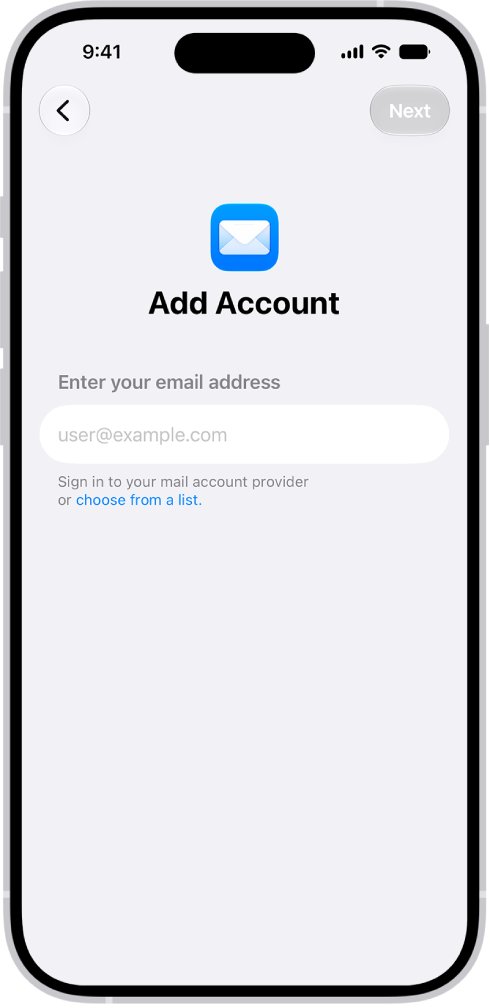
- Enter your email address. If a list of providers appears, choose yours.
- Follow the prompts and enter your password.
- Tap Next and wait while Mail verifies the account, or tap Save if that is the button you see.
- Open the Mail app. New messages from the account start to download into the inbox.
Accounts that do not support push can check for mail on a schedule. Go to Settings > Apps > Mail > Mail Accounts > Fetch New Data and pick a schedule under Fetch. Automatically, the default, downloads new data only when your iPhone is charging and on Wi-Fi. You can also switch an account between push and fetch on the same screen.
How to add an email account to iPhone manually (IMAP or POP)
Use manual setup for a less common provider, such as a web host or an internet service provider mailbox. Ask your provider for the incoming and outgoing mail server names first.
- Go to Settings > Apps > Mail > Mail Accounts, then tap Add Account.
- Enter your email address and tap Next.
- Tap Add Other Account, then tap Mail Account.
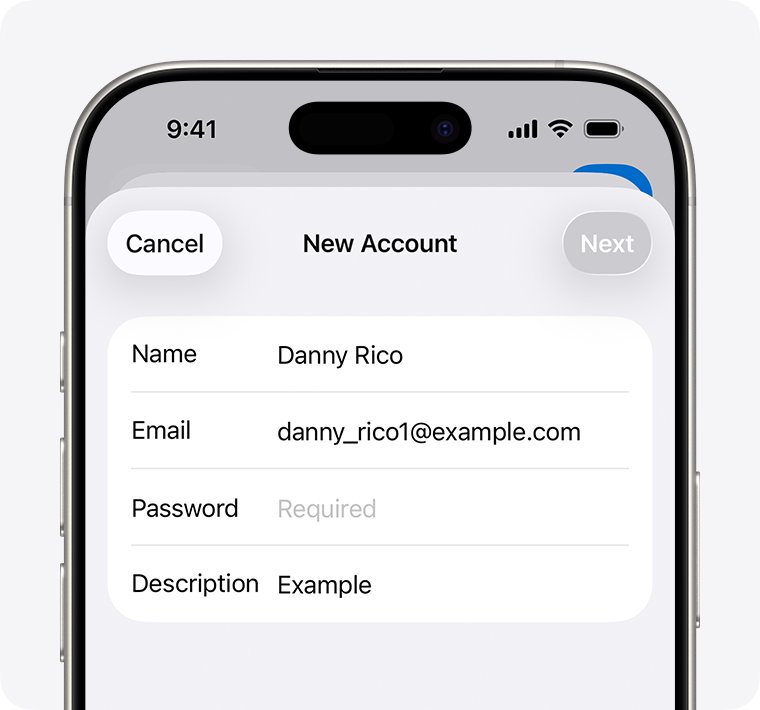
- Enter your name, email address, password and a description, then tap Next.
- If Mail finds the settings, tap Done. If it does not, tap Next and choose IMAP or POP.
- Enter the Incoming Mail Server and Outgoing Mail Server details from your provider, then tap Next.
- Tap Save. If a setting is wrong, Mail asks you to edit it before it saves the account.
If you are not sure whether to pick IMAP or POP, ask your email provider. If you still cannot save the account, the provider has to confirm the server settings.
How to remove an email account from iPhone
Removing an account deletes it from Mail and every other app that uses it on the iPhone. It does not close the account itself; only your email provider can do that.
- Go to Settings > Apps > Mail > Mail Accounts.
- Tap the account you want to remove.
- To pause an iCloud account instead, turn off Use on this iPhone. To pause another account, turn off Mail.
- To remove the account completely, tap Sign Out or Delete Account.
- Confirm the prompt. You can add the account back later from Add Account.
Navigating and customizing the Mail app on iPhone
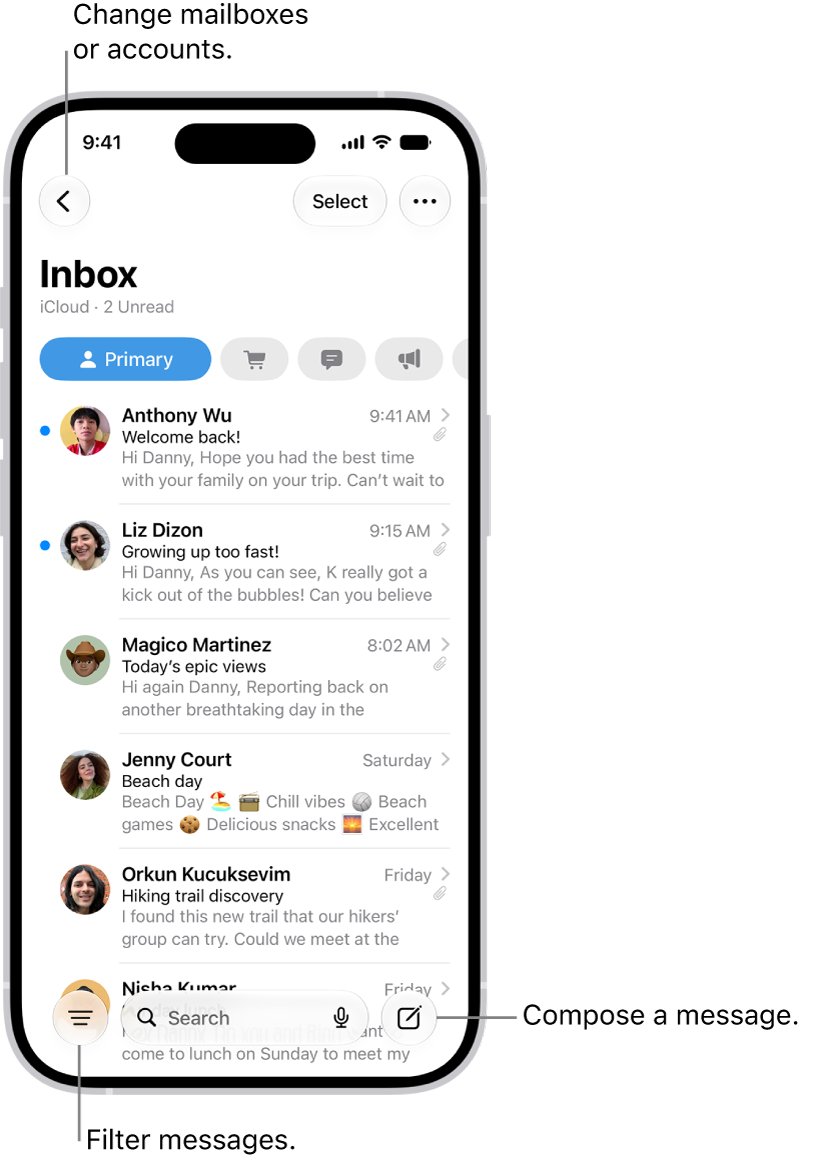
The inbox opens on categories in regions where Apple supports them: Primary for personal and time-sensitive mail, Transactions for receipts and shipping, Updates for newsletters and Promotions for sales email. Everything else about the layout is set in Settings > Apps > Mail or from the inbox itself.
| What you want to change | Where to change it | What it does |
|---|---|---|
| See all mail without categories | In the inbox, tap the More button, then turn off Show Categories. You can also swipe left on the categories to open All Mail. | Shows one chronological list |
| Move a sender to another category | Open a message, tap the More button, tap Categorize Sender, pick a category, then tap Continue | Current and future mail from that sender moves |
| Switch between accounts and folders | Tap the back arrow at the top-left until you see Mailboxes, then tap a mailbox under an account | Shows mail from one account at a time |
| Longer previews in the message list | Settings > Apps > Mail > Preview | Shows up to five lines per email instead of two |
| Group replies into conversations | Settings > Apps > Mail > Organize by Thread | Keeps a conversation together, with Collapse Read Messages and Most Recent Message on Top options |
| See whether you were in To or Cc | Settings > Apps > Mail > Show To/Cc Labels | Adds To and Cc labels in the message list |
| Show or hide sender photos | In an inbox, tap the More button, then select or deselect Show Contact Photos | Toggles contact photos next to messages |
| Change the swipe actions | Settings > Apps > Mail > Swipe Options | Sets what a left or right swipe does |
On an Apple Intelligence iPhone (iPhone 15 Pro, iPhone 15 Pro Max or any iPhone 16 or later), a short summary appears under each email. Open a long message and tap Summarize to get a summary of the whole thread.
Composing, sending, and scheduling emails
Every message starts from the Compose button in the inbox. The same draft screen handles recipients, formatting, the sending account and the send time.
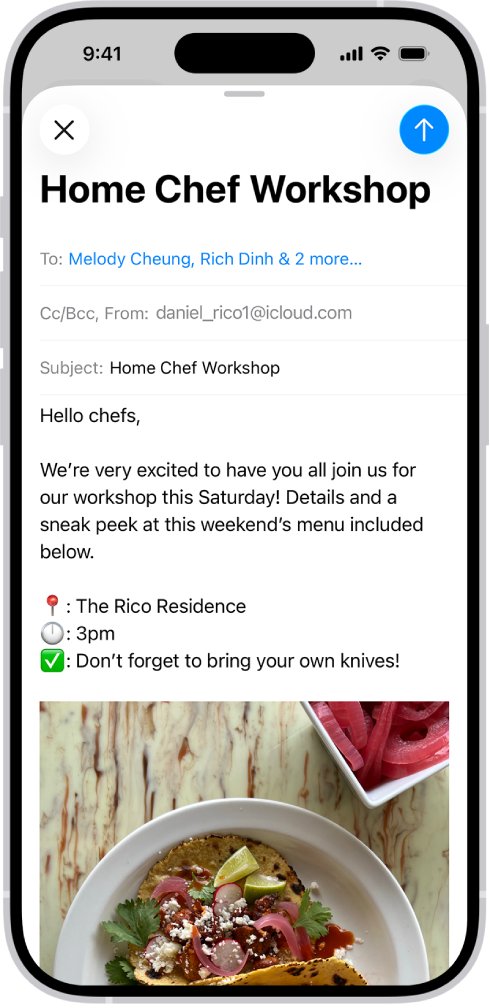
- Open the Mail app and tap the Compose button.
- Tap the To field and type a name. Mail suggests matching people from Contacts as you type.
- Tap Cc/Bcc, From to add copies, hide recipients in Bcc, or choose a different account in From.
- Type a subject, then tap in the body and write your message. Use the formatting button above the keyboard for bold, italics, colors and lists.
- To send now, tap the Send button.
- To schedule it, touch and hold the Send button, then choose a suggested time or tap Send Later to pick a date and time.
To reply, open a message, tap the Reply button, then tap Reply, Reply All or Forward. When you forward a message with photos or documents, Mail asks whether to Include or Don't Include them.
Turn on Always Bcc Myself in Settings > Apps > Mail if you want a copy of every message you send.
How to unsend an email on iPhone
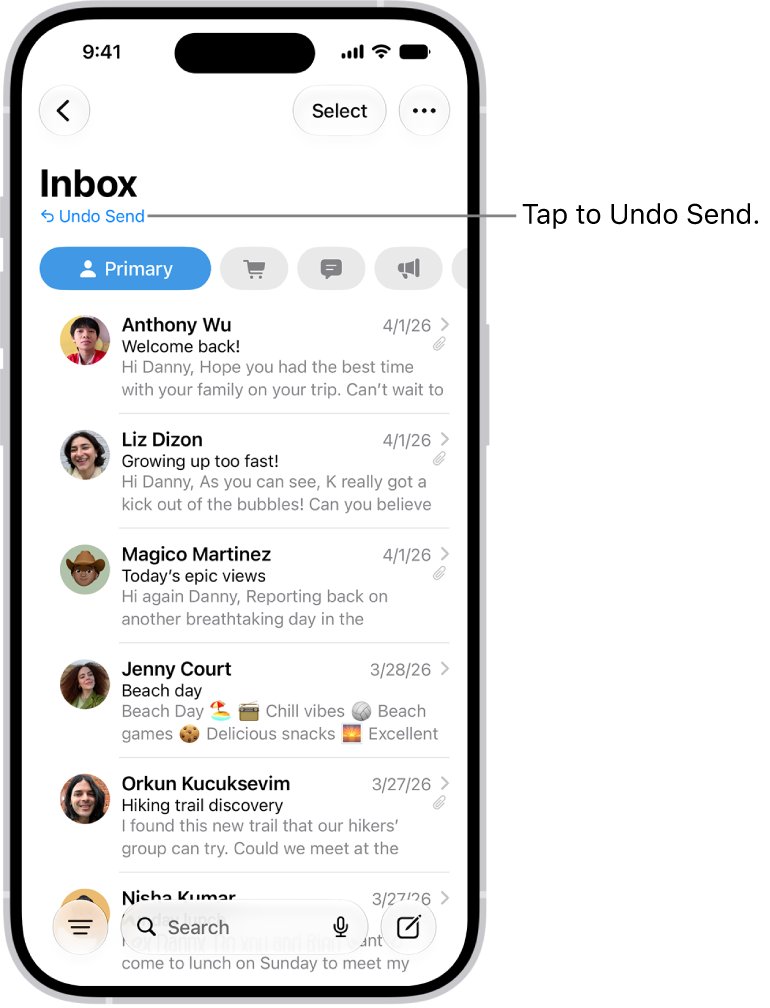
Mail holds every sent message for 10 seconds by default. You can stretch that window to give yourself more time to catch a mistake.
- Send the message as usual.
- Tap Undo Send at the top of the inbox before the timer runs out to pull the message back.
- To lengthen the window, go to Settings > Apps > Mail.
- Tap Undo Send Delay, then choose a delay of up to 30 seconds.
How to change the email signature on iPhone
Mail adds your signature to the bottom of every message you send. Signatures in Mail on iPhone are text only, so a logo or image will not carry over.
- Go to Settings > Apps > Mail.
- Tap Signature under Composing.
- Tap Per Account if you want a different signature for each account, or keep All Accounts.
- Tap the text field, delete the old text and type your new signature.
- Go back to save it. The next message you compose uses the new signature.
Managing and organizing your inbox
Swipes, mailboxes, flags and filters do most of the inbox housekeeping. Each one works on a single message or on a selection.
| Task | How to do it | Result |
|---|---|---|
| Act on one email fast | Drag a message slowly to the left to show the action menu, swipe all the way left for the rightmost action, or swipe right for the others | Trash, mark as read, flag and more without opening it |
| Mark many emails as read | Tap the More button, tap Select, select messages, tap the action button at the bottom, then tap Mark as Read | Clears the unread count |
| Flag an important email | Swipe left on the message, then choose Flag | The message stays in the inbox and also appears in Flagged |
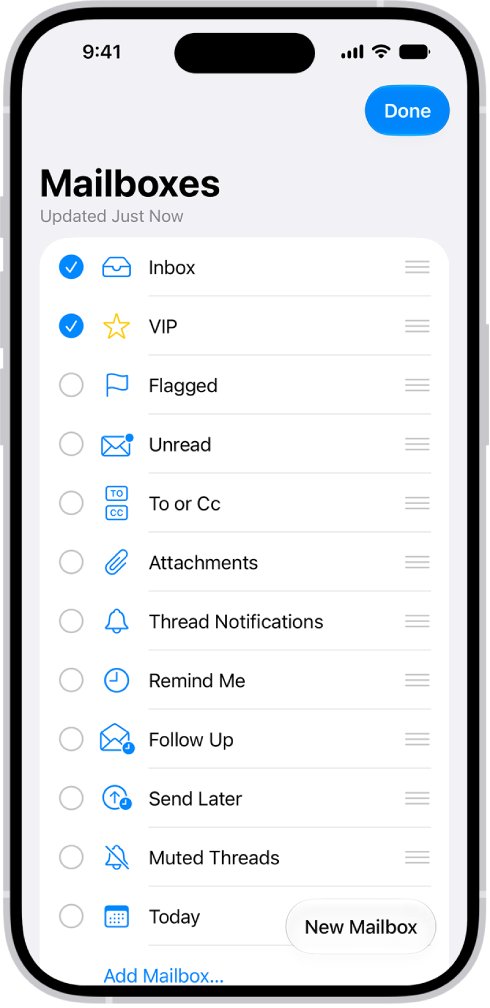
| Make a sender a VIP | Tap the sender's name in a message, then tap Add to VIP | Their mail gets a star and its own VIP mailbox |
| Create, rename or reorder mailboxes | Open Mailboxes, tap Edit, then tap New Mailbox, tap a mailbox to rename it, or drag a mailbox to a new position | Custom folders for filing mail |
| Move an email to a folder | Tap Select, select messages, tap the move button at the bottom, then choose a mailbox | Files the messages out of the inbox |
| Show only unread, flagged or attachment mail | Tap the Filter button in a mailbox, tap Filtered by, then pick the criteria | Hides everything that does not match |
| Get a reminder later | Open a Primary message, tap the More button, tap Remind Me, then pick a time | The message returns to the top of the inbox at that time |
Mail also moves a sent message back to the top of the inbox when nobody replies for several days. Turn off Follow Up Suggestions in Settings > Apps > Mail if you do not want that.
How to search email on iPhone
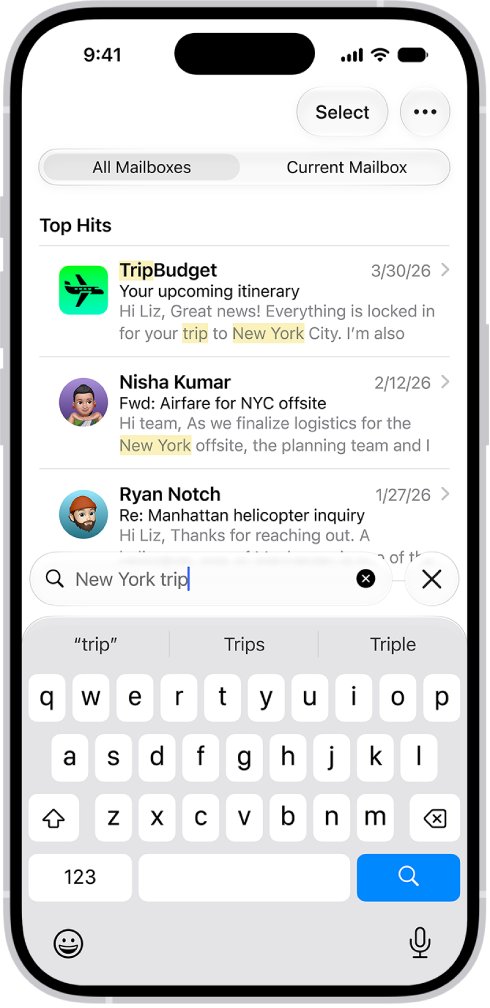
Mail search looks through address fields, subjects, message bodies, documents and links. It also matches meaning, so "NYC business trip" finds itinerary and hotel emails.
- Open the Mail app and tap the search field at the top of a mailbox.
- Type a name, word or timeframe such as "September".
- Choose between searching all mailboxes or the current mailbox above the results.
- To find a type of message, type "flag", "unread" or "attachment", then tap Message is flagged, Message is unread or Messages with attachments under Suggestions.
- Tap a result to open the message.
Handling unwanted emails: Junk, Trash, and blocking senders
Mail gives you four ways to deal with mail you do not want, from a single delete to stopping a sender for good. Pick the one that matches the message.
| If the email is | Do this | What happens |
|---|---|---|
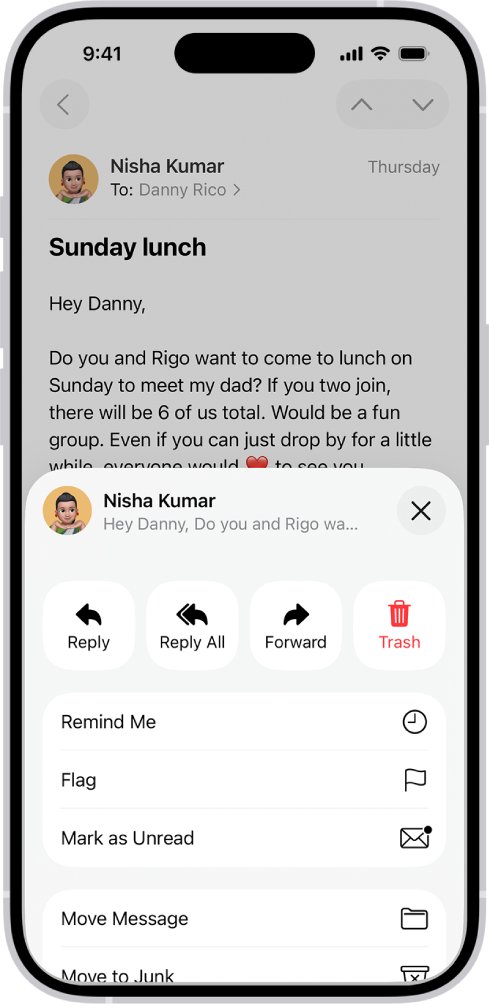
| Spam or a phishing attempt | Open the message, tap the Reply button, then tap Move to Junk. For several, tap Select, select them, tap the move button and tap Move to Junk. | The message moves to the Junk mailbox |
| Simply no longer needed | Open it and tap the Trash button, or swipe left on it in the list | The message moves to Trash |
| From someone who keeps writing to you | Tap the message, tap the sender's address, tap View Contact Card, then tap Block this Contact | Future email from that address is blocked |
| A busy thread you are stuck in | Open the conversation, tap the Reply button, then tap Mute | Notifications for that thread stop |
Choose what happens to muted threads in Settings > Apps > Mail > Muted Thread Action. To stop the confirmation prompt every time you delete, turn off Ask Before Deleting in the same screen.
How to recover deleted emails on iPhone
Deleted mail sits in Trash until your provider empties it. iCloud does not keep deleted messages longer than 30 days, even if you choose Never.
- Open the Mail app and tap the back arrow until you see Mailboxes.
- Tap Trash under the account the message came from.
- Tap the message you want back.
- Tap the move button, then choose Inbox or another mailbox.
- To see deleted mail from every account in one place, open Mailboxes, tap Edit and select All Trash.
To archive instead of delete, go to Settings > Apps > Mail > Mail Accounts. For iCloud, tap iCloud > Mailbox Behaviors; for other accounts, tap the account > Account Settings > Advanced. Then select Archive Mailbox under Move Discarded Messages Into.
Managing email notifications and settings
Mail notifications are set per account, so a work inbox can stay quiet while personal mail still alerts you. The settings live under Mail in the Settings app.
- Go to Settings > Apps > Mail.
- Tap Notifications and make sure Allow Notifications is on.
- Tap Customize Notifications, then tap the account you want to change.
- Choose Alerts, Badges or both, and change the alert tone if you want a different sound.
- To get an alert for replies to one message, open it, tap the Reply button and tap Notify Me.
The badge on the Mail icon counts only unread Primary mail. Turn on All Unread Messages in Settings > Notifications > Mail > Customize Notifications to count every category. To silence one account during work or sleep, add a Mail filter to a Focus in Settings > Focus, or use Do Not Disturb on iPhone for all alerts.
iPhone Mail settings explained
Every Mail setting sits on one screen at Settings > Apps > Mail. This is what each group controls.
| Setting | What it controls |
|---|---|
| Mail Accounts | Add, remove or pause accounts, and set Fetch New Data |
| Default Mail App | Which app opens for new emails you start outside a mail app, such as from Siri |
| Message List | Preview lines, Show To/Cc Labels and Swipe Options |
| Messages | Privacy Protection, Ask Before Deleting and Follow Up Suggestions |
| Threading | Organize by Thread, how threads look and Muted Thread Action |
| Composing | Signature, Always Bcc Myself, Mark Addresses, Increase Quote Level and link previews |
| Undo Send Delay | How long you have to unsend a message, up to 30 seconds |
Mark Addresses turns recipients outside the domains you list red, which helps you avoid sending work mail to the wrong person. Enter your domains separated by commas, for example "apple.com, example.org".
Saving and sharing attachments in the Mail app
Attachments open inside Mail, but you can keep a copy in Photos or Files or send it to another app.
- Open the message that has the attachment.
- Touch and hold the attachment.
- To keep a photo, choose Save Image. It goes to the Photos app.
- To keep a document or any other file, choose Save to Files and pick a folder.
- To open or send it with another app, tap Share, then choose the app.
Lost an attachment? In a mailbox, tap the Filter button, tap Filtered by and turn on Only Mail with Attachments. You can also add an Attachments mailbox from Mailboxes > Edit to collect them from every account.
How to attach a file or photo to an email on iPhone
Mail attaches photos, videos, documents, scans and drawings from the toolbar above the keyboard.
- In a new message, tap where you want the attachment to go.
- Tap the toolbar button above the keyboard to show the attachment options.
- Tap Attach File to pick a document from Files, or Photo Library to pick a photo or video.
- Tap Take Photo or Video to shoot something new, then tap Use Photo or Use Video.
- Tap Scan Document to scan paper as a PDF, tap Keep Scan for each page, then tap Save.
- Send the message as usual.
If a file is bigger than your provider allows, Mail offers to send it with Mail Drop instead.
How to tell if an email was sent on iPhone
A sent message lands in the account's Sent mailbox. A message that failed waits in the Outbox instead.
- Look at the inbox. If Undo Send is still showing, the message has not gone yet.
- Tap the back arrow until you see Mailboxes.
- Tap Sent under the account you sent from. A sent message appears at the top of the list.
- If you see an Outbox mailbox, the message did not send. If there is no Outbox, everything was sent.
iPhone Mail not sending or receiving emails
Most Mail problems come from a lost connection, a changed password or wrong server settings. Start with the symptom that matches yours.
An email is stuck in the Outbox
The message failed to send, usually because the connection dropped or the address is wrong.
- Make sure the iPhone is online through Wi-Fi or cellular data.
- Open Mailboxes and tap Outbox.
- Tap the stuck email and check the recipient's address.
- Tap Send again.
Mail keeps asking for your password
The password changed, or the provider needs a special app password after two-step verification.
- Sign in to your provider's website to confirm the address and password work.
- Ask your provider whether the account needs an app-specific IMAP password or permission to sync with a phone.
- Enter the correct password in Mail when it asks again.
Mail can't find your account settings
Automatic setup only knows common providers, so a smaller host needs manual server details.
- Get the IMAP or POP incoming server and the outgoing server details from your provider.
- Add the account with Add Other Account > Mail Account.
- Enter the server details when Mail asks for them, then tap Save.
Mail still won't send after every other fix
The account settings on the phone are damaged or out of date.
- Sign in to your provider's website and make sure your email is stored there, not only on the iPhone.
- Go to Settings > Apps > Mail > Mail Accounts and tap the account.
- Tap Delete Account.
- Add the account again from Add Account.
New emails arrive late
The account uses fetch instead of push, and Automatically waits for charging and Wi-Fi.
- Go to Settings > Apps > Mail > Mail Accounts > Fetch New Data.
- Choose a timed schedule under Fetch.
- If old mail looks wrong or takes up space, reset the Mail cache.
Mail app on iPhone FAQ
How do I add a new email account to my iPhone?
Go to Settings > Apps > Mail > Mail Accounts, tap Add Account and enter your email address and password. Mail sets up iCloud, Google, Exchange and Yahoo automatically. For other providers, tap Add Other Account > Mail Account and enter the server details.
How do I read all my emails on iPhone?
Swipe left on the categories at the top of the inbox to open All Mail, or tap the More button and turn off Show Categories. To read one account at a time, open Mailboxes and tap a mailbox under that account.
How do I declutter Apple Mail?
Move spam to Junk, block senders who keep writing, mute busy threads and file the rest into mailboxes. Categories also separate receipts, newsletters and promotions from personal mail, so the Primary list stays short.
How to mark the mail as important on iPhone?
Swipe left on the message and choose Flag. A flagged email stays in the inbox and also appears in the Flagged mailbox. To mark a person as important, tap their name in a message and tap Add to VIP.
How to use email step by step on iPhone?
Add your account in Settings > Apps > Mail > Mail Accounts. Then open Mail, tap the Compose button, enter the recipient, subject and message, and tap Send. Replies arrive in the inbox, where you can read, flag, move or delete them.
How to complete an email on iPhone?
A finished email needs a recipient in To, a subject line and a message body. Check the From field if you have more than one account, attach any files, then tap Send. Your signature is added automatically at the bottom.
Where to find Mail on iPhone?
Mail is a built-in app on the Home Screen. If you removed it, swipe left to the App Library, search for Mail, touch and hold the icon and tap Add to Home Screen. Mail settings are in Settings > Apps > Mail.
Where does my mail go after I send or delete it?
Sent email goes to the account's Sent mailbox, and failed email waits in the Outbox. Deleted email moves to Trash, or to Archive if you chose Archive Mailbox in the account's settings. iCloud empties Trash after 30 days.
Can I schedule an email on iPhone?
Yes. Write the message, touch and hold the Send button, then choose a suggested time or tap Send Later to pick your own date and time. The scheduled email sends automatically at that time.