To silence a ringing call on iPhone, press the side button or either volume button; to silence calls from unsaved numbers, set Screen Unknown Callers to Silence in Settings > Apps > Phone.
This guide covers silencing one call, unknown and spam callers, one person, or every call, and how to unsilence each of them again.
Step by step tutorial on how to silence or unsilence calls on iPhone
iPhone has several call silencing controls, and each one covers a different group of callers. Match what you want to a row, then use the matching setting to switch it on or off.
| What you want | To silence | To unsilence |
|---|---|---|
| Quiet one call that is ringing now | Press the side button or either volume button | Nothing to undo; the next call rings normally |
| Silence calls from numbers not in Contacts | Settings > Apps > Phone > Screen Unknown Callers > Silence | Set Screen Unknown Callers to Never |
| Silence spam calls | Settings > Apps > Phone > Call Filtering, turn on Spam | Turn off Spam under Call Filtering |
| Silence calls from one person | Settings > Focus > a Focus > People > Silence Notifications From | Remove the person from that list |
| Silence every call for a while | Turn on Silent mode or a Focus such as Do Not Disturb | Turn off Silent mode, or tap the Focus in Control Center to turn it off |
Silenced calls still reach your iPhone. They go to voicemail and show in your call list instead of ringing.
How to silence a call on iPhone while it is ringing
- Wait for the incoming call screen or call banner to appear.
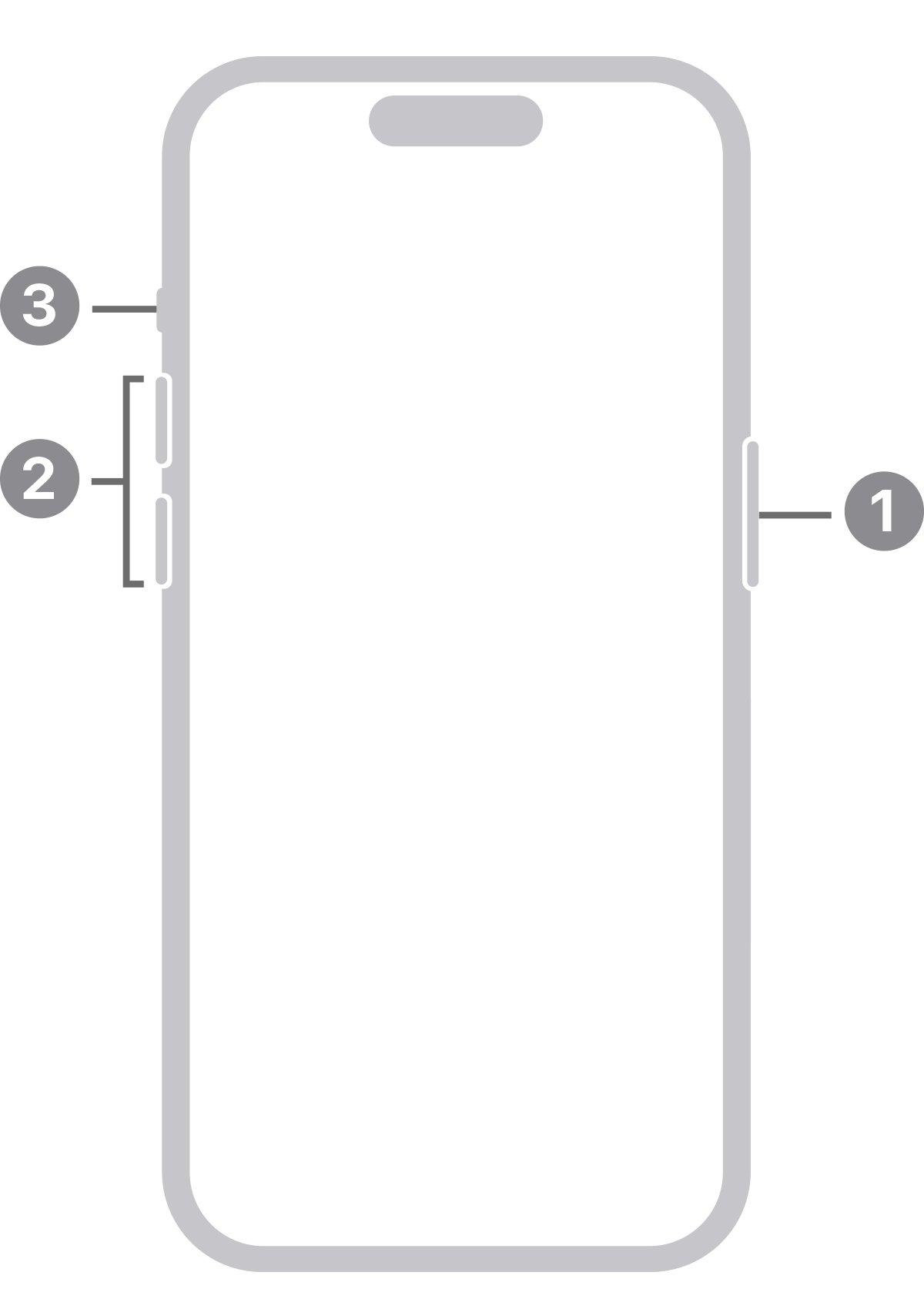
- Press the side button or either volume button once to stop the ringing.
- Tap the answer button if you change your mind, since a silenced call can still be answered until it goes to voicemail.
- Press the side button twice quickly instead if you want to decline the call and send it to voicemail.
In some countries or regions, declined calls are disconnected without going to voicemail. Silencing with one press avoids that, because the call keeps ringing through to voicemail quietly.
How to silence unknown calls on iPhone
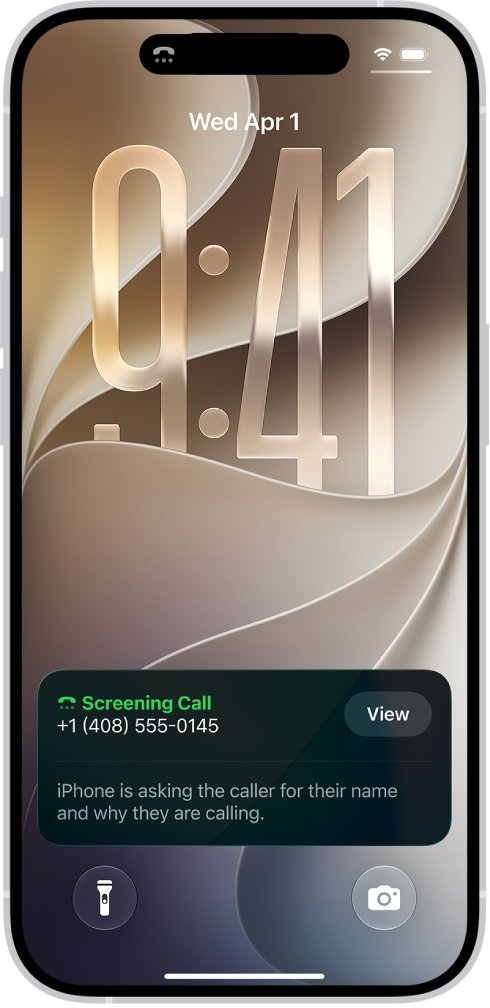
Unknown callers are numbers that are not saved in your contacts. On current iOS versions the control is called Screen Unknown Callers and has three choices.
- Open Settings and tap Apps.
- Tap Phone.
- Scroll to Screen Unknown Callers.
- Tap Silence to send calls from unsaved numbers straight to voicemail without ringing.
- Tap Ask Reason for Calling instead if you want the caller to give a name and reason before the iPhone rings.
- Add family, your doctor's office and other important numbers to Contacts so their calls always ring.
On iOS 18, the same control is a toggle named Silence Unknown Callers in Settings > Apps > Phone. Calls from your contacts, recent outgoing calls and Siri Suggestions keep ringing. For FaceTime, turn on Silence Unknown Callers in Settings > Apps > FaceTime.
How to silence spam calls on iPhone
The spam filter silences calls your carrier identifies as potential spam or fraud and moves them to a separate Spam list. To stop these callers completely, you can also block spam calls one number at a time.
- Open Settings, tap Apps, then tap Phone.
- Scroll down to Call Filtering.
- Turn on Spam.
- Turn on Unknown Callers under Call Filtering as well if you want missed calls from unsaved numbers kept in their own list.
- On iOS 18, tap Call Blocking & Identification and turn on Silence Junk Callers instead, where your carrier supports it.
How to silence calls from one person on iPhone
A Focus can silence one contact while everyone else rings. The person's calls are muted only while that Focus is on.
- Open Settings and tap Focus.
- Choose a Focus, such as Do Not Disturb or Personal.
- Tap People, or tap Choose People.
- Tap Silence Notifications From, tap the add button, and select the contact.
- Leave Allow Calls From Silenced People off so that person's calls stay quiet.
- Turn the Focus on from Control Center whenever you want that person silenced.
To stop a person reaching you at all, open the Phone app, tap Contacts, tap the contact, then tap Block Contact.
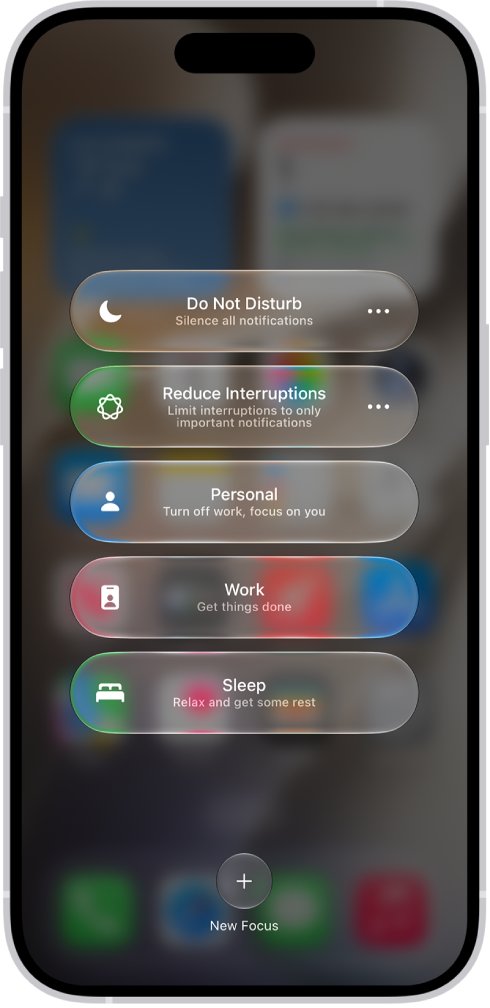
How to silence all calls on iPhone with Silent mode or Do Not Disturb
Silent mode stops the ringer at once, although the iPhone may still vibrate. The Do Not Disturb Focus on iPhone silences calls and notifications and can end on its own.
- Open Control Center and tap the Silent mode button to turn the ringer off.
- On an iPhone with an Action button, press and hold it instead; on an iPhone with a Ring/Silent switch, flip it toward the back of the phone.
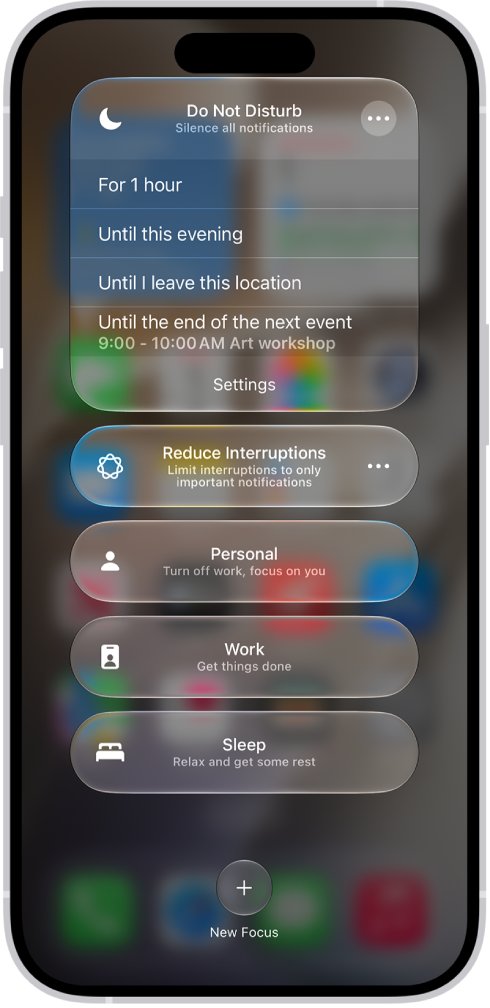
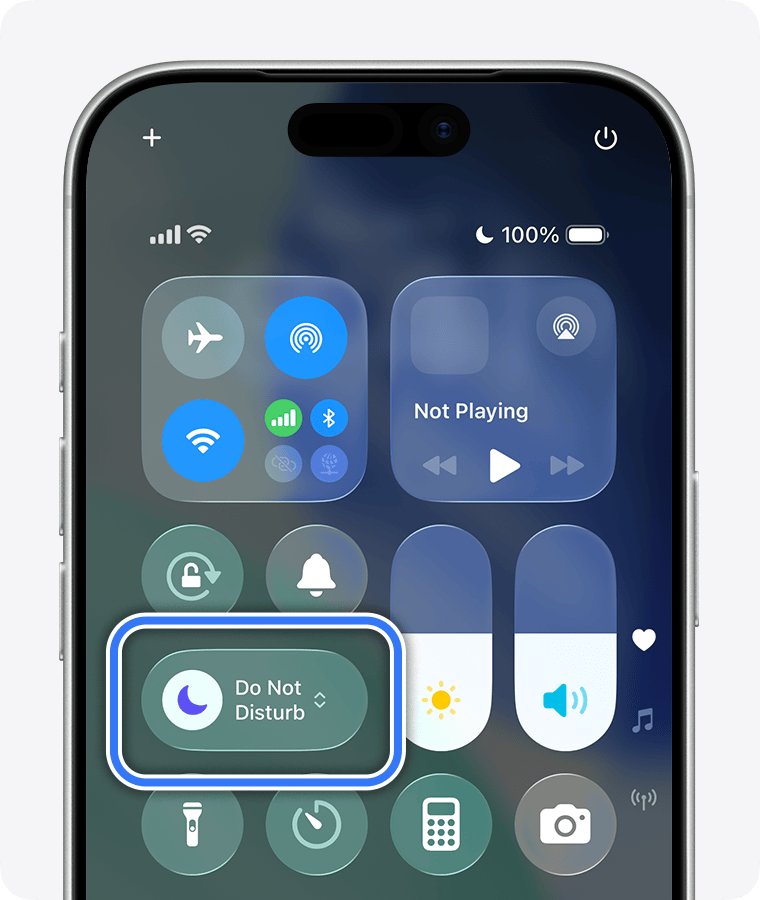
- For Do Not Disturb, open Control Center, tap Focus, then tap Do Not Disturb.
- Tap the more options button next to Do Not Disturb and choose an end point, such as For 1 hour.
- Check the status bar for the Silent mode or Do Not Disturb icon.
Silent mode also mutes notifications and system sounds. If you only want to quiet alerts, you can silence notifications on iPhone without touching calls.
How to unsilence incoming calls on iPhone
Each silencing control has its own off switch. Work through the ones you turned on.
- Open Settings, tap Apps, tap Phone, then set Screen Unknown Callers to Never.
- In the same screen, turn off Unknown Callers under Call Filtering so unknown calls appear with your other calls.
- Turn off Spam under Call Filtering if you want carrier-flagged calls to ring too.
- Tap Blocked Contacts, swipe left on a number, then tap Unblock for anyone blocked by mistake.
- Open Control Center, tap Focus, and tap any highlighted Focus to turn it off.
- Turn off Silent mode from Control Center, the Action button, or the Ring/Silent switch flipped toward the front.
If the Ring/Silent switch is damaged, you can still turn off Silent mode from Control Center or Settings > Sounds & Haptics.
How to see silenced calls on iPhone
- Open the Phone app.
- Tap Calls in the Unified layout, or Recents in the Classic layout.
- Tap the filter button.
- Tap Unknown Callers or Spam to see the calls those filters caught.
- Tap Mark as Known next to a caller you want to hear from, then confirm with Mark as Known.
Calls silenced by Screen Unknown Callers set to Silence appear in your call list and voicemail rather than in a separate list.
What happens to silenced calls on iPhone
| How the call was silenced | Does it ring? | Where it ends up |
|---|---|---|
| Side button or volume button press | Stops ringing | You can still answer until it goes to voicemail |
| Screen Unknown Callers set to Silence | No | Voicemail and your Recents list |
| Unknown Callers filter | Missed calls and voicemails are moved | The Unknown Callers list |
| Spam filter | No | Voicemail and the Spam list |
| Focus that silences a person | No, while the Focus is on | It arrives without sound until the Focus ends |
| Blocked contact | No | It does not reach you until you unblock the number in Blocked Contacts |
Tips for silencing or unsilencing calls on iPhone
| Tip | Where to set it | Why it helps |
|---|---|---|
| Save important numbers to Contacts | Contacts app | Saved numbers always ring with unknown callers silenced |
| Let one contact through any silencing | Contacts > a contact > Edit > Ringtone > Emergency Bypass | That person's calls make sound even when the iPhone is silenced |
| Allow repeated calls | Settings > Focus > a Focus > People | A second call from the same person within 3 minutes rings |
| Schedule quiet hours | Settings > Focus > a Focus > Add Schedule | The Focus turns on at set times, places or apps |
| Screen instead of silence | Screen Unknown Callers > Ask Reason for Calling | Real callers give a reason before the iPhone rings |
| Remember calls to emergency services | Automatic | Call screening turns off for 24 hours after you call emergency services |
Why are my phone calls being silenced on iPhone?
When calls stop ringing on their own, one of the silencing controls is usually on. Find your symptom and check the setting it names.
Incoming calls are silenced and go straight to voicemail
Silent mode or a Focus is on.
- Swipe down from the top-right corner to open Control Center.
- Tap any highlighted Focus, such as Do Not Disturb or Sleep, to turn it off.
- Turn off Silent mode.
- Ask someone to call you to test the ringer.
iPhone automatically silences calls from numbers not in contacts
Screen Unknown Callers is set to Silence, or the Unknown Callers filter is on.
- Open Settings > Apps > Phone.
- Set Screen Unknown Callers to Never.
- Turn off Unknown Callers under Call Filtering.
- Save the numbers you expect calls from to Contacts.
Calls from one person never ring
The contact is blocked or silenced in a Focus.
- Open Settings > Apps > Phone > Blocked Contacts and unblock the number if it is listed.
- Open Settings > Focus, tap each Focus, and check People for Silence Notifications From.
- Remove the person from that list, or turn on Allow Calls From Silenced People.
Calls still are not ringing after these checks
An outdated iOS version or a calling setting is involved.
- Open Settings > General > Software Update and install any update.
- Turn on Wi-Fi Calling in Settings > Apps > Phone if your carrier offers it and signal is weak.
- Work through the full set of fixes for an iPhone not ringing.
Silence calls on iPhone FAQ
How do I silence calls on iPhone?
Press the side button or a volume button to quiet a ringing call. To silence calls automatically, set Screen Unknown Callers to Silence in Settings > Apps > Phone, turn on the spam filter, or turn on Silent mode or a Focus.
How do I unsilence calls on iPhone?
Set Screen Unknown Callers to Never in Settings > Apps > Phone, and turn off the Unknown Callers and Spam filters if you want those calls to ring. Then turn off any Focus and Silent mode from Control Center.
How do I silence calls not in my contacts?
Open Settings > Apps > Phone, scroll to Screen Unknown Callers, and choose Silence. Calls from unsaved numbers go to voicemail and appear in your Recents list without ringing. On iOS 18, turn on Silence Unknown Callers instead.
How do I stop calls from being silenced?
Check Control Center for an active Focus and turn it off, then turn off Silent mode. Next, set Screen Unknown Callers to Never and turn off the Unknown Callers filter in Settings > Apps > Phone.
Will I still receive calls if I silence them?
Yes. Silenced calls still arrive, but the iPhone does not ring. They go to voicemail and show in your call history, or in the Unknown Callers or Spam list if a filter caught them.
Can I silence calls from one person on iPhone?
Yes, with a Focus. Open Settings > Focus, choose a Focus, tap People, then add the contact under Silence Notifications From. That person's calls stay quiet while the Focus is on, unless Allow Calls From Silenced People is turned on.
Can I unsilence calls for specific contacts?
Yes. Open the contact, tap Edit, tap Ringtone, and turn on Emergency Bypass so their calls make sound even when the iPhone is silenced. In a Focus, you can also add them under Allow Notifications From.
Can I schedule Do Not Disturb on iPhone?
Yes. Open Settings > Focus, tap Do Not Disturb, then tap Add Schedule under Set a Schedule. You can choose times, a location or an app that turns the Focus on and off automatically.
Will Silence Unknown Callers block spam calls?
It silences calls from any unsaved number, which includes many spam calls, but it does not block them. Turn on the Spam filter under Call Filtering for carrier-flagged calls, and block persistent numbers with Block Contact.
Why does my iPhone automatically silence calls?
A silencing setting is on: Silent mode, a Focus such as Do Not Disturb, Screen Unknown Callers set to Silence, or a call filter. Check Control Center first, then Settings > Apps > Phone.