iPhone has no button that empties System Data, so you clear it indirectly: remove Safari website data, reinstall apps with large caches, and free space so iOS deletes temporary files itself.
This guide covers what System Data holds, each way to shrink it on iPhone and iPad, how to read its size, and the last-resort erase and restore.
Step by step tutorial to clear System Data on iPhone
These steps work on any iPhone running a current iOS version, including iPhone 11, iPhone 12, iPhone 13 and iPhone 16. Do them in order and recheck the figure at the end.
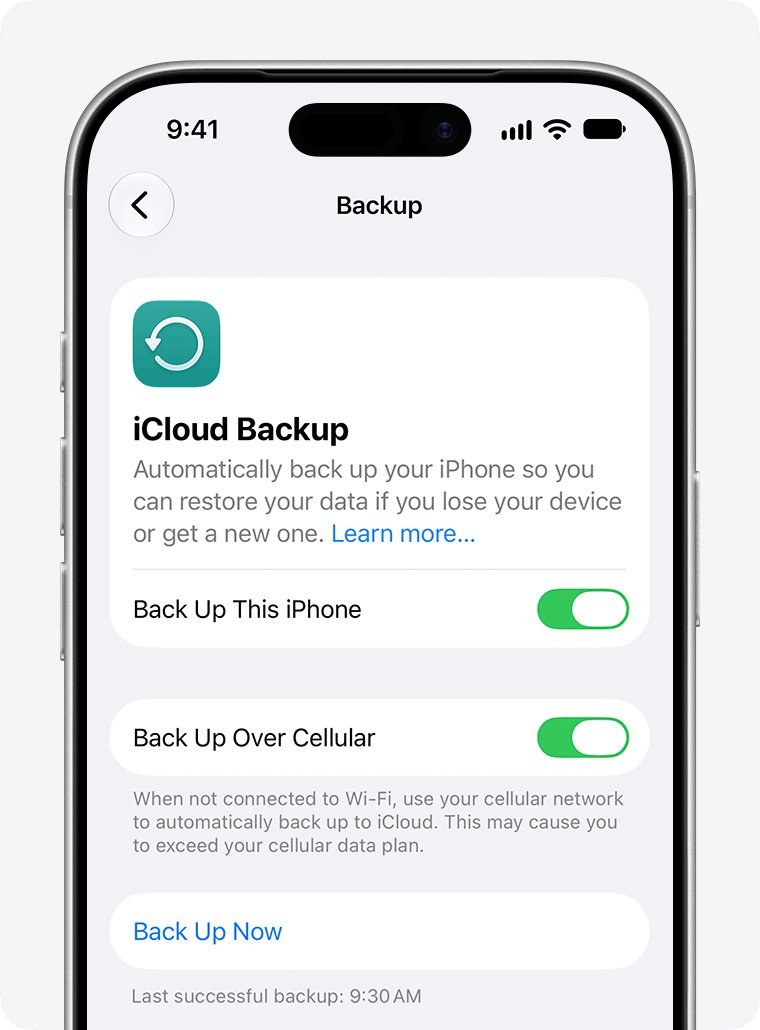
- Back up first: open Settings, tap your name, tap iCloud, tap iCloud Backup, then tap Back Up Now.
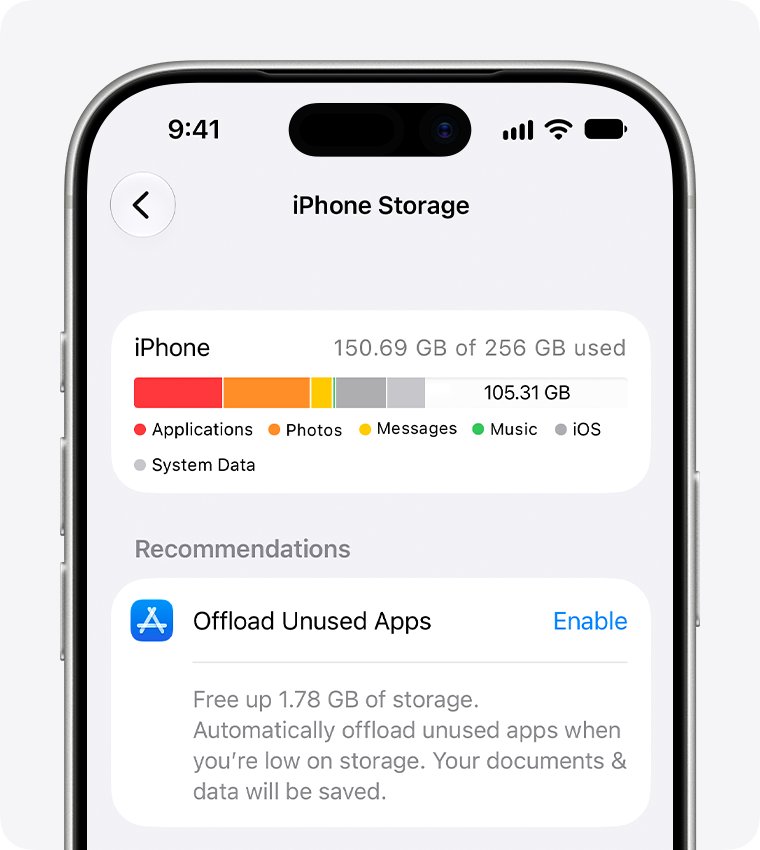
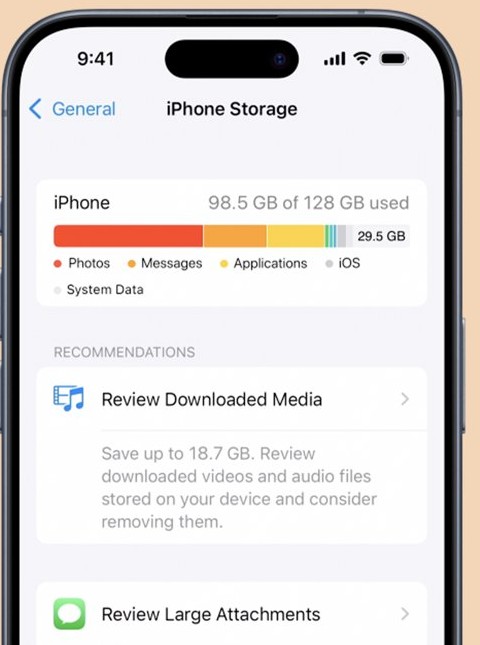
- Go back to Settings, tap General, then tap iPhone Storage and let the list finish loading.
- Find System Data in the list and note its size so you can compare it later.
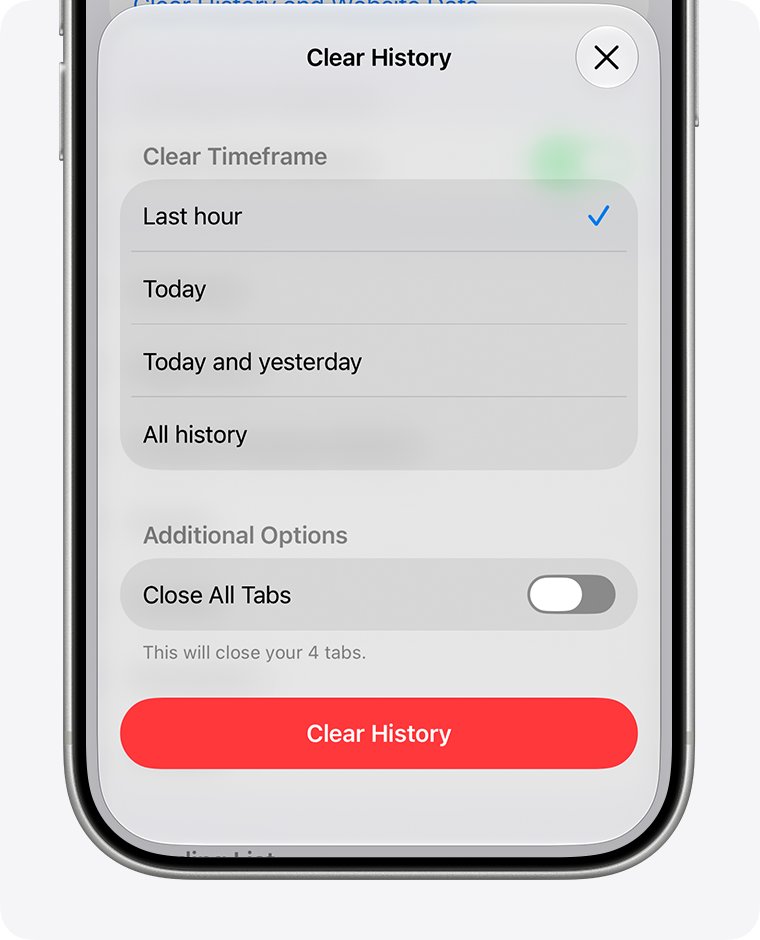
- Open Settings, tap Apps, tap Safari, then tap Clear History and Website Data and choose a timeframe.
- Return to iPhone Storage, tap a streaming or social app that is much larger than you expect, and tap Delete App.
- Reinstall that app from the App Store and sign in again.
- Tap Show All under the recommendations in iPhone Storage and tap Enable on any that suit you.
- Reopen iPhone Storage after a few minutes and compare the System Data figure with the one you noted.
Deleting an app removes the app and its related data, so check that its content is saved in the cloud or in your account before you tap Delete App.
What is System Data on iPhone?
System Data is the catch-all part of iPhone storage. Apple's storage article lists this category as Other and describes what sits in it.
| Item in System Data | Example | Can you remove it yourself? |
|---|---|---|
| Non-removable mobile assets | Siri voices, fonts and dictionaries | No |
| Logs and caches | Non-removable logs and caches kept by iOS | No, iOS manages them |
| Search data | The Spotlight index | No |
| Account and sync data | Keychain and the CloudKit database | No |
| Cached and temporary files | Files left by streaming and viewing content | Not by hand, but iOS removes them when it needs space |
The separate System entry is the operating system itself. Its size varies by device and model, and it cannot be reduced.
How to clear Safari cache to reduce System Data on iPhone
Safari keeps a cache, cookies and website data on the iPhone. You can wipe the cache and keep your browsing history, or remove both at once.
- Open Settings, tap Apps, then tap Safari.
- Tap Advanced, then tap Website Data.
- Tap Remove All Website Data.
- Tap Remove Now to confirm.
- To clear history as well, go back to the Safari screen, tap Clear History and Website Data, pick a timeframe, then tap Clear History.
Removing website data signs you out of many websites. Your AutoFill information stays. If the button is gray, there is no data to clear, or Screen Time web content restrictions are blocking it.
How to delete and reinstall an app to clear its cache on iPhone
Apple notes that an app's cached data and temporary data might not count toward the size shown for that app. Deleting the app removes that hidden data with it, and a fresh install starts clean.
- Open Settings, tap General, then tap iPhone Storage.
- Tap the app you want to reset, such as a video, music or social app you use for streaming.
- Make sure the app's content is saved to your account, then tap Delete App.
- Confirm with Delete App again.
- Open the App Store, find the app, and install it again.
- Sign in and download only the content you still need.
Offload App is not the same thing. It frees the space used by the app but keeps its documents and data, so it does less for System Data. Some apps also have their own data controls, such as the steps to reset the Mail cache or delete Apple Maps documents and data.
How to free up iPhone storage so iOS removes cached files
iOS deletes cached and temporary files when the iPhone needs space, so you do not have to. When you clear storage on your iPhone in categories you control, iOS gets that trigger and turns on its own cleanup.
- Open Settings, tap General, then tap iPhone Storage.
- Tap Show All next to the recommendations.
- Read each recommendation and tap Enable to turn it on, or tap it to review what you can delete.
- Open Settings, tap Apps, tap App Store, then turn on Offload Unused Apps.
- Delete downloaded videos you have already watched in the TV app and other streaming apps.
- Delete files you no longer need in the Files app.
How to reset System Data on iPhone by erasing and restoring
A factory reset of the iPhone is the only way to remove everything in System Data at once. It is a last resort, and it only makes sense with a fresh backup in hand.
- Open Settings, tap your name, tap iCloud, tap iCloud Backup, then tap Back Up Now and wait for it to finish.
- Open Settings, tap General, then tap Transfer or Reset iPhone.
- Tap Erase All Content and Settings, enter your passcode if asked, then tap Erase iPhone.
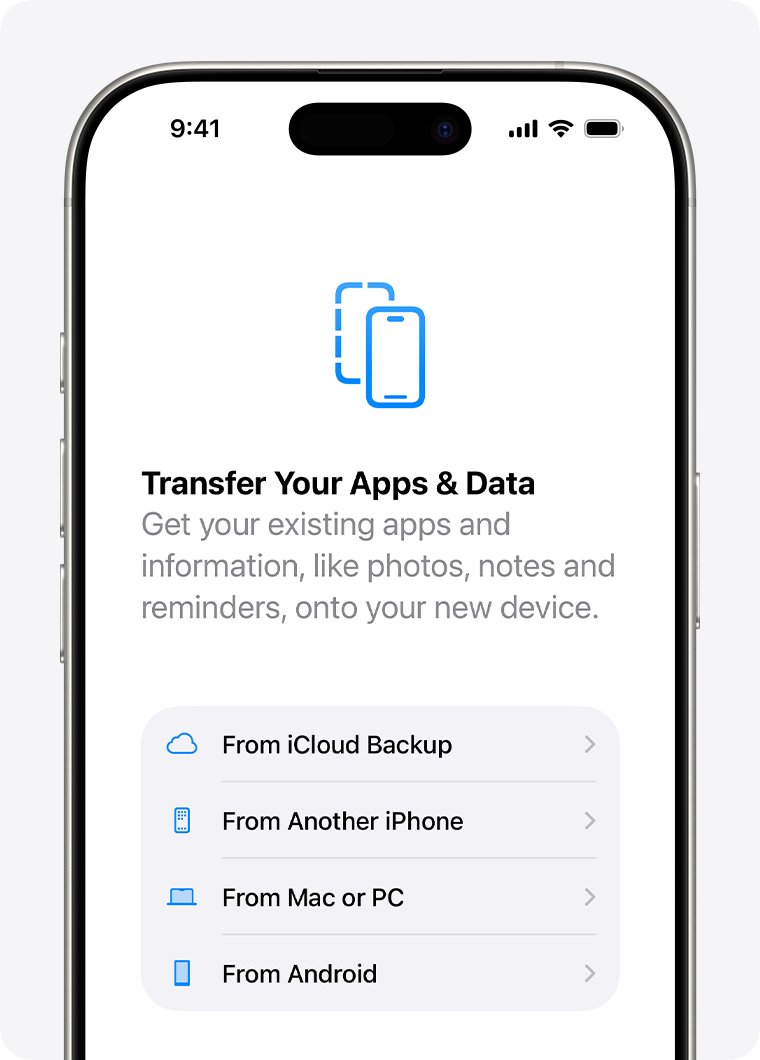
- When the Hello screen appears, follow the setup steps until you reach Transfer Your Apps & Data.
- Tap From iCloud Backup, sign in to your Apple Account, and choose the most recent backup.
- Keep the iPhone on Wi-Fi and power until the progress bar finishes, then complete setup.
Erasing removes everything on the iPhone, including Apple Pay cards, photos, contacts, music and apps, but your content in iCloud is not deleted. Photos, music and apps keep downloading from iCloud after setup, so let that finish before you judge the new System Data size.
How to clear System Data on iPad and see it on a Mac or PC
The storage screen and the cleanup steps are the same on iPad. A computer shows the iPhone's storage too, but it labels the category differently.
| Where you look | Path | What the category is called |
|---|---|---|
| iPhone | Settings > General > iPhone Storage | System Data in the list |
| iPad | Settings > General > iPad Storage | System Data in the list |
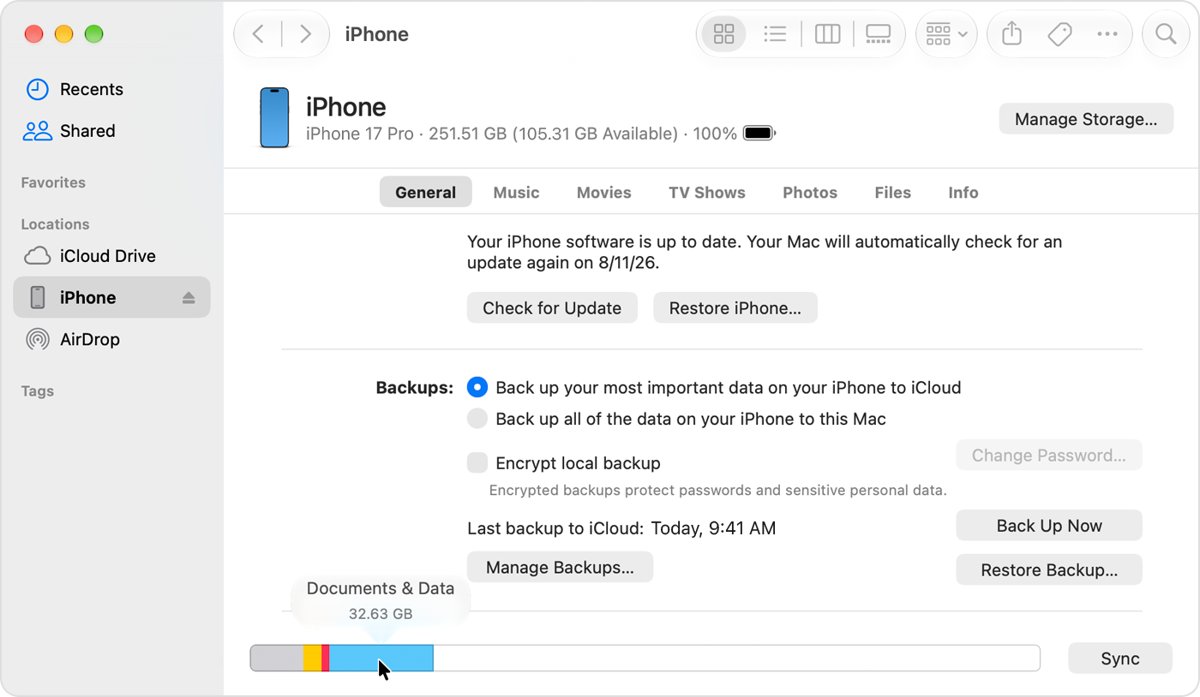
| Mac with macOS Catalina or later | Connect the iPhone, open the Finder, and select the iPhone in the sidebar | Other, which includes settings, Siri voices, system data and cached files |
| Windows PC | Connect the iPhone, open the Apple Devices app, and select the iPhone in the sidebar | Other, the same as the Finder |
| Mac running macOS Mojave or earlier | Connect the iPhone, open iTunes, and select the device at the upper left | Other |
A computer counts cached music, videos and photos as Other, so its Music or Video figures can differ from the iPhone's own screen. Trust the figure in Settings on the device. The Mac's own disk has a separate category, and you can reduce System Data on a Mac with different steps.
How to check System Data size on iPhone
- Open Settings and tap General.
- Tap iPhone Storage and wait for the list to finish calculating.
- Read the available storage at the top of the screen.
- Scroll down the list and read the System Data figure.
- Compare both numbers with the ones you noted before the cleanup.
The figure can take a moment to update after you delete an app or clear website data. If it looks unchanged, close Settings and open iPhone Storage again a little later.
Tips for clearing System Data on iPhone
System Data grows back because iOS keeps rebuilding caches as you use the phone. These habits keep it smaller between cleanups.
| Habit | Where to set it | Effect |
|---|---|---|
| Keep free space on the iPhone | Settings > General > iPhone Storage | iOS can clear cached and temporary files when it needs room |
| Turn on storage recommendations | Show All > Enable in iPhone Storage | iOS removes items it does not need, such as unused apps |
| Offload unused apps automatically | Settings > Apps > App Store > Offload Unused Apps | Unused apps leave the iPhone while their data stays |
| Clear Safari website data now and then | Settings > Apps > Safari > Advanced > Website Data | Removes the browser's cached site data |
| Remove watched downloads | TV app and other streaming apps | Stops offline video from filling storage |
| Keep iOS updated | Settings > General > Software Update | Updates keep your data and settings unchanged |
| Skip storage cleaner apps | Not needed | iOS manages the files these apps claim to clean |
Why is System Data taking up so much space on iPhone?
A large System Data figure usually comes from caches iOS has not needed to remove yet. Match what you see to a group below.
System Data is taking up so much space after heavy streaming
The iPhone creates cached files when you stream or view content, so it loads faster next time.
- Delete and reinstall the streaming app that you use most from iPhone Storage.
- Clear Safari website data in Settings > Apps > Safari > Advanced > Website Data.
- Free space in other categories so iOS removes cached files on its own.
- Recheck System Data in iPhone Storage after a few minutes.
Storage Almost Full alert on iPhone
Content you control has filled the iPhone faster than iOS can free cached files.
- Open Settings > General > iPhone Storage and tap Show All under the recommendations.
- Tap Enable on the recommendations you accept.
- Remove large videos and apps you no longer use.
- Back up photos and videos to iCloud, then remove them from the iPhone.
System Data stays the same on the computer after cleanup
The Finder, Apple Devices app and iTunes count cached media as Other, and synced content stays until you sync again.
- Check the figure in Settings > General > iPhone Storage on the iPhone instead.
- To remove synced content, deselect it in the Finder, the Apple Devices app or iTunes.
- Click Sync, then check storage again.
iPhone System Data FAQ
Can I clear System Data on iPhone?
Not directly, because there is no Clear System Data button in iOS. You can shrink it by removing Safari website data, deleting and reinstalling apps with big caches, and freeing space so iOS removes temporary files itself.
How do you clear System Data on iPhone storage?
Open Settings > General > iPhone Storage, note the System Data size, then clear Safari website data and reinstall cache-heavy apps. Tap Show All under the recommendations and enable the ones you want, then recheck the figure.
How do I clear System Data on iPhone 13, iPhone 12 or iPhone 11?
The steps are the same on iPhone 13, iPhone 12 and iPhone 11. Use Settings > General > iPhone Storage to read the figure, then clear Safari website data and reinstall large apps. The model does not change the path.
How do I clear System Data on iPhone 16?
Use the same steps as any other iPhone. Open Settings > General > iPhone Storage, then clear Safari website data, reinstall apps that hold large caches, and enable storage recommendations so iOS can remove cached files.
How do you clear System Data on iPad?
Open Settings > General > iPad Storage to see the System Data figure. The ways to shrink it match the iPhone: clear Safari website data, delete and reinstall large apps, and turn on the storage recommendations.
Will clearing System Data delete my personal files?
Clearing Safari website data or reinstalling an app does not touch photos, messages or contacts. Deleting an app removes that app's own data, and Erase All Content and Settings removes everything on the iPhone, so back up before either.
Is it safe to clear System Data on my iPhone?
Yes, the methods Apple supports are safe. You cannot delete core System Data items such as Siri voices, fonts or the Spotlight index, and iOS removes cached files only when it needs space. Avoid third-party cleaner apps.
How do you clear storage without losing data?
Use Offload App or the Offload Unused Apps setting, which remove apps but keep their documents and data. Clearing Safari website data and enabling storage recommendations also free space without touching photos, messages or files.
Does clearing data delete everything?
No. Clearing Safari website data removes cookies and cached site data and signs you out of websites, but AutoFill stays. Only Erase All Content and Settings deletes everything on the iPhone, and it leaves your iCloud content in place.
How often should I clear System Data on iPhone?
There is no fixed schedule, because iOS removes cached and temporary files itself when space runs low. Check the figure when you see a Storage Almost Full alert or when System Data looks much larger than usual.
Can I prevent System Data from building up?
Not fully, since iOS keeps logs, caches and the Spotlight index as you use the phone. Keeping free space, turning on Offload Unused Apps and deleting watched downloads keep it from crowding out your own content.
How do I clear System Data on a Mac?
A Mac has its own System Data category on its startup disk, separate from the iPhone. Clearing it uses Mac storage tools rather than iPhone Storage in Settings, so follow Mac-specific steps.