To change the default media player in Windows 11, open Settings > Apps > Default apps, select the player you want, and assign it to each audio and video file type.
This guide covers the per-app and per-file-type routes, a one-time Open with switch, the file types worth changing, and fixes for a player that will not stick.
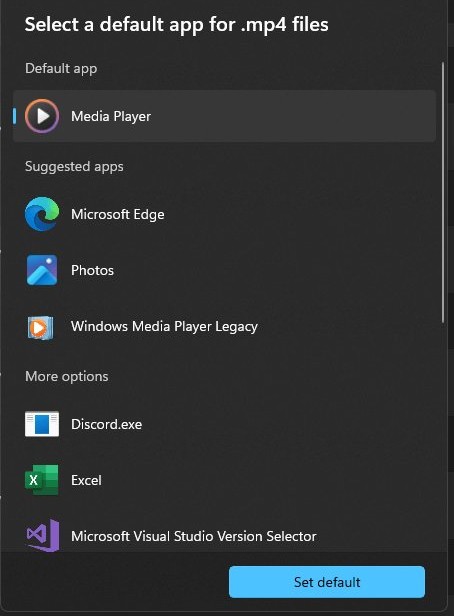
Change or set default Media Player in Windows 11/10
Windows has no single switch for the media player. Each file type, such as .mp4 or .mp3, keeps its own default app, so you assign the new player type by type from one page in Settings.
The same steps work on Windows 11 and Windows 10, because both use Apps > Default apps in the Settings app.
- Press Windows + I to open the Settings app.
- Select Apps in the left pane, then select Default apps.
- Under Set defaults for applications, find the media player you want, such as VLC media player or Media Player, and select it.
- Review the list of file types the player can open, such as .mp4, .mkv, .mp3 and .wav.
- Select a file type that currently shows a different app, then choose your player in the list that opens.
- Repeat the last step for every audio and video type you want the player to handle.
- Close Settings; the change applies at once, and no restart is needed.
The same page controls every other kind of file, so you can set default programs in Windows for photos, PDFs and links the same way.
How to set the default video player in Windows 11 by file type
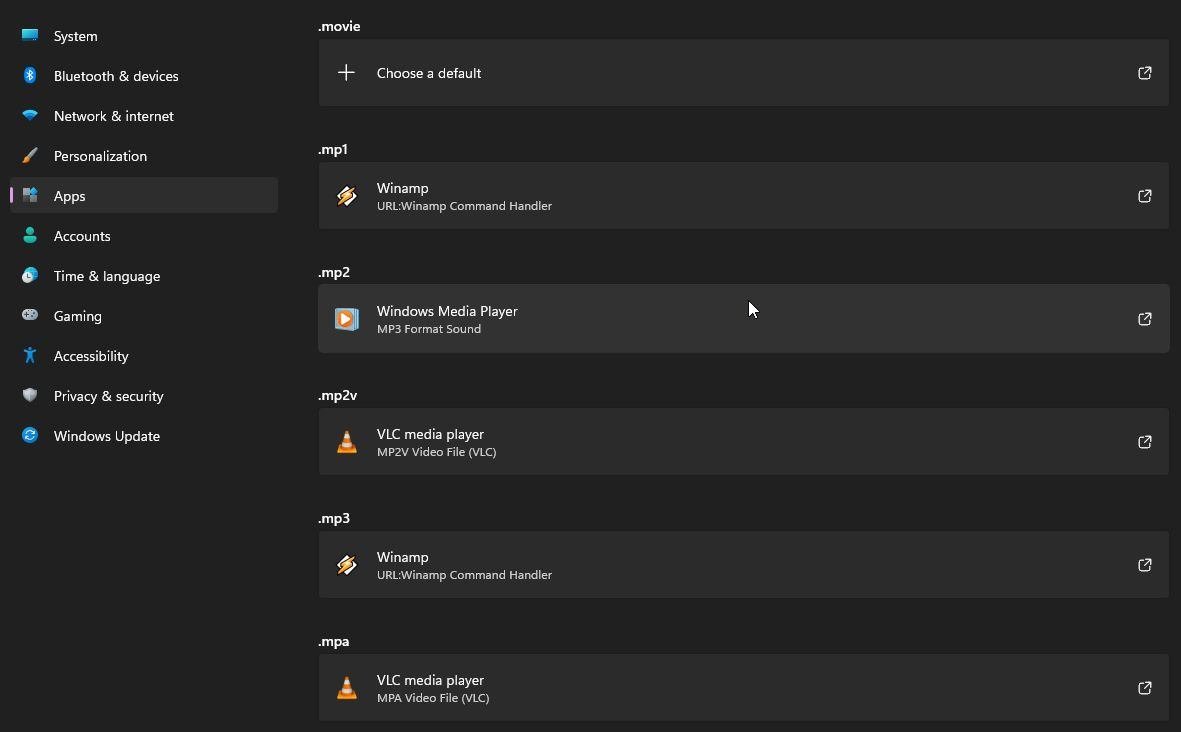
Use this route when only one format is wrong, for example when .mp4 files keep opening in the built-in player while everything else already opens in VLC.
- Open Settings > Apps > Default apps.
- Click the search box under Set a default for a file type or link type.
- Type the extension with its dot, for example .mp4.
- Select the result that appears under the search box.
- Choose the player you want from the list of apps that opens.
- Search the next extension, such as .mov or .avi, and repeat.
The app name shown under each extension after a search is the current default, so this search also tells you what Windows will use before you change anything.
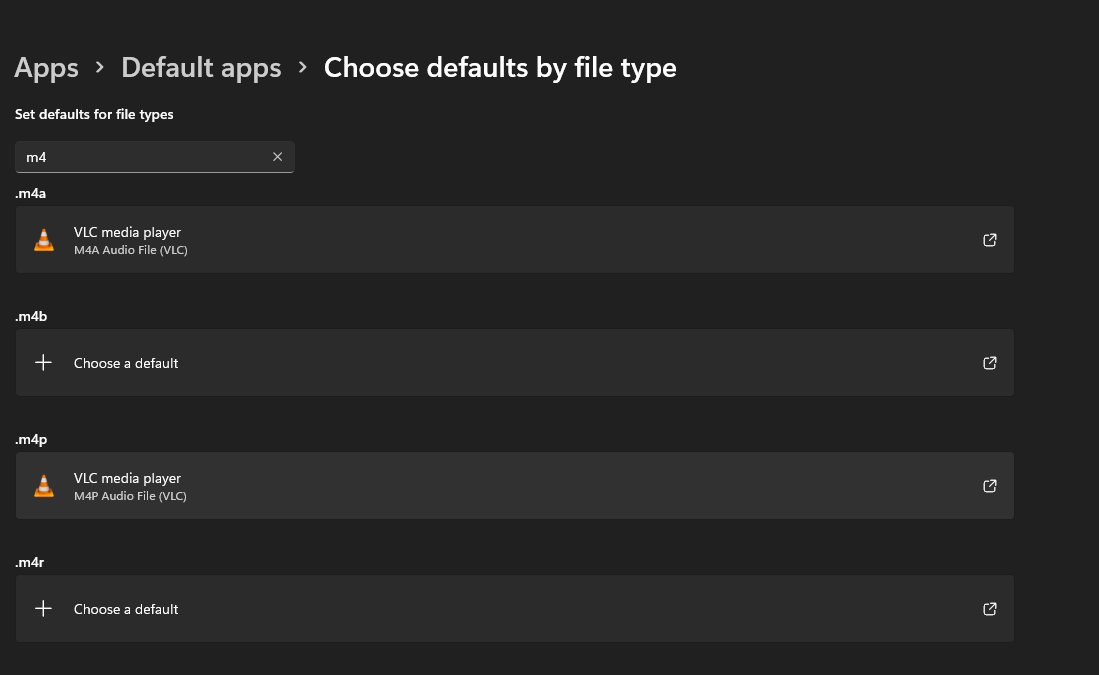
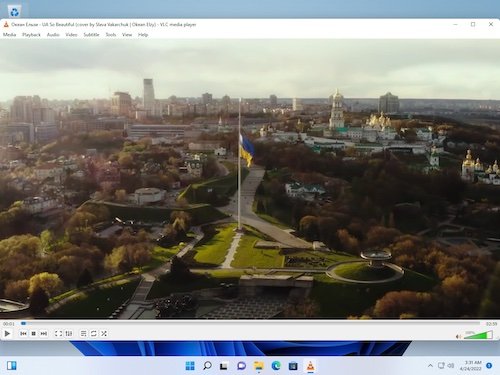
How to make VLC the default media player in Windows 11
VLC appears in Default apps only after it is installed, and Windows does not hand it every format automatically. Install VLC from the official VideoLAN site, then assign it the formats you play.
- Install VLC media player from videolan.org if it is not on the PC yet.
- Open Settings > Apps > Default apps.
- Type VLC in the search box under Set defaults for applications.
- Select VLC media player in the results.
- Select each file type that lists another app, such as .mp4, .mkv, .avi and .mp3.
- Choose VLC media player in the list that opens for each one.
- Double-click a video in File Explorer to check that it now opens in VLC.
The same steps work for any third-party player: search its name under Set defaults for applications and assign the types one by one.
How to make Windows Media Player the default player in Windows 11
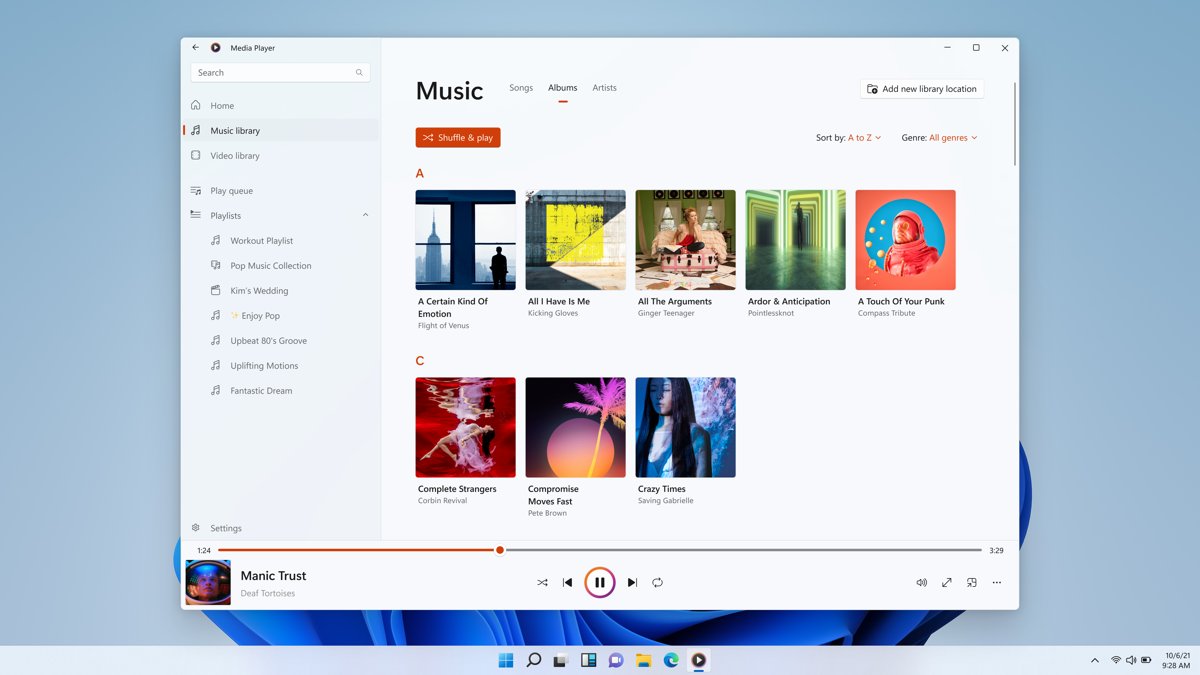
Windows 11 ships with the new Media Player app, which replaced Groove Music. The legacy Windows Media Player is still included and lives in Windows Tools, so either one can be set as the default.
- Open Settings > Apps > Default apps.
- Type Media Player in the search box under Set defaults for applications.
- Select Media Player for the new app, or Windows Media Player for the legacy version.
- Select each audio and video type that shows another app.
- Choose the Microsoft player in the list that opens.
- Repeat for the music formats, such as .mp3, .m4a, .wma and .flac, if you also want it to play audio.
If the legacy player does not show up in the search, find Windows Media Player in Windows 11 first, then come back to Default apps.
How to change Open with settings for a video in Windows 11
Open with plays a single file in another player without touching the default. It is the quickest way to test a player before you commit to it.
- Open File Explorer from the taskbar, or select Start and search for File Explorer.
- Go to the folder that holds the video or song.
- Right-click the file, or press and hold it on a touch screen.
- Select Open with.
- Choose your preferred player from the list of apps.
To make that player permanent for the format, use the file-type search in Settings > Apps > Default apps described above.
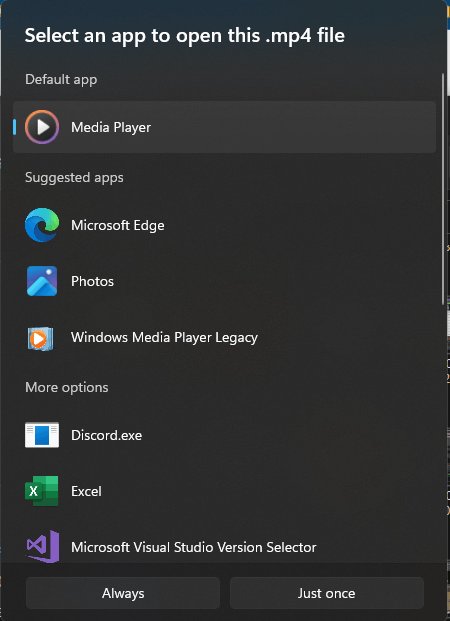
Which file types does the default media player use?
These are the common formats to reassign. The middle column lists what Windows Media Player 12 supports, which is a useful guide to what the Microsoft players open without extra codecs.
| Kind of file | Extensions to set | Notes |
|---|---|---|
| Common video | .mp4, .m4v, .mov, .avi, .wmv | The formats most phones, cameras and downloads use |
| Phone video | .3gp, .3gpp, .3g2 | Older phone recordings |
| TV and camcorder video | .m2ts, .mpg, .mpeg | MPEG-2 playback may need the MPEG-2 Video Extension |
| Other video containers | .mkv, .webm | Appear only if the player you chose registers them |
| Music | .mp3, .m4a, .aac, .wma | Set these too if the player should handle songs |
| Lossless audio | .flac, .wav, .aif, .aiff | Often missed when only video types are changed |
| Playlists | .m3u, .wpl, .asx | Decide which player opens saved playlists |
The quickest way to cover every row is the per-app list in Set defaults for applications, because it shows only the types your chosen player can open.
Media Player vs Windows Media Player in Windows 11
Two Microsoft players can appear in Default apps, and they are separate apps with separate defaults.
| Player | What it is | Where to find it |
|---|---|---|
| Media Player | The current Windows 11 player for music and video; it replaced Groove Music | Start menu, and listed as Windows Media Player in the Microsoft Store |
| Windows Media Player (legacy) | The classic Windows Media Player 12, still included alongside the new app | Windows Tools |
| Windows 11 N editions | Ship without Windows Media Player and related media technologies | Add the Media Feature Pack from Settings > Apps > Optional features |
On an N edition, install the Media Feature Pack first and restart the PC; until then the Microsoft players and many Windows media codecs are missing from Default apps.
What is this ‘Internet Browser’ I see in Default apps list in Windows Settings?
Default apps lists every installed app that has registered itself for file types or link types, using the display name the app gave itself. An entry called Internet Browser is one of those registrations, not a built-in Windows component with that name.
Selecting the entry shows what it is responsible for, which tells you whether it matters for media playback.
| What to do | Where | What it tells you |
|---|---|---|
| Select the Internet Browser entry | Settings > Apps > Default apps > Set defaults for applications | The file and link types it can open, such as .htm, HTTP or HTTPS |
| Look for the same name | Settings > Apps > Installed apps | Which installed program added it |
| Remove it if you do not want it | Installed apps > More > Uninstall | The entry disappears with the app; built-in apps may not offer Uninstall |
If the entry owns only web types, it has no effect on which player opens your videos and music, and you can leave it alone. To change which browser opens links instead, change the default web browser from the same page.
How to see which app is the default media player in Windows 11
The per-file-type search shows the current owner of each format in a few seconds.
- Open Settings > Apps > Default apps.
- Type .mp4 in the search box under Set a default for a file type or link type.
- Read the app name shown under the result; that app is the current default for .mp4.
- Repeat for .mp3 to see the default music player.
- Double-click a video and a song in File Explorer to see both open in the expected player.
Default media player not changing in Windows 11
The player you want is not in the Default apps list
The app is not installed, or the edition is Windows 11 N without the Media Feature Pack.
- Open Settings > Apps > Installed apps and search for the player's name.
- If it is missing, install it from the Microsoft Store or the developer's own site.
- On a Windows 11 N edition, open Settings > Apps > Optional features, select View features next to Add an optional feature, and install Media Feature Pack.
- Restart the PC, then open Default apps again.
Some videos still open in the old player
Defaults are set per extension, and only some of them were changed.
- Note the extension of one stubborn file, for example .m4v, .mov or .avi.
- Open Settings > Apps > Default apps and search that extension.
- Choose your player in the list that opens.
- Repeat for each extension that still opens in the old player.
The new default player opens but shows an error or no picture
A codec for that format is missing; Microsoft lists 0xC00D11xx errors as codec problems.
- Open the Microsoft Store app.
- Install the extension for the format: HEVC Video Extension, VP9 Video Extension, AV1 Video Extension, MPEG-2 Video Extension or Web Media Extension.
- Select Start > Settings > Windows Update > Check for updates and install what is offered.
- Play the file again.
The player is listed but crashes or will not open files
The app itself is damaged.
- Open Settings > Apps > Installed apps.
- Select More next to the player, then Advanced options.
- Select Repair; if that is missing or does not help, select Reset.
- Set the player as the default again, because Reset clears the app's data.
If the legacy player shows its own error codes, troubleshoot Windows Media Player before you change the default again.
Default media player in Windows 11 FAQ
How do I change the default app in Windows 11?
Open Settings, select Apps, then Default apps. Either search a file extension such as .mp4 and pick a new app for it, or select an app under Set defaults for applications and assign it the file types it can open.
What is the default media player in Windows 11?
The built-in default is the Media Player app, which replaced Groove Music in Windows 11. The legacy Windows Media Player is still installed and can be found in Windows Tools, but it is not the default for most video and music files.
Can I set one default player for all video files at once?
No. Windows keeps a separate default for each extension. The fastest route is to select the player under Set defaults for applications, which lists every type it supports, and change each one that still shows another app.
How do I convert VLC to Windows Media Player as the default?
Open Settings > Apps > Default apps, select Media Player or Windows Media Player under Set defaults for applications, and assign it each file type that currently shows VLC media player. VLC stays installed and can still be used through Open with.
How do I change the default music player in Windows 11?
Use the same Default apps page and change the audio types rather than the video types. Search .mp3, .m4a, .wma, .flac and .wav one at a time, or select your music app and assign it every audio format it lists.
How do I change Open with settings in Windows 11?
Open with only picks a player for one file at a time. To change which app a format always opens in, go to Settings > Apps > Default apps, search the extension, and choose a new app for it.
Why is Windows Media Player missing from Default apps?
On Windows 11 N editions, Windows Media Player and related media technologies are not included. Install the Media Feature Pack from Settings > Apps > Optional features, restart the PC, and the player then appears in Default apps.
Does changing the default media player need a restart?
No. The new default applies as soon as you choose it in Settings, and the next file you double-click opens in the new player. A restart is only needed after installing the Media Feature Pack on an N edition.