To block emails on Gmail, open a message from the sender, select More next to Reply, and choose Block "sender"; every future email from that address then goes straight to Spam.
This guide covers blocking on the web and in the Gmail app, unblocking, unsubscribing from mailing lists, blocking a whole domain with a filter, and what to do when blocked mail still reaches your inbox.
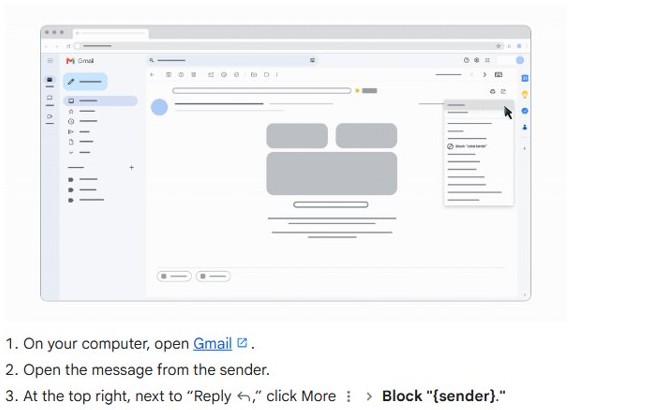
How to block emails on Gmail web
Blocking works per email address. You need one message from the sender open in front of you, and the block applies to every email they send after that.
- Open mail.google.com on your computer and sign in.
- Open a message from the sender you want to block.
- At the top right of the message, next to Reply, click More (the three-dot icon).
- Click Block "sender name".
- Confirm the block if Gmail asks.
Gmail sends all future emails from that address to Spam. Messages already in your inbox stay where they are, so delete or archive them yourself.
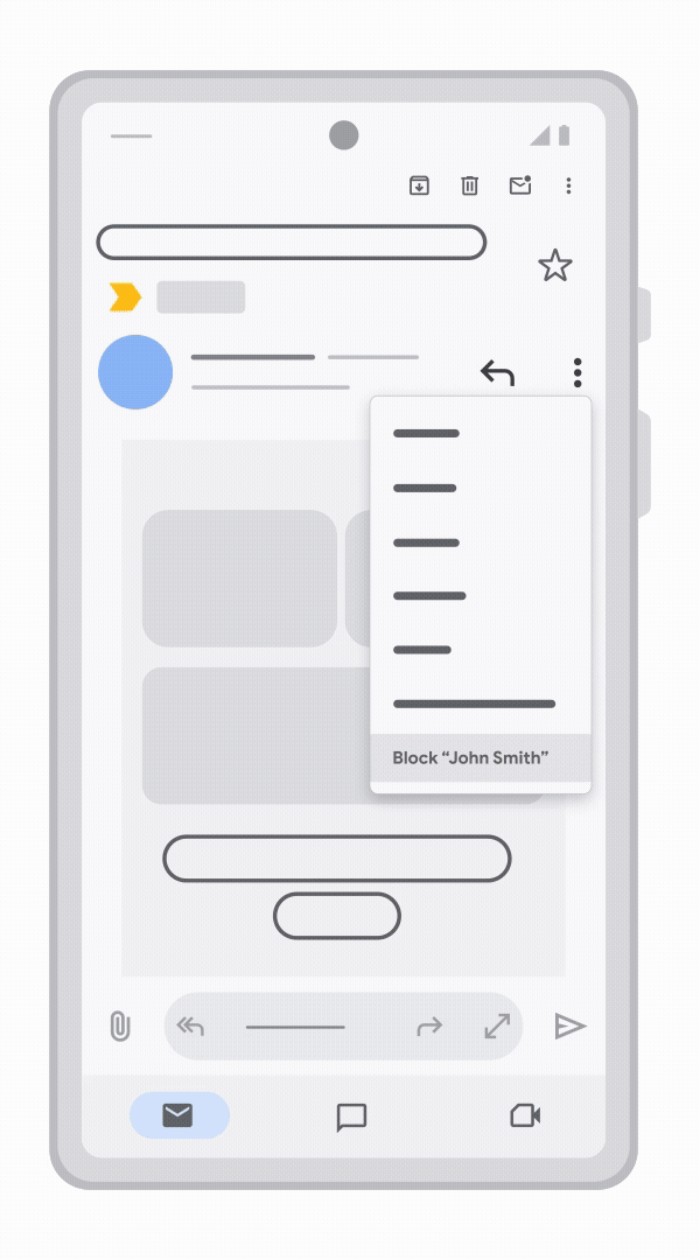
How to block emails on Gmail on mobile
The Gmail app on Android and on iPhone and iPad uses the same menu as the website. The block syncs to your account, so it applies on every device you use.
| Device | Steps to block a sender | Extra detail |
|---|---|---|
| Android phone or tablet | Open the Gmail app, open the message, tap More next to Reply, then tap Block "sender" | If the message is gone, tap Menu then Spam to find it |
| iPhone or iPad | Open the Gmail app, open the message, tap More next to Reply, tap Block "sender" and confirm | The app asks you to confirm before it blocks |
| Any phone browser | Open the full Gmail site and follow the web steps above | The block applies to the whole Google Account |
If you read Gmail in another email app, block the sender in the Gmail app or on the Gmail website, because the block is a Gmail account setting.
Gmail block vs unsubscribe vs filter
Gmail has three tools for unwanted mail, and each one fits a different kind of sender.
| Unwanted email | Use this | What happens |
|---|---|---|
| A person or address that keeps writing to you | Block | All future emails from that address go to Spam |
| A newsletter or store you signed up for | Unsubscribe | The sender is asked to remove you from the list |
| Many addresses from one company or domain | Filter | Matching mail is deleted, archived or labelled automatically |
| Junk you never asked for | Report spam | The message moves to Spam and trains Gmail's spam detection |
| A message that asks for passwords or bank details | Report phishing | Google is warned about the scam |
Google recommends unsubscribing rather than blocking for promotional emails and newsletters you no longer want.
How to unblock an email sender
You can unblock a sender from one of their messages or from Gmail settings when you no longer have any message from them.
- To unblock from a message, open Gmail, open an email from the sender (check Spam if it is not in the inbox).
- Click or tap More next to Reply, then select Unblock "sender".
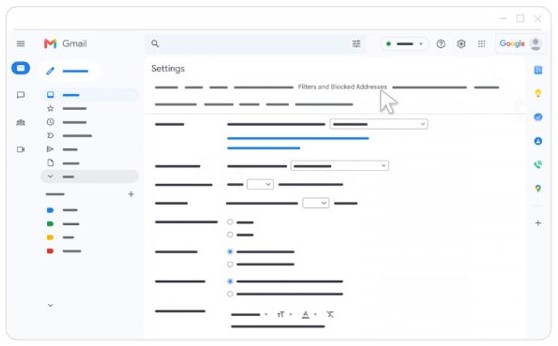
- To unblock without a message, open Gmail on a computer and click Settings (the gear icon) at the top right.
- Click See all settings, then open the Filters and Blocked Addresses tab.
- Tick the box next to each sender you want to allow again.
- Click Unblock selected addresses.
After you unblock someone, their future emails go to your inbox again. Messages they sent while blocked stay in Spam until you move them.
How to see blocked senders in Gmail
Gmail keeps every blocked address in one list in the web settings, so you need to sign in to Gmail on a computer to see it. The Gmail app does not show this list.
- Open mail.google.com on a computer.
- Click Settings at the top right, then click See all settings.
- Click the Filters and Blocked Addresses tab at the top.
- Scroll past your filters to the list of blocked addresses.
The same tab lists every filter you have created, so it is the place to check when mail you expect keeps disappearing.
How to block a domain in Gmail
The Block option covers one address at a time. To stop every address at a company or domain, create a filter that deletes or archives matching mail. Filters are created in Gmail on a computer.
- Open Gmail on your computer.
- In the search box at the top, click Show search options.
- In From, type the domain, for example
example.com, or one full address. - Click Search to check that only the mail you want to stop is listed.
- Click Create filter at the bottom of the search window.
- Choose the action, such as deleting the messages or skipping the inbox.
- Click Create filter again to save it.
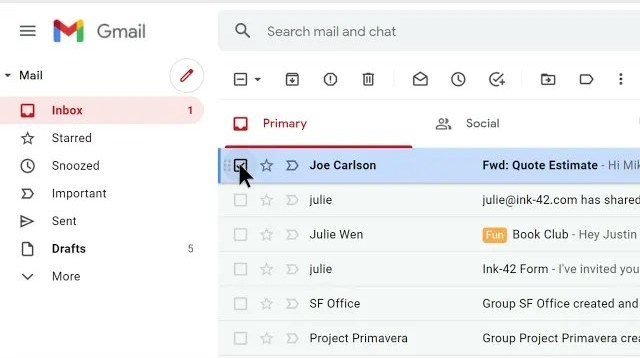
To start from a message instead, tick its checkbox, click More and choose Filter messages like these. If you deleted every email from a sender, look for their address in a reply you sent when you check your sent emails.
A filter acts on new mail only. Edit or delete it later under Settings > See all settings > Filters and Blocked Addresses.
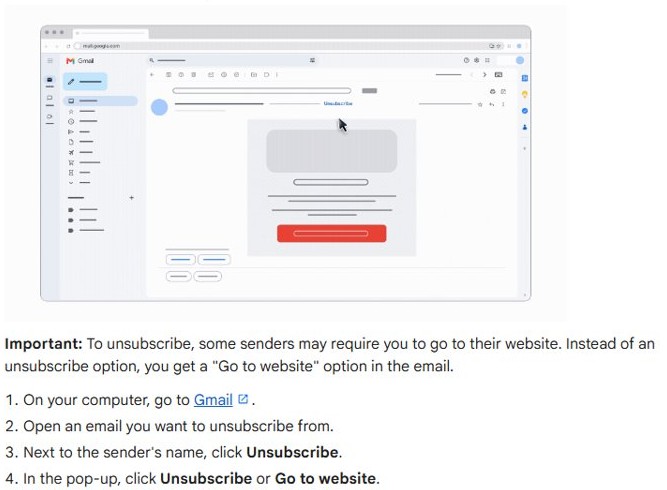
How to unsubscribe on Gmail on the web
Mailing lists are better handled with Unsubscribe than with a block, because the sender stops mailing you instead of Gmail hiding the mail.
- Go to mail.google.com and open the email from the list.
- Next to the sender's name, click Unsubscribe.
- In the pop-up, click Unsubscribe, or Go to website if the sender handles it on its own site.
- Finish the steps on the sender's page if Gmail sent you there.
Emails can keep arriving for a few days after you unsubscribe. Unsubscribing from one email may only remove you from one of the sender's lists.
How to unsubscribe on the Gmail app
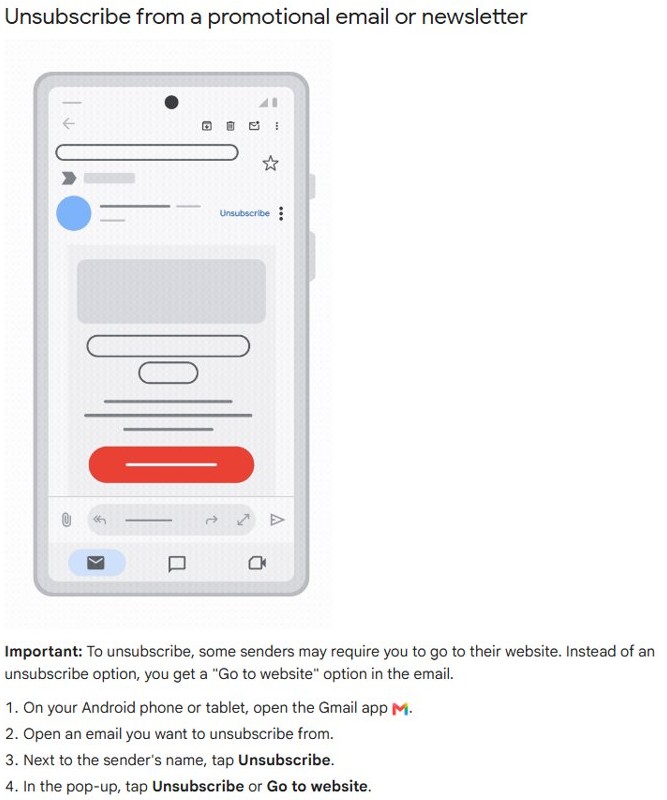
The Gmail app on Android, iPhone and iPad puts the same Unsubscribe link next to the sender's name.
- Open the Gmail app.
- Open the email you no longer want to receive.
- Tap Unsubscribe next to the sender's name.
- In the pop-up, tap Unsubscribe, or Go to website if that is the only choice.
- On iPhone or iPad, turn on suggestions for lists you rarely open: tap Menu > Settings > Inbox customizations > Inbox tips, then turn on Unsubscribe tips.
How to manage subscriptions in Gmail
Manage subscriptions lists the senders you are subscribed to, with the number of recent emails from each, so you can clear several lists in one place. Google is rolling it out gradually, so it may not be in your account yet.
- On a computer, open Gmail, click More in the left menu, then click Manage subscriptions.
- In the Gmail app, tap Menu at the top left, then tap Manage subscriptions.
- Find the sender and select Unsubscribe on the right of its entry.
- If a pop-up appears, choose Go to website to unsubscribe on the sender's site, or Block instead to block the sender.
- Select a sender's name or picture to see every email they sent you.
After you unsubscribe here, new emails from that sender go to Spam with a banner that explains why. Click Report not spam to move one back.
How to report spam and phishing emails in Gmail
Reporting does more than blocking: it moves the message to Spam and helps Gmail catch similar mail. Google receives a copy of any email you report.
| To do this | On a computer |
|---|---|
| Report spam | Select one or more emails, then click Report spam at the top |
| Report phishing | Open the message, click More next to Reply, then click Report phishing |
| Undo a spam report | Open More > Spam, tick the email, then click Not spam |
| Undo a phishing report | Open the message, click More, then click Report not phishing |
| Empty Spam | Open More > Spam, then click Delete all spam messages now |
Report phishing for any email that asks for a password, bank details or a code, and never reply to it with personal information.
What happens when you block someone on Gmail
| Question | Answer |
|---|---|
| Where do their new emails go? | Straight to Spam, not the inbox |
| Are old messages removed? | No. Messages already in your inbox stay until you delete or archive them |
| Does Not spam undo the block? | No. Gmail still marks a blocked sender's mail as spam until you unblock them |
| Does it work on every device? | Yes. The block belongs to the Google Account, not to one app |
| Does it stop harassment? | It hides the mail. Threats or harassment break Gmail's Program Policies; contact local authorities if you feel unsafe |
Blocked emails still showing up in Gmail
The sender still reaches your inbox after you blocked them
The block covers one exact address, and many senders mail from several addresses.
- Open the new message and check the full sender address.
- Block that address too, or create a filter on the sender's domain.
- For junk from rotating addresses, use Report spam so Gmail learns the pattern.
You cannot find a message from the sender you want to unblock
Mail from blocked senders goes to Spam, or the messages were deleted.
- Open Spam from the left menu on the web, or tap Menu > Spam in the app.
- If nothing is there, open Settings > See all settings > Filters and Blocked Addresses and unblock from the list.
Emails from an unblocked sender still land in Spam
Messages sent while they were blocked stay in Spam, and Gmail's spam filter can still flag new ones.
- Open Spam, tick the email and click Not spam.
- Add the sender to Google Contacts so Gmail stops sending their mail to Spam.
- Create a filter for the address and choose the option that keeps it out of Spam.
There is no Unsubscribe button on an email
Some senders only let you unsubscribe on their own website.
- Look for Go to website next to the sender's name and follow it.
- Use the unsubscribe link in the email footer if Gmail shows neither option.
- If the email is junk you never signed up for, click Report spam instead.
Manage subscriptions is missing from the menu
Google is still rolling the feature out to accounts.
- Check under More in the left menu on the web, where it sits below the main folders.
- Until it appears, unsubscribe from each email with the link next to the sender's name.
Gmail block sender FAQ
Can you block emails on Gmail without opening them?
Not with the Block option, which needs an open message. Instead, create a filter from the search box on a computer: click Show search options, enter the address in From, click Create filter, and choose to delete the matching mail.
Where do blocked emails go in Gmail?
Emails from a blocked address go to your Spam folder instead of the inbox. You can still open them there. To see or empty that folder on a computer, click More in the left menu and then Spam.
Can you block a whole domain in Gmail?
Not with the Block button, which works on one address. To stop a whole domain, create a filter on a computer with the domain, such as example.com, in the From field and choose to delete or archive the matching messages.
How do I see my blocked list in Gmail?
Open Gmail on a computer, click Settings, then See all settings, and open the Filters and Blocked Addresses tab. Every blocked address appears there, and you can tick any of them and click Unblock selected addresses.
Is unsubscribing better than blocking in Gmail?
For newsletters and promotional email you signed up for, yes. Unsubscribing asks the sender to stop mailing you, while blocking only moves their mail to Spam. Use Block for people or addresses that ignore unsubscribe requests or send mail you never wanted.
Does blocking in Gmail work on my phone too?
Yes. The block is saved to your Google Account, so a sender blocked on the website is also blocked in the Gmail app on Android, iPhone and iPad. Blocking in Gmail does not block that person's calls or texts; on an iPhone you block a phone number separately.
Why do emails from a sender I unblocked still go to Spam?
Messages sent while the sender was blocked stay in Spam. Move them with Not spam, then add the sender to Google Contacts or create a filter so Gmail keeps their future mail out of Spam.