When an iPhone screen goes black after water damage but the phone still rings, charges and gets texts, unplug it, let it dry for at least five hours, force restart it, and if the display stays dark, get your data off through iCloud or VoiceOver before sending it for service.
This guide covers how to dry the phone safely, how to rule out a hidden screen setting, four ways to save your data without a working display, and what Apple's warranty says about liquid damage.
What to do when your phone screen went black after water damage
Speed matters less than avoiding the moves that make liquid damage worse. Do these in order.
- Unplug every cable and accessory from the iPhone.
- Wipe the outside with a soft, lint-free cloth, such as a lens cloth.
- Tap the iPhone gently against your hand with the charging port facing down.
- Leave it in a dry spot with airflow; a fan blowing cool air into the port can help.
- Wait at least five hours before you charge it with a cable or connect an accessory.
- Force restart the iPhone and see whether the display comes back.
- If the screen stays black, back up or copy your data with the methods below, then book a repair.
If the phone shows no sign of life at all, you can fix an iPhone black screen with the charging and recovery mode steps.
Can water damage cause black screen?
Yes. Liquid can stop the display working while the rest of the phone keeps running, which is why calls and alerts still come through. Apple notes that water resistance is not permanent and can drop with normal wear.
| What you notice | What it usually means | Where to go next |
|---|---|---|
| Black screen, phone rings and vibrates | The iPhone is on but the display shows nothing | Screen curtain check, then save your data |
| Black screen, nothing responds | The phone may be off or frozen | Force restart, then charge for an hour |
| Screen lights up but ignores touch | Water on the glass or a damaged touch layer | Dry the screen, then restart |
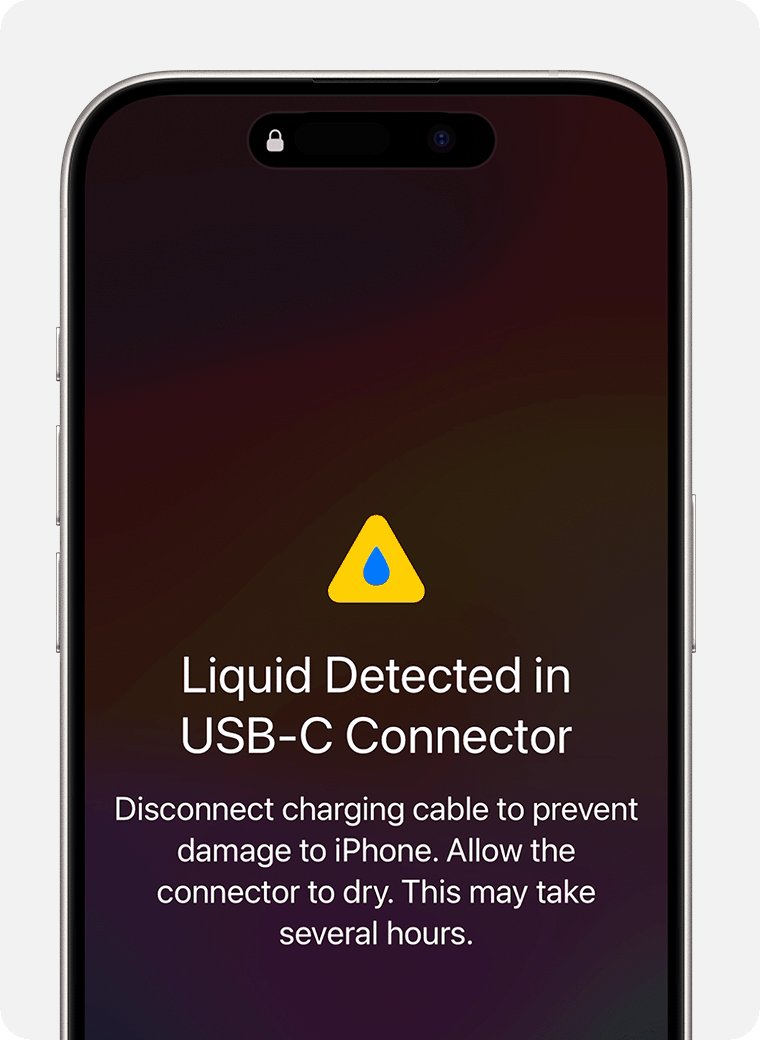
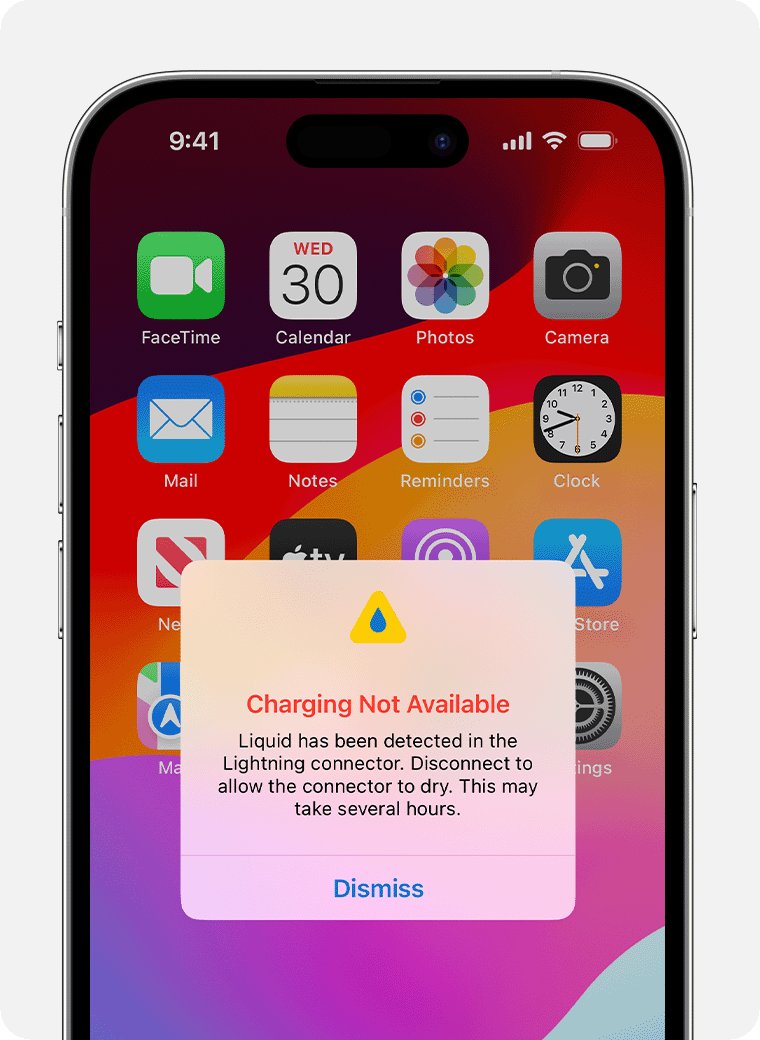
| Liquid-detection alert when you plug in | Liquid is still in the charging port | Unplug and keep drying |
| Lines, colour tint or flicker | The display is damaged | Apple service |
How to remove water damage from phone
No home method reverses liquid damage. What you can do is get the liquid out without pushing it further in or adding heat.
- If the liquid was not plain water, such as a drink or sea water, rinse the iPhone briefly with tap water first.
- Wipe the iPhone dry with a soft, lint-free cloth.
- Tap it gently against your hand with the port facing down.
- Set it down in a dry, ventilated area, with a fan blowing cool air into the port if you have one.
- Wait until the phone is completely dry before you open the SIM tray.
- Charge only once it is dry; with a cable, wait at least five hours.
Apple says not to use a hair dryer or other heat source, compressed air, or a cotton swab or paper towel pushed into the port. It also says not to put the iPhone in a bag of rice, because grains can get inside.
How to remove water from phone screen
Water sitting on the glass can make the touchscreen ignore taps or react on its own. Clear the surface before you judge whether the display is damaged.
- Take off the case and any screen protector.
- Wipe the screen with a soft, lint-free cloth until no water remains.
- Disconnect any Lightning or USB-C accessory.
- Restart the iPhone.
- Test the touchscreen again once the phone is fully dry.
How to force restart iPhone with a black screen
A force restart clears a frozen display without touching your data. The button order depends on the model.
| Your iPhone | Force restart buttons |
|---|---|
| iPhone with Face ID, iPhone 8 and later, iPhone SE (2nd generation and later) | Press and release volume up, press and release volume down, then hold the side button until the Apple logo appears |
| iPhone 7 and iPhone 7 Plus | Hold the side button and volume down together until the Apple logo appears |
| iPhone 6s and earlier | Hold the Home button and the side or top button together until the Apple logo appears |
The Apple logo can take longer than 10 seconds to appear. If the phone does not turn on, charge it for one hour once it is dry and try again, and if the buttons seem to do nothing, work through the fixes for a force restart that is not working.
Turn off screen curtain on an iPhone with a black screen
Screen curtain is a VoiceOver feature that blanks the display while the phone keeps working. Apple describes the screen contents as active even though the display looks off, which matches a phone that rings with a black screen.
- Listen for VoiceOver speaking when you touch the screen.
- If it speaks, tap the screen three times quickly with three fingers.
- If Zoom is also on, tap four times with three fingers instead.
- Check whether the picture comes back.
If VoiceOver says nothing and the picture does not return, the display itself is the problem.
How to get data off a water damaged iPhone with a black screen
Pick the route that matches what was set up before the phone got wet. Data from iCloud features, such as iCloud Photos, already lives in iCloud and does not depend on the damaged phone.
| Your situation | Use this | Why |
|---|---|---|
| iCloud Backup was already on | Let it back up while locked, charging and on Wi-Fi | Runs without touching the screen |
| You have a replacement iPhone | Restore it from the iCloud backup | Moves apps, settings and data in one pass |
| You only need photos, notes or contacts | Sign in at iCloud.com | Shows data from iCloud features on any computer |
| No iCloud backup exists | Turn on VoiceOver with Siri and back up to a computer | VoiceOver reads the prompts you cannot see |
How to back up an iPhone with a black screen to iCloud
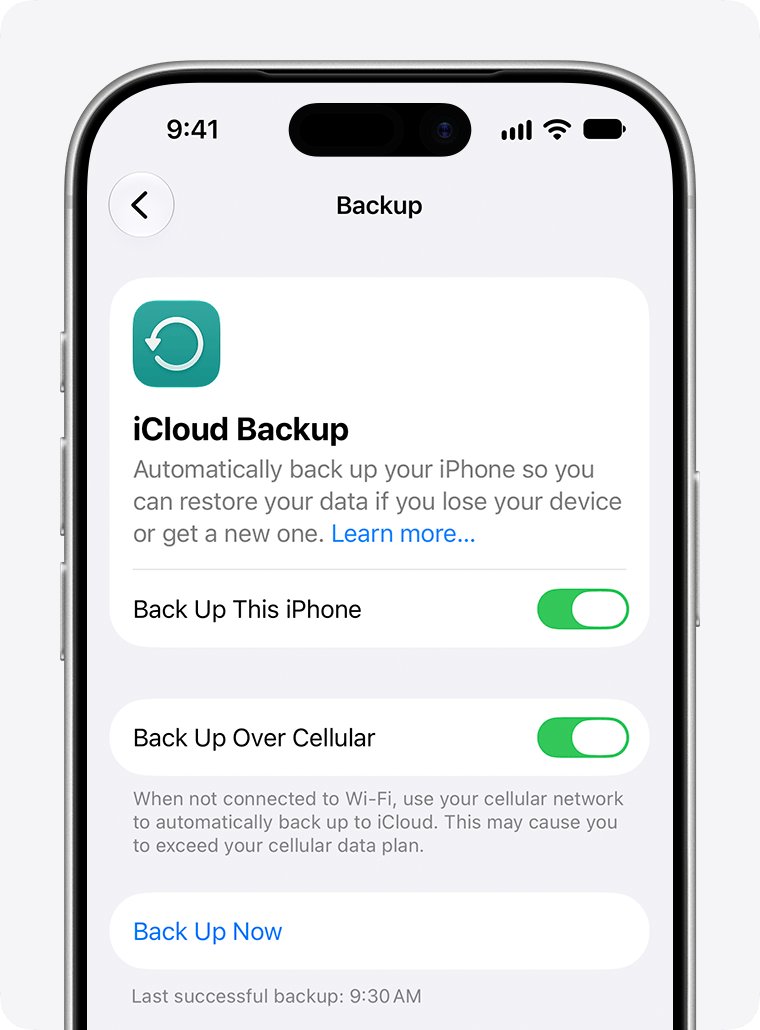
An iPhone backs up to iCloud by itself when it is on, locked and connected to power and Wi-Fi. If iCloud Backup was on before the water damage, you only need to meet those conditions.
- Wait until the iPhone is completely dry.
- Press the side button once so the phone locks.
- Connect it to power on a Wi-Fi network it already knows.
- Leave it overnight.
- On another Apple device, open Settings > your name > iCloud > iCloud Backup to see which devices back up.
- On a Mac, choose Apple menu > System Settings > your name > iCloud > Manage > Backups.
The backup date shows when you restore, next to each backup on the list.
Use VoiceOver to operate an iPhone with a black screen
VoiceOver speaks the name of whatever is under your finger, so you can use an iPhone without seeing the screen. It also changes the gestures, so learn the basics before you start.
- Ask Siri to "Turn on VoiceOver".
- Drag a finger across the screen and listen to what VoiceOver names.
- Swipe right to move to the next item and swipe left to go back.
- Double-tap anywhere to activate the item VoiceOver last spoke.
- Enter your passcode by selecting each number and double-tapping it.
- Ask Siri to "Turn off VoiceOver" when you finish.
A two-finger swipe up reads the whole screen from the top, which helps you find buttons such as Trust on a prompt.
Back up a black screen iPhone to a computer
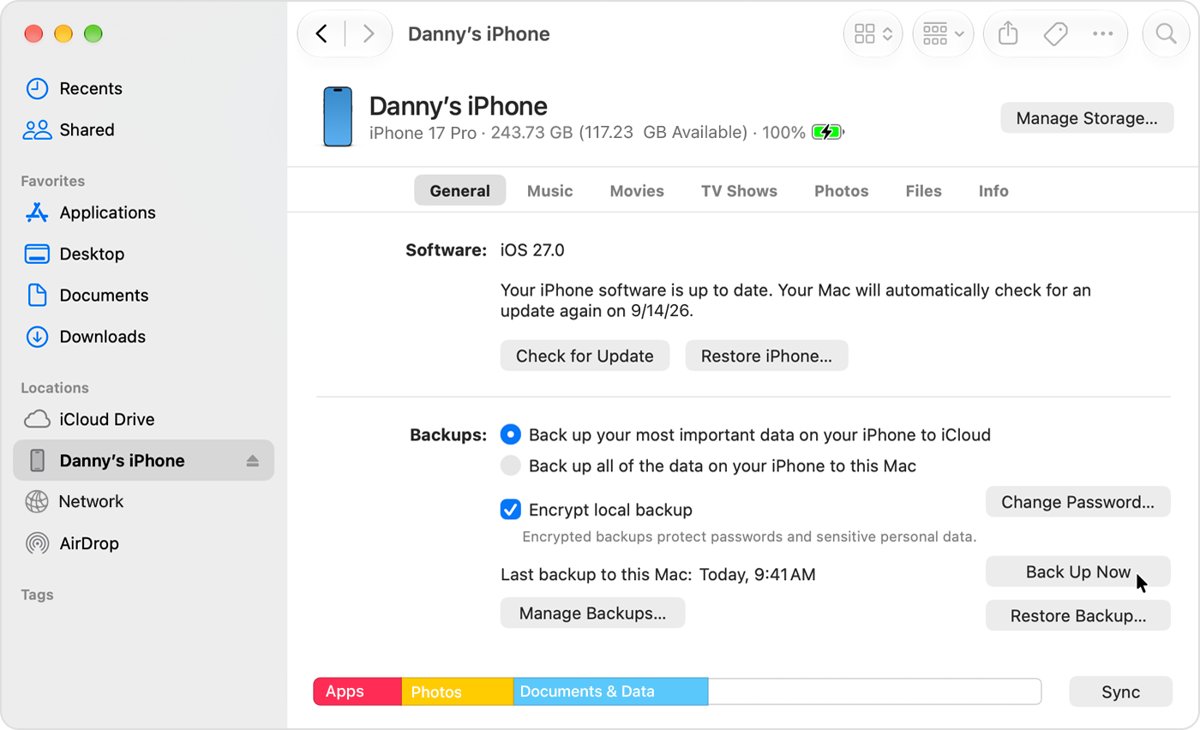
A computer backup asks you to allow the connection, trust the computer and enter the passcode on the iPhone. With VoiceOver on, you can answer those prompts by sound.
- Connect the dry iPhone to a Mac or Windows PC with a cable.
- Open Finder on a Mac, or the Apple Devices app on Windows.
- Select the iPhone in the sidebar.
- Use VoiceOver to find Trust on the iPhone, double-tap it, then enter your passcode.
- Turn on encrypted backup if you want Health and Activity data, and keep the password safe.
- Click Back Up Now and wait for it to finish.
Apple warns that an encrypted backup cannot be recovered without its password.
Restore a new iPhone from an iCloud backup
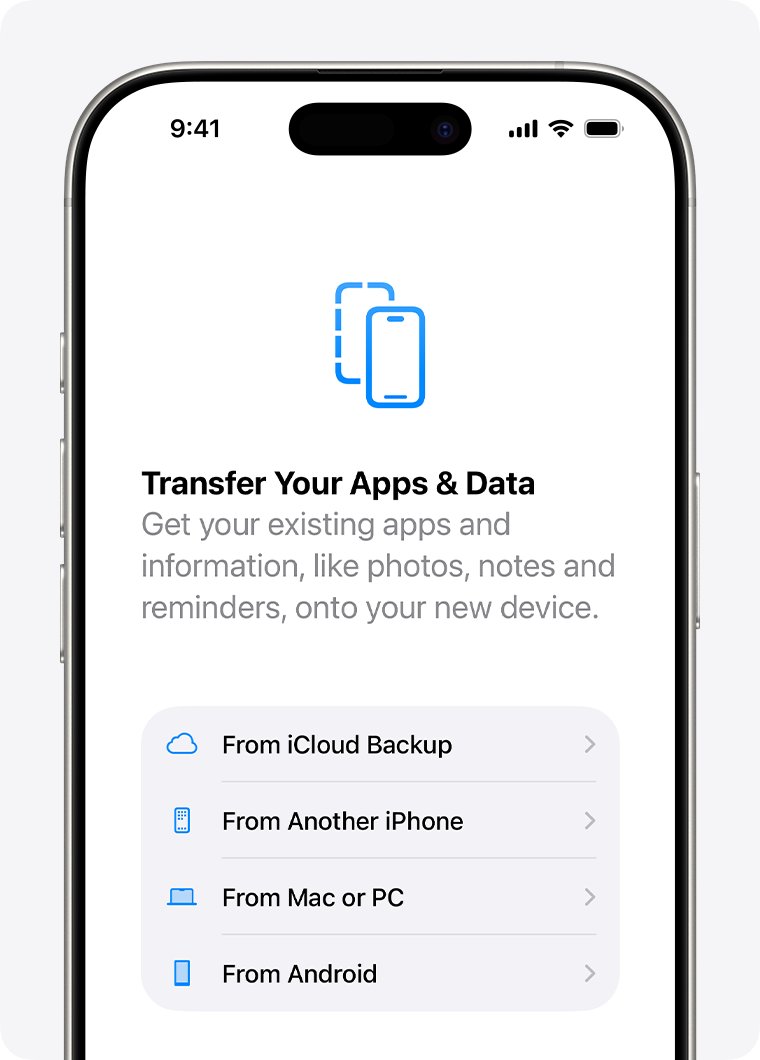
- Turn on the replacement iPhone and follow setup to the Transfer Your Apps & Data screen.
- Tap From iCloud Backup.
- Sign in with the same Apple Account.
- Choose the most recent backup by date and size.
- Sign in again when asked to restore apps and purchases.
- Keep the iPhone on Wi-Fi and power until the progress bar finishes.
Get photos and notes from a water damaged iPhone on iCloud.com
iCloud.com gives a browser view of data stored by iCloud features, including Photos, Notes, Contacts, Calendar, Reminders, Mail and iCloud Drive.
- On a computer, go to iCloud.com.
- Sign in with your Apple Account email or phone number and password.
- Enter the verification code sent to a trusted device or phone number.
- Open Photos, Notes or Contacts from the home page.
- Download the items you need to the computer.
If the damaged iPhone is your only trusted device, you can still sign in to iCloud without your phone by getting the code on a trusted phone number.
With Advanced Data Protection on, iCloud.com shows only Find Devices and iCloud Settings unless Access iCloud Data on the Web was turned on.
Phone screen not working after water damage
Phone screen unresponsive after water damage
Water on the glass, an accessory or a screen protector can stop touch from registering.
- Dry the screen and remove the case and screen protector.
- Unplug any Lightning or USB-C accessory.
- Restart the iPhone.
- If touch still fails, set up service.
Liquid-detection alert when charging
iPhone XS, XR and later detect liquid in the port when a cable is connected.
- Unplug the cable from the iPhone.
- Tap the phone against your hand, port facing down, and leave it somewhere ventilated.
- Wait at least 30 minutes, then plug in again.
- If the alert returns, allow up to 24 hours to dry.
- Use Emergency Override only if you must charge, since charging while wet can cause corrosion.
Phone screen turned green or shows lines after water damage
Discoloured or striped output means the display hardware is affected.
- Back up the iPhone while the phone still works.
- Book a repair with Apple or an Apple Authorized Service Provider.
iPhone fell in water and screen is black and silent
The phone may be off or frozen rather than only the display failing.
- Wait until it is dry, then force restart it.
- Charge it for one hour and try again.
- If it still will not turn on, it needs service.
Does Apple warranty cover water damage on iPhone?
Save your data first, then get a repair estimate from Apple, because liquid damage is not covered by the standard warranty. Apple states that liquid damage is not covered under warranty, though consumer law may give you other rights. The one-year limited warranty also excludes accidental damage, and Apple shows repair estimates per model.
If the glass also cracked, compare the ways to fix a cracked phone screen before you book.
Water damaged phone screen FAQ
Can water damage cause a black screen?
Yes. Liquid can stop the display working while the iPhone keeps running, so it still rings, vibrates and receives texts. Dry it, force restart it, and if the screen stays black, save your data and book a repair.
Can water damage a phone screen?
Yes. Water resistance on iPhone is not permanent and drops with normal wear, so liquid can reach the display. Signs include a black screen, lines, a colour tint, or a touchscreen that stops responding.
How do you fix a water damaged phone screen?
A damaged display needs a repair. At home, you can dry the phone, remove the case and screen protector, restart it, and rule out screen curtain. If the picture or touch does not come back, Apple service is the fix.
How do you remove water damage from a phone?
You cannot reverse it, but you can limit it. Unplug the phone, wipe it, tap it with the port facing down, and dry it in moving air. Do not use heat, compressed air, rice, or anything pushed into the port.
How do you remove water from a phone screen?
Wipe the glass with a soft, lint-free cloth, take off the case and screen protector, and restart the phone. Apple's touchscreen steps start with making sure the screen is clean and free of water.
Does putting a wet iPhone in rice work?
Apple says not to do it. Small grains of rice can get inside the iPhone and damage it. Leave the phone in a dry, ventilated area instead, with a fan blowing cool air into the port if possible.
How long should a wet iPhone dry before charging?
Wait at least five hours before charging with a cable or connecting an accessory. If a liquid-detection alert appears, unplug and allow up to 24 hours for the port to dry fully.
Can you back up an iPhone with a black screen?
Yes. If iCloud Backup is on, the iPhone backs up when it is locked, charging and on Wi-Fi. Without that, ask Siri to turn on VoiceOver and use it to trust a computer for a Finder or Apple Devices backup.
Each model has its own depth rating; the iPhone 11, for example, is rated IP68 to 2 metres for 30 minutes.