When a Hotmail account will not sync with an iPhone 16 Plus, delete it in Settings > Apps > Mail > Mail Accounts and add it back with the Outlook.com option, which signs in with Microsoft's Modern Authentication.
This guide covers that fix, the Mail fetch and Low Power Mode settings that pause syncing, the password and server errors Microsoft documents, and where missing Hotmail messages usually go.
Fix Hotmail account not syncing on iPhone 16 Plus
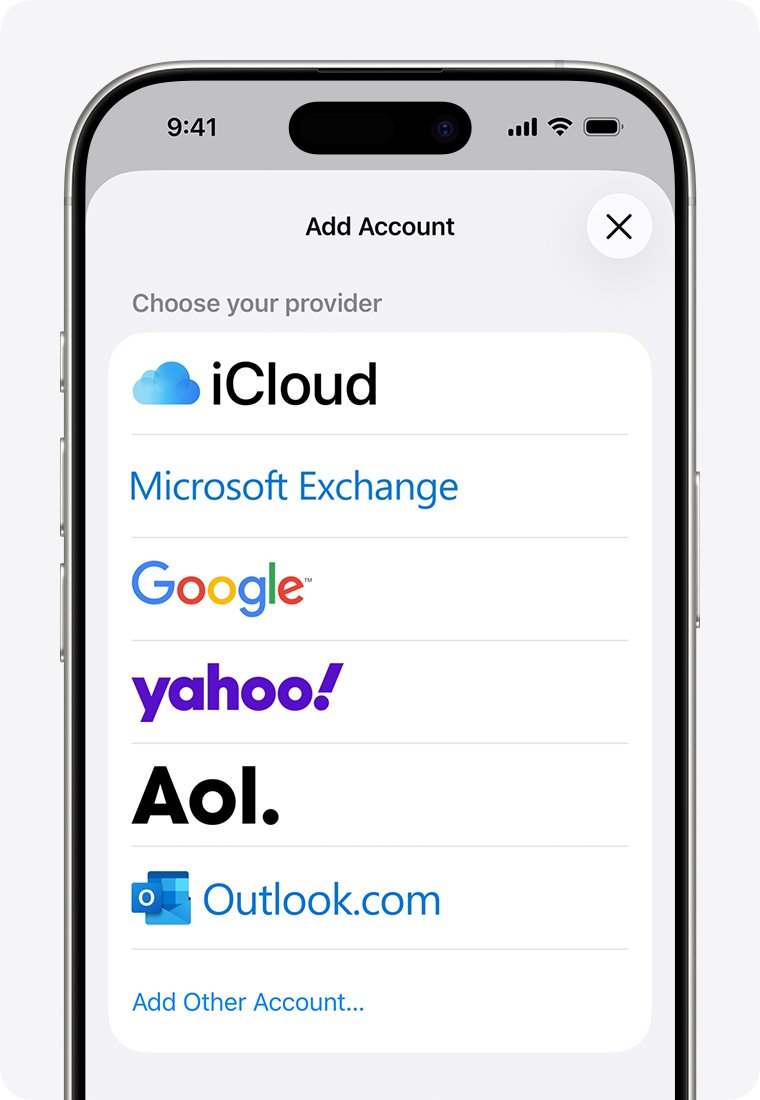
Microsoft says Apple Mail supports Modern Authentication by default only when the account is set up as Outlook.com. An account carried over from an older iPhone can keep a setup that no longer connects, so rebuilding it is the first fix.
- Sign in at outlook.com in a browser and confirm your mail is there, so nothing depends on the copy on the iPhone.
- On the iPhone, open Settings, tap Apps, then tap Mail.
- Tap Mail Accounts, tap the Hotmail account, then tap Delete Account.
- Go back to Mail Accounts and tap Add Account.
- Choose Outlook.com, enter your Hotmail address and password, and tap Sign in.
- Approve the two-step verification request if your account uses it.
- Answer Yes to Let this app access your info?, keep Mail turned on, and tap Save.
Open Mail and give the inbox a few minutes to download. Deleting the account removes only the iPhone's copy; your messages stay on Microsoft's servers.
Why is my Hotmail account not syncing?
Microsoft ended Basic Authentication for every Outlook.com and Hotmail account on September 16, 2024. Mail apps that still send a saved password fail to connect, which shows up as password prompts or mail that stops arriving.
| What you see on the iPhone | Likely cause | Fix |
|---|---|---|
| No Hotmail mail downloads at all | The account uses an old sign-in setup | Delete the account and add it back as Outlook.com |
| "Account not authenticated" in the account settings | Microsoft needs you to sign in again | Re-enter the Hotmail password in Mail settings |
| Mail arrives only when the phone charges on Wi-Fi | Fetch New Data is set to Automatically | Turn on Push or pick a timed schedule |
| Sync stops when the battery is low | Low Power Mode turns off email fetch | Turn off Low Power Mode |
| Messages appear, then vanish | A rule, Focused Inbox, Junk or Deleted Items moved them | Check those folders at outlook.com |
Microsoft's move to Modern Authentication also changed how Apple Mail connects to Hotmail on Mac and for manual IMAP setups.
How to sync my Hotmail account on iPhone with fetch new data settings
Fetch New Data, one of the push and fetch settings in iPhone Mail, decides when Mail checks the Hotmail server. With the default Automatically setting, the iPhone fetches new data in the background only while it is charging and on Wi-Fi.
- Open Settings and tap Apps.
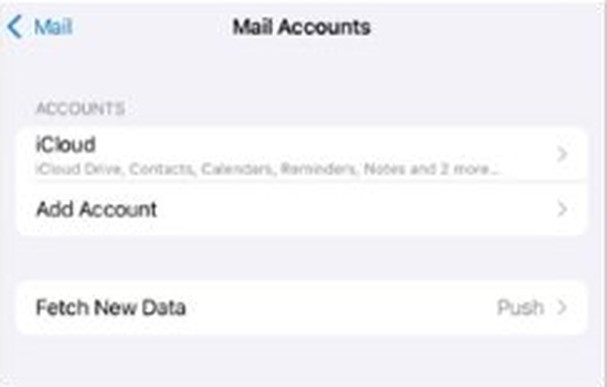
- Tap Mail, then tap Mail Accounts.
- Tap Fetch New Data.
- If Push is listed, turn it on so new Hotmail mail arrives as it lands.
- Under Fetch, choose a timed schedule instead of Automatically to check more often away from a charger.
If mail now arrives but you never hear it, open Settings > Notifications > Mail and set Alerts, Sounds and Badges. A Focus can also silence alerts, so turn off Do Not Disturb if it is on.
Re-enter the Hotmail password on iPhone Mail
Microsoft documents an authentication issue that makes the iOS Mail app ask Hotmail users to sign in again. The fix is entering the current password in the account settings.
- Open Settings > Apps > Mail.
- Tap Mail Accounts, then tap the Hotmail account.
- Tap Account Settings, or tap the Password field directly, depending on the iOS version.
- Type the correct Microsoft account password.
- Tap Done.
- Open Mail and check that new messages download and that you can send one.
If Microsoft says the password is incorrect or you tried too many times, recover the Microsoft account at outlook.com first, then come back to these steps.
Clear Safari history and restart iPhone when Hotmail still won't sync
When delete-and-re-add does not fix the sync, Microsoft's next step is clearing Safari's stored website data before signing in again. The Outlook.com sign-in runs through a web page, so old data there can break it.
- Delete the Hotmail account again from Settings > Apps > Mail > Mail Accounts.
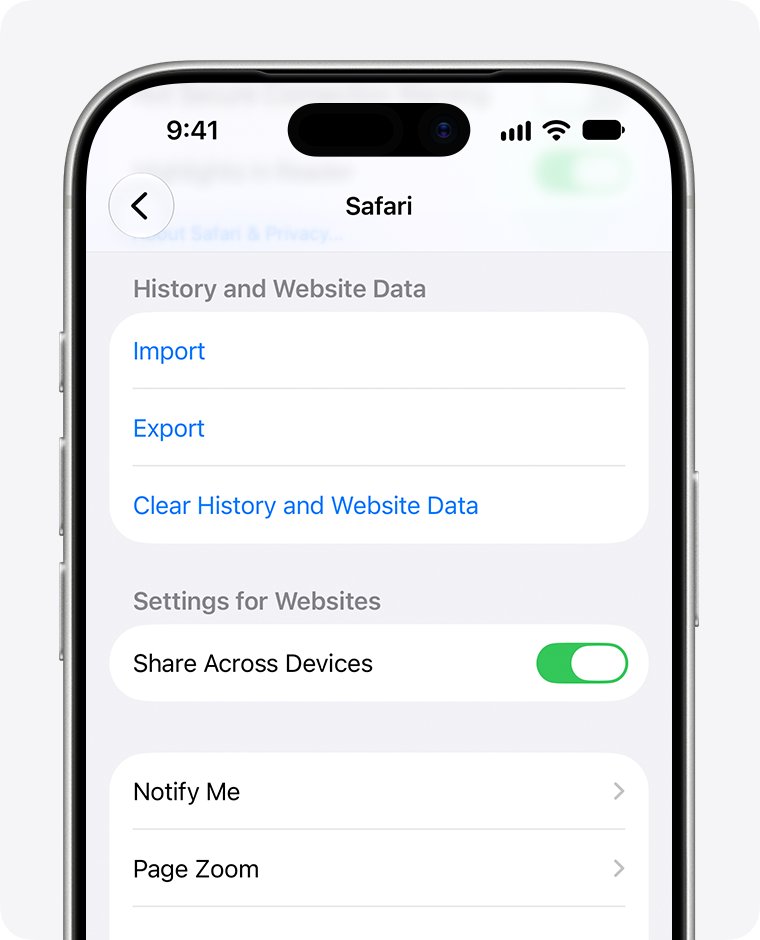
- Open Settings > Apps > Safari.
- Tap Clear History and Website Data and confirm.
- Restart the iPhone.
- Add the account back with Add Account > Outlook.com and finish the Microsoft sign-in.
Clearing Safari history also signs you out of websites in Safari, so keep your other passwords handy.
Turn off Low Power Mode so Hotmail fetches email
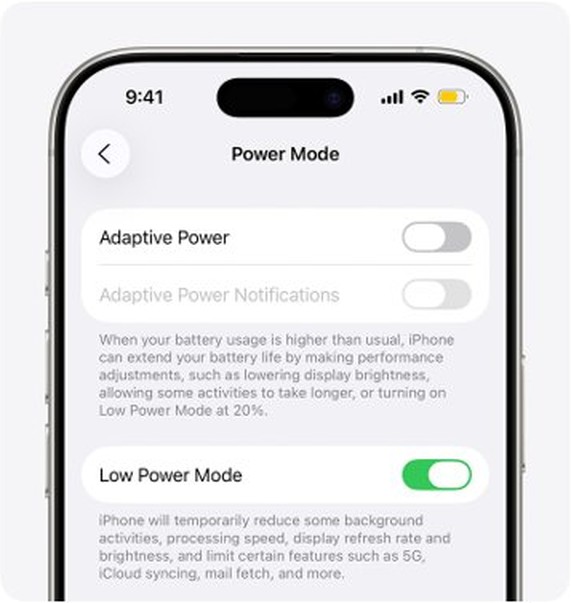
Apple lists email fetch among the features Low Power Mode turns off. A yellow battery icon in the status bar means it is on and Hotmail will not check for mail on its own.
- Open Settings and tap Battery.
- On iPhone 16 Plus and other iPhone 15 and later models, tap Power Mode.
- Turn Low Power Mode off.
- Or swipe down from the top-right corner and tap the battery icon in Control Center.
- Open Mail and pull down on the inbox to check for new messages.
Low Power Mode turns itself off once the iPhone charges to 80% or higher. With Adaptive Power on, it can turn back on below 20%.
Sync Hotmail on iPhone with the Outlook app
Microsoft recommends its free Outlook for iOS app when another mail app keeps failing. It connects with Modern Authentication from the first sign-in.
- Install Microsoft Outlook from the App Store and open it; tap Get Started the first time.
- Tap Inbox at the top, then tap Settings > Accounts > Add Account > Email Account.
- Enter your Hotmail address and tap Add Account.
- Enter your password and tap Sign in, approving two-step verification if asked.
- Answer Yes to Let this app access your info?.
- Tap Maybe Later if you have no other account to add.
Outlook for iOS also has the Other tab of Focused Inbox, so messages Microsoft sorted out of the main inbox are one tap away.
How to tell Hotmail is syncing on iPhone 16 Plus
- Send a test message to your Hotmail address from another account.
- Open Mail on the iPhone and tap Mailboxes, then open the Hotmail account's own Inbox, not only All Inboxes.
- Confirm the test message arrives within your fetch interval, or at once with Push.
- Delete or move the message on the iPhone, then check outlook.com in a browser shows the same change.
- Reply to the test message from the iPhone and confirm it lands in Sent Items at outlook.com.
A change that shows up in both places means the account is syncing both ways, not just downloading.
Hotmail account not auto syncing on iPhone
"Cannot Get Mail – The connection to the server failed"
Microsoft lists this as part of the authentication issue that needs a fresh sign-in.
- Check that the iPhone is online and that outlook.com loads in Safari.
- Re-enter the password under Settings > Apps > Mail > Mail Accounts > the Hotmail account.
- If the error stays, delete the account and add it back as Outlook.com.
"Please enter the password for the Outlook account" keeps appearing
The account was set up with Basic Authentication, which Microsoft no longer accepts.
- Delete the Hotmail account from Mail Accounts.
- Clear Safari history and website data, then restart the iPhone.
- Add the account with the Outlook.com option and sign in through Microsoft's page.
Hotmail emails disappeared from iPhone
Junk Email, the Other tab, Deleted Items, Archive, a filter or a Sweep rule moved them on Microsoft's side.
- Sign in at outlook.com on a computer and check Junk Email, the Other tab and Archive.
- Open Deleted Items and select Recover items deleted from this folder for mail removed in the last 30 days.
- Check the Filter menu above the message list is set to All.
- Open Rules settings and edit or delete any rule or Sweep rule moving your mail.
- Review the Recent activity page for sign-ins you do not recognize.
"Account already exists" when adding Hotmail back
The old copy of the account is still on the iPhone.
- Open Settings > Apps > Mail > Mail Accounts.
- Delete every entry that uses the Hotmail address.
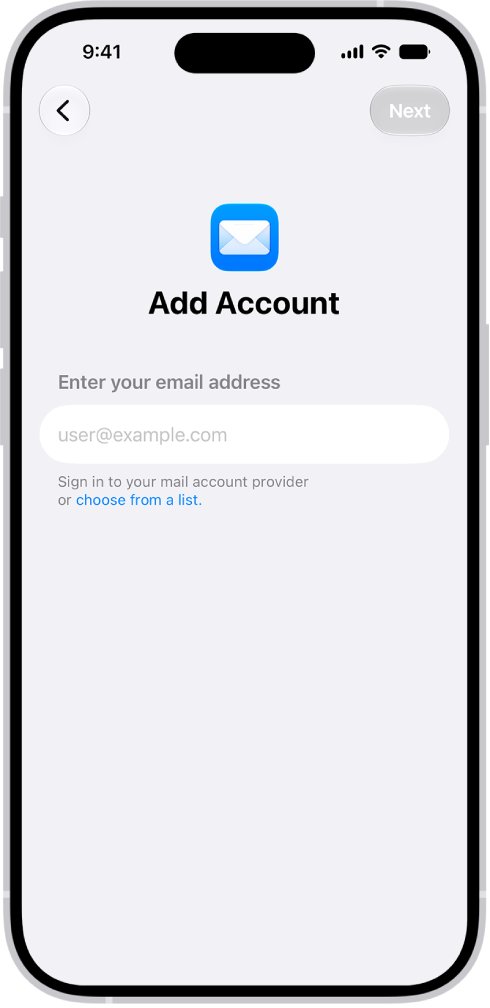
- Tap Add Account > Outlook.com and sign in again.
Hotmail iPhone sync FAQ
Why is my Hotmail account not syncing on my iPhone?
Most often the account was set up with an old sign-in method that Microsoft stopped accepting on September 16, 2024. Delete it and add it back with the Outlook.com option. Fetch settings and Low Power Mode can also pause syncing.
How do I sync my Hotmail account on iPhone?
Open Settings > Apps > Mail > Mail Accounts > Add Account, choose Outlook.com, and sign in with your Hotmail address. Then set Fetch New Data to Push, or a timed schedule, so mail arrives without opening the app.
Why is my Hotmail not syncing after moving to a new iPhone?
An account moved from an older iPhone keeps its old setup. If that setup used Basic Authentication, it can't connect any more. Removing the account and adding it again as Outlook.com rebuilds it with Microsoft's current sign-in.
Why does my Hotmail account not work in iPhone Mail but works on my old phone?
The two phones can store different account setups, and only a working sign-in syncs. Re-add the account on the new iPhone with the Outlook.com option. Microsoft also requires ActiveSync 16.1 or later since March 1, 2026.
Why is my Hotmail account not working at all?
Sign in to Hotmail at outlook.com first. If that fails, the Microsoft account needs recovery, or it may be closed: Microsoft closes an Outlook.com mailbox after a year without sign-in. If outlook.com works, the problem is the iPhone setup.
Is the Outlook app better than iPhone Mail for Hotmail?
Microsoft recommends Outlook for iOS for Hotmail because it signs in with Modern Authentication and shows the Focused and Other tabs. iPhone Mail also works when the account is added with the Outlook.com option.
Why do Hotmail emails disappear from my iPhone?
The iPhone shows what the server holds, so a rule, Sweep, Focused Inbox, Junk Email or a deletion elsewhere removes the message from the iPhone too. Check those folders and your rules at outlook.com on a computer.