To save a Word document as PDF, select File > Save a Copy (or Save As for a new file), choose PDF in the file type list and select Save.
This guide covers Word for Windows, Word for Mac, Word for the web and the mobile apps, plus the PDF options for comments, page ranges, passwords and fixes when the PDF will not save.
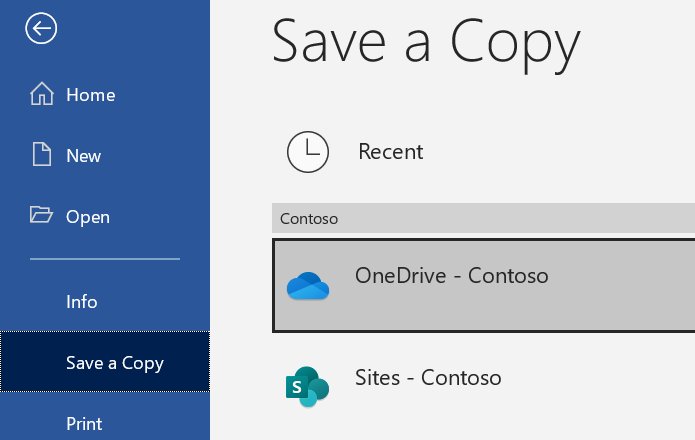
How to save Word document as PDF
These steps are for the Word desktop app on Windows. No extra software or add-in is needed.
- Open the document in Word.
- If the file was saved before, select File > Save a Copy. If it has never been saved, select File > Save As or Save a Copy.
- Select Browse and pick the folder where the PDF should go.
- Type a file name in the File name box.
- In the file type drop-down list, select PDF.
- Select Save.
Word keeps your original .docx file and writes the PDF as a separate file in the folder you chose.
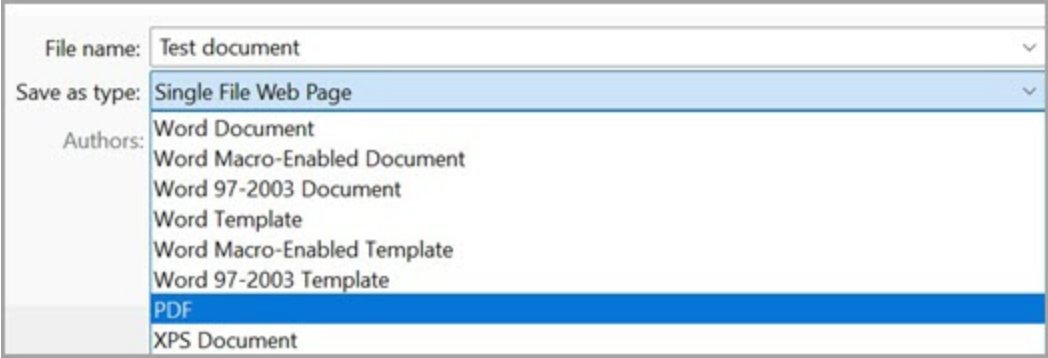
Save Word document as PDF on Windows, Mac, web and mobile
| Where you use Word | Route to a PDF | Comments in the PDF |
|---|---|---|
| Word for Windows | File > Save a Copy > PDF > Save | Controlled by Publish what in Options |
| Word for Mac | File > Save As > File Format: PDF > Export | Not covered by a separate option |
| Word for the web | File > Export > Download as PDF | Choose Download as PDF with comments to keep them |
| Word on iPhone or iPad | More (three dots) > Export > PDF | Not covered by a separate option |
| Word on Android | More (three dots) > File > Print > Save as PDF | Not covered by a separate option |
Save Word document as PDF on Mac
Word for Mac creates a tagged PDF automatically, which screen readers can follow in a logical order.
- Open the document in Word for Mac.
- On the File menu, select Save As, or select the Save icon in the ribbon.
- In the Save As box, type a new name for the PDF.
- In the File Format box, select PDF.
- Select Export.
Give the PDF a different name from the original document. If you keep the same name, Word converts the document to PDF and you cannot change it back without specialized software.
To email the PDF straight away, select File > Share > Send PDF. Word creates the PDF and attaches it to a new email message.
Save Word document as PDF in Word for the web
- Open the document in Word for the web.
- At the top of the screen, select File.
- Select Export.
- Select Download as PDF for a PDF without comments, or Download as PDF with comments to include them.
- In the confirmation box, select Download.
- Open your browser's download folder to find the new PDF.
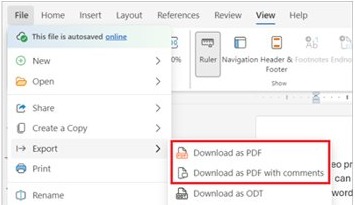
Save Word document as PDF on iPhone and Android
The Word mobile app uses Export on iOS and the Print dialog on Android.
- Open the document in the Word app.
- On iPhone or iPad, tap the three dots icon, tap Export, select PDF and save the file where you want it.
- On Android, tap the three dots icon, tap File, then tap Print.
- On Android, tap Select a printer and choose Save as PDF.
- Tap the PDF icon, choose a location, enter a new name if you want one, then tap Save.
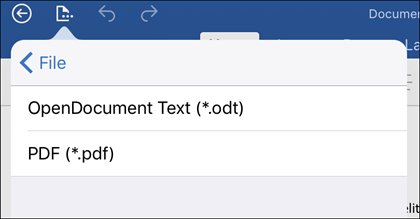
Save Word document as PDF without comments
In Word for Windows, the Publish what setting decides whether comments and tracked changes appear in the PDF.
- Select File > Save a Copy and choose PDF as the file type.
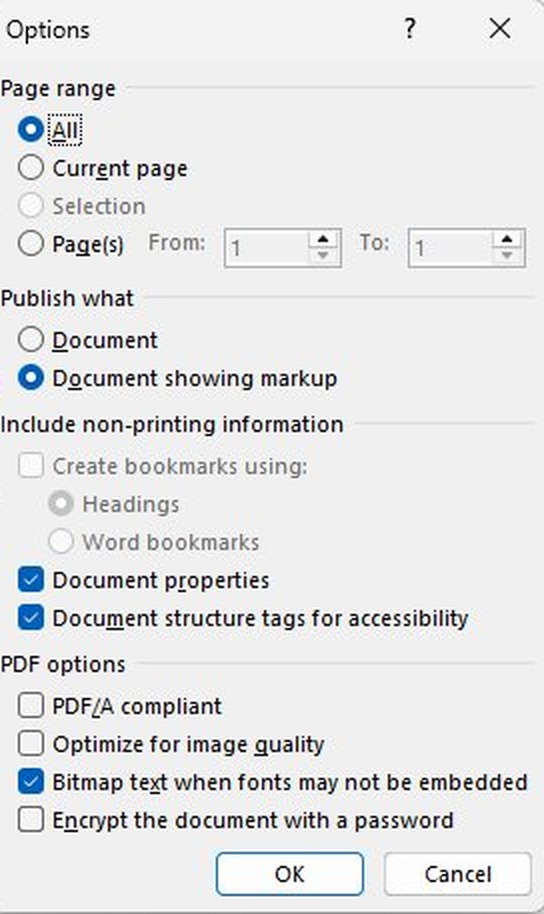
- Select More Options, then select Options.
- Under Publish what, select Document to leave comments and tracked changes out.
- Select Document showing markup instead if reviewers need to see the changes.
- Under Page range, choose the pages to include if you want only part of the document.
- Select OK, then select Save.
In Word for the web, pick Download as PDF rather than Download as PDF with comments for the same result.
Word Save as PDF options explained
| Option | What it does |
|---|---|
| Page range | Creates a PDF from only some of the pages in the document |
| Publish what: Document showing markup | Includes tracked changes in the PDF |
| Create bookmarks using | Builds PDF bookmarks from Headings or from Word Bookmarks |
| Document properties | Includes document properties such as the title in the PDF |
| Document structure tags for accessibility | Makes the PDF easier for screen-reading software to read |
| ISO 19005-1 compliant (PDF/A) | Outputs an archiving-standard PDF that looks the same when opened later on another computer |
| Bitmap text when fonts may not be embedded | Uses images of the text when a font cannot be embedded, so the PDF keeps its look |
| Encrypt the document with a password | Requires a password to open the PDF |
How to save a Word document as a password-protected PDF
This password protects the PDF copy only. To lock the .docx file itself, put a password on the Word document instead.
- Select File > Save a Copy and choose PDF as the file type.
- Select More Options > Options.
- Select Encrypt the document with a password, then select OK.
- In the Encrypt PDF Document box, type the password and re-enter it.
- Select OK, then select Save.
Tips for saving Word document as PDF
| Tip | Why it helps |
|---|---|
| Use Word's built-in heading styles | Create bookmarks using Headings turns them into a clickable outline in the PDF |
| Keep the original .docx | A PDF is meant for reading and printing; edit the Word file and save a new PDF when things change |
| Give the PDF its own name on a Mac | Saving with the same name converts the document instead of making a copy |
| Turn on document structure tags | Screen readers can follow the PDF in a logical order |
| Choose PDF/A for records you must keep | The archive format keeps the document looking the same years later |
| Check comments before you share | Publish what: Document leaves reviewer notes out of the PDF |
| Do not rely on PDF alone to stop edits | Word and other programs can open and edit PDF files |
How to open a PDF saved from Word
- Open File Explorer, or Finder on a Mac, and go to the folder you picked when saving.
- Find the file with the .pdf extension and the name you typed.
- Double-click the PDF to open it in your default PDF viewer or web browser.
- Scroll through every page and check fonts, images, page breaks and links.
- If something looks wrong, fix it in the Word document and save a new PDF.
Most modern web browsers can open and display a PDF, so the recipient does not need Word to read it.
Why won't my Word document save as a PDF?
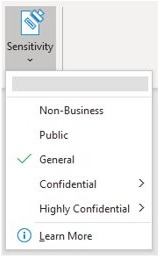
"Your organization requires sensitivity labels for all files you create or edit, such as PDFs"
Your organization uses mandatory sensitivity labels, and Word does not support printing to PDF with a label.
- Make sure the right sensitivity label is set on the Word document and that it is saved.
- Select File > Save a Copy instead of the Print command.
- Set the file type to PDF and select Save. The label and any encryption carry over to the PDF.
- If the label still blocks you, ask your IT admin; the policy is set by your organization.
No PDF option in Word for the web or the mobile app
Those versions of Word use Export or Print instead of the desktop Save a Copy dialog.
- In Word for the web, select File > Export > Download as PDF.
- On iPhone or iPad, tap the three dots icon > Export > PDF.
- On Android, tap the three dots icon > File > Print > Save as PDF.
Comments or tracked changes show up in the PDF
Publish what is set to Document showing markup, or the web download included comments.
- In Word for Windows, open More Options > Options while saving.
- Under Publish what, select Document.
- In Word for the web, use Download as PDF rather than the with-comments option.
Fonts look different in the PDF
A font in the document cannot be embedded, so the PDF reader substitutes another font.
- Save the PDF again and open More Options > Options.
- Select Bitmap text when fonts may not be embedded.
- Select OK and save.
Word document won't save at all
The document itself has a save problem, so no PDF copy can be made either.
- Save the document to a different folder with File > Save As.
- If Word closed before you saved, recover the unsaved Word document first.
- Then save the PDF copy with File > Save a Copy.
Save Word document as PDF FAQ
Can I save a Word document as PDF?
Yes. Every current version of Word saves PDFs without extra software. On Windows use File > Save a Copy and choose PDF, on a Mac use File > Save As with PDF as the format, and in Word for the web use File > Export.
How do I save a Word document as PDF on a laptop?
On a Windows laptop, open the document in Word, select File > Save a Copy, select Browse, choose PDF in the file type list and select Save. On a MacBook, use File > Save As, set File Format to PDF and select Export.
How do I save a Word document as PDF without comments?
In Word for Windows, choose PDF in Save a Copy, open More Options > Options and set Publish what to Document. In Word for the web, select File > Export > Download as PDF, which leaves comments out.
What is the benefit of saving a Word document as a PDF?
A PDF looks the same on most computers, usually has a smaller file size and follows an industry format. That suits resumes, legal documents, newsletters and anything meant to be read and printed rather than edited.
Can I edit a PDF once it is created?
Yes, a PDF can still be edited. Word opens PDF files with File > Open and turns the content into an editable document. For larger changes, edit the original Word file and save a fresh PDF.
Is saving as a PDF secure?
Not by itself. Many programs, Word included, can open and edit PDFs. For real protection, select Encrypt the document with a password in the PDF options so only people with the password can open the file.
Will PDF files be smaller than Word documents?
Often, but not always. Microsoft lists a smaller file size as a reason to use PDF, and the Mac guide says the PDF is often smaller than the original. Check the file size before you email it if attachments are limited.
Can I revert a PDF back to Word?
Yes. Open Word, select File > Open and pick the PDF, and Word converts it into an editable document. Check the converted text and images before you reuse them. You can also convert the PDF to Word with other methods.