Right-click the .nfo file, select Open with and choose Notepad to open it in Windows 11; if the file was saved by System Information, open it with msinfo32 instead.
This guide shows how to tell the two kinds of NFO file apart, open each one, show old ASCII art correctly, create your own NFO report and make Notepad the default app.
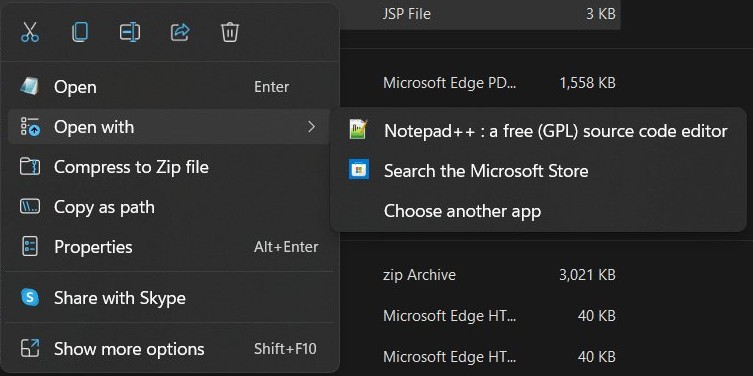
How to open an NFO file in Windows 11
Most .nfo files that come with downloads, software packs and media folders are plain text, so any text editor can read them. Notepad is already installed on Windows 11.
- Open File Explorer and find the .nfo file.
- Right-click the file and select Open with.
- Choose Notepad from the list. If it is not listed, select Choose another app and pick Notepad.
- Read the text. If Notepad shows markup or nothing useful, the file came from System Information and needs
msinfo32(see the System Information Viewer section).
What is an NFO file?
NFO is short for "info". The extension is used by two unrelated kinds of file, and the right app depends on which one you have.
| NFO file type | What it contains | Opens with | How to tell |
|---|---|---|---|
| Plain-text info file | Release notes, credits, install instructions, sometimes ASCII art drawn with DOS box characters | Notepad, Notepad++, Command Prompt type |
Notepad shows readable sentences |
| System Information file | A saved report of a PC's hardware, components and software environment | System Information (msinfo32) |
Created with msinfo32 /nfo; text editors do not show it as a readable report |
| ASCII art NFO | A plain-text info file written in the old DOS character set, code page 437 (OEM United States) | Command Prompt with code page 437, or an editor that can switch character sets | Lines and blocks appear as accented letters or symbols in Notepad |
An .nfo file is data, not a program. Opening it in a text editor or System Information only displays its contents.
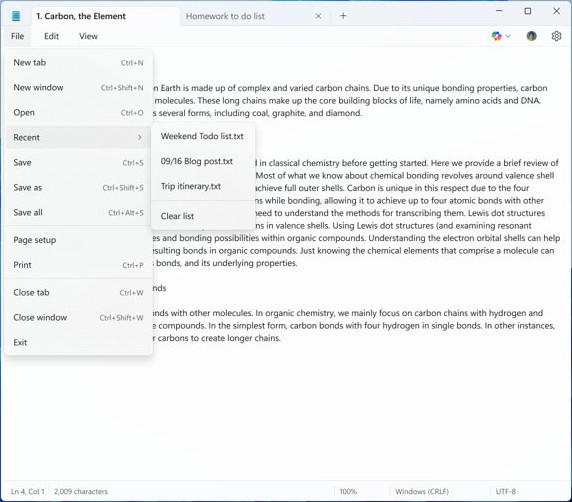
Open .NFO files with Windows 11 Notepad
Notepad is preinstalled on Windows 11 and updated through the Microsoft Store. Opening a file from inside Notepad works even when the .nfo extension is linked to another app.
- Select Start, type Notepad and select it from the results.
- Press Ctrl + O to show the open dialog.
- Change the file type list next to the file name box from Text documents (*.txt) to All files (*.*).
- Browse to the folder that holds the .nfo file and select it.
- Select Open.
- To keep a copy that opens anywhere, select File > Save as and save it with a .txt extension.
You can also drag the .nfo file from File Explorer onto an open Notepad window. Notepad displays the text but cannot redraw DOS box characters, so ASCII art may look broken.
View .NFO files using Notepad++
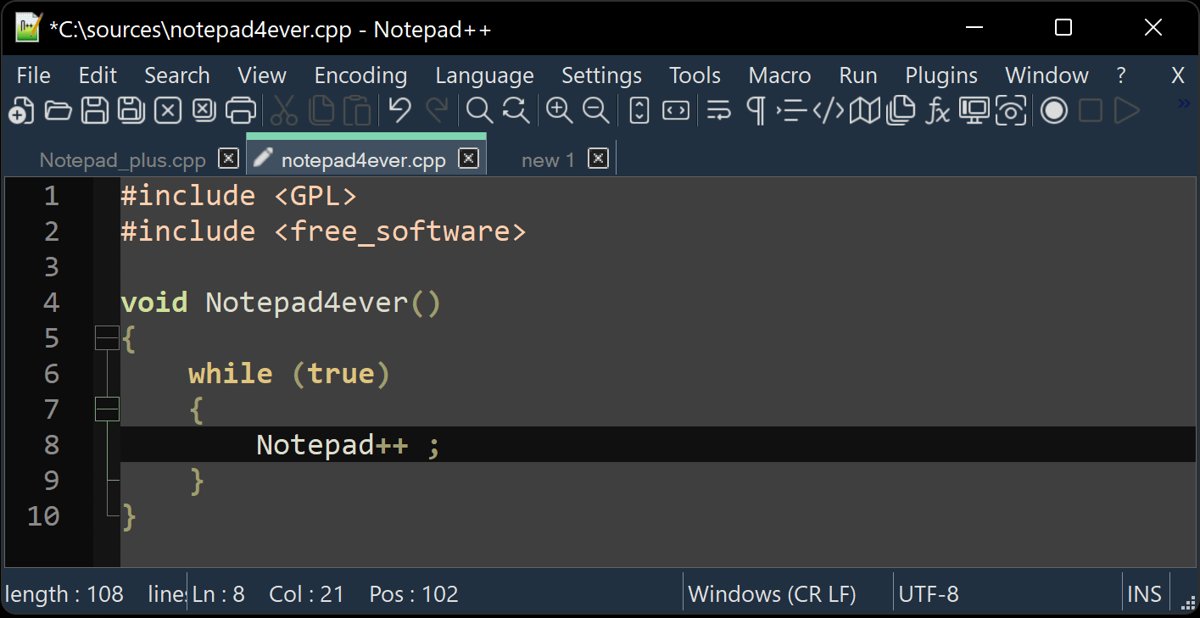
Notepad++ is a free, GPL-licensed text and source code editor for Windows. It opens .nfo files as text and offers more control over character sets than Notepad. The current release is 8.9.9, published on 6 November 2026.
- Go to the official site, notepad-plus-plus.org, and open Downloads.
- Pick the Installer for your PC: 64-bit (x64) for most PCs or ARM64 for Windows on Arm devices.
- Check the file against the SHA-256 digests of binary packages listed on the same page, then run the installer.
- Open Notepad++, press Ctrl + O, and select the .nfo file.
- If the ASCII art is scrambled, switch the character set from the Encoding menu to the DOS/OEM United States set.
After installation, Notepad++ also appears under Open with when you right-click an .nfo file in File Explorer.
View NFO ASCII art in Command Prompt
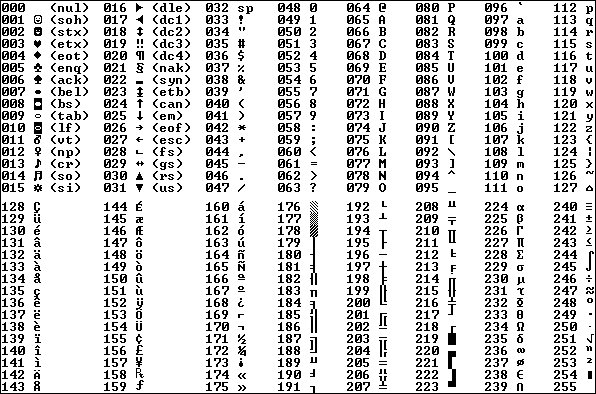
Command Prompt can display text in code page 437, the DOS character set most ASCII art NFO files were drawn in. This needs no extra software.
Open Command Prompt from Start, then run the two commands below, replacing the path with your file's location.
chcp 437
type "C:\Users\YourName\Downloads\readme.nfo" | more
chcp 437 sets the console to code page 437 (United States). type displays the contents of a text file without modifying it, and | more shows a long file one screen at a time; press Spacebar for the next page. Put quotation marks around a path that contains spaces.
You should see: Active code page: 437, followed by the NFO text with its box and shading characters drawn as intended.
If the characters still look wrong, the window is using a Raster font. Code pages other than the one installed with Windows display correctly only with a TrueType font or in full-screen mode.
Use System Information viewer
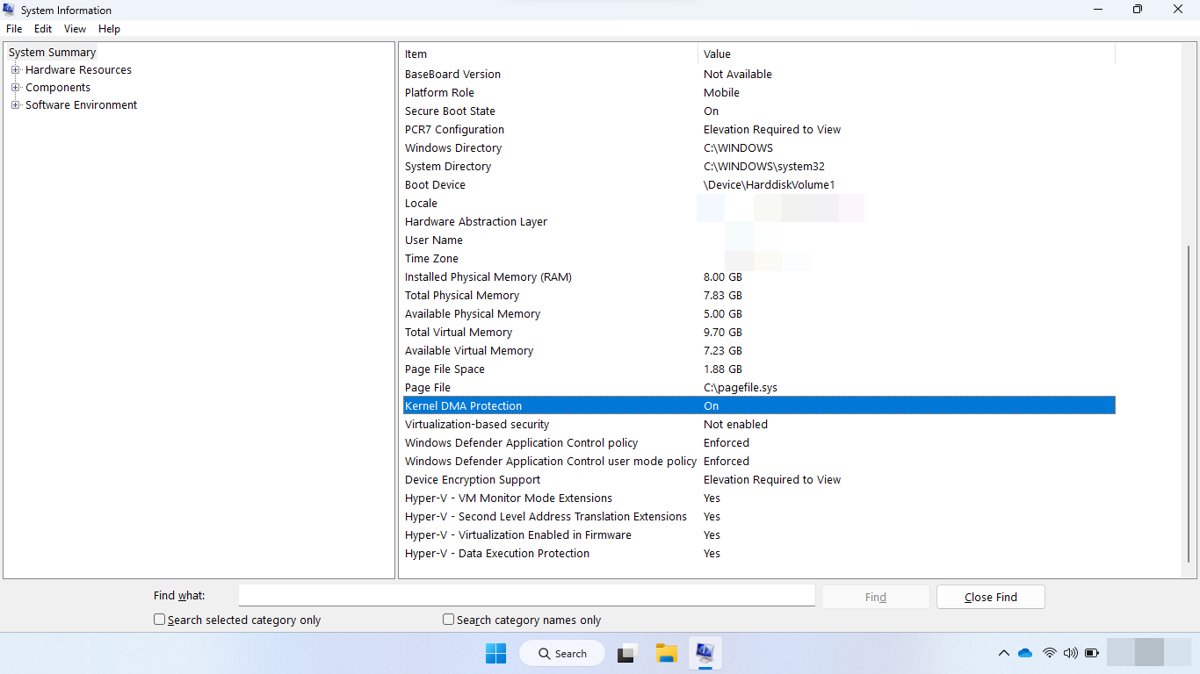
System Information (msinfo32) shows a full view of a PC's hardware, system components and software environment, and it opens saved .nfo reports, including ones exported on another computer.
Type msinfo32 in the Start search box, right-click System Information and select Run as administrator, or run the command below from Command Prompt.
msinfo32 "C:\Reports\office-pc.nfo"Passing a file path makes System Information open that file instead of reading the current PC. The path can point to an .nfo, .xml, .txt or .cab file.
You should see: System Information opens with the saved report's System Summary and categories in the left pane.
A plain-text info file will not load in System Information. Open that kind of file in Notepad instead.
How to create an NFO file with System Information
Support technicians often ask for an .nfo report because it captures a PC's whole configuration in one file. Run Command Prompt as administrator first; without administrator rights, System Information may show some drivers as stopped when they are not.
msinfo32 /nfo C:\TEMP\TEST.NFO/nfo saves the exported report as an .nfo file and adds the .nfo extension if the name lacks it. Use msinfo32 /report C:\TEMP\TEST.TXT for a plain-text version, or add /categories +systemsummary to save only the System Summary.
You should see: The file appears in C:\TEMP once the export finishes, which can take a minute or more on PCs with a lot of hardware data.
System Information cannot report hardware details when Windows is running in Safe Mode, so create the report from a normal start.
Change the default app to view .NFO files
Set Notepad, or Notepad++ if you installed it, as the default for .nfo files so a double-click opens them as text.
- Open Start > Settings > Apps > Default apps.
- Under Set a default for a file type or link type, type
.nfoin the search box. - Select the .nfo result that appears.
- Choose Notepad or Notepad++ from the list of apps.
- Double-click any .nfo file in File Explorer to check that it now opens in the app you chose.
If you also open System Information reports, leave the default as it is and use Open with for text NFO files, or open reports with the msinfo32 command.
NFO file not opening in Windows 11
Double-clicking an .nfo file opens System Information or an error
The file is a plain-text info file, but the .nfo extension is linked to System Information on this PC.
- Close the System Information window or error message.
- Right-click the file, select Open with and choose Notepad.
- Change the default app for .nfo in Settings > Apps > Default apps if this happens often.
NFO file shows strange characters instead of ASCII art
The art uses DOS code page 437 characters, and the editor reads the bytes as a modern character set such as Windows-1252 or UTF-8.
- Open Command Prompt and run
chcp 437. - Run
typefollowed by the file path in quotation marks. - Switch the Command Prompt window to a TrueType font if the characters still look wrong.
- In Notepad++, change the character set from the Encoding menu instead.
System Information NFO report shows drivers as stopped
The report was saved without administrator rights, so some drivers appear stopped even when they run.
- Type msinfo32 in Start, right-click System Information and select Run as administrator.
- Run
msinfo32 /nfowith a new file name from an administrator Command Prompt. - Send the new .nfo file instead of the old one.
Notepad shows an empty or unreadable NFO file
The file may be a System Information report, or it may not be text at all.
- Try opening it with
msinfo32followed by the file path. - If neither Notepad nor System Information can read it, ask the sender which program created it.
- Do not rename it to .exe or run it; an .nfo file is never a program.
NFO file FAQ
What program opens NFO files on Windows 11?
Notepad opens text NFO files and is already installed on Windows 11. Notepad++ handles ASCII art better because it can switch character sets. System Information (msinfo32) opens .nfo reports saved from System Information.
Is an NFO file safe to open?
Yes, when you open it in Notepad, Notepad++ or System Information. Those apps only display the file's contents and do not run anything in it. Be wary of any file that claims to be an NFO but has a second extension such as .nfo.exe.
Why does my NFO file open in System Information?
The .nfo extension is also used by System Information for saved PC reports, so Windows can link it to that tool. Use Open with > Notepad for text NFO files, or change the default under Settings > Apps > Default apps.
Can I convert an NFO file to TXT?
Yes. Open the NFO file in Notepad, select File > Save as, and save it with a .txt extension. For a System Information report, run msinfo32 /report with a .txt path to export it as text instead.
Can I edit an NFO file?
Yes, a text NFO file can be edited and saved in Notepad or Notepad++ like any text file. Save ASCII art files in their original character set, or the box characters will be replaced when the file is reopened.
How do I open an NFO file on Windows 10?
The same way as on Windows 11. Right-click the file, select Open with and choose Notepad, or open System Information reports with msinfo32 followed by the file path. Notepad++ and the Command Prompt method also work on Windows 10.
Can I delete NFO files?
Yes. A text NFO file only holds notes about the files beside it, so deleting it does not affect them. Keep System Information reports if a support technician still needs them.