The Notification Center on iPhone opens with a swipe: down from the top-left corner on iOS 27, down from the top center on iOS 16 through iOS 26, and up from the middle of the Lock Screen.
This guide covers the exact gesture for your iOS version, older notifications, clearing and muting alerts, the settings that control the list, and fixes for when the swipe does nothing.
Where is the Notification Center on my iPhone?
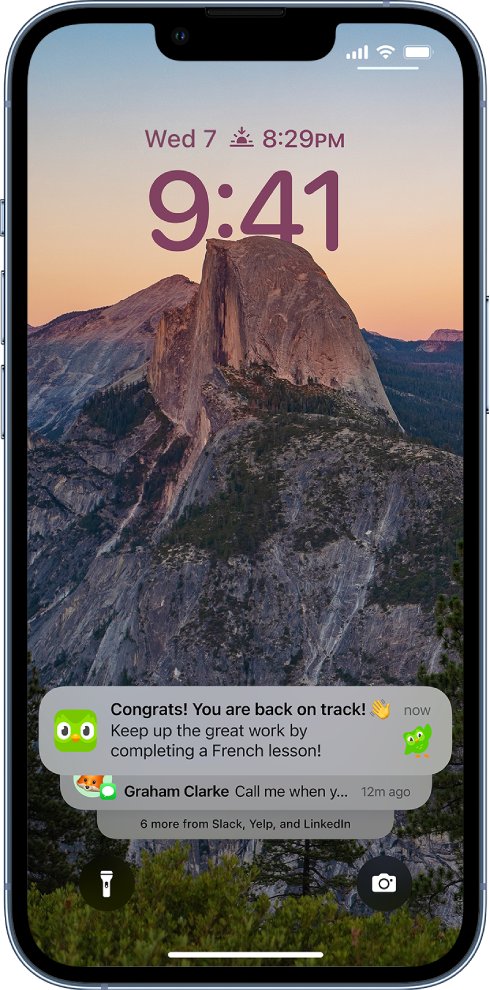
Notification Center sits above your current screen, so you pull it into view with a gesture. Match your screen and iOS version to the row below.
| Where you are | iOS version | Gesture that opens it |
|---|---|---|
| Home Screen or an open app | iOS 27 | Swipe down from the top-left corner |
| Home Screen or an open app | iOS 16, 17, 18 or 26 | Swipe down from the top center |
| Lock Screen | iOS 16 through iOS 27 | Swipe up from the middle of the screen |
Close it by swiping up from the bottom with one finger. On an iPhone with a Home button, press the Home button instead.
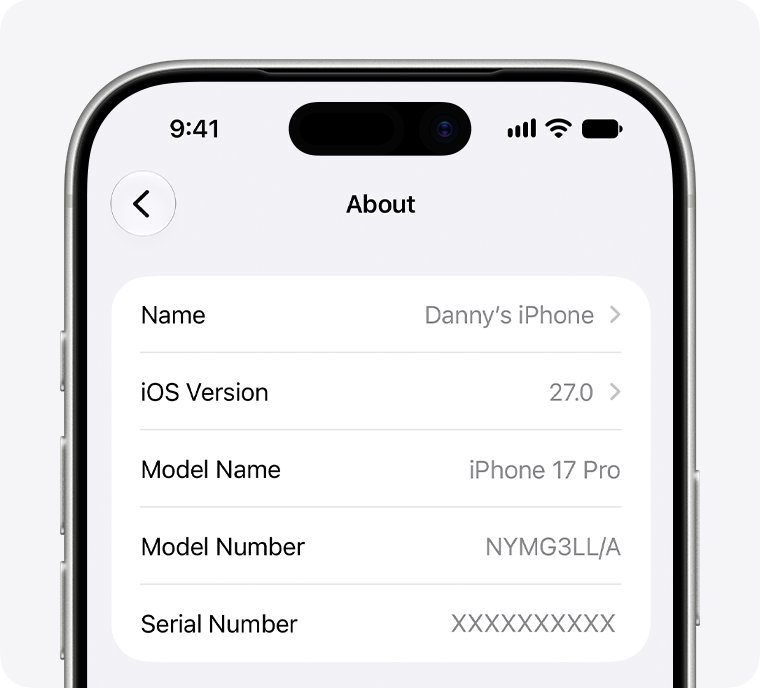
How to check which iOS version your iPhone runs
The swipe position changes when you update your iPhone to iOS 27, so the version number decides which gesture you use.
- Open Settings.
- Tap General.
- Tap About.
- Find the number next to iOS Version.
Step by step tutorial: Accessing the Notification Center on iPhone
Use this route when your iPhone is already unlocked.
- Wake your iPhone and unlock it.
- Stay on the Home Screen or in any open app.
- On iOS 27, swipe down from the top-left corner. On iOS 16 through iOS 26, swipe down from the top center.
- Scroll up to bring in older notifications, if there are any.
- Tap a notification to open its app.
- Swipe up from the bottom with one finger to close the list, or press the Home button on an iPhone that has one.
Step-by-step: How to access the Notification Center on iPhone from the Lock Screen
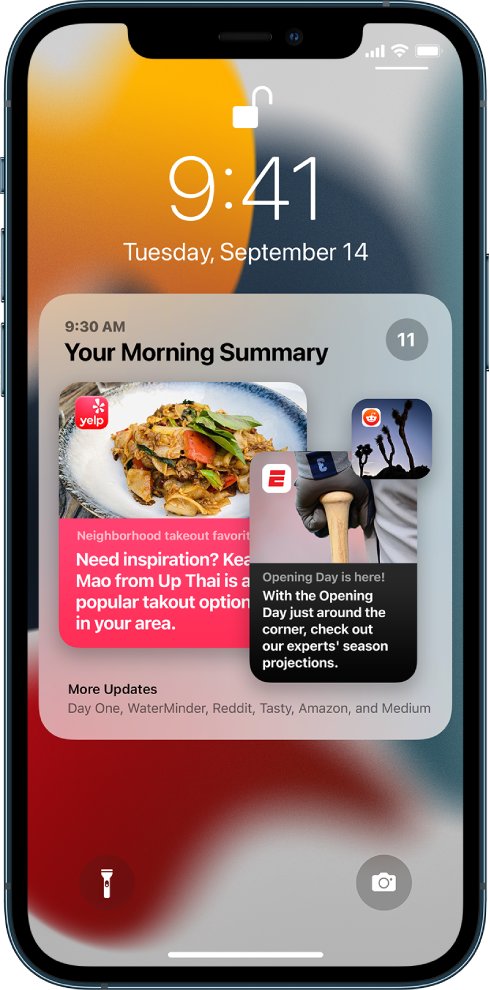
You can read your recent notifications here without unlocking, as long as Lock Screen access is turned on.
- Wake your iPhone so the Lock Screen appears.
- Swipe up from the middle of the screen.
- Pinch the notifications to switch between the expanded list, stacked and count views.
- If the list does not appear, turn on Notification Center below Allow Access When Locked in Settings.
Where is the Notification Center on iPhone 13?
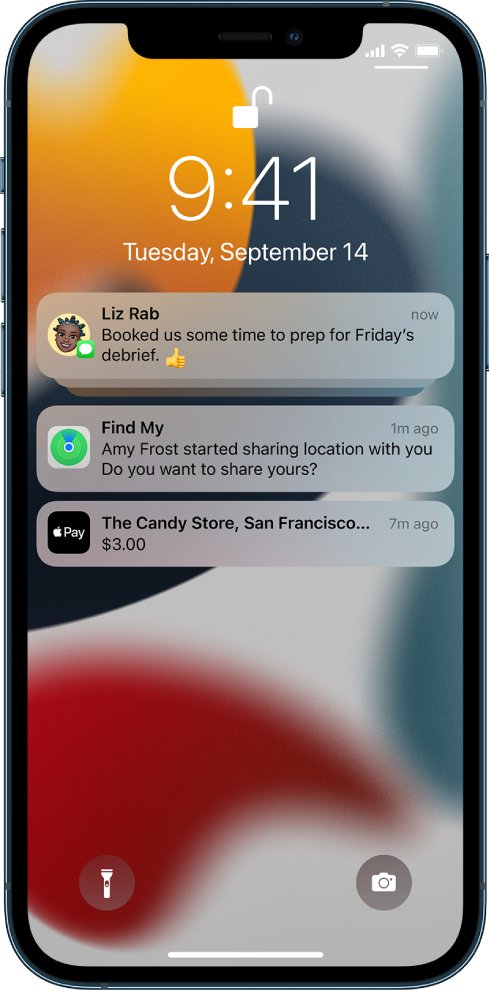
iPhone 13 uses Face ID and can run iOS 27, so its gesture depends on the installed version. The table also covers other current models.
| iPhone and iOS version | Open Notification Center | Close Notification Center |
|---|---|---|
| iPhone 13 on iOS 27 | Swipe down from the top-left corner | Swipe up from the bottom with one finger |
| iPhone 13 on iOS 16 through iOS 26 | Swipe down from the top center | Swipe up from the bottom with one finger |
| iPhone SE (2nd or 3rd generation) on iOS 27 | Swipe down from the top-left corner | Press the Home button |
| iPhone with a Home button on iOS 16 through iOS 26 | Swipe down from the top center | Press the Home button |
On iOS 27, a swipe down from the top-right corner of a Face ID iPhone opens Control Center instead, so start your swipe on the left.
What does Notification Center mean on iPhone?
Notification Center is the iPhone view that collects your notifications, such as a missed call or a moved calendar event. It is easy to confuse with three nearby features.
| Feature | What it does | How you reach it |
|---|---|---|
| Notification Center | Holds your notifications, grouped into stacks by app with the most recent on top | Swipe from the top of the screen, or up from the middle of the Lock Screen |
| Lock Screen notifications | Show alerts as they arrive in list, stack or count view | Wake your iPhone |
| Control Center | Gives quick access to Airplane Mode, Do Not Disturb, the flashlight, volume and brightness | Swipe down from the top-right on Face ID models, or up from the bottom on iPhone SE (iOS 27) |
| Scheduled Summary | Delivers notifications from the apps you choose together at set times | Settings > Notifications > Scheduled Summary |
Notification Center history on iPhone: how to see older notifications
- Open Notification Center with the swipe for your iOS version.
- Scroll up through the list to reach older notifications.
- Tap a stack to expand it and view each notification on its own.
- Tap Show Less to collapse the stack again.
Older notifications appear only if there are any left in the list. Apple's iPhone User Guide lists no way to bring back a notification after you clear it, so leave anything you still need in place.
How to clear notifications in Notification Center on iPhone
- Open Notification Center.
- Swipe left on one notification or on a group of notifications.
- Tap Clear for a single notification, or Clear All for a group.
- To empty the whole list at once, tap the clear icon in Notification Center, then tap Clear.
How to mute notifications for an app in Notification Center on iPhone
Muting sends an app's notifications straight to Notification Center. They skip the Lock Screen, play no sound, leave the screen dark and show no banner.
- Swipe left on a notification or group from that app.
- Tap Options.
- Choose the option to mute the app for an hour or for a day.
- To reverse it, swipe left on the notification in Notification Center, tap Options, then tap Unmute.
- To stop the app's notifications altogether, swipe left, tap Options, then tap Turn Off.
Customizing notifications and the Notification Center
Each app has its own switches, so you can keep one app in the list while removing it from the Lock Screen.
- Go to the Settings app.
- Tap Notifications, then tap an app below Notification Style.
- Check that Allow Notifications is on.
- Under Alerts, choose whether notifications appear on the Lock Screen, in Notification Center, or as Banners.
- Under Lock Screen Appearance, set how previews appear and how notifications are grouped.
- Tap Sounds to pick a sound if the app supports it, and turn on Badges to show a badge on the app icon.
From a notification, you can take a shorter route: swipe left, tap Options, then tap View Settings.
Notification Center settings on iPhone
These settings apply to all apps, unlike the per-app switches above.
| Setting | Where to find it | What it changes |
|---|---|---|
| Count, Stack or List | Settings > Notifications | How notifications are displayed on the Lock Screen |
| Show Previews | Settings > Notifications > Show Previews | Whether previews appear Always, When Unlocked or Never |
| Scheduled Summary | Settings > Notifications > Scheduled Summary | Bundles several apps into a summary at the times you set |
| Screen Sharing | Settings > Notifications > Screen Sharing | Allows or blocks notifications during SharePlay or Screen Mirroring |
| Notification Center on the Lock Screen | Settings > Face ID & Passcode or Touch ID & Passcode | Whether the list opens while your iPhone is locked |
How to schedule notifications on iPhone
A summary reduces interruptions by delivering notifications from several apps at once.
- Go to the Settings app.
- Tap Notifications, then tap Scheduled Summary.
- Turn on Scheduled Summary, then tap Continue if it appears.
- Set the times you want the summary delivered.
- Tap A to Z, then turn on the apps to include.
If an app is missing from the A to Z list, turn on Allow Notifications for it in Settings > Notifications.
How to turn off Notification Center on the iPhone Lock Screen
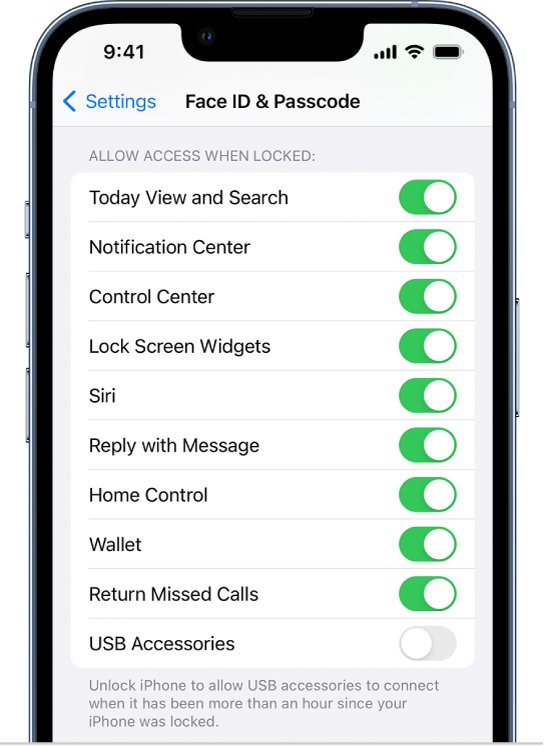
Turn this off if you do not want anyone holding your locked iPhone to open the list.
- Go to the Settings app.
- Tap Face ID & Passcode or Touch ID & Passcode, depending on your model.
- Enter your passcode.
- Scroll down to Allow Access When Locked.
- Turn off Notification Center. Turn it back on here to restore access.
Tips for using the Notification Center on iPhone
| What you want | What to do |
|---|---|
| Open the app behind a notification | Tap the notification |
| Use quick actions the app offers | Touch and hold the notification, on supported models |
| Read a stack one item at a time | Tap the group, then tap Show Less when you finish |
| Deal with an alert while using another app | Tap to view it, then swipe up to dismiss it |
| Change the Lock Screen layout quickly | Pinch the notifications on the Lock Screen |
Additional tips for accessing and using the Notification Center
| Tip | Details |
|---|---|
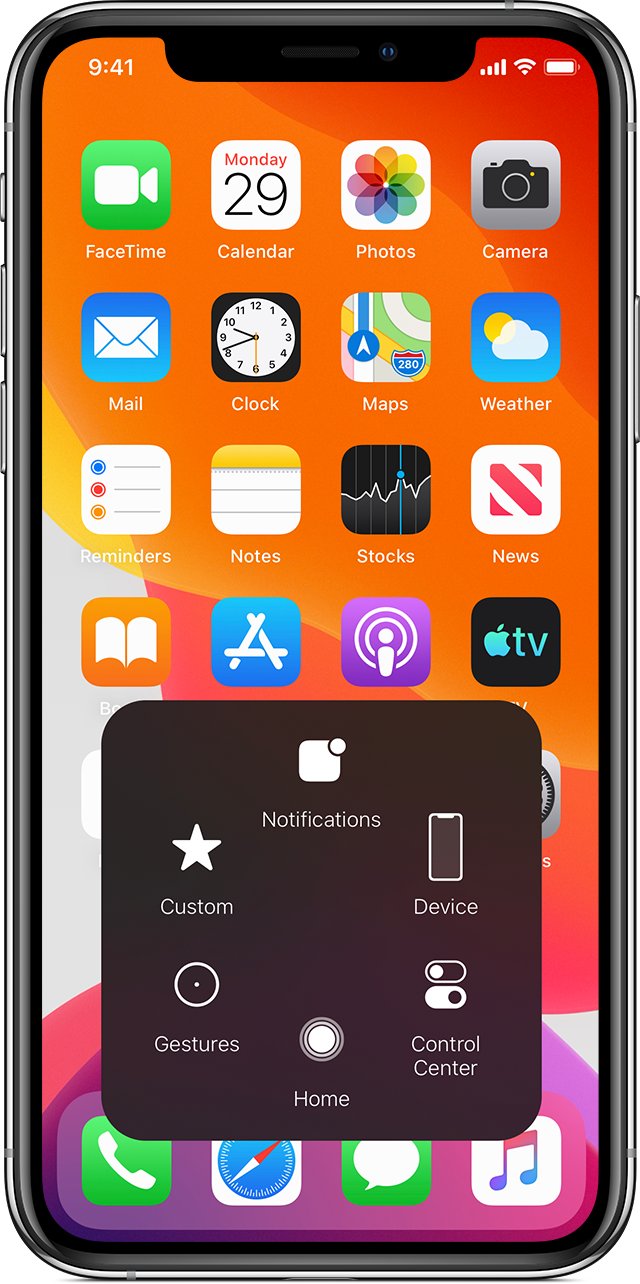
| Open it without a swipe | The AssistiveTouch menu includes Notification Center among its gesture replacements |
| Shorten long stacks | On iOS 27, Apple Intelligence can summarize long or stacked notifications on an iPhone 15 Pro, iPhone 15 Pro Max, or iPhone 16 model or later |
| Let urgent alerts through | Turn on Time Sensitive Notifications in an app's settings, if the app supports it |
| Silence everything for now | Turn on Do Not Disturb, which is a Focus, and turn Do Not Disturb off when you want alerts back |
| Go straight to an app's own options | Tap App Name Notification Settings at the bottom of its settings screen, where offered |
Making the most of the Notification Center
Pick the control that matches the problem, because a full list usually has one main cause.
| Your situation | Use this | Why |
|---|---|---|
| Alerts interrupt you all day | Scheduled Summary | Several apps arrive together at the times you choose |
| One app is noisy today | Mute for an hour or a day | Its notifications still collect in Notification Center |
| An app never sends anything useful | Options > Turn Off | Stops that app's notifications |
| Other people can see your Lock Screen | Show Previews set to When Unlocked | Hides message text and invitation details while locked |
| You are working on one task | A Focus | Delays delivery, and you can schedule a summary of what you missed |
Notification Center common issues and troubleshooting
You can't swipe down from the top of the screen
On-screen gestures can be hard to perform, and AssistiveTouch replaces them with a tap.
- Go to Settings > Accessibility > Touch > AssistiveTouch.
- Turn on AssistiveTouch.
- Tap the onscreen button to open the menu.
- Select Notification Center.
Notification Center keeps popping up
A downward swipe that starts at the top edge opens the list, and an upward swipe does the same on the Lock Screen.
- Start downward scrolls in apps below the top edge of the screen.
- To stop it opening on the Lock Screen, go to Settings > Face ID & Passcode or Touch ID & Passcode.
- Enter your passcode and turn off Notification Center below Allow Access When Locked.
Notification Center won't open on the Lock Screen
Access while locked is controlled by a setting, and it may be off.
- Go to Settings > Face ID & Passcode or Touch ID & Passcode.
- Enter your passcode.
- Scroll down and turn on Notification Center below Allow Access When Locked.
An app's notifications are missing from Notification Center
The app may have notifications turned off, or Notification Center may be deselected under its alerts.
- Go to Settings > Notifications and tap the app below Notification Style.
- Turn on Allow Notifications.
- Under Alerts, select Notification Center.
- If the app is muted, swipe left on its notification, tap Options, then tap Unmute.
If alerts never appear on screen at all, fix iPhone notifications that fail to pop up instead. If one weather alert keeps returning after you clear it, you can remove the persistent weather alert.
iPhone Notification Center FAQ
How do I find the Notification Center on iPhone?
Swipe down from the top-left corner on iOS 27, or from the top center on iOS 16 through iOS 26. From the Lock Screen, swipe up from the middle of the screen. Check your version in Settings > General > About.
Can I access the Notification Center from the lock screen?
Yes. Swipe up from the middle of the Lock Screen. This needs Notification Center turned on below Allow Access When Locked, which you can find in Settings under Face ID & Passcode or Touch ID & Passcode.
What if I can't swipe down from the top of the screen?
Turn on AssistiveTouch in Settings > Accessibility > Touch > AssistiveTouch. An onscreen button appears, and its menu gives you access to Notification Center without the swipe gesture. You can drag the button to any edge of the screen.
How do I clear a single notification?
Swipe left on the notification in Notification Center or on the Lock Screen, then tap Clear. Swiping left on a group gives you Clear All instead, which removes every notification in that stack in one tap.
How do I manage notifications from the Notification Center?
Swipe left on a notification and tap Options. You can then mute the app for an hour or a day, turn its notifications off, or tap View Settings to change how the app displays them.
Can I customize which notifications appear in the Notification Center?
Yes. Go to Settings > Notifications, tap an app below Notification Style, then choose under Alerts whether its notifications appear in Notification Center, on the Lock Screen, or as banners. Apps that support it can also filter notification types with Customize Notifications.
Why does Notification Center keep popping up?
A downward swipe from the top edge opens it from any screen, so scrolling too close to that edge can trigger it. An upward swipe opens it on the Lock Screen, and you can turn that route off below Allow Access When Locked.
Where is the Windows notification center?
On Windows 11, select the clock or notification bell on the taskbar, or press Windows key + N. Windows 10 uses the notification button or Windows key + A to open Notifications and Action Center on the desktop.