You cannot remove all offloaded apps from an iPhone at once, because Apple's documented delete steps work on one app at a time.
This guide covers the fastest one-by-one route through iPhone Storage, how to stop new apps from being offloaded, and the one full reset that clears every app in a single action.
How to delete offloaded apps on iPhone
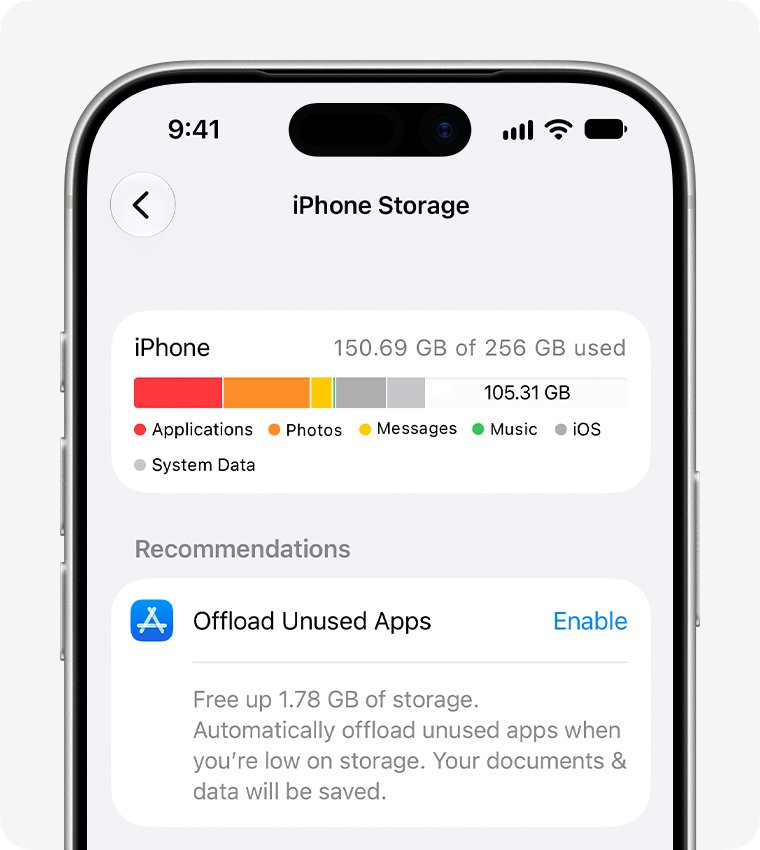
iPhone Storage is the quickest place to work, since every app sits in one list and you do not have to hunt through Home Screen pages.
- Open the Settings app and tap General.
- Tap iPhone Storage and wait for the app list to load.
- Tap an app you offloaded.
- Tap Delete App, then confirm.
- Go back to the list and repeat for each remaining app you want gone.
Offloaded apps keep their documents and data on your iPhone, and this step removes that leftover data too. Files stored in iCloud are not deleted.
How to remove all apps from an iPhone
Your best route depends on whether you want the leftover data gone, the icons out of sight, or the whole phone cleared.
| Your situation | Use this | What happens |
|---|---|---|
| A few offloaded apps with data you no longer need | iPhone Storage > app > Delete App | The app and its data leave the iPhone |
| Cloud icons clutter your Home Screen, but you want the data | Remove App > Remove from Home Screen | The icon moves to App Library, and nothing is deleted |
| Many apps keep getting offloaded | Turn off Offload Unused Apps | Existing offloaded apps stay, and new ones stop appearing |
| You want every app gone in one action | Erase All Content and Settings | All personal content and settings are erased, not only apps |
What does offload unused apps mean
Offload Unused Apps is an iPhone setting that removes apps you have not been using when storage is low. The app's documents and data stay on your iPhone, ready for when you need the app again.
| Part of the app | What happens after offloading |
|---|---|
| App itself | Removed from your iPhone to free storage |
| Documents and data | Kept on your iPhone |
| Home Screen icon | Stays in place with a cloud symbol |
| Reinstalling | Tap the icon, as long as the app is still in the App Store |
Offload vs delete app on iPhone
Offloading and deleting look alike from the Home Screen, but they leave different things behind. The difference matters most when you plan to reinstall the app later.
| Question | Offload App | Delete App |
|---|---|---|
| Is the app removed? | Yes | Yes |
| Are its documents and data kept on the iPhone? | Yes | No |
| Does the icon stay? | Yes, with a cloud symbol | No |
| Is iCloud data affected? | No | No |
| How do you get the app back? | Tap the icon | Download it again from the App Store |
Deleting an offloaded app frees the storage its leftover data was using. It may take a moment for the available storage figure to update.
How to offload apps on iPhone
You can offload one app yourself without turning on the automatic setting. This suits a large app whose saved data you want to keep.
- Open the Settings app and tap General.
- Tap iPhone Storage.
- Tap the app you want to offload.
- Tap Offload App, then confirm.
The icon stays on your Home Screen with a cloud symbol, so this does not reduce clutter. Use it only when your goal is more free storage.
How to remove apps from the Home Screen without deleting
This is the right choice if the cloud icons are the problem and you still want the app data. The icon goes to App Library, and it can still be used from there.
- Go to the Home Screen.
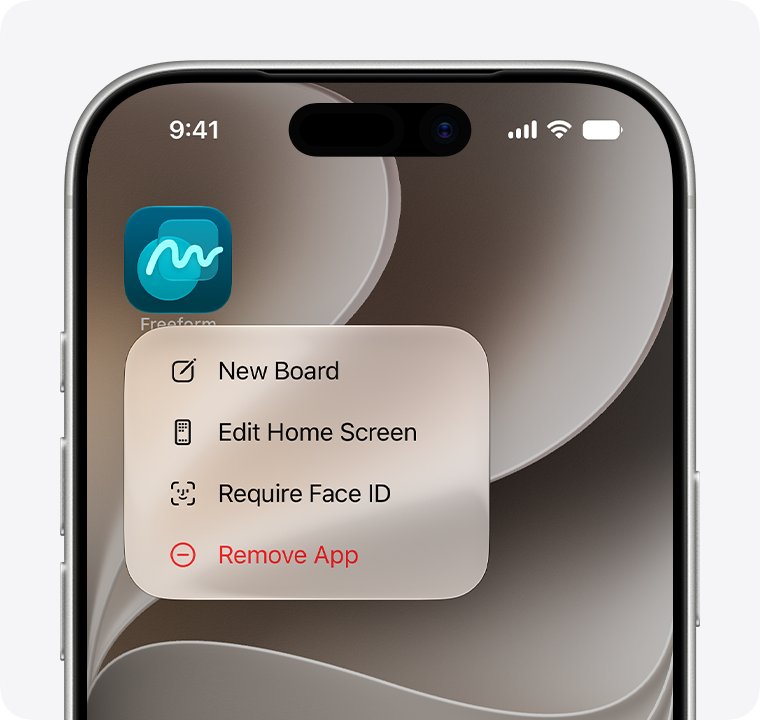
- Touch and hold the app icon that shows the cloud symbol.
- Tap Remove App.
- Tap Remove from Home Screen.
- Repeat for each icon you want out of sight.
You can also hide a whole Home Screen page. Touch and hold the wallpaper, tap the dots at the bottom of the screen, then remove the checkmark from that page.
How to delete apps from a folder or App Library
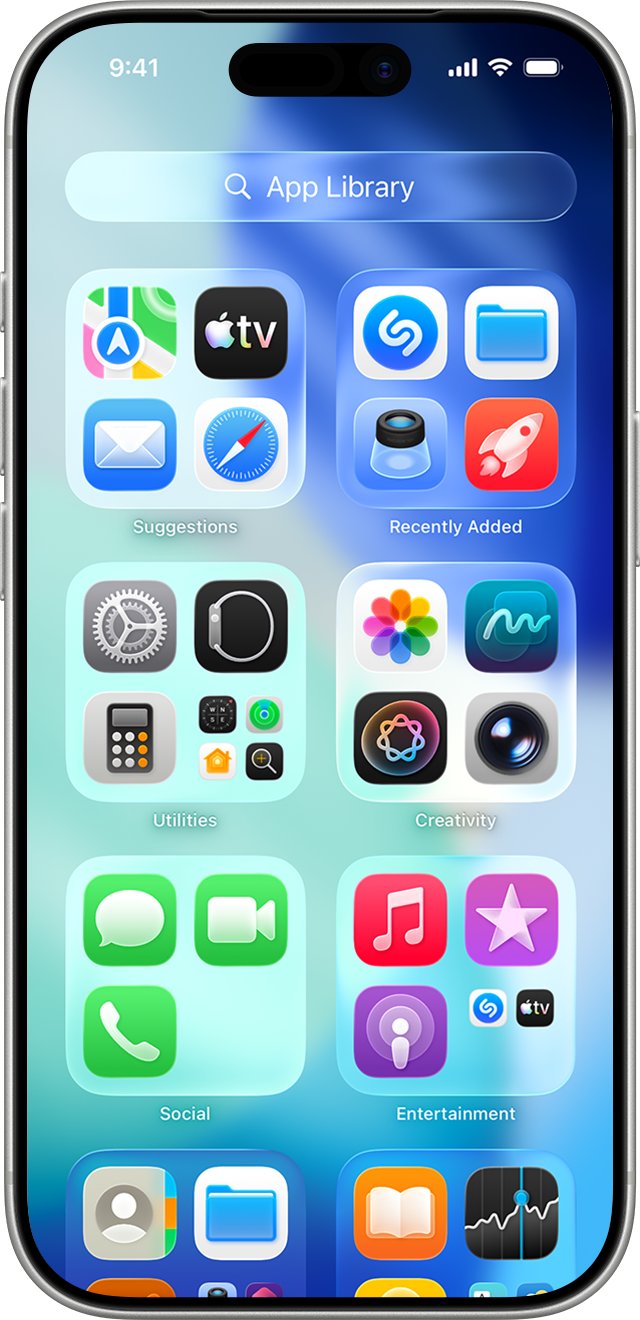
Apple's delete steps start from the app icon, so they also suit a phone where you already know which apps you want gone. Folders use the same touch-and-hold gesture as the Home Screen.
- Open the folder, or swipe left past your last Home Screen page to reach App Library.
- Touch and hold the app.
- Tap Remove App if it appears on the menu, then tap Delete App.
- Tap Delete to confirm.
Some built-in Apple apps can be removed from the Home Screen but cannot be deleted from the iPhone.
Where is offload unused apps on iPhone
Apple moved this setting in recent iOS versions. Use the path that matches your iPhone.
| iOS version | Path to the setting |
|---|---|
| iOS 18 and later | Settings > Apps > App Store > Offload Unused Apps |
| iOS 17 | Settings > App Store > Offload Unused Apps |
| Individual app, any listed version | Settings > General > iPhone Storage > app > Offload App |
How to turn off offload unused apps
Turn this off first if you are clearing out cloud icons, so the iPhone does not offload more apps while you work.
- Open the Settings app.
- Tap Apps, then tap App Store. On iOS 17, tap App Store directly.
- Turn off Offload Unused Apps.
- Check your Home Screen for remaining cloud symbols and delete the apps you no longer need.
Turning the setting off does not reinstall anything. Each app that is already offloaded stays offloaded until you tap its icon or delete it.
Erase iPhone to delete all apps at once
Erase All Content and Settings clears every app in one action from the iPhone itself, and it also clears your personal content and settings. Back up first, and treat this as a phone reset rather than an app cleanup.
- Back up your iPhone so you can restore your data later.
- Open Settings, tap General, then tap Transfer or Reset iPhone.
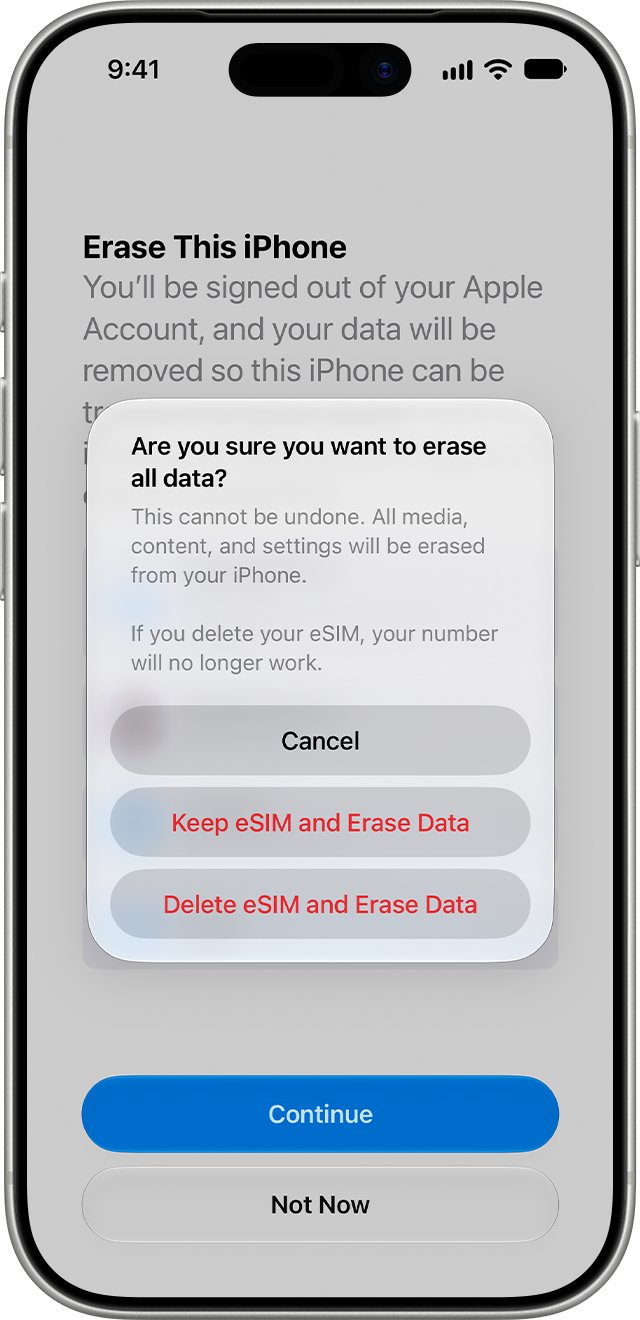
- Tap Erase All Content and Settings.
- Enter your iPhone passcode or Apple Account password if asked.
- Tap Continue to confirm.
- Choose whether to keep your eSIM. If you erase it, you need your carrier to reactivate your plan.
A restore from an iCloud backup brings back your Home Screen layout and app organization, which can bring back the same clutter.
How to get deleted apps back on iPhone
You can reinstall any app you previously downloaded, as long as it is still available in the App Store. That makes a large cleanup low risk, although the app's deleted data does not come back with it.
- Open the App Store.
- Tap your picture, then tap Apps & Purchase History.
- Tap Your Apps, or tap My Apps or a family member if you use Family Sharing.
- Find the app you want back.
- Tap the download button next to the app.
If you used to manage apps in iTunes, you can still find and redownload iPhone apps from this list. After a reinstall, update your iPhone apps if any of them lag behind the current version.
How to see which apps are offloaded on iPhone
Your clearest signal is the cloud symbol that Apple places on the icon of an offloaded app. Work through these places after a cleanup to see what is still there.
- Swipe through your Home Screen pages and look for the cloud symbol on any icon.
- Swipe left past the last page to open App Library, then browse the alphabetical list.
- Open Settings > General > iPhone Storage and scroll through the app list.
- Read the available storage figure at the top of that screen to see the space you got back.
Can't delete offloaded apps on iPhone
Delete App is missing from the menu
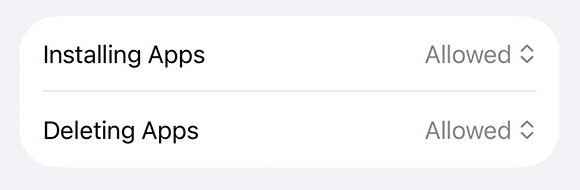
Content & Privacy Restrictions control installing and deleting apps, which can make the option to delete apps disappear, especially when deleting apps on a child account.
- Open Settings > Screen Time > Content & Privacy Restrictions.
- Tap iTunes & App Store Purchases and review the restriction for deleting apps.
- Ask the family organizer to change it if the iPhone belongs to a child in a Family Sharing group.
- Try the app again from iPhone Storage.
A built-in app will not delete
Some Apple apps can only be removed from the Home Screen.
- Touch and hold the app, then tap Remove App.
- Tap Remove from Home Screen if Delete App is not offered.
Storage does not change after you delete apps
Apple says available storage can take a moment to update after you delete an app.
- Leave iPhone Storage and open it again after a minute.
- Tap Show All under the recommendations to find other space you can reclaim.
iPhone keeps offloading apps
Offload Unused Apps is still on, so the iPhone keeps offloading when storage is low.
- Turn off Offload Unused Apps using the path in the table above.
- Delete the apps you do not want so they cannot return as cloud icons.
An app will not reinstall from its cloud icon
An offloaded app can only return if it is still available in the App Store.
- Search for the app in the App Store.
- If the app is gone, delete the icon, since the App Store cannot restore it.
Offloaded apps on iPhone FAQ
How do I delete offloaded apps on iPhone?
Open Settings > General > iPhone Storage, tap the offloaded app, then tap Delete App and confirm. You can also touch and hold its icon, tap Remove App, then tap Delete App. Either route removes the app's leftover data as well.
How do I remove all apps at once?
On the iPhone, the single action that does this is Erase All Content and Settings, which also erases your personal content and settings. For a normal cleanup, delete apps one at a time in iPhone Storage instead, and back up before you erase anything.
What happens when you offload an app?
The app is removed to free storage, while its documents and data stay on your iPhone. The icon stays on your Home Screen with a cloud symbol, and tapping it reinstalls the app if the app is still available in the App Store.
What is offload unused apps in iPhone?
It is a setting that automatically removes apps you do not use when storage runs low, and keeps their data. On iOS 18 and later, find it under Settings > Apps > App Store. On iOS 17, it sits under Settings > App Store.
How do I stop offloading unused apps?
Open Settings, tap Apps, tap App Store, then turn off Offload Unused Apps. On iOS 17, tap App Store directly from Settings. Apps that were already offloaded stay that way until you tap their icons or delete them.
Can I offload unused apps from a PC?
Apple's offload and delete steps run on the iPhone itself. The Finder, the Apple Devices app and iTunes show how much storage each content type uses, so use them to check storage, then offload or delete apps on the iPhone.
Can I delete apps that came with my iPhone?
You can delete some built-in Apple apps, while others can only be removed from the Home Screen. Touch and hold the app and tap Remove App. If Delete App is not offered, tap Remove from Home Screen to move it to App Library.
Where do I delete apps on iPhone?
Delete apps from the Home Screen, App Library or Settings > General > iPhone Storage. On the Home Screen and in App Library, touch and hold the app and tap Remove App. In iPhone Storage, tap the app and choose Delete App.