LTE calls turned off means your iPhone cannot use HD Voice, the Verizon service that carries calls over 4G LTE, on your line right now.
This guide covers how to set Enable LTE to Voice & Data, what to ask Verizon to change on your account, and the same alert on Spectrum and US Cellular.
How to fix LTE calls turned off on iPhone
Start on the iPhone, because that check takes under a minute. If the setting will not hold, the fix sits on the account side.
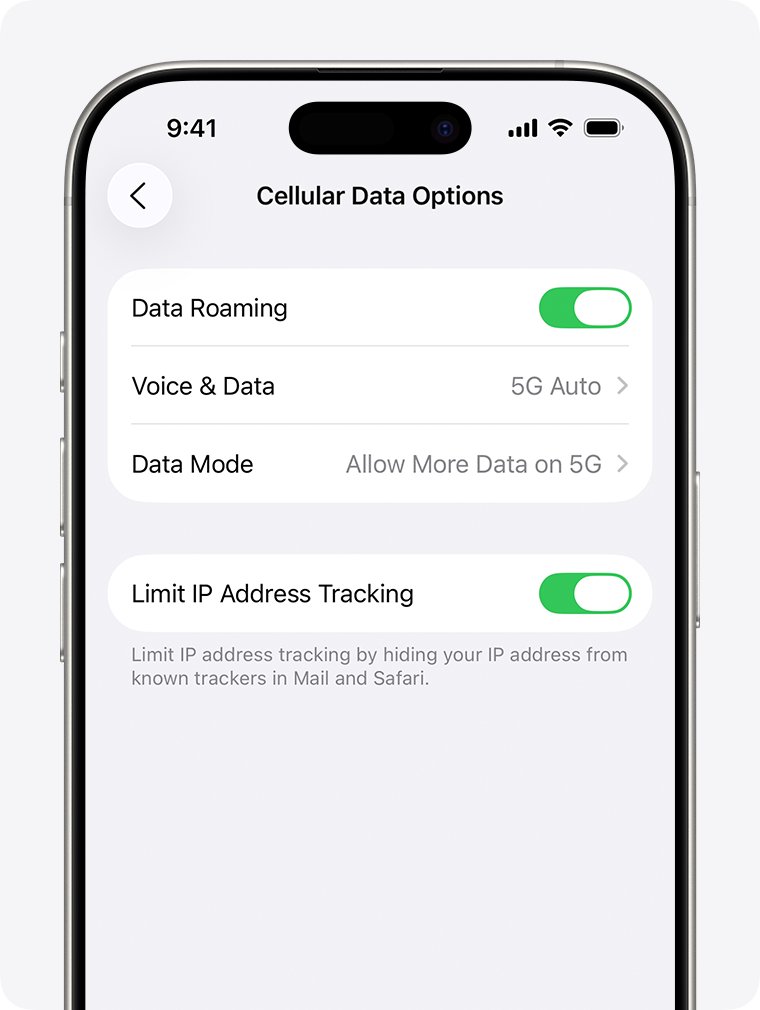
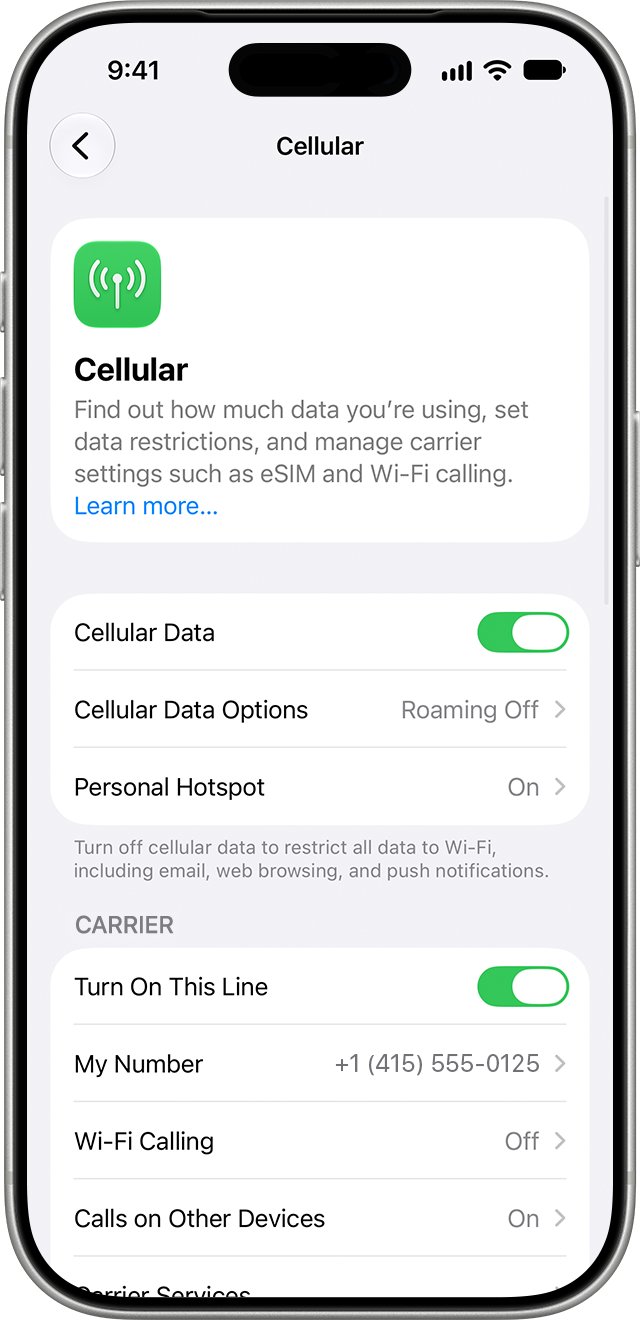
- Open the Settings app and tap Cellular.
- Make sure Cellular Data is on, then tap Cellular Data Options.
- Tap Enable LTE and choose Voice & Data.
- Wait up to 6 minutes, because Verizon says the account update can take a few minutes.
- If the setting still reads Data Only, dial *611 from your iPhone and ask Verizon to add HD Voice to your line.
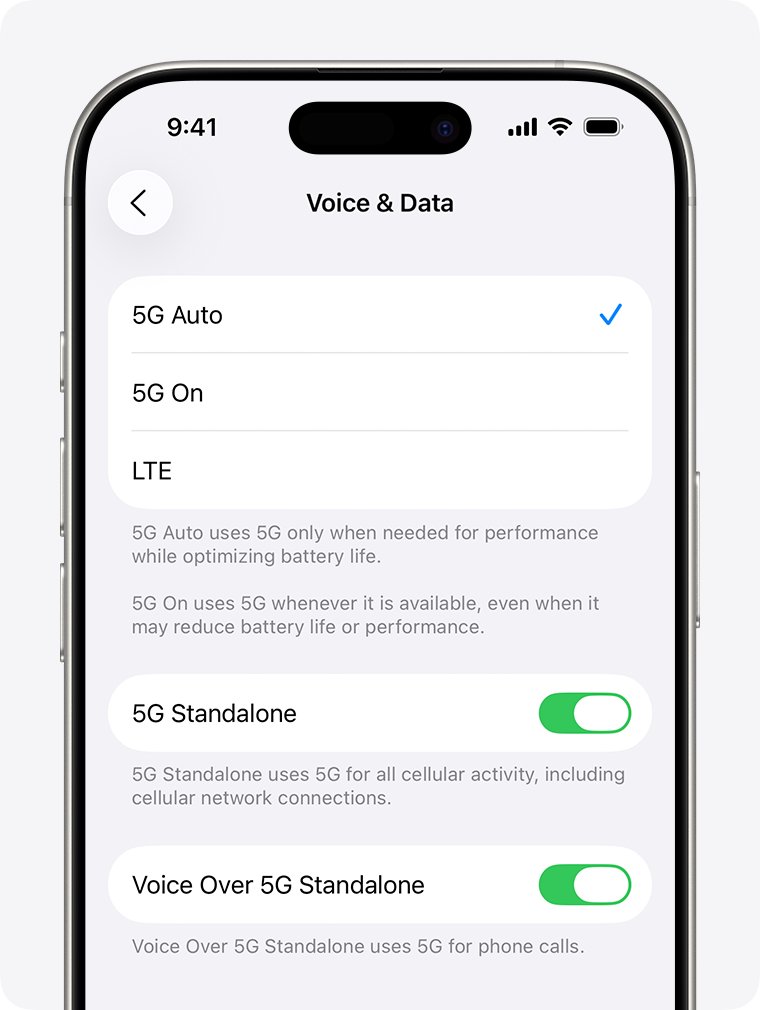
On an iPhone with a 5G plan, the same screen shows Voice & Data as its own row with 5G choices. The table further down lists both layouts.
What does LTE calls turned off mean
Verizon's HD Voice pages do not quote this alert, but they describe the same state: a line where calling over 4G LTE is not active. The features below all depend on that service.
| Feature | With HD Voice on | What the alert puts at risk |
|---|---|---|
| Voice calls | Carried over the 4G LTE network and billed as standard voice calls | HD Voice calls fail when the service is off on either line |
| Voice and data together | You can browse, download, use apps or run Mobile Hotspot during a call on 4G LTE | Simultaneous voice and LTE data stops being available |
| Video Calling | 1-way or 2-way video calls on capable phones | The Camera icon can be missing or disabled |
| Conference calls | Up to 6-way calls | 6-way calling is part of HD Voice, so it goes with the service |
| Wi-Fi Calling | Calls and texts over Wi-Fi on capable phones | Activation can fail while HD Voice is off |
HD Voice is included at no added cost, so a turned-off service is not a plan you need to buy again.
Why did Verizon turn off LTE calls
Match what your line and iPhone show against this table. Each row names a cause Verizon documents for HD Voice being unavailable.
| Your situation | Likely cause | What to do |
|---|---|---|
| Line has Call Filter or Company Name ID | These features are not compatible with HD Voice, and Verizon warns you about them when HD Voice is added | Ask Verizon which feature blocks HD Voice and whether to remove it |
| Business or company-paid line | Business lines can be ineligible, and changes go through your Wireless Program Administrator | Ask your company's administrator to make the change |
| iPhone 6 or iPhone 6s bought before March 2016 | The default Enable LTE setting on those phones was Data Only | Change the setting to Voice & Data |
| New iPhone or new SIM on the line | Verizon may still be adding HD Voice to the account | Wait 6 minutes, then call *611 if nothing changes |
| iPhone 5s or older | Apple lists VoLTE only for iPhone 6 or later | Upgrade the phone, since the setting cannot be added |
| Weak or no cellular signal | Activation needs a strong signal from the Verizon network | Move to a spot with at least one bar and try again |
Voice & Data vs Data Only on iPhone
The labels on the Cellular Data Options screen decide whether your iPhone uses LTE for calls. Apple notes that the choices you see depend on your iPhone model, carrier and region.
| Setting | What it does | Choose it when |
|---|---|---|
| Voice & Data | Uses LTE for calls and internet data, which is the VoLTE option | You want HD Voice and voice with data at the same time |
| Data Only | Keeps LTE for internet data and leaves calls off LTE | A carrier agent asks you to switch it for testing |
| Off | Turns 4G/LTE off, which Apple says can save battery at the cost of data speed | Rarely, because it also removes LTE calling |
| 5G Auto | Switches to LTE when 5G speeds do not offer a clear gain | You have an iPhone 12 or later on a 5G plan |
| LTE | Turns 5G off and stays on LTE | You want to test whether LTE calling works without 5G |
Ask Verizon to turn on LTE calls on your account
Use this route when Enable LTE will not stay on Voice & Data. You can also reach a real person at Verizon when the automated menu keeps looping.
- Dial *611 from the iPhone, or call 800-922-0204 between 8AM and 7PM Monday to Saturday, or 8AM and 5PM on Sunday.
- Tell the agent your iPhone shows "Verizon has turned off LTE calls on your account."
- Ask the agent to confirm that HD Voice is active on the line.
- Ask whether Call Filter or Company Name ID is blocking HD Voice on that line.
- Agree to any feature change only after the agent explains what you lose.
- Restart your iPhone after the agent finishes, then open Enable LTE and look for Voice & Data.
Company lines work differently, because the change goes through the Wireless Program Administrator. Verizon also offers a scheduled callback and chat if you cannot call from the affected line, and the My Verizon app on a PC signs in to the same account.
Update carrier settings when LTE calls are turned off
Apple says carrier settings updates improve cellular connectivity and can add support for features such as Wi-Fi Calling. Installing one takes less than a minute.
- Connect your iPhone to Wi-Fi or a cellular network.
- Open the Settings app and tap General.
- Tap About.
- Follow the onscreen instructions if an update appears.
- Look next to Carrier to see the version number, then ask Verizon whether it is the latest one.
You might also need new carrier settings after you set up an eSIM or insert a new SIM card. No prompt usually means there is nothing to install right now.
Reset network settings when LTE calls stay off
Try this only after Verizon confirms that HD Voice is active on the account. It removes saved Wi-Fi networks and VPN settings, and it can turn data roaming off, so have your Wi-Fi passwords ready.
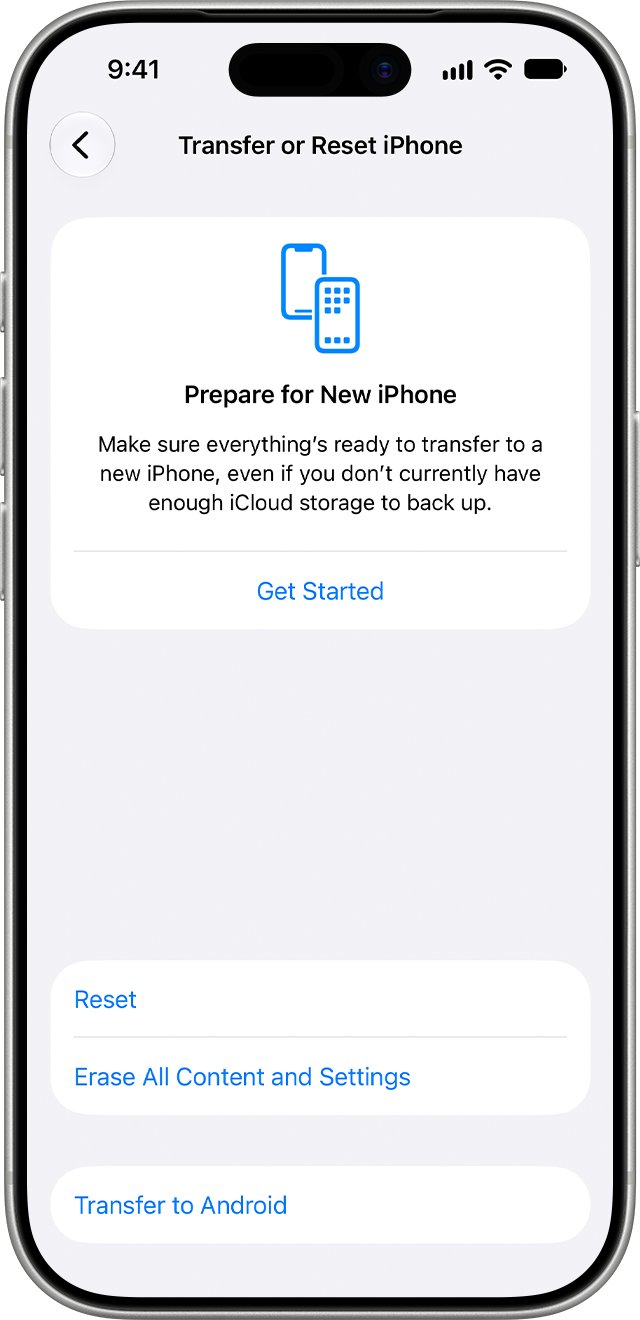
- Open the Settings app and tap General.
- Tap Transfer or Reset iPhone, then tap Reset.
- Tap Reset Network Settings and enter your passcode if asked.
- Reconnect to Wi-Fi after the iPhone restarts.
- Open Cellular Data Options and set Enable LTE to Voice & Data again.
Do not tap Erase All Content and Settings, because that option removes all your content.
Use Wi-Fi Calling when LTE calls are turned off
Wi-Fi Calling can cover you at home or at work while the account issue is open. Verizon lists it as part of HD Voice on capable phones, so it may refuse to turn on until HD Voice is back.
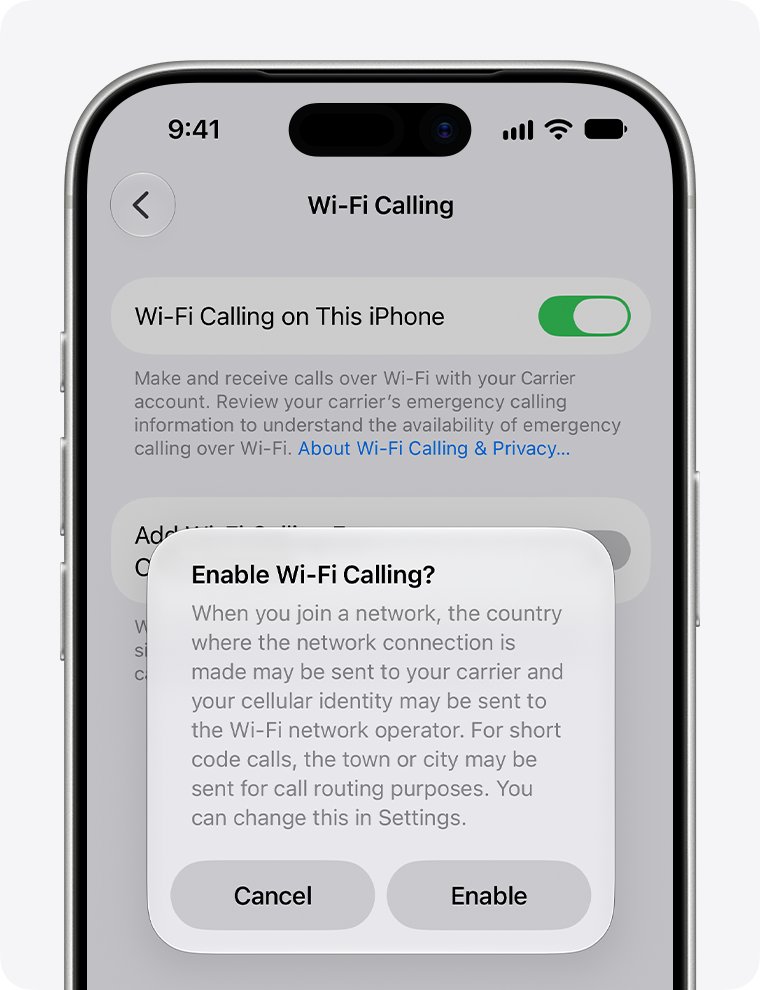
- Open the Settings app and tap Cellular.
- Tap Wi-Fi Calling.
- Turn on Wi-Fi Calling on This iPhone, then tap Enable.
- Enter or confirm your address for emergency services if asked.
- Open Control Center and look for Wi-Fi in the status bar to confirm calls use it.
Your iPhone must be on the Verizon network in the US to activate this feature, so turn it on before you travel. Verizon says 911 calls try cellular service first when Wi-Fi Calling is active.
LTE calls turned off on iPhone 11 and iPhone SE
The menu depends on your iPhone and plan more than on the iOS version. Use the row that matches your phone.
| iPhone | Where the setting lives | Choose |
|---|---|---|
| iPhone 6 to iPhone 11, or iPhone SE, without a 5G plan | Settings > Cellular > Cellular Data Options > Enable LTE | Voice & Data |
| iPhone 12 or later on a 5G plan | Settings > Cellular > Cellular Data Options > Voice & Data | 5G Auto, or LTE to test without 5G |
| iPhone with Dual SIM | Settings > Cellular, then the line that shows the alert | Repeat the row above for that line |
| iPhone 5s or older | No VoLTE option, because Apple lists it for iPhone 6 or later | Replace the phone to use LTE calls |
Spectrum has turned off LTE calls on iPhone
If the alert names another carrier, the iPhone steps stay the same and only the phone call changes. Apple lists VoLTE and Wi-Fi Calling for all three carriers below on supported models.
| Carrier named in the alert | VoLTE on iPhone | Who changes the account |
|---|---|---|
| Verizon | Listed for iPhone 6 or later | Verizon support at *611 |
| Spectrum | Listed for iPhone 6 or later | Spectrum Mobile support, using the number on your bill |
| US Cellular | Listed for iPhone 6 or later, with Wi-Fi Calling on iPhone 6s or later | Your carrier's support, using the number on your bill |
Call the carrier named in the alert, even if you recently moved your number from another one. Ask the same questions listed in the Verizon steps above, since feature names differ between carriers.
How to tell if LTE calling is on for your iPhone
A setting that reads Voice & Data is a good sign, but a real call proves it. Run this test on 4G LTE, not on Wi-Fi.
- Open Cellular Data Options and confirm the screen shows Voice & Data.
- Turn Wi-Fi off in Settings > Wi-Fi so the test uses the cellular network.
- Call a friend or your voicemail and stay on the line.
- Open Safari during the call and load a web page.
- Look for the page to load while the call continues, which is the simultaneous voice and LTE data Verizon describes.
- Turn Wi-Fi back on when you finish.
Why is my LTE not working on iPhone
Enable LTE still shows Data Only after 6 minutes
Verizon says the line may be a business line or may carry an incompatible feature.
- Ask your company's administrator to check the line if your employer pays for it.
- Dial *611 on a personal line and ask the agent to review the line's features.
Only a spinning wheel appears after you choose Voice & Data
On iPhone 6 and newer, the system can take a few minutes to update your account.
- Leave the screen and wait 6 minutes.
- Open Enable LTE again and read the current choice.
- Dial *611 if it has not changed to Voice & Data.
Voice & Data still shows Off
iPhone 6 and iPhone 6s models delivered before March 2016 defaulted to Data Only.
- Open Settings > Cellular > Cellular Data Options > Enable LTE.
- Tap Voice & Data.
- Run the call test in the section above.
Cannot Activate LTE Calls on iPhone
Verizon says several things can cause this error, and a weak network signal is the first to rule out.
- Check the service icon for at least one bar.
- Confirm that Cellular Data is on and Airplane Mode is off.
- Move to a spot with a stronger signal and try again.
- Call 800-922-0204 if the error returns.
LTE calls turned off while traveling abroad
HD Voice and Wi-Fi Calling must be activated on the Verizon network before you leave the country.
- Use Verizon chat or a scheduled callback from Wi-Fi if you need help during the trip.
- Activate both features when you are back on the Verizon network in the US.
HD Voice calls do not work with one person
Verizon says HD Voice must be active on both lines, with VoLTE on and 4G LTE service on both phones.
- Call another number to see whether the problem follows your line.
- Ask the other person to check their own VoLTE setting if the second call works.
LTE calls turned off FAQ
What is LTE calls turned off?
LTE calls turned off is an iPhone alert saying the carrier named in it has calling over LTE off for your account. On Verizon, that service is called HD Voice, and Apple's setting for it is Voice & Data.
What does LTE calls turned off mean?
It means your line is not set up to use HD Voice right now. You can lose HD Voice calls, voice and LTE data at the same time, video calling, and possibly Wi-Fi Calling until the service is active again.
Why did Verizon turn off LTE calls?
Verizon's HD Voice pages point to three common causes: an incompatible feature such as Call Filter or Company Name ID, a business line that needs administrator approval, or an iPhone set to Data Only. Dial *611 to have the exact reason checked on your line.
Why does LTE not work on my iPhone?
LTE stops working when Cellular Data is off, Airplane Mode is on, the Enable LTE setting is off, or the signal is weak. Check Settings > Cellular > Cellular Data Options first, then look for at least one bar of service.
Why is my LTE not working after a SIM change?
Your iPhone might need new carrier settings after you set up an eSIM or insert a new SIM card. Open Settings > General > About and follow any onscreen instructions, then check Enable LTE again and call your carrier if it stays off.
Why has my phone turned off LTE calls by itself?
The alert comes from the state of your line, so a setting on the phone is only part of the answer. If Voice & Data will not stay selected, ask your carrier to check the line. If the phone itself keeps shutting down, that is a separate fault.
Does HD Voice cost extra on Verizon?
No, Verizon includes HD Voice with most plans at no added cost, and calls are billed as standard voice calls. If an agent adds it back, ask them to confirm that nothing else changes on your plan or line features.
Can I turn LTE calls back on without calling Verizon?
Yes, if the cause is the setting on your iPhone, because you can switch Enable LTE to Voice & Data yourself. If the account has the service turned off or carries an incompatible feature, Verizon or your administrator has to change it.