Apple Maps lists its routes on the directions card, each with its own Go button, so if you see only one, clear the Avoid settings under Options and use Add Stop to push Maps onto the road you want.
This guide covers where alternative routes appear, how to change a route on iPhone and Mac, how to save routes, and what to use when Maps still offers one option.
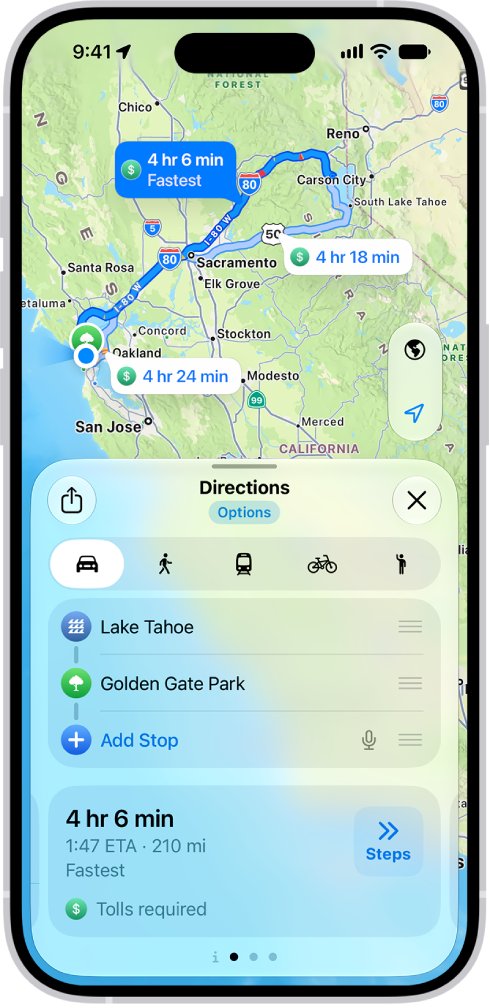
How to see alternative routes in Apple Maps on iPhone
Apple's guide tells you to tap Go for the route you want, which is where any alternatives appear. There is no separate alternatives button or setting in Apple's Maps guide.
- Open Maps on your iPhone and enter your destination in the search field.
- Tap the directions button.
- Tap Options below Directions and clear anything selected under Avoid, then close Options.
- Scroll the card and compare each route listed, including its travel time.
- Tap Go next to the route you want, or Steps to read its turns first.
If the card still lists a single route, Maps has no other option to offer for those settings. Use the Add Stop method below to choose your own road.
Why Apple Maps shows no alternative routes
Apple does not publish the rules Maps uses to decide how many routes to list. The first five rows come from its guides, and the last is plain road geography, so rule them out in this order.
| What to check | How it affects routes | What to do |
|---|---|---|
| Avoid tolls or highways is on | Narrows the roads Maps can use | Tap Options on the directions card and clear Avoid |
| The Mac default avoid settings | Apply to driving routes you plan on that Mac | Choose Maps > Settings > Route Planner and review Driving |
| Multistop route | You have fixed the stops Maps must pass through | Swipe left on a stop and tap Delete before you tap Go |
| Precise Location is off, or no internet | Apple says directions need both | Turn on Precise Location and connect to the internet |
| Your country or region | Not all Maps features are available everywhere | Check Apple's iOS and iPadOS Feature Availability website |
| A short or rural trip | Few practical roads connect the two points | Use Add Stop to route through the road you prefer |
How to change route in Apple Maps with Add Stop
This is the direct way to take a road Maps does not suggest. Add a place on your preferred road as a stop, and Maps has to route through it. A driving route can hold up to 14 stops.
- Open Maps and get driving directions to your destination.
- Tap Add Stop, then search for a place on the road you want to take.
- Or zoom in, tap a landmark or business on that road, then tap Add Stop in the place card.
- Touch and hold the handle next to the new stop and drag it above your destination, because a new stop lands in the final position.
- Tap Go when the order is right.
If the road has no named place to search for, enter latitude and longitude for a point on it and add that as your stop.
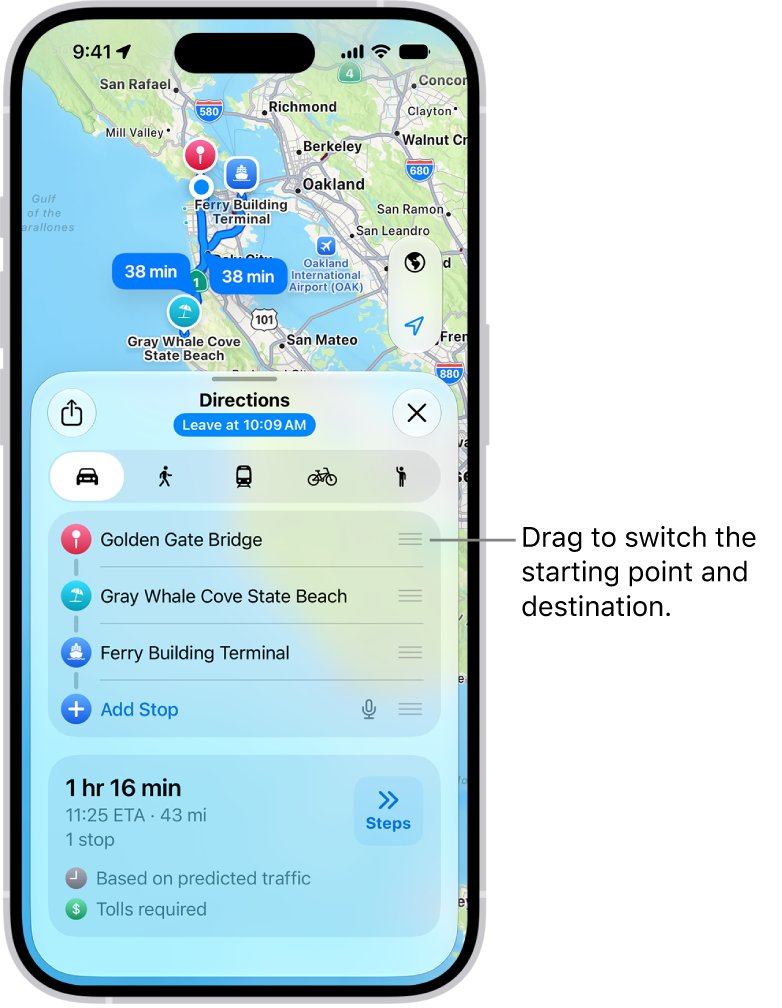
How to modify route in Apple Maps after you start driving
You can still add a stop once navigation is running. Maps updates the route and makes the chosen place your next stop.
- Tap the route card at the bottom of the screen.
- Tap Add Stop, then tap a category or search for the place.
- Select the place, then tap Add or Add Stop.
- To remove a stop later, tap the route card, then tap the remove button next to the stop.
Ask a passenger to make these changes, or pull over first. To finish navigation early, tap the card at the bottom of the screen, then tap End Route.
Apple Maps setting avoid highways and tolls
Avoid choices live in two places: the directions card for one trip, and the preferences for later trips. If Maps keeps sending you the long way, check both.
| Device and scope | Where to change it | What you can avoid |
|---|---|---|
| iPhone, this trip | Directions card > Options > Avoid | Tolls and highways |
| iPhone, default | Your picture or initials next to the search field > Preferences | Options vary by travel mode |
| Mac, this trip | Directions card > Options | Tolls and highways when driving; hills, busy roads and stairs for other modes |
| Mac, default | Maps > Settings > Route Planner | Tolls and highways under Driving Default Options |
How to see alternative routes in Apple Maps on Mac
The larger Mac map makes it easier to compare routes before you leave, and you can send the result to your iPhone.
- Open Maps on your Mac and search for your destination.
- Click the blue Directions or Plan button.
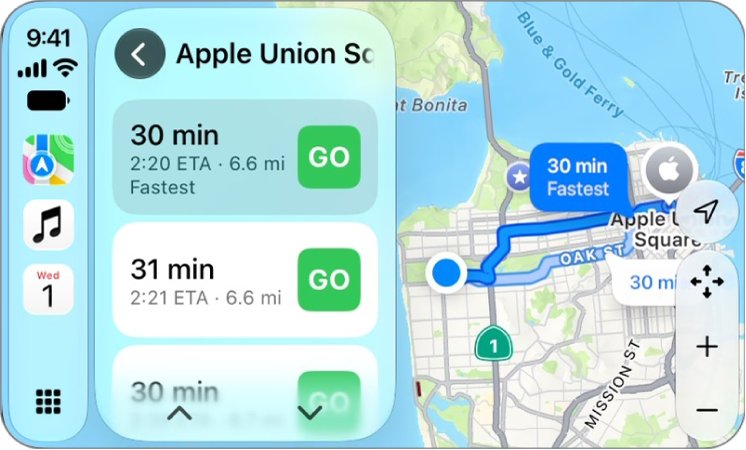
- Click the Drive button, then review the routes listed in the card.
- Click Options to change what Maps avoids, or to choose Leave At or Arrive By.
- Click Add Stop below the destination to route through a place of your choice.
- Choose File > Share > Send to your iPhone to continue on the phone.
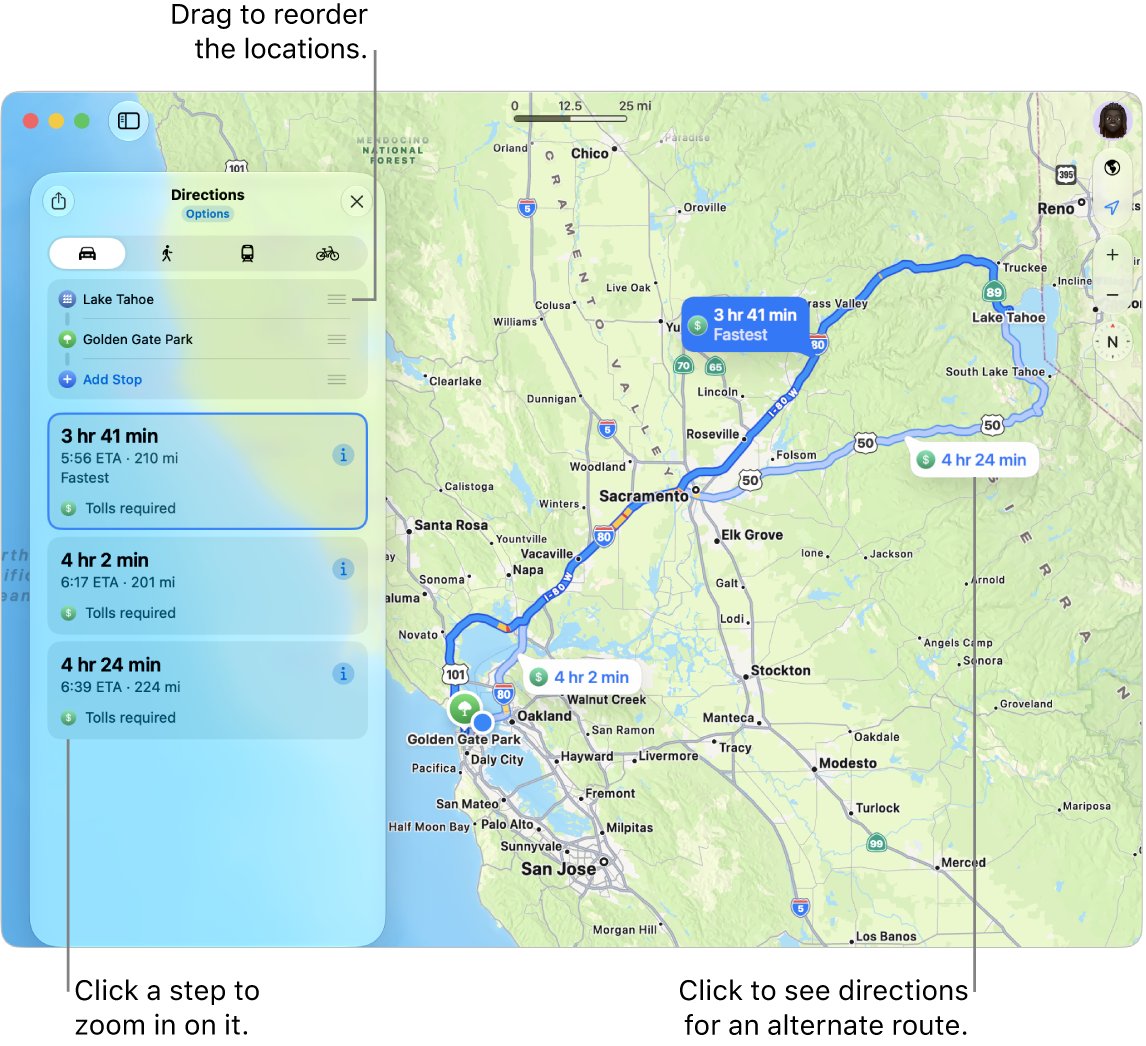
How to choose a route in Apple Maps on CarPlay
Apple's CarPlay guide states that routes are conditional: you pick one if multiple routes appear. If only one route appears, set your stops on the iPhone first.
- Open Maps in CarPlay using your vehicle's built-in controls.
- Select a favorite, select Destinations, or select Search to find your destination.
- If multiple routes appear, use your vehicle's controls to select the one you prefer.
- Select Go to start turn-by-turn directions.
To end directions, say something like Stop navigating to Siri, or select the estimated time of arrival at the bottom left and choose End Route. If you hear no spoken turns on the way, you can fix CarPlay voice directions.
How to check a different departure time in Apple Maps
Maps estimates travel time from predicted traffic for a future trip, so a later or earlier departure changes the comparison you are making between routes.
- Get driving directions in Maps.
- Tap Options below Directions.
- Tap Leave at or Arrive by, then choose a time and date.
- Close Options and compare the times on the route card.
Apple Maps suggested route vs fastest route
Apple's guides do not define a suggested route against a fastest route. They describe two labels you may notice, and neither replaces checking the travel time beside each route.
| What you see | What it means | How to control it |
|---|---|---|
| Your route or My Route | A trip you drive regularly, such as home to work, which Maps can use to warn you about delays | Settings > Apps > Maps > Location > Preferred Routes & Predicted Destinations |
| Route with a travel time | One of the routes Maps found, with its estimate for your trip | Compare the times, then tap Go on the one you want |
How to save routes on Apple Maps
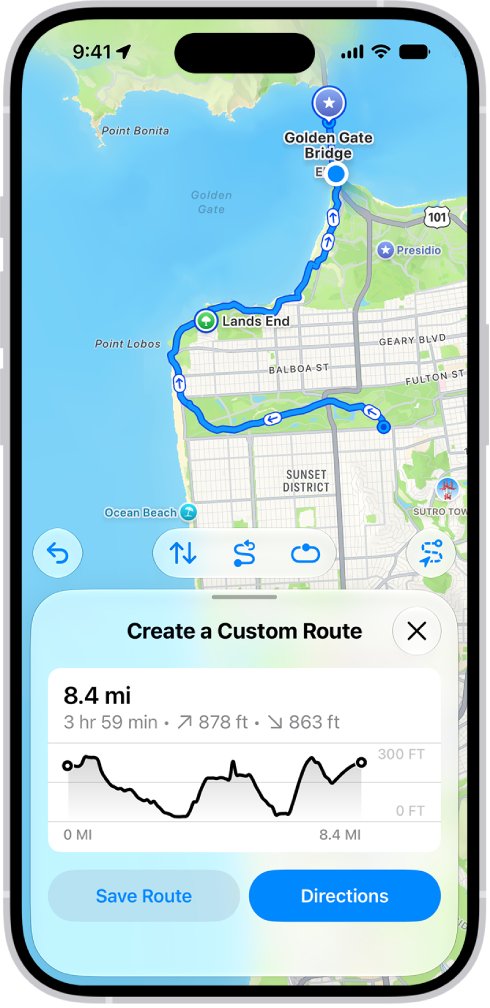
Apple's saved routes are for walks and hikes. You create the path yourself point by point, which also makes this the Apple Maps custom routes feature. Apple's guide does not describe the same tool for driving.
- Touch and hold any road, path or trail to drop a pin at your starting point.
- On the pin's card, open the button with more options, then tap Create a Custom Route.
- Tap other points along your route, and tap a point then Remove Point to delete it.
- Tap Save Route, name the route, add any notes, then confirm.
- Turn on Download Map so you can open the route without an internet connection.
Google Maps alternate routes as a second opinion
If you need to compare several driving routes regularly, Google Maps is the usual second opinion. Google's help says the best route shows in blue and all other routes in gray when more than one exists.
| Task | Apple Maps | Google Maps |
|---|---|---|
| Switch route | Tap Go on the route in the card | Select the gray route on the map |
| Maximum stops | Up to 14 stops on iPhone | Up to 9 stops, including the final destination (computer) |
| Avoid tolls and highways | Options > Avoid | Customize your route > Avoid tolls & highways |
On a Windows PC, you can use Google Maps on the desktop to plan the route. You can also try one of the Windows map app alternatives.
Apple Maps route problems and how to fix them
Directions will not load at all
Apple says directions need an internet connection and Precise Location.
- Connect to Wi-Fi or cellular data.
- Go to Settings > Privacy & Security > Location Services and turn it on.
- Scroll down, tap Maps, then turn on Precise Location.
Maps gives the wrong type of route
Your preferred travel mode is set to walking, transit or cycling.
- Tap the driving button on the directions card.
- Tap your picture or initials next to the search field, then tap Preferences.
- Change the preferred travel mode to driving.
Maps keeps showing the same old route
Maps can suggest a road you drive often as Your route.
- Open Settings > Apps > Maps > Location.
- Turn off Preferred Routes & Predicted Destinations.
- Scroll down in the Maps card to Recents, tap Recents, then tap Clear to remove old directions.
A step in the directions is wrong
The map data needs correcting, and Apple takes reports inside Maps.
- Tap your picture or initials next to the search field.
- Tap Reports, then Report a New Issue.
- Choose an option and follow the onscreen instructions.
How to see your whole route in Apple Maps
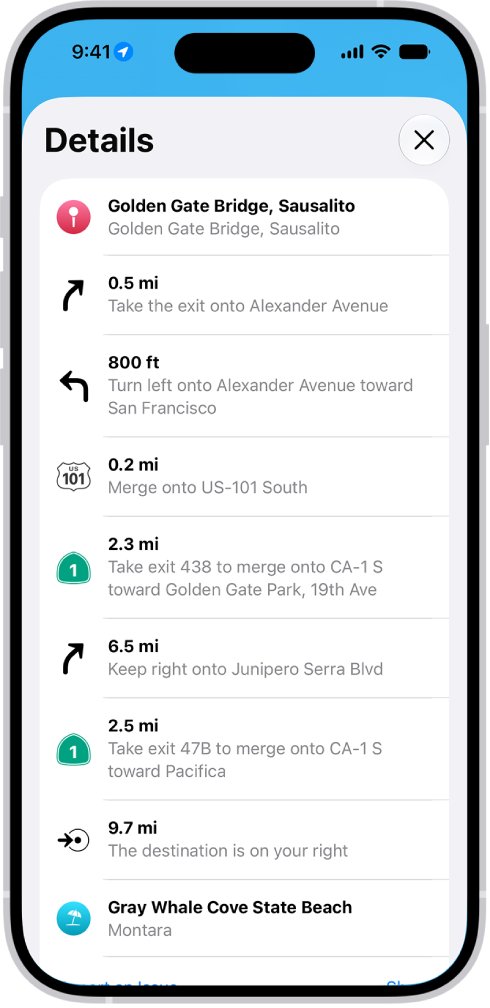
Before you drive, read the list of turns to see which roads the chosen route uses. This is how you tell whether an added stop really moved you onto the road you wanted.
- Get directions in Maps.
- Tap anywhere on the route card except the Go button.
- Scroll down and read the road names in the list of directions.
- Scroll to the bottom of the card and tap Share if you want to send the route to someone.
Apple Maps alternative routes FAQ
How do I modify a route in Apple Maps?
Get directions, then tap Add Stop and search for a place on the road you want. Drag the stop into position before you tap Go. You can also tap the start or destination to choose a different location for the whole trip.
How do I change route in Apple Maps?
On the directions card, tap Go beside a different route if Maps lists one. If it lists only one, tap Options to change what you avoid, or add a stop on the road you prefer so that Maps has to pass through it.
Can you save routes in Apple Maps?
Yes, for walks and hikes. Create a custom route by dropping a pin, tapping Create a Custom Route, adding points and tapping Save Route. Apple's guide describes this for walking and hiking routes and does not describe a saved route for driving.
How do I end a route in Apple Maps?
Tap the card at the bottom of the screen, then tap End Route. You can also ask Siri something like Stop navigating. Both options stop the directions before you arrive, and Apple lists them together in its guide to changing a route in Maps.
How do I optimize a route in Apple Maps?
Apple's guide does not list an automatic stop-order optimizer. You arrange the stops yourself by touching and holding a stop and dragging it to a new position before you tap Go. A single driving route can hold up to 14 stops on iPhone.
Does Apple Maps create a route with multiple stops?
Yes. Get driving directions, tap Add Stop and search for each place, up to 14 stops on iPhone. On a Mac, click Add Stop below the destination and drag stops to rearrange them. New stops appear as the final destination until you move them.
Can I use Apple Maps without internet?
Yes, if you download the area first. Touch and hold the map, tap Download, then adjust the area. Offline maps give turn-by-turn directions and travel estimates without Wi-Fi or cellular service, although they are not available in every country or region.