To clear error 06B4.0000 on an iPad mini 6th gen, update your computer's software, fix its connection to Apple's update servers, and run the restore again from recovery mode.
Apple does not list 06B4.0000 in its published error codes, but it does list Error 1109, which often accompanies it, as a network error. The steps below cover the iPadOS 18 upgrade that failed, the recovery mode buttons, and what to do if a different code appears.
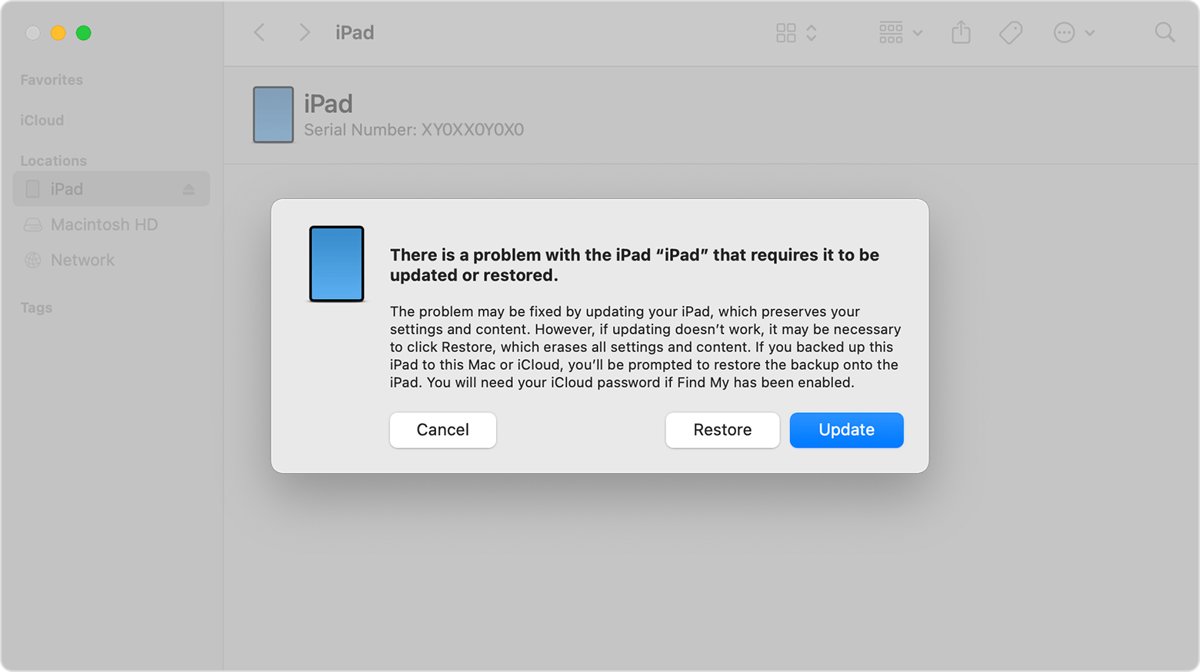
How to fix iPad restore error 1109 06B4.0000
- Update your Mac, or install the latest Apple Devices app or iTunes on your Windows PC.
- Load a website on the computer to check its internet connection.
- Restart the computer and your modem.
- Plug the iPad mini directly into a USB port on the computer, not a keyboard or USB hub.
- Put the iPad mini in recovery mode with the button steps below.
- Select the iPad in the Finder or the Apple Devices app, and choose Update when you see Restore or Update.
- If Update fails again, repeat recovery mode and choose Restore.
Apple's advice is to try Update first. Restore reinstalls the software and erases all your data, so your files come back only from a backup.
What is error 1109 06B4.0000 on iPad?
Apple's update and restore error pages explain the numbered codes but not the 06B4.0000 string. Treat the number shown with it as your guide, and start with the network if the alert names 1109 or names no other number.
| Code in the alert | What Apple says it points to | Where to start |
|---|---|---|
| 1109, 17, 1639, 3194, 3000-3020, 3100-3999 | The computer cannot communicate with Apple's update servers | Internet connection, firewall, router and hosts file |
| 4005, 4013, 4014 | The update or restore needs another attempt, then a USB check | Try again, then the cable and USB port |
| 13, 1600-1604, 1611, 1643-1650, 2000-2009 | USB connection, cable, port or computer | Apple-certified cable, another port, another computer |
| 1, 3, 11, 12, 16, 1002, 1004, 1011, 1012, 1014, 1667, 1669 | A possible hardware issue | Security software and USB checks, then Apple service |
| 1015 or "The required resource can't be found" | Modified software, or an attempt to install an earlier version | Restore the latest software from recovery mode |
| 4037 | The device is locked | Unlock the iPad, then try again |
The iPad mini runs iPadOS, so a failed "iOS 18" upgrade on this tablet means a failed iPadOS 18 install. Apple's network error page covers both iPhone and iPad.
What do I need to restore iPad mini 6 with a computer?
| Item | Detail |
|---|---|
| Mac or Windows PC | On a PC, install the latest Apple Devices app or iTunes. On a Mac with macOS Catalina or later, use the Finder |
| USB cable | The cable that came with the iPad, or another Apple-certified cable that can charge it |
| Direct USB port | A port on the computer itself, because keyboard ports often lack the power for a restore |
| Internet connection | The computer downloads the software and contacts Apple's update servers |
| Time | Up to 60 minutes |
| Backup, if you have one | A restore deletes your data and settings, so your iCloud or computer backup is how you get them back |
How to put iPad mini 6 in recovery mode
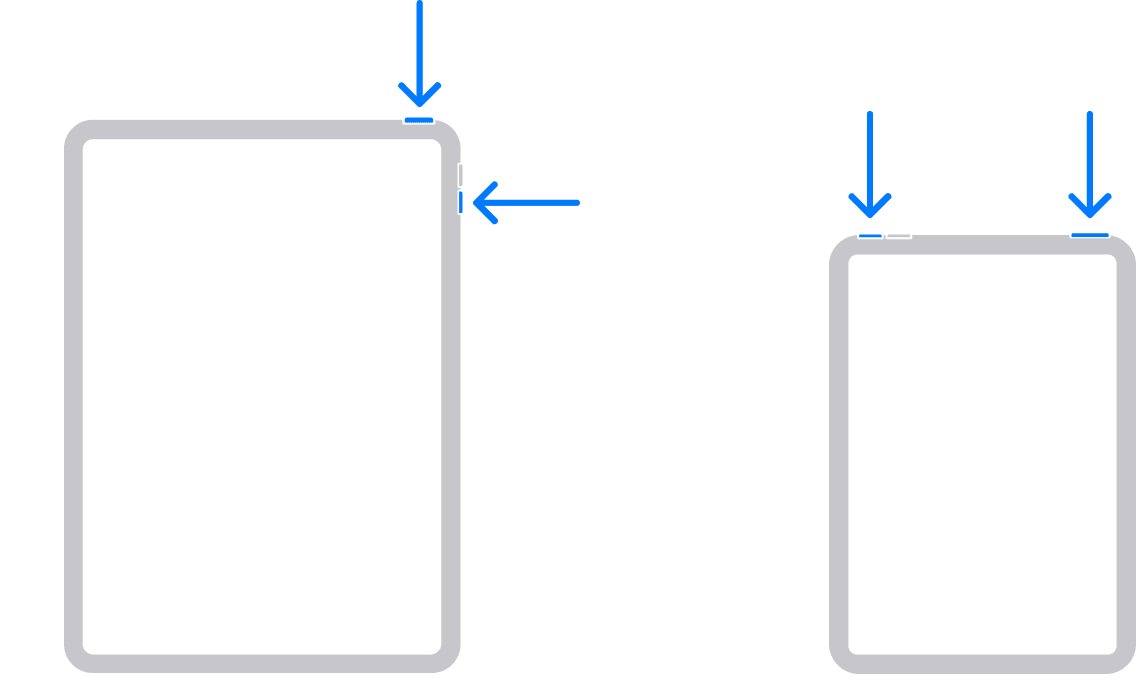
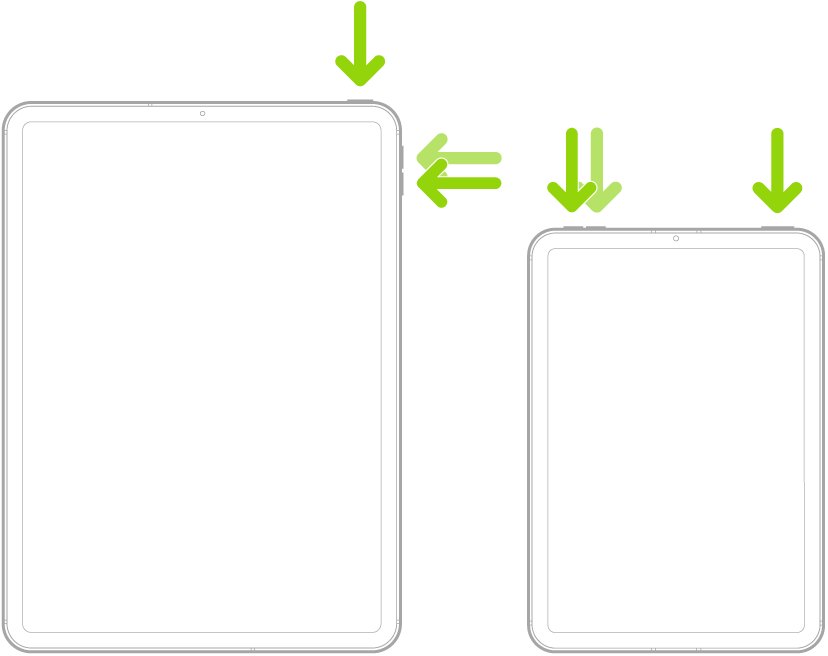
The iPad mini 6th gen has no Home button, so it uses the volume and top button sequence. Press the buttons in order without pausing between them.
- Unplug the iPad mini from the computer if it is connected.
- Press and hold one volume button and the top button until the power off slider appears.
- Drag the slider, then wait a minute for the iPad mini to turn off completely.
- Connect the iPad mini to the computer with a USB cable.
- Press and quickly release the volume button closest to the top button.
- Press and quickly release the volume button farthest from the top button.
- Press and hold the top button, and keep holding it while the Apple logo appears.
- Let go when an image of a computer and a cable appears.
If the passcode screen appears instead, turn off the iPad mini and start again.
How to restore iPad mini 6 after a failed iOS 18 upgrade
If the failed install left the iPad mini stuck on the Apple logo or the recovery screen, finish it from the computer once the network problem is fixed.
- Open the Finder on a Mac, or the Apple Devices app on a PC.
- Select the iPad mini on the computer.
- Choose Update first, because Restore erases all your data.
- Wait while the computer downloads the software.
- If the update fails again, repeat recovery mode and choose Restore.
- Wait for the process to finish, then disconnect the iPad mini at the Hello screen and set it up.
Restoring installs the current software for your iPad. Apple's error list treats an attempt to install an earlier version as a downgrade, which can produce Error 1015.
Fix iPad restore error 1109 06B4 on your network
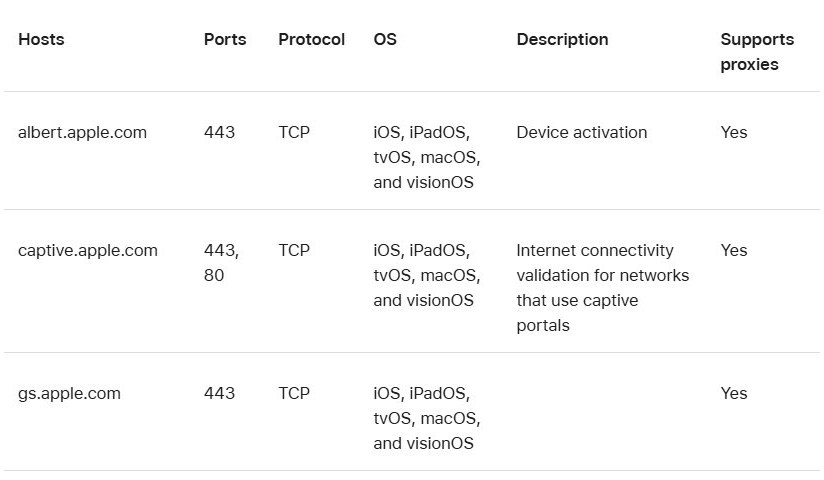
A firewall or security software on the computer can block Apple's update servers, and some routers do as well.
- Open your firewall settings and make sure they allow access to Apple's update servers.
- Update your security software, or change its settings so it does not block the Finder, the Apple Devices app or iTunes.
- Disconnect the computer from your wired or wireless router.
- Connect the computer directly to your modem with an Ethernet cable.
- Restart the computer and the modem.
- Check that the internet connection works, then restore the iPad mini again.
On a work or school network, proxies and firewalls can cause these errors. Contact the network administrator, or restore on a home network instead.
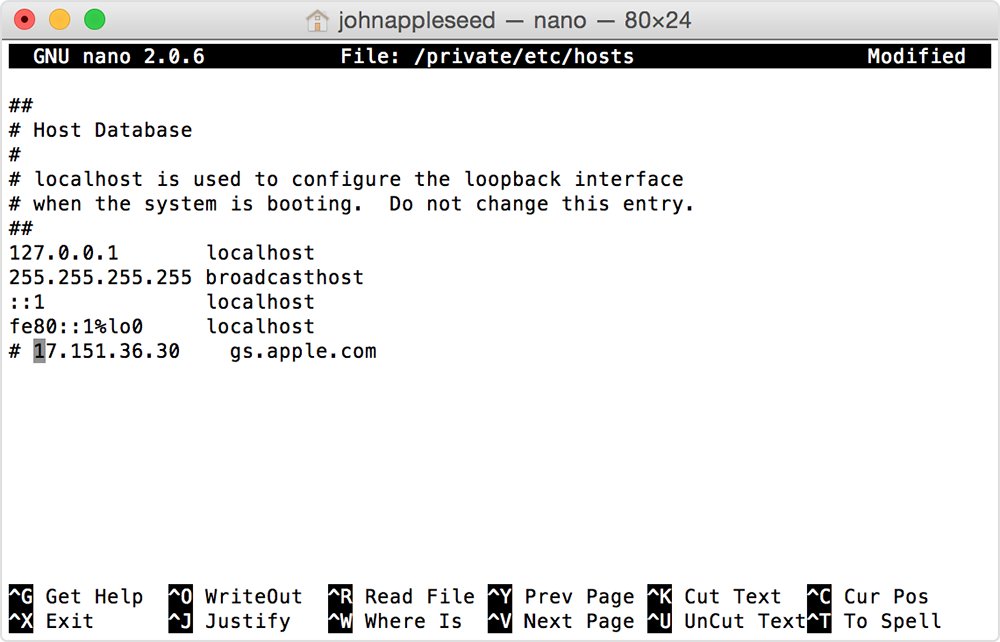
Check the hosts file for iPad error 1109 06B4.0000
An entry for gs.apple.com in the hosts file can stop the computer from reaching the update server. If there is no such entry, the hosts file is not the cause.
- In the Finder, choose Applications, then Utilities, and open Terminal.
- Type
sudo nano /private/etc/hostsand press Return. - Enter your Mac sign-in password and press Return. No text appears while you type it.
- Use the arrow keys to find an entry containing gs.apple.com.
- Add
#before that entry. - Press Control-O, press Return to keep the filename, then press Control-X.
- Restart your Mac and try the restore again.
On a Windows PC, reset the Windows 11 hosts file to its default using Microsoft's instructions. On a business computer, check that your apps still work afterwards.
Restore iPad mini 6 on another computer
A different computer on a different internet connection rules out anything on your own setup that blocks Apple's update server.
- Choose an up-to-date Mac, or a PC with the latest Apple Devices app or iTunes.
- Connect that computer to a different network, such as a home connection instead of a work one.
- Connect the iPad mini with an Apple-certified USB cable.
- Put the iPad mini in recovery mode.
- Choose Restore and wait for the process to finish.
The same network causes apply on other devices, and the iPhone 11 fix for error code 1109 differs mainly in its buttons.
How to hard reset iPad mini 6
A hard reset, or force restart, does not erase anything. Use it when the screen is frozen or the iPad mini does not respond, but it does not replace a restore.
- Press and quickly release the volume button nearest to the top button.
- Press and quickly release the volume button farthest from the top button.
- Press and hold the top button.
- Release the top button when the Apple logo appears.
To remove everything without a computer on a working tablet, factory reset the iPad from Settings instead.
Soft reset iPad mini 6
A soft reset is a normal restart, which is the first thing to try while the iPad mini still responds.
- Press and hold one volume button and the top button until the power off slider appears.
- Drag the slider to turn off the iPad mini.
- Wait 30 seconds for it to turn off.
- Press and hold the top button until the Apple logo appears.
How to tell an iPad mini 6 restore finished
- Watch the iPad mini for the Hello screen, which appears when a restore finishes.
- Check that the computer no longer shows an error alert.
- Disconnect the iPad mini and follow the onscreen setup steps.
- Choose your iCloud or computer backup during setup if you have one.
An Apple logo with a progress bar is normal after an update or restore. It can look static or start again, so give it time before you act.
iPad could not be restored 1109 06B4.0000: other fixes
Error 1109 06B4.0000 comes back on every restore
Something on the computer or network still blocks the update server, or the USB link is unreliable.
- Turn off the computer, turn it back on, and restart the iPad mini.
- Switch to a different USB port on the computer.
- Try another Apple-certified USB cable.
- Update your security software or change its settings.
- Restore on another computer with a different internet connection.
The restore now fails with a different error code
The network problem is fixed and another cause is showing, such as USB or a locked device.
- Note the new number from the alert.
- For 4005, 4013 or 4014, try again, then check the cable and USB port.
- For 4037, unlock the iPad mini and try again.
- For 1015, restore the latest software from recovery mode.
iPad mini left recovery mode during the download
The iPad mini leaves the recovery screen if the download takes more than 15 minutes.
- Let the download finish on the computer.
- Turn off the iPad mini.
- Repeat the recovery mode button steps.
- Choose Update or Restore again.
iPad mini stuck on the Apple logo after the failed upgrade
The install stopped partway, or it is still running behind a slow progress bar.
- Press a button, because an updating message means the install is still running.
- Force restart the iPad mini if it stays unresponsive.
- Connect it to the computer and use recovery mode.
- Choose Update, then Restore if the update fails.
The computer does not recognize the iPad mini
The iPad is locked, not trusted, or connected through a hub or keyboard.
- Unlock the iPad mini and trust the computer if prompted.
- Connect it directly to a USB port on the computer.
- Update macOS, the Apple Devices app or iTunes.
- Use recovery mode if the iPad mini will not start up.
iPad mini shows a black screen and will not turn on
The tablet may be frozen or need charging, and Apple allows up to an hour for that.
- Force restart the iPad mini.
- Charge it for up to an hour if it does not respond.
- Try the force restart again.
- Contact Apple Support if it still does not turn on.
iPad mini 6 error 06B4.0000 FAQ
What does error 06B4.0000 mean on an iPad?
Apple does not define 06B4.0000 in its published error lists. It does define Error 1109, which often appears next to it, as a network error, meaning the computer could not communicate with Apple's software update servers during the restore.
How to hard reset iPad mini 6th gen?
Press and quickly release the volume button nearest the top button, then the volume button farthest from it. Press and hold the top button, and release it when the Apple logo appears. This restarts the iPad without erasing data.
How to reset iPad mini 6?
To restart it, hold a volume button and the top button, then drag the slider. To erase it with a computer, put it in recovery mode and choose Restore. Erasing deletes your data and settings, including the passcode, so you set it up again.
Will restoring my iPad mini after error 1109 erase my data?
Choosing Restore erases all your data and settings, and you recover them only from an earlier iCloud or computer backup. Apple advises trying Update first when the screen offers both options, then using Restore if the update does not work.
Is my iPad mini broken if I see error 1109 06B4.0000?
Not necessarily. Apple groups Error 1109 with network errors rather than hardware errors, so the computer or network is the first place to check. If the restore keeps failing on another computer and network, the iPad might need service.
Can I restore an iPad mini 6 without a computer?
Recovery mode needs a Mac or Windows PC. If the iPad mini cannot start and you do not have a computer you can borrow, take it to an Apple Store or Apple Authorized Service Provider for help.
Does the iPhone could not be restored 06B4.0000 error need the same fix?
The approach is the same: update the computer, clear the network block, and restore from recovery mode. Apple's network error page covers both iPhone and iPad, and only the recovery mode buttons differ on models with a side button.