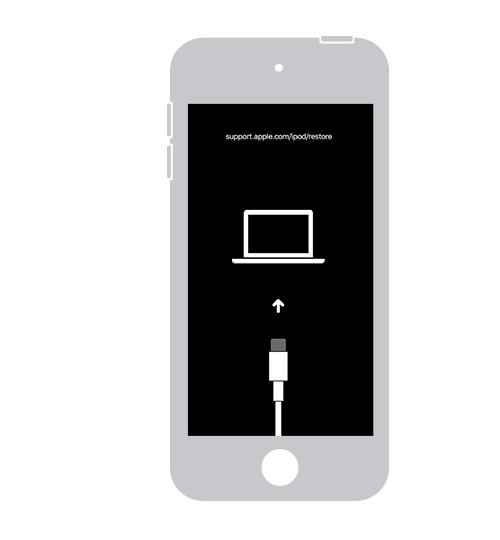
An iPod showing the iTunes logo and a USB cord is in recovery mode, so connect it to a computer and choose Update, then Restore if the update fails.
This guide covers the fix on a Mac or Windows PC, the force restart buttons for every iPod model, what to do when iTunes will not see the iPod, and how to get your data back.
How to fix iPod stuck on the iTunes logo and USB cord
An iPod in recovery mode must use a computer, because the wireless update route is not available in this state. If a reset brought you straight back to this screen, this is the next step.
- Connect the iPod to a Mac or Windows PC with a USB cable.
- Open the Finder on a Mac, or the Apple Devices app or iTunes on a PC.
- Select the iPod when it appears on the computer.
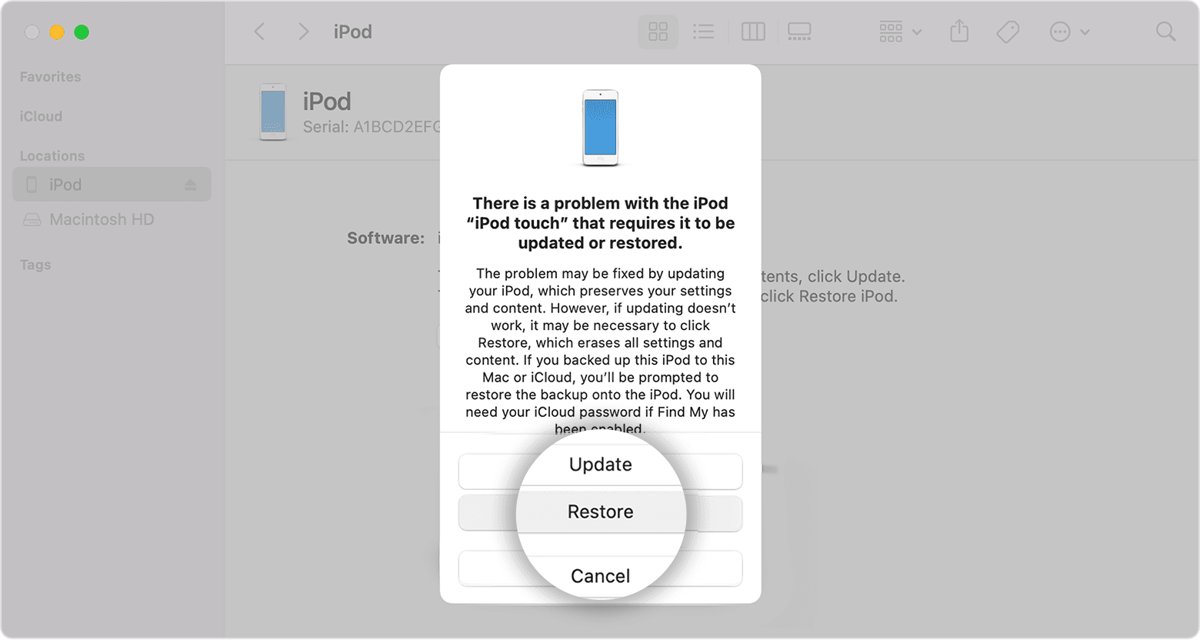
- Choose Update when the Update or Restore options appear.
- If the update fails, repeat the steps and choose Restore. This erases all data on the iPod.
- Wait for the software to download and install.
- Set up the iPod when the Hello screen appears.
No computer to borrow? An Apple Retail Store or Apple Authorized Service Provider can do this for you.
What does the iTunes logo and USB cord mean on an iPod?
The picture is a request to connect to a computer. It means the iPod software cannot start normally and needs repair from a computer.
| What the iPod shows | What it means | What to do |
|---|---|---|
| iTunes logo and a USB cord | Recovery mode on older iPod software | Connect to a computer, then Update or Restore |
| Image of a computer and a cable | The same recovery mode screen on newer software | Connect to a computer, then Update or Restore |
| Apple logo for several minutes, no progress bar | Startup is not finishing | Put the iPod in recovery mode yourself, then restore it |
| Passcode screen after a recovery attempt | The iPod did not enter recovery mode | Turn it off and start the button sequence again |
Update or Restore on iPod: which keeps your data?
| Option | What it does | Your data | When to pick it |
|---|---|---|---|
| Update | Installs current software on the iPod | Apple's erase warning applies only to Restore | Always try this first |
| Restore | Reinstalls the software and returns the iPod to factory settings | Erases all information and settings | Use this when Update fails |
You can recover your iTunes library from an iPod that still works, but a stuck iPod needs repair first.
How to force restart an iPod
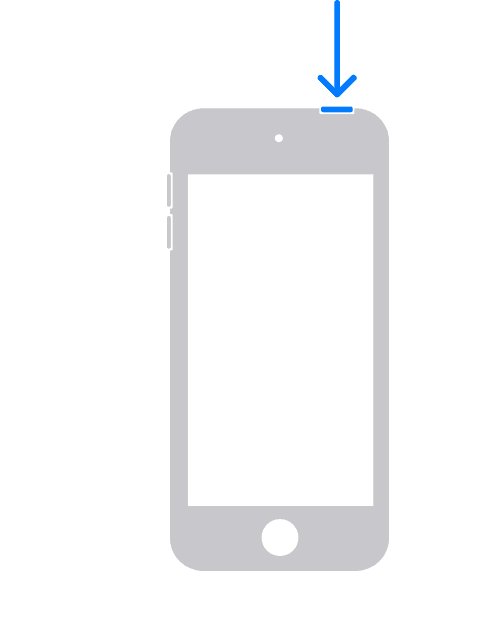
A force restart is the right first test when the screen is frozen. If the iTunes logo and cord come straight back, move on to a computer restore.
| iPod model | Buttons to press | Hold for |
|---|---|---|
| iPod touch (7th generation) | Top + Volume Down | At least 10 seconds, until the Apple logo |
| iPod touch (6th generation) and earlier | Top + Home | At least 10 seconds, until the Apple logo |
| iPod nano (7th generation) | Sleep/Wake + Home | Until the screen turns off |
| iPod nano (6th generation) | Sleep/Wake + Volume Down | At least 8 seconds, or until the Apple logo |
| iPod nano (5th generation) and earlier | Menu + Center, with the Hold switch unlocked | 8 seconds, or until the Apple logo |
| iPod classic | Menu + Center, with the Hold switch unlocked | 8 seconds, or until the Apple logo |
| iPod shuffle | Unplug it and turn the power switch off | Wait 10 seconds, then switch it on |
On a Click Wheel iPod, set it on a table and try again. Avoid touching the wheel when you press Center, and press Menu near the outer edge of the wheel.
How to tell which iPod I have
The buttons above depend on your model, so check the model number on the back of the iPod first.
| Model number on the case | Your iPod | Control type |
|---|---|---|
| A2178 | iPod touch (7th generation) | Multi-Touch display |
| A1574 | iPod touch (6th generation) | Multi-Touch display |
| A1509, A1421 | iPod touch (5th generation) | Multi-Touch display |
| A1367 | iPod touch (4th generation) | Multi-Touch display |
| A1318 | iPod touch (3rd generation) | Multi-Touch display |
| A1288, A1319 | iPod touch (2nd generation) | Multi-Touch display |
| A1213 | iPod touch (1st generation) | Multi-Touch display |
| A1446 | iPod nano (7th generation) | Multi-Touch display |
| A1366 | iPod nano (6th generation) | Multi-Touch display |
| A1320, A1285, A1236, A1199, A1137 | iPod nano (5th generation to original) | Click Wheel |
| A1238 | iPod classic or iPod (5th generation) | Click Wheel |
| A1373, A1204, A1112 | iPod shuffle (4th, 2nd or original) | Control Pad |
| A1271 | iPod shuffle (3rd generation) | Apple Earphones with Remote |
A1238 covers several models, so check the capacity engraved on the back as well. Older iPods with a scroll wheel or touch wheel use other numbers.
How to put iPod touch in recovery mode
Use this when the iPod has left the iTunes logo screen, or when the computer finishes a long download and the iPod has already restarted.
- Unplug the iPod touch from the computer.
- Press and hold the Top button until the power off slider appears, then drag it.
- Wait a minute so the iPod turns off completely.
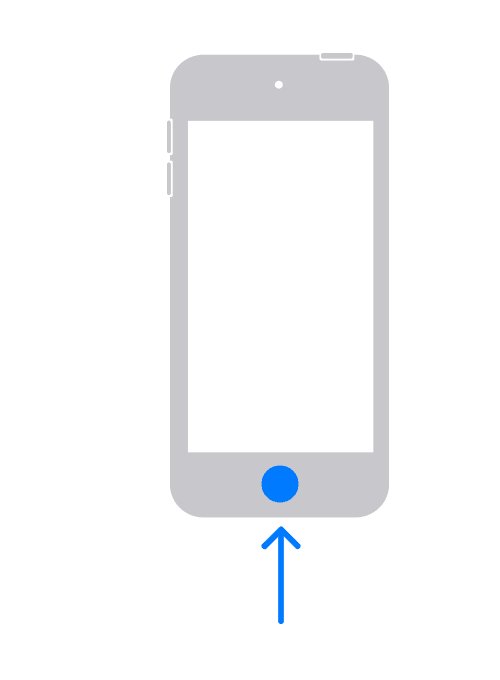
- Find the correct button: Volume Down on the 7th generation, Home on the 6th generation and earlier.
- Press and hold that button while you immediately connect the iPod to the computer.
- Keep holding until the recovery screen appears, then let go.
If the passcode screen appears instead, turn the iPod off and start again. An old iPhone with a Home button works the same way, so you can put an iPhone 4 into recovery mode with these buttons too.
How to restore iPod in iTunes, Finder or Apple Devices
- Update your Mac or PC, and install the latest iTunes if you use it.
- Connect the iPod to the computer and click Allow if the accessory alert appears.
- On a Mac, open the Finder and select the iPod in the sidebar.
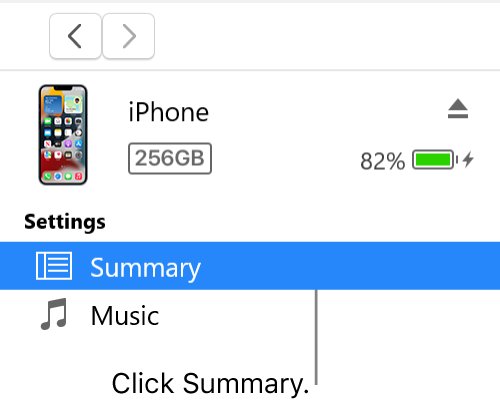
- On a PC, open Apple Devices and select the iPod in the sidebar. In iTunes, click the Device button near the top left, then click Summary.
- Click Restore, then follow the onscreen instructions.
- Review the terms and click Agree.
- Wait for the Hello screen to appear on the iPod.
The same computer restore also clears a disabled iPad that asks for iTunes.
Why is iTunes not recognizing my iPod?
iPod doesn't show up in iTunes or Apple Devices
A faulty cable, a blocked port or an out-of-date computer can hide the iPod.
- Unplug the cable and check the iPod port for debris.
- Try another USB cable that supports both data and charging.
- Try another USB port or another computer.
- Update Windows or macOS, plus iTunes or the Apple Devices app.
- Check for VPN and other third-party security software conflicts, then update that software rather than removing protection.
This iPod cannot be used because the Apple Mobile Device Service is not started
The Windows service that talks to the device has stopped.
- Close iTunes and disconnect the iPod.
- Press Windows logo key + R, type
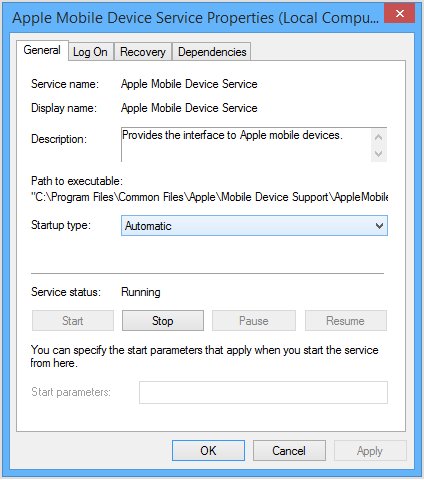
services.mscand click OK. - Right-click Apple Mobile Device Service and click Properties.
- Set Startup type to Automatic.
- Click Stop the service, then click Start the service, then click OK.
- Restart the computer, open iTunes and connect the iPod.
iTunes can't contact the software update server
The computer cannot reach Apple's update server, and an iPod in recovery mode has no wireless alternative.
- Open a browser and confirm the computer can load a web page.
- Try again, or use a different network or computer.
- Open the iTunes Store to check that connection.
- If it still fails, reset the hosts file on Windows or edit it on a Mac, then try the restore again.
iPod leaves the recovery screen during the download
Downloads longer than 15 minutes can outlast the recovery screen.
- Let the download finish on the computer.
- Put the iPod back in recovery mode.
- Choose Restore again.
iPod restore fails or the buttons don't respond
Hardware can stop recovery mode from working. Apple treats a stuck button or a failed restore as a service case.
- Note any error code or alert the computer shows.
- Try a different cable and computer one more time.
- Contact Apple or an Apple Authorized Service Provider for service.
How to tell if iPod is out of recovery mode
- Look at the iPod screen for the Hello setup screen after the restore finishes.
- Disconnect the iPod from the computer, then follow the setup prompts.
- Open Settings > General > Software Update on an iPod touch to confirm the software is current.
- Sign in with your Apple Account if Activation Lock asks for it.
How to restore iPod touch from a backup
An iPod touch that has been erased can take back an earlier backup at setup. If you never backed up, set it up as new and download what you have in iCloud.
- Turn on the iPod touch and follow the setup steps to Transfer Your Apps & Data.
- Tap From iCloud Backup, sign in, and pick the most recent backup.
- Keep the iPod on Wi-Fi and power until the progress bar finishes.
- For a computer backup, open the Finder or Apple Devices, select the iPod and click Restore Backup.
- Choose the most recent backup, then click Restore.
- Keep the iPod connected while it restarts and syncs.
iPod not showing in iTunes FAQ
Why doesn't iTunes see my iPod?
The usual causes are a bad USB cable, a dirty port, an outdated computer or a stopped Apple Mobile Device Service on Windows. Try another cable and port first, then update iTunes or Apple Devices and restart the service.
How do I get iTunes to recognize my iPod?
Connect the iPod with a cable that supports data and charging, open iTunes, and click the Device button near the top left. If nothing appears, restart the Apple Mobile Device Service on Windows, or try another port or computer.
How do I find my iPod on iTunes?
Connect the iPod to your PC, open iTunes and click the Device button near the top left of the window. Click Summary to see the Update and Restore controls for that iPod.
How do I see my iPod on Windows?
Open the Apple Devices app on Windows 10 or later and connect the iPod with a USB cable. It appears in the sidebar. If the Trust prompt appears on an iPod touch, tap Trust so the PC can access it.
How do I tell which iPod I have?
Read the model number on the back of the case and match it on Apple's Identify your iPod model page. The control type also helps: a Multi-Touch display means iPod touch, while a Click Wheel points to an older nano or a classic.
Why is iTunes not detecting my iPod in recovery mode?
Recovery mode still needs a working USB connection and current software. Use a different cable and port, update your computer, then open iTunes or Apple Devices before you connect the iPod. If nothing changes, the iPod may need service.