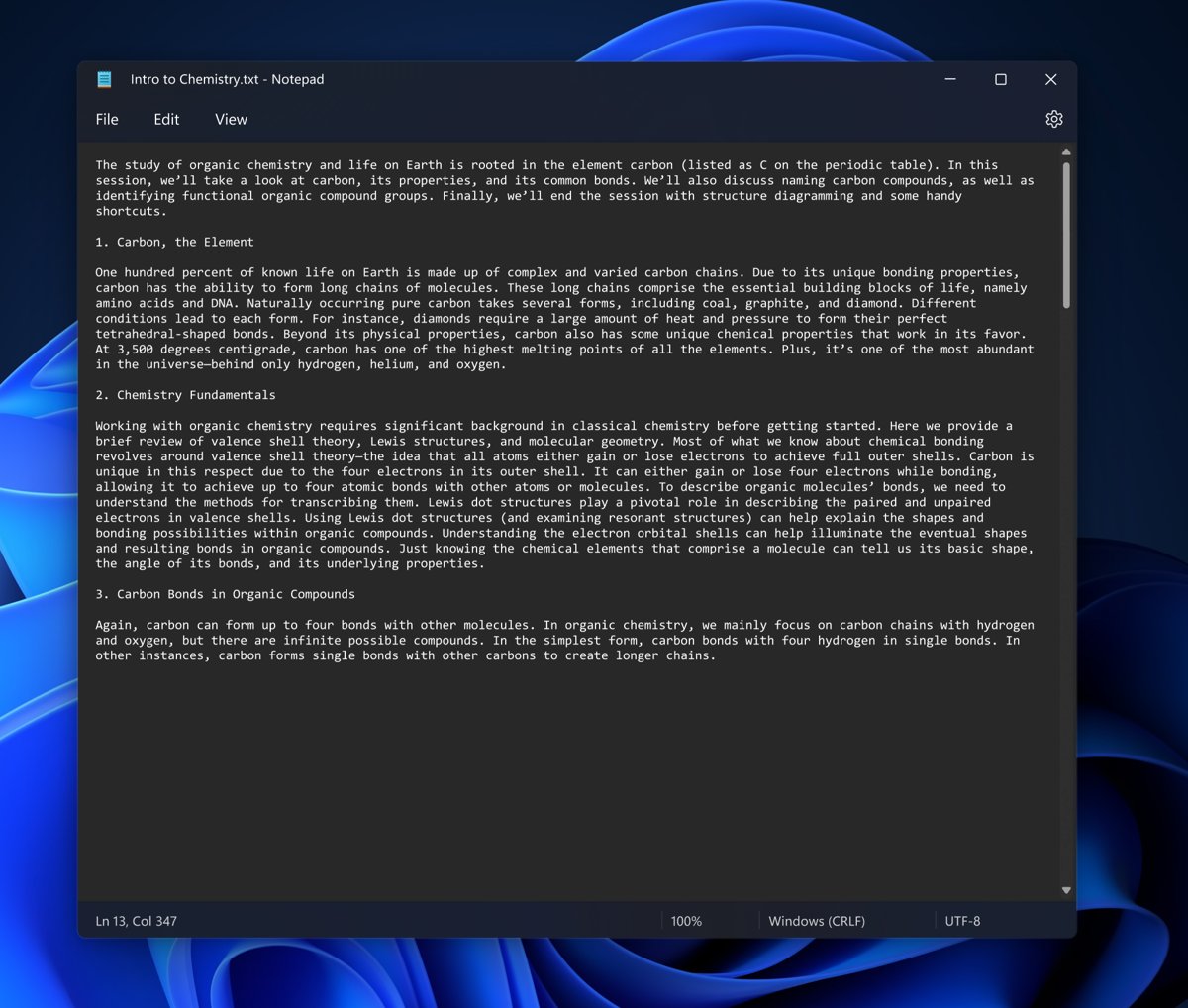
Set Windows to dark mode on Windows 11 and Notepad turns dark too, because the redesigned app follows your system theme by default.
Windows 10 needs a different route, so this article also covers contrast themes, the Notepad++ Black tone and Visual Studio Code.
Dark mode black Notepad for Windows 11/10
This route gives Windows 11 users a dark Notepad with no extra software.
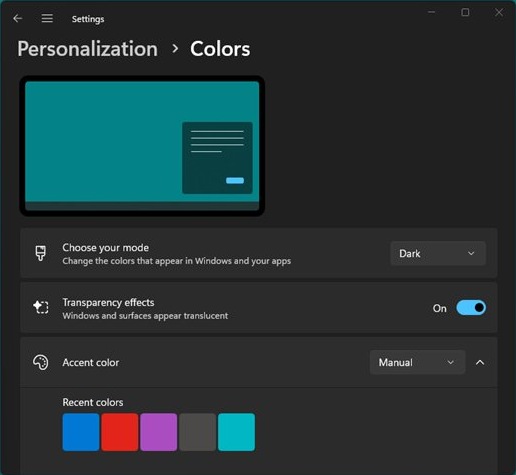
- Open the Settings app.
- Select Personalization > Colors.
- Under Choose your mode, select Dark.
- Select Start, type Notepad, then select Notepad from the results.
The same setting darkens other parts of Windows too. You can enable or force dark mode in Windows 11 for more of the system.
How to make Notepad dark mode on Windows 11 or Windows 10
| Your situation | Use this | What you get |
|---|---|---|
| Windows 11, dark everywhere | Windows Choose your mode set to Dark | Notepad follows the system theme |
| Windows 11, dark Notepad only | The theme option in Notepad settings | Notepad stays dark while Windows stays light |
| Windows 10, built-in tools only | A high contrast theme | Your chosen colors across nearly all Windows text |
| Black background with tabs and code tools | Notepad++ with Dark Mode and the Black tone | A separate text editor with its own dark theme |
| Programming and large projects | Visual Studio Code with Dark Modern | A code editor that can match the Windows theme |
Notepad dark mode settings in Windows 11
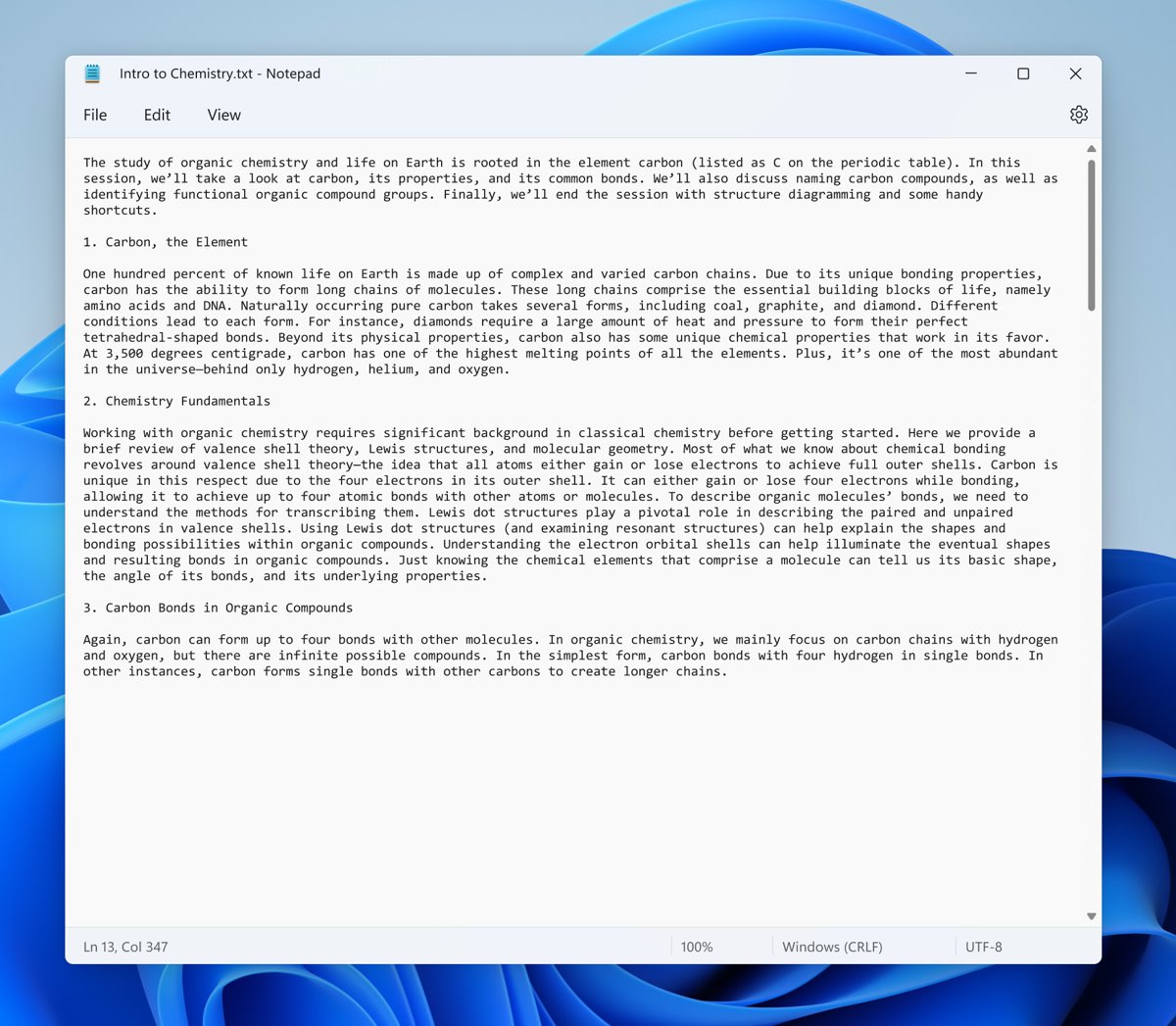
Microsoft built the dark theme into the redesigned Notepad for Windows 11. Notepad's own settings page can override the system theme, and the same page holds the font options.
- Select Start, type Notepad, then select Notepad from the results.
- Open the Notepad settings page.
- Find the theme option and select the dark theme.
- Close the settings page and return to your text.
Menu positions can move between Notepad updates, because Microsoft has added new Notepad features since the first Notepad dark theme release.
Windows 10 make Notepad dark mode with high contrast
Microsoft announced the Notepad dark theme for Windows 11, not Windows 10. A Windows 10 dark mode setting also does not guarantee a dark app, because Microsoft says not all applications support it.
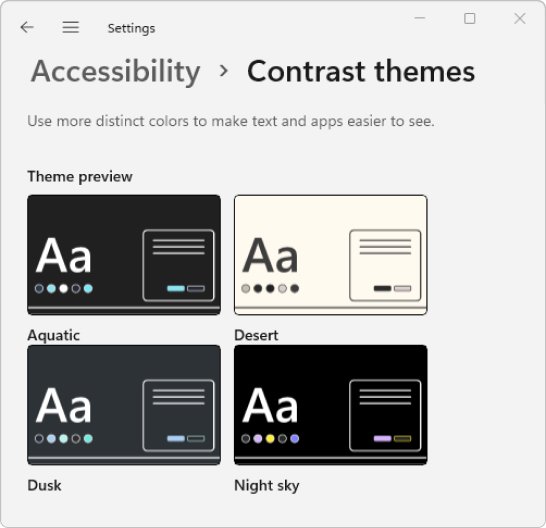
High contrast is the built-in alternative. Its Background and Text colors cover nearly all text you see in Windows, so the change is system-wide.
- Select Start > Settings > Ease of Access > High contrast.
- Switch Turn on high contrast on.
- Choose a dark option from Choose a theme.
- Select a colored rectangle under the theme to change Background or Text.
- Select Apply, then open Notepad.
Press Left Alt + Left Shift + Print Screen to toggle high contrast mode from the keyboard. On Windows 11, the same feature is at Settings > Accessibility > Contrast themes, with Edit for custom colors.
How to get Notepad++ dark mode
Notepad++ added Dark Mode in version 8, and version 8.1.2 activated Dark Mode on Windows 11 and removed the need to restart. Get it only from the official Notepad++ site, because the project has warned about fake copies.
- Open Notepad++.
- Select Settings > Preferences.
- Open the Dark Mode page.
- Select Dark Mode to keep it on, or Follow Windows to match your Windows setting.
- Select Black under the tones for the darkest preset.
- Close the dialog.
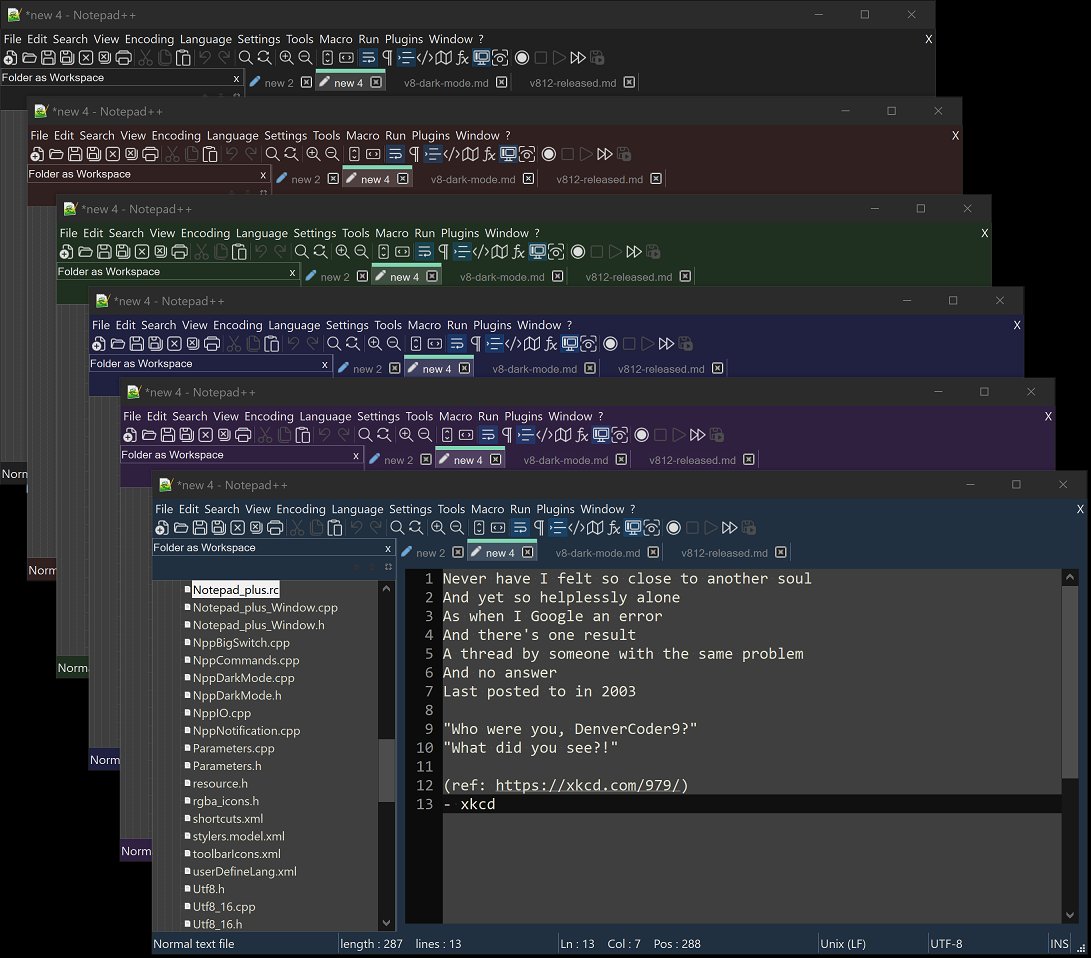
Switching on Dark Mode also changes the menu bar, the toolbar and the active editor theme.
Dark mode for Notepad++: black tone and custom colors
| Setting on the Dark Mode page | What it does |
|---|---|
| Black, Red, Green, Blue, Purple, Cyan, Olive | Preset tones for the Dark Mode interface |
| Customized | Lets you set Top, Menu hot track, Active, Main, Error, Text, Darker text, Disabled text, Link, Edge, Edge highlight and Edge disabled |
| Reset | Returns Customized to Black; the arrow picks a named preset instead |
| Style Configurator theme | Saved separately for Light Mode and Dark Mode, along with toolbar and Tab Bar settings |
Dark mode text editor for Windows: Visual Studio Code
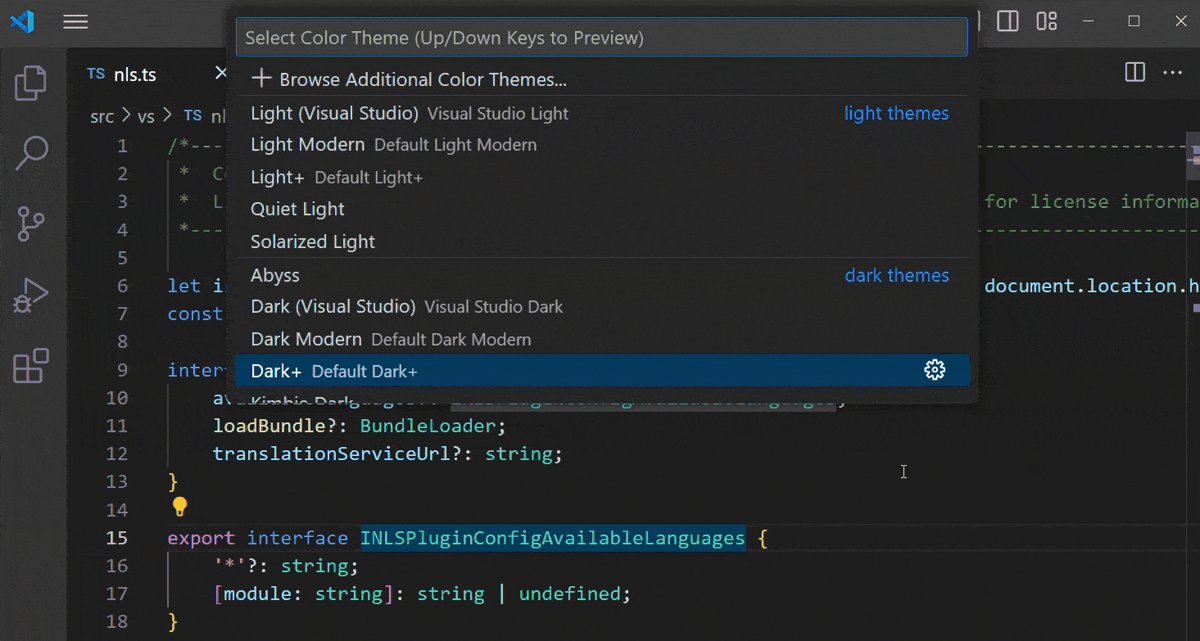
Visual Studio Code suits readers who need more than a plain text window. Dark Modern is its default preferred dark theme.
- Open Visual Studio Code.
- Select File > Preferences > Theme > Color Theme, or press Ctrl + K, then Ctrl + T.
- Use the Up and Down keys to preview a theme.
- Press Enter on Dark Modern.
- Turn on
window.autoDetectColorSchemein settings if you want the editor to follow Windows.
Windows Notepad vs Notepad++ dark mode
| Feature | Windows 11 Notepad | Notepad++ |
|---|---|---|
| Follows the Windows theme | Yes, by default | Yes, with Follow Windows |
| Dark without changing Windows | Yes, from Notepad settings | Yes, with Dark Mode |
| Black preset | Not documented | Black tone |
| Custom interface colors | Not documented | Customized tone |
| Dialogs such as Open and Save | Not documented | Use operating system colors |
How to turn off dark mode in Notepad
- On Windows 11, open Settings > Personalization > Colors and select Light under Choose your mode.
- If Notepad stays dark, open the Notepad settings page and change its theme option.
- On Windows 10, open Settings > Ease of Access > High contrast and switch Turn on high contrast off.
- In Notepad++, open Settings > Preferences > Dark Mode and select Light Mode.
- Restart Notepad++ if the title bar is still dark.
Notepad dark mode not working on Windows 11/10
Notepad stays light after you turn on Windows dark mode
Notepad's own settings can override the system theme.
- Open the Notepad settings page.
- Change the theme option to the dark theme or back to the system setting.
Windows 10 Notepad stays white in dark mode
Not every app supports the Windows dark mode setting.
- Turn on a high contrast theme for a system-wide change.
- Use Notepad++ or Visual Studio Code if you want dark text windows only.
Notepad++ menus and Open dialogs stay light
Menu pulldowns and Windows-defined dialogs use operating system colors, not Notepad++ colors.
- Open Settings > Personalization > Colors.
- Select Dark under Choose your mode.
- Reopen Notepad++ and check the dialog again.
Notepad++ title bar stays dark in Light Mode
Fully leaving Dark Mode needs a restart for parts of the interface such as the title bar.
- Save your files and exit Notepad++.
- Open Notepad++ again.
Notepad dark mode FAQ
Does Notepad have a dark mode?
Yes, the redesigned Notepad for Windows 11 has one. It follows your Windows theme by default, and you can change the theme from Notepad's settings page. Microsoft announced this feature for Windows 11 rather than Windows 10.
Can you make Notepad dark mode on Windows 10?
You can change its colors with a high contrast theme at Settings > Ease of Access > High contrast. The change is system-wide. Use Notepad++ or Visual Studio Code if you want only your text editor to be dark.
How to set Notepad to dark mode?
On Windows 11, open Settings > Personalization > Colors and select Dark under Choose your mode. Notepad follows that choice by default. Use Notepad's own settings page if you want a dark Notepad while Windows stays light.
How to put Notepad in dark mode without changing Windows?
Open Notepad's settings page on Windows 11 and pick the dark theme. Microsoft says the app adapts to the system theme by default, but you can change that option yourself. Other Windows apps keep their current colors.
How to get Notepad++ dark mode?
Open Settings > Preferences in Notepad++, go to Dark Mode, and select Dark Mode or Follow Windows. Pick the Black tone for the darkest preset. No restart is needed to turn it on since version 8.1.2.
Is there a black Notepad setting in Notepad++?
Yes. The Dark Mode page offers a Black tone alongside Red, Green, Blue, Purple, Cyan and Olive. Customized lets you set individual interface colors, and Reset returns those custom colors to Black.