To print text messages from iPhone, take screenshots of the conversation, open them in Photos, tap Share, then tap Print and choose an AirPrint printer.
This guide covers that method, sending messages to your email, exporting a whole thread with a desktop app, and preparing a printout for court.
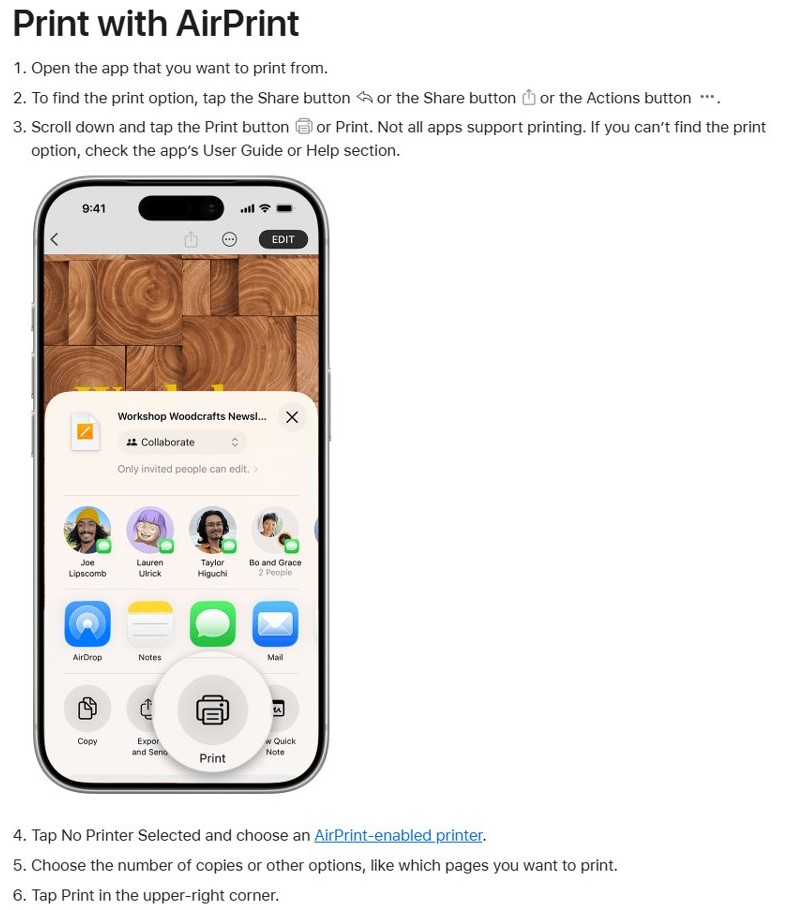
Method 1: Screenshot the thread and print with AirPrint
Screenshots keep the message bubbles and timestamps exactly as they appear in the conversation. Your printer and iPhone must be on the same Wi-Fi network.
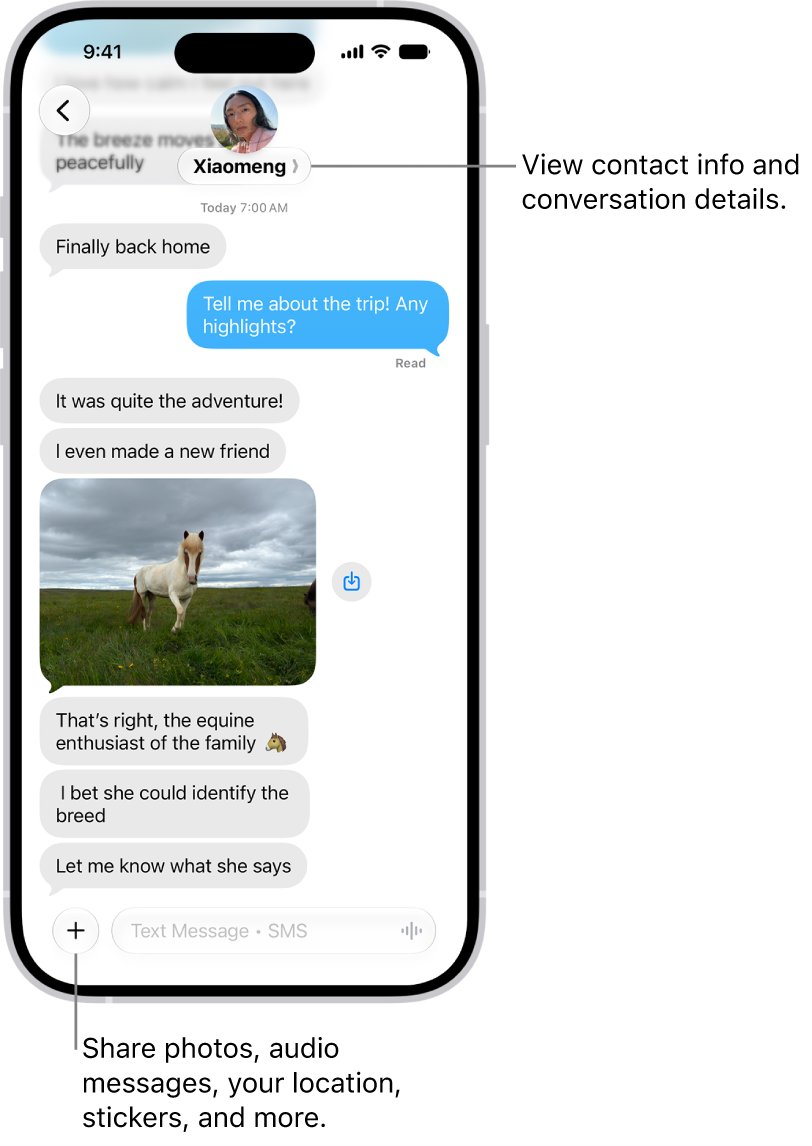
- Open Messages and go to the conversation you need.
- Swipe left on a message bubble and hold, so the timestamps show on screen.
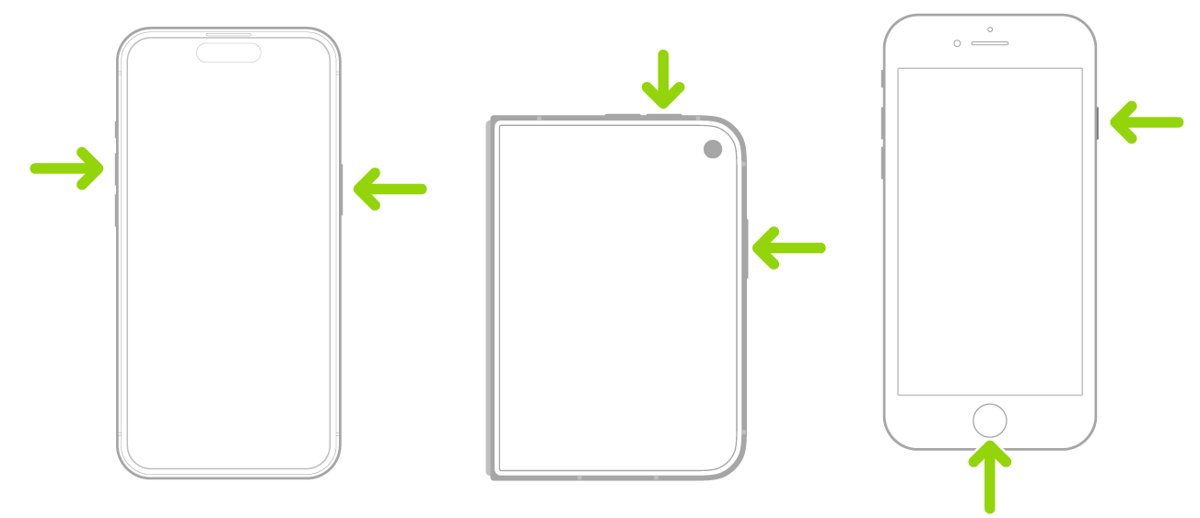
- Press and release the side button and volume up button together. On iPhone SE, press the Home button and side button.
- Scroll to the next part of the thread and repeat until you have it all, overlapping each screenshot by a message or two.
- Open Photos, tap Collections, scroll to Media Types and tap Screenshots.
- Tap Select, tap each screenshot, then tap the Share button and tap Print. Swipe up if you do not see Print.
- Tap No Printer Selected and choose your printer.
- Set the number of copies, then tap Print in the upper-right corner.
If you have not printed from this iPhone before, you can set up AirPrint on your iPhone first. Full Page can appear on the screenshot preview, but Apple's example is a webpage in Safari, so plan on separate screenshots in Messages.
Which method should you use?
| Your situation | Use this | Why |
|---|---|---|
| A few messages, and you want them to look as they do on your phone | Method 1: Screenshots and AirPrint | No extra app; bubbles and timestamps are kept |
| You only need the wording, or you have no printer at home | Method 2: Send to your email | Print from any computer that can open your email |
| A long thread, or a record for a court case | Method 3: Desktop app export | Prints whole conversations with contact details and timestamps |
Why can’t you just print a text message?
Apple names Mail, Photos and Safari as AirPrint apps, and says not all apps support printing. In Messages, the touch-and-hold options for a bubble let you reply, copy or forward, and no Print command applies to a whole conversation.
| What you want to print | Print directly on iPhone? | Route |
|---|---|---|
| A conversation | No | Turn it into screenshots, an email or an export first |
| A photo someone sent you | Yes | Tap the attachment, tap Share, then tap Print |
| A screenshot in Photos | Yes | Tap Share, then tap Print |
| An email | Yes | Tap the action button in the message, then tap Print |
Method 2: Forward the messages to your email
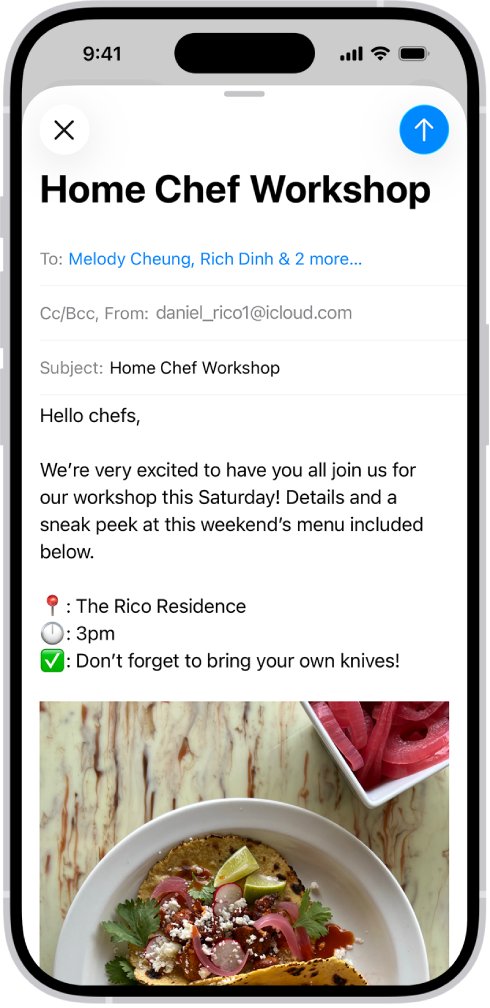
The forward button in Messages sends to a phone number, contact name or Apple Account, so the result stays in Messages. To get text into your inbox, copy it into Mail. The email will not show bubbles or timestamps, so add a screenshot when those matter.
- In Messages, touch and hold the message, then tap Select.
- Choose the text you want, then tap Copy.
- Open Mail and tap the compose button.
- Tap the To field and type your own email address.
- Tap the body of the email and pinch open with three fingers to paste.
- Repeat for other messages, typing the date and sender above each one.
- Tap the send button.
- Open the email on your iPhone or a computer, then print it. On iPhone, tap the action button in the message, then tap Print.
To send messages to another person instead, you can forward a text on iPhone from the same touch-and-hold menu.
Method 3: Export the whole thread with a desktop app
iMazing, a paid app for Mac and Windows from DigiDNA, prints conversations from a connected iPhone or a backup. It keeps the Messages layout. Its site offers a download and a purchase, so check what the trial includes before you rely on it.
- Install iMazing on your computer, connect your iPhone and pair it.
- On the device's Overview screen, click Messages.
- Click Start and enter your passcode on the iPhone.
- Choose Data Access Only or Full Backup. The first backup can take 30 minutes or more.
- Select the conversation in the left column.
- Turn on Show contact details and Show time for all messages if you need them on the page.
- Click Print at the bottom right.
- In Print Options, choose the printer, paper size and page numbers, then click Print.
To make a PDF, click Export instead and select PDF. The From and to fields limit the export to a time range, and you can choose Export all messages in chat or Export only selected messages.
Alternative approaches worth knowing
These are add-ons to the three methods above, for when your printer or setup gets in the way.
| Approach | How it works | Best for |
|---|---|---|
| Save as PDF before printing | Export the conversation to PDF in iMazing, with optional scale, margins and page numbers | Keeping a file you can reprint or send to a print shop |
| Print from a Mac with Messages sync | Open the synced conversation on a Mac and press Command-P | Anyone who already owns a Mac |
| Use a manufacturer app instead of AirPrint | Print the screenshots from the HP app, Epson Smart Panel or Canon PRINT | Printers set up through the maker's app |
| Transfer the screenshots to a computer first | In Photos, tap Share and send the screenshots by email, then print on the computer | A printer connected to a computer by USB |
Print text messages from phone to computer
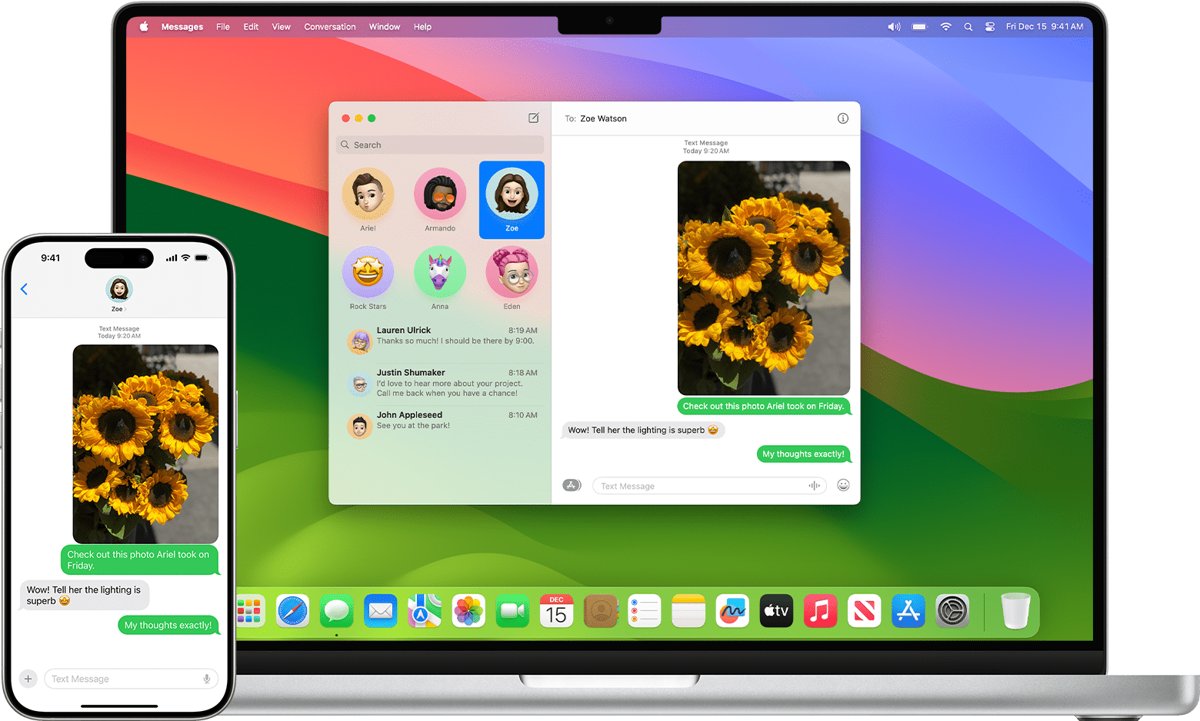
A Mac is the only native route that prints a conversation directly. Messages in iCloud brings your history across, including SMS, MMS and RCS. It also means anything you delete on one device is deleted on the others. If you only need new texts, you can turn on Text Message Forwarding instead.
- On your iPhone, open Settings, tap your name, tap iCloud, then tap Messages.
- Turn on Use on this iPhone.
- On your Mac, open Messages and sign in to the same Apple Account.
- Choose Messages > Settings, click iMessage, then select Enable Messages in iCloud.
- Wait for the conversation to appear, then select it.
- Press Command-P to print the conversation.
Windows PCs do not get this sync, so use Method 2 or Method 3 there. Text messages can also be read and sent from a PC with a linked phone, which helps when you only need to check wording.
Where is Print Center on iPhone?
- Open the App Switcher.
- Tap Print Center.
- Read the status of your job, and the printer it went to.
- Tap Cancel Printing if you sent the wrong pages.
- Check the printed pages against your screenshots, so no message is missing.
Getting a printout that holds up
A printout is only useful if a reader can tell who said what, and when. Set these details up before you take screenshots or print.
- Swipe left on a bubble so the timestamps are visible in your screenshots.
- Include the contact name at the top of the conversation in the first screenshot.
- Take screenshots from the oldest message to the newest, and overlap them so none is skipped.
- Do not crop or mark up the screenshots.
- Select the screenshots in order, then check the page count before you tap Print.
- Keep the original conversation on the iPhone, and do not delete it after printing.
Print text messages from iPhone for court
Whether a printed message is accepted depends on the court and the case, so ask your attorney or the court clerk what format they want before you print. Phone numbers or contact details and timestamps are often required on the page.
| Option in iMazing | What it adds | Availability |
|---|---|---|
| Show contact details | Phone numbers or contact details beside the messages | Before you export or print |
| Show time for all messages | A timestamp on each message | Before you export or print |
| Add export metadata in footer | The iPhone's name and serial, the current date and the messages database's last modified date | PDF export and print options |
| Sign PDF | A digital certificate on the PDF | Requires a Business Subscription |
Never edit or retype a message for a legal record. Keep the iPhone and the original conversation available in case someone asks to see them.
How to print text messages from Android phone
The same idea works on Android and Samsung phones: capture the conversation, then print the image. Android 12 and later can capture a long thread in one image on most scrolling screens.
- Open the conversation in your messaging app.
- Press the Power and Volume down buttons at the same time. If that does nothing, hold Power and tap Screenshot.
- Tap Capture more at the bottom, then use the crop guidelines to include the messages you need.
- Open Photos and tap Collections > On this device > Screenshots.
- Open the screenshot, tap Share and send it to your email.
- Open the email on a computer and print the image.
Printing text messages still not working?
Your printer does not appear under No Printer Selected
AirPrint needs the printer and iPhone on the same network, and the printer must support AirPrint.
- Connect the iPhone to the same Wi-Fi network as the printer.
- Check your model on Apple's AirPrint search tool, or ask the printer's maker.
- If the printer is plugged into an AirPort Base Station or Time Capsule by USB, or uses Bluetooth, use Method 2 instead, because AirPrint cannot reach it.
You cannot see the Print option
Print sits lower in the share sheet, below the first row of actions.
- Tap the Share button in Photos.
- Swipe up to reveal the list of actions.
- Tap Print.
The screenshot opens full screen instead of a thumbnail
Screen capture settings can show screenshots full screen, and these are not saved until you choose.
- Swipe up on the screenshot, or tap the save option and choose where to save it.
- Look for it in Photos under Screenshots.
Printout shows Attachment stored in iCloud
iCloud offloaded the attachment, so it is not on the iPhone for iMazing to read.
- Open the attachment in Messages on the iPhone to download it.
- Click Refresh in iMazing, then print again.
The conversation is missing on your Mac
Messages in iCloud is off, or the Mac uses a different Apple Account.
- On the Mac, choose Messages > Settings and click iMessage.
- Confirm the Apple Account matches your iPhone.
- Select Enable Messages in iCloud, then give the history time to sync.
Print text messages from iPhone FAQ
Can I print text messages from my iPhone?
Yes, but not directly from a conversation in Messages. Take screenshots and print them from Photos with AirPrint, copy the text into an email, or use a desktop app such as iMazing to print the whole conversation.
How do I print entire text messages?
Use iMazing on a Mac or Windows PC to select a conversation and click Print, or open the synced conversation in Messages on a Mac and press Command-P. On the iPhone alone, you need a run of screenshots.
How do I print text messages from iPhone 16 or iPhone 17?
The steps are the same on every current iPhone. Press the side button and volume up button to take a screenshot, then print it from Photos. Only iPhone SE differs, using the Home button and side button.
What if my printer doesn’t support AirPrint?
Use the printer maker's app, such as the HP app, Epson Smart Panel or Canon PRINT. You can also email the screenshots to yourself and print them from a computer connected to the printer.
Do printed text messages count as legal evidence?
That depends on the court and the case, so ask your attorney or the court clerk. Include phone numbers or contact details and timestamps on the printout, and keep the original conversation on the iPhone.
Will printing my messages delete them from my iPhone?
No. Screenshots, emails and printouts are copies, and the conversation stays in Messages. Deleting a message is a separate action, and with Messages in iCloud on, a deletion applies on your other devices too.
Do these steps still work on iOS 18 and newer?
Yes. Apple's iPhone User Guide lists the same screenshot, forwarding and Photos print steps for current iOS versions, including iOS 26 and iOS 27. Print sits in the share sheet, where you may need to swipe up.
How do I print text messages from a Samsung phone?
Press the Power and Volume down buttons together to take a screenshot of the conversation. Repeat for longer threads, share the images to your email, then print them from a computer connected to your printer.
Quick summary
| Method | Keeps bubbles and timestamps? | Extra software? | Best for |
|---|---|---|---|
| Method 1: Screenshots and AirPrint | Yes | No | A few messages |
| Method 2: Send to your email | No | No | Text only, or no printer on hand |
| Method 3: Desktop app export | Yes | Yes, iMazing | Long threads and court records |
Start with screenshots for anything short. Use the export only when the thread is too long to capture by hand or a court needs contact details on every page.