To add a website to the taskbar in Windows 11, install the site as an app in Microsoft Edge or Google Chrome, then pin that app to the taskbar.
The steps below cover Edge, Chrome, Windows 10, desktop shortcuts, auto-start, removal and the problems you can run into along the way.
How to add website to taskbar in Windows 11
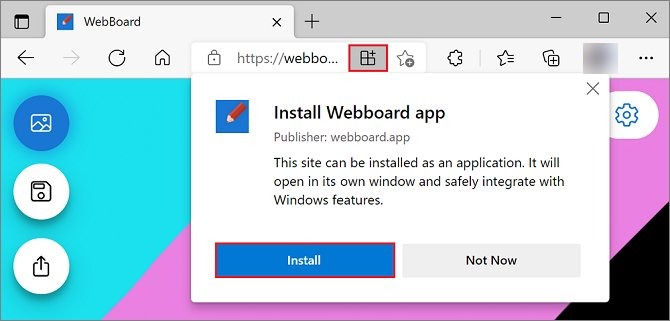
Microsoft Edge is part of Windows 11 and can install any website as an app. This route leaves a separate taskbar icon for that site.
- Open Microsoft Edge and go to the website or page you want on the taskbar.
- Select Settings and more (…) in the top corner of the browser.
- Select More tools > Apps > Install this site as an app.
- Confirm the install in the dialog that opens. The site now opens in its own app window.
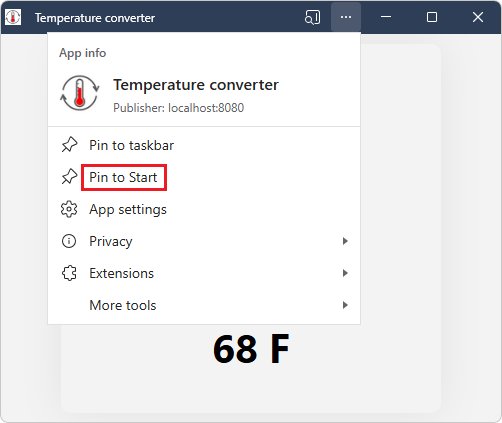
- In the app window, select Settings and more (…) in the title bar.
- Select Pin to taskbar.
The icon stays on the taskbar after you close the window, and one click opens that site again.
Add website to taskbar Edge vs Chrome
Both browsers produce a pinned app window. Choose the browser you already sign in to, so the site opens with the accounts you use every day.
| Your situation | Do this | Why |
|---|---|---|
| You use Edge, or have no preference | Settings and more > More tools > Apps > Install this site as an app | Edge can install any site and has a Pin to taskbar button on the edge://apps page |
| You use Chrome | More > Cast, save, and share > Install page as app… | The app is tied to Chrome, then Windows pins it like any other app |
| The address bar shows an install icon | Select App available in Edge or Install in Chrome | The site is offering its own app, which can have more features than a plain site window |
| The site is already installed in Edge | Go to edge://apps > Details > Pin to taskbar | No need to install the site a second time |
| You also want a desktop icon | Use Create Desktop shortcut in Edge or Create shortcut in Chrome | Both add a shortcut to the same installed app |
How to add website to taskbar Chrome
Chrome has no pin button of its own in these steps. You install the site first, then pin the running app from the Windows taskbar.
- Open Google Chrome and go to the website.
- Select More (the three-dot menu) at the top right.
- Select Cast, save, and share > Install page as app…. On some sites, the Install icon at the right end of the address bar does the same job.
- Follow the on-screen instructions to finish the install.
- Open the installed app so its icon appears on the taskbar.
- Right-click that taskbar icon and select Pin to taskbar.
Edge add website to taskbar from edge://apps
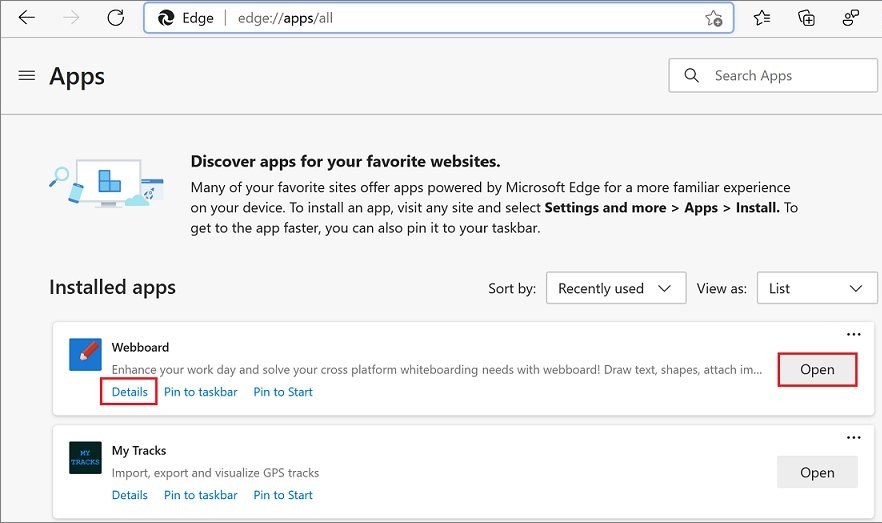
Use this page when the site is already installed and you skipped the pin, or when you closed the app window before pinning it.
- Open Microsoft Edge.
- Type
edge://appsin the address bar and press Enter. - Find the card for the website.
- Select Details on that card.
- Select Pin to taskbar.
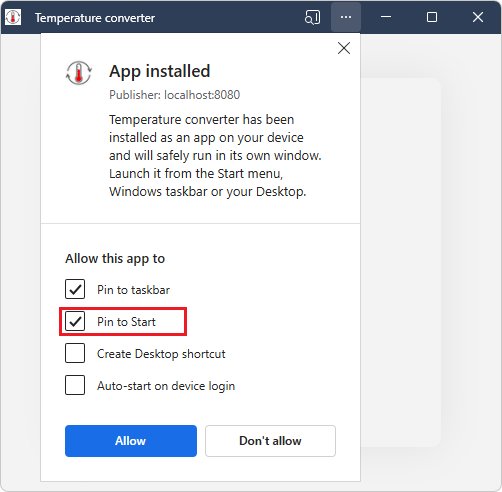
The same Details view also holds Pin to Start and Create Desktop shortcut, so you can place the site in all three spots from one page.
Add website shortcut to taskbar Windows 11
An installed website behaves like a normal Windows app, so you can pin any app to the taskbar the same way. This route works when the app window is closed and you do not want to reopen the browser.
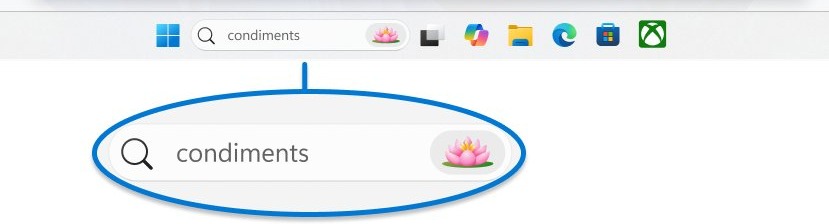
- Select the search box on the taskbar.
- Type the name of the installed website.
- Right-click the result in the list.
- Select Pin to taskbar.
Taskbar search needs a search box or icon to click. If yours is hidden, you can add the search bar to the Windows 11 taskbar first, or press Start and type the name there.
How to add website to taskbar Windows 10
Windows 10 uses the same browser menus, so the install steps do not change. The pin happens from the running app or from search.
- Install the site from Edge with More tools > Apps > Install this site as an app, or from Chrome with Cast, save, and share > Install page as app….
- Open the installed app so its button appears on the taskbar.
- Right-click the taskbar button and select Pin to taskbar.
- If the app is closed, search for its name, then press and hold or right-click it and select Pin to taskbar.
How to create a website shortcut on the desktop in Edge and Chrome
A desktop icon does not replace the taskbar pin, but it helps when the taskbar is crowded. Both browsers create it from the list of installed apps.
| Browser | Open this page | Then select | What you get |
|---|---|---|---|
| Microsoft Edge | edge://apps |
Details on the app card, then Create Desktop shortcut | A desktop icon that opens the installed site |
| Google Chrome | chrome://apps |
Right-click the app, select Create shortcut, choose a location, then select Create | A shortcut on the desktop or in your menus |
How to tell if a website is pinned to taskbar in Windows 11
- Close the website's app window.
- Look at the taskbar. A pinned site keeps its icon there after the window closes, while an unpinned one disappears.
- Select the icon. The site opens in a separate app window.
- Right-click the icon. A pinned app shows Unpin from taskbar in the menu.
Website app vs PWA on the Windows 11 taskbar
Microsoft separates pinned websites into two types. A site as an app is an ordinary website in its own window, while a Progressive Web App (PWA) is built by the site owner to run like an app.
| What to compare | Site as an app | PWA |
|---|---|---|
| Which sites qualify | Any website you install from the Edge menu | Sites built as PWAs |
| How to install in Edge | More tools > Apps > Install this site as an app | App available icon, More tools > Apps > Install app, or the Microsoft Store |
| Window | Opens in a dedicated window | Runs in its own window and appears like a native app |
| Taskbar and Start menu pin | Yes | Yes |
| Offline use and notifications | Microsoft says sites as apps do not have the same capabilities as PWAs | Can work offline and send notifications |
| Right-click shortcuts on the taskbar icon | Not listed by Microsoft | A PWA can add its own common tasks to the menu |
How to open a pinned website automatically when Windows 11 starts
Edge can launch an installed site as soon as you sign in. This suits a mail, calendar or chat page that you open every morning.
- Open Microsoft Edge and go to
edge://apps. - Select Details on the card for the website.
- Turn on the Auto-start on device login toggle.
- Sign out of Windows and back in. The site should open on its own.
To change where the icon sits, drag it to a new position on the taskbar.
How to remove website from taskbar Windows 11
Unpinning only removes the icon. Uninstalling also removes the app from the browser, so pick the level you need.
Unpin the website but keep the app
The app stays installed and can still be opened from search or the browser's apps page.
- Right-click the website's icon on the taskbar.
- Select Unpin from taskbar.
Uninstall the website app from Edge
This also offers to remove the app's history and data.
- Open Microsoft Edge and go to
edge://apps. - Select Details on the app card.
- Select Uninstall.
- Choose whether to delete app history and data, then select Uninstall again.
Uninstall the website app from Chrome
Chrome removes the app from inside its own window.
- Open the web app.
- Select More, then Uninstall followed by the app's name.
- Tick Also delete data from Chrome if you want the data gone too.
- Select Remove.
Add website to taskbar not working in Windows 11
The Edge menu does not say "Install this site as an app"
Edge changes the label when the site is a PWA, so the menu can read Install app instead.
- Open Settings and more (…) > More tools > Apps.
- Select the install option listed there, whichever label it shows.
- If the App available icon shows in the address bar, you can select that and then Install instead.
The website doesn't show its logo on the taskbar
The icon comes from the site. A web app lists its icons in a manifest file, and the browser or Windows picks which one to display.
- Go to the site's home page rather than an inner page.
- Check the address bar for the App available icon in Edge or the Install icon in Chrome.
- If that icon appears, uninstall the current app and reinstall from the icon, so the site's own app details are used.
- If no icon appears, keep the current app. The pin still works with the generic icon.
A pinned website stopped opening after Edge was removed
PWAs and sites as apps created in Edge run on the Edge engine, so they stop working without it.
- Reinstall Edge from Microsoft's page at
microsoft.com/edge/download. - Select the pinned icon again to test it.
- If the icon still fails, open the site in Edge and install it again.
Tips for adding website to taskbar in Windows 11
| Tip | Why it helps |
|---|---|
| Install from the exact page you want to open | Edge installs the website or webpage you have open, so you can target one page |
| Sign in to Edge with your Microsoft account | Microsoft says your apps then sync across your devices |
| Keep Edge installed even if Chrome is your main browser | Edge-based sites as apps and PWAs stop working when Edge is removed |
| Add Pin to Start as well | In Edge, open the website and use More tools > Pin to Start for a second way in |
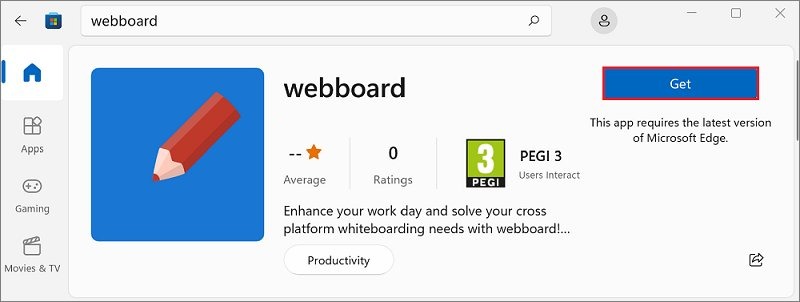
| Check for a Microsoft Store version first | Many PWAs are listed there, and the Get button installs them without opening Edge |
| Avoid relying on pins in FSLogix profiles | Microsoft notes that installed PWAs are gone after you log off and back in on those virtual desktops |
| Use the taskbar search box when you visit many sites, not one | Windows 11 has no Address toolbar, but you can get close to an address bar on the taskbar with the search box |
Add website to taskbar FAQ
Can I add website to taskbar?
Yes. Install the site as an app in Microsoft Edge or Google Chrome, then pin the app. Windows treats it like any other program, so it gets its own icon and opens in a separate window with one click.
How to put a website on taskbar on a laptop?
The steps on a laptop are the same as on a desktop PC. Install the site from the Edge or Chrome menu, then select Pin to taskbar in Edge or right-click the running app's taskbar icon and pin it.
Can I pin websites using browsers other than Edge?
Yes, Google Chrome can do it. Select More, then Cast, save, and share, then Install page as app. After that, open the app, right-click its taskbar icon and select Pin to taskbar.
What if the website doesn't show its logo on the taskbar?
The logo is supplied by the site. Web apps list their icons in a manifest file, and the browser or Windows chooses one to display. A site with no suitable icon can look generic on the taskbar, even though the pinned app still opens normally.
Can I remove a website once it's pinned?
Yes. Right-click the taskbar icon and select Unpin from taskbar to remove only the icon. To remove the app as well, uninstall it from edge://apps in Edge, or from the More menu inside the app in Chrome.
Does this work for any website?
In Edge, yes. Microsoft says you can install any website from the Apps menu. A plain site opens in a dedicated window, but Microsoft says it does not have the same capabilities as a PWA, which can work offline and send notifications.
Is there a limit to how many websites I can pin?
Microsoft's taskbar documentation lists no maximum for pinned apps. The practical limit is taskbar width. On Windows 10, the Use small taskbar buttons setting fits more icons on the same taskbar.
How to add website to taskbar in Microsoft Edge on Windows 11?
Open the site in Edge and select Settings and more, More tools, Apps, then Install this site as an app. In the new app window, open Settings and more in the title bar and select Pin to taskbar.
How do I add a website link to taskbar in Windows 11 without Chrome?
Use Microsoft Edge, which is part of Windows 11. Install the site from More tools and Apps, then pin it from the app window or from Details on the edge://apps page. No other browser is needed.