To reset Winsock in Windows 11, open Command Prompt as administrator, run netsh winsock reset, and restart the PC.
The sections below explain what the command changes, when it is the right fix, how it differs from a TCP/IP or network reset, and what to do when the connection still fails afterwards.
How to reset Winsock in Windows 11
This takes under a minute, and the same steps work in Windows 10. Save your work first, because the last step restarts the PC.
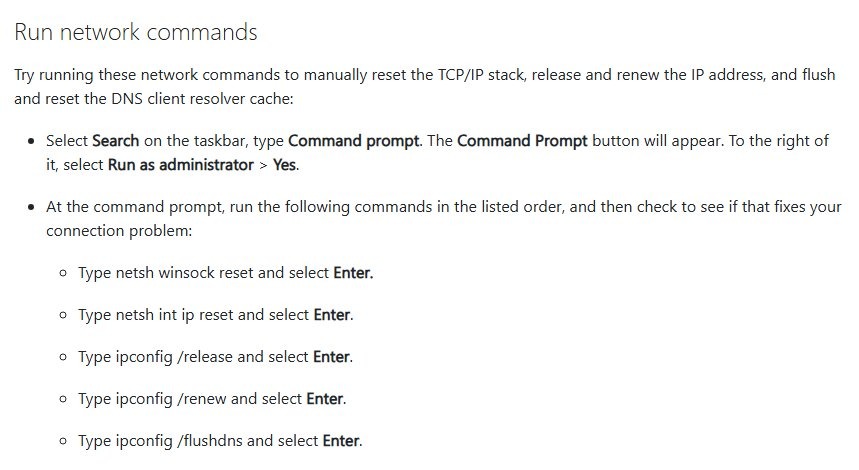
- Select the search box on the taskbar and type command prompt.
- To the right of the Command Prompt result, select Run as administrator, then select Yes.
- Type
netsh winsock resetand press Enter. - Close the Command Prompt window when the command finishes.
- Restart the PC to complete the reset.
If the search route is awkward on your PC, there are other ways to open Command Prompt as administrator. Test the connection once Windows is back at the desktop.
When do you need to reset Winsock
A Winsock reset targets one fault: corrupted Winsock settings or a bad layered service provider. Match your situation to a row before you run anything.
| Your situation | Do this | Why |
|---|---|---|
| Network problems started around the time a firewall, proxy or filtering app was installed or removed | Run netsh winsock reset |
These apps can register a layered service provider, and the reset removes custom ones |
| Microsoft's basic Wi-Fi or Ethernet fixes have not helped | Run the full command set in PowerShell or Command Prompt (below) | Microsoft lists Winsock first in its network command sequence |
| Windows Update components need a manual reset | Run netsh winsock reset as part of that procedure |
Microsoft includes Winsock as one step of the manual Windows Update reset |
| Only some site names fail to load | Flush the DNS cache first | ipconfig /flushdns clears stale name entries without removing anything else |
| The commands did not help, or the adapter itself looks broken | Reset network settings from Settings | Network reset removes and reinstalls the network adapters |
Winsock reset command Windows 11
The command to reset Winsock is the same on Windows 11 and Windows 10. It takes no switches, and it must run in an elevated window.
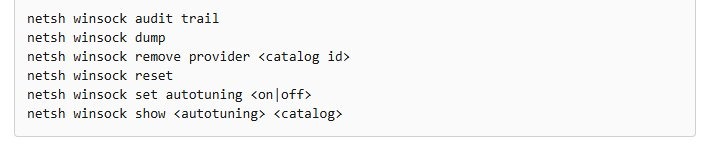
netsh winsock resetnetsh is the Windows network shell, winsock selects its Windows Sockets commands, and reset returns the Winsock catalog to a clean state.
You should see: the command finishes without an error, and the reset takes full effect after you restart the PC.
Type the words with spaces between them, exactly as shown. The command is netsh, not net.
Reset Winsock and network settings in PowerShell
Netsh commands run in an elevated PowerShell window as well as in Command Prompt, so use whichever you have open. Microsoft's Wi-Fi and Ethernet troubleshooting pages give these commands in this order.
Search for powershell, select Run as administrator, select Yes, and enter each line in turn, pressing Enter after each one.
netsh winsock reset
netsh int ip reset
ipconfig /release
ipconfig /renew
ipconfig /flushdns
The first two lines reset Winsock and TCP/IP. The next two release and renew your IP address, and the last one clears the DNS client resolver cache.
You should see: each command finishes without an error, and ipconfig /renew lists an IP address for your adapter. Restart the PC afterwards.
ipconfig /release drops the connection until ipconfig /renew runs, so do this at the PC itself rather than over a remote session.
Netsh winsock show catalog after a Winsock reset
These checks show what the Winsock catalog holds after the restart, and whether apps can reach the network again.
- After the restart, open Command Prompt as administrator.
- Run
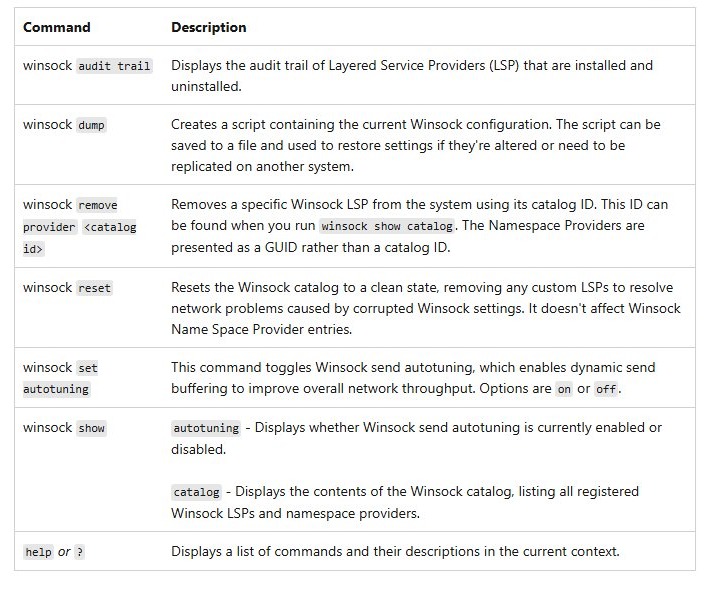
netsh winsock show catalogto list the layered service providers and namespace providers now registered. - Read the provider names and look for any entry from an app you recently removed.
- Run
netsh winsock audit trailto see which layered service providers have been installed and uninstalled. - Open a browser and load a website you have not visited today, so the page cannot come from the browser cache.
What is Winsock
Winsock, short for Windows Sockets, is the Windows programming interface that network apps use to send data, whichever network protocol sits underneath. If its configuration breaks, apps can fail even when the Wi-Fi or Ethernet icon says you are connected.
| Term | What it is | Role in a reset |
|---|---|---|
| Winsock (Windows Sockets) | The API responsible for network communication between applications and network services | Stays in place; only its catalog is reset |
| Winsock catalog | The list of registered layered service providers and namespace providers | Returned to a clean state |
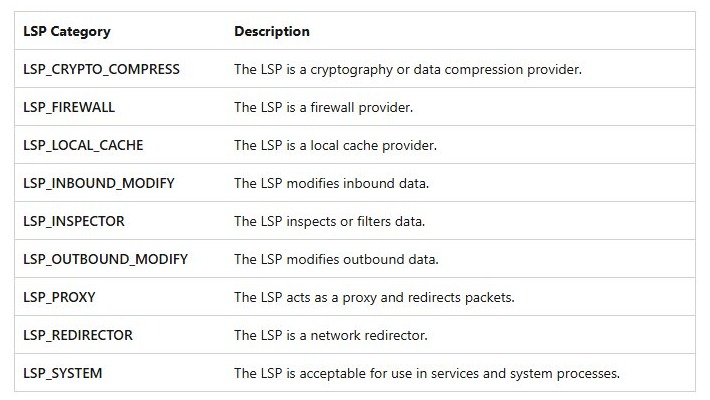
| Layered service provider (LSP) | An add-on layer that sits above TCP or UDP, such as a firewall, proxy or data filter | Custom ones are removed |
| Namespace provider | A catalog entry that handles name lookups, shown by a GUID instead of a catalog ID | Not affected |
Microsoft deprecated layered service providers starting with Windows 8 and now points developers to the Windows Filtering Platform, but older software can still install them.
What happens when you reset Winsock?
The command changes the Winsock catalog and nothing wider, which is why it is a safer first step than a full network reset.
| Item | What the reset does |
|---|---|
| Winsock catalog | Returned to a clean state |
| Custom layered service providers | Removed, along with any fault they were causing |
| Winsock namespace provider entries | Left as they are |
| Antivirus, firewall and proxy clients | Microsoft warns that programs that access or monitor the internet may be adversely affected; reinstall any that stop working |
| IP address, gateway and DNS settings | Not part of this command; those belong to netsh int ip reset and ipconfig |
| Restart | Needed afterwards, because Windows system processes keep providers loaded until they exit |
Netsh winsock reset vs netsh int ip reset vs network reset
Each of these fixes touches a different layer of the Windows network stack. Start at the top row and move down only if the problem remains.
| Fix | What it resets | What you may need to redo | Restart |
|---|---|---|---|
netsh winsock reset |
The Winsock catalog | Reinstall any internet-monitoring app that stops working | Manual |
netsh int ip reset |
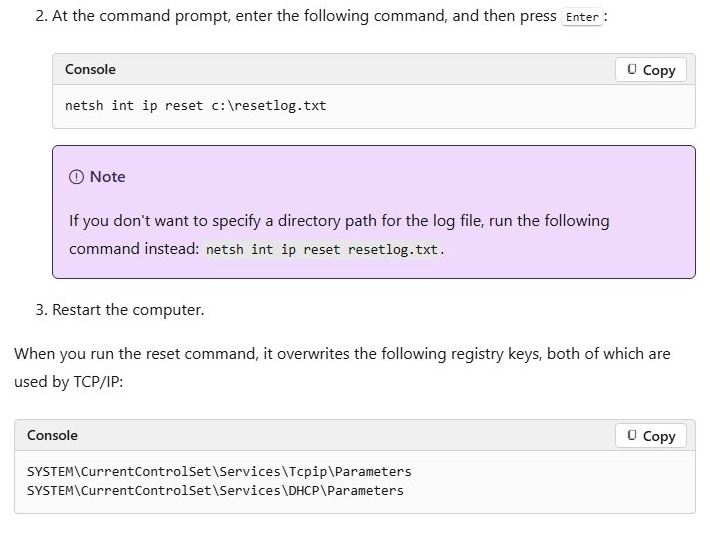
Two TCP/IP registry keys (Tcpip\Parameters and DHCP\Parameters), with the same effect as removing and reinstalling TCP/IP |
Re-enter any static IP or DNS values you set by hand | Manual |
ipconfig /release and /renew |
The IP address lease from your DHCP server | Nothing, on adapters set to obtain an address automatically | Not needed |
| Network reset in Settings | Every network adapter and its settings, reinstalled with defaults | VPN clients and Hyper-V virtual switches; known networks may turn to the public profile | Automatic |
To keep a record of a TCP/IP reset, name a log file: netsh int ip reset resetlog.txt. The file lists every registry value the command changed.
Can you undo netsh winsock reset?
There is no undo switch. Your way back is a configuration script saved beforehand, or reinstalling whichever app owned the removed provider.
- Before a reset on a PC with specialised network software, run
netsh winsock dump. Microsoft documents this as creating a script of the current Winsock configuration that you can save to a file. - After the reset, run
netsh winsock audit trailto see which layered service providers were on the PC. - Reinstall the app that owned the provider you need. Its installer registers the provider again.
- Restart the PC when the installer finishes, then run
netsh winsock show catalogto see the provider listed.
Winsock fix Windows 11: internet still not working after a reset
netsh.winsock.reset is not an internal or external command
The command was typed with dots, so Windows looks for a program with that whole name.
- Delete what you typed.
- Type
netsh winsock resetwith a single space between the words. - Press Enter.
Winsock reset asks you to run as administrator
The window you are using is not elevated, and the command needs administrator rights.
- Close the current window.
- Search for command prompt on the taskbar.
- Select Run as administrator, then Yes. On a work or school PC, ask your IT team if an administrator password is requested.
- Run
netsh winsock resetagain and restart.
Can't access internet after Winsock reset
Winsock was not the fault, or the restart has not happened yet. The next step is the wider fixes in Microsoft's order.
- Restart the PC if you have not done so since the command.
- Run the automated Network and Internet troubleshooter in the Get Help app.
- Run the full command set from the PowerShell section above, then restart.
- Open Settings > Network & internet > Advanced network settings > Network reset.
- Select Reset now, select Yes, and wait for the PC to restart.
Antivirus, firewall or proxy app stops working after a Winsock reset
The reset removed a provider the app registered, and Microsoft warns that programs which monitor internet traffic can be affected.
- Open Settings > Apps > Installed apps and select the More icon next to the app.
- Select Advanced options and then Repair, if the app offers it.
- If that is not offered or does not help, reinstall the app from its vendor's own site.
- Restart the PC and confirm the app's protection or proxy shows as active.
Winsock reset FAQ
Can I use Winsock reset in Windows 11?
Yes. Windows 11 includes the netsh winsock reset command, and Microsoft lists it in its own Wi-Fi and Ethernet troubleshooting steps for Windows. Run it from an elevated Command Prompt or PowerShell window, then restart the PC so the change takes effect.
How to reset Winsock?
Open Command Prompt as administrator, type netsh winsock reset, press Enter, and restart the PC. The command needs administrator rights and takes no extra switches. The steps are the same on Windows 11 and Windows 10, and you can also use an elevated PowerShell window.
What is Winsock reset?
Winsock reset is a built-in netsh command that returns the Winsock catalog to a clean state. It removes custom layered service providers to clear network problems caused by corrupted Winsock settings, and it leaves Winsock namespace provider entries alone.
What does resetting Winsock do?
Resetting Winsock clears custom layered service providers from the Winsock catalog, which can restore connectivity for apps that were failing. It does not change your IP address settings. Programs that monitor internet traffic, such as firewalls and proxy clients, can be affected and may need reinstalling.
What is the command to reset Winsock?
The command to reset Winsock is netsh winsock reset. Run it in Command Prompt or PowerShell opened with Run as administrator, press Enter, and then restart the PC. Typing net winsock reset will not work, because net is a different command from netsh.
Does Winsock reset need to run as administrator?
Yes. Microsoft's troubleshooting steps say to open Command Prompt with Run as administrator before running netsh winsock reset, and netsh commands are documented for use in an elevated Command Prompt or PowerShell window. A standard window is not the documented route.
Is Winsock reset the same on Windows 10?
Yes. The command is netsh winsock reset on both Windows 10 and Windows 11, and the restart afterwards is the same. The only difference in this article is the Network reset path: Windows 10 uses Settings > Network & internet > Status > Network reset.
Do I need to restart after netsh winsock reset?
Yes. Microsoft's Winsock reset instructions end with a restart, and its Winsock documentation explains that system processes keep layered service providers loaded, so a reboot is required when a provider is removed. Restart before you test the connection.