Save the photo from WhatsApp Desktop first, then drag the saved file from Finder into your Mail message or add it with the Attach button.
This guide covers saving one or several photos, each way to get them into Mail, how to update both apps, and fixes for the problems that interrupt each step.
How to get WhatsApp Desktop photos into Mac Mail
This route avoids dragging out of the WhatsApp window altogether, so it works however the app treats a drag.
- Open the chat in WhatsApp Desktop and click the photo you want.
- Click Download (the down arrow). If prompted, click Save.
- Open a new message in Mail.
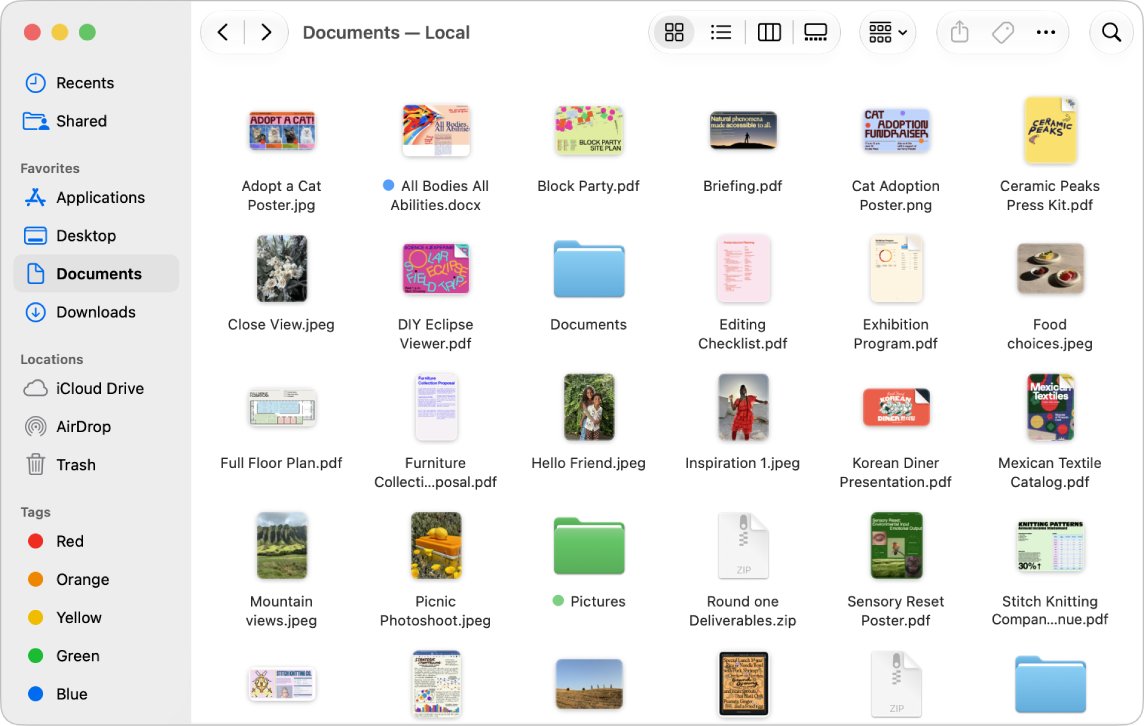
- Open the folder that holds the saved photo in Finder.
- Drag the photo from Finder into your message, then release it.
Why can't I drag photos from WhatsApp Desktop to Mac Mail?
WhatsApp does not publish a reason for this, and neither company documents dragging a photo straight out of a WhatsApp chat. The documented paths are the ones below, and they explain why a saved file is the dependable source for Mail.
| App | What its documentation covers | What that means for you |
|---|---|---|
| Mail on Mac | Dragging files into a message from the desktop, the Finder or an app | Mail accepts a dragged file, so a saved photo will work |
| WhatsApp Desktop, into a chat | Dragging a photo or video into the text field to send it | This direction is supported, but it sends into WhatsApp rather than out |
| WhatsApp Desktop, out of a chat | Clicking the photo, then Download | Saving is the documented way to get a photo out |
| WhatsApp Desktop, storage | An image is not saved permanently on your computer until you download it manually | A photo in a chat may not exist as a normal file yet |
How to save photos from WhatsApp Desktop on Mac
WhatsApp says the folder for your saved files is set by your computer settings, so note where the save prompt points before you click.
- Open the individual or group chat that holds the photo.
- Click the photo to open it.
- Click Download (the down arrow).
- If a prompt appears, choose a folder you can find again, such as your Desktop.
- Click Save.
- Open that folder in Finder and check that the photo is there.
How to drag and drop multiple photos from WhatsApp to Mail
WhatsApp's Media view lets you collect photos across chats in one pass, so you do not have to open each photo. It only holds what you received in the past 14 days.
- Click the Media icon in the left-side menu in WhatsApp.
- Click View media from all chats.
- Select the photos you want, then choose download for the whole selection.
- Open the saved photos in Finder and select them all.
- Press and hold on the selection, then drag it into your Mail message.
- Release the trackpad or mouse button to drop them.
To browse the photos in one conversation, open the chat, go to Contact info, and choose Media, links and docs.
How to drag and drop pictures into a message in Mail on Mac
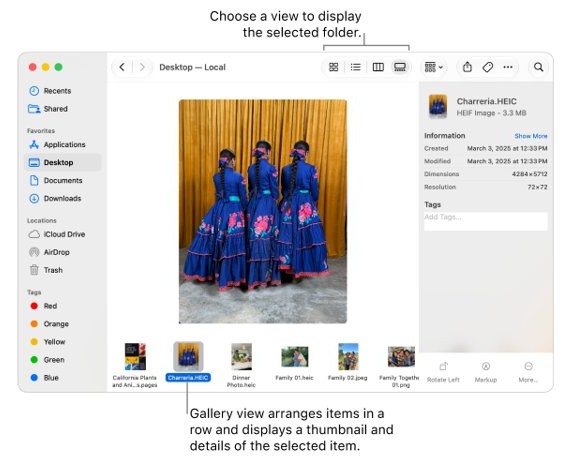
Apple lists adding an image to an email as a standard drag-and-drop task on Mac. Keep Finder and the message window side by side so the target is visible.
- Open Mail and start a new message.
- Open Finder and select the saved photo.
- Press and hold the trackpad or mouse on the photo.
- Drag it into the message body.
- Release the trackpad or mouse to drop it.
Mail inserts images at their actual size by default. If other sizes are available, choose one from the pop-up menu on the right side of the message header.
How to attach WhatsApp photos in Mac Mail with the Attach button
Use this when dragging is awkward on a small screen or a trackpad. It needs no drag at all, only the saved file.
- Open Mail and the message you are writing.
- Click the Attach button in the toolbar.
- Choose Attach Files.
- Locate the photo you saved from WhatsApp and select it.
- Click Choose File.
How to add WhatsApp photos to the Photos app and send them from Mail
This suits photos you want to keep, because they end up in your library as well as your email.
- Drag the saved photo from Finder and hold it over the Photos icon in the Dock.
- Open the Photos app and click Recently Saved in the sidebar to check that it arrived.
- Open a message in Mail and click the Attach button.
- Click Photos, then locate the photo in the browser.
- Select it, then click Add.
How to copy a WhatsApp photo to Mac Mail with a screenshot
A screenshot skips saving altogether, which helps when you need one quick image. It captures only what your screen shows, so save the real file when quality matters.
- Open the photo in WhatsApp Desktop at the largest size your screen allows.
- Press and hold Control, then press Shift-Command-4.
- Drag over the photo, then release the trackpad or mouse button.
- Click inside your Mail message.
- Press Command-V to paste the image.
How to save WhatsApp photos from WhatsApp Web on a Mac
WhatsApp Web gives you a second way in if the desktop app misbehaves. WhatsApp lists Safari as supported on macOS 11 or later.
- Go to web.whatsapp.com in Safari or another supported browser.
- Link the browser to your phone with the QR code.
- Open the chat and click the photo.
- Click Download (the down arrow), and click Save if prompted.
- Drag the saved file from Finder into your Mail message.
Why can't I drag files anymore? Update WhatsApp Desktop and macOS
WhatsApp advises keeping linked devices updated, since updates include bug fixes. Quit and restart both apps first, because that costs nothing.
- Press Command-Q in WhatsApp Desktop and in Mail, then open both again.
- Open the App Store and click Updates in the sidebar.
- Click Update beside WhatsApp if it is listed.
- If you installed WhatsApp from whatsapp.com, download the Desktop Mac file from the WhatsApp Download page and install it again.
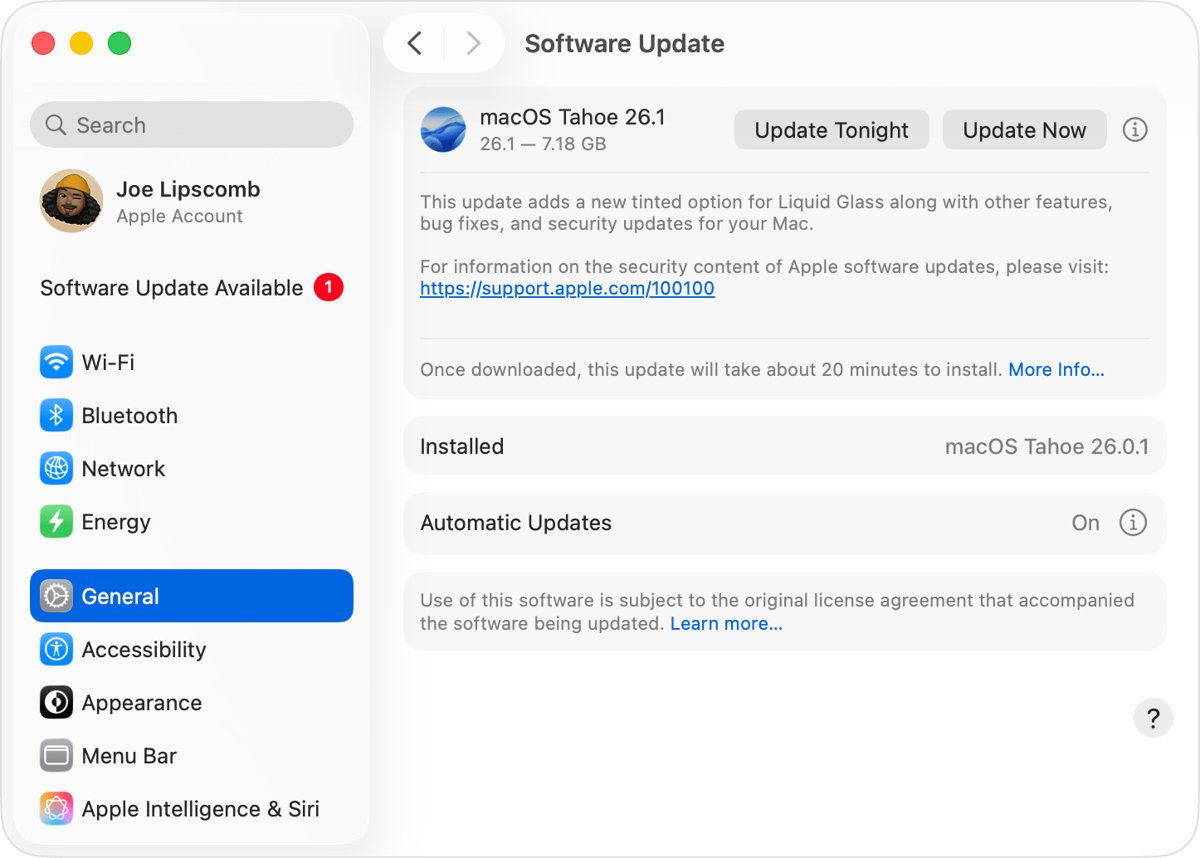
- Choose Apple menu > System Settings > General > Software Update.
- Install any update it lists, after backing up your Mac.
WhatsApp Desktop needs macOS 11 or later. You can download WhatsApp for Mac again if your copy is out of date.
How to tell if a WhatsApp photo attached to Mac Mail
Images usually appear inline in the message, so you can see the photo before you send it.
- Look for the photo in the message body after you drop or attach it.
- Check the pop-up menu on the right side of the message header if you want a smaller size.
- Send the message to your own address.
- Open the received message and check that the photo displays.
- Control-click the photo if you need to switch between View as Icon and View in Place.
WhatsApp Desktop and Mac Mail drag and drop not working
Why can't I drag anything on my Mac?
The fault is wider than WhatsApp if Finder and other apps also refuse to drag.
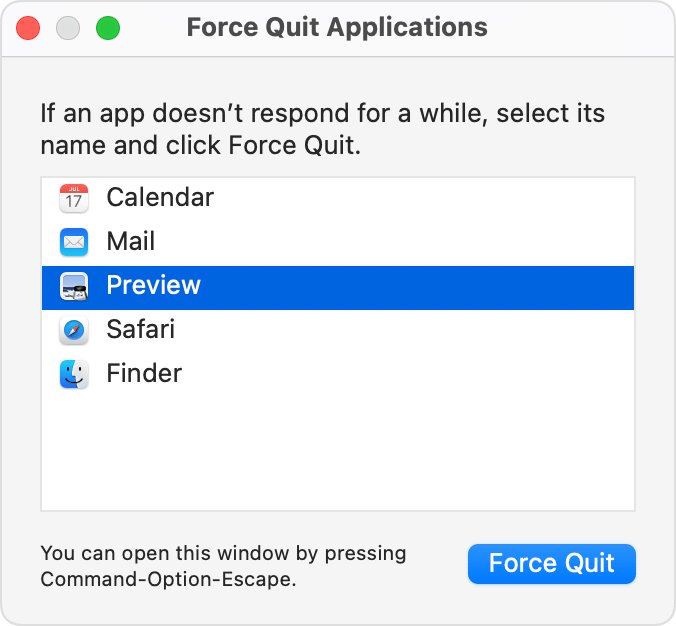
- Press Option-Command-Esc to open the Force Quit window.
- Select Finder, then click Relaunch.
- Try dragging a file on the desktop again.
- If that fails, choose Restart from the Apple menu.
WhatsApp Desktop will not download the photo
WhatsApp says a weak internet connection is the most common cause.
- Check that your internet connection is stable.
- Restart your Mac.
- Install the latest version of WhatsApp.
- Update macOS, then try the download again.
You cannot find the photo you saved
WhatsApp saves to the folder your computer settings determine, not a fixed WhatsApp folder.
- Save the photo again and read the folder shown in the save prompt.
- Open that folder in Finder.
- Sort it by date so the newest file appears first.
A photo is missing from the WhatsApp Media view
The view shows media, links and documents from the past 14 days.
- Open the original chat.
- Go to Contact info, then Media, links and docs.
- Open the photo and click Download.
WhatsApp Desktop logged you out and shows no photos
Linked devices log out if your phone goes unused for over 14 days, and after 30 days of inactivity.
- Open WhatsApp on your phone.
- Link the Mac again from Linked Devices > Link a Device.
- Scan the QR code on your Mac.
The photos are too large to send from Mail
Your email provider sets the attachment limit, and Mail Drop handles files above it.
- Sign in to your Apple Account on the Mac.
- Choose Mail > Settings, click Accounts and select the account.
- Click Account Information and select Send large attachments with Mail Drop.
- Send the message, and accept Mail Drop if Mail asks.
Your recipient on Windows cannot open the attachment
Mail can format attachments specifically for Windows recipients.
- In the new message, click Attach and choose Attach Files.
- Click Show Options if you do not see the checkbox.
- Select Send Windows-Friendly Attachments, then choose your photo.
If WhatsApp Desktop shows an error while you link your iPhone, fix the WhatsApp linking error on Mac before you try saving photos again.
WhatsApp Desktop to Mac Mail photos FAQ
Why can't I drag photos?
WhatsApp documents saving photos with its Download button, not dragging them out of a chat, so the drag may simply fail there. Save the photo, then drag the saved file from Finder into Mail, which accepts files from Finder, the desktop and apps.
Why can't I drag and drop files?
If no app will drag on your Mac, Finder may need a restart. Press Option-Command-Esc, select Finder and click Relaunch. If dragging still fails, restart the Mac. If it fails only in one app, update that app and use its save or export option.
How to drag and drop photos on a Mac?
Select the photo, press and hold the trackpad or mouse, drag it to the new location, and release. Apple lists adding an image to an email as one of the standard uses. Hold Option while dragging if you want to copy instead of move.
How to drag and drop multiple photos?
Select the photos in Finder, then press and hold on the selection and drag it into your message. For WhatsApp, use the Media view first to download several photos in one batch, because that view allows one action across a whole selection.
How to drag a picture from WhatsApp into a chat?
Open the individual or group chat, then drag the photo from your Mac into the text field. WhatsApp also offers the plus icon and Photos & Videos. You can send up to 100 photos or videos at once and add a caption to each.
Why can't I drag files anymore?
Neither WhatsApp nor Apple documents a change to dragging photos out of a chat, so no single cause is on record. Quit and reopen both apps, update WhatsApp and macOS, then fall back on saving the photo and attaching it in Mail.
How to drag images into Mail from another app?
Open a message in Mail, then drag the file from the desktop, the Finder or an app into it, as Apple's Mail guide describes. If the app refuses, save the image first. The Attach button in the toolbar works for any file you can locate.