To alphabetize in Google Docs, install a sorting add-on from Extensions > Add-ons > Get add-ons, highlight your list and choose the A to Z option, because the built-in Sort table command only works on tables.
This guide covers lists with bullets or numbers, tables, references and sources, single words, a Google Sheets route that needs no add-on, and fixes for lists that will not sort.
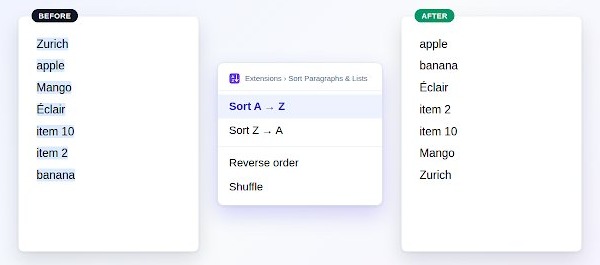
Step by step tutorial on how to alphabetize in Google Docs
These steps use an add-on, which you install once and then reuse in any document. The Add-ons menu now sits under Extensions, so older instructions that start at a top-level Add-ons menu no longer match the screen.
- Open your document and go to Extensions > Add-ons > Get add-ons.
- Search for Sort Paragraphs: Alphabetize & Shuffle or Sorted Paragraphs, then click the add-on.
- Click Install, then Continue.
- Read the data-access message, click Allow, and click Done when the install finishes.
- Highlight the list you want to sort, and leave out any title above it.
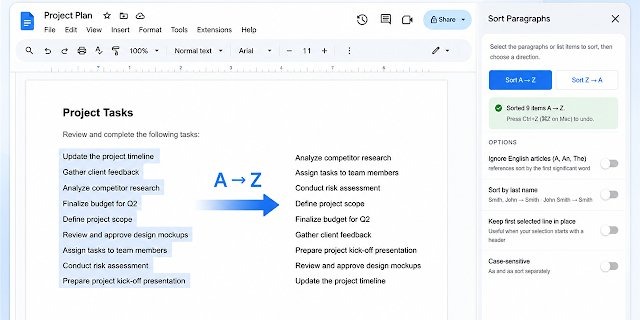
- Open Extensions, point to the add-on and choose Sort A → Z. Choose Sort Z → A for reverse order.
Menu wording differs a little between add-ons. Sort A → Z is the label in Sort Paragraphs: Alphabetize & Shuffle.
Can I alphabetize in Google Docs without an add-on?
Yes. The first three rows below need no add-on, and the right route depends on whether your text sits in a table and how long the list runs.
| What you have | Use this | Why |
|---|---|---|
| A table | Right-click the table and choose Sort table | Built into Docs, with nothing to install |
| A long list, and you do not want to grant add-on access | Paste it into Google Sheets, sort there and paste it back | Sheets has its own A to Z sort |
| A list of a few items | Move items with Ctrl + Shift + Up or Down arrow | Docs moves the whole paragraph, so no retyping |
| A long list with formatting, bullets or links | A sorting add-on | It keeps the formatting that a trip through Sheets loses |
| A typed reference list | A sorting add-on, then check your hanging indent | Sorted Paragraphs lists bibliographies among the things it sorts |
How to alphabetize list in Google Docs
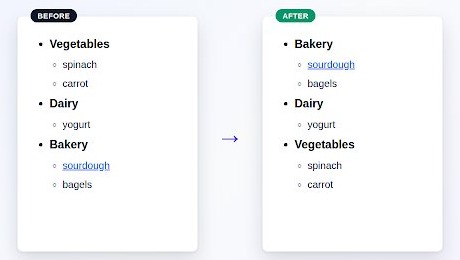
Bulleted, numbered and plain lists all sort the same way, because each item counts as one paragraph. Sort Paragraphs: Alphabetize & Shuffle keeps bullets and numbering, and nested items move with their parent.
- Click at the start of the first list item and drag to the end of the last one.
- Keep the selection inside one area of the document, such as the body or a single table cell.
- Open Extensions, point to the add-on and choose Sort A → Z.
- Read the first and last items to confirm the order, then check that any sub-items stayed under the right parent.
How to alphabetize in Google Docs table
Tables are the one thing Docs sorts on its own, and sorting add-ons such as Sorted Paragraphs do not sort tables. Pin the header first, because pinned rows stay in place and every other row moves.
- Right-click your header row and select Pin header up to this row, if the table has a header.
- Right-click in the column you want to sort by.
- Click Sort table.
- Select Sort table in ascending order for A to Z, or Sort table in descending order for Z to A.
For a faster route, hover over the top row of the table, click the Sort Table control and choose Sort ascending or Sort descending.
How to alphabetize in Google Docs sheet
This route needs no add-on, and it suits anyone who would rather not grant one access to their documents. Any bold text, links or bullets will need to be reapplied afterward, so use it for plain lists. The steps assume both apps are open in a browser, which is how Google Docs and Sheets on Windows normally run.
- Highlight your list in Docs and press Ctrl + C.
- Open a new spreadsheet in Google Sheets, click cell A1 and press Ctrl + V.
- At the top of the sheet, right-click the letter A.
- Click Sort sheet A to Z, or Sort sheet Z to A for reverse order.
- Copy the sorted cells and go back to your document.
- Press Ctrl + Shift + V to paste without formatting, or ⌘ + Shift + V on a Mac.
If your list has a title in the first row, highlight the cells instead and go to Data > Sort range > Advanced range sorting options. Mark the header row option, pick the column and click Sort.
How to alphabetize references in Google Docs
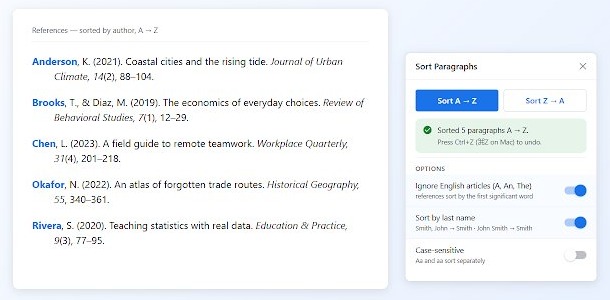
A typed works-cited list sorts like any other list, because each entry is one paragraph. Google Docs can also build the list for you with citations in MLA (8th ed.), APA (7th ed.) or Chicago Author-Date (17th ed.).
- Highlight the entries only, and leave out the Works Cited or References title.
- Open Extensions, point to your sorting add-on and choose the A to Z option.
- Read through the result, and reapply a hanging indent if any entry lost it.
- To build the list instead, click + Add citation source in the Citations sidebar and add each source.
- Place your cursor where the list belongs and click Insert bibliography at the bottom of the sidebar.
Sources and references follow the same steps. Check the finished order against your style guide before you submit the paper.
How to alphabetize words in Google Docs
Sorting tools work on whole paragraphs, not on words inside a sentence. Words on one line count as a single item and will not move until each one sits on its own line.
- Click after each word and press Enter, so that every word has its own line.
- Highlight all the lines.
- Open Extensions, point to your sorting add-on and choose the A to Z option.
- Join the words back onto one line if you need them that way, by pressing Backspace at the start of each line and typing a comma or space.
How to auto alphabetize in Google Docs
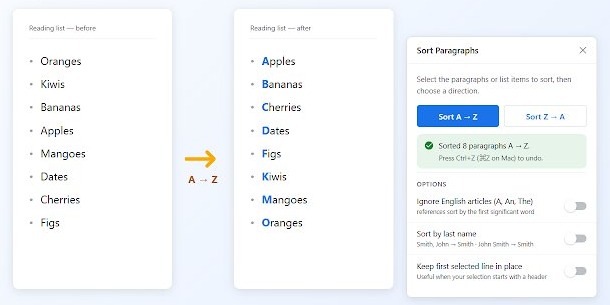
Docs and the add-ons here sort when you run the command, not as you type, so a new item lands wherever you put it. Rerun the sort each time the list changes.
- Add your new item anywhere in the list.
- Highlight the whole list, including the new item.
- Open Extensions, point to the add-on and choose Sort A → Z.
- For a table, select Sort table > Sort table in ascending order again.
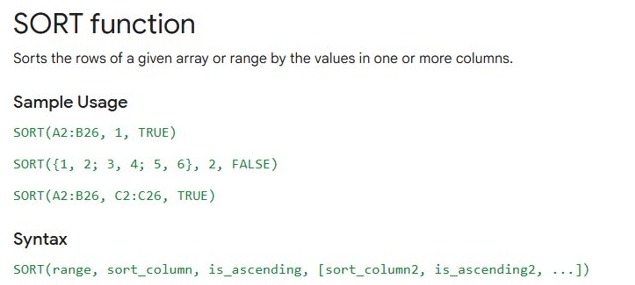
For a list you update often, keep the master copy in Google Sheets. With items in cells A2 to A26, enter =SORT(A2:A26, 1, TRUE) in an empty column to return them in A to Z order, then copy from that column.
Google Docs add-ons that alphabetize lists
Google Workspace Marketplace lists several sorting add-ons. These details come from each add-on's own listing, so check it again before you install, since the listing also shows what access the add-on asks for.
| Add-on | Developer | What it sorts | Listing details |
|---|---|---|---|
| Sort Paragraphs: Alphabetize & Shuffle | Single Task Tools | Paragraphs and list items, A to Z, Z to A, reverse or shuffle | Free, with formatting kept |
| Sorted Paragraphs | Filipe Werneck | Paragraphs, lists and bibliographies, A to Z or reverse | Over 4 million installs, last updated August 1, 2022, does not sort tables |
Alphabetize: Sort Paragraphs & Lists from Going Stellar SRL and Sort Paragraphs from utilbits appear in the same Marketplace search.
Pros of alphabetizing in Google Docs with an add-on
| Advantage | What you get |
|---|---|
| Speed | One menu command sorts the whole selection, however long the list runs |
| Accuracy | No missed or misplaced items, as can happen when you drag lines by hand |
| Formatting stays | Bold, italics, links, images, bullets and numbering are kept in Sort Paragraphs: Alphabetize & Shuffle |
| Reversible | Ctrl + Z puts the list back if you sorted the wrong selection |
| Reusable | Once installed, the add-on is on hand in your other documents |
Cons of alphabetizing in Google Docs with an add-on
| Drawback | What to do about it |
|---|---|
| The add-on needs access to your documents | Read the data-access message before you click Allow, or use the Google Sheets route |
| No whole-table sorting | Use the built-in Sort table command for tables |
| Sorts paragraphs, not words in a line | Put each word on its own line first |
| One area at a time | Sort a body list and a table cell list separately |
| Third-party software you have to maintain | Remove it from Manage add-ons when you no longer need it |
Additional information about sort order in Google Docs
Sort rules belong to the tool, so results can differ between add-ons. This table shows the rules published for Sort Paragraphs: Alphabetize & Shuffle.
| In your list | How it sorts |
|---|---|
| Capital letters | Ignored for order, so apple and Apple sit together |
| Accented letters | Sorted with the base letter, so Árbol goes under A |
| Numbers | Read as values, so Item 2 comes before Item 10 |
| Nested list items | Move with their parent item |
| Blank lines at the edges of a selection | Stay where they are |
| A paragraph with something that cannot move | Nothing changes, and a message appears |
How to undo alphabetize in Google Docs
- Press Ctrl + Z right after the sort, or ⌘ + Z on a Mac, to restore the original order.
- To stop using the add-on in this document, go to Extensions > Add-ons > Manage add-ons, click the Options icon next to it and clear Use in this document.
- To remove it from all your files, click the Options icon and select Uninstall.
Sorted Paragraphs not showing up in Google Docs
"Add-ons" is not in the Extensions menu
The file is probably open in Microsoft Office editing mode.
- Convert the file to Google Docs format.
- Open Extensions again and look for Add-ons.
The add-on is installed but not in this document
The add-on is turned off for this file.
- Go to Extensions > Add-ons > Manage add-ons.
- Click the Options icon next to the add-on and select Use in this document.
- Go back to the Extensions menu and look for it again.
The list did not sort correctly
The selection missed items, or a manual line break is holding two items in one paragraph.
- Press Ctrl + Z to restore the list.
- Delete any stray blank lines inside the list, and highlight it again from the first item to the last.
- Check that each item is its own paragraph, with no manual line break holding two together.
- Run the sort again.
The add-on does nothing or shows a message
The selection spans more than one area, or holds something that cannot be moved.
- Highlight a smaller range that stays inside the document body or one table cell.
- Leave out any paragraph that holds something the add-on cannot move, then sort the rest.
- Run the sort again.
A table will not sort, or the header row moves
Add-ons do not sort whole tables, and an unpinned header sorts with the rows.
- Use Sort table from the right-click menu, not the add-on.
- Press Ctrl + Z if the header moved.
- Right-click the header row, select Pin header up to this row and sort again.
How to alphabetize in Google Docs FAQ
How do I alphabetize in Google Docs?
Install a sorting add-on from Extensions > Add-ons > Get add-ons, highlight your list, then open Extensions and choose the A to Z option. For a table, right-click it and choose Sort table instead, which needs no add-on.
Can I alphabetize in Google Docs?
Yes. Tables sort with the built-in Sort table command, and lists sort with an add-on such as Sorted Paragraphs or Sort Paragraphs: Alphabetize & Shuffle. You can also paste a list into Google Sheets, sort it there and paste it back.
Can I alphabetize a list that has bullet points or numbers?
Yes. Sort Paragraphs: Alphabetize & Shuffle keeps bullets and numbering when it sorts, and nested items move with their parent. Highlight only the list items, then choose the A to Z option from the Extensions menu.
Will alphabetizing affect my document's formatting?
An add-on that keeps formatting leaves bold, italics, links, images, bullets and numbering in place, and it changes only the order of the text you selected. Copying a list through Google Sheets loses that formatting, so reapply it afterward.
Can I sort a table in Google Docs?
Yes. Right-click the table, click Sort table, then select Sort table in ascending order or Sort table in descending order. Pin a header row first, because Google Docs does not sort pinned rows.
What do I do if my list didn't sort correctly?
Press Ctrl + Z to restore the list, delete any blank lines inside it, and check that each item is its own paragraph. Highlight the list again from the first item to the last, then run the sort a second time.
What if "Sorted Paragraphs" isn't showing up in my "Add-ons" menu?
The Add-ons menu now sits under Extensions, so look there first. If the add-on is still missing, go to Extensions > Add-ons > Manage add-ons, click the Options icon next to it and select Use in this document.
How do I alphabetize sources in Google Docs?
Highlight the source entries, leaving out the Works Cited or References title, and choose the A to Z option in your sorting add-on. Then read through the result and reapply your hanging indent if an entry lost it.
How do you auto alphabetize in Google Docs?
Google Docs does not keep a list sorted as you type. Add your new item, highlight the whole list and run the sort again. A list you update often is easier to keep in Google Sheets with the SORT function.