Repair the NVIDIA Control Panel app from Settings > Apps > Installed apps, restart your PC, and open it again to fix most cases where it will not open.
This guide also covers reinstalling the app and driver, a missing right-click entry or tray icon, drivers that disappear after updates, frame rate limits, and error messages.
NVIDIA Control Panel not opening
On current DCH drivers, NVIDIA Control Panel is a Microsoft Store app, so Windows can repair it from Settings. Use Repair first, and Reset when Repair is unavailable or changes nothing.
- Select Start > Settings > Apps > Installed apps. On Windows 10, go to Settings > Apps > Apps & features.
- Find NVIDIA Control Panel and select More next to it.
- Select Advanced options.
- Select Repair and wait for it to finish.
- Try to open NVIDIA Control Panel from Start.
- If it still fails, return to Advanced options and select Reset.
- Restart your PC and open the app again.
If NVIDIA Control Panel is not in the list, the app is not installed. Skip to the reinstall steps below.
Why isn't my NVIDIA Control Panel working?
| What you see | Likely cause | Fix to try first |
|---|---|---|
| Clicking it does nothing, or it closes right away | Damaged app files or settings, or a stuck process | Repair the app, then end the stuck process |
| Not listed in Start or Installed apps | The Store app is not installed | Reinstall it from Microsoft Store |
| Installed, but the right-click entry is gone | Add Desktop Context Menu is turned off | Turn the option back on from the Desktop menu |
| The tray icon is gone | Show Notification Tray Icon is off, or the icon is hidden | Turn the option on and check the taskbar overflow |
| The panel stopped working after a Windows update | Windows Update changed the graphics driver | Check Display adapters, then reinstall the driver |
| The panel opens with display pages missing | Windows is not using a display on the NVIDIA GPU | Check the monitor cable, or the laptop's graphics design |
How do I force open the NVIDIA Control Panel?
A hung copy of the app can stop a new window from appearing. End it first, then use the most direct launch route.
- Press Ctrl + Shift + Esc to open Task Manager.
- Find NVIDIA Control Panel on the Processes tab, select it, and select End task.
- Select Start, type
NVIDIA Control Panel, and select the app in the results. - If that fails, right-click an empty area of the desktop and select NVIDIA Control Panel.
- If that fails too, select the NVIDIA icon in the taskbar notification area.
If no route opens a window, restart the PC once before you reinstall anything.
How to reinstall NVIDIA Control Panel
Reinstalling replaces a damaged Store copy without touching the graphics driver. The Store listing requires an NVIDIA DCH display driver, Windows 10 version 14393.0 or later and a 64-bit PC.
- Select Start > Settings > Apps > Installed apps (Apps & features on Windows 10).
- Find NVIDIA Control Panel, select More, then select Uninstall.
- Restart your PC.
- Open Microsoft Store and select Library.
- Find NVIDIA Control Panel and select Install.
- If it is not in your library, open the NVIDIA Control Panel Store listing and install it from there.
You can also download NVIDIA Control Panel by following the Store and driver checks for a fresh install.
How to repair NVIDIA Control Panel by reinstalling the graphics driver
Control Panel depends on the NVIDIA driver. If the app is healthy but still fails, or the GPU shows a problem in Device Manager, replace the driver.
- Right-click Start and select Device Manager, then expand Display adapters.
- Note your GPU model. If it shows an error, right-click it and select Properties to read the status.
- Open the NVIDIA driver page and use the manual search to find the driver for your GPU and Windows version.
- Run the installer, follow the prompts, and restart your PC when asked.
- If the installer stops with an error, clear the NVIDIA installer error and run it again.
- Open NVIDIA Control Panel from Start. If it is missing, install it from Microsoft Store.
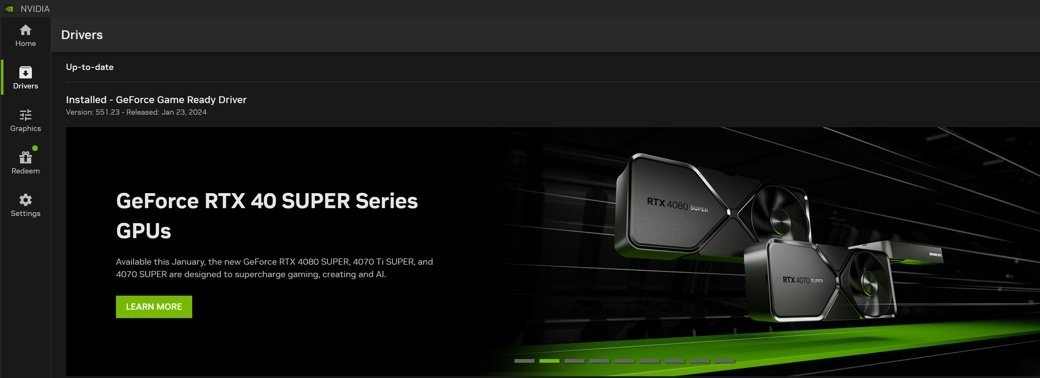
The NVIDIA app can handle this too. Its Drivers tab offers the latest driver, and the three-dot menu reinstalls a driver you installed through the app.
How to fix NVIDIA Control Panel not showing in the desktop right-click menu
NVIDIA ships Add Desktop Context Menu turned on by default. If the entry is gone but the app opens from Start, the option has been switched off.
- Select Start, type
NVIDIA Control Panel, and open the app. - Select the Desktop menu on the top menu bar.
- Select Add Desktop Context Menu so it is ticked.
- Right-click an empty area of the desktop to check that the entry is back.

NVIDIA system tray icon missing in Windows 11
Two separate settings control this icon. One lives in NVIDIA Control Panel, and the other is the Windows taskbar overflow.
- Open NVIDIA Control Panel from Start.
- Select Desktop > Show Notification Tray Icon so it is ticked.
- Select the chevron at the right end of the Windows taskbar and look for the NVIDIA icon in the overflow area.
- Drag the icon from the overflow area onto the system tray to keep it visible.
- If it is not there, right-click the taskbar and select Taskbar settings.
- Open Other system tray icons and check the entries that can appear in the tray.
On laptops with NVIDIA's power-saving graphics technology, the Desktop menu also has Display GPU Activity Icon in Notification Area. That is a different icon, which shows the programs using the NVIDIA GPU.

AMD or NVIDIA drivers uninstalled automatically on PC
Windows Update installs recommended drivers automatically, and Microsoft says Windows downloads a newer driver when one is available. Its choice comes from the driver provider's targeting data, not the driver date, so the vendor driver you chose can be replaced.
The same steps apply to AMD and NVIDIA graphics cards. Use each vendor's own site for the driver file.
- Right-click Start, select Device Manager, and expand Display adapters.
- If the adapter no longer shows its NVIDIA or AMD name, Windows is no longer using the vendor driver.
- If it does, right-click the adapter and select Properties.
- Open the Driver tab and select Roll Back Driver if the problem began after a recent update.
- Choose a reason, select Yes, and restart if prompted.
- If rollback is unavailable, install the current driver from nvidia.com or amd.com.
- Go to Settings > Windows Update > Advanced options > Optional updates and leave driver entries unselected unless you want them.
Optional drivers are not installed automatically, so that list only changes your driver if you select an entry.
If you need a fresh start, select Uninstall device in Device Manager and restart. Windows then tries to reinstall a driver at startup. Grab the latest NVIDIA drivers before you do this.
How to set FPS Limit on NVIDIA and AMD GPU
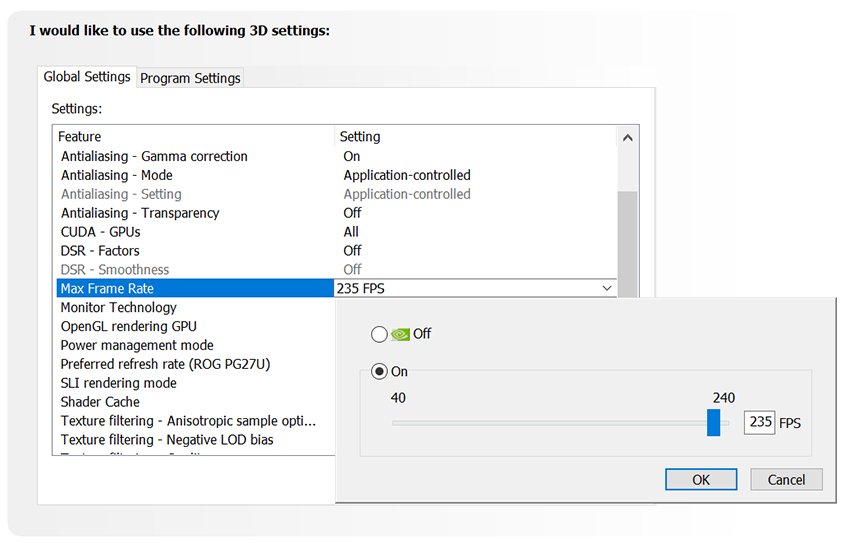
NVIDIA's cap is Max Frame Rate, available since R440 drivers. It sets the highest frame rate the GPU renders for 3D games and apps, which can extend battery life and lower latency in certain scenarios.
- Open NVIDIA Control Panel.
- Expand 3D Settings in the left pane and select Manage 3D settings.
- Use the Global Settings tab for every game, or Program Settings for one game.
- Find Max Frame Rate in the Settings list and select On.
- Move the slider to the limit you want, from 20 to 1000 fps, then select OK.
- Select Apply.
The separate Background Application Max Frame Rate setting caps a game running in the background, from 20 to 200 fps. It reduces power use and fan noise when you switch away.
On AMD graphics cards, frame rate controls live in AMD Software: Adrenalin Edition, AMD's Radeon software. Follow AMD's Adrenalin help for your release, or use the frame rate limit in the game's own video settings.
How to check NVIDIA Control Panel version and driver
- Open NVIDIA Control Panel from Start.
- Select System Information at the bottom-left corner of the window.
- Check that your NVIDIA GPU and driver version appear in the window.
- Close the window, then right-click the desktop and check for the NVIDIA Control Panel entry.
What happened to my NVIDIA Control Panel?
DCH drivers changed where the app comes from. Microsoft's DCH rules require a driver package's user interface to ship as a Hardware Support App through Microsoft Store, so a driver install does not have to carry the app with it.
| Item | Role | Where it comes from |
|---|---|---|
| NVIDIA Control Panel | Display, 3D and program settings | Microsoft Store for DCH drivers, or preinstalled by the PC maker |
| DCH driver | The display driver; its user interface ships separately | nvidia.com driver search or the NVIDIA app |
| NVIDIA app | Driver updates plus 3D and display settings, moved over from Control Panel in stages | NVIDIA app page |
| GeForce Experience | The older companion app whose main features the NVIDIA app took over | Replaced by the NVIDIA app for driver updates |
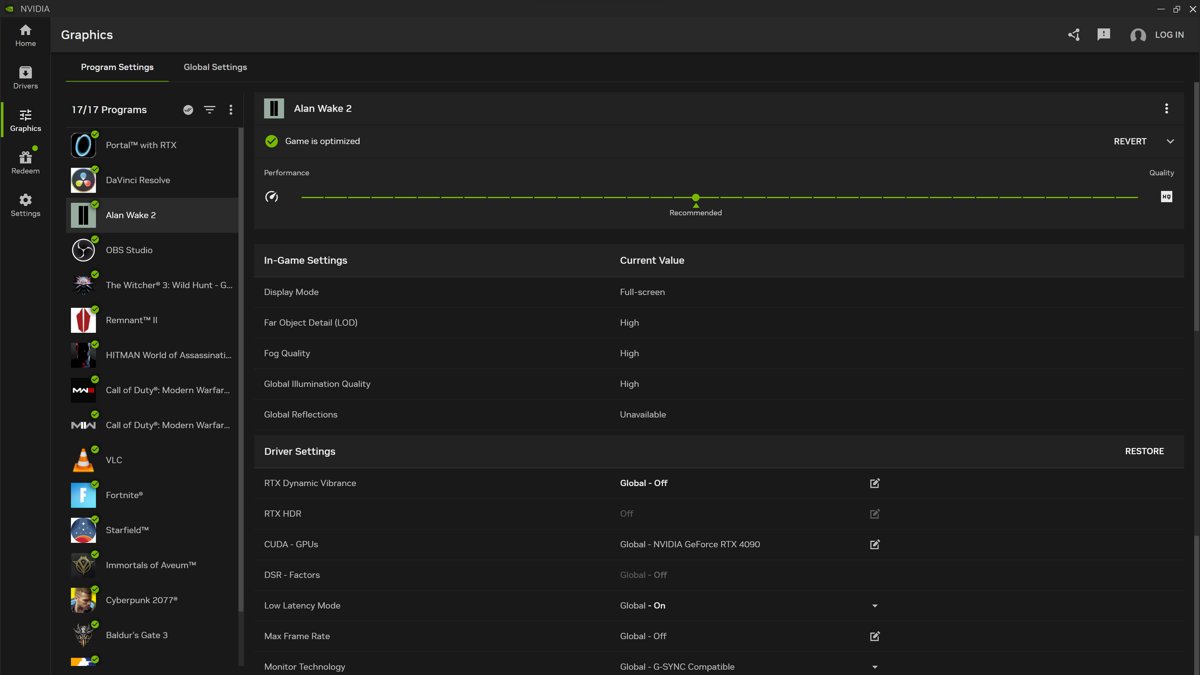
NVIDIA is moving settings into the NVIDIA app. If Control Panel stays broken, its Graphics tab covers global and per-game driver settings, and its System tab covers display options.
How to fix NVIDIA Control Panel access denied, no display and not found errors
NVIDIA Control Panel access denied
The panel could not save your change to the system, so the setting does not stick.
- Close running games and apps that use the GPU.
- Check that your account is an administrator under Settings > Accounts > Other users, or ask an administrator of the PC to apply the change.
- Repair the app from Settings > Apps > Installed apps > More > Advanced options > Repair.
- Reinstall the driver from nvidia.com and restart.
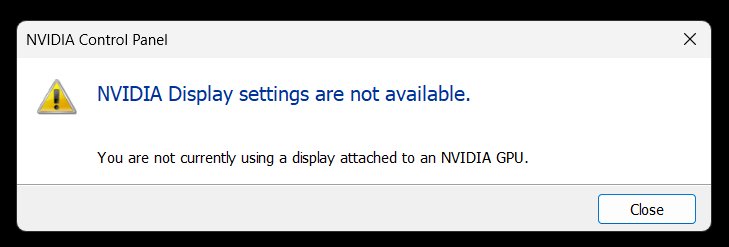
NVIDIA Control Panel no display, or NVIDIA display settings are not available
Windows is not using a display attached to the NVIDIA GPU, so the panel has no NVIDIA display to manage.
- On a desktop PC, plug the monitor cable into a port on the NVIDIA graphics card, not the motherboard.
- Restart and open NVIDIA Control Panel again.
- Check Device Manager > Display adapters to see that the NVIDIA GPU is working.
- Reinstall the driver if the GPU shows an error.
Why is my NVIDIA Control Panel limited on a laptop?
On standard Optimus laptops, integrated graphics always drive the built-in screen, so the display pages have nothing to change.
- Use 3D Settings > Manage 3D settings to set Preferred graphics processor for games.
- Change the built-in screen's resolution in Windows display settings.
- Connect an external monitor to a port wired to the NVIDIA GPU to reach the Display pages.
NVIDIA Control Panel not found or missing after a driver install
The driver installed without the Store app, or the driver itself is missing.
- Restart your PC and search Start again.
- Open Device Manager > Display adapters and look for an NVIDIA entry.
- Install the app from the Microsoft Store listing.
- If the Store says the app will not work, install a DCH driver from nvidia.com first, then try the Store again.
The Store will not install or update NVIDIA Control Panel
A pending restart or a stuck Store cache can block the install.
- Restart your PC, then go to Settings > Windows Update and install pending updates.
- In Microsoft Store, select Library > Get updates.
- Press Windows + R, type
wsreset.exe, and select OK. - After the Store reopens, search for
NVIDIA Control Paneland select Install.
NVIDIA Control Panel not opening FAQ
How to fix NVIDIA Control Panel not opening on Windows 11?
Go to Settings > Apps > Installed apps, select More next to NVIDIA Control Panel, then Advanced options > Repair. Restart and try again. If it still fails, use Reset, reinstall the app from Microsoft Store, then reinstall the driver.
How to fix NVIDIA Control Panel missing?
Search Start first, because the desktop entry can be turned off while the app is still installed. If search finds nothing, install NVIDIA Control Panel from Microsoft Store. The Store listing needs an NVIDIA DCH driver, so install that from nvidia.com if the Store refuses.
Why don't I have NVIDIA Control Panel?
The app is separate from DCH drivers and ships through Microsoft Store, so a PC can have the driver and not the panel. It also needs an NVIDIA GPU. Check Device Manager > Display adapters for an NVIDIA entry, then install the app from the Store.
How to get NVIDIA Control Panel back?
Open Microsoft Store, select Library, find NVIDIA Control Panel and select Install. If it is already installed but missing from the desktop menu, open it from Start and turn on Desktop > Add Desktop Context Menu. The tray icon has its own option on that menu.
Can I remove NVIDIA Control Panel?
Yes. Go to Settings > Apps > Installed apps, select More next to NVIDIA Control Panel, and select Uninstall. This removes the settings app and leaves the graphics driver in place. You can reinstall the app later from your Microsoft Store library.
Why doesn't my NVIDIA Control Panel work?
The app files may be damaged, or Windows Update may have installed a newer recommended driver on its own. Repair the app first. Then check Device Manager > Display adapters for your GPU, then use Roll Back Driver on the Driver tab if the trouble began after that update. Otherwise, install the current driver from nvidia.com and restart.
Is NVIDIA Control Panel being replaced by the NVIDIA app?
NVIDIA has been moving Control Panel settings into the NVIDIA app in stages, including display and 3D settings. NVIDIA's own release notes still refer to the classic Control Panel as the source of those options. If the panel stays broken, the app's Graphics and System tabs cover most daily settings.
How to repair NVIDIA Control Panel?
Repair or reset the app from Installed apps, then reinstall it from Microsoft Store if needed. If the panel still fails, install the current NVIDIA driver from nvidia.com. These steps change only the app and the driver, and they leave your files alone.