Turn off automatic updates in Windows 11 by setting the Configure Automatic Updates Group Policy to Disabled, which leaves you to download and install updates by hand.
Settings has no off switch, and Microsoft says you can't stop updates entirely, so this guide also covers the 35-day pause, metered connections, the Windows Update service, drivers, Store apps, uninstalling an update, errors and logs.
How to disable automatic Windows Update in Windows 11
This is the route Microsoft documents for turning off the automatic download and install. It needs an administrator account on Windows 11 Pro, Enterprise or Education.
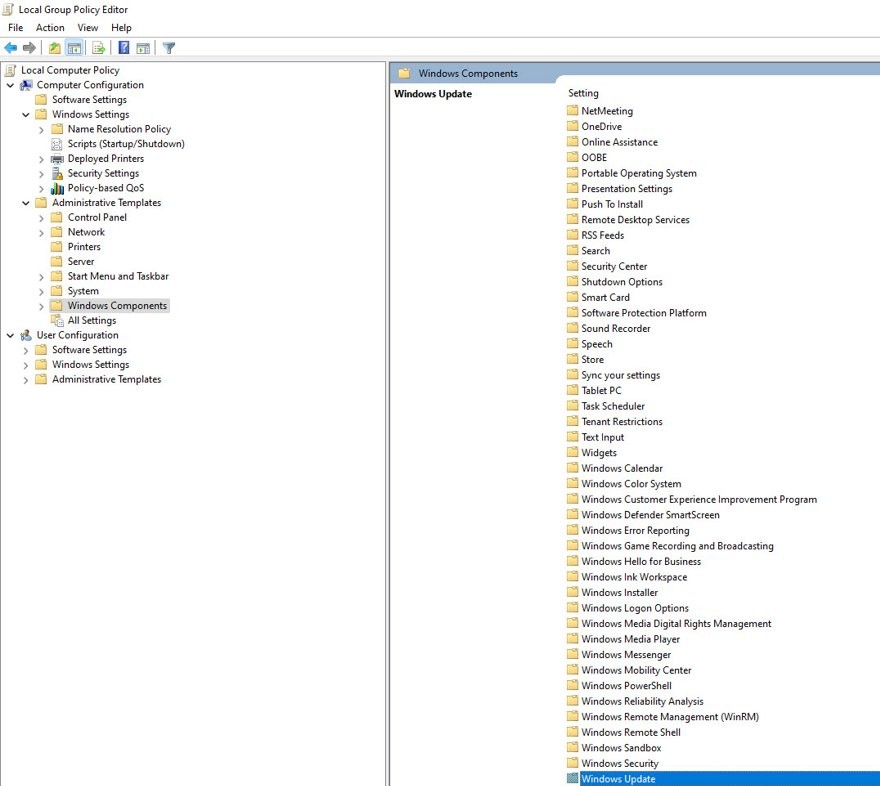
- Press Win + R, type
gpedit.mscand press Enter. - Go to Computer Configuration > Administrative Templates > Windows Components > Windows Update > Manage end user experience.
- Double-click Configure Automatic Updates.
- Select Disabled, then select Apply and OK.
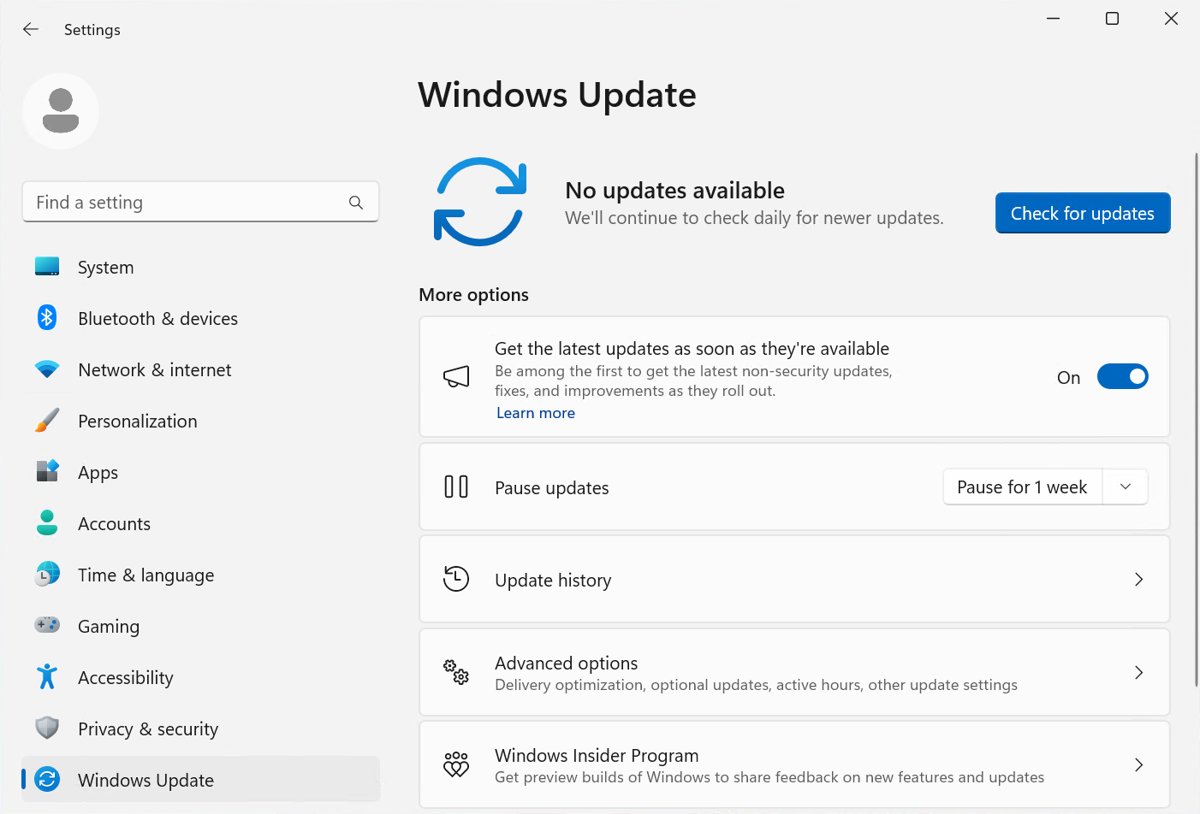
- Restart the PC, then install updates yourself from Settings > Windows Update > Check for updates.
With the policy set to Disabled, any update on Windows Update must be downloaded and installed manually. Microsoft warns that devices with automatic updates off won't receive security updates on their own, so schedule your own check every month.
Turn off automatic updates in Windows 11 Home and Pro
The right method depends on your edition and on how long you want updates held back.
| What you want | Method | Windows 11 edition | What it does |
|---|---|---|---|
| Hold updates for a few weeks | Pause updates in Settings | All editions | Stops updates until a date you pick, up to 35 days away |
| Limit downloads on one network | Metered connection | All editions | Windows Update downloads only priority updates on that network |
| Choose when updates download | Configure Automatic Updates, option 2 | Pro, Enterprise, Education | Windows tells you updates exist and waits for you to download them |
| Stop the automatic download and install | Configure Automatic Updates, Disabled | Pro, Enterprise, Education | You download and install every update yourself |
| Same result without the policy editor | NoAutoUpdate registry value |
Pro, Enterprise, Education; Home isn't listed by Microsoft | Writes the same setting directly to the registry |
| Stop Windows Update from working | Disable the Windows Update service | All editions | Blocks Windows Update and its automatic updating, including your own checks |
| Skip early optional updates only | Turn off Get the latest updates as soon as they're available | Any edition that shows the toggle | Removes early delivery of optional updates, while regular updates continue |
Microsoft's update policy list names Pro, Enterprise, Education and IoT Enterprise. Windows 11 Home isn't on it, so pause and metered connection are the documented options on Home.
How to stop automatic downloading of Windows updates in Windows 11
Option 2 of the same policy keeps Windows Update available but holds every download until you approve it.
- Open Configure Automatic Updates in
gpedit.msc, using the path in the first section. - Select Enabled.
- Under Options, select 2 – Notify for download and auto install.
- Select Apply and OK.
- When a notification appears, open Settings > Windows Update and download the updates you are ready for.
Option 3, Auto download and notify for install, is the softer choice. Windows downloads in the background and only waits for you at the install stage.
Pause or stop automatic updates in Windows 11
Pausing works on every edition and needs no policy. Microsoft measures the maximum of 35 days from today, and you can't stack pauses to go past it.
- Select Start > Settings > Windows Update.
- Find the Pause updates control.
- Select Pick a date and choose an end date.
- To extend the pause, return to the same page and select a later end date on the calendar.
You can resume manually at any time. When the pause ends, Windows installs the latest updates automatically, and you must install them before you can pause again. A pause also cancels any update already in progress.
Windows 11 26H2 has its own controls, so you can pause or stop 26H2 updates and block the 26H2 feature update as separate jobs.
Set your network connection to metered in Windows 11
On a metered connection, Windows Update downloads only priority updates, so this limits updates but never blocks them all. It also applies only to the network you mark.
- Open Settings and select Network & internet.
- Select Wi-Fi or Ethernet, then select the network you are connected to.
- Turn on Metered connection.
- Go to Settings > Windows Update > Advanced options.
- Make sure Download updates over metered connections is off.
If Metered connection is greyed out, your organization may control it. Removing a data limit set on that network can also free the toggle.
Completely turn off Windows updates in Windows
Microsoft describes the Windows Update service, wuauserv, this way: if you disable it, you can't use Windows Update or its automatic updating. This is the bluntest method, and it also stops your own manual checks.
Microsoft also says you can't stop updates entirely, so treat this as a short-term measure and turn the service back on when you are ready to install updates.
- Press Win + R, type
services.mscand press Enter. - Scroll to Windows Update, right-click it and select Stop.
- Right-click Windows Update again and select Properties.
- Set Startup type to Disabled.
- Select Apply and OK.
A second policy, Turn off access to all Windows Update features, looks like the obvious switch. Microsoft states it applies only to PCs set up to use an intranet update service, so it does nothing on a typical home PC.
Turn off automatic updates in Windows 11 with Registry Editor
Microsoft documents these values for PCs without Active Directory. Editing the registry incorrectly can cause serious problems, so make one change and nothing else.
- Select Start, search for
regeditand open Registry Editor. - Go to
HKEY_LOCAL_MACHINE\SOFTWARE\Policies\Microsoft\Windows\WindowsUpdate\AU. - If
WindowsUpdateorAUdoesn't exist, right-click the parent key and select New > Key to create it. - Right-click the right pane and select New > DWORD (32-bit) Value.
- Name the value
NoAutoUpdate. - Double-click it, set Value data to
1and select OK. - Restart the PC.
A value of 0 turns automatic updates back on. To hold downloads instead of stopping them, leave NoAutoUpdate at 0 and add a DWORD named AUOptions with the value 2.
Turn off automatic driver updates in Windows 11
Microsoft recommends leaving driver updates on, but you can stop them separately when a Windows Update driver causes trouble. The other updates continue as normal.
- Press Win + R, type
gpedit.mscand press Enter. - Go to Computer Configuration > Administrative Templates > Windows Components > Windows Update.
- Open Manage updates offered from Windows Update if the policy isn't listed directly.
- Double-click Do not include drivers with Windows Updates.
- Select Enabled, then Apply and OK.
Get new drivers from the hardware manufacturer's site once this is on, because Windows Update stops offering them.
Turn off automatic app updates in Windows 11
The Microsoft Store no longer has an Off option for app updates. Microsoft replaced it with a pause of up to five weeks.
- Open Microsoft Store.
- Select your profile picture, then Store Settings.
- Under App updates, select the pause option.
- Pick a length between one and five weeks.
App updates resume on their own when the pause ends. You can still update an app by hand from Downloads or your library during the pause. If the option is missing, an IT admin may manage the setting.
How to tell if Windows 11 automatic updates are turned off
Group Policy and Registry Editor both set the same value, so one command answers the question for either method.
reg query HKLM\SOFTWARE\Policies\Microsoft\Windows\WindowsUpdate\AU /v NoAutoUpdateRun it in Command Prompt. It reads the automatic update policy without changing anything.
You should see: NoAutoUpdate REG_DWORD 0x1. An error saying the value can't be found means the policy isn't set, and automatic updates remain on.
Then check the result over time. Open Settings > Windows Update > Update history and confirm that no update appears with an install date after the change.
How to turn automatic updates back on in Windows 11
Undo only the methods you used. Removing a policy value returns Windows to the preferences on the device.
- In
gpedit.msc, set Configure Automatic Updates to Not Configured. - In Registry Editor, delete
NoAutoUpdateandAUOptionsfrom theAUkey if you added them. - In
services.msc, open Windows Update, set Startup type to Automatic, select Apply, then select Start. - Turn off Metered connection for your network in Settings > Network & internet.
- Open Settings > Windows Update and select Check for updates.
If you only want a single missed patch, you can manually download and install updates with automatic updating still off.
How to uninstall Windows updates in Windows 11
Turning off updates doesn't remove one that already installed. Before removing a security update, weigh the risk, and note that some updates can't be uninstalled.
- Select Start > Settings > Windows Update.
- Under More options, select Update history.
- Under Related settings, select Uninstall updates.
- Select the update you want to remove, then select Uninstall.
- Pause updates straight away so Windows holds off reinstalling it for now.
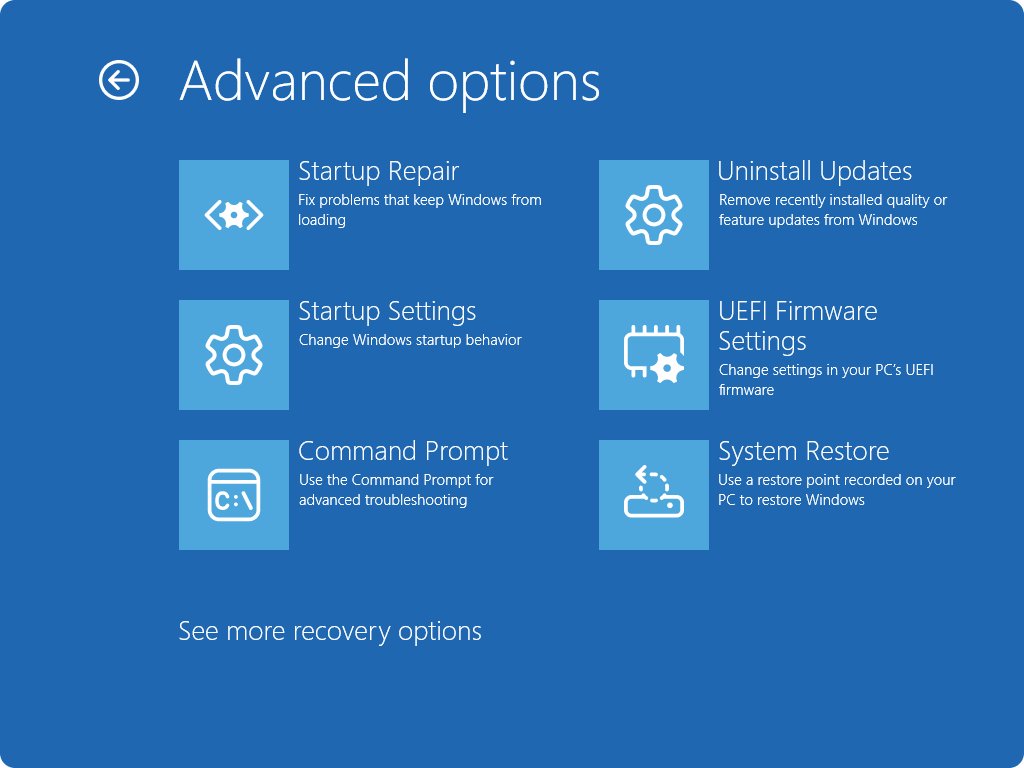
If Windows won't start, open the Windows Recovery Environment and select Troubleshoot > Advanced options > Uninstall Updates. You can also remove a problem update in other ways when Settings doesn't list it.
Windows Update “Error encountered” on Windows 11
Note any code shown beside the message, because Microsoft's fixes are listed by code. A list of Windows Update error codes helps you match it.
Error encountered with no clear cause
Microsoft's general sequence clears the most common causes, starting with the built-in troubleshooter.
- Select Start > Settings > System > Troubleshoot > Other troubleshooters.
- Select Run next to Windows Update and restart when it finishes.
- Disconnect external drives and docks you don't need.
- Turn on Set time automatically in Settings > Time & language > Date & time.
- Free up at least 20 GB of drive space on a 64-bit PC.
- Open Settings > Windows Update and select Check for updates.
Error 0x80070422 or 0x80248014 when the Windows Update service isn't running
Microsoft's fix for these codes is to get the Windows Update service running again, which also reverses the service method above.
- Press Win + R, type
services.mscand press Enter. - Right-click Windows Update and select Properties.
- Set Startup type to Automatic, select Apply, and select Start if the service is stopped.
- Select OK, then check for updates again.
Error 0x8007000d from a corrupted update cache
Microsoft links this code to corrupted update files or a damaged cache, and clearing the cache forces a fresh download.
- In
services.msc, right-click Windows Update and select Stop. - Go to
C:\Windows\SoftwareDistributionand delete all the files and folders inside it. - Right-click Windows Update and select Start.
- Check for updates again.
Error 0x80070057 or 0x80080005 from corrupt system files
Microsoft points to damaged system files or configuration, which DISM and System File Checker repair.
- Search for
command promptand select Run as administrator. - Run
DISM.exe /Online /Cleanup-image /Restorehealthand wait for the success message. - Run
sfc /scannowand wait until it reaches 100%. - Run Windows Update again.
When a DISM repair doesn't clear the error, work through the Windows Update component repair before you consider reinstalling.
How to read Windows Update logs in Windows 11
Windows Update no longer writes a readable log directly. It produces .etl trace files, and this PowerShell cmdlet merges them into one text file.
Get-WindowsUpdateLogRun it in PowerShell. It converts the trace files into WindowsUpdate.log on your desktop. Add -LogPath to choose another location, or use -IncludeAllLogs to also decode the orchestrator and interface logs into a desktop folder.
You should see: WindowsUpdate.log written to followed by your Desktop path.
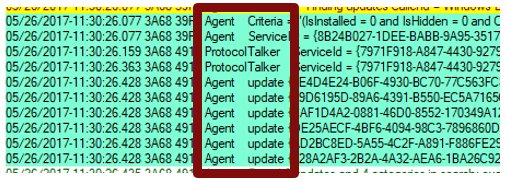
The file is a static copy and doesn't refresh, so run the cmdlet again to see newer events. Each line carries a time stamp, process and thread IDs, a component name and update identifiers. Search for *FAILED* and note the code beside it, as Microsoft's own examples show.
To focus on one area, filter by component: DownloadManager for downloads, Handler for installers, ProtocolTalker for server sync, and AU for Automatic Updates tasks.
Where are Windows Update log files in Windows 11
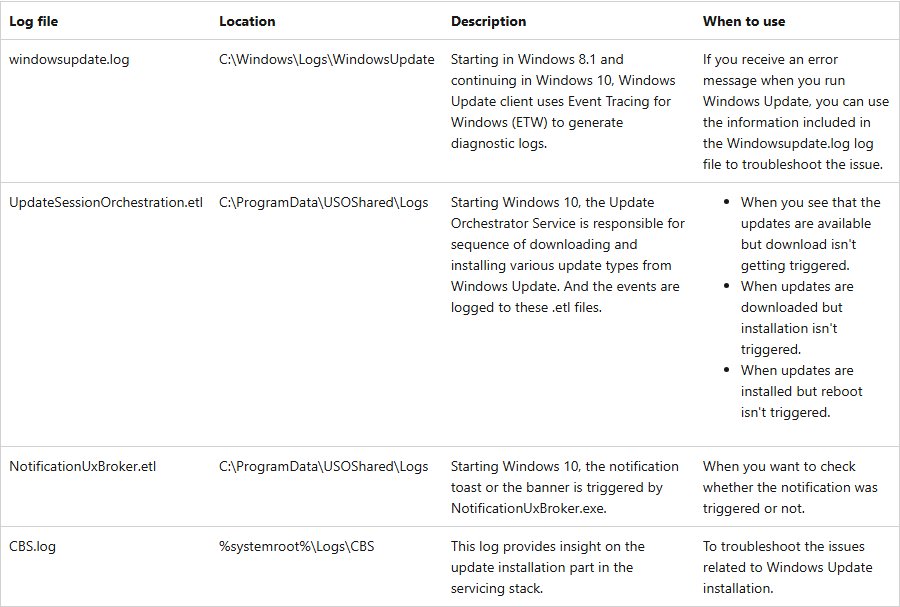
| Log file | Location | Use it when |
|---|---|---|
Windows Update .etl traces |
C:\Windows\Logs\WindowsUpdate |
Windows Update shows an error message |
UpdateSessionOrchestration.etl |
C:\ProgramData\USOShared\Logs |
An update doesn't start downloading, installing or restarting |
NotificationUxBroker.etl |
C:\ProgramData\USOShared\Logs |
You want to know whether a notification fired |
CBS.log |
%systemroot%\Logs\CBS |
An update fails during installation |
Is it safe to turn off automatic updates in Windows 11?
Pause instead of disabling unless you have a specific reason. Microsoft recommends staying updated to protect your PC from security risks. Its policy reference says the setting that turns off automatic updates should be used only for systems under regulatory compliance, because those devices won't receive security updates. If you disable updates, install them manually each month.
Turn off automatic updates in Windows 11 FAQ
How do I turn off automatic updates in Windows 11?
Set the Configure Automatic Updates policy to Disabled in gpedit.msc on Pro, Enterprise or Education. Windows then waits for you to download and install updates. On Home, use Pause updates in Settings or mark your network as metered.
How do I turn off automatic updates in Windows 10?
Use the same Configure Automatic Updates policy or the NoAutoUpdate registry value. Settings lives at Start > Settings > Update & Security on Windows 10. Windows 10 support ended on October 14, 2025, so it no longer gets free security fixes from Windows Update.
How do I disable automatic updates on Windows 11 Home?
Pause updates for up to 35 days, or set your network as a metered connection. Microsoft's update policy reference doesn't list Windows 11 Home, so Group Policy and its registry values aren't documented for that edition.
How do I stop automatic Windows 11 updates for a short time?
Open Settings > Windows Update, then use Pick a date on the Pause updates control. The end date can be up to 35 days from today. Windows installs the latest updates when the pause ends, unless you resume them sooner.
Is it safe to turn off Windows Update in progress?
Pausing is the Microsoft-documented way, and it cancels any update in progress. Microsoft doesn't document powering off during an install as a safe way to stop one. It advises keeping laptops plugged in so the device has enough power to finish.
What if I don't update Windows?
Your PC stops receiving security fixes and stays open to the risks those updates close. Microsoft recommends staying updated for that reason. Paused updates also return on their own, because Windows installs the latest ones when the pause limit is reached.
Do I need a tool to block automatic Windows updates?
No. Windows includes every control covered here: Pause updates, Metered connection, Group Policy, the NoAutoUpdate registry value and the Windows Update service. Each one can be reversed from the same place, without installing other software on your PC.
Why are updates still installing after I set a metered connection?
A metered connection limits Windows Update to priority updates instead of blocking everything. Those downloads continue on that network, and any other network you join isn't covered until you mark it as metered too.