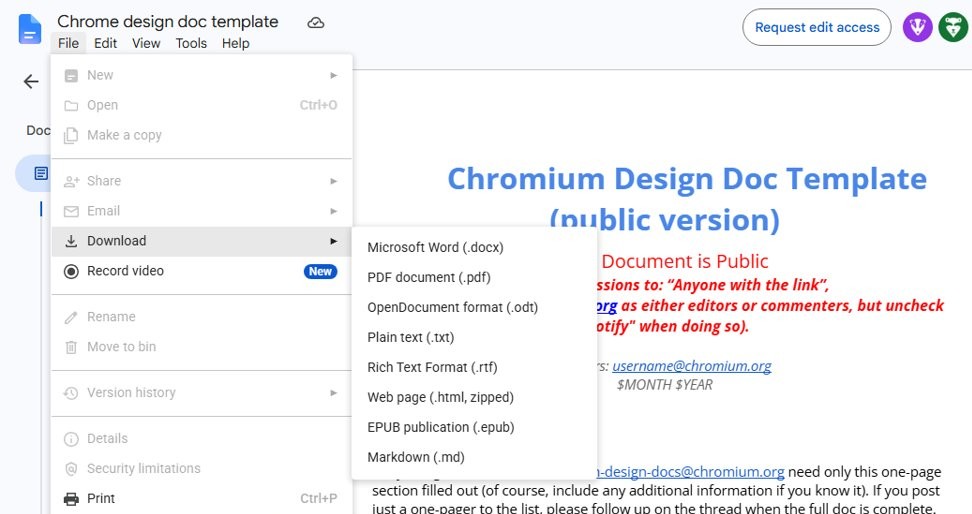
To convert a Google Doc to PDF, open it, select File > Download, and pick the PDF file type.
This guide covers that route, the Print route for large documents, documents with tabs, phones and tablets, several files at once, email attachments, and fixes when the PDF will not download.
Step by step tutorial: converting Google Docs to PDF
This is the standard route on Windows, Mac, Linux and ChromeOS. It needs only a browser and takes a few seconds on a normal document.
- Go to docs.google.com in your browser and sign in.
- Open the document you want to convert.
- Select File in the menu at the top of the document.
- Select Download to open the list of file types.
- Select the PDF entry, the one with the .pdf extension.
- Open the finished file from your browser's downloads list and check the pages.
If the document has more than one tab, a dialog appears before the download starts. Its default is Current Tab, so the section on tabs below matters for longer documents.
Convert Google Docs to PDF online free
Every route here is built into Google Docs or Google Drive and costs nothing. You do not need a third-party converter or an uploader site.
| Your situation | Use this | Why |
|---|---|---|
| A normal document on a computer | File > Download | It takes one menu and gives you a finished file |
| A very long document in Chrome | File > Print > Save as PDF | Google recommends this route for large Docs |
| A document split into tabs | File > Download, then All Tabs | Only the current tab exports unless you change it |
| An Android phone or tablet | More > Share & export > Print | The print screen offers Save as PDF as a destination |
| A whole folder of documents | A short Apps Script | It converts each file in the folder in one run |
| You want to send it right away | File > Email as attachment | You choose PDF and send without saving a local copy |
How to convert Google Docs to PDF file with Print
Google recommends this route for large documents in Chrome. The result is the same kind of file, created from the print preview instead of the Download menu.
- Open the document in Google Docs in Chrome.
- Select File > Print, or press Ctrl + P on Windows or Command + P on Mac.
- On the left, next to Destination, select Save as PDF.
- Select Save at the top of the dialog.
- Choose a folder and confirm the file name.
Firefox and Safari behave differently. Selecting File > Print in those browsers downloads a PDF automatically, and you open that file to print it from your PDF viewer.
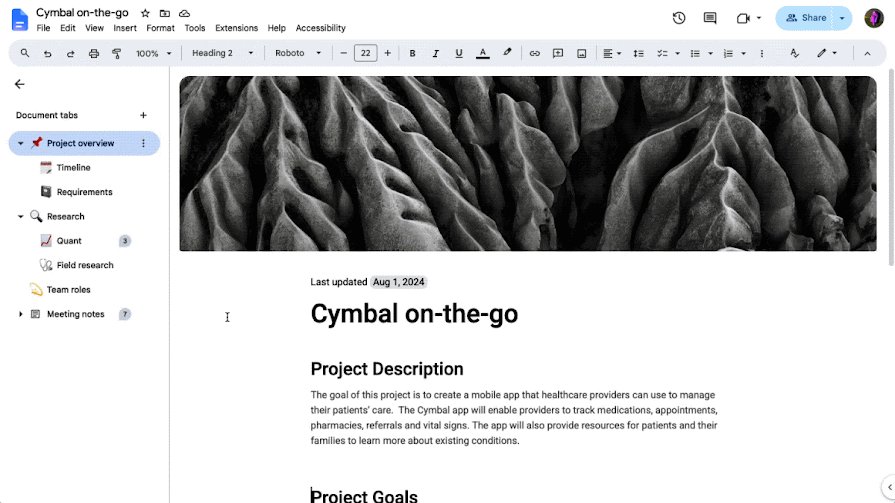
How to convert a Google Doc with tabs to PDF
Document tabs split one Google Doc into sections, and both exporting and printing make you choose what goes in the file.
- Open the document on a computer.
- In the toolbar, select File > Download, then the PDF file type.
- Find the Tab setting in the dialog that opens. It starts on Current Tab.
- Select All Tabs to include the whole document, or leave it to export one tab.
- Select Export to create the file.
To use the Print route instead, select File > Print, choose Print current tab or Print all tabs, then select Print in the dialog.
How to convert Google Docs to PDF on a phone or tablet
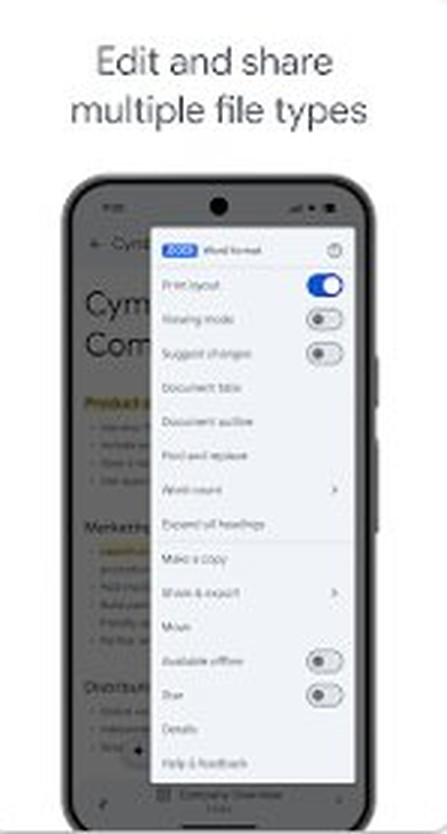
The Google Docs app reaches the same result through its print screen. On Android, the print screen can save to a PDF instead of sending the job to a printer.
- Open the Google Docs app on your Android phone or tablet.
- On the file you want to convert, tap More.
- Tap Share & export > Print.
- At the top of the print screen, select Save as PDF in place of a printer.
- Tap the print icon, then pick where to store the file on your device.
On iPhone and iPad, the path is the same: More > Share & export > Print, then follow the prompts on the print screen. If your phone offers no PDF destination, open the document on a computer and use File > Download.
How to convert multiple Google Docs to PDF at once
Selecting several files in Drive with Ctrl or Command and choosing Download has no file type step. To get PDFs from a whole folder, use this Apps Script, which saves a PDF beside each document.
function docsFolderToPdf() {
  var folder = DriveApp.getFoldersByName('Reports').next();
  var docs = folder.getFilesByType(MimeType.GOOGLE_DOCS);
  while (docs.hasNext()) {
    folder.createFile(docs.next().getAs(MimeType.PDF));
  }
}
Go to script.google.com, select New Project, and paste the code over the sample. Change Reports to the name of your Drive folder, select Run, and approve the access request.
You should see: A PDF copy next to each Google Doc in that folder. Your original documents stay as they are.
Try it on a small folder first, and keep the folder name unique, because the script uses the first match. Google applies daily quotas to conversions, so a very large folder can stop partway through.
How to email a Google Doc as a PDF attachment
This skips the local download and sends the PDF straight from the document.
- Open the document in Google Docs on a computer.
- Select File > Email as attachment.
- Under Attach as, choose PDF.
- Enter the recipient's address, a subject and a message.
- Send the email.
Personal Gmail accounts have a 25 MB limit on attachments. Past that limit, Gmail replaces the attachment with a Google Drive link. Work and school limits are set by the administrator.
What happens after converting Google Docs to PDF
| Question | Answer |
|---|---|
| Where does the PDF go? | In Chrome, it goes to your default download folder, which is \Users\<username>\Downloads on Windows and /Users/<username>/Downloads on Mac. |
| Can I pick a different folder? | Yes. In Chrome, open More > Settings > Downloads and select Change, or turn on the option to ask where to save each file. |
| What happens to the original Google Doc? | It stays in Drive unchanged. The PDF is a separate copy on your device. |
| Will later edits appear in the PDF? | No. The PDF shows the document as it was when you exported it, so export again after you edit. |
| Does the PDF stay in Google Drive? | No, a download only saves to your device. Use + > File upload at drive.google.com if you want the PDF stored in Drive. |
| Can I share the PDF? | Yes. It is an ordinary file that you can attach to an email or hand to someone with no Google account. |
Why is Google Docs converting to PDF
If you expected a printer dialog or a different file type and got a PDF, one of these explains it.
| What you did | Why you got a PDF | What to do instead |
|---|---|---|
| Selected File > Print in Firefox or Safari | Google Docs downloads a PDF automatically in those browsers | Open the PDF and print from your PDF viewer, or use Chrome |
| Selected File > Print in Chrome | Destination is set to Save as PDF | Change Destination to your printer, then select Print |
| Selected a file type under File > Download | The PDF entry was picked from the list | Repeat the download and select Microsoft Word (.docx) or another type |
Tips for converting Google Docs to PDF
Layout problems are easier to fix in the document than in the finished file, so make these changes before you export.
| Tip | How | Why it matters |
|---|---|---|
| Set page size and orientation first | File > Page setup | The PDF follows these page settings |
| Check your margins | File > Page setup, or set margins in Google Docs from the ruler | Tight margins are hard to correct after export |
| Switch pageless documents back to pages | Format > Switch to Pages format | This gives you control over the printed layout |
| Add headers and page numbers in pages format | Insert > Page elements, after switching | Pageless format cannot add headers, footers or page numbers |
| Finish signing before you export | Insert a signature in Google Docs first | A PDF is harder to change afterward |
| Export all tabs when you need them | Tab > All Tabs in the download dialog | The default exports the current tab only |
| Use Print for very long documents | File > Print > Save as PDF in Chrome | Google recommends it for large Docs |
Converting PDF to Google Docs
Google Drive also works in the other direction, and it creates an editable Google Doc from the PDF's text.
- Go to drive.google.com on a computer and upload the PDF.
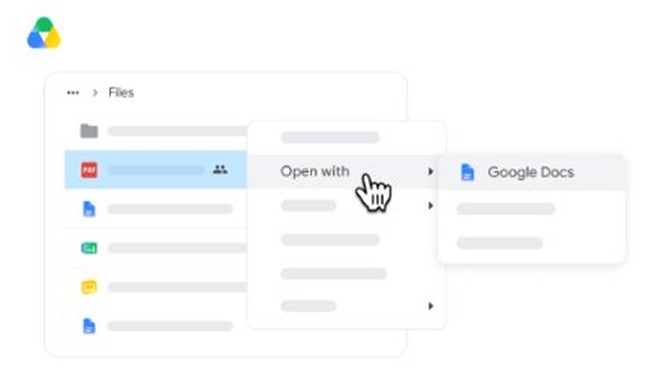
- Right-click the PDF.
- Select Open with > Google Docs.
- Check the converted text against the original, since some formatting may not carry over.
The file should be 2 MB or smaller, upright, and have text at least 10 pixels high. Bold, italics, font size, font type and line breaks usually survive, while lists, tables, columns, footnotes and endnotes often do not. If you need a Word file instead, you can convert the PDF to Word directly.
Google Docs to PDF download not working
The PDF will not download from Google Docs
A temporary error, a browser extension or stale browser data is usually behind it.
- Wait five minutes, then reload the page and try again.
- Open the document in a private browser window to test it without extensions.
- If that works, turn your extensions off one at a time to find the one causing it.
- Clear your cached files and cookies, then sign in again.
- Update your browser, or try another browser or device.
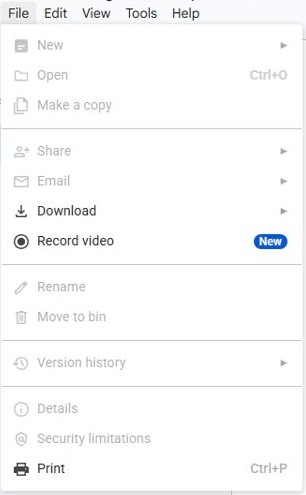
Download or Print is missing from the File menu
The owner can stop people from downloading, copying or printing a shared file.
- Check whether the file is shared with you as a viewer or commenter.
- Ask the owner to allow your role under People who can download, copy, print, and access in the Share settings.
- Ask the owner to send you the PDF if they keep that restriction.
The PDF download is slow or fails on a large document
Very long documents can struggle with the standard route, which is why Google offers a second one.
- Open the document in Chrome.
- Select File > Print.
- Next to Destination, select Save as PDF.
- Select Save.
The PDF only contains part of the document
The download dialog defaults to Current Tab when a document has tabs.
- Select File > Download and the PDF type again.
- Set Tab to All Tabs.
- Select Export.
The Google Doc looks different when converting to PDF
A pageless document has no fixed pages, so images resize to fit the page width and wide tables shrink.
- Select Format > Switch to Pages format.
- Open File > Page setup and set the orientation, paper size and margins.
- Scroll through the document and fix any tables or images that moved.
- Export the PDF again and compare the pages.
Converting Google Docs to PDF FAQ
How do I convert Google Docs to a PDF file?
Open the document, select File, then Download, and pick the PDF entry from the list of file types. The file saves to your computer's download folder. In Chrome, File then Print with Save as PDF gives the same kind of file.
Can I convert Google Docs to PDF for free?
Yes. The PDF option is built into Google Docs at no charge, and you do not need a converter site or extra software. A regular Google account and a browser are enough on any computer.
Why is Google Docs converting to PDF when I print?
In Firefox and Safari, File then Print downloads a PDF automatically, and you print from your PDF viewer. In Chrome, the Destination setting may be on Save as PDF, so change it to your printer.
How do I convert multiple Google Docs to PDF at once?
Use a short Apps Script that loops through a Drive folder and creates a PDF copy of each document. Selecting several files in Drive and choosing Download has no step for picking PDF as the file type.
Can I convert a Google Doc to PDF on my phone or tablet?
Yes on Android. In the Google Docs app, tap More on the file, then Share & export, then Print, and select Save as PDF at the top of the print screen. iPhone and iPad use the same path to Print.
Will the PDF look exactly like the Google Doc?
It matches closely when the document uses pages format. Pageless documents change more, because images resize to the page width and wide tables shrink. Hidden headers, footers and footnotes from an earlier pages layout can also appear.
Can I convert a Google Doc to PDF without a Google account?
Only if the owner shares it publicly. With Anyone with the link, a file opens without signing in, and the owner decides whether viewers can download or print. Otherwise, ask the owner to send you the PDF.
What if I'm having trouble downloading the PDF?
Wait five minutes and reload the page, then try a private window to rule out extensions. Clear cached files if that fails. For a very long document, use File then Print and select Save as PDF in Chrome.
Does converting to PDF change the original Google Doc?
No. The download creates a separate copy, and the original stays in Google Drive with its version history and sharing settings intact. Any edits you make later appear only in the Google Doc until you export it again.
Can I open a PDF in Google Docs without converting it?
Google Docs itself converts the file when you choose Open with. To read a PDF unchanged, double-click it at drive.google.com, where it opens in preview. Drive settings let you choose a new tab or the same-tab preview.