To set up Alexa on an Echo, plug the Echo in, open the Alexa app on your phone, select Devices, then the plus icon, Add Device and Amazon Echo, and follow the prompts to connect it to Wi-Fi.
This guide walks through each step for an Echo, Echo Dot or Echo Pop, explains what the light ring colors mean during setup, and shows how to move the Echo to a new Wi-Fi network, reset it and fix a setup that will not finish.
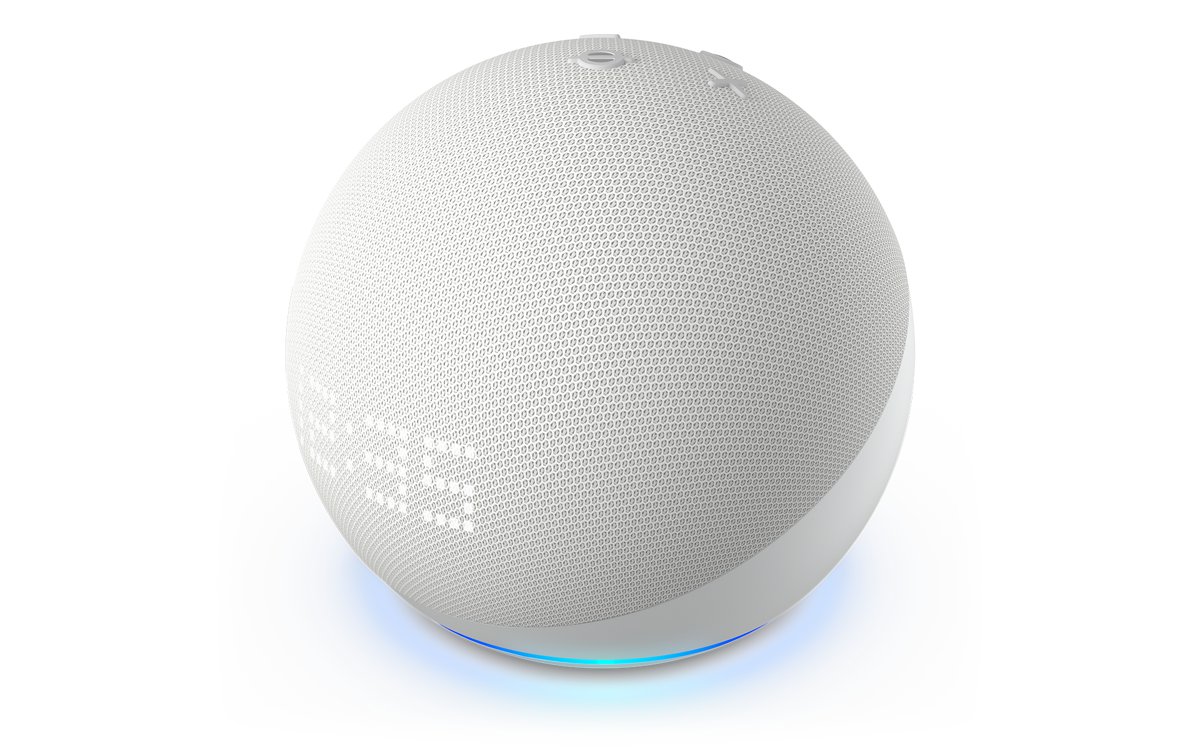
Step by step tutorial: Setting up Alexa on an Echo
Setup runs from the Alexa app on a phone or tablet. Have your Wi-Fi network name and password ready (you can look up a saved Wi-Fi password on a connected phone or computer), and keep the Echo within 30 feet (9 meters) of the router for the first connection.
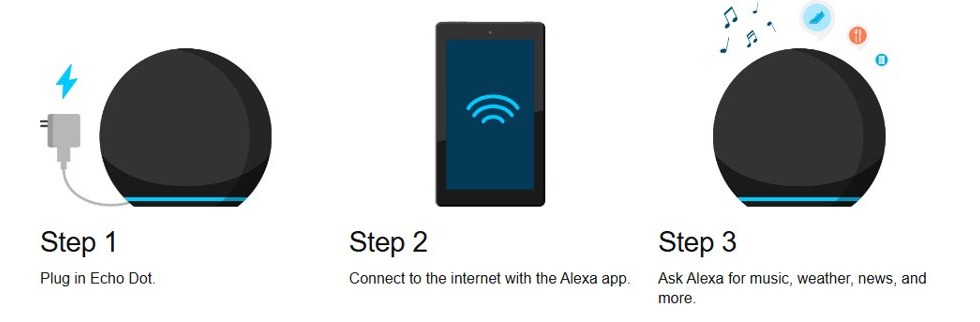
- Download the Amazon Alexa app from your phone's app store, or update it if it is already installed, and sign in with your Amazon account.
- Plug the Echo into power with the adapter that came in the box. The light ring spins teal and blue while it starts, then turns orange when it is ready for setup.
- In the Alexa app, select Devices.
- Select the plus icon, then select Add Device.
- Select Amazon Echo, then select Echo, Echo Dot, Echo Pop and more.
- Follow the instructions in the app. When it asks for a network, pick your Wi-Fi network and enter its password.
- Wait for the app to confirm the Echo is connected, then say "Alexa" followed by a request, such as "Alexa, what's the weather?"
If the ring stays orange or turns purple during setup, the Echo cannot reach your Wi-Fi network. The fixes are in the setup troubleshooting section below.
Echo light colors during Alexa setup
The light ring is how an Echo speaker tells you what it is doing. During setup, three colors matter most: spinning teal and blue, orange and purple.
| Light | What it means | What to do |
|---|---|---|
| Slowly spinning teal and blue | The Echo is starting up, or restarting after a software update | Wait; it turns orange when ready for setup |
| Orange | Setup mode, or the Echo is trying to connect to the internet | Continue setup in the Alexa app |
| Purple during first setup | The Echo has Wi-Fi problems | Check the Wi-Fi password and move it closer to the router |
| Cyan spotlight on a blue ring | Alexa is listening | Speak your request |
| Solid red | The microphone is turned off and Alexa is not listening | Press the microphone button again |
| Slow yellow pulse | A message, notification or missed reminder is waiting | Say "Alexa, what are my notifications?" |
| Purple briefly after a request | Do Not Disturb is on | Turn Do Not Disturb off if you want calls and alerts |
| White | Shows the volume level as you change it | No action needed |
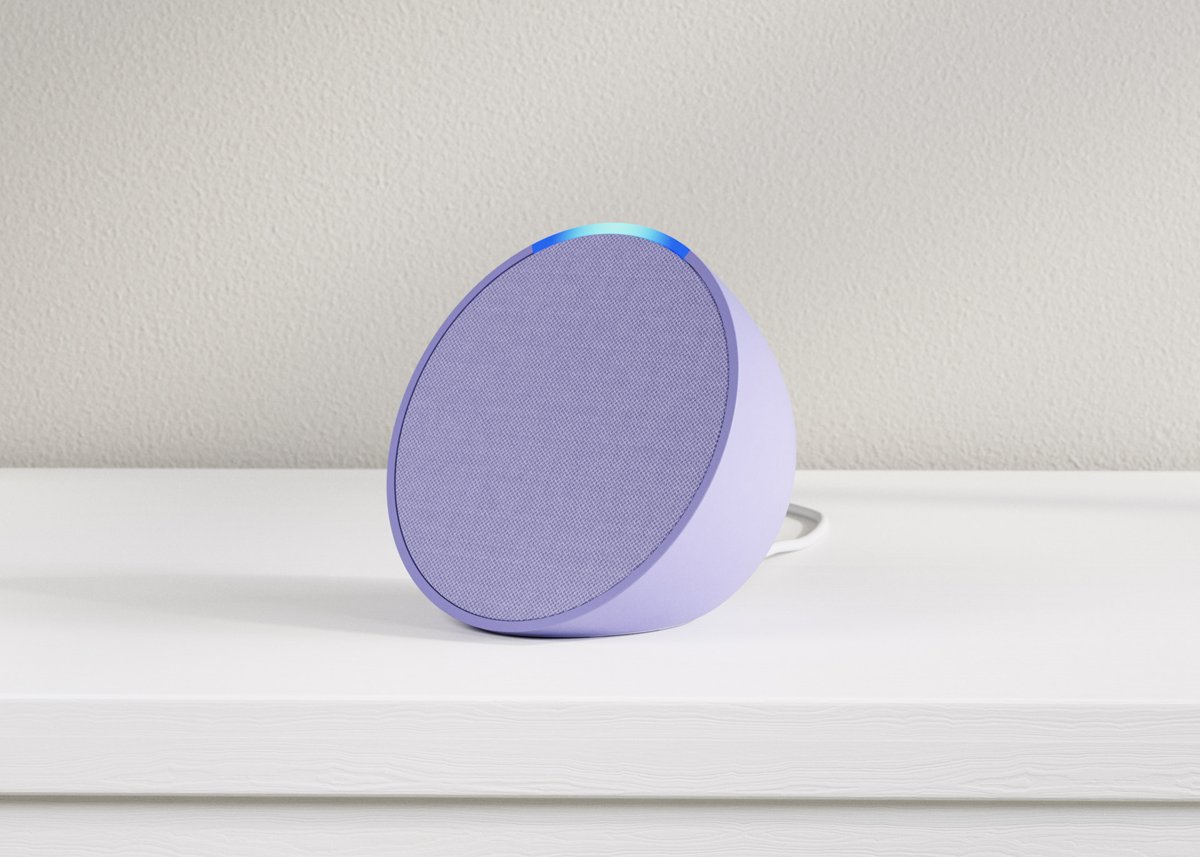
How to set up Alexa on new WiFi
When you replace your router or change your Wi-Fi password, the Echo loses its connection until you give it the new details. On an Echo with a screen, such as an Echo Show, change the network on the device itself instead of in the app.
- Open the Alexa app and select Devices.
- Select your Echo.
- Select Device Settings, the gear icon.
- Select Change or remove a Wi-Fi network.
- Pick a network you used before, or select Join another Wi-Fi Network if the new one is not listed.
- Enter the password and follow the prompts until the app confirms the Echo is online.
Echo devices connect to standard home Wi-Fi on the 2.4 GHz and 5 GHz bands (802.11a/b/g/n). They cannot join ad-hoc or peer-to-peer networks, so a phone hotspot set up that way will not work.
To check which network an Echo is on, open the device's settings in the Alexa app and read the name under Wi-Fi Network.
Tips: Enhancing your Alexa experience on an Echo
Once the Echo is online, a few settings in the Alexa app make it far more useful. Each one takes a minute or two.
| Tip | How to do it | Why it helps |
|---|---|---|
| Link a music service | In the Alexa app, link your music streaming account so Alexa can play from it | Lets you say "Alexa, play" plus an artist or playlist |
| Connect smart home devices | Add Amazon and Matter devices in the Alexa app; set up other brands in their own app first, then link them | Control lights, plugs and thermostats by voice |
| Link your TV or video service | Link your TV or video provider in the Alexa app | Voice control for compatible TVs and services |
| Choose a different wake word | The wake word is "Alexa" by default; pick another in the Echo's settings in the Alexa app | Stops the Echo waking when someone nearby is called Alexa |
| Use Do Not Disturb | Turn on Do Not Disturb for the Echo in the Alexa app | Blocks calls and notifications at night |
| Check what Alexa heard | Say "Alexa, tell me what you heard" or "Alexa, why did you do that?" | Explains an odd response and helps you rephrase |
| Mute the microphones | Press the microphone button; the ring turns red | Disconnects the microphones until you press it again |
| Join an eero network | If you use eero Wi-Fi, connect the Echo to your eero network | Keeps the Echo on the same managed home network |
Placement matters too. An Echo away from microwaves, baby monitors and other electronics keeps a steadier Wi-Fi connection.
If children use the Echo, turn off Alexa voice purchasing so nobody places an order by accident.
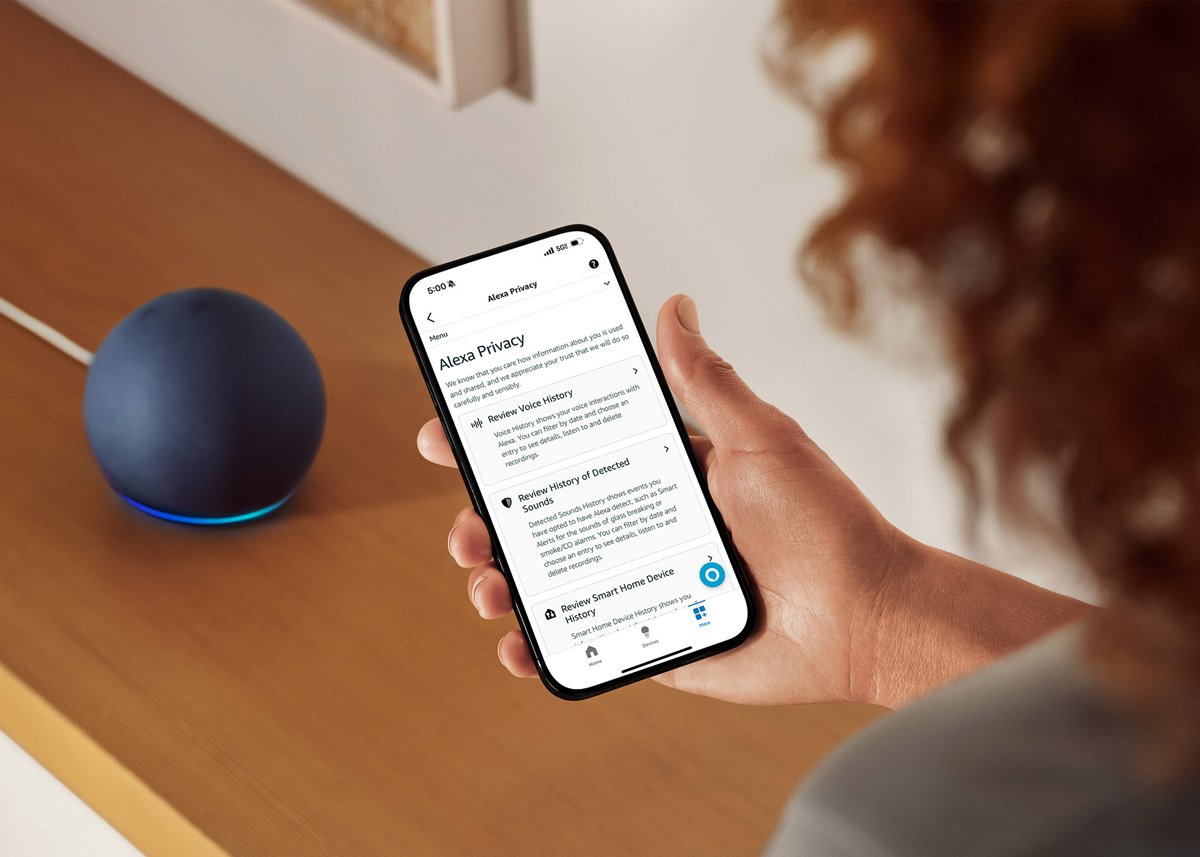
How to set up Alexa smart home devices on an Echo
How you add a smart home device depends on who makes it. The Alexa app can set up Amazon devices and Matter-certified devices directly; other Wi-Fi devices go through their maker's app first.
- For a third-party Wi-Fi device that is not Matter certified, set it up in the manufacturer's app and connect it to your Wi-Fi.
- In the manufacturer's app, link your Alexa account if it offers that option during setup.
- If it does not, open the Alexa app and activate the manufacturer's skill to connect the two accounts.
- For Amazon and Matter devices, open the Alexa app, select Devices, select the plus icon and choose Add Device, then follow the prompts.
- Say "Alexa" and a command to the Echo, such as turning a light on, to test the new device.
If a third-party device works in its own app but not with Alexa, reactivate its skill in the Alexa app. Only Amazon and Matter devices can have their Wi-Fi changed from the Alexa app.
How to reset an Echo Dot and set it up again
A reset puts the Echo back into setup mode. Try a restart first: unplug the Echo, wait 10 seconds and plug it back in. These steps are for the Echo Dot 2nd to 5th generation; other Echo models have their own button combinations on Amazon's support pages.
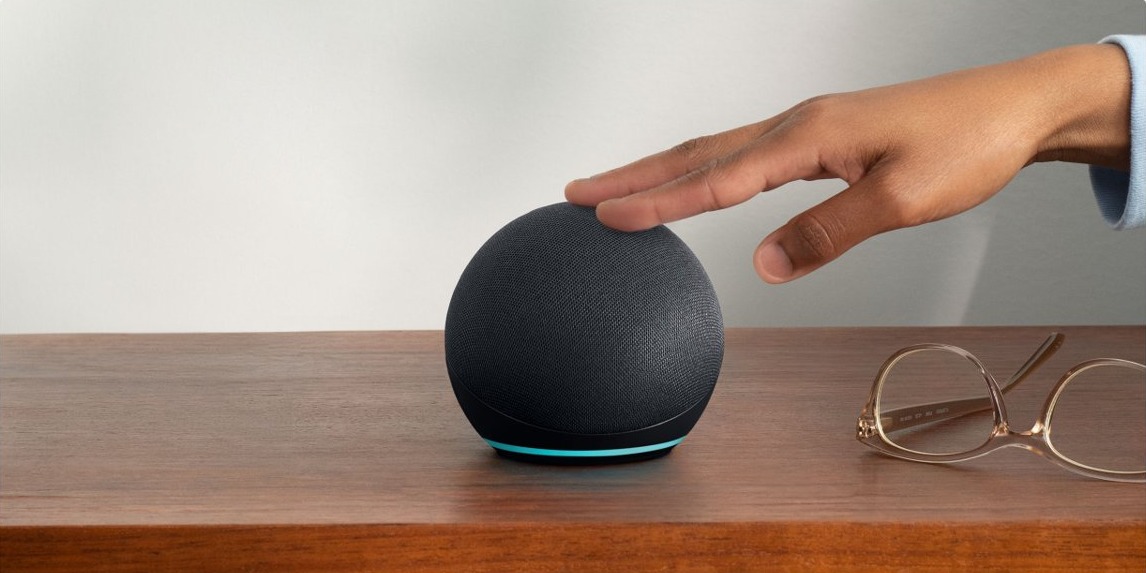
- To reset and keep your smart home connections, press and hold the Action button for 20 seconds.
- To reset to factory settings instead, press and hold the Volume down and Microphone off buttons together for 20 seconds.
- Wait for the light ring to turn off and on again.
- When the ring turns orange, the Echo is in setup mode.
- Open the Alexa app and repeat the setup steps at the top of this page.
A factory reset erases your personal information and every device and smart home connection on that Echo. If you are giving the Echo away, deregister it from your Amazon account as well, which erases all its settings.
Why can't I set up my Alexa?
Most setup failures come down to a weak Wi-Fi connection, an outdated Alexa app or an Echo that needs a restart.
Setup fails or the app cannot find the Echo
An old version of the Alexa app or an Echo that is stuck mid-start.
- Update the Alexa app from your phone's app store.
- Unplug the Echo, wait 30 seconds and plug it back in.
- Wait for the orange light, then start setup again from Devices > plus icon > Add Device.
- If setup still fails, or the Echo will not register to your account, reset the Echo and try once more.
Light turns purple during setup
The Echo cannot connect to your Wi-Fi network.
- Double-check the Wi-Fi password you typed in the app.
- Move the Echo within 30 feet (9 meters) of the router and away from microwaves and baby monitors.
- If your router shows separate 2.4 GHz and 5 GHz network names, try the other one.
- Turn off a few other connected devices for a moment and try again.
Alexa is not connecting to Wi-Fi after setup
The router, the password or the network changed.
- Test the internet on another device. If nothing connects, restart your router.
- Unplug the Echo for 30 seconds, then plug it back in.
- If you changed the Wi-Fi password, update it under Device Settings > Change or remove a Wi-Fi network in the Alexa app.
- If the connection keeps dropping, reset the Echo.
Light stays orange and never finishes
The Echo is still in setup mode or cannot reach the internet.
- Finish setup in the Alexa app; the orange light stays on until setup completes.
- If setup was already done, check that the Wi-Fi network is working and restart the Echo.
- If several devices lose their connection, wait for a possible outage to clear or contact your internet provider.
Alexa Echo setup FAQ
How do I set up Alexa?
Plug in the Echo, open the Alexa app, select Devices, the plus icon, Add Device and Amazon Echo, then follow the prompts. The app connects the Echo to your Wi-Fi and your Amazon account, and you can talk to Alexa as soon as it confirms.
What if my Echo device won't connect to Wi-Fi?
Restart it by unplugging it for 30 seconds, check the Wi-Fi password, and move it within 30 feet of the router. If your router has separate 2.4 GHz and 5 GHz networks, try the other one. Reset the Echo if it still will not connect.
How do I set up Alexa on new WiFi?
In the Alexa app, select Devices, your Echo, Device Settings, then Change or remove a Wi-Fi network. Choose the new network or select Join another Wi-Fi Network and enter the password. Echo Show and other screen devices change Wi-Fi on the device itself.
Can I change the wake word for Alexa?
Yes. The wake word is Alexa by default, but you can choose a different one in the Echo's settings in the Alexa app. The Echo only starts listening to a request after it detects the wake word you chose.
How do I reset my Echo device?
On an Echo Dot 2nd to 5th generation, hold the Action button for 20 seconds to reset while keeping smart home connections. Hold Volume down and Microphone off for 20 seconds for a factory reset that erases everything, then set it up again.
What smart home devices can Alexa control?
Alexa can control Amazon devices, Matter-certified devices and many third-party devices. Set up third-party Wi-Fi devices in their maker's app first, then link them to Alexa through that app or by activating the maker's skill in the Alexa app.
How do I make my Alexa work again?
Unplug the Echo, wait 30 seconds and plug it back in. Check that the light ring is not red, which means the microphone is off, and that your Wi-Fi works on another device. If Alexa still does not respond, reset the Echo and set it up again.
How do I use Alexa after setup?
Say the wake word, Alexa by default, followed by your request. A cyan spotlight on the blue ring shows that Alexa is listening. Ask for the weather, a timer, music from a linked service, or control of a connected smart home device.