Error 9 on an iPhone 4 restore means the iPhone disconnected from the computer mid-restore, and Apple's fix is to force restart the phone, reconnect it and choose Update instead of Restore.
This guide covers the force restart on an iPhone 4, recovery mode, the USB and security software checks Apple lists, and what to do when error 9 keeps returning.
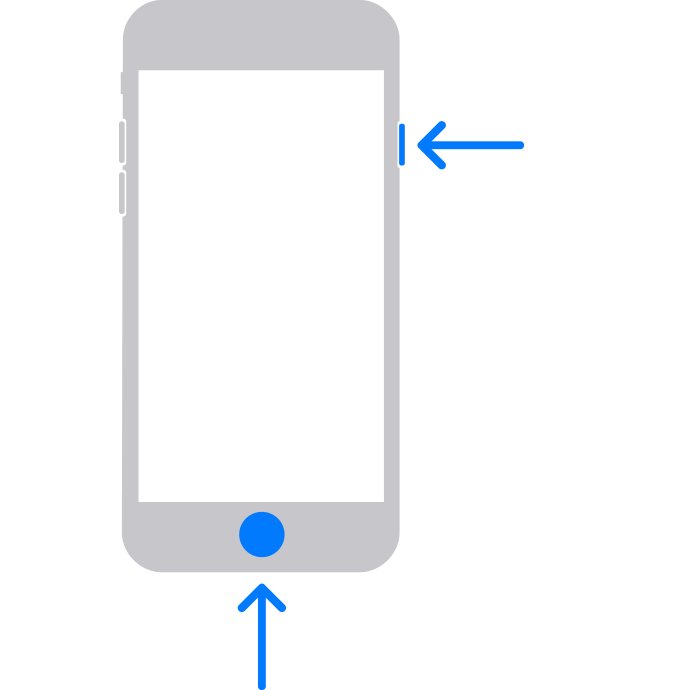
How to fix error 9 when restoring iPhone
Apple groups error 9 with errors 4005, 4013 and 4014. All four appear when the device disconnects during an update or the computer loses its connection to it during a restore.
- Update iTunes or the Apple Devices app on Windows, or macOS on a Mac.
- Force restart the iPhone 4: press and hold the Home button and the top button together until the Apple logo appears.
- Connect the iPhone to the computer with a USB cable and find it in iTunes, Apple Devices or Finder.
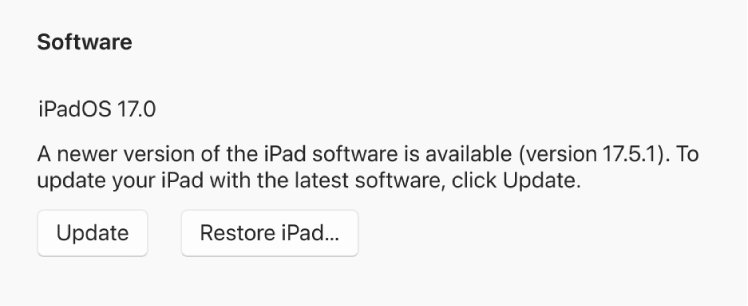
- When you see the option to update or restore, click Update, not Restore.
- Leave the cable connected until the software installs and the iPhone restarts.
Update reinstalls iOS and keeps your personal data. If the iPhone starts in recovery mode during the update, restore it instead and set it up from a backup.
What is unknown error 9 on iPhone restore?
| Question | Answer |
|---|---|
| What does the message say? | "The iPhone [device name] could not be restored. An unknown error occurred (9)." |
| What causes it? | The device disconnected during the update, or the computer lost its connection with it during the restore |
| Related codes | Errors 4005, 4013 and 4014 have the same cause and the same fixes |
| Does it affect other models? | Yes. It appears on any iPhone, iPad or iPod touch, not only the iPhone 4 |
| Is the iPhone erased? | A restore erases all data. An update keeps it, which is why Apple suggests Update first |
| How to identify an iPhone 4 | Model number A1349 or A1332 on the back cover; the CDMA model has no SIM tray |
iPhone restore error 9 causes and fixes
| Your situation | Do this | Why |
|---|---|---|
| First time you saw error 9 | Force restart, then choose Update | Apple's first step for error 9 keeps your data |
| The iPhone shows the Connect to computer screen | Restore in recovery mode | The phone cannot start until iOS is reinstalled |
| The restore stops at the same point every time | Change the USB cable and port | A weak cable or port drops the connection |
| You connect through a keyboard or hub port | Use a port on the computer itself | Keyboard ports often lack the power a restore needs |
| You have antivirus or a firewall on Windows | Check the security software | Apple lists it as a cause of restore failures |
| Error 9 on two computers and two cables | Contact Apple | Apple says to contact support at this point |
Force restart iPhone 4 before an update or restore
A force restart clears the stuck state that a broken restore leaves behind. The button combination depends on the model, so use the row for your phone.
- iPhone 4, iPhone 6s or earlier and iPhone SE (1st generation): press and hold the Home button and the top or side button until the Apple logo appears.
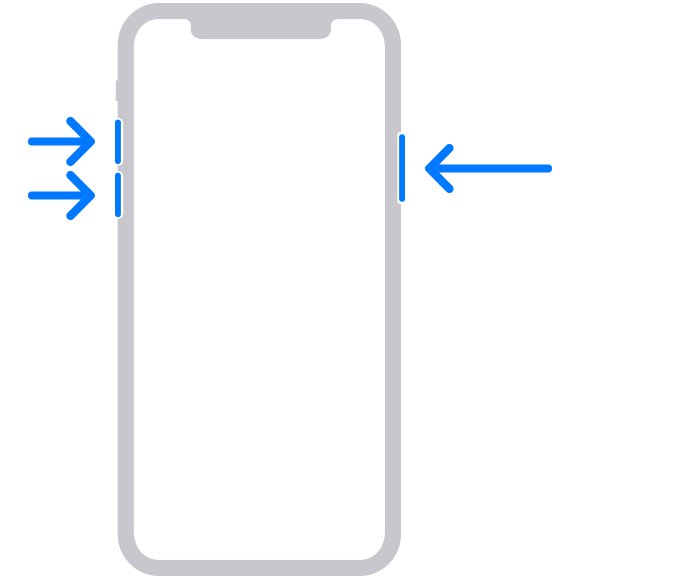
- iPhone 7 and iPhone 7 Plus: press and hold the side button and the Volume Down button, then release at the Apple logo.
- iPhone 8 or later: press and release Volume Up, press and release Volume Down, then hold the side button until the Apple logo appears.
- iPad with a Home button: hold the top button and the Home button until the Apple logo appears.
- Connect the device to the computer once it has restarted.
Update iPhone in iTunes instead of restoring to fix error 9
Apple's first fix for error 9 is to update instead of restore. Update reinstalls iOS without erasing the phone.
- Unlock the iPhone and connect it to the computer.
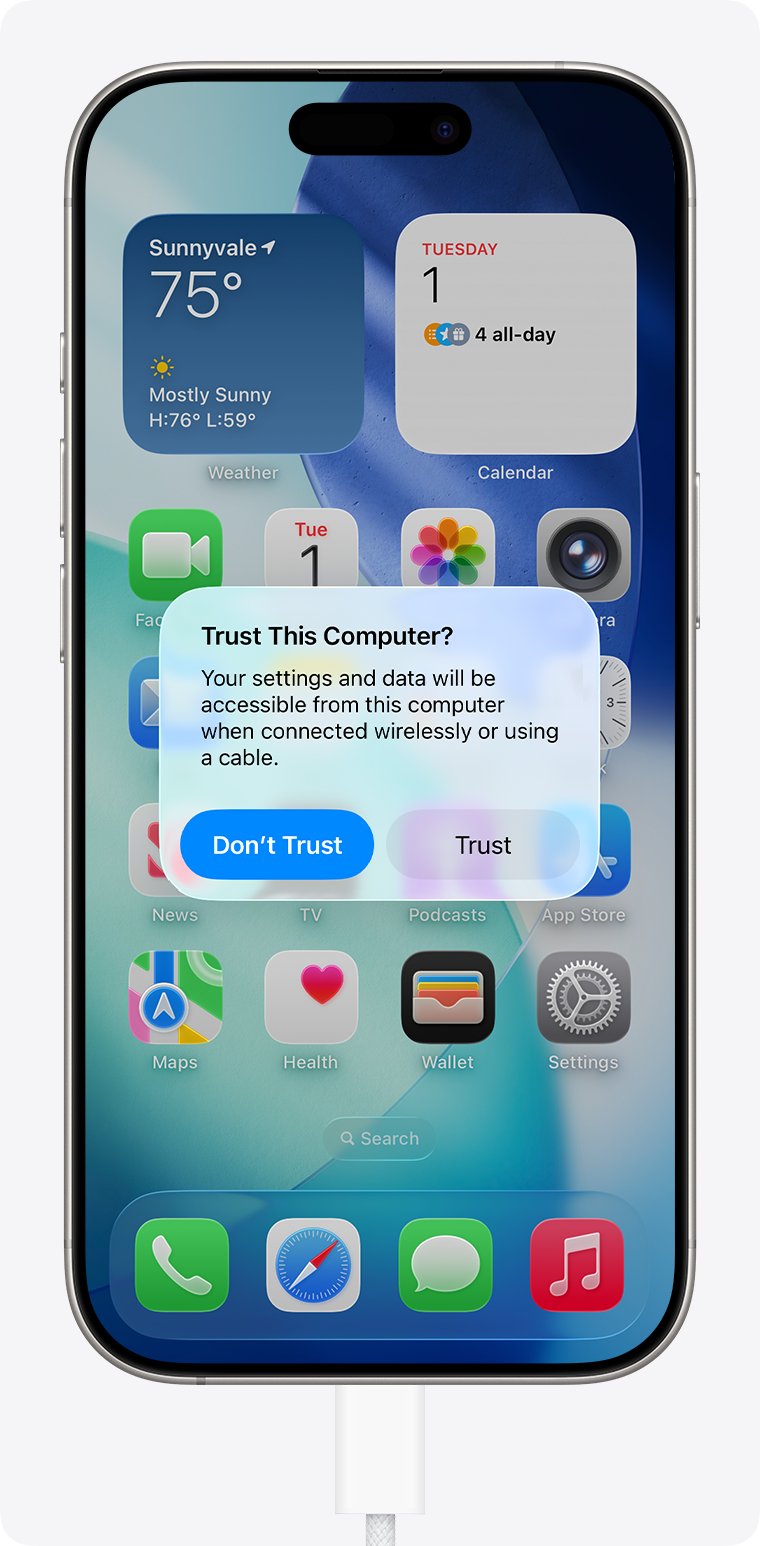
- If Trust This Computer? appears, tap Trust and enter your passcode.
- Select the iPhone. In iTunes, click Summary; in the Apple Devices app or Finder, click General.
- Click Check for Update, then click Download and Update.
- Keep the iPhone connected until the download and installation finish.
If you restarted the computer to install its own updates, check for updates again after the restart.
Restore iPhone 4 in recovery mode after error 9
If the iPhone will not start after the failed restore, iPhone 4 recovery mode lets the computer reinstall iOS. A restore erases everything, so try Update from this screen first. A backup made with iTunes or iCloud puts your data back afterwards.
- Update the Apple Devices app on the PC, or macOS on the Mac.
- Connect the iPhone to the computer with a USB cable.
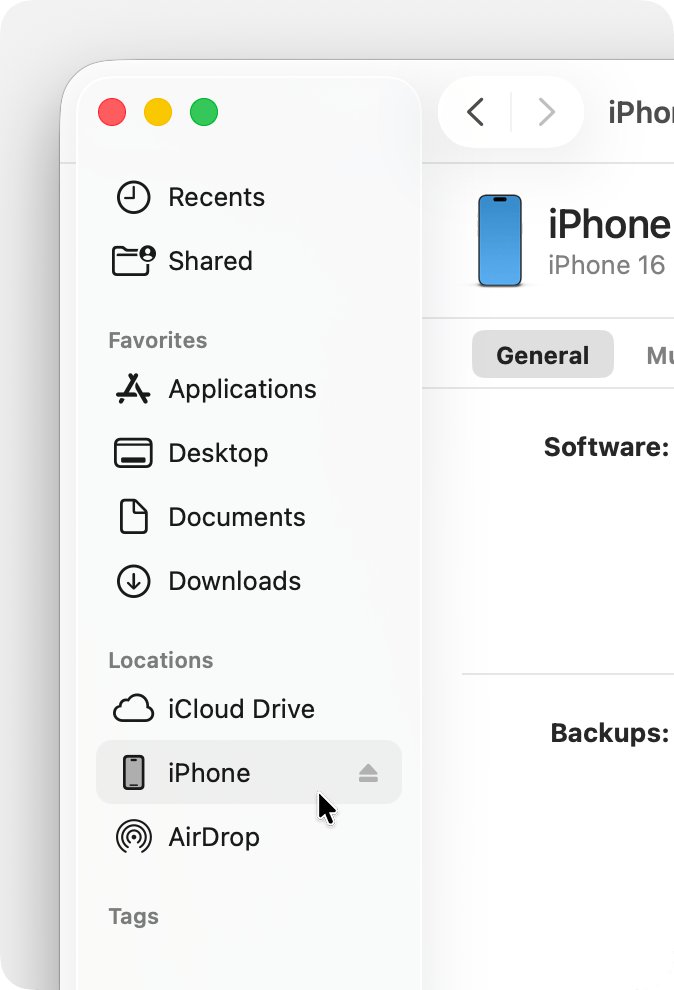
- Open the Apple Devices app on the PC, or Finder on the Mac.
- Press and hold the Home button and the top button together.
- Keep holding until the Connect to computer screen appears.
- When the computer offers Update or Restore, choose Update. Choose Restore only if Update fails.
- Wait while the computer downloads the software. If the download takes more than 15 minutes and the phone leaves recovery mode, let it finish, then enter recovery mode again.
A phone that keeps returning to this screen needs the steps for an iPhone stuck on support.apple.com/iphone/restore.
Restore iPhone with the Apple Devices app on Windows
On Windows, Apple now handles backup, update and restore in the Apple Devices app from the Microsoft Store.
- Open the Microsoft Store, search for Apple Devices and select Get if it is not installed.
- Connect the iPhone with a USB cable and select it in the sidebar.
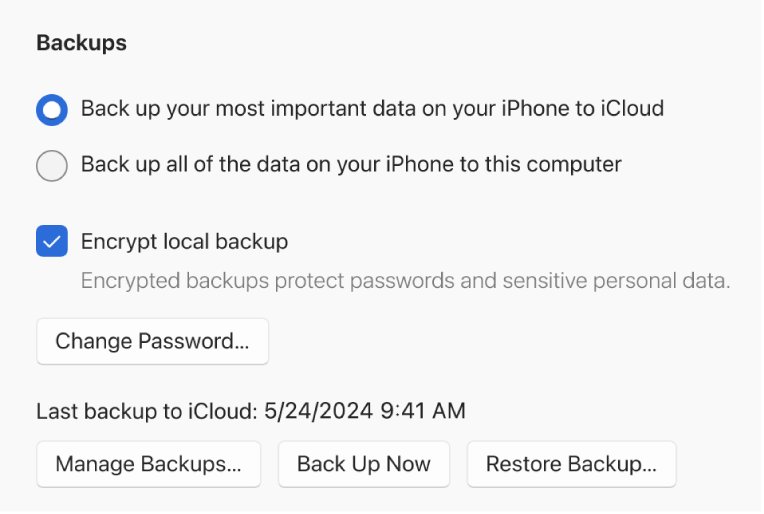
- Select General, then select Backup Now if the phone still starts.
- Select Restore iPhone and follow the onscreen instructions.
- After the restore, select Restore Backup, choose the newest backup and select Restore.
Restoring to factory settings deletes all information and settings on the iPhone. The backup on your PC is what brings your apps, messages and settings back.
Error code 9 iPhone restore: try another USB cable, port and computer
Because error 9 is a lost connection, the cable and port are the next things to change. Try the restore again after each step.
- Use the USB cable that came with the iPhone, or another Apple-certified cable that supports data.
- Unplug it and check the iPhone's charging port for lint or debris.
- Plug the cable into a different USB port on the computer, not the port on a keyboard.
- Restore again and leave the computer and cable untouched until it finishes.
- If the error repeats, restore the iPhone on another computer.
Security software causing iTunes error 9 on Windows
Apple lists error 9 under its security software checks, because third-party antivirus and firewall apps can block iTunes from the device or Apple's servers. Keep the protection on and fix its settings.
- Sign in to Windows with an administrator account, not a guest account.
- Check that the date, time and time zone on the PC are correct.
- Keep only one security product installed on the PC.
- Ask your security software vendor to allow the ports and services Apple products use.
- Close and reopen iTunes or Apple Devices, then try the update again.
How to tell if the iPhone restore finished
- Watch for the iPhone to restart and show the setup screen after a restore, or your Lock Screen after an update.
- In iTunes, Apple Devices or Finder, confirm the iPhone appears with no error message.
- Open the General or Summary page and confirm it shows the iOS version without an update prompt.
- On the iPhone, open Settings > General > Software Update to see the installed iOS version.
iPhone won't restore error 9
iPhone cannot be restored, error 9 keeps coming back
The connection still drops during the restore.
- Check for updates to the computer, then check again after any restart.
- Change to another USB cable and another port.
- Restore on another computer.
iPhone recovery error 9 during an update
The phone dropped into recovery mode partway through the update.
- Choose Restore instead of Update this time.
- Wait for the restore to finish without touching the cable.
- Set up the iPhone from your latest backup.
iPad restore error 9
Same cause as on iPhone: the iPad lost its connection to the computer.
- On an iPad without a Home button, press and release the volume button closest to the top button, then the one farthest from it, then hold the top button until it restarts.
- On an iPad with a Home button, hold the top and Home buttons until the Apple logo appears.
- Reconnect and choose Update.
Unknown error 9 after Apple's steps on two computers
A fault the computer cannot fix, such as a stuck button or a hardware problem.
- Confirm the force restart buttons respond normally.
- Note the error number and the computer you used.
- Contact Apple Support for service.
iPhone restore error 9 FAQ
What does error 9 mean when restoring an iPhone?
Error 9 means the iPhone disconnected during the update or the computer lost its connection to it during the restore. The full message reads "The iPhone could not be restored. An unknown error occurred (9)." Apple treats it the same as errors 4005, 4013 and 4014.
How do I fix unknown error 9 on iPhone 4?
Update iTunes or the Apple Devices app, then force restart the iPhone 4 by holding the Home and top buttons until the Apple logo appears. Reconnect it and choose Update instead of Restore. If that fails, change the cable, port or computer.
Will I lose my data fixing error 9?
Not if Update works, because it reinstalls iOS and keeps your personal data. A Restore erases everything on the iPhone, so you need an iTunes, Apple Devices or iCloud backup to get your content back afterwards.
Why does my iPhone say it cannot be restored with error 9?
The connection between the iPhone and the computer dropped. A worn cable, a keyboard or hub USB port, a computer that needs updates or third-party security software can all interrupt the restore and produce error 9.
How do I put an iPhone 4 into recovery mode?
Connect the iPhone 4 to the computer, open Finder or the Apple Devices app, then press and hold the Home and top buttons together. Keep holding until the Connect to computer screen appears, then choose Update or Restore.
Can antivirus cause iTunes error 9?
Yes. Apple lists error 9 under its security software checks. Make sure the date and time are right, use an administrator account, keep only one security product and ask the vendor to allow the ports Apple products use.
Does error 9 mean my iPhone is broken?
Not necessarily. Error 9 is a connection error first. If it appears on two computers with two different cables, or the buttons needed for recovery mode stick, Apple says the device may need service.
Is error 9 the same on iPad?
Yes. iPad shows the same unknown error 9 for the same reason. Force restart the iPad with its own button sequence, reconnect it, choose Update, and change the cable or computer if the error comes back.